Back to Top

Tech, Web, Cloud & Cabling Services

Category: Microsoft Office 2016

Microsoft Stream: The future of secure business video

Microsoft is previewing Stream, a new service for publishing and managing business videos. One day it will be the default video publishing system for Office 365.
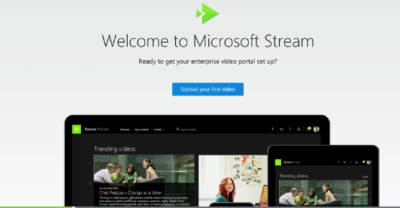
MicrosoftStream


On July 18, 2016, Microsoft announced that a preview version of a new service called Microsoft Stream was available. Like most of you, I passed over the news with an indifferent “whatever” attitude. But later I realized that the news was actually more important than I had first thought.

Microsoft Stream fulfills a niche by providing a secure place to share videos created within, and for, businesses. By using a cloud-based service like this, businesses can reap the benefits of video communication without the threat of anonymous forum trolls trashing the brand or harassing employees.

Upload and forget it

While it is still a preview version, Microsoft Stream seems mostly ready for prime time. All you have to do is set up an account with a valid business email—One can use a personal domain email—and then log in. To test how easy Stream is to work with, you can make a 10-second video with a smartphone. Upload your video to Google Drive and then drag and drop it on the Stream portal website.

The web service processes the video while you give it a title and a brief description. Stream then asks if you are ready to publish and when you say yes, it publishes the video after a few seconds of grinding. It takes all of two minutes from start to finish and requires nothing more technical than knowing how to drag and drop a file.

Gone are the days of worrying about file format, aspect ratio, preferred playback applications, and all the other minutia we had to go through in years past to get a video published. You just take the video and then publish the video.

Video management

The key features of Microsoft Stream have to do with managing videos after they are published. Videos can be classified and placed into specific channels. Those channels can have their access restricted to certain individuals or certain groups, like a specific department, for instance. Access is controlled via the Azure Active Directory system.

According to the blog post, Microsoft plans to integrate Stream into the existing Office 365 Video system. Once the integration is complete, Microsoft Stream will be the default system for publishing video in an Office 365 environment.

There are plans in the works to add intelligent search to Stream by taking advantage of tools like audio transcription and face recognition. Developers are also working on ways to integrate Stream with other tools, like PowerApps, Microsoft Flow, and SharePoint.

Bottom line

We are aware of Microsoft Bookings and how that application attempts to cut out other third-party developers by integrating appointment scheduling for small businesses with the standard Office 365 subscription. By offering Stream, a secure video publishing and management service, Microsoft is attempting to execute the same strategy for video publishing.

Microsoft Stream gives businesses a secure system for publishing videos. Through Stream, businesses control access and manage who can see what and when they can see it. And because it is all handled internally, problems with anonymous forum trolls are likely to be reduced.

It seems that Microsoft’s grand strategy is to become the only software company a business needs—ever. The glaring application that Office 365 is missing now is a double-entry accounting system that includes payroll, accounts receivable, accounts payable, and the general ledger. Should we be looking for an announcement regarding those applications soon, Microsoft?

Have questions?

Get answers from Microsofts Cloud Solutions Partner!
Call us at: 856-745-9990 or visit: https://southjerseytechies.net/

South Jersey Techies, LL C is a full Managed Web and Technology Services Company providing IT Services, Website Design ServicesServer SupportNetwork ConsultingInternet PhonesCloud Solutions Provider and much more. Contact for More Information.

To read this article in its entirety click here.
Undo Windows 10 Upgrade: Win7/8 Guide

It’s now possible for your computer to be updated to Windows 10 without your explicit content.

Windows10-7Microsoft’s putting away the carrots and breaking out the sticks in its quest to migrate 1 billion users to Windows 10 over the next couple of years.

After pushing out the free upgrade as a Recommended update to Windows 7 and 8 users earlier this year—which means that you downloaded the initial installation bits if you use the default Windows Update, like most people should—Microsoft changed its nagging pop-up prompt in an insidious way over the past week. For the past six months, the “Get Windows 10” pop-up asked permission to start an update, but lacked a “No thanks” option, so the only way to avoid it was to close the window by pressing the in the upper-right hand corner. Now, the pop-up says “We will upgrade you at this time,” and pressing the X counts as consent. You need to click a small, easily missed link in the pop-up to cancel the upgrade, instead.

It’s a nasty bait-and-switch after months of using an incessant pop-up—which can’t be disabled without the help of registry hacks and other advanced tricks—that wore down users, encouraging them to simply X out of the irritant when it appeared each and every time they opened their computer. Worse, it’s now possible for your computer to be updated to Windows 10 without your explicit content.

Judging by the hundreds of comments on Reddit, Twitter,PCWorld, my inbox, and other places across the web in response to the situation, a lot of people are finding themselves upgrading unintentionally. And, well, a lot of them are pissed.

Fortunately, it’s easy to roll your PC back to Windows 7 or 8 after installing Windows 10.

How to reverse a Windows 10 upgrade

The easiest time to say “No” is during the initial setup process. If you decline Windows 10’s end user license agreement, it’ll bring you back to your older operating system.

But what if it’s too late for that?

RestoreWindows7

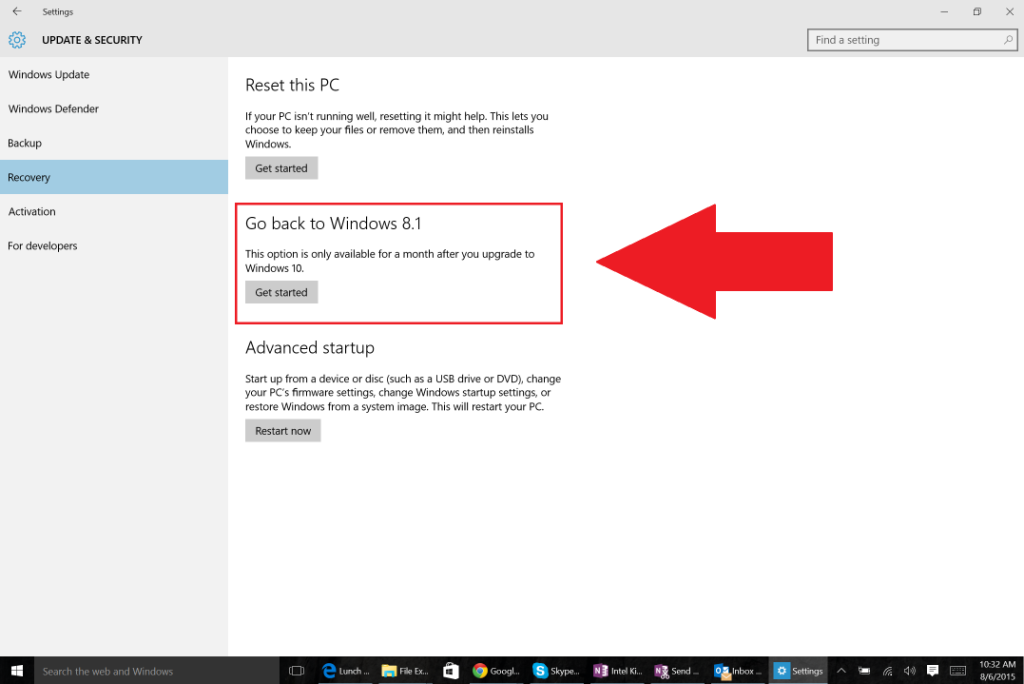
You’re allowed to roll back to your previous Windows version for 30 days after upgrading to Windows 10. Simply open the Start menu and head to Settings > Update & Security > Recovery. If you’re eligible to downgrade, you’ll see an option that says “Go back to Windows 7” or “Go back to Windows 8.1,” depending on which operating system you upgraded from. Simply click the Get started button and go along for the ride.

Once you’ve returned to your previous version of Windows, you need to tinker with it to perfect your setup once again. In particular, you may need to reinstall some programs, and don’t forget to use your Windows 7 password rather than your Windows 10 password if you created a Microsoft Account for the new operating system during the set-up process.

Stop it from happening again

Once you’ve upgraded a PC to Windows 10, you’ll always be able to do so again in the future. But if you aren’t enticed by Windows 10’s best features and more subtle awesome tweaks—a feeling I completely understand after a non-consensual upgrade—you can turn to a pair of helpful tools to disable the Windows 10 upgrade prompts from returning.

GWX Control Panel was the first anti-Windows 10 pop-up tool on the block, and it works marvelously, though its complicated user interface is full of granular options and may turn off some people. Never10 by noted security researcher performs the same basic task in a much simpler way. Either program does the trick.

GWX Control Panel and Never10 will also prevent your computer from being upgraded to Windows 10 if it hasn’t yet. Installing one of those is a much better option than disabling Windows Updates completely to avoid Microsoft’s pestering, as disabling patches can leave you vulnerable to new security flaws.

Now for the good news: Microsoft says it plans to phase out the GWX pop-up once it starts charging for the Windows 10 upgrade in July. Fingers crossed.

Have questions?

Get answers from Microsofts Cloud Solutions Partner!
Call us at: 856-745-9990 or visit: https://southjerseytechies.net/

South Jersey Techies, LL C is a full Managed Web and Technology Services Company providing IT Services, Website Design ServicesServer SupportNetwork ConsultingInternet PhonesCloud Solutions Provider and much more. Contact for More Information.

To read this article in its entirety click here.
Office 365 Activation: How to Fix

Imagine you are a customer of Microsoft’s Office 365 service, including a subscription to the Office desktop applications like Word, Excel and Outlook.

One day you click on the shortcut for Word, but instead of opening, it just shows a “Starting” splash screen which never progresses.

Being smart, you try to start Word in safe mode by holding down the Ctrl key, but the exact same thing happens.

Annoying, when you want to do your work. What is going on?

We took a look at a case like this. Two things you should do (after the usual reboot):

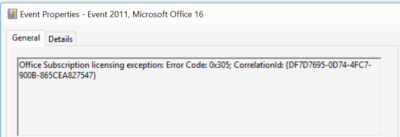
1. Look in the event viewer. Here, we found a clue that the issue is related to software activation, specifically Event 2011 “Office Subscription Licensing exception”:

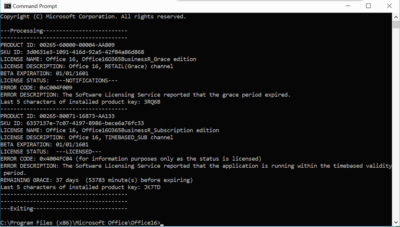
2. For all things related to Office licensing, open a command prompt, go to (for example) C:\Program Files (x86)\Microsoft Office\Office16, and type:

cscript ospp.vbs /dstatus

In this case we got the following:

This told us that Windows thinks TWO product keys for Office are installed. One has expired, the other is fine.

The guilty party may (or may not) be the trial version of Office typically pre-installed with a new PC. Or it could be a consequence of changing your Office 365 subscription. Neither would be the fault of the user, who is fully licensed and has done nothing other than follow Microsoft’s normal procedures for installing Office 365.

Solution: we reinstalled Office from the Office 365 portal, and attempted to remove the dud product key with:

cscript ospp.vbs /unpkey:<Last five characters of product key>

as explained here. All is well for the moment.

Activation and subscription license checking is for the benefit of the vendor, not the user, and should never get in the way like this.

Further, cannot Microsoft find some way of informing the user when this happens, and not have Word simply hang on starting? How difficult is it to check for licensing and activation issues, and throw up a message?

Google vs Microsoft: Office 365 Battle?

Microsoft Office 365 has taken market share from Google Apps and Google isn’t taking it lying down. Are we looking at the start of a price war?

Google apps vs Microsoft

According to an August 2015 report, Microsoft Office 365 has surpassed Google Apps and now controls more than 25% of the enterprise market—triple the enterprise market share the company held just a year ago. That is some serious growth and it hasn’t gone unnoticed by the folks at Alphabet (aka Google).

Details

On October 19, 2015, Rich Rao, head of global sales for Google Apps for Work announced a new program specifically designed to turn the tide against Microsoft Office 365’s advance.

In a nutshell, enterprises with preexisting contracts for a competitor’s office suite (read Office 365) looking to switch to Google Apps can do so and not pay any additional fees until the competitor’s contract has run its course. In essence, switching enterprises will pay Microsoft’s contract while they use Google Apps.

When the preexisting contract is over, enterprises sign a new contract with Google Apps. The announcement also suggests that Google will pay some of the transition costs through a special program offered by its Google for Work Partners service.

This is a bold move by Google and it signals that the company is reeling from the sudden surge of Microsoft Office 365. I don’t think Google was expecting this level of competition for its Google Apps suite.

Microsoft’s response

The ball is now in Microsoft’s court. There should be some kind of serious strategic response offered by Microsoft—that is, if it intends to maintain the growth of Office 365 in the enterprise market. Letting the tremendous advances in its market share over the last year erode would be irresponsible.

One strategy Microsoft may consider is lower subscription prices.

The basic enterprise version of Google Apps carries a subscription price of $5 per user. The basic enterprise version of Office 365 carries a subscription price of $8 per user. That $3 difference can really add up for a large enterprise and there may be some wiggle room for Microsoft to lower the per-user price for its service.

Cola wars. Pizza wars. We have seen major international companies take part in price wars in the past, and in the end, not much has been resolved. So I don’t think lowering their subscription prices is really the best strategy for Microsoft.
There is another way.

It’s all about collaboration

The basic applications offered by Office 365 and Google Apps—word processing, spreadsheets, emails, calendar, etc.—are similar. Office 365’s applications do have more features and deeper capabilities. Of course, Google Apps claims its lack of features is a good thing because its apps are simpler to use.
However, in this day and age, the real battleground for enterprise markets exists in features outside the basic office suite. The real battleground lies in cloud and collaboration services, including collaboration tools, storage, video communication, and document sharing. The cloud is where Microsoft and Google are going to fight their battle for productivity suite superiority.

And cloud is where Microsoft has been winning handily for the past year or so. I believe the new cloud and collaboration emphasis of Office 365 has taken Google by surprise. I think Google has realized that Microsoft has upped its game and that it can’t coast into increased enterprise market share by merely offering a lower-price, simpler productivity suite.

It may have been an indirect battle before, but Microsoft and Google are now engaged in a mano a mano fight for enterprise market share in the productivity software category. It will be interesting to see how this strategic battle between two superpowers plays out. I just hope each side takes appropriate steps to avoid collateral damage.

Have questions?

Get help from IT Experts/Microsofts Cloud Solutions Partner
Call us at: 856-745-9990 or visit: https://southjerseytechies.net/

South Jersey Techies, LLC is a full Managed Web and Technology Services Company providing IT Services, Website Design ServicesServer SupportNetwork ConsultingInternet PhonesCloud Solutions Provider and much more. Contact for More Information.

To read this article in its entirety click here.

Windows 10 Upgrade: 5 Microsoft Tactics

To achieve its goal of getting one billion people onto Windows 10, Microsoft is getting more forceful in how it pushes Windows 7 and 8.1 users towards its new OS.

Windows10

Microsoft wants Windows 10 on one billion devices by 2018 – and its tactics for hitting that ambitious goal are about to get more aggressive.

From next year, Microsoft will be more direct in pushing Windows 7 and 8.1 users to upgrade to its latest OS, in an attempt to bolster the 110 million-strong Windows 10 userbase.

Here’s how Microsoft is about to crank up the pressure to make the switch.

1. Windows 10 will automatically begin installing itself

From “early next year”, Microsoft will change the status of the free Windows 10 upgrade so it is classified as a Recommended Update.

Given that most home machines are set up to install Recommended Updates automatically, the change to Windows 10’s update status will lead to most Windows 7 and 8.1 machines beginning the upgrade.

However, Microsoft says that before Windows 10 is installed users will need to manually confirm the installation, giving them a chance to pull out.

Business users should be able to prevent the upgrade from automatically starting using tools such as Windows Server Update Services.

For those on metered connections, Terry Myerson, Microsoft’s executive VP of the Windows and Devices Group, said people “have the option of turning off automatic updates” before going on to say that such a move is unwise because of “the constant risk of internet threats”.

Those who don’t like the new OS will have 31 days to roll back to their previous version of Windows. To go back, select “Start Button->Settings->Update and Security->Recovery and Uninstall Windows 10”.

2. Upgrade notifications will be made more obvious

Despite Microsoft sticking a ‘Get Windows 10’ icon on the taskbar of most Windows 7 desktops, many customers apparently still can’t figure out how to initiate the upgrade.

Myerson says since launching Windows 10 the number one complaint has been ‘How do I get my upgrade?’.

To address the difficulty some users are having, Myerson said Microsoft will change “our notifications to be more approachable and hopefully clear, and sometimes fun”.

3. Upgrades will happen immediately

The process of initiating the upgrade to Windows 10 has also been streamlined.

In the weeks after Windows 10’s launch earlier this year, Microsoft required users to first reserve a Windows 10 upgrade, which would then be installed at a later date.

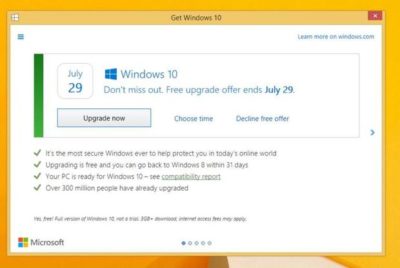
Microsoft has now replaced that two-step process with an immediate upgrade. Users clicking on the ‘Get Windows 10’ icon will now be given the option to ‘Upgrade Now’ to begin the upgrade process straightaway.

4. Simpler upgrade from unsanctioned copies of Windows

Myerson admits surprise at how many people running copies of Windows 7 and 8.1 that have not been authenticated then go on to buy Genuine copies of Windows 10.

Based on this experience, Microsoft plans to make it a “one-click” process for people running unsanctioned copies of the OS to “get Genuine” via the Windows Store or by entering an activation code bought elsewhere. The offer will be trialled in the US and, if successful, may be extended to other countries.

5. Upgrading multiple machines to Windows 10 will be easier

Those looking to upgrade several Windows 7 and Windows 8.1 machines to Windows 10 will soon find the process gets more straightforward.

Microsoft’s Media Creation Tool is used to create an image that can be run off a DVD or USB stick to upgrade qualifying machines to Windows 10.

According to Myerson, you will soon be able to use the tool to create a single image that will allow any number of 32-bit or 64-bit, Home or Pro machines to be upgraded and which will also allow for clean installs “wherever you have a Windows license”.

Have questions?

Get help from IT Experts/Microsofts Cloud Solutions Partner
Call us at: 856-745-9990 or visit: https://southjerseytechies.net/

South Jersey Techies, LLC is a full Managed Web and Technology Services Company providing IT Services, Website Design ServicesServer SupportNetwork ConsultingInternet PhonesCloud Solutions Provider and much more. Contact for More Information.

To read this article in its entirety click here.

Microsoft Dictate Lets You Type by Voice

Dictate with your voice in Office

This feature is available to Office 365 Subscribers only.


Dictate in Word or PowerPoint

1) Turn on your microphone and make sure it works. Troubleshoot microphone settings

2) In Word 2016 or PowerPoint 2016, select Home > Dictate.

3) Wait for the icon to turn red.

4) Start talking. As you talk, text appears in your document or slide.

5) Speak clearly and conversationally. Insert punctuation by saying the name of the punctuation mark you want to add.

6) If you make a mistake while dictating, move your cursor to the mistake and fix it with your keyboard. No need to turn off the microphone.

7) When finished, select Dictate again to stop typing.


Dictate in Outlook

1) Turn on your microphone and make sure it works. Troubleshoot microphone settings

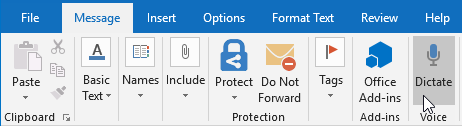
2) Open a new email message and select Message > Dictate.

3) Wait for the icon to turn red.

4) Start talking. As you talk, text appears in your email message.

5) Speak clearly and conversationally. Insert punctuation, by saying the name of the punctuation mark you want to add.

6) If you make a mistake while dictating, move your cursor to the mistake and fix it with your keyboard. No need to turn off the microphone.

7) When finished, select Dictate again to stop typing.


Troubleshooting

I don’t see Dictate, or it’s not working

If Dictate isn’t working, make sure you’re connected to the Internet.

You can enable or disable Dictate by going to File > Options and look for Office intelligent services on the General tab.


Important information about Dictate

Dictate is one of the Office Intelligent Services, bringing the power of the cloud to Office apps to help save you time and produce better results.

Your speech utterances will be sent to Microsoft to provide you with this service, and may also be used to improve speech recognition services. For more information see, What are Intelligent Services?

Office Dictate is not HIPAA (Health Insurance Portability and Accountability Act) compliant.

10 Reasons Windows 10 May Not Be Right

The end of Microsoft’s free Windows 10 upgrade offer is right around the corner. But while Windows 10 is great, there are valid reasons to reject it.

windows-7-to-windows-10

An offer you can refuse

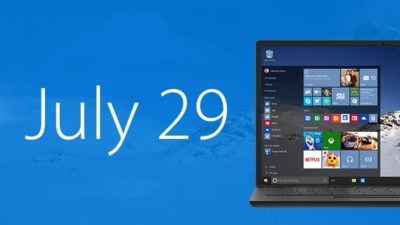
The clock is ticking, folks. If you want to upgrade to Windows 10 for free, you only have until July 29, 2016 to do so. And most people should! Windows 10 is the best Windows yet, chock full of handy new features, sleek under-the-hood improvements, andheadache-killing extras.

But it’s not for everybody. There are some very real, very valid reasons not to upgrade to Windows 10.

If you’re on the fence about whether to accept or reject Microsoft’s freebie, read on for some concrete justifications for staying put.

windows-media-center

No Windows Media Center or DVD support

Before we dig into the meatier stuff, let’s take a look at what you’ll potentially give up if you upgrade to Windows 10, starting with some robust media playback options.

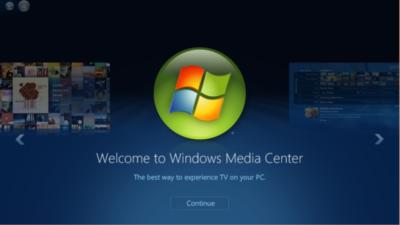
Windows 10 kills Windows Media Center off completely, after Windows 8 pushed it into a dark corner. There’s a reason for that: Windows Media Center is fairly niche, and not a lot of people use it. But if you do, you won’t want to upgrade to Windows 10 unless you’re prepared to dive into alternatives like Kodi, Plex, and DVR workarounds.

Oh, and if you’re on Windows 7, be aware that Windows 10 doesn’t offer native DVD playback, though there are no-cost alternatives you can use.

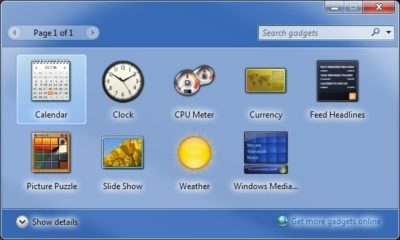
windows-gadgets

No desktop gadgets or widgets

Likewise, if you’re a big fan of Windows 7’s gadgets and widgets for the desktop, they aren’t available in Windows 10. Which is good, because they’re horribly insecure. Whether you choose to stay on Windows 7 or upgrade to Windows 10, you’d probably be better off using Rainmeter’s seriously slick interactive desktop software.

onedrive

No OneDrive placeholders

Windows 8.1 offered a handy feature for hardcore OneDrive users: placeholders. Placeholders showed everything stored in your OneDrive account in the Windows 8.1 file system, but only downloaded files to your PC when you opened them. It was a wonderful way to stay on top of your cloud-stored files without downloading all of them to every Windows device you logged into with your Microsoft account, especially if you’ve stashed dozens of gigabytes’ worth of stuff into OneDrive.

Unfortunately, users found it confusing, and Microsoft ripped placeholders out of Windows 10. There are hints that a similar feature may make an appearance someday, but it hasn’t yet, so if placeholders are a must-have feature for you, you’ll want to avoid upgrading to Windows 10. The new operating system’s less granular selective sync options just aren’t the same.

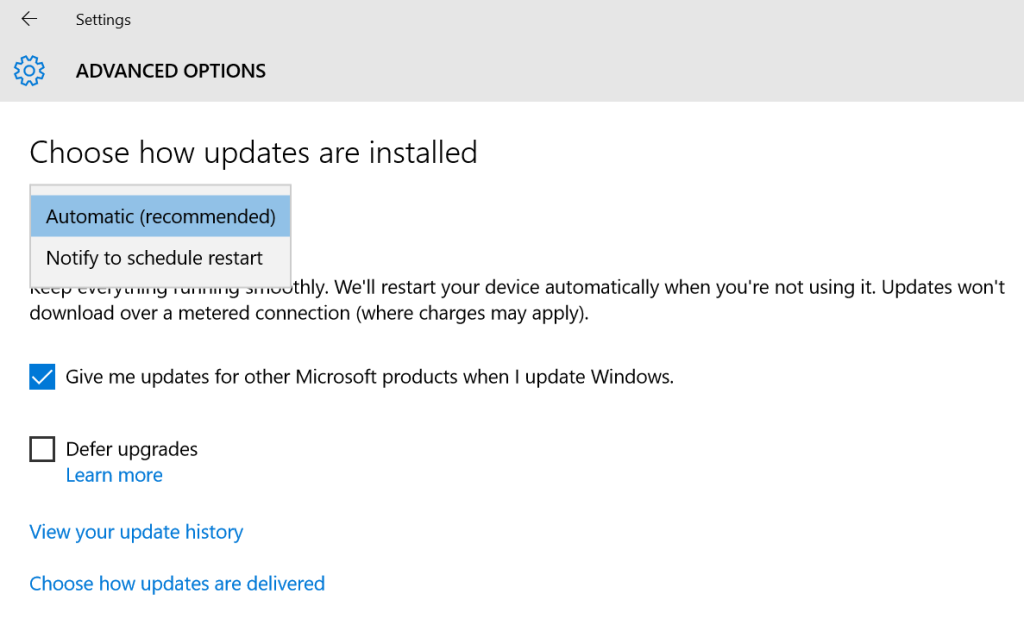
windows-10-updates

No control over Windows Updates

Aaaaaand here’s the biggie. Windows 10 utterly eradicates the ability to manually control your system updates. Windows 10 Pro will let you defer updates for a few months, but that’s the extent of it. If Microsoft pushes out an update, your system willinstall it eventually (though identifying your Wi-Fi connection as “metered” lets youchoose when updates download, at least).

This isn’t a big deal for people who stuck with Windows 7 and 8’s default Windows Update options, which downloaded patches automatically. But if you like to control your own update destiny, this could be a showstopper.

privacy

Privacy concerns

That segues nicely into another controversial Windows 10 “feature.” Microsoft’s new operating system tracks you far more closely than previous versions of Windows, especially if you use the express settings during the initial setup. The search bar utilizes Cortana, Windows 10’s digital assistant, and sends all your queries to Microsoft servers. Your Windows Store app usage is tracked for ad targeting. Windows 10 tracks your typing, location, Edge browser behavior, program installations and more.

It’s a lot. To be fair, a lot of the concern roaring around this is overblown; most of Windows 10’s potential privacy concerns can be disabled. But there’s no way to turn off some of the telemetry data Windows 10 collects about your system and beams back to the mothership. Microsoft executives don’t consider this a privacy issue. If you do, Windows 10 isn’t for you.

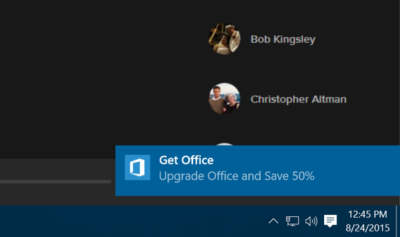
get-office-windows-10-pop-up

Ads and more ads

Windows 10 doesn’t only track your Windows Store app usage for improved ad targeting; it frequently pushes ads of its own at you. By default, you’ll see pop-up notification ads imploring you to get Skype or Office (even if you have Office), ads for suggested Windows Store apps slipped into your Start menu, and even occasional full-screen lockscreen ads for high-profile Windows Store releases.

I loathe the idea that my paid-for operating system—and yes, Windows 10 isn’t truly free—is pushing ads in my face. Fortunately, all of the offenders can be disabled. But doing so requires diving into arcane system settings located in different far-flung corners of the operating system.

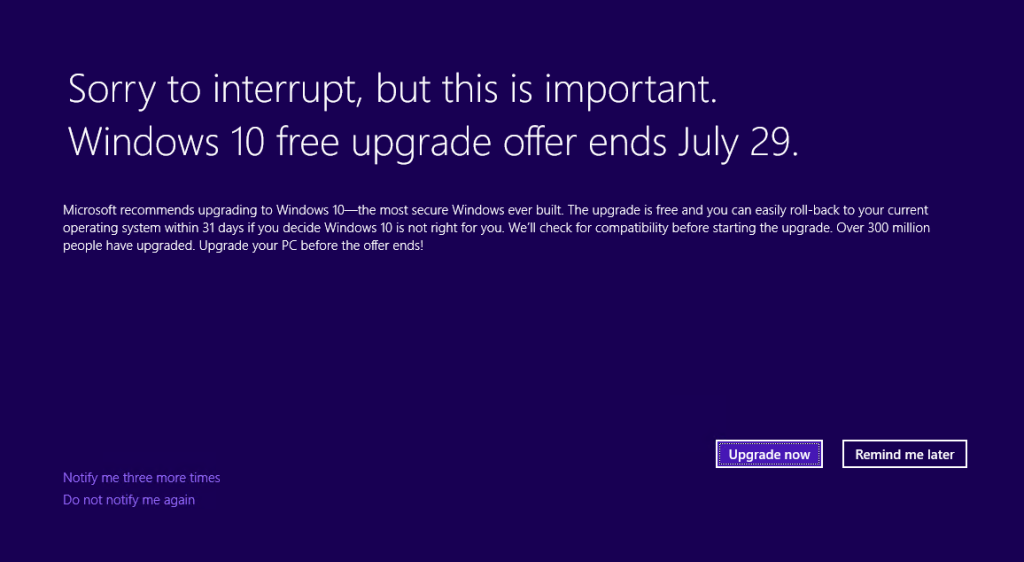
 windows-10-full-screen-prompt

Microsoft’s aggressive upgrade tactics

Microsoft’s been acting pretty shady in its aggressive quest to push Windows 7 and 8 users to Windows 10, employing unstoppable pop-ups, malware-like tactics, forced upgrades, intrusive full-screen takeovers, and nasty tricks to coax—and sometimes outright deceive—people into adopting the new OS. It eventually became so heavy-handed that some users have disabled Windows Updates entirely rather than suffer the barrage.

But you know that. If you’re still considering upgrading to Windows 10, you’ve lived through it.

None of that detracts from Windows 10’s underlying awesomeness. But it may have detracted from your desire to upgrade to Windows 10—and rightfully so. If you’re unhappy with Microsoft’s ethics and tactics in handling Windows 10 upgrades, you’re well within your rights to stay put where you’re at.

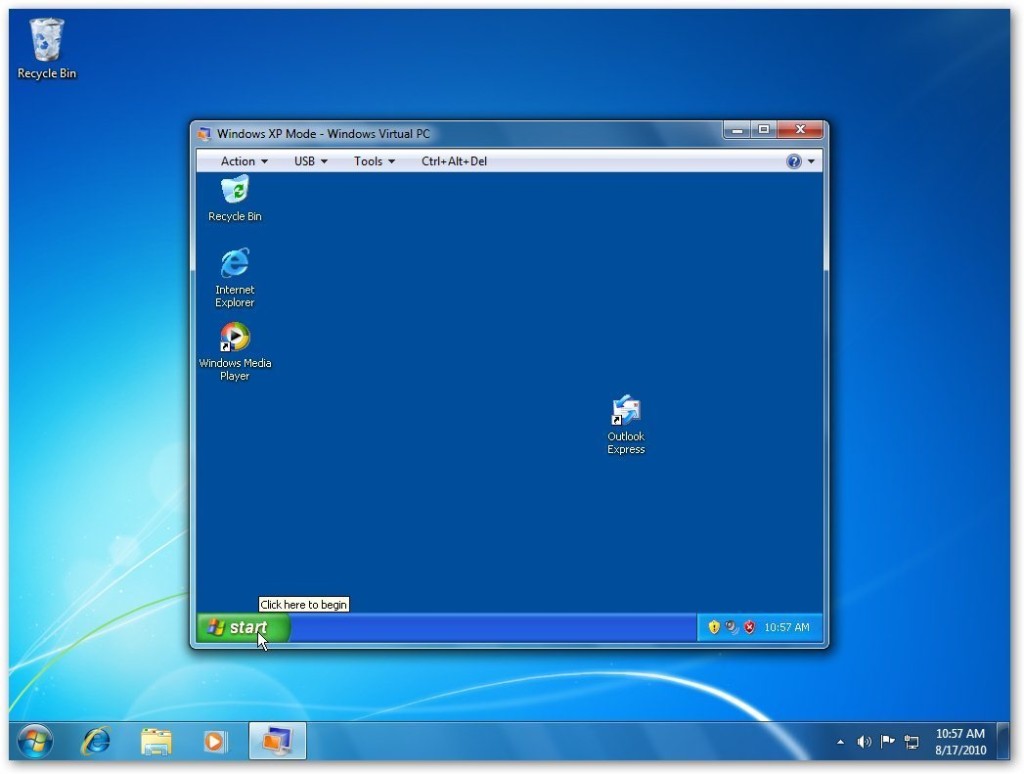
windows-xp-mode-windows-7

Software compatibility

In the wake of those forced upgrades, dozens and dozens of readers reached out to me with tales of woe, many revolving around software that simply doesn’t work with Windows 10. As my colleague Glenn Fleishman recently pointed out at Macworld, old software isn’t inherently bad software—but some of it won’t work in Windows 10.

If you rely on particular pieces of software, do a quick Google search to make sure they’ll work in Windows 10 before you upgrade. Office 2003—the last pre-Ribbon UI Office—isn’t compatible, for instance, nor is software that requires the use of Windows 7’s “XP Mode” compatibility, which isn’t available in Windows 10. Microsoft’s upgrade advisor is supposed to let you know if any software won’t work with Windows 10, but users report that it isn’t very reliable. Doing some homework now could save you some big headaches in the future.

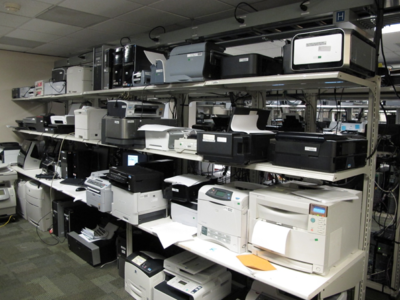
printers

Hardware compatibility

Similarly, you’ll want to make sure Windows 10 works with your PC, too. No matter whether you’re running Windows 7 or Windows 8.1, I’d recommend running Microsoft’s hardware compatibility tool to scan your system. To do so, open the Get Windows 10 app—the taskbar icon that’s been tossing out all the upgrade pop-ups—and click on the compatibility report option.

But wait! That’s not all. The tool only checks your core PC reliably. Some people who upgrade to Windows 10 discover that their hardware peripherals won’t work, particularly older printers and scanners. If you have any aging peripherals connected to your PC, be it a printer or a beloved keyboard, I’d again suggest conducting some quick Google searches to ensure your gear won’t become paperweights if you decide to upgrade.

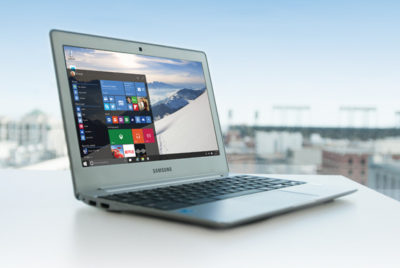
 windows-10-samsung-laptop

Ain’t broke, don’t fix it

This final reason applies more to people who resist change or aren’t very technically savvy. Yes, Windows 10 is stellar and absolved Windows 8’s worst sins. Getting used to the new operating system shouldn’t be too difficult for many PC users—but the transition isn’t entirely seamless. From Cortana to the introduction of the Edge browser to the radically new-look Start menu, and Windows 10’s evolution into being a more cloud-centric operating system, there are some big changes you’ll need to wrap your head around.

Do Windows 10’s new features and under-the-hood improvements make upgrading worthwhile? I think so. But if you aren’t comfortable dealing with changes on your computer, you might want to stay put. I know several less technically inclined people who paid technicians to revert their PCs to Windows 7 after they couldn’t wrap their heads around Windows 10.

Conversely, if you’ve perfected your workflow on your current operating system and don’t see much benefit in marquee Windows 10 features such as Cortana, the Windows Store, DirectX 12, and virtual desktops, it may not be worth the hassle to switch over to Windows 10.

Have questions?

Get answers from Microsofts Cloud Solutions Partner!
Call us at: 856-745-9990 or visit: https://southjerseytechies.net/

South Jersey Techies, LL C is a full Managed Web and Technology Services Company providing IT Services, Website Design ServicesServer SupportNetwork ConsultingInternet PhonesCloud Solutions Provider and much more. Contact for More Information.

To read this article in its entirety click here.


10 Compelling Windows 10 Upgrade Reasons

The deadline for Microsoft’s free Windows 10 upgrade looms. Here’s why you don’t want to let it pass by.

windows-7-to-windows-10

An offer you shouldn’t refuse

The deadline cometh. July 29 looms, and after that, Windows 7 and 8 users will no longer be able to upgrade to Windows 10 for free. If you’ve been waiting for Microsoft to polish out the operating system’s initial bugs, it’s time to make the leap.

This article’s more for the fence-sitters—the folks who haven’t decided whether to stick with what they know or embrace Microsoft’s new-school operating system. There are some very valid reasons not to upgrade to Windows 10, to be honest. But Windows 10 is the best Windows yet, and most people should claim the free upgrade while there’s still time.

Here’s why.

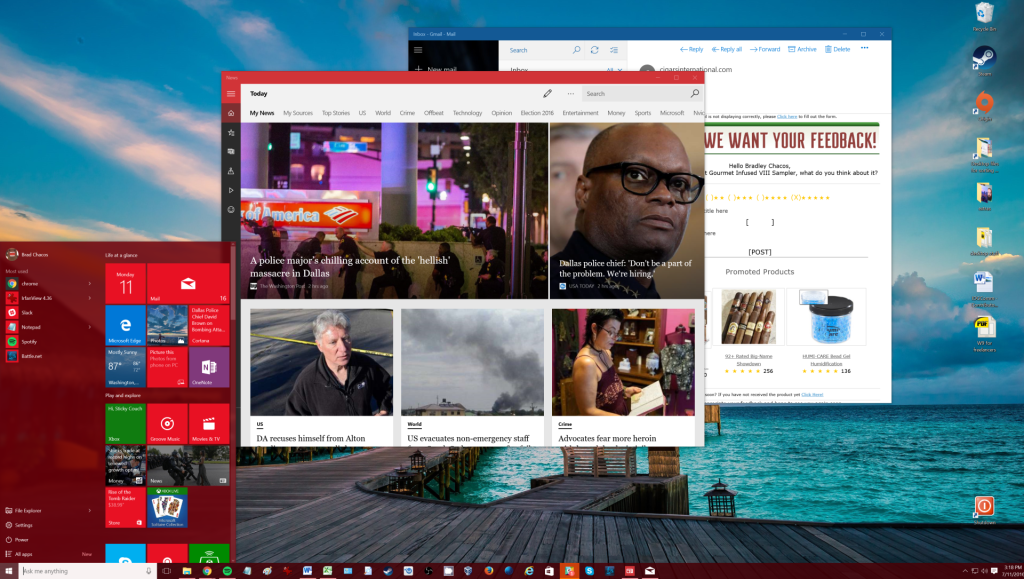
Improved desktop experience
windows-10-desktop-1

Let’s be frank: Windows 8’s fugly, unfunctional, and obnoxiously colored Start screen sucked. So did the way Windows 8 hid crucial information behind hidden “charms,” which had no on-screen hints for how to access them. It scared a lot of people away from upgrading, and rightfully so.

You don’t have to worry about that with Windows 10.

Windows 10 takes the same core ideas behind Windows 8, but makes them palatable for the desktop audience. Windows Store apps are still present, but they’re in desktop windows that can be resized and used like any other. The Start menu’s back, with a pop-out section that puts information-delivering Live Tiles to better use—and yes, they can all be deleted if you want.

True, there are some changes to wrap your head around if you upgrade from Windows 7 to Windows 10. But the basic building blocks of the operating system will be largely familiar.

Enthusiast-friendly additions
windows-10-virtual-desktops-2

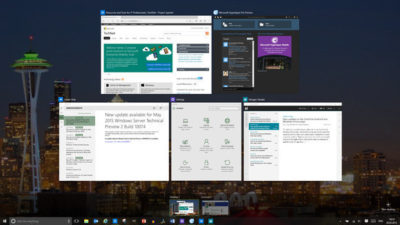
More than simply being familiar, Windows 10 is superior to Windows 7 for PC enthusiasts, because Microsoft made an active effort to woo desktop diehards.

Windows 10’s hardcore tools range from virtual desktops (pictured) to improved high-DPI monitor support to pasting text inside the command prompt. Easy file version recovery? Better storage management tools? Windows 10 has it all.

The operating system even provides power-user tools for Windows Updates, letting you schedule updates to run at a specific time or distribute patches across your local network using peer-to-peer technology. It’s great.

Under-the-hood improvements
windows-10-login-screen-3

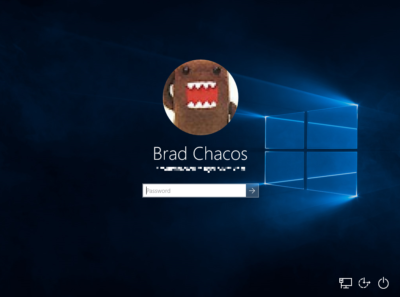
If you’re upgrading from Windows 7, you’ll be amazed at just how quick and modern Windows 10 feels. Microsoft optimized Windows’ underlying code in Windows 8, resulting in an operating system that boots like greased lightning—especially if you have an SSD—and just plain feels faster.

It’s just one of the many Windows 8 improvements that Windows 7 holdouts will enjoy in Windows 10.

Native security protection
windows-defender-windows-4

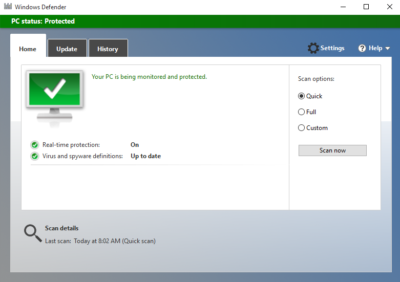
This appeals more to everyday PC users than hardcore enthusiasts, but Windows 10 is inherently much more secure than Windows 7. The operating system ships with Microsoft’s Windows Defender antivirus software and the Windows Firewall installed and enabled by default, which provides many PCs with a huge security uplift. (You’d be amazed how many people never bother to install new security software after their free Norton or McAfee trial runs out.)

But Microsoft didn’t stop there. Windows 10’s UEFI Secure Boot requirement protects against low-level rootkits that could infect your PC, the SmartScreen filter guards against malicious websites, and Windows Hello makes biometric-based authentication easy-peasy.

Better security is always a good thing.

Cortana
cortana-call-jennifer-5

Cortana, Microsoft’s answer to Apple’s Siri and Google Now replaces Windows 10’s basic search functionality, and I couldn’t be happier. Cortana mixes good humor with web-based smarts that can help you set reminders and alarms, stay on top of sports scores and news, navigate and operate your operating system, track packages, plan trips, and more. Even better: Cortana’s going to become more proactive and usefulwhen the Windows 10 Anniversary Update rolls around August 2.

DirectX 12
ashes-of-the-singularity-6

Microsoft’s powerful, next-generation DirectX 12 graphics technology is exclusive to Windows 10 devices. If you’re a PC gamer, this feature alone is worth the upgrade.

We’re still in the early days of DirectX 12 adoption. Most PC games still release in DirectX 11. We’re not really sure of the graphics API’s full potential, but early DX12 implementations in games tend to result in smoother experiences and higher overall frame rates. That’s especially so on PCs with AMD Radeon graphics cards, thus far—check out our Radeon RX 480 review for hard benchmarks—but Nvidia’s GeForce cards enjoy DX12 benefits, too.

More and more games are starting to embrace DirectX 12. Seriously: If you’re a gamer, upgrade now. This isn’t coming to Windows 7 or 8.

Universal Windows apps
universal-windows-apps-7

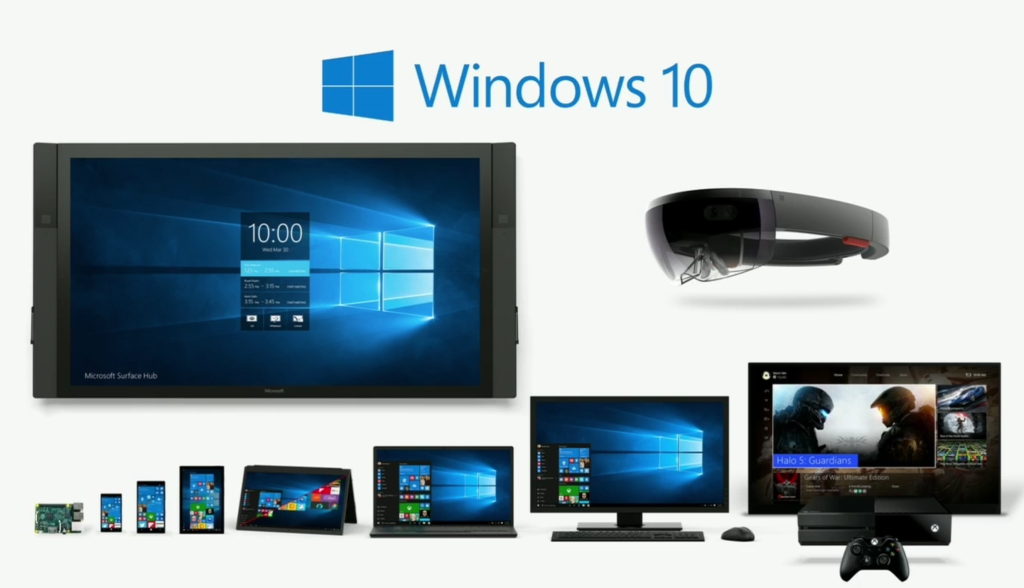
But DirectX 12 has come to the Xbox One. That’s because Microsoft’s console runs Windows 10 under the hood, and Windows 10 devices can all run universal Windows apps. One tangible benefit of the cross-device compatibility is the forthcoming Xbox Play Anywhere feature, which lets you buy a game once and play it on both Windows 10 and the Xbox One, as well as transfer saves and play multiplayer games across the two platforms. Nifty!

Play Anywhere is definitely the highlight so far, but universal Windows apps likewise morph to fit the screens of tablets, phones, and even Microsoft’s HoloLens augmented reality headset. The one caveat: Microsoft hasn’t yet convinced developers to embrace the Windows Store en masse.

The little extraswindows-10-print-as-pdf-8

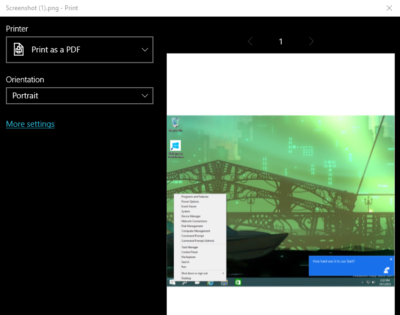
Windows 10 quietly eliminates many of the biggest little irritations present in previous versions of Windows. You can finally print to PDF natively now, and hovering your mouse over a background window lets you scroll that, rather than the in-focus program. Per-monitor display scaling eliminates visual oddities with multi-monitor setups. Cortana’s natural language search—“Hey Cortana, show my pictures from last Christmas”—can be a serious time-saver when used correctly.

All in all, these little touches add up to a big usability difference. Check out PCWorld’s story on the 12 obscure new Windows 10 features that eliminate everyday hassles for all the details.

It’s free!
windows-10-free-upgrade-9
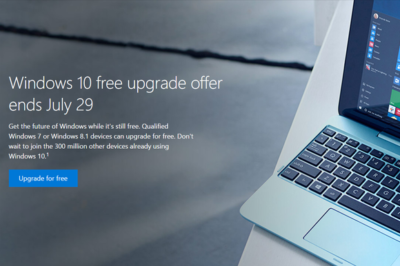
C’mon. It’s a free upgrade until July 29. If you’re considering upgrading to Windows 10 at any point in the future, now’s the time to do it. Just be aware of what you’re giving in return.
It’ll keep getting better
windows-10-anniversary-edition-cortana-10


Microsoft isn’t resting on its laurels now that Windows 10 is out in the wild. A majorWindows 10 Anniversary Update is due to land on August 2, stuffed with new features and bug fixes, and Microsoft’s continually updating the operating system with the help of its legion of Windows Insider preview testers.

Windows 7, meanwhile, is solidly past the new-feature phase of life, though security updates will keep on a-rolling until 2020. Windows 8 is still ostensibly in its mainstream support phase through the beginning of 2018, but don’t expect to see any new goodies added there.

Counterpoint
windows-10-to-windows-7-11

That’s a pretty compelling list of reasons to upgrade to Windows 10—and the security boost might even push you into encouraging your non-geeky friends (you know, the ones always asking you for unofficial tech support) into accepting the upgrade, too. A safer environment for normal people is a safer world for everybody.

But again, there are some valid justifications for rejecting Microsoft’s offer. Most people should embrace the new operating system with open arms, but before you make the leap, be sure to read PCWorld’s list of the 10 reasons why you shouldn’t upgrade to Windows 10—especially if you’re using older hardware or software.

Have questions?

Get answers from Microsofts Cloud Solutions Partner!
Call us at: 856-745-9990 or visit: https://southjerseytechies.net/

South Jersey Techies, LL C is a full Managed Web and Technology Services Company providing IT Services, Website Design ServicesServer SupportNetwork ConsultingInternet PhonesCloud Solutions Provider and much more. Contact for More Information.

To read this article in its entirety click here.

Windows 10: 5 Reasons Not to Upgrade

From privacy to compatibility and control, these are the reasons why you might want to give the upgrade to Windows 10 a miss.

getwindows10

At the end of this month Windows 10 will, at least for now, cease to be available as a free upgrade to Windows 7 and 8 users.

Microsoft is engaged in a final push to get users to upgrade, stressing the new OS introduces fresh features to Windows and overhauls its design. However, is Windows 10 right for you? Here are some of the reasons you might not want to upgrade.

1. You’re worried about privacy

By default Windows 10 collects more data than many users are comfortable with. This includes information about how Windows and Windows apps are used, what you type, your contacts, your location, calendar appointments and more. If the virtual assistant Cortana is enabled, this data extends to web browsing history, voice commands and even more information about your activity.

Users of Home and Pro versions of Windows 10 can only reduce this data collection to the “Basic” level. On this setting, Windows 10 collects information about security settings, quality-related info (such as crashes and hangs), and application compatibility. Microsoft describes this information as being essential for maintaining and improving the quality of Windows 10 and says that only “anonymous identifiers” are transmitted.

However, questions remain about the information that Windows 10 sends back to Microsoft, even when you turn the data gathering settings down a minimum. Tech website Arstechnica found that even with the virtual assistant Cortana disabled, Windows 10 sends a request to www.bing.com that appears to contain a random machine ID that persists across reboots. Similarly, even when Microsoft OneDrive cloud storage was disabled and Windows 10 was not tied to a Microsoft account, the OS still seemed to be sending information to a server connected to OneDrive. While Microsoft stressed there is no query or search data being sent, Arstechnica queried the inclusion of a machine ID.

ZDNet’s Ed Bott has said the very basic telemetry data collected by Microsoft is anonymized and doesn’t reveal anything more than very high-level information along the lines of an unidentified Windows 10 user ran a particular app for half an hour.

However, for some users, even the gathering of anonymized usage data is more than they’re willing to put up with.

2. It might cause pain for older machines

Windows 10 can run on a computer with relatively modest specs, working on many older PCs that shipped with Windows 7. But just because you can run Windows 10 on paper, you may not be able to in practice.
While the Get Windows 10 app that schedules the upgrade from Windows 7 or 8.x should check your system compatibility, some users that pass this test complain the upgrade still fails or devices don’t work properly.

As Microsoft states: “The upgradability of a device includes factors beyond the system specification.”

Microsoft gives you the option to rollback your machine to its previous OS, but there are reports from multiple people who claim the upgrade left their machine virtually unusable. In these cases either the rollback feature didn’t work or it did work but the earlier OS is no longer stable, with previously working programs crashing.

f the upgrade process completes successfully, missing driver and firmware support has also caused difficulties for some Windows 10 users. Those affected cite problems such as monitors not working at their native resolution. Some of the Intel integrated graphics chips used in older laptops are also incompatible with Windows 10, though Windows 10 should warn of this fact.

These problems don’t seem to affect the majority of upgraders, but it’s worth being aware they exist, particularly if upgrading an older machine.

On a less serious level, upgrading to Windows 10 may not break your machine but it could mess with your settings. Microsoft has come under fire for Windows 10 changing users’ default settings in a number of areas, such as swapping the default browser to its own Microsoft Edge.

3. Less control over updates

Windows 10’s update process happens both more frequently and less obviously, with Windows Home and Pro users automatically receiving updates when they’re available.

Windows Home users have less control over how long they can postpone updates for, and less easily-available information about what changes these updates will make.

The lack of control that Home users have over when updates are applied led to a group of users petitioning Microsoft to let them delay and refuse these downloads. Their reasoning was that since forced updates can crash machines, for instance via bad firmware or driver updates, all users need control over how updates are applied.

Another core concern for some users when it comes to Windows 10’s frequent updates is the amount of data downloaded, with updates often weighing in at hundreds of megabytes. However, Windows 10 does allow users to block all but essential updates by toggling on ‘metered connection’ in the WiFi settings.

4. You don’t like the new look

As much as Windows 10 has won people over by bringing back elements of the classic Windows desktop and Start menu — anyone fresh from Windows 7 will need to adjust to Windows 10’s new look.

Unlike Windows 7, Windows 10’s Start Menu takes up far more room, thanks to a menu full of tiles that is bolted onto the side. While most users should be able to quickly adjust to these cosmetic and layout changes, other alterations may grate more. Perhaps the most controversial tweak to the Start Menu is theinclusion of adverts for apps in the Windows Store. These promoted apps are tiles that link to the Windows Store or to apps that have been automatically installed on your PC by Microsoft. With the latest Anniversary Update, the number of these promoted apps will double, from five to 10.

And while it can be argued that Windows 10 is arguably easier to navigate, with its search function built directly into the Taskbar, the new OS introduces some significant changes that may confuse new users.

Whereas Windows 7 allowed users to adjust their system settings using the Control Panel, Windows 10 has both the Control Panel and Settings pages — with some configuration options exclusive to one or the other. This mix and match approach has been described as disorientating by some users.

5. Missing features

Windows 10 may add many new features — the virtual assistant Cortana, the new Edge browser — but it also lacks some key elements of earlier Windows operating systems.

Perhaps the biggest omission are the placeholders for Microsoft’s OneDrive cloud storage service. In Windows 8.1, placeholders, also called smart files, let users see all of the files stored in the OneDrive service, whether those files were stored on the device or not. This feature was removed from Windows 10.Microsoft appears to be working on reintroducing placeholders, although there is still uncertainty about when they will be brought back.

Windows Media Center, the software for TV, music and movie playback is also gone from Windows, so if you are particularly attached, and not willing to mess around with an unofficial version, you may want to pass on the upgrade.

Have questions?

Get answers from Microsofts Cloud Solutions Partner!
Call us at: 856-745-9990 or visit: https://southjerseytechies.net/

South Jersey Techies, LL C is a full Managed Web and Technology Services Company providing IT Services, Website Design ServicesServer SupportNetwork ConsultingInternet PhonesCloud Solutions Provider and much more. Contact for More Information.

To read this article in its entirety click here.

Windows 10 hack: How to beef up your jump lists to show more pinned items

The Windows 10 jump lists feature offers a convenient way to start your apps–but there’s no easy way to increase the size of the list. Here’s a hack for that.

giphy

Microsoft Windows 10 gives users several choices when it comes to how and where to start their applications. Some people use the desktop exclusively and some swear by the Start Menu, while others, prefer the pinned lists that hang off the icons on the Taskbar.

However, there is one small problem with the Taskbar pinned list in Windows 10—by default, there is a 12-slot limit.

Windows 7 allowed users to extend that number with a simple change to a configuration setting. But that feature is currently missing in Windows 10 for reasons no one has been able to explain. The workaround involves editing the Windows Registry file.

Standard disclaimer: Incorrectly editing the Windows Registry file could break your computer. Create a Restore Point before making any changes.

Jump listItems

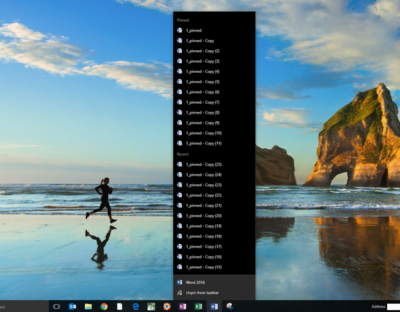
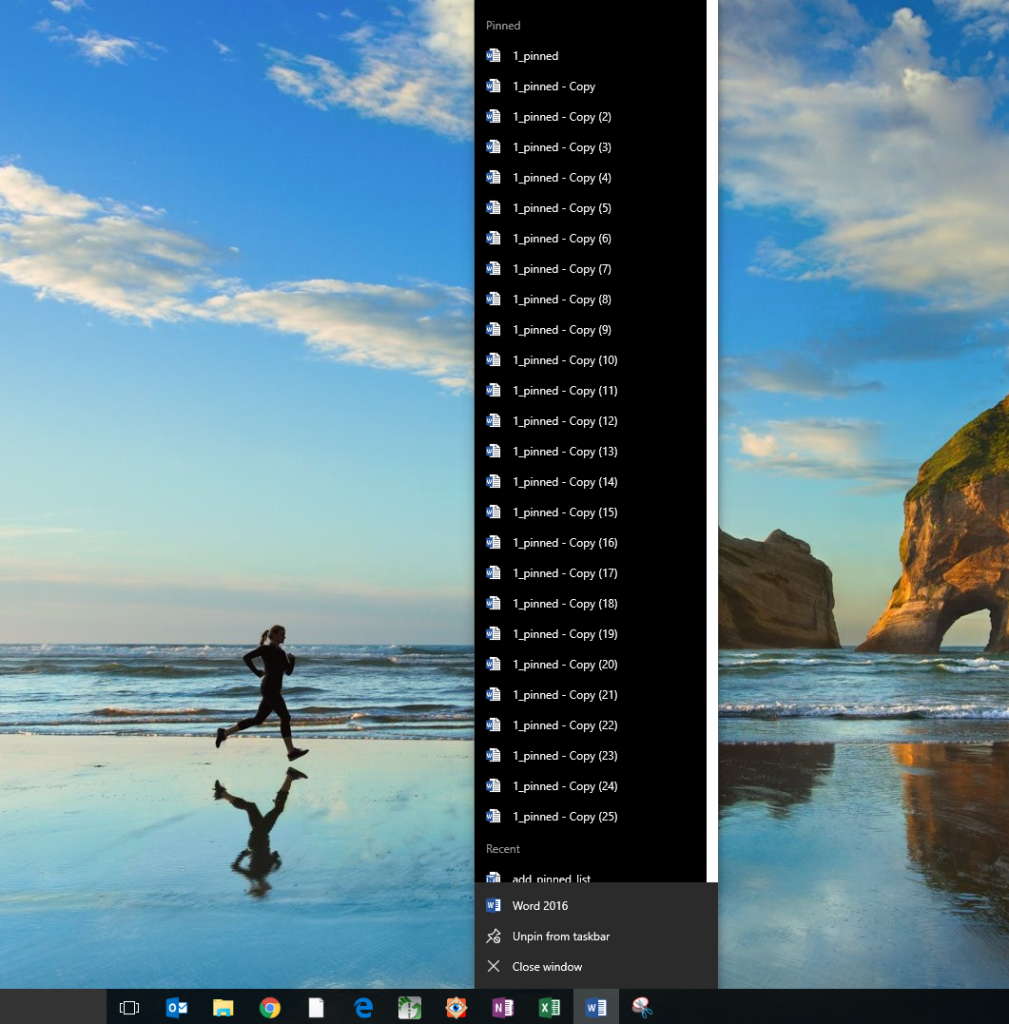
Figure A shows an example of the default jump list hanging off the Word icon in a typical Windows 10 Taskbar. Note that there are 26 copies of the example file, but only 12 are listed in the pinned section. This is despite the fact that I have actually pinned them all, which is why the Recent section is fully populated.

Figure A

addpinnedlist

To increase the number of pinned items displayed, we’ll have to change the maximum number of jump list items associated with a particular key in the Windows Registry file.

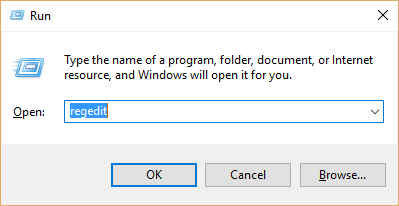
Press Windows key + R or right-click the Start Menu icon and navigate to the Run command to open the Run prompt (Figure B). Type regedit into the box and click OK.

Figure B

addpinnedlist1

Navigate to this set of keys in the Windows Registry:

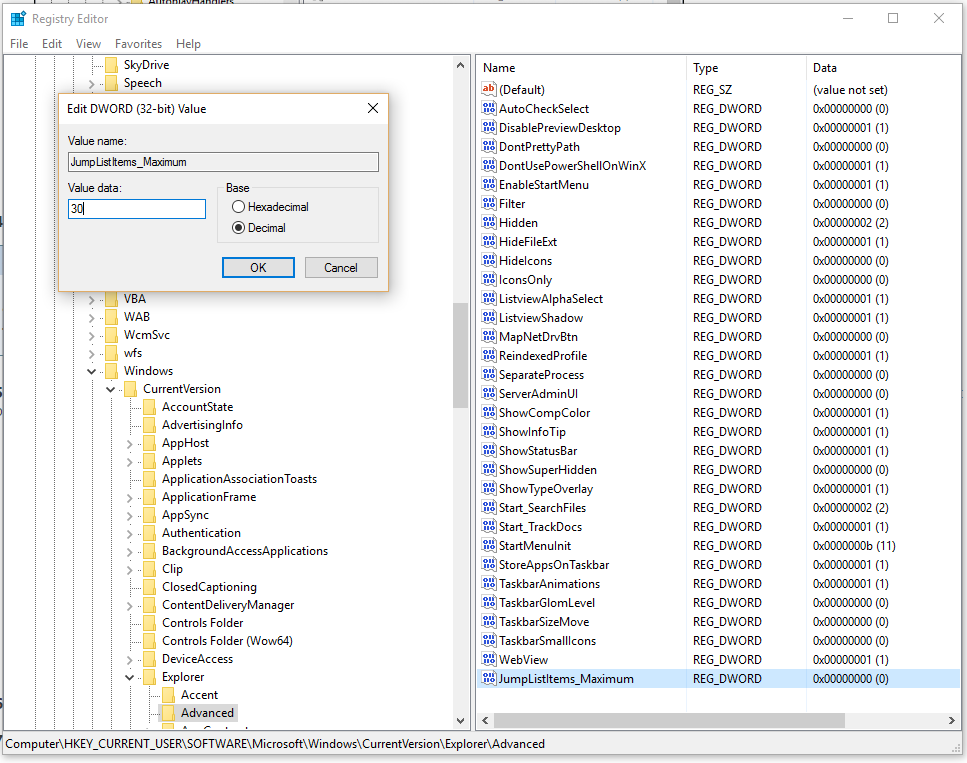
HKEY_CURRENT_USER\SOFTWARE\Microsoft\Windows\CurrentVersion\Explorer\Advanced

Look through the list in the right-hand pane until you find this DWORD: JumpListItems_Maximum

In case, the JumpListItems_Maximum DWORD is not there, create it.

Right-click the JumpListItems_Maximum DWORD and select Modify. Click the Decimal radio button and change the number to a value that works for you. As you can see in (Figure C).

Figure C

addpinnedlist2

To complete the change, you may need to restart your computer. You should now be able to see the number of pinned items you specified (Figure D).

Figure D

addpinnedlist4

Have questions?

Get answers from Microsofts Cloud Solutions Partner!
Call us at: 856-745-9990 or visit: https://southjerseytechies.net/

South Jersey Techies, LL C is a full Managed Web and Technology Services Company providing IT Services, Website Design ServicesServer SupportNetwork ConsultingInternet PhonesCloud Solutions Provider and much more. Contact for More Information.

To read this article in its entirety click here.

CALL US NOW!