Back to Top

Tech, Web, Cloud & Cabling Services

Category: Office 365

Hosted Services / Office 365 Category

How to access Compliance Manager by Office 365

Compliance Manager is now available

Compliance Manager is a cross-Microsoft-cloud services feature designed to help organizations meet complex compliance obligations, including GDPR, ISO 27001, ISO 27018, NIST 800-53, and HIPAA. Compliance Manger is rolling out and has been moved from Public Preview to General Availability.

How to access Compliance Manager?

Users can access Compliance Manager by signing into their Office 365, Dynamics 365, or Azure user account via the Service Trust Portal. This new compliance solution is designed to help organizations meet their data protection and regulatory requirements while using Microsoft cloud services. Compliance Manager enables users to perform on-going risk assessments, gain actionable insights to improve data protection capabilities, and simplifies compliance processes through its built-in control management and audit-ready reporting tools.

Compliance Manager is now generally available for Azure, Dynamics 365, and Office 365 Business and Enterprise subscribers in public clouds. Note that Office 365 GCC customers can access Compliance Manager, however, you should evaluate whether to use the document upload feature of compliance manager, as the storage for document upload is currently compliant with Office 365 Tier C only.

What do I need to do to prepare for this change?

By default, everyone in your organization with an Office 365, Dynamics 365 or Azure user account has access to Compliance Manager and can perform any action in Compliance Manager. To change the default permissions, at least one user must be added to each Compliance Manager role (see the instructions on our support page linked from Additional Information below). After a user is added to a role, the default permissions are removed and only users that have been added to a role will be able to access Compliance Manager and perform the actions allowed by that role.

Once you log into Compliance Manager you will see a number of assessments and what Microsoft has completed for the various assessments.  You will also see what controls your organization are responsible for.  You can export the assessment to excel if you need to provide it for an auditor or wish to save it for retention purposes.

Once in an assessment, you can update what your organization is doing to meet the requirements for the various supported standards.  This gives you the ability to track your compliance activities.  Some organization may already have GRC tracking software but they will find this tool useful if for no other reason to see the results of Microsoft Managed controls.

If Microsoft allowed you to have an assessment for your on-premises systems.  Like a blank questionnaire, clients could use it might be able to replace a GRC app for some companies.

When updating the Customer Managed Controls you have the ability to upload documents, lookup the related controls, assign an assessor, a test date and document the test results.

Microsoft provides you with detailed guidance for customer actions and allows you to document your control implementation details along with a test plan and any response to the assessment.

There is a Compliance Score that, “is a new intelligent scoring feature that is calculated based on an analysis of industry standard control components. Compliance Manager analyzes controls for their the impact to the confidentiality, availability, and integrity of protected data, as well as external drivers in order to weigh controls based on their impact.”

We think this is a great tool especially for small to medium businesses and local governments.  Most often these smaller organizations don’t have formal governance practices or necessary skills in-house.  This tool could help them develop those processes. We also see this as a great tool or internal auditors to use. It gives businesses a place to document the testing methods and results.
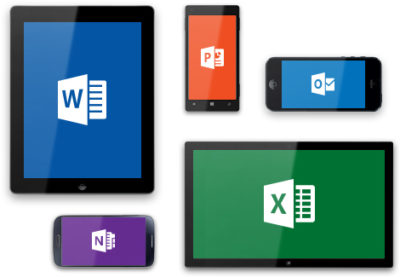
 

Office 365: New capabilities for iPad and iPhone

New features make Office and OneDrive the best place to work on iPad and iPhone

More and more, people around the world are working on the go, changing locations and devices as they create and collaborate with others throughout their day. As they work across their PCs, Macs and mobile devices, they expect an uncompromising experience that is familiar yet optimized for the device they are using.

Microsoft is committed to providing best in class experiences on all devices, and today, we are proud to share with you a set of new Office capabilities across Word, Excel, PowerPoint, and OneDrive on iOS that will delight and make iPad and iPhone users more productive than ever before.

Real-time co-authoring in Word, Excel, and PowerPoint on iOS – We live in a world where we’re often collaborating with multiple people in different locations and Office 365 provides the broadest and deepest toolkit for collaboration between individuals, teams, and entire organizations. Using real-time co-authoring, colleagues, friends, and family can contribute to and edit documents simultaneously in the Word, Excel and PowerPoint iOS apps. This allows you to know who else is working with you in a document, see where they’re working, and view changes automatically within seconds. The co-authoring experiences are also available in Office Online and the latest versions of Word, Excel and PowerPoint on the PC and Mac, all made possible by storing your documents in OneDrive or SharePoint.

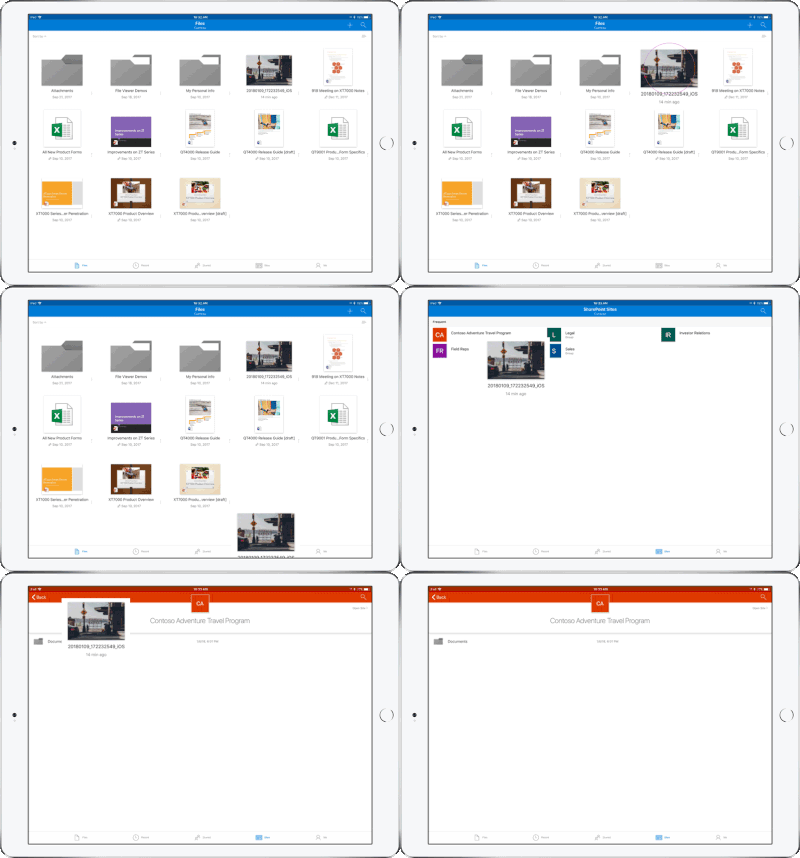
Drag and drop files anywhere with OneDrive – Sometimes your files can get scattered between different folders or even services and applications. Now it’s easier than ever to organize and rearrange your files. You can drag files in between folders in OneDrive and, if your teammates use SharePoint to work together, you can even drag OneDrive files to a SharePoint site giving them immediate access. On iPad, you can also drag files from other apps, such as iMessage, into your OneDrive and drag files out of your OneDrive to other apps.

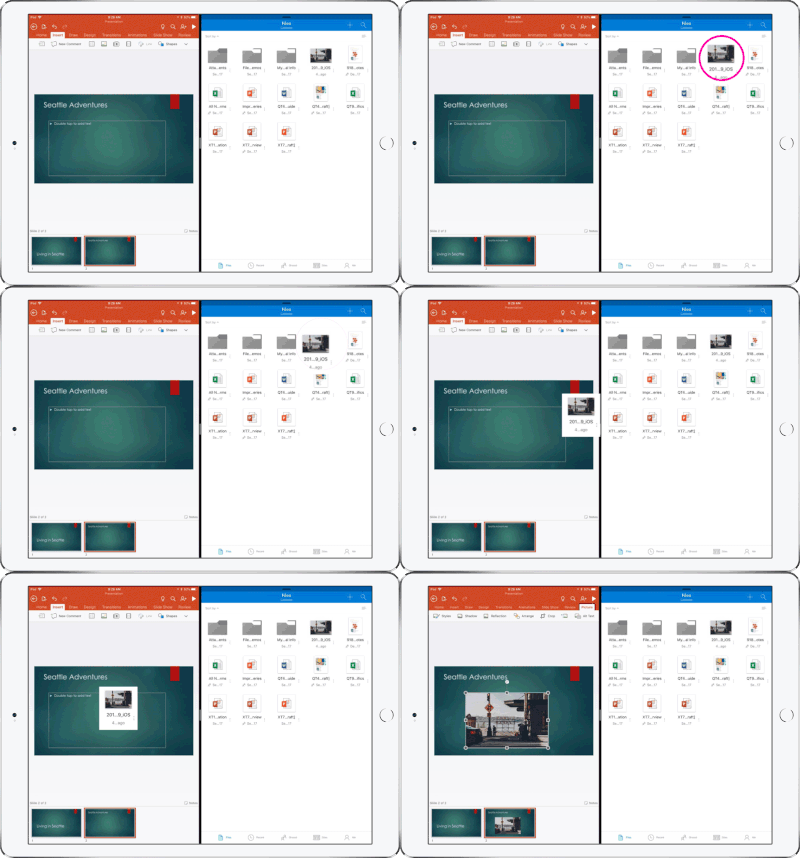
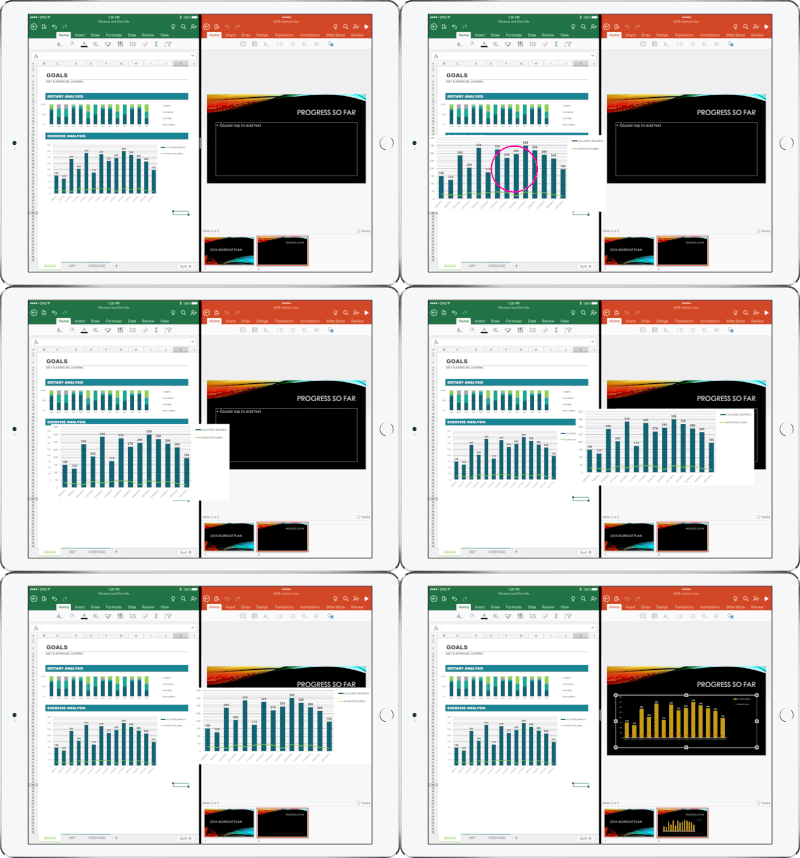
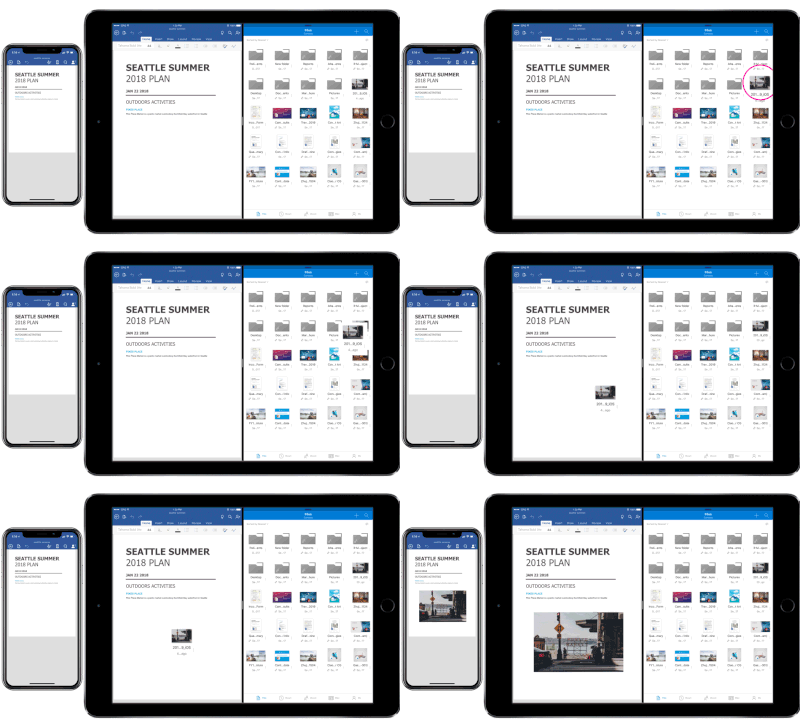
Drag and drop content between Word, Excel, PowerPoint, and OneDrive on iPad – One of the most common and powerful tasks when creating content is pulling in text, photos, graphs, and other objects from different sources. Now you can pull in content with ease on your iPad with drag and drop support in Office and OneDrive. Easily drag and drop objects from OneDrive or from one Office app to another.

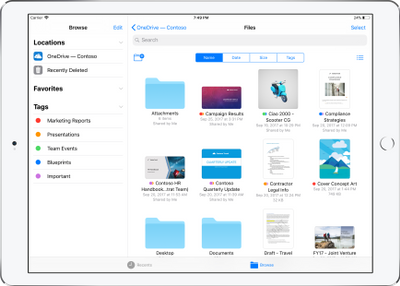
OneDrive Files app support – Today we’re also announcing native support for the Files app in iOS 11. OneDrive integration with the Files app allows you to access, upload, edit, and save your content to OneDrive or SharePoint from apps that support Files app integration. You can also tag and favorite your OneDrive and SharePoint files from within the Files app.

OneDrive redesigned to find the files that matter – The OneDrive iOS app has been redesigned from the ground up with a new layout that uses your screen space more efficiently allowing you to find your files faster. It’s easier to scan across file names, see the information that matters to you, and sort files how you want. New metadata is visible in the list view, so you can easily identify new files and files that have been shared.

Universal link support for shared files – Being able to seamlessly share and securely access files is essential for teamwork. Previously when you received a link to a shared file, you would be directed to a browser and prompted to re-authenticate. Today, we are announcing universal link support, which will open the document directly in the Word, Excel, or PowerPoint iOS apps. Further, if you don’t have a supporting application for the file, you’ll be directed to the OneDrive app to preview the file.

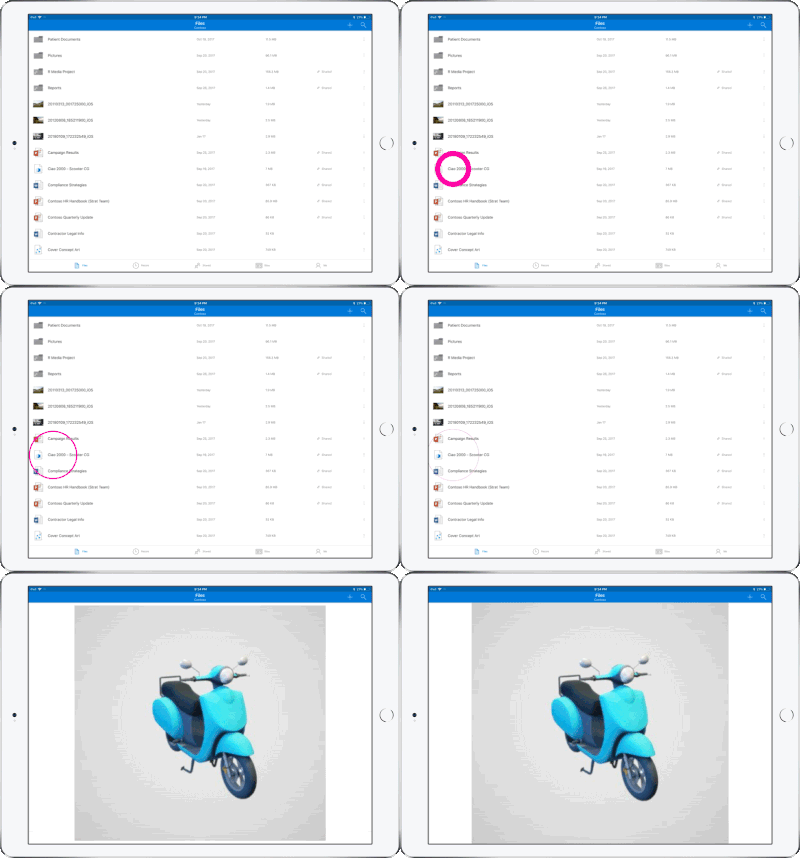
Preview 130+ file types in your OneDrive app – You and the people you work with use a variety of different file formats, but when you’re on your mobile device you might not have access to the native applications for those files. Now, the OneDrive iOS app creates crisp thumbnails and supports large previews of over 130 file types, including Adobe Photoshop and Illustrator, RAW, 3D objects, and high-precision DICOM images. OneDrive lets you open, view, and share all of your files without leaving the app.

New accessibility features for Word, Excel and PowerPoint on iOS 11
The VoiceOver rotor in iOS improves navigation and the accessibility of content. For example, you can use the built-in rotor on iOS to navigate line-by-line or word-by-word and change the speed at which VoiceOver speaks. The new Office-specific rotors also let people with vision impairments navigate more efficiently in Word across tables and links, slides in PowerPoint, and sheets in Excel.

Users can also leverage larger text options in accessibility settings to modify the text size in the core Office apps. Visit the support pages for Excel, Word, and PowerPoint to learn more.

You can use take advantage of these new capabilities in the coming days by updating the Word, Excel, PowerPoint, and OneDrive apps in the Apple App Store.

Microsoft OneDrive for Business

onedrive

OneDrive (formerly “SkyDrive”) in an essential tool for the Office 365 package.  OneDrive provides safe data storage that can be easily accessed from virtually anywhere.  Although, this storage option is safe, it is not practical for business use.

OneDrive for Business (formerly “SkyDrive Pro”) offers a administrative controls with a content management platform. OneDrive for Business allow IT Administrators/Departments to control the intellectual property of their business(es).

Improved features for OneDrive for Business include a menu bar to easily access frequent tools and controls, search bar with type-ahead feature to quickly find files and many more.  Additional features such as, higher storage limits, encryption on stored data, data loss prevention features and many more will be released throughout 2014.

Currently, OneDrive for Business is included with Office 365 and SharePoint package plans.  Microsoft announced that as of April 1, 2014 OneDrive for Business, as well as other services/software, will be available as a standalone cloud service for $5 a month per user.

For assistance with Office 365, SharePoint or OneDrive for Business

 please contact us 856-745-9990 or click here.

CALL US NOW!