Back to Top

Tech, Web, Cloud & Cabling Services

Category: Hosted Services

Hosted Services Category

Microsoft Stream: The future of secure business video

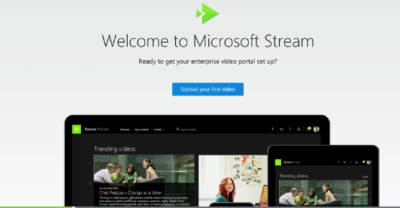
Microsoft is previewing Stream, a new service for publishing and managing business videos. One day it will be the default video publishing system for Office 365.
MicrosoftStream


On July 18, 2016, Microsoft announced that a preview version of a new service called Microsoft Stream was available. Like most of you, I passed over the news with an indifferent “whatever” attitude. But later I realized that the news was actually more important than I had first thought.

Microsoft Stream fulfills a niche by providing a secure place to share videos created within, and for, businesses. By using a cloud-based service like this, businesses can reap the benefits of video communication without the threat of anonymous forum trolls trashing the brand or harassing employees.

Upload and forget it

While it is still a preview version, Microsoft Stream seems mostly ready for prime time. All you have to do is set up an account with a valid business email—One can use a personal domain email—and then log in. To test how easy Stream is to work with, you can make a 10-second video with a smartphone. Upload your video to Google Drive and then drag and drop it on the Stream portal website.

The web service processes the video while you give it a title and a brief description. Stream then asks if you are ready to publish and when you say yes, it publishes the video after a few seconds of grinding. It takes all of two minutes from start to finish and requires nothing more technical than knowing how to drag and drop a file.

Gone are the days of worrying about file format, aspect ratio, preferred playback applications, and all the other minutia we had to go through in years past to get a video published. You just take the video and then publish the video.

Video management

The key features of Microsoft Stream have to do with managing videos after they are published. Videos can be classified and placed into specific channels. Those channels can have their access restricted to certain individuals or certain groups, like a specific department, for instance. Access is controlled via the Azure Active Directory system.

According to the blog post, Microsoft plans to integrate Stream into the existing Office 365 Video system. Once the integration is complete, Microsoft Stream will be the default system for publishing video in an Office 365 environment.

There are plans in the works to add intelligent search to Stream by taking advantage of tools like audio transcription and face recognition. Developers are also working on ways to integrate Stream with other tools, like PowerApps, Microsoft Flow, and SharePoint.

Bottom line

We are aware of Microsoft Bookings and how that application attempts to cut out other third-party developers by integrating appointment scheduling for small businesses with the standard Office 365 subscription. By offering Stream, a secure video publishing and management service, Microsoft is attempting to execute the same strategy for video publishing.

Microsoft Stream gives businesses a secure system for publishing videos. Through Stream, businesses control access and manage who can see what and when they can see it. And because it is all handled internally, problems with anonymous forum trolls are likely to be reduced.

It seems that Microsoft’s grand strategy is to become the only software company a business needs—ever. The glaring application that Office 365 is missing now is a double-entry accounting system that includes payroll, accounts receivable, accounts payable, and the general ledger. Should we be looking for an announcement regarding those applications soon, Microsoft?

Have questions?

Get answers from Microsofts Cloud Solutions Partner!
Call us at: 856-745-9990 or visit: https://southjerseytechies.net/

South Jersey Techies, LL C is a full Managed Web and Technology Services Company providing IT Services, Website Design ServicesServer SupportNetwork ConsultingInternet PhonesCloud Solutions Provider and much more. Contact for More Information.

To read this article in its entirety click here.
When should businesses upgrade to Windows 10?

Looking at upgrading your business PCs to Windows 10 but not sure when to make the leap? Here are some issues to consider.

Business customers can often be years behind the state of the operating system art: right now most businesses are still running Windows 7, launched back in July 2009, having shown limited interest in Windows 8 which arrived in August 2012.Windows 10

Even when they buy new PCs, most companies today still downgrade them to Windows 7, so it’s usually home users that are first to take the plunge with the new software, whether they like it or not.

However, businesses may be significantly faster to adopt Windows 10, which arrives on 29 July (volume licensing customers will be able to download Windows 10 Enterprise and Windows 10 Education on Volume Licensing Service Center from 1 August) than previous versions of Microsoft’s operating system.

Part of the reason for the change is the huge public testing process – five million testers strong – that has preceded the arrival of Windows 10. As a result, the standard policy of waiting for the first service pack to arrive before rolling out a new OS is now longer the right one, says Stephen Kleynhans, research vice president at analyst Gartner.

However, that doesn’t mean firms should be full steam ahead with upgrades. “I’m not one who believes there is a need to rush to a new operating system. You want to let the ecosystem around the operating system mature a little bit before you jump right in,” he says.

Companies should wait until it’s clear if the line of business applications they use work happily with Windows 10, and whether they can find enough expertise to make sure any rollout is a smooth one. “All of that has to build up before you want to jump in and start running it in your production environment,” he said.

Kleynhans said businesses need to spend some time testing out Windows 10 in a controlled fashion: “Bring it into a lab, bring it into a test environment, let some folks run it for the rest of this year. Then, in 2016, get serious about it, start looking at it in a real test environment, start piloting it with some real users to see how it’s performing.”

He said that if all goes well companies should be ready to start deployments in the second half of 2016 or the beginning of 2017, depending on how large and complex their IT environment is.

“If you’re a large company nothing happens really fast. If you’re a small company the timeline is going to be a lot faster – if you’re testing with 10 people you might be testing with ten percent of the company.”

Starting the rollout a year to 18 months after the operating system is launched might seem like a long delay, but it would still be six months to a year faster than with previous upgrades.

Kleynhans said that it took most big companies 18 months of testing and remediation work before they were able to start rolling out Windows 7. In contrast, most companies will get Windows 10 testing and remediation done in less than six months.

The analyst said that some organizations are keen to get moving as soon as Windows 10 is available – such as those that are still using Windows XP or who have plans to deploy hybrid PC devices. But, for most companies, this will be too soon.

“There are pieces of the operating system targeted at the enterprise that we really haven’t had a chance to try out yet. You can’t consider significant production rollouts even in the most aggressive cases until later in the fall.”

He cited Windows Update for Business as a new tool that small and medium sized businesses will want to use, but that wasn’t part of the tech preview. There are also some other security components that haven’t been as broadly tested or available during the tech preview, he said.

As Ed Bott notes over at Tech Pro Research, other missing features will include the new unified sync client for OneDrive (the consumer cloud storage service) and OneDrive for Business (the cloud storage service for business Office 365 subscriptions). He predicts these will be wrapped up by late October, in time for Windows 10 PCs to hit the retail channel for the festive season.

Other factors to consider: at a prosaic level, the upgrade will inevitably cause disruption so don’t plan it for a busy time of year. If you’re in retail, starting the upgrade in November or December might be a career limiting decision for the CIO.

The state of your current infrastructure is another element to take into account. Gartner says that companies planning Windows 8.1 deployments should instead redirect their efforts toward earlier deployment of Windows 10.

“In almost all cases, enterprises currently planning to deploy Windows 8.1 should switch to Windows 10. Enterprises that already have Windows 8.1 deployed should continue with those deployments for the time being. Customers on Windows 7 with no plans for Windows 8.1 should begin evaluating Windows 10 for deployment in 2H16 or later,” the analyst firm said in a research note.

Equally, for some, the upgrade may never take place. David Gewirtz has no plans to upgrade any of his Windows 7 devices to Windows 10: “They work, they’re rock solid, and all their drivers are perfectly tuned to the hardware they’re running on,” he notes.

However long it takes enterprises to take the plunge, Windows 10 is likely to become widely adopted, if only because most firms will need to move off of Windows 7 eventually, while the relatively few who did move to Windows 8 will also update sooner rather than later. The pressures that forced companies to migrate off Windows XP and onto Windows 7 will eventually make them move from Windows 7 to Windows 10.

“Windows 7 comes to end of life in January 2020. That’s only four and half years away so you’re going to see the same sorts of pressures mount to get off of Windows 7. They need to go somewhere and they’ll go to Windows 10,” he said.

Have questions?

Get help from IT Experts/Microsofts Cloud Solutions Partner
Call us at: 856-745-9990 or visit: https://southjerseytechies.net/

South Jersey Techies, LLC is a full Managed Web and Technology Services Company providing IT Services, Website Design ServicesServer SupportNetwork ConsultingInternet PhonesCloud Solutions Provider and much more. Contact for More Information.

To read this article in its entirety click here.
Can’t Change Windows 7 Theme?

Can’t change the Windows 7 theme? Is your Windows 7 theme stuck on “classic”? If it is stuck, then you can try to apply a few fixes and see if if you can unstuck it! Often it is stuck, because your PC is configured to be optimized for best performance, rather than best appearance!


Windows

Overview

Configure PC for better Appearance
Start Windows 7 Themes Service
Problem: Themes Service Cannot Be Started

Use Visual Styles on Windows and Buttons

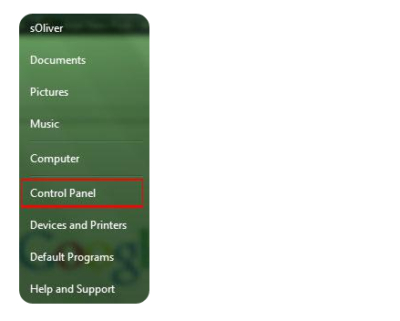
Often the reason why your Windows 7 theme could be stuck on classic is that your PC is configured to be optimized for better performance. I could imagine that some laptops are even pre-configured that way. Actually, it’s a good setting, but if you want a better appearance I can understand that it’s annoying to be stuck on “classic” theme. So, if you can’t change your Windows 7 theme, you might want to check your PC configuration first:

1. StepOpen the Control Panel

Control Panel


2.
Click on “System and Security”:

3. Step Click on “System”.

4. Step In the sidebar, click on “Advanced System Settings”:

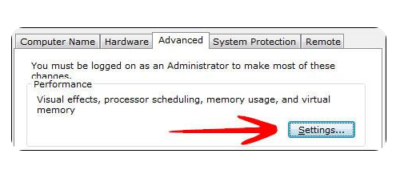
5. Go to the tab “Advanced” and click on “Settings”:

System and Security


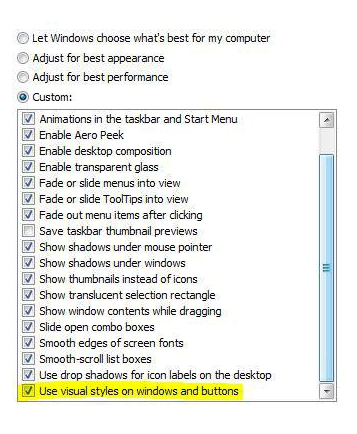
6. Step Scroll down the list, at the bottom double-check that the item “Use Visual Styles on Windows and Buttons” is checked. If this is not checked, your Windows 7 theme will be stuck on “classic” for a long time, because this completely disables your fancy visual Aero appearance.

Windows 7 Themes

This is also often the problem why people can’t seem to be able to active the Windows 7 Aero theme, because their PC is configured to be optimized for the best performance and not the best appearance.

Themes service is not started

If your Windows 7 themes service is not started your Windows 7 theme will be stuck on “classic”. You can’t change your Windows 7 theme when the theme service is disabled. So, let’s check if your themes service is up and running.

1. Step Click on “Start” and enter “services.msc” into the search field. Click on the item that appears.

2. Step Scroll down the list until you find the item “Themes” (or enter Themes while one item is selected)

3. StepYou will now see if the Themes service is running currently and what mode it is in (Automatic, Disabled, Manual):

If it’s currently “Disabled” or in “Manual” mode and not started, you have to start it manually and change the mode to “Automatic”.

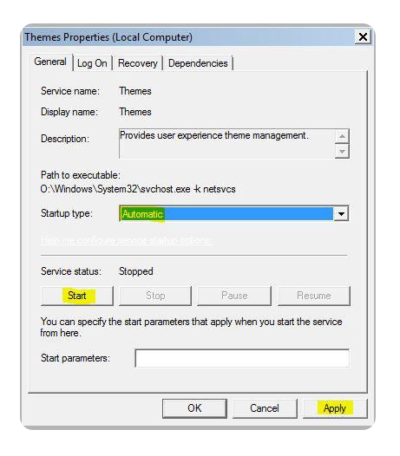
4. StepDouble-click on “Themes” and from the dropdown select “Automatic”, click on “Start” and then on “Apply”.

Themes Properties

Have questions?

Microsoft’s Cloud Solutions Partner are here to help.
Call us at: 856-745-9990 or visit: http://southjerseytechies.net/

South Jersey Techies, LLC is a full Managed Web and Technology Services Company providing IT Services, Website Design ServicesServer SupportNetwork ConsultingInternet PhonesCloud Solutions Provider and much more. Contact for More Information.

To read this article in its entirety click here.
 

Verizon officially lands iPhone

Takeaway: It’s official. Verizon is getting the iPhone. There are five big questions that we’ve been hearing in relation to the iPhone 4 launch on Verizon. Here are the answers.

It’s official. AT&T’s deal as the exclusive US carrier for the iPhone has ended (apparently the 4-year deal concluded at the end of 2010), and Verizon is the first new US telecom to add the iPhone to its roster. The long-anticipated move was announced at a Verizon press event at New York’s Lincoln Center on Tuesday in the midst of a circus atmosphere that included the tech press, all of the national news networks, and even The Daily Show.

The iPhone 4 will arrive on Verizon on February 10. Current Verizon customers will be able to pre-order online starting February 3. The price of the iPhone will remain the same: $199 for 16GB and $299 for 32GB, with a two-year Verizon contract. As for the price of Verizon data plans for the iPhone, Verizon coyly stated, “Customers will also be required to activate a data package. Pricing will be announced at a later date.”

It’s odd that the iPhone wouldn’t simply use the existing Verizon 3G data plans. This seems to indicate a couple possible scenarios. Either: 1.) Verizon is going to have a special data plan just for the iPhone (it has been rumored that Verizon would offer a truly unlimited data plan for iPhone), or 2.) Verizon is about to change the price of all of its 3G data plans in conjunction with the iPhone launch.

Beyond the basic details, here are answers to five big questions that we’ve been hearing from our audience in relation to the iPhone finally landing on Verizon:

1. Will it be CDMA or LTE?
Unfortunately, the iPhone 4 will only run on Verizon’s 3G CDMA network and not on its newly-launched 4G LTE network. This was the biggest disappointment of the Verizon iPhone announcement, especially since upcoming Android devices like the HTC Thunderbolt and Motorola Droid Bionic will be running on the LTE superhighway in a few months. At CES last week I tested the HTC Thunderbolt on the Verizon LTE network and was blown away by the desktop-like speeds for loading Web pages. At today’s press event Apple said that including LTE in the iPhone 4 would have involved “design compromises” (probably in size and battery life) and would have taken longer before it was ready to launch. However, both Apple and Verizon stated that this is just the beginning of their partnership (Translation: Expect an LTE-capable iPhone in the future).

2. Will it have mobile hotspot capability?
The biggest surprise of the Verizon iPhone announcement — and arguably the biggest news of the press conference since everything else was pretty much as expected — was that the Verizon version of the iPhone will offer the capability of turning itself into a mobile hotspot that can share its 3G Internet connection over Wi-Fi with up to five devices. Again, no information was provided on whether Verizon will charge extra for mobile hotspot capability. Verizon has wide variations in its treatment of tethering and mobile hotspot charges. It has charged Android users an additional fee for it, but threw it in for free to Palm Pre Plus users. What they do with the iPhone will probably depend on how aggressively the company wants to try to poach current AT&T iPhone customers.

3. Does new Verizon model fix iPhone 4’s antenna?
As you’ve probably heard, when the iPhone 4 first launched last June there were a bunch of customers who experienced antenna problems when holding the iPhone in a way that covered a sensitive portion of the antenna in the lower left-hand corner of the phone. The problem was drastically overblown by the tech press and drastically understated by Apple. In the end, Apple said the problem was significantly reduced if you use an iPhone case and offered free cases to buyers. A number of people have asked if Apple has fixed the problem in this new iteration of the iPhone 4 for Verizon. Naturally, Apple hasn’t said that it has changed anything with the iPhone antenna, but a closer look at the Verizon iPhone shows that it does indeed have a different antenna design and early reports indicate that the Verizon iPhone is not exhibiting the antenna problems.

4. Can you transfer an existing iPhone to Verizon?
The AT&T version of both the iPhone 3GS (which just got a price drop to $50) and iPhone 4 are built on what’s called GSM radio technology (used by both AT&T and T-Mobile in the US). Meanwhile, Verizon and Sprint use a completely different technology called CDMA. The two standards are incompatible. They use different radios and operate on different wireless frequencies. So, no, you cannot take your existing AT&T iPhone and walk into a Verizon store and simply switch networks. Even if you own an iPhone 4 you will have to purchase a completely new iPhone 4 with CDMA chips in order for it to work on Verizon.

5. Will iPhone kill Verizon’s network like it did to AT&T?
Another question that we heard a lot leading up to the expected announcement of the Verizon iPhone today was whether the influx of millions of new iPhone users would bring the Verizon network to its knees the same way it has crushed the AT&T network in areas such as New York, San Francisco, and Los Angeles and at big events like CES and SXSW. I think the answer is “no,” for several reasons. First of all, Verizon is a lot more serious than any of the other US wireless carriers when it comes to network integrity. They aggressively test and audit their own network, so I’ll think they’ll be ready. Second, they just beefed up all of their cell sites to handle additional bandwidth and network load for the launch of their 4G LTE network in 38 cities and they are in the process of upgrading the rest of the US to LTE over the next 24-36 months. Third, while there will be plenty of existing Verizon customers who jump on board with the iPhone and some die-hards who jump from AT&T to Verizon, the vast majority of iPhone customers will remain on AT&T because they are under contract and leaving would be prohibitively expensive.

To view the original article in it’s entirety, Click Here

Office 365 Activation: How to Fix

Imagine you are a customer of Microsoft’s Office 365 service, including a subscription to the Office desktop applications like Word, Excel and Outlook.

One day you click on the shortcut for Word, but instead of opening, it just shows a “Starting” splash screen which never progresses.

Being smart, you try to start Word in safe mode by holding down the Ctrl key, but the exact same thing happens.

Annoying, when you want to do your work. What is going on?

We took a look at a case like this. Two things you should do (after the usual reboot):

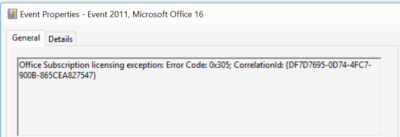
1. Look in the event viewer. Here, we found a clue that the issue is related to software activation, specifically Event 2011 “Office Subscription Licensing exception”:

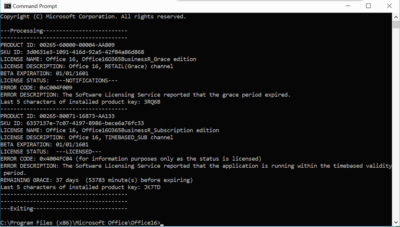
2. For all things related to Office licensing, open a command prompt, go to (for example) C:\Program Files (x86)\Microsoft Office\Office16, and type:

cscript ospp.vbs /dstatus

In this case we got the following:

This told us that Windows thinks TWO product keys for Office are installed. One has expired, the other is fine.

The guilty party may (or may not) be the trial version of Office typically pre-installed with a new PC. Or it could be a consequence of changing your Office 365 subscription. Neither would be the fault of the user, who is fully licensed and has done nothing other than follow Microsoft’s normal procedures for installing Office 365.

Solution: we reinstalled Office from the Office 365 portal, and attempted to remove the dud product key with:

cscript ospp.vbs /unpkey:<Last five characters of product key>

as explained here. All is well for the moment.

Activation and subscription license checking is for the benefit of the vendor, not the user, and should never get in the way like this.

Further, cannot Microsoft find some way of informing the user when this happens, and not have Word simply hang on starting? How difficult is it to check for licensing and activation issues, and throw up a message?

Hosted Exchange Email: Quick Setup

Hosted ExchangeArm your business for success!
Let us show you how simple,
quick & affordable it can be.


With the unbeatable combination of Microsoft Exchange®, Microsoft SharePoint®, Microsoft Outlook® 2010 and Outlook 2011 for Mac, you can now:


  • Manage email and share contacts and calendars across your entire organization–and across PCs and Macs.
  • Schedule meetings and synchronize tasks in an instant by easily viewing and comparing availability of coworkers across multiple calendars.
  • Stay on top of vital information–from home, or on the road, or virtually anywhere else—via Outlook Web Access or any Windows-enabled mobile device.
  • Use Microsoft SharePoint® as a shared environment for project collaboration, and to manage and backup essential business information.
  • Streamline search functions to reclaim the big part your day that is now spent just tracking down information.
  • Protect your business from junk mail, viruses and phishing websites – with our 100% data protection guarantee.
  • Organize your day automatically with the To-Do Bar that displays your flagged emails and tasks.
  • Far more powerful than POP email, Microsoft’s corporate-class email (MAPI protocol) not only lets your users access and share critical information from any web browser, it also allows you to establish public folders and centrally set and manage the rules for your company’s email.
  • Keep your business ahead of the curve–and the competition: with our hosted packages, updates are automatic, so you always have the most advanced Microsoft Exchange® and Microsoft SharePoint® capabilities.
  • Gain peace of mind, because it’s all managed and supported for you 24X7 at a low monthly cost.

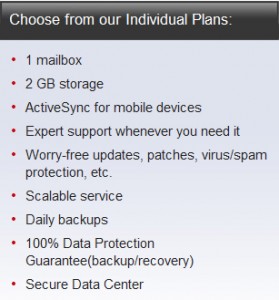
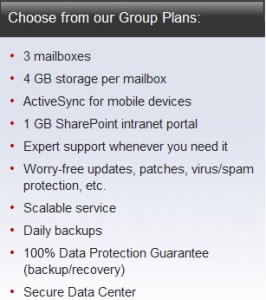
Two Types of Plans:

Individual Plan

Group Plans

CALL NOW:  (856) 745-9990

Win10 Available Starting July 29

billionphotos-1856284

From today, Windows users will be able to reserve their upgrade to the new operating system, which has seen its icons revamped by Microsoft.

Microsoft’s next operating system will be available for PCs and tablets from 29th July – with existing Windows users able to reserve their upgrade from today.

Windows 10 will be available both on new PCs and as a free upgrade for those running Windows 7 and 8.1. Owners of these operating systems will see a Windows icon in their taskbar that will allow them to “reserve” their upgrade. The 3GB file can be downloaded from 29th July.

The free upgrade will be available until July next year and those choosing to switch to Windows 10 can cancel their reservations at “at any time”, according to Microsoft.

While Windows 7 Enterprise, Windows 8/8.1 Enterprise and Windows RT/RT 8.1 releases can’t be upgraded in this way, Microsoft has said that “Active Software Assurance customers in volume licensing” will be able to “upgrade to Windows 10 enterprise offerings outside of this offer”. Microsoft are yet to clarify when users of Enterprise versions of Windows will be able to move to Windows 10 Enterprise.

Microsoft is betting Windows 10 will win over users with its ability to run on a variety of platforms, allowing users to use the same cloud services and software as they swap between fixed and mobile computers.

“We designed Windows 10 to run our broadest device family ever, including Windows PCs, Windows tablets, Windows phones, Windows for the Internet of Things, Microsoft Surface Hub, Xbox One and Microsoft HoloLens-all working together to empower you to do great things,” said Terry Myerson, VP of Microsoft’s operating systems group in a blog post.

Features such as Continuum mode will detect when mobile Windows 10 devices are docked with a mouse, keyboard and monitor and reorient the UI to suit – for example switching from tap-friendly tiles to smaller icons suited to a mouse pointer – whileUniversal Apps will tailor their interface to the device they are being used on.

Myerson is keen to stress that “Windows 10 brings back the Start menu” familiar to Windows 7 users, following the backlash against Windows 8’s fullscreen Start menu.

Microsoft is also hoping users will take to Cortana, the built-in virtual assistant that users can talk to in order to set appointments, search for information and answer rudimentary queries, and which should become more capable as it learns more about you.

Windows 10 will include the free anti-malware software Windows Defender, which will have free updates for the lifetime of the OS, as well as its new faster and more capable Edge web browser.

While the operating system will launch on PCs and tablets in July, it is expected tolaunch on phones, small tablets, Xbox, and Hololens at unspecified later dates.

Microsoft said it had refined the OS using feedback from more than four million Windows Insiders testing early builds of the OS.

The firm revealed a new, or at least slightly tweaked, look for Windows 10, in its latest Build 10130, which has just been made available via the Windows Insider programme.

The update overhauls the rather plain icons present in earlier builds and replaces them with what Microsoft describes as “more modern and lightweight” alternatives. The revamp means that app icons will also be more consistent between desktop and mobile in apps such as Word and Excel.

While the new icons may not look vastly different, Microsoft said extensive work had gone into the redesign.

“Between the legacy aero-style icons and new app icons, several thousand icons were designed and redesigned. We explored Swiss graphic design, Dutch product design, and modern architecture (among other design fields and styles) to inform and inspire the design process. The icon evolution will continue as we push more consistency and better functionality,” according to a blog post.

Other improvements in the latest build include the ability to customise the Start menu, a new look for Jump Lists on the Taskbar, new swipe shortcuts for Tablet mode, the addition of a Favorites pane and other features to the Edge browser, Taskbar settings for Virtual Desktops, a Cortana keyboard shortcut, Print to PDF feature and fullscreen playback for the Movies & TV app.

Have questions?

Our small business team is here to help.
Call us at: 856-745-9990

South Jersey Techies, LLC is a full Managed Web and Technology Services Company providing IT Services, Website Design ServicesServer SupportNetwork ConsultingInternet PhonesCloud Solutions Provider and much more. Contact for More Information.

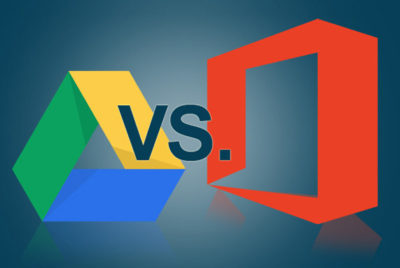
Google vs Microsoft: Office 365 Battle?

Microsoft Office 365 has taken market share from Google Apps and Google isn’t taking it lying down. Are we looking at the start of a price war?

Google apps vs Microsoft

According to an August 2015 report, Microsoft Office 365 has surpassed Google Apps and now controls more than 25% of the enterprise market—triple the enterprise market share the company held just a year ago. That is some serious growth and it hasn’t gone unnoticed by the folks at Alphabet (aka Google).

Details

On October 19, 2015, Rich Rao, head of global sales for Google Apps for Work announced a new program specifically designed to turn the tide against Microsoft Office 365’s advance.

In a nutshell, enterprises with preexisting contracts for a competitor’s office suite (read Office 365) looking to switch to Google Apps can do so and not pay any additional fees until the competitor’s contract has run its course. In essence, switching enterprises will pay Microsoft’s contract while they use Google Apps.

When the preexisting contract is over, enterprises sign a new contract with Google Apps. The announcement also suggests that Google will pay some of the transition costs through a special program offered by its Google for Work Partners service.

This is a bold move by Google and it signals that the company is reeling from the sudden surge of Microsoft Office 365. I don’t think Google was expecting this level of competition for its Google Apps suite.

Microsoft’s response

The ball is now in Microsoft’s court. There should be some kind of serious strategic response offered by Microsoft—that is, if it intends to maintain the growth of Office 365 in the enterprise market. Letting the tremendous advances in its market share over the last year erode would be irresponsible.

One strategy Microsoft may consider is lower subscription prices.

The basic enterprise version of Google Apps carries a subscription price of $5 per user. The basic enterprise version of Office 365 carries a subscription price of $8 per user. That $3 difference can really add up for a large enterprise and there may be some wiggle room for Microsoft to lower the per-user price for its service.

Cola wars. Pizza wars. We have seen major international companies take part in price wars in the past, and in the end, not much has been resolved. So I don’t think lowering their subscription prices is really the best strategy for Microsoft.

There is another way.

It’s all about collaboration

The basic applications offered by Office 365 and Google Apps—word processing, spreadsheets, emails, calendar, etc.—are similar. Office 365’s applications do have more features and deeper capabilities. Of course, Google Apps claims its lack of features is a good thing because its apps are simpler to use.

However, in this day and age, the real battleground for enterprise markets exists in features outside the basic office suite. The real battleground lies in cloud and collaboration services, including collaboration tools, storage, video communication, and document sharing. The cloud is where Microsoft and Google are going to fight their battle for productivity suite superiority.

And cloud is where Microsoft has been winning handily for the past year or so. I believe the new cloud and collaboration emphasis of Office 365 has taken Google by surprise. I think Google has realized that Microsoft has upped its game and that it can’t coast into increased enterprise market share by merely offering a lower-price, simpler productivity suite.

It may have been an indirect battle before, but Microsoft and Google are now engaged in a mano a mano fight for enterprise market share in the productivity software category. It will be interesting to see how this strategic battle between two superpowers plays out. I just hope each side takes appropriate steps to avoid collateral damage.

Have questions?

Get help from IT Experts/Microsofts Cloud Solutions Partner
Call us at: 856-745-9990 or visit: https://southjerseytechies.net/

South Jersey Techies, LLC is a full Managed Web and Technology Services Company providing IT Services, Website Design ServicesServer SupportNetwork ConsultingInternet PhonesCloud Solutions Provider and much more. Contact for More Information.

To read this article in its entirety click here.
Google Apps or Office 365: What’s Best?

Microsoft took the beta label off of Office 365 last week, and many consider the cloud-based productivity suite a potshot at Google and Google Apps. Office 365 may offer cloud-based document, storage, and collaboration services that look like Google Apps, but the user experience and price tag are very different. Here’s a look at the major differences between them.

User Experience

The way the user interacts with the application suite may be the biggest difference between Google Apps and Office 365. When you use Google Apps, you live in your Web browser. You edit documents and spreadsheets in Google Docs through your browser, you get your email through Gmail, and you chat with colleagues using Google Talk – all in your browser.

Conversely, Office 365 requires you download a plug-in that will link your desktop with the cloud-based service. You’ll need Microsoft Office installed on your desktop already (to make use of offline and cloud-based features as opposed to webapps,) and you’ll need the .NET framework installed. You’ll also need Lync installed on your system as well if your organization will leverage instant messaging and chat. It’s a hefty list of system requirements you’ll need just to get started, especially compared to Google Apps’ requirements: a supported browser.

Document Collaboration

Microsoft Office documents are the de-facto standard in office environments, so it shouldn’t surprise anyone that Office 365 has an easier time with advanced formatting in Microsoft Word documents and Excel spreadsheets than Google Apps does. Microsoft has put a lot of time and effort into making sure the polish in Microsoft Office made it to Office 365. Office 365 users get the same templates, formatting features, and tools that desktop users get, and since the two services connect, you can create a slideshow in PowerPoint and upload it to Office 365 for editing later without worrying you’ll lose the formatting or images.

If your organization already makes heavy use of Microsoft Exchange for mail and Microsoft Office for productivity, Office 365 will appeal to those who want a familiar, robust tool. Google Apps, and specifically Google Docs, feels barren and plain by comparison, even if it’s more accessible and open.

Google Docs, on the other hand, does a solid job of importing most Microsoft Office documents, auto-saving them, and giving groups a way to all work in and on the same documents and files at the same time without stepping on each other. It’s definitely more bare-bones than Office 365, but it works seamlessly and without the need for desktop software.

Microsoft rolls in Sharepoint to handle document sharing and management, and depending on your opinion, it can be a good or a bad thing. Sharepoint adds a layer of complexity where Google allows more openness. While you do get the benefit of revision history, check-in/check-out, integration with Microsoft Office on the desktop, and integration with Sharepoint Web services with Office 365, Google Docs offers much of the same and lets you and others work in the same document at the same time and see who’s viewing and who edited last, all without the need for another platform.

Chat and Communication

Office 365’s presence tools, including Lync (formerly known as Office Communication Server) integrates with other Microsoft Office and Office 365 products so you can always see if someone is available for chat or a VoIP call, or who’s editing your document or viewing the same files that you are.

Google, on the other hand, already offers this with Google Talk and Google Voice. They’re not as tightly integrated with Google Docs as Lync is with Office 365, but they’re all there.

The only area where Office 365 and Lync outshine Google Talk and Google Voice is in screen-sharing and white-boarding, which Lync has natively but Google Talk does not. Again, Microsoft has more polish and shine on their applications, but feature-for-feature, they’re largely matched. Google Talk and Google Voice may be more Spartan, but they do have broader reach, especially for users who already have large contact lists.

Price

Google Apps Standard for your domain is free. Google Apps for Business offers two pricing plans: a flexible $5/user per month where you can add or remove users at will and pay the difference, and a $50/user per year plan where you commit for a year to get a discounted rate.

Office 365 requires the initial investment in Microsoft Office on your user desktops (as noted above: for use with some enterprise-level features,) some Microsoft Office Servers and services in your environment (like Active Directory if you plan to use those features,) but after that you’ll pay $6/user per month for the small business plan. If you don’t have Microsoft Office on your users’ desktops, you can pay another $12/user per month to get each one of them a copy of Microsoft Office Professional Plus.

Larger enterprises can choose tiered pricing plans that run from $10/user per month up to $27/user per month depending on how many services that want hosted in the cloud versus in their own environments. There’s no two ways about it: Office 365 will be more expensive for almost every business, but Microsoft thinks they have the feature depth to justify the price.

Which One’s Better?

The jury is still out, and even though Office 365 has been in beta for months, Microsoft has a lot of catching up to do if they want to win back enterprises that are looking for affordable cloud-based collaboration products. The familiarity that almost every business has with Microsoft Office may play a big role going forward, but the price tag will be something else they’ll have to overcome.

Feature-for-feature though, the two services offer the same basic functionality, although it can be said that Office 365 shines with polish and flare where Google Apps offers affordability and accessibility.


Windows 10 Upgrade: 5 Microsoft Tactics

To achieve its goal of getting one billion people onto Windows 10, Microsoft is getting more forceful in how it pushes Windows 7 and 8.1 users towards its new OS.

Windows10

Microsoft wants Windows 10 on one billion devices by 2018 – and its tactics for hitting that ambitious goal are about to get more aggressive.

From next year, Microsoft will be more direct in pushing Windows 7 and 8.1 users to upgrade to its latest OS, in an attempt to bolster the 110 million-strong Windows 10 userbase.

Here’s how Microsoft is about to crank up the pressure to make the switch.

1. Windows 10 will automatically begin installing itself

From “early next year”, Microsoft will change the status of the free Windows 10 upgrade so it is classified as a Recommended Update.

Given that most home machines are set up to install Recommended Updates automatically, the change to Windows 10’s update status will lead to most Windows 7 and 8.1 machines beginning the upgrade.

However, Microsoft says that before Windows 10 is installed users will need to manually confirm the installation, giving them a chance to pull out.

Business users should be able to prevent the upgrade from automatically starting using tools such as Windows Server Update Services.

For those on metered connections, Terry Myerson, Microsoft’s executive VP of the Windows and Devices Group, said people “have the option of turning off automatic updates” before going on to say that such a move is unwise because of “the constant risk of internet threats”.

Those who don’t like the new OS will have 31 days to roll back to their previous version of Windows. To go back, select “Start Button->Settings->Update and Security->Recovery and Uninstall Windows 10”.

2. Upgrade notifications will be made more obvious

Despite Microsoft sticking a ‘Get Windows 10’ icon on the taskbar of most Windows 7 desktops, many customers apparently still can’t figure out how to initiate the upgrade.

Myerson says since launching Windows 10 the number one complaint has been ‘How do I get my upgrade?’.

To address the difficulty some users are having, Myerson said Microsoft will change “our notifications to be more approachable and hopefully clear, and sometimes fun”.

3. Upgrades will happen immediately

The process of initiating the upgrade to Windows 10 has also been streamlined.

In the weeks after Windows 10’s launch earlier this year, Microsoft required users to first reserve a Windows 10 upgrade, which would then be installed at a later date.

Microsoft has now replaced that two-step process with an immediate upgrade. Users clicking on the ‘Get Windows 10’ icon will now be given the option to ‘Upgrade Now’ to begin the upgrade process straightaway.

4. Simpler upgrade from unsanctioned copies of Windows

Myerson admits surprise at how many people running copies of Windows 7 and 8.1 that have not been authenticated then go on to buy Genuine copies of Windows 10.

Based on this experience, Microsoft plans to make it a “one-click” process for people running unsanctioned copies of the OS to “get Genuine” via the Windows Store or by entering an activation code bought elsewhere. The offer will be trialled in the US and, if successful, may be extended to other countries.

5. Upgrading multiple machines to Windows 10 will be easier

Those looking to upgrade several Windows 7 and Windows 8.1 machines to Windows 10 will soon find the process gets more straightforward.

Microsoft’s Media Creation Tool is used to create an image that can be run off a DVD or USB stick to upgrade qualifying machines to Windows 10.

According to Myerson, you will soon be able to use the tool to create a single image that will allow any number of 32-bit or 64-bit, Home or Pro machines to be upgraded and which will also allow for clean installs “wherever you have a Windows license”.

Have questions?

Get help from IT Experts/Microsofts Cloud Solutions Partner
Call us at: 856-745-9990 or visit: https://southjerseytechies.net/

South Jersey Techies, LLC is a full Managed Web and Technology Services Company providing IT Services, Website Design ServicesServer SupportNetwork ConsultingInternet PhonesCloud Solutions Provider and much more. Contact for More Information.

To read this article in its entirety click here.
CALL US NOW!