Back to Top

Tech, Web, Cloud & Cabling Services

Category: Email Accounts

BigBeagle.com / Email Accounts Category

Hillary Clinton Email Server: 6 Facts

Hillary Clinton’s use of a private email server when she served as US secretary of state has been a major issue for the 2016 presidential candidate. Here are the six most critical facts about it.
hillary_clinton3_3_3

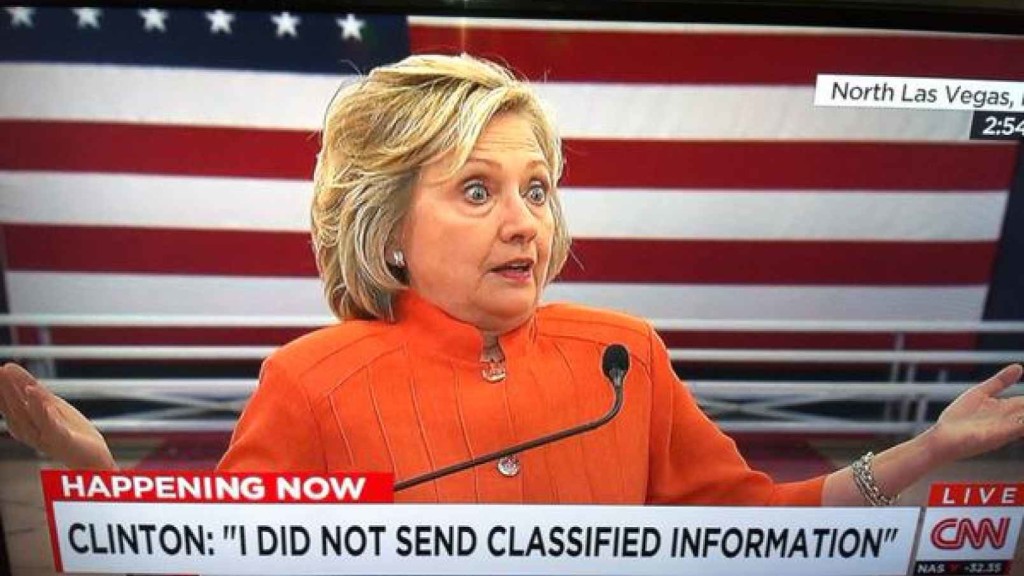
The FBI recently wrapped up its investigation into Hillary Clinton’s use of a personal email server while she was serving as secretary of state. FBI director James Comey called the actions “extremely careless,” but recommended that no charges be brought against Clinton.

She is now the presumptive Democratic nominee for the upcoming presidential election in November, and her actions relative to the email server have become a hot-button issue among her opponents. The situation, however, is nuanced; and there are a lot of details to understand about the scenario. Here are the most important facts.

1. What happened?

While serving as secretary of state under President Barack Obama, Hillary Clinton used multiple private email servers to communicate regarding government business, according to the State Department. Additionally, it was revealed that Clinton never had a government (.gov) email address while she was serving in her post—we’ll talk about which email address she used in a moment—and her aides did not take any actions to preserve the emails sent through her personal account. This prompted an investigation by the FBI to determine if Clinton intentionally put classified information at risk.

2. Why does it matter?

Clinton handed over 30,000 emails to the State Department, of which 110 contained classified information at the time they either were sent or received, according to the FBI’s findings. During the investigation, though, Clinton asserted that none of the emails she sent or received were classified at the time. The biggest implication has been the potential threat to national security. While the contents of the emails have not fully been released, if they had contained sensitive information it could have possibly fallen into the wrong hands. As noted by the New York Times, Comey said it was “possible” that enemy foreign governments had accessed Clinton’s personal email account.

The second biggest implication is that of transparency. The Federal Records Act requires that all communication in certain branches of government be recorded on government servers, and it forbids the use of a personal email account for government business, unless those emails are then copied and archived. However, there are a lot of technicalities involved, and there is evidence that other government officials had violated the act. As Alex Howardwrote for the Sunlight Foundation, there is also evidence that Clinton tried to control the discoverability of the emails under the Freedom of Information Act (FOIA), which could set a precedent for limiting public access to government records. It is also believed that Clinton deleted 31,000 emails deemed personal in nature before turning the emails over to the State Department.

3. When did it start?

When she was appointed secretary of state in 2009, Clinton began using the email address hdr22@clintonmail.com, tied to a personal server. Clinton’s personal email server was first discovered in 2012, by a House committee investigating the attack on the American Consulate in Benghazi. In 2013, hacker Guccifer claimed to have accessed Clinton’s personal email account and released emails that were allegedly related to the Benghazi attack.

The next year, in the summer of 2015, the State Department began asking Clinton for her emails correspondence, and she responded by delivering boxes containing more than 30,000 printed emails. In early 2015, the New York Times reported that Clinton had been using her personal email exclusively, and never had a government email address. A federal watchdog group issued an 83-page report condemning the “systemic weaknesses” of Clinton’s email practices in May. On Tuesday, the FBI concluded its investigation and recommended against any charges.

4. What tech was used

When Clinton was running for president in 2008, she had a private server installed at her home in Chappaqua, New York. The domains clintonemail.com, wjcoffice.com, and presidentclinton.com, which were registered to a man named Eric Hoteham, all pointed to that server. In 2013, a Denver-based IT company called Platte River Networks was hired to manage the server, but wasn’t cleared to work with classified information. The company executivesreceived death threats for taking on the contract. It was later discovered that multiple private servers were used for Clinton’s email.

Clinton used a BlackBerry phone to communicate during her tenure as secretary of state, including sending and receiving emails through her private server in New York. The State Department expressed concern about the security of the device. Clinton had requested the NSA provide a strengthened BlackBerry, similar to the one used by President Obama. But, her request was denied. Instead, the NSA requested that Clinton use a secure Windows Phone known as the Sectera Edge, but she opted to continue using her personal BlackBerry.

5. Will she be prosecuted?

Right now, it’s too early to tell whether or not Clinton will be charged for her use of private email servers. While Comey’s recommendation that no charges be brought will likely weigh in the decision, it is ultimately up to the US Department of Justice to make the call. However, a recent Politico analysis of multiple, similar cases spanning the past 20 years, seem to point to an indictment being “highly unlikely.” According to a former senior FBI official quoted in the analysis, the Justice Department tends to avoid prosecution in cases that are not “clear-cut.”

6. What can businesses and IT leaders learn?

The first lesson that IT can learn from this situation is that transparency is critical, at all levels in your business. This isn’t to say that the CEO should be broadcasting his or her emails to all employees every week, but steps should be taken to ensure that information can be accessed if need be. As part of adigital leak protection program, security expert John Pironti said that organizations need to know if users are using a personal email account to conduct business.

“This behavior is often a violation of acceptable use policies and can expose an organization’s sensitive information to unsecured systems and e-mail accounts,” Pironti said. “Without this visibility an organization may not be aware that their intellectual property, customer data, or sensitive data assets are not being protected appropriately and they also may be in violation of contractual agreements with their clients regarding the security of their data as well as regulatory requirements.”

The second takeaway for IT is that policies should be enforced from the top down. Sure, a CXO may get their support tickets expedited, but that doesn’t mean that exceptions should be made that could compromise the security or integrity of the organization for the sake of comfort or convenience. Leaders should model the policies that are in place to showcase the importance of adhering to them, especially regarding security and privacy policies.

Finally, the importance of records management should not be overlooked. In Clinton’s case, since multiple servers were used, the FBI had to piece together “millions of email fragments” before they could look into them. Proper labeling and management of all records will make for a more cohesive environment and assist in accountability.

Have questions?

Get answers from Microsofts Cloud Solutions Partner!
Call us at: 856-745-9990 or visit: https://southjerseytechies.net/

South Jersey Techies, LL C is a full Managed Web and Technology Services Company providing IT Services, Website Design ServicesServer SupportNetwork ConsultingInternet PhonesCloud Solutions Provider and much more. Contact for More Information.

To read this article in its entirety click here.

Hacker Steals 272M Emails & Passwords

Security firm announces it has persuaded fraudster to give up database of email addresses along with passwords users use to log in to websites

hacking gmail

The internet on Wednesday gave you another reminder that everyone has been hacked.

Hold Security, a Wisconsin-based security firm famous for obtaining hoards of stolen data from the hacking underworld, announced that it had persuaded a fraudster to give them a database of 272m unique email addresses along with the passwords consumers use to log in to websites. The escapade was detailed in a Reuters article.

It might sound bad, but it is also easily mitigated.

The passwords and email addresses, which include some from Gmail, Yahoo and Russia’s mail.ru service, aren’t necessarily the keys to millions of email accounts. Rather, they had been taken from various smaller, less secure websites where people use their email addresses along with a password to log in.

People who use a different password for both their email account and, say, Target.com, won’t be affected. But those who tend to use the same password for multiple sites as well as their email should change their email password.

“Some people use one key for everything in their house,” Hold Security founder Alex Holden says. “Some people have a huge set of keys that they use for each door individually.”

Holden said there is no way for consumers to check if their emails were included in his firm’s latest find. In 2014, when his firm tried to set up such a service after obtaining a billion hacked login credentials, his site crashed.

The hacker appears to have been largely targeting Russian users. Some 57m of the email addresses were for the country’s largest email provider mail.ru, which claims 100 million monthly users. Around 40m of the addresses were Yahoo Mail, 33m Hotmail and 24m for Google’s Gmail service.

In this case, the hacker had been bragging on internet chat forums that he had a treasure trove of login credentials that he was trying to sell. Holden, who is fluent in Russian, said he wouldn’t pay for the data but would give him “likes” on various social media posts in exchange.

The hacker, who apparently is quite young, agreed. “We kind of call him the collector,” Holden says in a heavy Russian accent. “Eventually, almost everyone gets breached.”

Have questions?

Get answers from Microsofts Cloud Solutions Partner!
Call us at: 856-745-9990 or visit: https://southjerseytechies.net/

South Jersey Techies, LL C is a full Managed Web and Technology Services Company providing IT Services, Website Design ServicesServer SupportNetwork ConsultingInternet PhonesCloud Solutions Provider and much more. Contact for More Information.

To read this article in its entirety click here.

Professional Email Tips: 5 Rules

Tips and advice for making the best use of this medium.

email

E-mail is a great tool that has become both a blessing and a curse. Designed to enhance productivity in the workplace, it slowly had the reverse effect. Today, e-mail is ubiquitous, much easier to use, and often abused. It’s time to focus on how to turn e-mail back into an effective management tool for 21st century executives.

Don’t use it to do your thinking for you. Writing e-mails at work is not like doing calculus at school. At school you needed to show that your logic flow was part of the answer. With e-mail, assume no one is interested in how you came to your conclusion. They are only interested in what impacts them and their work and anything on which they need to take action.

Make your request clear. When publishers lay out a newspaper, they place the most important news “above the fold.” You should think the same way about your e-mails, especially when you are making requests. If you ask for something, always put that request, including names and dates related to it, in the first two or three sentences of your e-mail. Do not assume that the reader will read far enough to see the request buried in all of the detail.

Limit emotion of all types. Humor can cut through a lot of noise when you communicate, and it can help a team rally around a common thought or issue, but it rarely belongs in e-mail. This is especially true of sarcasm, which is very easy to misinterpret. The reader almost never understands what you are trying to communicate.

Use the save button before the send button. When we were young and got angry, people told us to count to 10 before saying anything. When you need to be cool and show that you have a levelheaded approach to problems, the last thing you want to do is send an e-mail. If you are writing an e-mail about an emotional or difficult topic, such as a performance review or a follow up to a contentious meeting, save the e-mail. Then, come back to it in 30 minutes or even the next day and decide whether you want to send at all.

Use the phone. These days, an e-mail lasts forever and there is no such thing as privacy in the workplace. In many cases, the laws and regulations governing publicly held companies require strict adherence to document retention rules. If you don’t want someone else to read what you wrote, don’t send it via e-mail. Also, if the subject matter you want to discuss is important and sensitive or personal, a phone call or face-to-face discussion is always the better option.

The bottom line. E-mail is a great tool for communicating, although we are never as effective as we think we are going to be. Remember to stop and think before hitting “send.”

Have questions?

Get answers from Microsofts Cloud Solutions Partner!
Call us at: 856-745-9990 or visit: https://southjerseytechies.net/

South Jersey Techies, LLC is a full Managed Web and Technology Services Company providing IT Services, Website Design ServicesServer SupportNetwork ConsultingInternet PhonesCloud Solutions Provider and much more. Contact for More Information.

To read this article in its entirety click here.
BigBeagle.com: Save 15% Today

This is your chance to stock up on everything you need.  Save 15% on new web products. Offer expires November 30, 2014 at midnight (Mountain Time).


save 15


Please Visit BigBeagle.com.

10 Ways to Make Outlook Faster

Takeaway: Does Outlook’s pokey performance have you gnashing your teeth with frustration? Try these simple fixes to give it a kick in the pants.

If you’ve used Microsoft Outlook for a while, you know that it can slow down… way down. In fact, when not looked after, Outlook can become nearly useless. Fortunately, there are several things you can do to make Outlook not only usable, but significantly improved. And none of these techniques requires a single configuration change to your Exchange server (IMAP or POP3).

Of course, some of these suggestions might seem to have a bit more “‘duh” factor than others. But you never know what level of skills you’re dealing with, so we’ll cover all the bases. In the end, you should have a much faster Outlook experience.

1: Update Windows

Many people don’t realize that with Windows updates, the updates for Microsoft Office are also “hidden.” But it’s not just the Office updates that can help speed up Outlook. Make sure you allow the updates to happen. Why? There are times when Microsoft might update Exchange. In some cases, those updates can either break or cause problems with the communication between Outlook and Exchange. Or Microsoft might issue a patch to the application to resolve a speed issue or security hole.

2: Download Complete Items

When you connect Microsoft Outlook with either IMAP or POP3, you should have Outlook set up to download the complete message (instead of just the header). If you do this, Outlook won’t have to sync with the server every time you click on a new item (as it will already be in the data file.) How you do this will depend upon which version of Outlook you’re using. But basically, you’re looking for the setting Download Complete Item Including Attachments.

3: Archive your Inbox

I can’t tell you how many times I see clients with thousands upon thousands (and in some cases tens of thousands) of emails in their Inbox. This can cause serious issues, especially when using PST files. Instead of just letting those Inbox folders grow to outrageous proportions, set up auto archiving so that your Inbox retains only a portion of those emails. I like to tell clients to keep the current and previous months’ email in the Inbox and archive everything else. When you archive, you effectively create a new data file, so Outlook doesn’t have to strain against the weight of an oversize PST or OST file

4: Use Cached Exchange Mode

If you use Cached Exchange Mode in Outlook, you effectively take the data file from the server (PST) and cache it on your local machine (OST). This can go a long way toward speeding up your Outlook experience because Outlook doesn’t have to read its data file across a network. Instead, all it has to do is read the locally stored data file. This option (obviously) is available only when connecting Outlook with an Exchange server.

5: Compact your PST File

When the Outlook PST file gets out of hand, a built-in tool can keep the size of that file under control. One of the issues is that even when you delete email from your Inbox, the size of the PST file may remain the same. If you’re using Outlook 2010, you can go to Account Settings | Data Files and select the data file to be compacted. Once you’ve selected the file click Settings | Advanced | Outlook Data File Settings and click Compact Now. Depending on the size of your data file, this process can take some time.

6: Repair your PST File

Scanpst is often my go-to tool when Outlook is acting off kilter. It will scan through your data file and look for data inconsistencies and errors. Here’s the thing about Scanpst — it’s not always the easiest tool to find. Do yourself a favor and search through your C drive to locate the Scanpst.exe file. Make note of its location (usually within the Office installation folder). But be forewarned: This tool can cause PST files to become unusable. Make sure you back up that data file before you start the repair tool. Fortunately, should Scanpst find errors, it will prompt you to make a backup before it attempts to fix the errors.

7: Cut down on the published and shared calendars

Yes, it’s easy to publish and share your calendars with others. The problem is, the more you do it, the more drag you’re putting on Outlook. The more data Outlook has to share and pull down from the Internet, the slower it will perform. Sure, it’s fine to have one or two shared calendars (and even more if you have a lightning-fast data pipe). Just know that the more data you have to push and pull, the slower your connection will be.

8: Disable RSS

By default, Microsoft Outlook will sync RSS feeds from Internet Explorer to the RSS reader in Outlook. If you have a lot of RSS feeds bookmarked in Internet Explorer, that syncing could easily bring Outlook to a crawl. Disable this feature (if you don’t use Outlook as an RSS reader) from within Outlook 2010 by going to Options | Advanced and then unchecking both options under RSS Feeds.

9: Disable add-ins

How many times have you installed some program only to find it installed something else behind your back? This can happen to Outlook as well as Internet Explorer. Sometimes those add-ins can cause major Outlook slowdowns. To find out what add-ins you have installed in Outlook 2010, go to Options | Add-ins. Select COM Add-ins from the drop-down and click the Go button. The resultant window will list all add-ins available to Outlook. Search through this list and uncheck any that might seem suspect.

10: Fix ShoreTel Windows 7 Integration

If you use the ShoreTel Communicator, you might notice some issues when trying to open and use Outlook. The problem lies in an incompatibility issue between ShoreTel and Windows 7. The fix is simple. Open up the Task Manager and look for a process called Agent.exe. Right-click that entry and click Properties |Compatibility. Choose the Run This Program In Compatibility Mode For option and then select Windows XP (Service Pack 3).

Other Tricks?

There’s no reason why anyone should have to struggle with a bogged down Outlook that will have you pulling your hair out strand by strand. These tips should help you enjoy a much speedier and reliable Outlook experience.

What other methods have you found for improving Outlook performance? Share your suggestions with fellow TechRepublic members.

South Jersey Techies

Shark Tank host, Barbara Corcoran loses $388,700 in phishing scam

Barbara Corcoran of ABC’s “Shark Tank” has lost nearly $400,000 in a phishing scam this week. Corcoran told “People” that she was tricked as a result of an email scheme sent to her team.

The high-powered businesswoman told People that she received a scam invoice approving a real estate renovation, but she didn’t think twice about verifying it because she invests in real estate. It was only until her bookkeeper caught Corcoran’s assistant’s email was misspelled by 1 letter and it was later found to be the address used by the scammer.

“I was upset at first, but then remembered it was only money,” Corcoran told the magazine.

Corcoran’s assistant Emily Burke told CNN Business that the “Shark Tank” star wouldn’t provide any additional comment “at the advisement of her attorneys until the authorities are done investigating.”

However, Corcoran tweeted: “Lesson learned: Be careful when you wire money!” with a link to a TMZ story.

In addition to being an investor and a judge on the hit ABC show, Corcoran formerly owned the global real estate agency that shares her name. She sold it for $66 million in 2001.

Corcoran fell for a phishing scam. It’s common, too: Nearly 30,000 people reported being a victim of that type of scam last year. Together they reported nearly $50 million in losses, according to the FBI’s 2018 Internet Crime Report.

Phishing attacks are common methods of stealing usernames, passwords and money. Hackers pretend to be a trustworthy source to convince you to share personal data. To be safe, it’s important to make sure the sender is authentic before clicking on a link. Google has rolled out security protections that warns people of potential unsafe emails.

If you or your team have any questions or concerns please contact support at (856) 745-9990.


Office 365 Exchange Online


Work smarter, anywhere, with hosted email for business.

Security and reliability

Exchange Online helps protect your information with advanced capabilities. Anti-malware and anti-spam filtering protect mailboxes. Get a Exchange Online Protection Trial or Office 365 Professional Trial to see how good it works. Data loss prevention capabilities prevent users from mistakenly sending sensitive information to unauthorized people. Globally redundant servers, premier disaster recovery capabilities, and a team of security experts monitoring Exchange Online around the clock safeguard your data. And with a guaranteed 99.9% uptime, financially-backed service level agreement, you can count on your email always being up and running.

Stay in control

Maintain control over your environment while gaining the advantage of hosting your email on Microsoft servers. Manage your organization efficiently with the Exchange admin center, an easy-to-use, web-based interface. Run In-Place eDiscovery across Exchange, SharePoint, and Skype for Business data from a single interface through the eDiscovery Center. With mobile device policies, you can create approved mobile device lists, enforce PIN lock, and remove confidential company data from lost phones. And IT-level phone support is available to you 24 hours a day, 7 days a week.

Easy to use and maintain

It’s easier than ever to provide your users with the business email they need to stay productive. Automatic patching eliminates the time and effort of maintaining your system. Give your users an In-Place Archive, so they can keep all their important data in one place. And provide them with anywhere access to email, calendar, and contacts on all major browsers and across devices. Integration with Outlook means they’ll enjoy a rich, familiar email experience with offline access.

Have questions?

Our Hosted Cloud Solution team is here to help.

Call us at: 856-745-9990 or Visit: https://southjerseytechies.net/

To learn more and how Office 365 Exchange Online can benefit your business please contact South Jersey Techies, LLC. South Jersey Techies, LLC is a certified Small and Midmarket Cloud Solutions Microsoft Partner.

To read this article in its entirety click here.
Microsoft Office 2013 End of Life: What You Need to Know

Microsoft Office 2013 was a popular productivity suite that included several essential tools such as Word, Excel, PowerPoint, and Outlook. It was released in 2013 and was widely used by individuals, businesses, and organizations of all sizes. However, like all software products, Microsoft Office 2013 has reached its end of life, and users are now advised to upgrade to Microsoft 365, the cloud-based version of Microsoft Office.

drawing of a man holding a laptop in front of a very large laptop with "update" on the screen and a wrench in front

What Does End of Support Mean?

End of life, or EOL, refers to the point in time when a software product is no longer supported by the manufacturer. In the case of Microsoft Office 2013, this means that Microsoft will no longer provide technical support, bug fixes, security updates, or new features for this product. This makes the software more vulnerable to cyberattacks, viruses, and malware. Continuing to use Microsoft Office 2013 after the end of life date could result in data loss, security breaches, and other serious problems.

  • This means that Microsoft will no longer provide any updates or support for this software product beyond this date. Users who continue to use Microsoft Office 2013 after this date do so at their own risk.

If you’re using Office 2013, it’s probably a good time to upgrade your version of Microsoft Office.

Upgrade Options

The best way to protect yourself and your organization is to upgrade to a newer version of Office:

  • Cloud upgrade: Subscriptions to Microsoft 365
  • Box Version: Microsoft Home And Business 2021

Microsoft 365

Microsoft 365 is an all-in-one cloud solution with a number of different licensing options to fit your organization’s needs. The best part about cloud-based applications is that you no longer have to worry about retirements, patches, and end of support. Cloud licenses are automatically updated with new features, new applications, and security updates. Many cloud subscriptions also include installed (or desktop) versions of the application, so you can have the same look and feel of the Office applications you are accustomed to using, but built with more robust features and benefits.

Microsoft Home And Business 2021

Office Home and Business 2021 is for families and small businesses who want classic Office apps and email. It includes Word, Excel, PowerPoint, and Outlook for Windows 11 and Windows 10. A one-time purchase installed on 1 PC or Mac for use at home or work.


If you have any questions, please email us at support@sjtechies.com or call us at (856) 745-9990.

Goodbye, Hotmail. Hello, Outlook.com

Summary: Microsoft’s flagship mail service for consumers gets a new name and a “modern” Metro-style interface. Here’s how to sign up for a preview and what to expect. So long, Hotmail. It was nice to know you. Microsoft unveiled a major update to its consumer mail platform today, with a new look, a slew of new features, and a new name that is surprisingly familiar.

The “modern email” service has been in super stealth mode for several months under the codename NewMail. With its formal launch as an open-to-the-public preview, the service gets a new name: Outlook.com. I’ve been using the NewMail beta for a week now and can share some first impressions here. Outlook, of course, is the serious, business-focused mail client included with Office. Microsoft used the brand with Outlook Express, its lightweight email client in Windows XP, but dumped the name with the launch of Windows Vista in 2006. Restoring the Outlook name to Microsoft’s consumer email service accomplishes two goals. First, it dumps the Hotmail brand, which is tarnished beyond redemption, especially among technically sophisticated users who have embraced Google’s Gmail as the default standard for webmail. More importantly, it replaces the Hotmail domain with a fresh top-level domain that’s serious enough for business use. (If you have an existing Hotmail.com or Live.com address, you can continue to use it with the new Outlook interface. But new addresses in the Outlook.com domain are up for grabs. if you have a common name, I recommend that you get yourself over to Outlook.com now to claim your preferred email address while it’s still available.) The Outlook.com preview will run alongside Hotmail for now, but when the preview ends, this will be the replacement for all Hotmail and Live Mail users. With Outlook.com, Microsoft is taking dead aim at Gmail, positioning Google’s flagship service as the old and tired player that is ready for retirement. Gmail, they point out, is eight years old, and its interface and feature set aren’t exactly modern. It doesn’t play well with any social media except its own, it handles attachments in a stodgy and traditional way, and it’s not particularly elegant when it comes to managing the deluge of email we all have to deal with every day. So what’s new about NewMail—sorry, Outlook.com? And why would anyone consider switching from Gmail? The most obvious change in the web interface, of course, is the overall design, which gets the full Metro treatment.

That three-pane layout follows the familiar Outlook standard, but the typography is definitely new. It’s clean and crisp with no wasted ornamentation or clutter. It should come as no surprise that the default organization is optimized for use on touch-enabled devices. A pane on the right shows different content, depending on the context. If you’re communicating with a friend of colleague who’s in your address book or connected via a social-media service, you’ll see updates about that person on the right side, with the option to chat with them (via Messenger or Facebook chat) in that pane. In a demo, Microsoft showed off Skype integration and said it will be coming later in the preview. If you’ve selected no message, the right pane might show ads, which appear in Metro style boxes with text–an image preview appears if you hover over the ad. As part of its positioning against Google, Microsoft has taken pains to note that your messages aren’t scanned to provide context-sensitive ads, as they are with Gmail. This is a pure HTML interface, which means the functionality is consistent across different browsers and on alternative platforms. I tested NewMail on a Mac using Safari and Chrome and in both Firefox and Chrome on several Windows PCs. Everything worked as expected. I also tested the web-based interface in mobile Safari on an iPad, where it also displayed perfectly (after switching from the default mobile layout). On mobile devices, you’ll be able to use native apps. An app for iOS devices should be available immediately. Microsoft promises an Android app “soon” that will enable Exchange ActiveSync support for older Android versions. A command bar at the top of the page provides access to commands as needed. If a command isn’t available in the current context, it’s not visible on the screen.

The preview pane (a feature that’s still experimental in Gmail even after eight years) lets you read and reply to messages without leaving the main screen. Action icons that appear when you move the mouse over an item in the message list let you file, delete, or flag the message with a single click or tap.

The new Outlook has some impressive mail management smarts built in. It automatically recognizes newsletters and other recurring types of mail. A Schedule cleanup option in the message header (also available on the command bar), lets you create rules on the fly that automatically delete or file similar messages to reduce clutter. You can specify, for example, that you want to keep only the most recent message from a “daily deals” site. You can also define how many messages you want to keep from a particular sender or automatically delete/file newsletters after a set number of days.

For newsletters that don’t contain an obvious unsubscribe link, the new Outlook adds a universal unsubscribe feature at the bottom of the message. When you select this option the web service sends an unsubscribe request on your behalf and creates a message-blocking rule. One huge differentiator between old-school webmail services like Gmail is the new Unified Address Book in Outlook.com. It takes a page from Microsoft’s People hubs in Windows 8 and the Windows Phone platform to pull together your traditional address book—where you manage names and details—and combine it with social media services of which you’re a member.

The advantage, of course, is that you always have the most up-to-date contact information for friends and colleagues, assuming they update their profiles. The new Outlook does a pretty good job of combining records. If you have contacts that appear in multiple locations, you can manually link or unlink those records as needed. Supported services include anything you can link to your Microsoft account, including Facebook, Twitter, LinkedIn, and Flickr. You can import contacts from Google and Facebook if you want to keep them locally. In terms of creating and sending photos and file attachments, the new Outlook integrates exceptionally well with SkyDrive, so that you can email large attachments and photo albums, storing them on SkyDrive with well-integrated links that the recipient can access with a click. The spec sheet says single attachments can be up to 300 MB in size. If they’re stored on SkyDrive, you don’t have to worry about the message being rejected by the recipient’s mail service. And of course, the service incorporates all of the Office Web Apps, which makes the process of sharing Word documents, PowerPoint slide decks, and Excel workbooks much more seamless. On the back end, the interface for managing an email account is cleaner. You can still create aliases that you use for sites and contacts where you don’t want to share your real address. And if you just want to experiment with the new service, you can redirect your Gmail messages temporarily to the new account or sign in with an existing Hotmail or Live address. (I’ve had my Gmail account redirected to Hotmail for a year without problems.)

To View Full Article Click Here

CALL US NOW!