Back to Top

Tech, Web, Cloud & Cabling Services

Word Headers & Footers: 8 Pro Tips

Microsoft word

Even a novice Word user can display page numbers in a document’s header of footer. The process is fundamental. Advancing beyond the basics is easier than you might think, and you might be surprised how many things you can do with a header or footer! In this article, you’ll find eight tips that will move you from basic user to advanced, at least with headers and footers.

1. Display page numbers in shapes

Most documents over a few pages display a page number in the header of footer. If the document warrants a bit of visual appeal, you can display that number in an interesting and colorful shape. First, add the shape to the header using an easy-to-use built in gallery. Next, use the header’s current position property to add the number.

To add the shape, do the following:

  1. Open the footer by double-clicking the footer area. In Word 2003, choose Header and Footer from the View menu.
  2. While in the header, click the Insert tab. In the Illustrations group, click Shapes and choose one, such as the diamond shape in the Flowchart section (Figure A). In Word 2003, use the Drawing toolbar to access shapes.
    Figure A
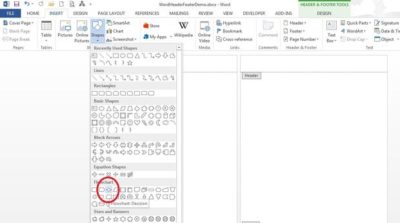
figure A

  1. Click inside the footer and drag to create the shape. It’s okay if the shape extends beyond the footer border a bit.
  2. With the shape inserted, use the contextual Format tab to format the shape. I used the Shape Fill options to change the color to lettuce green; I used the Shape Outline drop-down to change the outline to dark green; I used the Shape Effects Reflection option to add a full reflection (Figure B) that fades off the bottom edge (which might not be possible to print but works fine for electronic viewing). In Word 2003, choose AutoShape from the Format menu (with the shape selected).
    Figure B
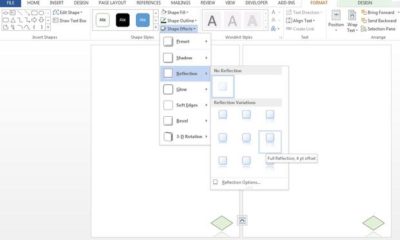
figure B

With the shape inserted and formatted, add the page number as follows:

  1. Right-click the shape and choose Add Text from the resulting submenu. In Word 2003, use the Header and Footer contextual toolbar to insert the page number, and then format as you normally would.
  2. Click the contextual Design tab. In the Header & Footer group, click Page Number.
  3. Choose Current Position from the drop-down.
  4. Choose Plain Number (the first option) from the gallery (Figure C).
    Figure C 
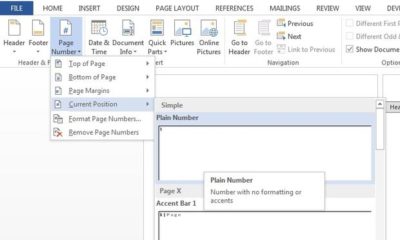
figure C

  1. Select the number and format it. I applied black font color (Figure D).
    Figure D

figure D

This simple example shows you how to display the page number in a shape. It’s up to you to determine whether doing so is appropriate for your document.

2. Insert a graphic

A header is a good place to display your organization’s logo or some other branding graphic. To do so, open the header or footer as you normally would and then do the following:

  1. With the document in edit mode, click the Insert tab. In Word 2003, choose Picture | From File from the Insert menu, and then skip to step 3.
  2. In the Illustrations group, click Picture.
  3. Use the Insert Picture dialog to locate the file
  4. Select the file, and then click Insert

You probably didn’t realize how easy that would be! While graphics in the header and footer might sound like a great idea, use them sparingly.

3. Use header graphic as a page tab

You can use the header or footer to display a graphic on every page, but you don’t have to leave it in the header or footer. For instance, you might want to use a graphic as a page tab. To do so, insert the graphic as you normally would (see tip 2). Then, drag it out of the header or footer area as shown in Figure E. If the graphic won’t move, click the Layout Options icon and choose a text wrapping option. The Layout Options icon is new to 2013. In earlier versions, you’ll find these options on the contextual Format tab. You might want to rotate the graphic as well.

Figure E
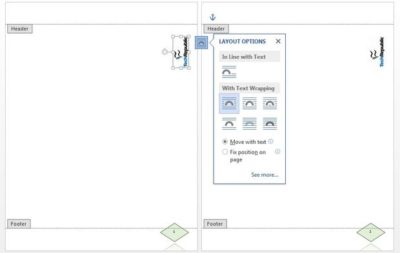
figure E

4. Use sections

A large document might need to change information in the header or footer as the document evolves. The way to implement this requirement is to use section breaks. Simply click inside the document (not inside the header or footer) where you want the new section to begin. Click the Page Layout tab, click Breaks in the Page Setup group, and then choose the best break type for your document. Return to the header or footer of the new section and make the necessary changes. In Word 2003, breaks are on the Insert menu.

For a header that doesn’t repeat information from the previous section, click the Link to Previous option in the Navigation group on the contextual Design tab. Doing so breaks the connection between the two sections. Figure F shows the toggle option linked and not linked. When sections are linked, the option has a dark background and Word displays the Same as Previous tab to the right. When the link is broken, the option has no background and the tab is gone. In Word 2003, this option is on the Header and Footer toolbar (and available only if there’s more than one section).

Figure F
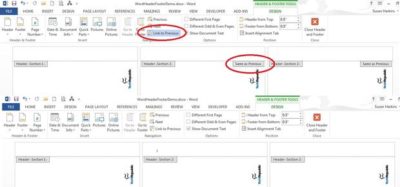
figure F

You must break the link between headers and footers separately.

5. Display custom info

The header or footer area is a great place to display custom information about the document or author using fields. To do so, open the document’s header or footer. Then, position the cursor and do the following:

  1. Click the Insert tab. In Word 2003, choose Field from the Insert menu and skip to step 4.
  2. In the Text group, click the Quick Parts option.
  3. From the drop-down, choose Field.
  4. Using the resulting dialog (Figure G), choose a field, such as Author. Set properties, if necessary, and click OK. (You could also use AutoText or Document Property.)
    Figure G
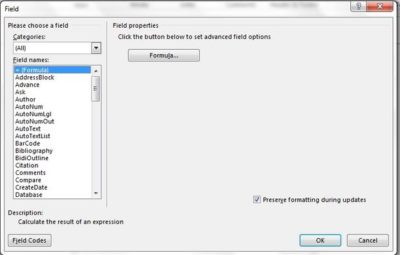
figure G

6. Gallery page number options replace existing header or footer

Be careful when using the Page Number option to display page numbers in the header or footer. If you’ve already created a header or footer, and you add the page number last, use the Current Position option. Other options from the gallery will replace the existing header or footer. (Galleries aren’t available in Word 2003.)

7. Modify the style

Word applies the Header and Footer style to header and footer text, respectively. Both styles are based on Normal. The easiest way to change the appearance of the text for either is to modify the appropriate style. Doing so will impact the entire document, so don’t change the style if you want to change the format for a single section.

8. Reference a content control

Sometimes, you want to repeat information from the body of the document in the header or footer. In later versions of Word, using content controls, this is easily done. First, you add a content control and create a custom style for it. To the header, you add a StyleRef field that references the style you applied to the content control. In this way, you can easily display the contents of the content control in the header. Let’s work through a simple example:

  1. Position the cursor where you want to insert the content control.
  2. Click the Developer tab and then click Rich Text Content Control in the Controls group.
  3. Click Properties in the same group and enter a meaningful name, such as ccName . The cc prefix identifies the object as a content control and Name describes its content.
  4. Check the Use a style to format text typed into the empty control option. Don’t worry about what’s in the Style control at this point.
  5. Click New Style.
  6. Name the new style appropriately, such as Content Control (Figure H). You can change the Style based on setting, but don’t for this example. In this way, you can see how easy it is to set this technique up without making a lot of unnecessary changes. It’s the same style used for the body of the document; it just has a different name.
    Figure H
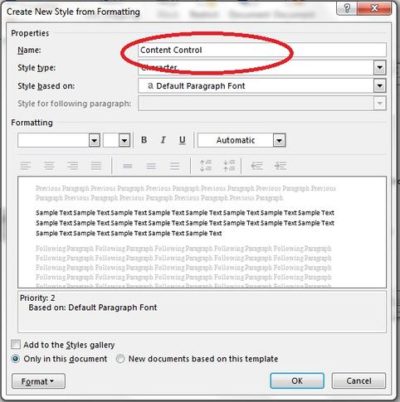
figure H

  1. Click OK, and Word updates the Style control to reflect the new style you just created (Figure I).
    Figure I
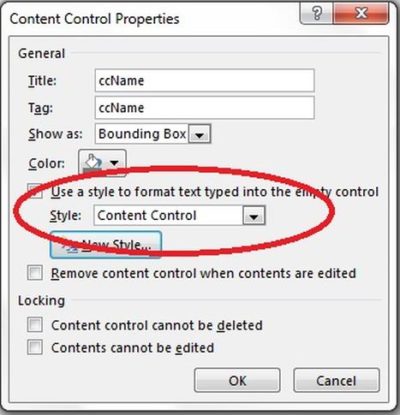
figure I

  1. Click OK.
  2. Open the header and position the cursor where you want to display the contents of the content control you just added.
  3. Click the Insert tab.
  4. In the Text group, click Quick Parts, and choose Field from the drop-down list.
  5. In the resulting dialog, choose StyleRef from the Field names list.
  6. Choose Content Control from the Style name list
  7. Click OK.
  8. Double-click the content control to close the header.

Enter text into the content control, and the field in the header will update accordingly. Although this technique has a lot of steps, it isn’t difficult to implement.

Have questions?

Get help from IT Experts/Microsofts Cloud Solutions Partner
Call us at: 856-745-9990 or visit: https://southjerseytechies.net/

South Jersey Techies, LLC is a full Managed Web and Technology Services Company providing IT Services, Website Design ServicesServer SupportNetwork ConsultingInternet PhonesCloud Solutions Provider and much more. Contact for More Information.

To read this article in its entirety click here.
Replicated Folder Offline in DFSR

We recently had an issue with and Active Directory DFSR – The replicated folder has been offline for too long at Site error for a Windows Server Standard 2016 single Domain Controller environment.

Event ID 4012 – DFSR – The DFS Replication service stopped replication on the folder with the following local path: C:\Windows\SYSVOL\domain. This server has been disconnected from other partners for 149 days, which is longer than the time allowed by the MaxOfflineTimeInDays parameter (###). DFS Replication considers the data in this folder to be stale, and this server will not replicate the folder until this error is corrected.

To resume replication of this folder, use the DFS Management snap-in to remove this server from the replication group, and then add it back to the group. This causes the server to perform an initial synchronization task, which replaces the stale data with fresh data from other members of the replication group. .

Summary


Consider the following scenario:

You want to force the non-authoritative synchronization of SYSVOL on a domain controller. In the File Replication Service (FRS), this was controlled through the D2 and D4 data values for the Burflags registry values, but these values do not exist for the Distributed File System Replication (DFSR) service. You cannot use the DFS Management snap-in (Dfsmgmt.msc) or the Dfsradmin.exe command-line tool to achieve this. Unlike custom DFSR replicated folders, SYSVOL is intentionally protected from any editing through its management interfaces to prevent accidents.

How to perform a non-authoritative synchronization of DFSR-replicated SYSVOL (like “D2” for FRS)

  1. In the ADSIEDIT.MSC tool modify the following distinguished name (DN) value and attribute on each of the domain controllers that you want to make non-authoritative:CN=SYSVOL Subscription,CN=Domain System Volume,CN=DFSR-LocalSettings,CN=<the server name>,OU=Domain Controllers,DC=<domain>msDFSR-Enabled=FALSE
  2. Force Active Directory replication throughout the domain.
  3. Run the following command from an elevated command prompt on the same servers that you set as non-authoritative:DFSRDIAG POLLAD
  4. You will see Event ID 4114 in the DFSR event log indicating SYSVOL is no longer being replicated.
  5. On the same DN from Step 1, set:msDFSR-Enabled=TRUE
  6. Force Active Directory replication throughout the domain.
  7. Run the following command from an elevated command prompt on the same servers that you set as non-authoritative:DFSRDIAG POLLAD
  8. You will see Event ID 4614 and 4604 in the DFSR event log indicating SYSVOL has been initialized. That domain controller has now done a “D2” of SYSVOL.

More Information


If setting the authoritative flag on one DC, you must non-authoritatively synchronizeall other DCs in the domain. Otherwise you will see conflicts on DCs, originating from any DCs where you did not set auth/non-auth and restarted the DFSR service.For example, if all logon scripts were accidentally deleted and a manual copy of them was placed back on the PDC Emulator role holder, making that server authoritative and all other servers non-authoritative would guarantee success and prevent conflicts.

If making any DC authoritative, the PDC Emulator as authoritative is preferable, since its SYSVOL contents are usually most up to date.

The use of the authoritative flag is only necessary if you need to force synchronization of all DCs. If only repairing one DC, simply make it non-authoritative and do not touch other servers.

This article is designed with a 2-DC environment in mind, for simplicity of description. If you had more than one affected DC, expand the steps to includeALL of those as well. It also assumes you have the ability to restore data that was deleted, overwritten, damaged, etc. previously if this is a disaster recovery scenario on all DCs in the domain.

Have any questions?

Call us at: 856-745-9990 or visit: https://southjerseytechies.net/

South Jersey Techies, LLC is a full Managed Web and Technology Services Company providing IT Services, Website Design Services, Server Support, Network ConsultingInternet PhonesCloud Solutions Provider and much more. Contact for More Information.

To read this article in its entirety click here.

Prevent Computer Overheating Issues

Many people don’t think about the hidden danger of heat to their computers, or how easy computer overheating is to prevent.

A lot of people don’t think about the effects of heat on their personal computer or laptop. The effects of overheating may be subtle, such as causing the computer to run slower or shortening the expected lifespan of the components; or it can be so devastating as to cause a fire. The most common side effect of overheating is having programs freeze or the computer shutting down sporadically.

How Computers Handle Heat
Computer heat is most efficiently handled by fans. The main fan is usually in the back and blows out. In addition there’s usually a heat sink — cooled by another fan or by a coolant system — over the CPU to prevent the processor from overheating. Some computers have additional fans to encourage airflow and help cool off high-heat components, but this varies from computer to computer.

The power supply can cause overheating if it is not properly installed in the case; if the vents aren’t positioned correctly the hot air can end up in the wrong place. The amount of free space inside the computer also matters; if all the hot components are close together, or if the placements of cords/components is impeding airflow, it can cause more heat problems.

What Can Cause Computer Overheating

There are several things that can cause a computer to overheat.

•Dust inside the computer and around the fans acts as an insulator, causing overheating.
•Running the computer in a hot environment also causes overheating.
•Running a lot of unnecessary programs can aid overheating.
•If the fans are obstructed by walls or drapes it can impede airflow.
•If the computer is being overclocked it can cause the components to overheat.
•Leaving the computer on for extended periods of time can cause overheating.
•Having the computer next to a hot device (a hot vent, other machinery, etc) can heat the computer.

How to Prevent Computer Overheating
By looking at the causes of overheating it’s often easy to diagnose and fix the problem that causes it. It’s important to resist the temptation to leave the computer open while running; the typical computer case is designed to conduct airflow, and leaving the computer open may make the overheating worse.
Simple Ways to Increase the Life of Any Computer’s Parts

The easiest way to prevent the computer from overheating is to clean it out. Most retail stores carry compressed air in their computer aisles, and it’s the easiest way to clean dust out of a dirty computer. A vacuum cleaner can also be used to suck the dust out of fans and ports along the outside of the computer. For more in-depth cleaning instructions, Lifehacker offers a step-by-step guide to computer cleaning: Geek to Live: Evacuate PC Dust Bunnies

Keeping the computer off the floor can help keep excess dust and dirt from mucking up the inside of the computer and fans. Also, putting additional fans in the computer can help improve ventilation. Many cases have specific spots for installing these extra fans; make sure that they blow the hot air out.
Don’t keep the computer too close to the wall, or near anything that keeps the hot air around the case rather than dissipating. It’s also helpful to make sure that the computer is free of debris — keeping stuff on top of the computer can insulate the computer as well.

When Nothing Else Works
When nothing else seems to be fixing the problem it may be hardware related: a broken fan or heat sink can cause major heating issues. If there’s a warranty in effect, contacting the manufacturer about any heat problems may be the easiest solution.

An overheated computer can cause any multitude of trouble. Knowing what can cause the overheating is most of the battle, and even the most novice computer user can get inside to clean the parts and check for broken fans.

How Cloud Tech Affects IT Careers

Takeaway: As adoption of cloud computing services takes off, some argue demand for certain IT jobs will all but disappear.

Just as manual labourers were replaced by the machines of industry in the 19th century so certain IT roles will be swept away by cloud computing services.

That’s the argument put forward by Gartner research director Gregor Petri – who believes that many roles managing IT infrastructure will all but disappear.

Manual management of IT infrastructure – for instance provisioning additional storage, servers or network capacity for a particular application – will increasingly be automated as software layers in the cloud automatically divert IT resources to where they are needed, he said.

“It is very much like industrialisation,” he said.

“Take the very old example given by Adam Smith of the pin makers who used to take a day to make four pins, then a factory is built that can make 10,000 pins in an hour.

“That is what cloud computing services is making possible: you can carry out these computing tasks on an industrial scale.”

Petri said that just as people no longer make pins manually, so in general people won’t perform tasks like monitoring an app’s storage demands and purchasing and installing new storage for it.

“The cloud computing app is already programmed in a way that allows the application to access additional storage when it is needed, as a result nobody is needed to do that anymore,”  he said.

“Cloud is allowing the industrialisation of IT, that is why to some people it is very scary.”

While Petri believes that traditional IT infrastructure management roles will become all but defunct, allowing IT systems to be run with fewer people, he said it doesn’t necessarily mean the individuals who carried out those roles will find themselves out of the job.

Instead he sees new roles being created that use that individuals’ technical skills to add value to the business, for instance working with managers in other departments to make company IT systems better fit the needs of staff or customers. “People in those roles need to flexible in the idea of what their role is,” he said.

The changing landscape of computing – for instance real-time big data analytics or the provision of scalable cloud services to always connected mobile computers – will also create new roles, he said.

When will it happen?

While today’s cloud platforms are already automatically provision these resources today, Petri said that the effect of this industrialisation of computing will not be felt until more applications are shifted to the cloud.

That could be some time off. Although adoption of cloud services is growing rapidly – Gartner predicts that the market for cloud compute services will grow 48.7 per cent in 2012 to $5bn, up from $3.4 billion in 2011 – spend on cloud computing services is still only a fraction of global IT spend. However, by 2020 the majority of organisations will rely on the cloud for more than half of their IT services, according to Gartner’s 2011 CIO Agenda Survey.

Will jobs really disappear?

Not everyone is convinced that cloud computing services will have such a profound effect on the IT jobs landscape.

Some believe that while roles will likely transition from in-house IT teams to cloud providers as companies consume more cloud services, the roles and demand for skills will remain.

As a TechRepublic reader who works for a large cloud provider pointed out: “I still deal with the daily hands on from thousands of customers / clients, some pretty huge ones at that. Between dealing with their AD, LDAP, Windows / Linux deployments, configuration and code issues, I can say that server administrators will still be needed in fact more than ever.”

Other readers have pointed out that IT roles tend to endure far longer than expected and certain technical skills remain in demand. Old programming languages never die, as another reader points out:”Back in 1977 I attended a COBOL Summer class in my university. The first thing the instructor told us was that it was dead language, as new technologies were pushing it to extinction… Guess what, early this morning I reviewed (part of my duties as a DBA) some SQL embedded in a COBOL program to run in the z196 Mainframe”.

To View Full Article Click Here

World’s Largest Meat Supplier Attacked

The breach is the latest targeting of a crucial supply chain and comes three weeks after the Colonial Pipeline hack disrupted fuel operations in the U.S.

Here’s what we know:

What is JBS?
JBS USA is part of JBS Foods, one of the world’s largest food companies. It has operations in 15 countries and has customers in about 100 countries, according to its website. Its customers include supermarkets and fast food outlet McDonald’s and in the US, JBS processes nearly one quarter of the county’s beef and one-fifth of its pork. JBS’s five biggest beef plants are in the US, and the shutdowns have halted a fifth of meat production there, according to Bloomberg.

Its brands include Pilgrim’s, Great Southern and Aberdeen Black. The US headquarters is based in Greeley, Colorado, and it employs more than 66,000 people.

What happened?
Hackers attacked the company’s IT system last weekend, prompting shutdowns at company plants in North America and Australia. IT systems are essential in modern meat processing plants, with computers used at multiple stages including billing and shipping.
JBS hack shuttered nine US beef plants but normal operations to resume Wednesday
The hack, which the White House described Tuesday as ransomware, affected all of JBS’s US meatpacking facilities, according to an official at the United Food and Commercial Workers union that represents JBS employees. The cyberattack resulted in the closure of all nine of the company’s US beef plants, which are located in states including Arizona, Texas, Nebraska, Colorado, Wisconsin, Utah, Michigan and Pennsylvania, the union official said. The company said on Monday that it suspended all affected IT systems as soon as the attack was detected, and that its backup servers were not hacked.

The White House has said that the ransomware attack was likely carried out by a Russia-based criminal organization, and that it is dealing with the Russian government on the matter.
JBS’ operations in Australia were also affected. The Australian Meat Industry Council, a major trade group, said in a statement that “there is no indication whatsoever that this cyberattack will cause a major impact on Australian domestic red meat and pork products supply.”

What is ransomware?
In a ransomware attack, hackers steal an organization’s data and lock its computers. Victims must pay to regain access to their network and prevent the release of sensitive information.
Some sophisticated ransomware hackers, such as the Russian hacker group Darkside, sell their ransomware technology and take a cut of any ransoms paid to their customers.

Experts generally encourage ransomware victims not to pay any ransom. But a company’s ability to get back online without paying hackers may depend on whether it has protected backups of its data. In some cases, hackers can delete their target’s backups before locking its files, leaving the victim organization with no recourse.

JBS did not comment to CNN about details of the ransomware attack, including whether it paid the ransom.

This kind of cyberattack sounds familiar. Where have I heard that?
The hack comes a few weeks after a ransomware attack targeted Colonial Pipeline, which forced a six-day shutdown of one of the United States’ largest fuel pipelines. That May attack resulted in gas shortages, spiking prices and consumer panic. Colonial Pipeline has confirmed it paid a $4.4m (£3.1m) ransom to the cyber-criminal gang responsible.

Similar to JBS, Colonial Pipeline’s systems were hit with ransomware. Once a company has been hit by ransomware, its first course of action is usually to take much or all of its systems offline to isolate the hackers’ access and make sure they can’t move into other parts of the network.
That may be among the reasons why JBS shut down its operations and Colonial shut down its pipeline — to disconnect the companies’ operations from the IT systems that hackers breached. People briefed on the Colonial attack have said that the company halted operations because its billing system was also compromised and feared they wouldn’t be able to determine how much to bill customers for fuel they received.
The pipeline has since returned to normal operations.

Don’t be the next victim of a ransomware attack. Contact South Jersey Techies to discuss how your critical information can be secure.

If you have any questions, please call us at (856) 745-9990.


Connecting to a VPN on Win 7

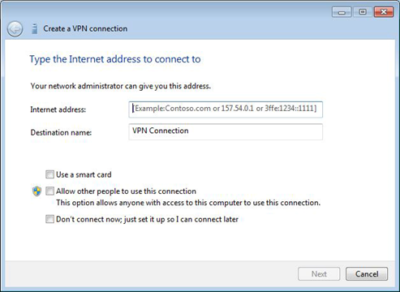
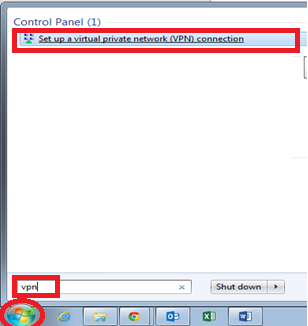
Step 1 Click the Start button. In the search bar, type VPN and then select Set up a virtual private network (VPN) connection.

Step 2 Enter the IP address or domain name of the server to which you want to connect. If you’re connecting to a work network, your IT administrator can provide the best address.

Step 3 If you want to set up the connection, but not connect, select Don’t connect now; otherwise, leave it blank and click Next.

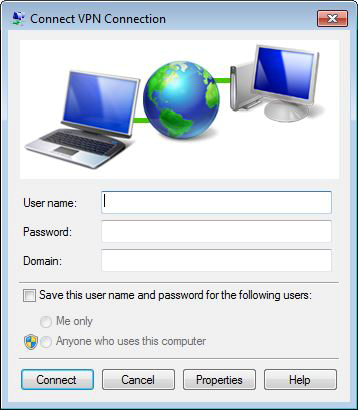
Step 4 After clicking Next, you can either put in your username and password, or leave it blank. You’ll be prompted for it again on the actual connection. Click Connect.

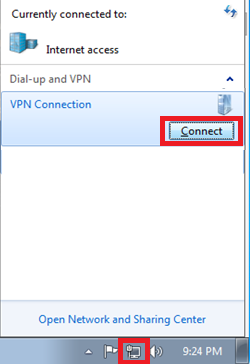
Step 5 To connect, click on the Windows network logo on the lower-right part of your screen; then select Connect under VPN Connection.

Have questions?

Our small business team is here to help.
Call us at: 856-745-9990

South Jersey Techies, LLC is a full Managed Web and Technology Services Company providing IT Services, Website Design ServicesServer SupportNetwork ConsultingInternet PhonesCloud Solutions Provider and much more. Contact for More Information.

Xfinity Wi-Fi Now in Philly & N.J.

Comcast on Monday launched Xfinity Wi-Fi, which will provide free wireless Internet access to customers in Northern New Jersey, areas along the Jersey Shore, and the Philadelphia metro area.

Users who subscribe to Comcast Xfinity Internet service will be able to log-in to more than 2,000 wireless hot spots with their Comcast username and password. The hot spots have been placed in areas like parks, shopping districts, boardwalks, and transit stations.

In Philadelphia, for example, customers can access Wi-Fi at SEPTA’s Suburban and Market East Stations, many train platforms along the Paoli/Landsdale and the Manayunk/Norristown Line, the Wells Fargo Center, and the South Street shopping district.

In New Jersey, access has been enabled in towns like Berkeley Heights, Livingston, Long Branch, Montclair, New Brunswick, Perth Amboy, Red Bank, Rumson, Summit, and Trenton.

Comcast said it would increase the number of hot spots in the NJ-Philadelphia area by year’s end, but does not have plans to expand into other markets or nationally in the near future. Earlier this year, Comcast announced a roaming agreement with Cablevision and Time Warner Cable that lets Xfinity Internet customers access hot spots in the New York Tri-State area.

A map of available hot spots is posted on comcast.com/wifi.

“With the explosion of wireless Internet devices, new platforms and apps, consumers are increasingly looking to enjoy entertainment and communications on the go,” Cathy Avgiris, senior vice president and general manager of communications and data services for Comcast Cable, said in a statement. “We offer some of the fastest Internet speeds in the home and, by offering Xfinity WiFi, we’re also providing a fast wireless Internet experience for our customers when they are outside the home.”


To read the original article in it’s entirety, Click Here

Cloud Computing: Companies Stay Cautious

In a new report from SolarWinds, 92% of companies say adopting cloud is critical to long-term success. But, most don’t think they’ll ever be fully cloud.

On March 29, IT management software provider SolarWinds released its annual report titled IT Trends Report 2016: The Hybrid IT Evolution, detailing some interesting trends around cloud adoption in the enterprise and the rise of hybrid IT.

First off, according to the results of the report, cloud adoption is a foregone conclusion for most businesses. The report found that 92% of the IT professionals who were surveyed said adopting cloud was important to long-term success in their business. Nearly 30% labeled it extremely important.

However, despite this widespread adoption, most organizations aren’t fully embracing the cloud within the whole of their organization. Joel Dolisy, CIO of SolarWinds, said that is because the cloud isn’t the best option for all workloads.

“The findings of this year’s study paint a clear picture: Cloud adoption is nearly ubiquitous, but it’s not now and will not in the foreseeable future be suitable for all workloads, and even if it were, very few if any companies would convert all of their existing applications to run in the cloud,” Dolisy said in a press release.

The data to support Dolisy’s statement came from the report as well. Only 43% of respondents said that half or more of their IT infrastructure will make it to the cloud over the next 3-5 years. And, 60% said it is unlikely that their entire infrastructure will ever be fully cloud-based. Additionally, 9% said they hadn’t migrated any piece of their infrastructure to the cloud.

Dolisy called the resulting dynamic hybrid IT, where an organization blends critical on-premises tools with cloud-based technologies. This affects IT as well, he said, because it shifts the dynamic of the corporate IT professional to one who can guarantee always-on performance regardless of where he or she is based. Additionally, these professionals need new skills and tools to effectively deploy and manage these environments.

Basically, the rise of this hybrid IT means that IT professionals are faced with two key tasks: Leveraging the cloud to increase efficiency and performance, while maintaining security of critical systems.

So, what are the benefits of this hybrid IT infrastructure? The SolarWinds report listed three in ranked order:

  1. Infrastructure cost-reduction
  2. Increased infrastructure flexibility/agility
  3. Relieving internal IT personnel of day-to-day management of some infrastructure

However, there are some challenges to managing this type of infrastructure as well. Of the respondents, 62% listed security as the top challenge within these type of environments.

Then, of course, there are also inherent challenges to encouraging cloud adoption as well. SolarWinds pegged the top three barriers to overall cloud adoption (which, in turn, affects hybrid IT) as follows:

  1. Security/compliance concerns
  2. Legacy system support
  3. Budget limitations

Nearly 70% have migrated their applications to the cloud, almost 50% have migrated their storage, and 33% have moved their databases.

So, how does this affect your organization? Well, new trends in infrastructure often require new skills to support them.

According to the survey, only 27% are convinced that their IT department has the skills needed to fully support a hybrid IT environment. To succeed in hybrid IT, respondents said they needed better monitoring tools, application migration support, distributed architectures, service-oriented architectures, and automation or vendor management tools.

Hybrid IT also require support from leadership as well. Of those surveyed, 56% felt that they had the support needed to do hybrid IT right.

“In short, IT is everywhere,” Dolisy said. “Effectively managing and monitoring the new environment—from on-premises to the cloud with multiplying endpoints—to be able to act when needed is more critical now than ever.”

The 3 big takeaways for readers

1. Hybrid IT, a mix of cloud and on-premises solutions, is growing as the prevailing trend in IT architecture. Almost all respondents said cloud was critical to future growth, but many felt that their organization would never be fully cloud.

2. Hybrid IT can offer cost reduction, increased agility, and management relief. But, it also brings security challenges, issues with legacy systems, and budget challenges.

3. If your organization is engaging hybrid IT, your IT professionals need the proper tools and skills to stay on top of it. Look into monitoring, different architectures, and automation to help support your staff.

Have questions?

Get answers from Microsofts Cloud Solutions Partner!
Call us at: 856-745-9990 or visit: https://southjerseytechies.net/

South Jersey Techies, LL C is a full Managed Web and Technology Services Company providing IT Services, Website Design ServicesServer SupportNetwork ConsultingInternet PhonesCloud Solutions Provider and much more. Contact for More Information.

To read this article in its entirety click here.

Windows 8 Cisco VPN Error 442 Fix

FAILED TO ENABLE VIRTUAL ADAPTOR –

HOW TO FIX IT

The Cisco VPN client is one of the most popular Cisco tools used by administrators, engineers and end-users to connect to their remote networks and access resources.

With the introduction of Windows 8, Cisco VPN users are faced with a problem – the Cisco VPN software installs correctly but fails to connect to any remote VPN network.

When trying to connect to a VPN network through a Windows 8 operating system (32 or 64 bit), the Cisco VPN client will fail to connect. As soon as the user double-clicks on the selected Connection Entry, the VPN client will begin its negotiation and request the username and password.

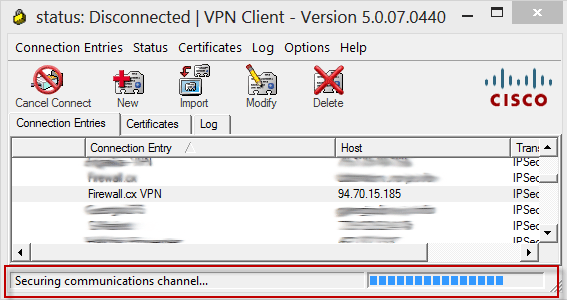
As soon as the credentials are provided, the VPN client shows the well-known “Securing communications channel” at the bottom of the windows application:

cisco-vpn-client-windows8-fix-

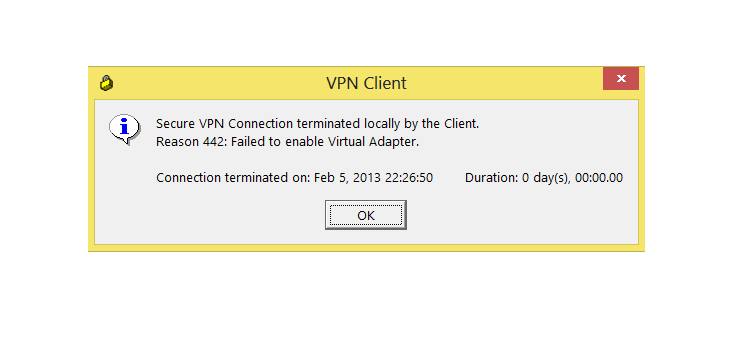
After a couple of seconds the Cisco VPN client will timeout, fail and eventually the connection is terminated. The user is then greeted by a pop up window explaining that the VPN failed with a Reason 442: Failed to enable Virtual Adaptor error:cisco-vpn-client-windows8-fix

INTRODUCING THE FIX – WORKAROUND

Thankfully the fix to this problem is simple and can be performed even by users with somewhat limited experience.

Here are 4 easy-to-follow steps to the solution:

1. Open your Windows Registry Editor by typing regedit in the Run prompt.

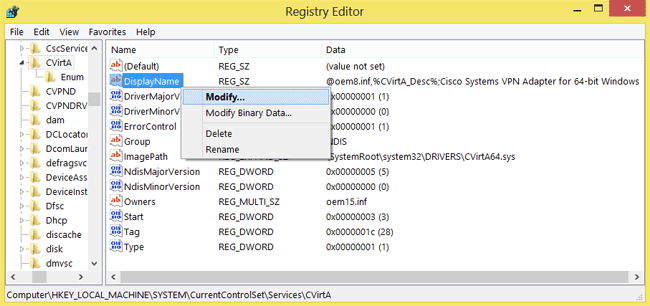
2. Browse to the Registry Key HKEY_LOCAL_MACHINE\SYSTEM\CurrentControlSet\Services\CVirtA

3. From the window on the right, select and right-click on DisplayName and choose Modify from the menu. Alternatively, double-click onDisplayName:

cisco-vpn-client-windows8-fix

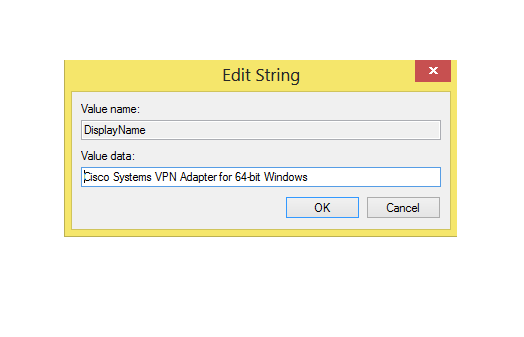
4. For Windows 8 32bit (x86) operating systems, change the value data from @oem8.inf,%CVirtA_Desc%;Cisco Systems VPN Adapter to Cisco Systems VPN Adapter.

For Windows 8 64bit (x64) operating systems, change the value data from @oem8.inf,%CVirtA_Desc%;Cisco Systems VPN Adapter for 64-bit Windows to Cisco Systems VPN Adapter for 64-bit Windows (shown below):cisco-vpn-client-windows8-fix

When done editing the Value data, click on OK and close the Registry Editor.

You can now run the Cisco VPN Client and connect to your VPN network.  Changes performed do not require a system restart.

Have questions?

Get help from IT Experts/Microsofts Cloud Solutions Partner
Call us at: 856-745-9990 or visit: https://southjerseytechies.net/

South Jersey Techies, LLC is a full Managed Web and Technology Services Company providing IT Services, Website Design ServicesServer SupportNetwork ConsultingInternet PhonesCloud Solutions Provider and much more. Contact for More Information.

To read this article in its entirety click here.
Chrome Surpasses IE as Top Browser

Google Chrome Just Passed Internet Explorer To Become The World’s Most Popular Web Browser

After months of chipping away at its lead, Google Chrome has finally overtaken Internet Explorer to become most popular web browser worldwide. Chrome’s share of the market rose to 32.8% in the week ending May 20, while Internet Explorer’s share of the market dropped to 31.9%, according to new data from StatCounter, via TheNextWeb. This marks the first full week that Chrome has beaten Explorer. Google’s browser had previously topped Explorer for a single day back in March. Mozilla’s Firefox is the third most popular browser with just more than a 25% of the market.

Google Chrome:

Google Chrome is a web browser developed by Google that uses the WebKit layout engine and application framework.

It was first released as a beta version for Microsoft Windows on 2 September 2008, and the public stable release was on 11 December 2008.

The name is derived from the graphical user interface frame, or “chrome”, of web browsers. As of October 2010, Chrome was the third most widely used browser, with 8.47% of worldwide usage share of web browsers, according to Net Applications.


In September 2008, Google released a large portion of Chrome’s source code, including its V8 JavaScript engine, as an open source project entitled Chromium. This move enabled third-party developers to study the underlying source code and help port the browser to Mac OS X and Linux.

A Google spokesperson also expressed hope that other browsers would adopt V8 to improve web applications performances. The Google-authored portion of Chromium is released under the permissive BSD license, which allows portions to be incorporated into both open source and closed-source software programs.

Other portions of the source code are subject to a variety of open-source licenses. Chromium implements the same feature set as Chrome, but lacks built in automatic updates and Google branding, and most notably has a blue-colored logo in place of the multicolored Google logo.

History For six years, Google’s Chief Executive Eric Schmidt was against the idea of building an independent web browser. He stated, “At the time, Google was a small company,” and he didn’t want to go through “bruising browser wars”.

However, after co-founders Sergey Brin and Larry Page hired several Firefox developers and built a demonstration of Chrome, Mr. Schmidt admitted that “It was so good that it essentially forced me to change my mind.”

To View Entire Article Click Here

CALL US NOW!