Back to Top

Tech, Web, Cloud & Cabling Services

Hillary Clinton Email Server: 6 Facts

Hillary Clinton’s use of a private email server when she served as US secretary of state has been a major issue for the 2016 presidential candidate. Here are the six most critical facts about it.

hillary_clinton3_3_3

The FBI recently wrapped up its investigation into Hillary Clinton’s use of a personal email server while she was serving as secretary of state. FBI director James Comey called the actions “extremely careless,” but recommended that no charges be brought against Clinton.

She is now the presumptive Democratic nominee for the upcoming presidential election in November, and her actions relative to the email server have become a hot-button issue among her opponents. The situation, however, is nuanced; and there are a lot of details to understand about the scenario. Here are the most important facts.

1. What happened?

While serving as secretary of state under President Barack Obama, Hillary Clinton used multiple private email servers to communicate regarding government business, according to the State Department. Additionally, it was revealed that Clinton never had a government (.gov) email address while she was serving in her post—we’ll talk about which email address she used in a moment—and her aides did not take any actions to preserve the emails sent through her personal account. This prompted an investigation by the FBI to determine if Clinton intentionally put classified information at risk.

2. Why does it matter?

Clinton handed over 30,000 emails to the State Department, of which 110 contained classified information at the time they either were sent or received, according to the FBI’s findings. During the investigation, though, Clinton asserted that none of the emails she sent or received were classified at the time. The biggest implication has been the potential threat to national security. While the contents of the emails have not fully been released, if they had contained sensitive information it could have possibly fallen into the wrong hands. As noted by the New York Times, Comey said it was “possible” that enemy foreign governments had accessed Clinton’s personal email account.

The second biggest implication is that of transparency. The Federal Records Act requires that all communication in certain branches of government be recorded on government servers, and it forbids the use of a personal email account for government business, unless those emails are then copied and archived. However, there are a lot of technicalities involved, and there is evidence that other government officials had violated the act. As Alex Howardwrote for the Sunlight Foundation, there is also evidence that Clinton tried to control the discoverability of the emails under the Freedom of Information Act (FOIA), which could set a precedent for limiting public access to government records. It is also believed that Clinton deleted 31,000 emails deemed personal in nature before turning the emails over to the State Department.

3. When did it start?

When she was appointed secretary of state in 2009, Clinton began using the email address hdr22@clintonmail.com, tied to a personal server. Clinton’s personal email server was first discovered in 2012, by a House committee investigating the attack on the American Consulate in Benghazi. In 2013, hacker Guccifer claimed to have accessed Clinton’s personal email account and released emails that were allegedly related to the Benghazi attack.

The next year, in the summer of 2015, the State Department began asking Clinton for her emails correspondence, and she responded by delivering boxes containing more than 30,000 printed emails. In early 2015, the New York Times reported that Clinton had been using her personal email exclusively, and never had a government email address. A federal watchdog group issued an 83-page report condemning the “systemic weaknesses” of Clinton’s email practices in May. On Tuesday, the FBI concluded its investigation and recommended against any charges.

4. What tech was used

When Clinton was running for president in 2008, she had a private server installed at her home in Chappaqua, New York. The domains clintonemail.com, wjcoffice.com, and presidentclinton.com, which were registered to a man named Eric Hoteham, all pointed to that server. In 2013, a Denver-based IT company called Platte River Networks was hired to manage the server, but wasn’t cleared to work with classified information. The company executivesreceived death threats for taking on the contract. It was later discovered that multiple private servers were used for Clinton’s email.

Clinton used a BlackBerry phone to communicate during her tenure as secretary of state, including sending and receiving emails through her private server in New York. The State Department expressed concern about the security of the device. Clinton had requested the NSA provide a strengthened BlackBerry, similar to the one used by President Obama. But, her request was denied. Instead, the NSA requested that Clinton use a secure Windows Phone known as the Sectera Edge, but she opted to continue using her personal BlackBerry.

5. Will she be prosecuted?

Right now, it’s too early to tell whether or not Clinton will be charged for her use of private email servers. While Comey’s recommendation that no charges be brought will likely weigh in the decision, it is ultimately up to the US Department of Justice to make the call. However, a recent Politico analysis of multiple, similar cases spanning the past 20 years, seem to point to an indictment being “highly unlikely.” According to a former senior FBI official quoted in the analysis, the Justice Department tends to avoid prosecution in cases that are not “clear-cut.”

6. What can businesses and IT leaders learn?

The first lesson that IT can learn from this situation is that transparency is critical, at all levels in your business. This isn’t to say that the CEO should be broadcasting his or her emails to all employees every week, but steps should be taken to ensure that information can be accessed if need be. As part of adigital leak protection program, security expert John Pironti said that organizations need to know if users are using a personal email account to conduct business.

“This behavior is often a violation of acceptable use policies and can expose an organization’s sensitive information to unsecured systems and e-mail accounts,” Pironti said. “Without this visibility an organization may not be aware that their intellectual property, customer data, or sensitive data assets are not being protected appropriately and they also may be in violation of contractual agreements with their clients regarding the security of their data as well as regulatory requirements.”

The second takeaway for IT is that policies should be enforced from the top down. Sure, a CXO may get their support tickets expedited, but that doesn’t mean that exceptions should be made that could compromise the security or integrity of the organization for the sake of comfort or convenience. Leaders should model the policies that are in place to showcase the importance of adhering to them, especially regarding security and privacy policies.

Finally, the importance of records management should not be overlooked. In Clinton’s case, since multiple servers were used, the FBI had to piece together “millions of email fragments” before they could look into them. Proper labeling and management of all records will make for a more cohesive environment and assist in accountability.

Have questions?

Get answers from Microsofts Cloud Solutions Partner!
Call us at: 856-745-9990 or visit: https://southjerseytechies.net/

South Jersey Techies, LL C is a full Managed Web and Technology Services Company providing IT Services, Website Design ServicesServer SupportNetwork ConsultingInternet PhonesCloud Solutions Provider and much more. Contact for More Information.

To read this article in its entirety click here.

Hacker Steals 272M Emails & Passwords

Security firm announces it has persuaded fraudster to give up database of email addresses along with passwords users use to log in to websites

hacking gmail

The internet on Wednesday gave you another reminder that everyone has been hacked.

Hold Security, a Wisconsin-based security firm famous for obtaining hoards of stolen data from the hacking underworld, announced that it had persuaded a fraudster to give them a database of 272m unique email addresses along with the passwords consumers use to log in to websites. The escapade was detailed in a Reuters article.

It might sound bad, but it is also easily mitigated.

The passwords and email addresses, which include some from Gmail, Yahoo and Russia’s mail.ru service, aren’t necessarily the keys to millions of email accounts. Rather, they had been taken from various smaller, less secure websites where people use their email addresses along with a password to log in.

People who use a different password for both their email account and, say, Target.com, won’t be affected. But those who tend to use the same password for multiple sites as well as their email should change their email password.

“Some people use one key for everything in their house,” Hold Security founder Alex Holden says. “Some people have a huge set of keys that they use for each door individually.”

Holden said there is no way for consumers to check if their emails were included in his firm’s latest find. In 2014, when his firm tried to set up such a service after obtaining a billion hacked login credentials, his site crashed.

The hacker appears to have been largely targeting Russian users. Some 57m of the email addresses were for the country’s largest email provider mail.ru, which claims 100 million monthly users. Around 40m of the addresses were Yahoo Mail, 33m Hotmail and 24m for Google’s Gmail service.

In this case, the hacker had been bragging on internet chat forums that he had a treasure trove of login credentials that he was trying to sell. Holden, who is fluent in Russian, said he wouldn’t pay for the data but would give him “likes” on various social media posts in exchange.

The hacker, who apparently is quite young, agreed. “We kind of call him the collector,” Holden says in a heavy Russian accent. “Eventually, almost everyone gets breached.”

Have questions?

Get answers from Microsofts Cloud Solutions Partner!
Call us at: 856-745-9990 or visit: https://southjerseytechies.net/

South Jersey Techies, LL C is a full Managed Web and Technology Services Company providing IT Services, Website Design ServicesServer SupportNetwork ConsultingInternet PhonesCloud Solutions Provider and much more. Contact for More Information.

To read this article in its entirety click here.

Google vs Microsoft: Office 365 Battle?

Microsoft Office 365 has taken market share from Google Apps and Google isn’t taking it lying down. Are we looking at the start of a price war?

Google apps vs Microsoft

According to an August 2015 report, Microsoft Office 365 has surpassed Google Apps and now controls more than 25% of the enterprise market—triple the enterprise market share the company held just a year ago. That is some serious growth and it hasn’t gone unnoticed by the folks at Alphabet (aka Google).

Details

On October 19, 2015, Rich Rao, head of global sales for Google Apps for Work announced a new program specifically designed to turn the tide against Microsoft Office 365’s advance.

In a nutshell, enterprises with preexisting contracts for a competitor’s office suite (read Office 365) looking to switch to Google Apps can do so and not pay any additional fees until the competitor’s contract has run its course. In essence, switching enterprises will pay Microsoft’s contract while they use Google Apps.

When the preexisting contract is over, enterprises sign a new contract with Google Apps. The announcement also suggests that Google will pay some of the transition costs through a special program offered by its Google for Work Partners service.

This is a bold move by Google and it signals that the company is reeling from the sudden surge of Microsoft Office 365. I don’t think Google was expecting this level of competition for its Google Apps suite.

Microsoft’s response

The ball is now in Microsoft’s court. There should be some kind of serious strategic response offered by Microsoft—that is, if it intends to maintain the growth of Office 365 in the enterprise market. Letting the tremendous advances in its market share over the last year erode would be irresponsible.

One strategy Microsoft may consider is lower subscription prices.

The basic enterprise version of Google Apps carries a subscription price of $5 per user. The basic enterprise version of Office 365 carries a subscription price of $8 per user. That $3 difference can really add up for a large enterprise and there may be some wiggle room for Microsoft to lower the per-user price for its service.

Cola wars. Pizza wars. We have seen major international companies take part in price wars in the past, and in the end, not much has been resolved. So I don’t think lowering their subscription prices is really the best strategy for Microsoft.

There is another way.

It’s all about collaboration

The basic applications offered by Office 365 and Google Apps—word processing, spreadsheets, emails, calendar, etc.—are similar. Office 365’s applications do have more features and deeper capabilities. Of course, Google Apps claims its lack of features is a good thing because its apps are simpler to use.

However, in this day and age, the real battleground for enterprise markets exists in features outside the basic office suite. The real battleground lies in cloud and collaboration services, including collaboration tools, storage, video communication, and document sharing. The cloud is where Microsoft and Google are going to fight their battle for productivity suite superiority.

And cloud is where Microsoft has been winning handily for the past year or so. I believe the new cloud and collaboration emphasis of Office 365 has taken Google by surprise. I think Google has realized that Microsoft has upped its game and that it can’t coast into increased enterprise market share by merely offering a lower-price, simpler productivity suite.

It may have been an indirect battle before, but Microsoft and Google are now engaged in a mano a mano fight for enterprise market share in the productivity software category. It will be interesting to see how this strategic battle between two superpowers plays out. I just hope each side takes appropriate steps to avoid collateral damage.

Have questions?

Get help from IT Experts/Microsofts Cloud Solutions Partner
Call us at: 856-745-9990 or visit: https://southjerseytechies.net/

South Jersey Techies, LLC is a full Managed Web and Technology Services Company providing IT Services, Website Design ServicesServer SupportNetwork ConsultingInternet PhonesCloud Solutions Provider and much more. Contact for More Information.

To read this article in its entirety click here.
Google Apps or Office 365: What’s Best?

Microsoft took the beta label off of Office 365 last week, and many consider the cloud-based productivity suite a potshot at Google and Google Apps. Office 365 may offer cloud-based document, storage, and collaboration services that look like Google Apps, but the user experience and price tag are very different. Here’s a look at the major differences between them.

User Experience

The way the user interacts with the application suite may be the biggest difference between Google Apps and Office 365. When you use Google Apps, you live in your Web browser. You edit documents and spreadsheets in Google Docs through your browser, you get your email through Gmail, and you chat with colleagues using Google Talk – all in your browser.

Conversely, Office 365 requires you download a plug-in that will link your desktop with the cloud-based service. You’ll need Microsoft Office installed on your desktop already (to make use of offline and cloud-based features as opposed to webapps,) and you’ll need the .NET framework installed. You’ll also need Lync installed on your system as well if your organization will leverage instant messaging and chat. It’s a hefty list of system requirements you’ll need just to get started, especially compared to Google Apps’ requirements: a supported browser.

Document Collaboration

Microsoft Office documents are the de-facto standard in office environments, so it shouldn’t surprise anyone that Office 365 has an easier time with advanced formatting in Microsoft Word documents and Excel spreadsheets than Google Apps does. Microsoft has put a lot of time and effort into making sure the polish in Microsoft Office made it to Office 365. Office 365 users get the same templates, formatting features, and tools that desktop users get, and since the two services connect, you can create a slideshow in PowerPoint and upload it to Office 365 for editing later without worrying you’ll lose the formatting or images.

If your organization already makes heavy use of Microsoft Exchange for mail and Microsoft Office for productivity, Office 365 will appeal to those who want a familiar, robust tool. Google Apps, and specifically Google Docs, feels barren and plain by comparison, even if it’s more accessible and open.

Google Docs, on the other hand, does a solid job of importing most Microsoft Office documents, auto-saving them, and giving groups a way to all work in and on the same documents and files at the same time without stepping on each other. It’s definitely more bare-bones than Office 365, but it works seamlessly and without the need for desktop software.

Microsoft rolls in Sharepoint to handle document sharing and management, and depending on your opinion, it can be a good or a bad thing. Sharepoint adds a layer of complexity where Google allows more openness. While you do get the benefit of revision history, check-in/check-out, integration with Microsoft Office on the desktop, and integration with Sharepoint Web services with Office 365, Google Docs offers much of the same and lets you and others work in the same document at the same time and see who’s viewing and who edited last, all without the need for another platform.

Chat and Communication

Office 365’s presence tools, including Lync (formerly known as Office Communication Server) integrates with other Microsoft Office and Office 365 products so you can always see if someone is available for chat or a VoIP call, or who’s editing your document or viewing the same files that you are.

Google, on the other hand, already offers this with Google Talk and Google Voice. They’re not as tightly integrated with Google Docs as Lync is with Office 365, but they’re all there.

The only area where Office 365 and Lync outshine Google Talk and Google Voice is in screen-sharing and white-boarding, which Lync has natively but Google Talk does not. Again, Microsoft has more polish and shine on their applications, but feature-for-feature, they’re largely matched. Google Talk and Google Voice may be more Spartan, but they do have broader reach, especially for users who already have large contact lists.

Price

Google Apps Standard for your domain is free. Google Apps for Business offers two pricing plans: a flexible $5/user per month where you can add or remove users at will and pay the difference, and a $50/user per year plan where you commit for a year to get a discounted rate.

Office 365 requires the initial investment in Microsoft Office on your user desktops (as noted above: for use with some enterprise-level features,) some Microsoft Office Servers and services in your environment (like Active Directory if you plan to use those features,) but after that you’ll pay $6/user per month for the small business plan. If you don’t have Microsoft Office on your users’ desktops, you can pay another $12/user per month to get each one of them a copy of Microsoft Office Professional Plus.

Larger enterprises can choose tiered pricing plans that run from $10/user per month up to $27/user per month depending on how many services that want hosted in the cloud versus in their own environments. There’s no two ways about it: Office 365 will be more expensive for almost every business, but Microsoft thinks they have the feature depth to justify the price.

Which One’s Better?

The jury is still out, and even though Office 365 has been in beta for months, Microsoft has a lot of catching up to do if they want to win back enterprises that are looking for affordable cloud-based collaboration products. The familiarity that almost every business has with Microsoft Office may play a big role going forward, but the price tag will be something else they’ll have to overcome.

Feature-for-feature though, the two services offer the same basic functionality, although it can be said that Office 365 shines with polish and flare where Google Apps offers affordability and accessibility.


Low-Cost SSL Trusted Certificates

SSL Certificate

With Purchasing SSL Certificates through BigBeagle.com you receive the following great services!

  • Includes a FREE website Malware Scanner to monitor your site for malicious links inserted by hackers trying to spread worms, viruses and spyware to your visitors.
  • Pay up to 90% LESS and get your certificate FAST!
  • Encrypts data transferred to and from your site and protects against session hijacking attacks, including Firesheep.
  • Secure UNLIMITED servers. Compare that to other Certification Authorities that charge for licensing on each server.
  • Enjoy the backing of established industry standards. There is NO TECHNICAL DIFFERENCE between our certificates and any other major Certification Authority.
  • 99.9% browser recognition and up to 256 bit-encryption.
  • Get industry-best service and support! Help is always there when you need it.

About Our SSL’s:

  • One SSL Covers Unlimited Servers
  • Cost up to 90% Less
  • Among the First to Offer Green Browser Bar
  • Works with all Major Browsers
  • Backed by industry-best support

Need an SSL certificate that supports Intel vPro technology for remote PC management? Check out our Deluxe Certificate

Call (888) 505-1532 to get started now or Click Here

Google+ Social Network Launches

Google’s long expected second shot at taking on Facebook in the social networking space has arrived in the form of the Google+ Project. It has some interesting twists on the social networking model but is far from a Facebook-killer.

That Name

The terrible name is a bad start. Google+? Google+! I can’t even question or exclaim about the bad name without it looking bad in writing.

Pronounced “Google Plus,” the product is officially written as Google+ — making placing any punctuation after the name fairly awkward.

Seriously, I’m cursing whoever made the final decision to go with Google+ as a name. Wasn’t the Google +1 sharing service bad enough?

Now we have Google+, which in turn allows you to +1 things that you’ve Google+’d. My head hurts from writing that.

In this article, I’ll generally stick with the Google+ name except where Google Plus is more legible, due to punctuation.

The Google+ Project

What about the product itself? Google dubs Google+ as a “project” rather than a product, stressing it’s part of making Google itself more social rather than being a standalone social network to take on Facebook.

“It’s ‘Plus’ because it takes products from Google and makes them better and ‘project’ because it’s an ongoing set of products,” said Vic Gundotra, the senior vice president who oversees Google’s social products.

But is it Facebook competitor, I asked in a follow-up question. Google emailed back:

No. We realize that today people are increasingly connecting with one another on the web. But the ways in which we connect online are limited and don’t mimic our real-life relationships. The Google+ project is our attempt to make online sharing even better. We aren’t trying to replace what’s currently available, we just want to introduce a new way to connect online with the people that matter to you.

OK, but as the saying goes, if it looks like a duck and quacks like a duck, it’s probably a duck. And Google+ looks like and quacks like Facebook in several ways.

Circles

Most important, Google+ is a social network of your friends, family and other contacts, a way to connect to these people, just like Facebook.

Unlike Facebook, Google+ is built from the ground up around the concept of sharing material with groups of people, called “Circles.” Here’s an example of how they look:

The idea is that you can easily drag-and-drop people into different types of Circles, which you can then use for sharing different types of things.

For example, you can create a “Family” circle where you might chose to share things only with family members in it, while another “Work” circle might contain work colleagues who only see what you share to that.

Google+ Circles Vs Facebook Lists & Groups

While Facebook might not have been built from the beginning with a Circles-like sharing concept, Facebook does currently have two features that are similar: Friend Lists & Groups.

Added in December 2007, Friend Lists allow you to share some of your Facebook information with specific groups of friends (or other selected contacts) that you create. They’re also supposed to allow you to group message people in a list, though I couldn’t get this to work, when I tested it today.

Friend Lists don’t allow for selective sharing. But the updated Facebook Groups feature that came out last October does provide this, a way to share what you want with whom you want.

How does Circles weight up against these? I can’t say first hand. The Google+ product wasn’t live for me to test when I wrote this (our hands-on review will come later today).

Friend Lists are nice in that if you pick one person, such as below where I selected Facebook communications chief Elliott Schrage, you get relevant suggestions that appear (other Facebook execs who’ve friended me on Facebook):

But that list can’t be used, as best I can tell, to start an associated group to share just to these people. Instead, when I tested today, I was still forced to make a group, then pick people individually to add to that.

So, the drag-and-drop interface of Circles looks appealing. Then again, if you have hundreds of “friends,” it still might turn into too much organization. Maybe people will use it to create some select groups that they really want (family, close friends, those in a club, etc.). But if it turns into a wonderful tool, it’s hard to imagine that Facebook couldn’t easily match it.

Who’s In Your Circle?

There’s no limit to the number of circles you can create. But where do the people come from who will be in your circles?

First, any contacts you’ve stored through the Google Contacts service will be available. If you have no contacts, you can import them through the CSV format, which many contact services will export out to.

Google also said that it is looking into ways to directly important contacts from Yahoo and Microsoft. Facebook wasn’t mentioned.

That’s not surprising. Facebook hasn’t allowed the export of friends’ email addresses, except to … Yahoo and Microsoft. The stories below explains more about this:

What’s all this mean in practical terms? Everyone in Google+ will effectively be starting from scratch.

If you already use things like Gmail, you probably have Google Contacts that give you email addresses of your social network. If you don’t, you can import — and Yahoo and Microsoft may serve as go-betweens to help you bring information from Facebook into Google Plus.

From Email To Virtual Person

The bigger issue is that your contacts — be that from within Google or imported from Facebook — are basically just email addresses. The won’t have any social connection information with them.

Google Contacts won’t know that a particular person whose email address you have is friends with other people you know. A Facebook import won’t turn email addresses gathered from there into links with other people who use Facebook.

Instead, what will really jump start Google+ is if a significant number of people come into the system and start claiming profiles within it, effectively turning those email addresses into virtual people who have connections within Google Plus.

That’s a big if. If you’re already happy using Facebook, you may have no more incentive to use Google’s new social network than someone already happy using Google has to switch over to Bing. What you’re using is doing the job just fine.

Buzz Off Google Buzz

When people do get into the system, that does open up another way to add contacts. You’ll be able to search through other members who have registered.

But here’s the crazy thing. Those connections you may have already formed using Google Buzz? Remember, Google’s last attempt to take on Facebook from February 2010? None of that is being used for Google Plus. The two products are being kept completely separate.

I suspect Google’s trying to be as cautious as possible, in the wake of its settlement with the US Federal Trade Commission (see Google Settles FTC Charges Over Buzz, Agrees To 20 Years Of Privacy Audits). Buzz seems tainted, so keeping Google+ isolated from that may be deemed the most prudent course.

And what’s the future for Buzz, with Google+ coming out? Google told me in a follow-up email:

The short answer is it won’t have any major impact on Buzz at launch. Buzz users will still see a Buzz tab on their Google profile, and Buzz will continue working as it always has. Google+ users can also be Buzz users or can decide to just share their content using one of the products. Over time, we’ll determine what makes the most sense in terms of integrating the products.

Google+ Stream

Now let’s talk about how you see what’s being shared by those in your network, as well as what you can specifically share.

Information appears in your “Stream,” which is akin to Facebook’s news feed. At the top of your stream is a sharing box. Actually, two sharing boxes:

In the new black navigation bar that began showing up for some people this week, there’s a “Share” area to the right side. That bar, by the way, has been dubbed the “One Google” bar, Google told me. No matter where you are on Google, you’ll have the ability to share something out to Google Plus.

In the Stream itself, there’s a longer box, where you can enter a status update or use icons to upload and share photo and videos. You can also share links or your location, if you’ve allowed Google to track that for you. On mobile devices, you can select from a drop-down of nearby places to check-in.

The check-in feature also raises questions about Google Latitude — does it get absorbed into Google+ eventually? What about HotPot?

What do you see from others? Here’s an example:

In this screenshot, the person is viewing what’s been shared only by people in their “Bike Geeks” groups, as highlighted on the left side. By selecting another circle that’s listed, they would see only information being shared by that group.

Friends, Followers & Off-Network Friends

As with Twitter (or with Facebook, when it comes to fan pages), it’s possible with Google+ to follow other people on the network, even if they don’t reciprocate and follow you or friend you back.

Google says that if you follow someone this way, you’ll only see what they choose to share with everyone publicly. If they share some things more restrictively, with particular circles, for example, those outside of those circles won’t see that.

Somewhat related, you can be friends with people who aren’t formally part of Google Plus. If they’re an email-only contact and never formally join the service, you can still add them to circles and share with them.

When you do this, they’ll apparently be sent an email with whatever you wanted to share, a picture, an update and so on.

The downside is that if they’re not on Google Plus, they’ll get a notification anytime you share anything. So if you’re a big sharer, potentially you might hit some of your friends with a lot of email.

Where’s +1?

In the stream example above, there was a +1 button at the bottom of the photo. Yes, anything you like within Google+ can be +1?d, in the way that anything you like on Facebook can be liked with Facebook Like buttons.

If you do that, do your friends on Google+ see that action, in the way that friends on Facebook may see what you like? Nope. Not to my understanding,

Further more, all those Google +1 buttons that are now starting to appear on Google search worldwide? Those Google +1 buttons that publishers have diligently been adding to their sites since they were released earlier this month? Nothing from those button clicks flows back into Google Plus.

It’s crazy. It makes no sense. It’s as if Facebook launched its Like buttons but forgot to hook them up to flow information back into Facebook.

Right now, it remains the case that if you want to see what someone has +1?d, then you have to remember to go to their Google Profile page on a regular basis, then hope they’ve enabled the +1 tab on that profile, then rinse and repeat for other people.

Google told me that it would be “logical” to see +1 flow into Google+ and that “one could guess eventually” it will happen. So, I’m pretty sure we will see this happen. But when it will launch is unclear, and it really feels like an incredible mistake that it’s not part of the launch.

Google Sparks: Tips On What To Share

Time for more features. What if you started a social network and no one knew what to share? That’s a problem that Google Sparks is intended to solve.

Think of it like Google Alerts made to flow into Google Plus. Google Sparks lets you follow topics of interest:

You can browse suggestions or set up your own keyword-based searches. Then when you select a “Sparks” link, you’ll get a feed of search results that you might wish to share. Here’s an example of what Sparks might show for a fashion topic:

The relevancy is supposed to be tweaked to find especially sharable content that people are already clicking on, things that are very visual with photo and pictures.

I got a brief demo trying two searches, and the results didn’t thrill me. They were OK, but they didn’t feel particularly shareable. Still, the feature will probably be useful to some, and I can’t really assess the relevancy either way on such limited testing.

Hangouts: Group Video Chat

Google seems to be hanging most of its hopes that Google+ will attract people from Facebook on two main features, I’d say. One is the aforementioned Circles sharing feature. The other is the Hangout video chat feature.

With Hangouts, up to 10 people at a time can all interact through video:

The demo I saw of the system was compelling. As one participant spoke, the main image automatically changed to that person. You can also play video that everyone watches.

Gundotra spent some time talking with me about how Google has examined the social dynamics of video chat, to get people more comfortable participating. The key is to get several people all involved casually, rather than to barge in with a solitary invite.

He used a “talking to your neighbor” analogy to explain more. You’re probably are hesitant to knock a neighbor’s door and disturb them just because you want to talk. But if you saw them outside on their porch, Gundotra said, you’d probably feel better saying “Hi” when passing by. If two neighbors were sitting and talking, you’d probably feel rude not also stopping and chatting.

Hence the Hangouts name. When someone launches a Hangout, this shows up on the feed that goes out to their friends. As more people join, the notifications get updated to show the number participating. As that number rises, Google says even more people are compelled to take part.

The party ends at 10, however. No more can participate for scale reasons and also because the group dynamics get too hard, Gundotra said. If someone leaves, others can come in.

The puzzling thing to me is that Google’s not made it possible for anyone to stream the chat out to non-participants. If you have a group of friends, and not all can take part at once, others might be interested just to listen in.

Beyond that, Hangouts seems like a pretty awesome tool for those who wanted to record video shows. But there’s no way to save what happens.

Huddle: Group Text Chat

Somewhat related to Hangouts is Huddle, a group text chat service. I can’t really tell you more than that. Google didn’t cover this during my talk with them about Google Plus last week, so I’ve only got a screenshot for you and a promise will cover it more in our coming hands-on piece:

Huddle is for Android 2.0+ phones, iPhone 4.0+ phones and SMS, Google tells me.

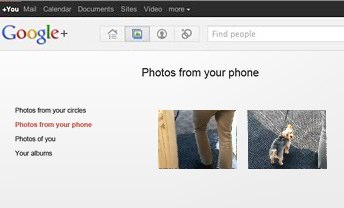
Instant Upload

The last major feature of Google+ is called “Instant Upload.”

For those with Android phones, you can have any picture you take be uploaded to a centralized — and private — photo album area.

Google tells me they hope to bring it to other phones, as well.

Getting Google+

Want to try the service? Right now, it’s strictly invite only. Some press are being allowed in, along with others that Google hand picks. There’s no ETA on when wider invites will be available.

Unusually, this isn’t being called a beta test or an experiment but rather a “field trial” that’s meant to finally gather some feedback from outside Google itself.

The limited test is probably wise. It’ll give Google more time to discover things it might not have anticipated being problems, as was the case with Buzz.

As for a wider release, and possible success, it’s anyone’s guess. As I said earlier, if you’re happy using Facebook, there seems relatively little to make you want to switch over to Google Plus, at the moment.

Perhaps with further Google +1 integration, that might change. Perhaps if there are people who want a Facebook alternative, Google’s now got a core to build on for them. At least the guessing about what Google might be doing is over.

KB4090913: Windows 10 Device Fix

We have had a number of users that were unable to use their keyboard or mouse on their Windows 10 computer. Microsoft released an update that addresses the issue yesterday.

Addresses an issue in which some USB devices and onboard devices, such as a built-in laptop camera, keyboard, or mouse, stop working. This may occur when the Windows Update servicing stack incorrectly skips installing the newer version of some critical drivers in the cumulative update and uninstalls the currently active drivers during maintenance.

Known issues in this update


Symptom

Workaround

Windows Update History reports that KB4054517 failed to install because of error 0x80070643.

Even though the update was successfully installed, Windows Update incorrectly reports that the update failed to install. Select Check for Updates to verify that there are no additional updates available. You can also type About your PC in the search box on the taskbar to verify that your device is using the expected OS build. Microsoft is working on a resolution and will provide an update in an upcoming release.

Because of an issue that affects some versions of antivirus software, this fix applies only to computers on which the antivirus ISV updated the ALLOW REGKEY.

Contact your antivirus manufacturer to verify that their software is compatible and that they have set the following REGKEY on the computer: Key=”HKEY_LOCAL_MACHINE”Subkey=”SOFTWARE\Microsoft\Windows\CurrentVersion\QualityCompat” Value Name=”cadca5fe-87d3-4b96-b7fb-a231484277cc” Type=”REG_DWORD” Data=”0x00000000″

After installing this update, some devices may fail to start, and return INACCESSIBLE_BOOT_DEVICE. This issue occurs when the windows update servicing stack incorrectly skips installing the newer version of some critical drivers in the cumulative update and uninstalls the currently active drivers during maintenance.

Microsoft is working on a resolution and will provide an update in an upcoming release. Workaround steps are available in KB4075150.

Because of an AD FS server issue that causes the WID AD FS database to become unusable after a restart, the AD FS service may fail to start.

There is no way to undo the database corruption. To return your AD FS server to a functional state, you must restore it from a backup.

How to get this update


This update will be downloaded and installed automatically from Windows Update. To get the stand-alone package for this update, go to the Microsoft Update Catalog website.

File information

For a list of the files that are provided in this update, download the file information for cumulative update 4090913.

Have any questions?

Call us at: 856-745-9990 or visit: https://southjerseytechies.net/

South Jersey Techies, LLC is a full Managed Web and Technology Services Company providing IT Services, Website Design ServicesServer SupportNetwork ConsultingInternet PhonesCloud Solutions Provider and much more. Contact for More Information.

To read this article in its entirety click here.

Windows 10 Upgrade: 5 Microsoft Tactics

To achieve its goal of getting one billion people onto Windows 10, Microsoft is getting more forceful in how it pushes Windows 7 and 8.1 users towards its new OS.

Windows10

Microsoft wants Windows 10 on one billion devices by 2018 – and its tactics for hitting that ambitious goal are about to get more aggressive.

From next year, Microsoft will be more direct in pushing Windows 7 and 8.1 users to upgrade to its latest OS, in an attempt to bolster the 110 million-strong Windows 10 userbase.

Here’s how Microsoft is about to crank up the pressure to make the switch.

1. Windows 10 will automatically begin installing itself

From “early next year”, Microsoft will change the status of the free Windows 10 upgrade so it is classified as a Recommended Update.

Given that most home machines are set up to install Recommended Updates automatically, the change to Windows 10’s update status will lead to most Windows 7 and 8.1 machines beginning the upgrade.

However, Microsoft says that before Windows 10 is installed users will need to manually confirm the installation, giving them a chance to pull out.

Business users should be able to prevent the upgrade from automatically starting using tools such as Windows Server Update Services.

For those on metered connections, Terry Myerson, Microsoft’s executive VP of the Windows and Devices Group, said people “have the option of turning off automatic updates” before going on to say that such a move is unwise because of “the constant risk of internet threats”.

Those who don’t like the new OS will have 31 days to roll back to their previous version of Windows. To go back, select “Start Button->Settings->Update and Security->Recovery and Uninstall Windows 10”.

2. Upgrade notifications will be made more obvious

Despite Microsoft sticking a ‘Get Windows 10’ icon on the taskbar of most Windows 7 desktops, many customers apparently still can’t figure out how to initiate the upgrade.

Myerson says since launching Windows 10 the number one complaint has been ‘How do I get my upgrade?’.

To address the difficulty some users are having, Myerson said Microsoft will change “our notifications to be more approachable and hopefully clear, and sometimes fun”.

3. Upgrades will happen immediately

The process of initiating the upgrade to Windows 10 has also been streamlined.

In the weeks after Windows 10’s launch earlier this year, Microsoft required users to first reserve a Windows 10 upgrade, which would then be installed at a later date.

Microsoft has now replaced that two-step process with an immediate upgrade. Users clicking on the ‘Get Windows 10’ icon will now be given the option to ‘Upgrade Now’ to begin the upgrade process straightaway.

4. Simpler upgrade from unsanctioned copies of Windows

Myerson admits surprise at how many people running copies of Windows 7 and 8.1 that have not been authenticated then go on to buy Genuine copies of Windows 10.

Based on this experience, Microsoft plans to make it a “one-click” process for people running unsanctioned copies of the OS to “get Genuine” via the Windows Store or by entering an activation code bought elsewhere. The offer will be trialled in the US and, if successful, may be extended to other countries.

5. Upgrading multiple machines to Windows 10 will be easier

Those looking to upgrade several Windows 7 and Windows 8.1 machines to Windows 10 will soon find the process gets more straightforward.

Microsoft’s Media Creation Tool is used to create an image that can be run off a DVD or USB stick to upgrade qualifying machines to Windows 10.

According to Myerson, you will soon be able to use the tool to create a single image that will allow any number of 32-bit or 64-bit, Home or Pro machines to be upgraded and which will also allow for clean installs “wherever you have a Windows license”.

Have questions?

Get help from IT Experts/Microsofts Cloud Solutions Partner
Call us at: 856-745-9990 or visit: https://southjerseytechies.net/

South Jersey Techies, LLC is a full Managed Web and Technology Services Company providing IT Services, Website Design ServicesServer SupportNetwork ConsultingInternet PhonesCloud Solutions Provider and much more. Contact for More Information.

To read this article in its entirety click here.

Professional Email Tips: 5 Rules

Tips and advice for making the best use of this medium.

email

E-mail is a great tool that has become both a blessing and a curse. Designed to enhance productivity in the workplace, it slowly had the reverse effect. Today, e-mail is ubiquitous, much easier to use, and often abused. It’s time to focus on how to turn e-mail back into an effective management tool for 21st century executives.

Don’t use it to do your thinking for you. Writing e-mails at work is not like doing calculus at school. At school you needed to show that your logic flow was part of the answer. With e-mail, assume no one is interested in how you came to your conclusion. They are only interested in what impacts them and their work and anything on which they need to take action.

Make your request clear. When publishers lay out a newspaper, they place the most important news “above the fold.” You should think the same way about your e-mails, especially when you are making requests. If you ask for something, always put that request, including names and dates related to it, in the first two or three sentences of your e-mail. Do not assume that the reader will read far enough to see the request buried in all of the detail.

Limit emotion of all types. Humor can cut through a lot of noise when you communicate, and it can help a team rally around a common thought or issue, but it rarely belongs in e-mail. This is especially true of sarcasm, which is very easy to misinterpret. The reader almost never understands what you are trying to communicate.

Use the save button before the send button. When we were young and got angry, people told us to count to 10 before saying anything. When you need to be cool and show that you have a levelheaded approach to problems, the last thing you want to do is send an e-mail. If you are writing an e-mail about an emotional or difficult topic, such as a performance review or a follow up to a contentious meeting, save the e-mail. Then, come back to it in 30 minutes or even the next day and decide whether you want to send at all.

Use the phone. These days, an e-mail lasts forever and there is no such thing as privacy in the workplace. In many cases, the laws and regulations governing publicly held companies require strict adherence to document retention rules. If you don’t want someone else to read what you wrote, don’t send it via e-mail. Also, if the subject matter you want to discuss is important and sensitive or personal, a phone call or face-to-face discussion is always the better option.

The bottom line. E-mail is a great tool for communicating, although we are never as effective as we think we are going to be. Remember to stop and think before hitting “send.”

Have questions?

Get answers from Microsofts Cloud Solutions Partner!
Call us at: 856-745-9990 or visit: https://southjerseytechies.net/

South Jersey Techies, LLC is a full Managed Web and Technology Services Company providing IT Services, Website Design ServicesServer SupportNetwork ConsultingInternet PhonesCloud Solutions Provider and much more. Contact for More Information.

To read this article in its entirety click here.

5 Tips to Extend Android Phone Battery

Takeaway: The HTC ThunderBolt may be breaking land speed records with its 4G LTE connection, but all that speed seriously drains the battery. Here are practical tips for squeezing out more battery life.

As I mentioned in my review of the HTC ThunderBolt, the ThunderBolt is a top-notch device that breaks through the speed barriers of the traditional smartphone. However, the ThunderBolt also has one big caveat: Battery life. This is a foible that many Android devices suffer from, particularly HTC devices. The HTC EVO and HTC Incredible are both excellent smartphones that struggle to get through an entire business day on a single charge.

For the ThunderBolt, the primary issue is when it’s in 4G LTE mode. That’s when it really screams — in terms of speed — but it’s also when the battery can completely drain in as little as four hours with heavy use. In order to help ThunderBolt users get the most out of this otherwise useful device, I’ve put together some power tips for squeezing extra battery life out of the ThunderBolt. While these tips are aimed primarily at the ThunderBolt and reference HTC-specific widgets and settings, they can also be applied more generally to almost any Android device (and specifically other HTC devices), with just a few adjustments.
I should also note that when the ThunderBolt is not in 4G mode, its battery life is actually very respectable. Using the tips in this article, I was able to get through a full day of normal use with the HTC ThunderBolt on a combination of 3G and Wi-Fi and still had 70% of the battery left after 10 hours. On 4G, I was able to use these tips to stretch the ThunderBolt battery to almost eight hours.

1. Tweak the display
If you want to see what’s draining most of your power, go to Home screen | Menu button | Settings | About phone | Battery | Battery use. You’ll see a screen like the one below. In most cases (except for when you’re on 4G), the display will be at the top of the list because the display is the primary power drain on nearly all smartphones.
There are several things you can do to reduce the display’s hit on your battery. Go to Menu | Settings | Display and adjust the following settings:
•    Turn off auto-brightness: Uncheck the box for “Automatic brightness” and drop the slider down to about a third. The ThunderBolt screen is still bright and clear, even at this setting.
•    Decrease screen timeout: The default is 1 minute. Drop it down to 30 seconds.

2. Throttle sync settings
Once you get your display settings under control, another quick thing you can do that will immediately make a big impact on your battery life is to get your sync settings under control. When you install and use various apps and widgets, they often set themselves up to automatically sync without warning you or allowing you to set up the sync settings such as how often to update. As a result, most Android devices end up with a bunch of things running in the background updating themselves constantly, which drains battery life and quietly eats away at your mobile data allotment on 3G/4G.
To see which of your apps and widgets are doing stealth syncs in the background, go to Menu | Settings | Accounts & sync. I prefer to uncheck the “Auto-sync” box and simply disable background syncing altogether (especially when I’m trying to ring out every last drop of battery life). You can always compensate by using HTC’s “Sync all” widget so that when you unlock your phone you can just tap the Sync all button and all of your data for all of your approved apps and widgets get synced (on 4G it will sync really fast anyway). If you want to take it a step further, in the Accounts & sync screen, uncheck the “Background data” box so that no apps are allowed to quietly transfer data in the background.
Alternatively, in the sync settings you can also grant just a few select apps the ability to sync and then set the frequency for syncing to a longer interval.

3. Manage your radios
Another way to have a quick impact on battery life is to shut down some of the radios. Nearly all modern smartphones are packed with multiple radio transmitters and each one draws power when they are turned on. Turn them off when you’re not using them. HTC makes this easy on the ThunderBolt because it has a bunch of toggle widgets that you can tap to enable/disable the various radios/features.

I always turn off Bluetooth and GPS, except when needed. If I know I’m going to be on the mobile network for an extended period of time then I turn off Wi-Fi so that the Wi-Fi radio isn’t wasting power searching for connections. One of the things I did to save battery life when I was on the 4G LTE network was to use “Airplane mode” when I was in meetings or other long periods where I knew I wasn’t going to be using the phone. This turns off all of the radios, including the cellular network.

4. Turn down the eye candy
One of the attractive things about the HTC Sense UI — as well as the newer versions of Android and some of its third-party add-ons — is that it has some great eye candy. The animated weather on HTC’s default home screen clock, the live wallpapers that move in the background, and the eye-popping skins and alternative home screens all look great, but they can be an additional drain on the phone’s resources.
I’d recommend using the simple and elegant “Slate” skin (below) on the HTC ThunderBolt. I’d also recommend avoiding the live wallpapers and selecting a static image. For battery savings, I’d also recommend turning off animations by going to Menu | Settings | Display | Animation and selecting “No animations.”

5. Manage apps and widgets
We’ve already talked about how some apps and widgets can slowly siphon resources by syncing in the background. Many apps will also turn themselves on automatically (or remain in memory even after you close them). Of course, the widgets that you put on your various home screens are also running quietly at all times as well, so you’ll need to be wise about which ones you use and keep an eye on them.
To monitor and manage your apps and widgets you’ll need to download a task manager like the popular Advanced Task Killer. This lets you see what you’ve currently got running (and what is quietly turning itself on without your permission). You can do this periodically and manually kill all of your open apps to avoid letting power-hogs drain your battery. Advanced Task Killer even comes with a handy widget that you can place on your home screen. Just tap it once and it kills all your apps, and gives you a short message telling you how many apps were killed.

Even better, open Advanced Task Killer and go into Menu | Setting and set the “Auto Kill” option. I’d recommend setting the Auto Kill Level to “Safe” and setting the Auto Kill Frequency to “Every half hour.” If you’re really paranoid and want to keep stuff under wraps, you can set the Auto Kill so that it wipes everything out every time you turn off your screen. Keep in mind that some people argue that killing processes on Android has dubious value, but I find that it’s a good way of keeping potential battery hogs under control, even if it knocks out some harmless stuff in the process.

CALL US NOW!