Back to Top

Tech, Web, Cloud & Cabling Services

Grass Roots Tree Service

New Website Design – Grass Roots Tree Removal Service | Egg Harbor Township, New Jersey

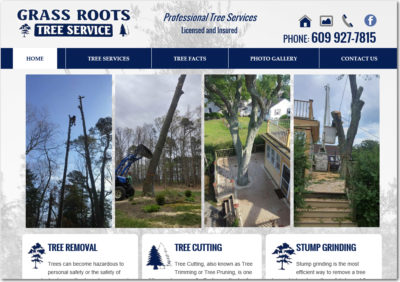
The Website Design team of South Jersey Techies has been constantly working on developing great looking websites using the latest web technologies. The most website developed by the our team is a tree service company in Egg Harbor Township, NJ, Grass Roots Tree Service.

Grass Roots Tree Service provides a number of tree services in New Jersey including the removal large trees, as well as tree trimming, removing and shaping shrubs, stump grinding and land clearing. They are located in Egg Harbor Township, New Jersey and have been providing Professional Tree Services in southern New Jersey for over 10 years.

Grass Roots Tree Service

Have questions?

Our Web Design team is here to help
Call us at: 856-745-9990 or visit: https://southjerseytechies.net

South Jersey Techies, LLC is a full Managed Web and IT Services Company located in Marlton, NJ providing IT Services, Managed IT Services, Website Design ServicesServer SupportIT ConsultingVoIP PhonesCloud Solutions Provider and much more. Contact Us Today.

Sign Company Medford NJ

New Website Design – ID Sign and Lighting | Sign Company Medford, NJ

Developed by,
South Jersey Techies, LLC.

The Web Design team of South Jersey Techies has been constantly working on developing the best websites with the latest web technologies and the most website developed by the team is a sign company in Medford NJ, ID Sign and Lighting. ID Sign and Lighting is a locally owned, fast and dependable sign company in Medford, NJ offering sign design, fabrication, installation and maintenance services. Our service area includes Medford, New Jersey, Eastern Pennsylvania, and Delaware.

Sign Company Medford NJ

Have questions?

Our Web Design team is here to help
Call us at: 856-745-9990 or visit: https://southjerseytechies.net

South Jersey Techies, LLC is a full Managed Web and IT Services Company located in Marlton, NJ providing IT Services, Managed IT Services, Website Design ServicesServer SupportIT ConsultingVoIP PhonesCloud Solutions Provider and much more. Contact Us Today.

Windows Tip of the week: How to keep your desktop clutter-free

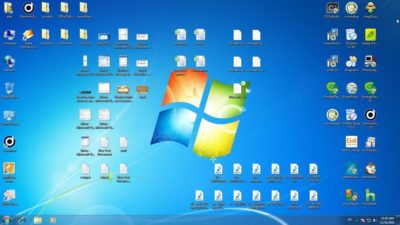
cluttered-desktop-screenshot

Clean up your desktop:

There’s nothing wrong with a messy desktop, but at some point you might need to impose a little order on the chaos. Cleaning the piles of paper and junk from your real-life office might take a weekend of labor. Fortunately, cleaning up the Windows desktop is considerably simpler.

If you like the convenience of using the Desktop folder as a temporary storage place, you can hide the clutter in seconds: Right-click any empty space on the desktop, click View, and then click to remove the checkmark from Show Desktop Icons.

All your desktop shortcuts and files are still there, but they’re no longer covering up your carefully chosen background image. To get to those files, open File Explorer and type Desktop in the address bar. Even quicker: Pin a Desktop shortcut to Start.

Other options on the desktop’s View menu allow you to change icon size (warning: The Large Icons setting is really large) and to align those icons to a grid so they snap neatly into position.

Have questions?

For More Tips & Info from Microsofts Cloud Solutions Partner!
Call us at: 856-745-9990 or visit: https://southjerseytechies.net/

South Jersey Techies, LL C is a full Managed Web and Technology Services Company providing IT Services, Website Design ServicesServer SupportNetwork ConsultingInternet PhonesCloud Solutions Provider and much more. Contact for More Information.

Windows Tip of the week: Keyboard shortcuts that work for all major browsers

browsers

Keyboard shortcuts that work with every major browser:

The major browsers might have different rendering engines and user interface designs, but they have at least a few things in common. And surprisingly, keyboard shortcuts are on that list. Regardless of whether you use Google Chrome, Mozilla Firefox, Internet Explorer, or the new Microsoft Edge, the following keyboard shortcuts will work:

Ctrl+D?Add current page to Bookmarks/Favorites

Ctrl+J?Open Downloads list

Ctrl+H?Show history

Ctrl+I?Show Bookmarks/Favorites

Ctrl+T?Open a new tab

Ctrl+W?Close the current tab

Ctrl+Shift+T?Reopen most recently closed tab

Have questions?

For More Tips & Info from Microsofts Cloud Solutions Partner!
Call us at: 856-745-9990 or visit: https://southjerseytechies.net/

South Jersey Techies, LL C is a full Managed Web and Technology Services Company providing IT Services, Website Design ServicesServer SupportNetwork ConsultingInternet PhonesCloud Solutions Provider and much more. Contact for More Information.

Windows Tip of the week: Create a system image backup

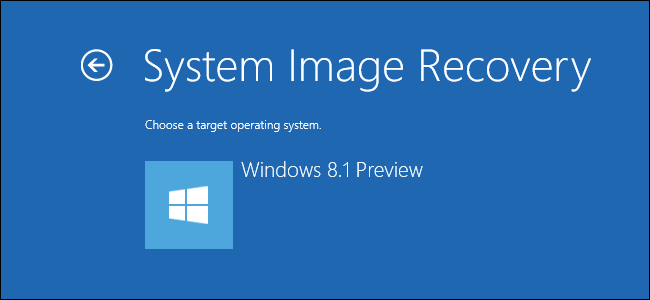
systemImageRecoveryWindows

Create a system image backup:

The surest way to recover from a data disaster, such as a system drive failure, is to restore that drive from an image-based backup. You’ll need an external hard disk–at least as large as the amount of space in use on the system drive and ideally the same size as your system drive.

The capability to back up and restore a system image is in the Windows 7 Backup And Restore program. That same program is also in Windows 8, 8.1, and 10, although it’s somewhat hidden. (In Windows 10, you can find it by typing backup in the search box.)

To start the program, press Windows key + R to open the Run box, type sdclt, and press Enter. Click Create A System Image from the column on the left, choose your external hard disk as the location where you want to save the backup, and click Next. On the following page, all partitions on the system drive should be selected. Just click Next and then click Start Backup.

Have questions?

For More Tips & Info from Microsofts Cloud Solutions Partner!
Call us at: 856-745-9990 or visit: https://southjerseytechies.net/

South Jersey Techies, LL C is a full Managed Web and Technology Services Company providing IT Services, Website Design ServicesServer SupportNetwork ConsultingInternet PhonesCloud Solutions Provider and much more. Contact for More Information.

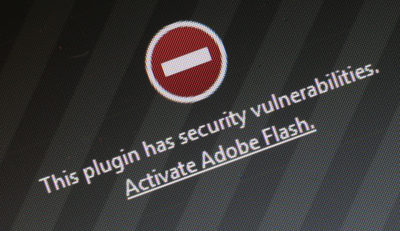
Mozilla Joins Google and Facebook in Phasing Out Adobe Flash

Web browsers don’t like the security and stability problems that come with Flash.

Another popular web browser has had it with Adobe Flash.

Mozilla said this week that it plans to gradually wean its Firefox web browser from Adobe’s ADBE -1.07% multimedia player. In August, Firefox will no longer support “certain Flash content” that it deems “not essential to the user experience,” although Mozilla did not specify what type of Flash content it was referring to.

Mozilla will still support “legacy Flash content” for an unspecified time, but the company urged websites that use Flash or Microsoft MSFT -0.25% Silverlight, another multimedia web player similar to Flash, for their videos or online games to adopt newer “HTML technologies as soon as possible.”

In May, Google GOOG -0.59% detailed its plans to end support of Flash for its Chrome web browser, and it hopes to completely rid itself of Flash advertisements by the beginning of 2017.

Google, like Adobe, is urging website operators to switch to the HTML5 coding language to display multimedia like video on their sites.

Flash is notoriously buggy and prone to many security vulnerabilities. Firefox believes that by ending support for Flash, its users will see “enhanced security, improved battery life, faster page load, and better browser responsiveness.”

Still, Mozilla is not totally cutting ties with Adobe. Mozilla said it would “continue to work closely with Adobe to deliver the best possible Flash experience for our users” as it phases the multimedia player out, and said that an engineering partnership between the two companies has improved some performance and stability in Firefox when it displays Flash content.

Last summer, Facebook’s FB -0.27% chief security officer Alex Stamos urged Adobe via Twitter to disable Flash because of its security vulnerabilities.

In April, Adobe issued an emergency update to Flash after security researchers found a flaw that allowed hackers to distribute so-called ransomware to owners of Microsoft Windows personal computers. Ransomware is basically a form of malware that lets hackers block people from accessing their computer or related computer networks so that a hacker can demand payment in return for access.

In 2010, legendary Apple AAPL -1.32% CEO Steve Jobs wrote a 1,700 word essay on Flash and why Apple’s problems with the multimedia player, which he claimed hurt the “reliability and security of our iPhones, iPods and iPads.”

Have questions?

Get answers from Microsofts Cloud Solutions Partner!
Call us at: 856-745-9990 or visit: https://southjerseytechies.net/

South Jersey Techies, LL C is a full Managed Web and Technology Services Company providing IT Services, Website Design ServicesServer SupportNetwork ConsultingInternet PhonesCloud Solutions Provider and much more. Contact for More Information.

To read this article in its entirety click here.

Windows Tip of the week: Benefits of the Shutdown command

The surprisingly useful Shutdown command:

shutdown

If you want to shut down a PC, you can always use the Power menu on Start. But the Shutdown command, which runs from a Command Prompt window, can help with a few tasks you can’t do from any menu.

To see the full syntax, open a Command Prompt window and type Shutdown /? Here are a few options you might find especially useful:

  • Shutdown /i – Show a graphical interface (note that this does not include all options available via command-line switches)
  • Shutdown /s – Full shutdown
  • Shutdown /r – Full shutdown and restart
  • Shutdown /h – Hibernate the local computer
  • For UEFI-based Windows 10 PCs, you have two extra options that can be invaluable:
  • Shutdown /s /fw – After a full shutdown, opens firmware user interface on next start
  • Shutdown /r /o – Restarts and displays the advanced boot options menu

Have questions?

For More Tips & Info from Microsofts Cloud Solutions Partner!
Call us at: 856-745-9990 or visit: https://southjerseytechies.net/

South Jersey Techies, LL C is a full Managed Web and Technology Services Company providing IT Services, Website Design ServicesServer SupportNetwork ConsultingInternet PhonesCloud Solutions Provider and much more. Contact for More Information.

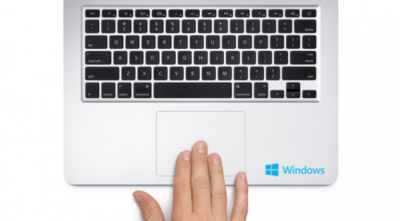
Windows Tip of the week: Reduce clutter with a mouse gesture

Shake the clutter away:

Windows-Macbook

On a modern Windows PC with gobs of memory, it’s easy to have dozens of windows open at one time. But all that multitasking can create a distracting mess of overlapping panes that makes it difficult to concentrate on the task at hand.

The solution is a little gesture that debuted in Windows 7. Bring the app you want to focus on to the foreground, point to its title bar, hold down the left mouse button, and make a gentle left-right-left shaking gesture. It doesn’t need to be violent; just make sure you move the window an inch or so in each direction. Do it right, and every other open window is minimized to the taskbar. Shake again to restore all windows to their previous position.

Want to minimize every window, including the current one? Aim for a narrow strip at the end of the taskbar, just to the right of the system clock, and click once. Click again to restore all windows.

Have questions?

For More Tips & Info from Microsofts Cloud Solutions Partner!
Call us at: 856-745-9990 or visit: https://southjerseytechies.net/

South Jersey Techies, LL C is a full Managed Web and Technology Services Company providing IT Services, Website Design ServicesServer SupportNetwork ConsultingInternet PhonesCloud Solutions Provider and much more. Contact for More Information.

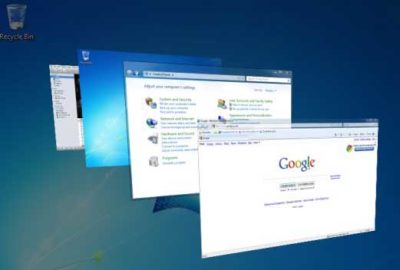
Windows Tip of the week: Keyboard tricks for switching between programs

Keyboard tricks for switching between programs:

windows-switch

Do you know all the program switching techniques for Windows? The more programs you have open, the more you can benefit from these keyboard shortcuts.

Here are three worth memorizing:

  • Alt+Tab: This is the classic shortcut, the one most Windows users are likely to know. Hold down the Alt key and tap Tab to see a list of running programs as thumbnails. If you continue holding down Alt and keep tapping Tab, you’ll cycle through all of them.
  • Alt+Esc: Use this shortcut if you want skip the thumbnails and just cycle through the actual programs. Keep holding down Alt and tapping Esc until you reach the window you want.
  • Ctrl+Alt+Tab: Most people don’t know this one. Press this combination and you get the same thumbnails as with Alt+Tab, with one crucial difference: When you take your hands off the keyboard the thumbnails remain visible. Use the left and right arrow keys to move through thumbnails. To choose one, tap the spacebar or press Enter.

And one last secret: Add Shift to any of these shortcuts to move in reverse.

Have questions?

For More Tips & Info from Microsofts Cloud Solutions Partner!
Call us at: 856-745-9990 or visit: https://southjerseytechies.net/

South Jersey Techies, LL C is a full Managed Web and Technology Services Company providing IT Services, Website Design ServicesServer SupportNetwork ConsultingInternet PhonesCloud Solutions Provider and much more. Contact for More Information.

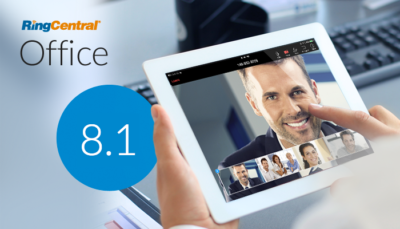
RingCentral July Feature Release

Take a look at RingCentral latest release of useful new features and upgrades for you and your workforce.

ring-central

RingCentral Meetings Updates

Transform any ordinary conference room into an exceptional online meeting space. Extend your RingCentral Meetings capabilities with.

  • RingCentral Rooms easily adds web conferencing services to the off-the-shelf conference room equipment you may already have. All you need is an iPad, camera, monitors, speakers, and a Mac.
  • RingCentral Room Connector enables you to use your existing H.323/SIP conference room systems to connect and collaborate with RingCentral Meetings participants from desktops, mobiles or tablets.
    Learn more about creating connected conference rooms.

Contact your Account Manager to get a personalized demo of RingCentral Rooms and Room Connector.

RingCentral Glip Updates

RingCentral Glip* provides a digital workspace for truly modern collaboration. Users get team messaging, simple task management, shared calendars, and a place to keep notes. Here are some additional updates:

New iOS mobile app to make RingCentral Glip on the go a better experience.

More administrative controls to turn on or off guest invitations and other features.

Learn more about our updates to advanced notifications, / commands, Giphy and more.

Get RingCentral Glip for you and your workforce.

Service & Application Updates

Online Account User Interface Changes

We’ve redesigned the Company Info, Phone Numbers, and Phones and Devices sections of your online account with better manageability, search, display and bulk actions where applicable. Learn more about the visual and functionality changes.

Automatic Call Recording

Now you can set up an automatic call recording annoucement for all inbound and outbound calls. Learn more and how to set up Automatic Call Recording.

Available for RingCentral Office Premium and Enterprise customers.

RingCentral Global Office

Local numbers and in-region calling are now available in 24 countries with RingCentral Global Office. Provide a consistent voice, messaging, and collaboration experience across your international workforce. Request a demo to learn more and to see the complete list of supported countries.

New integrations

Skype for Business: Make and receive calls, send SMS messages, or start an online meeting to Skype contacts and any phone number using your RingCentral service within the Skype for Business application.

Dropbox: Automatically back up and store your RingCentral records of voicemails, recording, text messages and faxes in your Dropbox accounts.

Additional Updates

ConnectCentral RingCentral User Conference

Register for ConnectCentral before July 31, 2016 for our early bird special. The event will be highly educational and will provide insights on how to increase the efficiency of your IT resources, support your dynamic workforce, and communicate more effectively across your entire organization. See the full agenda.

Professional Consulting Services

RingCentral Professional Services is an ongoing resource you can utilize at any point as a RingCentral customer, especially when your company is going through a major change. Also available, our managed services can help expedite technical support, proactive case management, and engage in sharing best practice recommendations. Learn more.

Release Notes

For more information on these and other changes, check out the latest Release Notes.

Have questions?

Get answers from Microsofts Cloud Solutions Partner!
Call us at: 856-745-9990 or visit: https://southjerseytechies.net/

South Jersey Techies, LL C is a full Managed Web and Technology Services Company providing IT Services, Website Design ServicesServer SupportNetwork ConsultingInternet PhonesCloud Solutions Provider and much more. Contact for More Information.

CALL US NOW!