Back to Top

Tech, Web, Cloud & Cabling Services

New Website Design – Newport Construction

The Website Design team of South Jersey Techies has been constantly working on developing great looking websites using the latest web technologies. The most recent website developed by our team is for Newport Construction Corporation in Pennsauken, New Jersey.

Over 25 years ago, Gregg Cooke, Principal, recognized the need for a full-service general contracting & construction management firm that possessed the ability to cater to the demanding needs of all clients throughout varying project types and sizes. Newport Construction Corporation is a multi-faceted construction management and general contracting firm that is defined by its committed principals, professionals, and core values.

South Jersey Techies, LLC newest designed website.

Have questions?

Our Web Design team is here to help. Call us at: 856-745-9990 or visit: https://southjerseytechies.net.

South Jersey Techies, LLC is a full Managed Web and IT Services Company located in Marlton, NJ providing IT Services, Managed IT Services, Website Design Services, Server Support, IT Consulting, VoIP Phones, Cloud Solutions Provider and much more. Contact Us Today.

Office Mobile for iPhones

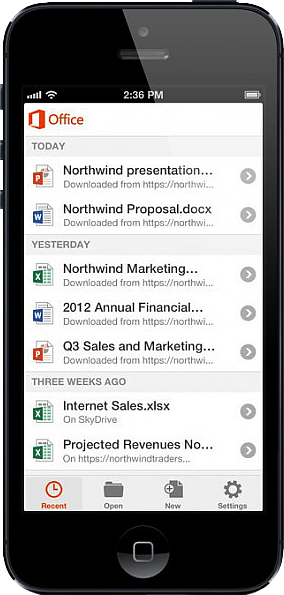
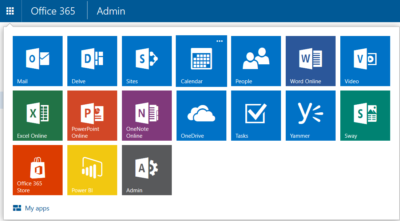
Untitled On June 14, 2013, Microsoft released Office Mobile in the Apple Store for all Office 365 users at no cost.  This app is available for iPhone 4 and up, iPad 3rd generation and up, iPad Mini and iPod Touch 5th generation.  All devices are required to run iOS 6 and up.

Office Mobile allows you to view and edit Word, Excel, and PowerPoint documents.   SkyDrive, SkyDrive Pro and SharePoint are ways to access documents.  “Recent Documents” tracks the most recent documents that you viewed or changed and makes them easily accessible.  Offline editing does not require a constant internet connection but allows you to save your changes once reconnected to a network.

On June 10, 2013 Apple announced that iWork Apps, such as Pages, Numbers and Keynote, can cross platforms to be used on Windows Systems.  Although, iWork Apps are proficient, they can not compare to the Office Suite. 

Microsoft has taken a huge step by crossing platforms with Office software and returning the upper hand to Microsoft.  Office 365 has become more valuable for businesses and home users.  

For more information on Hosted Services and Office 365

 please contact us 856-745-9990 or click here.


Everything Needed to be on the Internet

https://southjerseytechies.net/blog/wp-admin/post.php?post=21&action=edit

South Jersey Techies introduces SJTHosting.net. SJT Hosting is a internet service that offers Domain Names, Web Hosting, SSL Certificates, Emails Accounts, Marketing Tools, Build a Website and much more to individuals and organizations.

Check us out at www.sjthosting.net.
SJT Hosting

CredSSP encryption oracle remediation

Remote Desktop Error – An Authentication error has occurred – CredSSP encryption oracle remediation – SOLUTION

CredSSP encryption oracle remediation

Error


We recently had an issue with remote desktop connection to a Windows 2012 server from a Windows 10 Pro client computer that was recently updated.

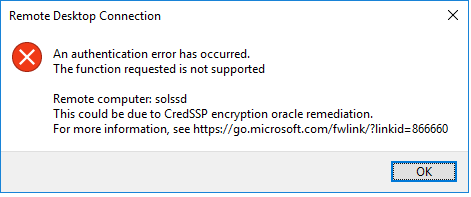
An Authentication error has occurred.
The function requested is not supported.
Remote computer: <servername>
This could be due to CredSSP encryption oracle remediation

CredSSP updates for CVE-2018-0886

Solution


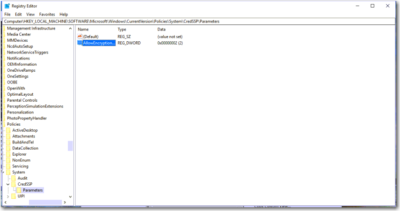
We had to create a registry key HKLM\Software\Microsoft\Windows\CurrentVersion\Policies\System\CredSSP\Parameters; both the CredSSP and Parameters keys had to be created, and then create the AllowEncryptionOracle DWORD and give it a value of 2, worked for me on both Windows 7 and Windows 10 Pro computers. A reboot was not needed.
Registry path: HKLM\Software\Microsoft\Windows\CurrentVersion\Policies\System\CredSSP\Parameters
Value: AllowEncryptionOracle
Data type: DWORD

Have Questions?


Leave us a comment or visit: https://southjerseytechies.net/

South Jersey Techies, LLC is a full Managed Web and Technology Services Company providing IT Services, Website Design ServicesServer SupportNetwork ConsultingInternet PhonesCloud Solutions Provider and much more. Contact for More Information.

To read this article in its entirety click here.

Windows 10 SSTP VPN Manual Setup Tutorial

Manual Setup

Step 1

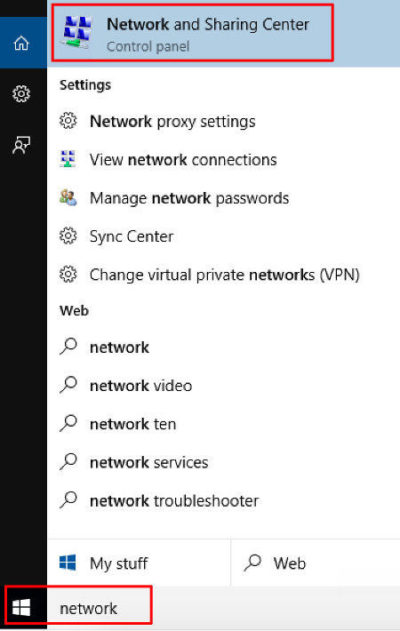
Go to your start menu, and type in “network”.  In the search results click on “Network and Sharing Center”

Step 2

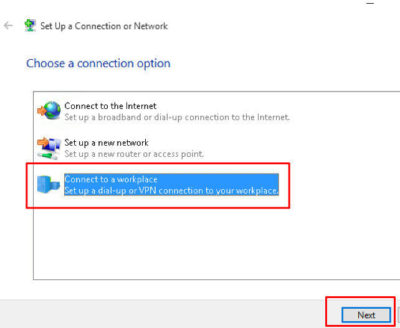
Select Connect to a workplace and click Next

Step 3

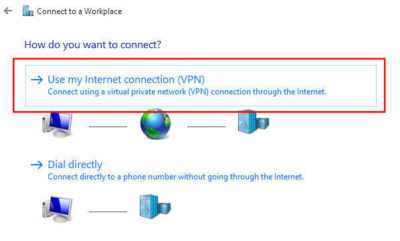
Click on Use My Internet Conection (VPN)

Step 4

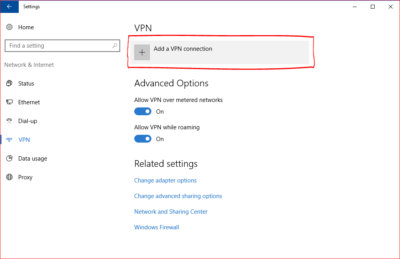
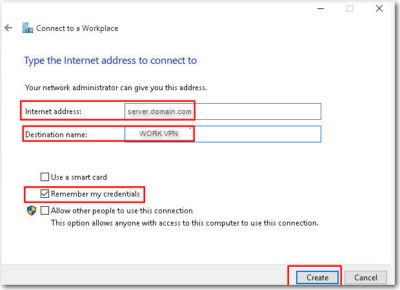
Enter in the internet address (provided by your IT Professional), Name then Create

Step 5

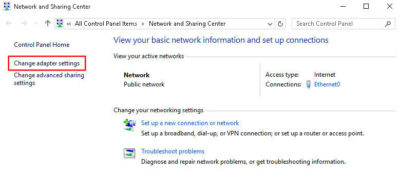
Network and Sharing Center window should still be opened.  Click on Change Adapter Settings

Step 6

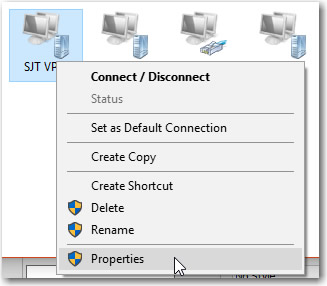
Right Click on the new connection you made, then go to Properties

Step 7

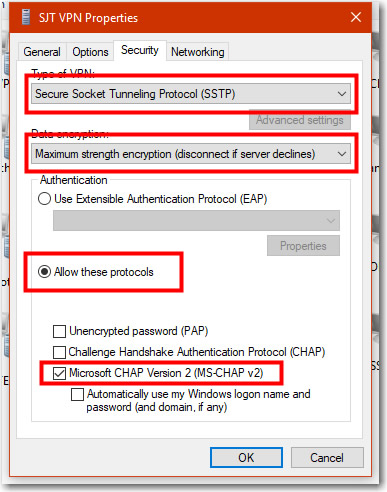
Go to the Security Tab, and change your properties to be the same as the below image. Press OK once done.

Step 8

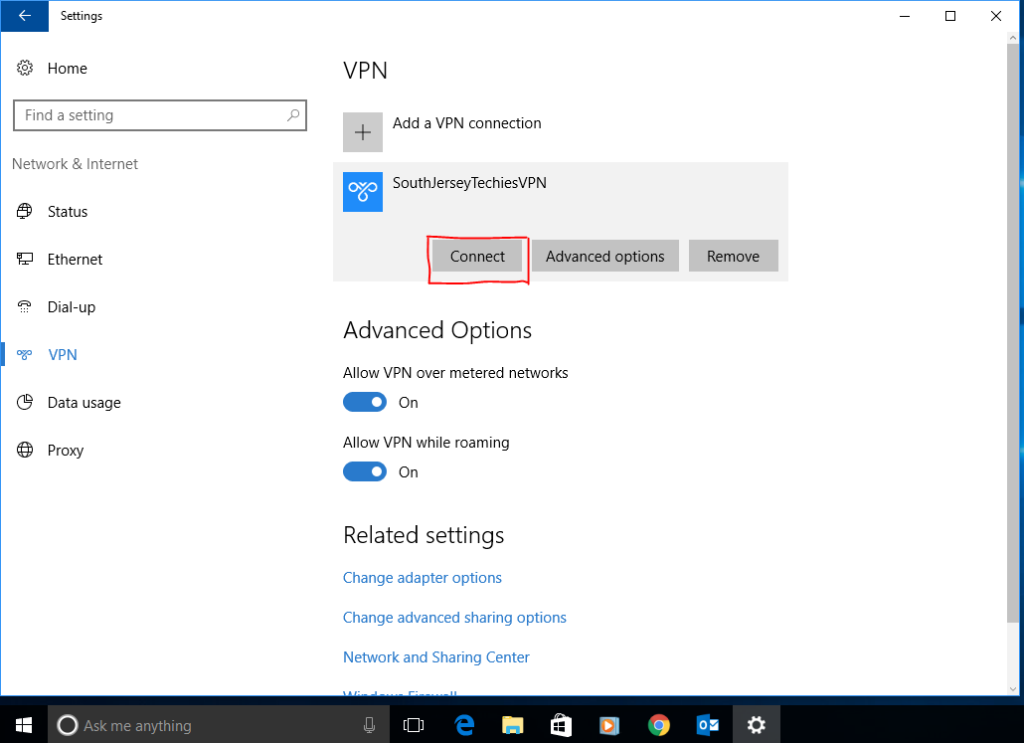
Right Click the Connection and choose “Connect” option.

Step 9

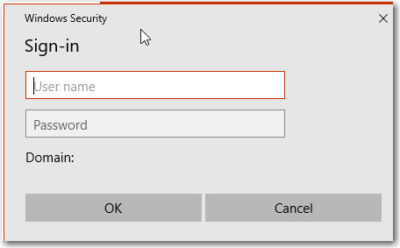
You will be prompted for your username and password for your VPN. (provided by your IT Professional). Enter them as provided. ex. DOMAIN\username and password.

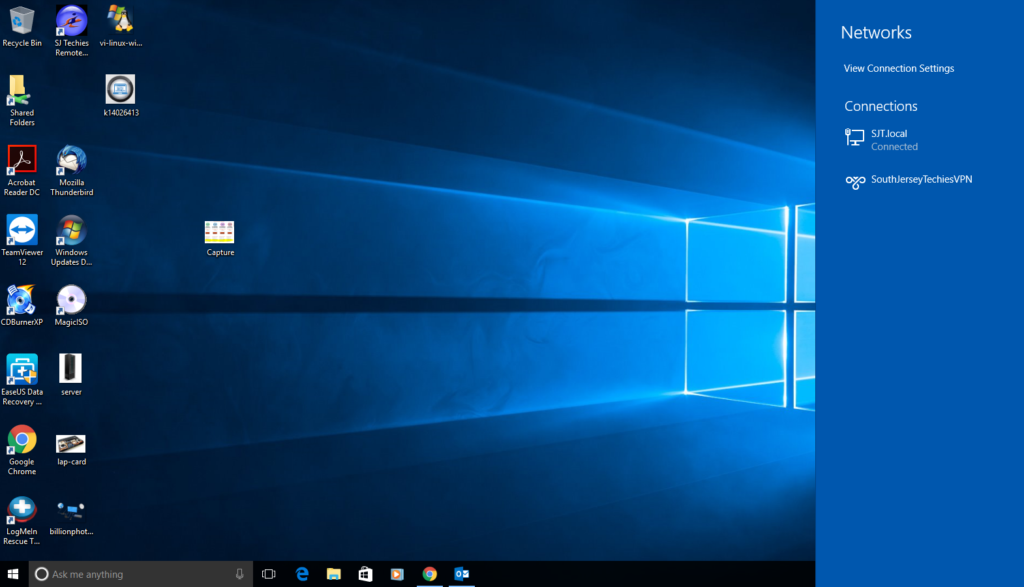
After a few seconds it will connect and show you “Connected” status.

Step 10

You can also check the VPN status in the Network applet (the icon in your system tray at the bottom right).

Connecting the SSTP on Windows 10

Find the network connections icon in the bottom right corner of the screen (near the clock). The icon can be in the shape of computer display or wireless signal meter (you can see it on Step 10). Click on that icon. In the appeared list click on any network connection.
After that you will see another window with the connection list, click on theVPN connection (the connection name can be different, you have set it up on Step 5).
Click the “Connect” button under the connection name.

Disconnecting the SSTP on Windows 10

Find the network connections icon in the bottom right corner of the screen (near the clock). The icon can be in the shape of computer display or wireless signal meter (you can see it on Step 10). Click on that icon. In the appeared list click on any network connection.
After that you will see another window with the connection list, click on theVPN connection (the connection name can be different, you have set it up on Step 5).
Click the “Disconnect” button under the connection name.

Have questions?

Get answers from Microsofts Cloud Solutions Partner!
Call us at: 856-745-9990 or visit: https://southjerseytechies.net/

South Jersey Techies, LL C is a full Managed Web and Technology Services Company providing IT Services, Website Design ServicesServer SupportNetwork ConsultingInternet PhonesCloud Solutions Provider and much more. Contact for More Information.

New Website Design – CoBALT ELECTRIC

The Website Design team of South Jersey Techies has been constantly working on developing great looking websites using the latest web technologies. The most recent website developed by our team is for Cobalt Electric, providing expert electric & wiring services in South Jersey.

If your home or business is in need of anything from a few minor updates, a complete overhaul or a brand new building, Cobalt Electric will provide unparalleled quality and service, and work with you to get the job done right. Whether you want a surround-sound audio system, wired security cameras,motion sensors or ethernet jacks, choose Cobalt Electric for the highest quality cabling available in your area, making your home safer, simpler and more enjoyable.


Have questions?

Our Web Design team is here to help
Call us at: 856-745-9990 or visit: https://southjerseytechies.net

South Jersey Techies, LLC is a full Managed Web and IT Services Company located in Marlton, NJ providing IT Services, Managed IT Services, Website Design ServicesServer SupportIT ConsultingVoIP PhonesCloud Solutions Provider and much more. Contact Us Today.

New Website Design – Main Line Bike Race

The Website Design team of South Jersey Techies has been constantly working on developing great looking websites using the latest web technologies. The most recent website developed by our team is for an event organized by Narberth Ambulance, called, Main Line Bike Race.

The 1st annual  Main Line Bike Race of Ardmore to be held on Sunday, August 20th, 2017 from 8:00 am to 4:00 pm. The team – comprised of volunteers from Narberth Ambulance, Human Zoom Bikes and Boards, Lower Merion Township, Ardmore Business Association, and many others – is working hard to ensure a successful presentation of a first-class event for a first-class township. Please consider supporting the First Annual Main Line Bike Race. Your support will not only help Narberth Ambulance; it will also assist us in bringing our communities together for an action-packed day of bike racing!


Have questions?

Our Web Design team is here to help
Call us at: 856-745-9990 or visit: https://southjerseytechies.net

South Jersey Techies, LLC is a full Managed Web and IT Services Company located in Marlton, NJ providing IT Services, Managed IT Services, Website Design ServicesServer SupportIT ConsultingVoIP PhonesCloud Solutions Provider and much more. Contact Us Today.

Outlook issues in the June 2017 security updates

The problems stems from June 2017 security updates. Microsoft is investigating the issues and will update this page when a fix is available. In the meantime, please use the workarounds suggested for each issue. They have categorized it in seven scenarios.

Issue#1: Error when opening an attachment is an email, contact, or task formatted as Rich Text.

This issue affects Outlook 2007 and Outlook 2010.

When you open an attachment in an email, contact, or task formatted as Rich Text you get the following error:outlook-2010-2007-this-program-used-to-create-is-outlook-not-installed

You may also see:

STATUS: WORKAROUND

  • Forward the email to yourself and then open the attachments from the forwarded email.
  • Change the email format to HTML, or Text format.
  • Save the attachments to your computer, using one of the following methods, then open them from the saved location: Drag and drop the attachments to your desktop.
    Go to File > Save Attachments.
    Copy and paste the attachment to your computer.

Issue#2: Opening Mail Attachment warning when opening an attachment that includes consecutive periods

This issue affects Outlook 2007, Outlook 2010, Outlook 2013, and Outlook 2016.

When opening an attachment that includes consecutive periods (…), or an exclamation point (!), the files are blocked and you receive an Opening Mail Attachment warning.
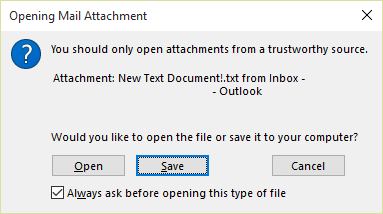
Or if an email message includes an attached email message, and the attached email message’s subject line ends with an unsafe file name extension as listed in the Blocked attachments in Outlook, the email attachment will be blocked for recipients.

STATUS: WORKAROUND

If you get the Opening Mail Attachment warning, and you’re sure the attachment was sent from a trusted source, proceed to Open or Save the attachment.

If the file is blocked because of a potentially unsafe file extension, ask the sender to save the email message to their computer and rename its subject line so that it does not end with an unsafe file name extension. Then, attach it to the email message and resend.

Issue#3: Error when setting ShowLevel1Attach to allow Outlook to display Level 1 attachments

This issue affects Outlook 2013 and Outlook 2016.

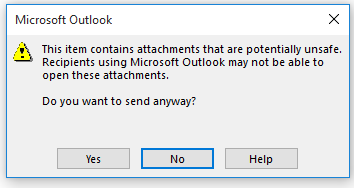
If you set ShowLevel1Attach to allow Outlook to display Level 1 attachments, you may see the error: “One or more objects in this file have been disabled due to your policy settings”.

WARNING: Typically, Level 1 attachments are blocked. If you have enabled this policy, users can see Level 1 attachments in Outlook. If you use any of the workarounds to open the files, please make sure they are safe to open. See: Information for administrators about e-mail security settings in Outlook 2007.
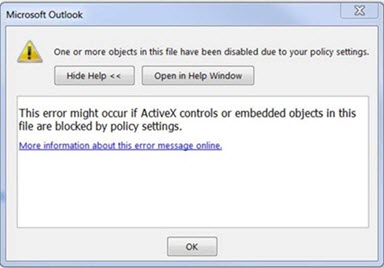
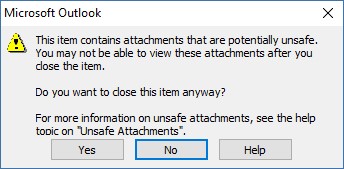
If you set ShowLevel1Attach to allow Outlook to display Level 1 attachments, and you send an email with an attachment you may see this message: “This item contains attachments that are potentially unsafe.  Recipients using Microsoft Outlook may not be able to open these attachments.”
STATUS: WORKAROUND

  • Change the email format to HTML, or Text format.
  • Save the attachments to your computer, using one of the following methods, then open them from the saved location:
    • Drag and drop the attachments to your desktop.
    • Go to File > Save Attachments.
    • Copy and paste the attachment to your computer.

Issue#4: VBScript does not run or you receive malicious code warning when using a custom form for Outlook

This issue affects Outlook 2007, Outlook 2010, Outlook 2013, and Outlook 2016.

When you use a custom form that you have created for Outlook, you see the following two symptoms:

  • VBScript does not run.
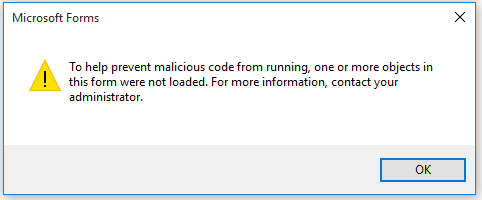
  • You get a malicious code warning: 

STATUS: INVESTIGATING

We’re investigating this issue and will update this page when a fix is available.

Issue#5: “Something went wrong….” or “Search results may be incomplete” error when searching in Outlook

This issue affects all Outlook versions on Windows 7, Windows 8, Windows 10.

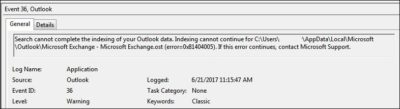
When searching in Outlook, you get this error: “Something went wrong and your search couldn’t be completed.”, or “Search results may be incomplete because items are still being indexed“.

And you’ll see this Event Log warning:
STATUS: WORKAROUND

Until the Windows Update fix release on 6/27, you can set a registry key that will cause Outlook to stop using the local Windows Search service. When this registry key is set, Outlook will use its own built-in search engine. The built-in search will display the message below to indicate it is not using the Windows Search service.

Disable Windows Desktop Search Service for Outlook:

NOTE: The following steps show you how to modify the registry. However, serious problems might occur if you modify the registry incorrectly. Please make sure that you follow these steps carefully. For added protection, back up the registry before you modify it. Then, you can restore the registry if a problem occurs. For more information about how to back up and restore the registry, see this article.

  • Open Registry Editor.
  • Go to: Computer\HKEY_LOCAL_MACHINE\SOFTWARE\Policies\Microsoft\Windows\Windows Search
  • PreventIndexingOutlook
  • Set DWORD: 1

Detailed Instructions:

  1. Click Start, click Run, type regedit in the Open box, and then click OK.
  2. Locate and then click the following subkey in the registry:
    HKEY_LOCAL_MACHINE\SOFTWARE\Policies\Microsoft\Windows
  3. On the Edit menu, point to New, and then click New Key and name the key Windows Search.
  4. Click on the new key Windows Search.
  5. On the Edit menu, point to New, and then click DWORD Value.
  6. Type PreventIndexingOutlook for the name of the DWORD, and then press Enter.
  7. Right-click PreventIndexingOutlook, and then click Modify.
  8. In the Value data box, type 1 to enable the registry entry, and then click OK.
  9. Note to disable the PreventIndexingOutlook setting, type 0 (zero), and then click OK.
  10. Exit Registry Editor, and then restart Outlook.

Issue#6: iCloud fails to load properly in Outlook 2007

iCloud fails to load properly in Outlook 2007.

When accessing Calendar, Contacts, or Tasks in Outlook 2007, you get the following error:

The set of folders cannot be opened. MAPI was unable to load the information service C:\PROGRA~2\COMMON~1\Apple\Internet Services\APLZOD.dll. Be sure the service is correctly installed and configured.”

STATUS: WORKAROUND

The loading of unregistered MAPI services has been disabled by default to make Outlook more secure.

WARNING: This workaround may make your computer or your network more vulnerable to attack by malicious users or by malicious software such as viruses. Microsoft does not recommend this workaround but is providing this information so that you can choose to implement this workaround at your own discretion. Use this workaround at your own risk.

If you have trusted applications that depend on being loaded in this manner, you can re-enable those applications by setting the following registry key:

REG_DWORD HKEY_CURRENT_USER\Software\Microsoft\Office\12.0\Outlook\Security\AllowUnregisteredMapiServices

You can use the following registry subkey to apply the registry setting as a domain policy:

HKCU\Software\Policies\Microsoft\Office\12.0\Outlook\Security\AllowUnregisteredMapiServices

Value 0 (default): Block loading of unregistered MAPI services. This is the recommended setting to avoid unexpected execution of unknown code.

Value 1: Enable loading of unregistered MAPI services.

IMPORTANT: The following steps show you how to modify the registry. However, serious problems might occur if you modify the registry incorrectly. Please make sure that you follow these steps carefully. For added protection, back up the registry before you modify it. Then, you can restore the registry if a problem occurs. For more information about how to back up and restore the registry, see this article.

To make these registry changes, follow these steps:

  1. Click Start, click Run, type regedit in the Open box, and then click OK.
  2. Locate and then click the following subkey in the registry:HKCU\Software\Microsoft\Office\12.0\Outlook\Security\
  3. On the Edit menu, point to New, and then click DWORD Value.
  4. Type AllowUnregisteredMapiServices for the name of the DWORD, and then press Enter.
  5. Right-click AllowUnregisteredMapiServices, and then click Modify.
  6. In the Value data box, type 1 to enable the registry entry, and then click OK.

    NOTE: To disable the AllowUnregisteredMapiServices setting, type 0 (zero), and then click OK.

  7. Exit Registry Editor, and then restart the computer.

Vulnerability information (applies to all versions)

MAPI does not validate that a provider’s DLL that it is requested to load is registered correctly in MapiSVC.inf or even that it comes from the local machine. This can be exploited by creating a file together with an OLE object in such a way to cause MAPI to load a DLL from a network share when the OLE object is activated. This can allow arbitrary code execution to occur.

Issue#7: When printing a specific iframe or frame in a web page, the print output may be blank, or text is printed with a 404

This issue affects all Outlook versions on Windows 7, Windows 8, Windows 10.

When you print a specific iframe or frame in a web page, the print output may be blank, or text is printed that resembles the following:

NOTE: A frame is a part of a web page or browser window that displays content independent of its container. A frame can load content independently.

This problem has also been observed in both Internet Explorer 11, and in applications that host the IE Web Browser Control.

STATUS: INVESTIGATING

There is currently no workaround for this issue. However, if you print the entire web page, it will print correctly. We’re investigating this issue and will update this page when a fix is available.

Option: Uninstall Recent Microsoft Update

It is not recommended to uninstall the update as it applies to some other issues but if none of the workarounds help then you have this option until a new fix is releases.

For Outlook 2010:

  1. Go to the Control Panel – Programs and features and select view installed updates on the left.
  2. Search or look for KB3203467 and highlight it and uninstall it.

For Outlook 2007:

  1. Go to the Control Panel – Programs and features and select view installed updates on the left.
  2. Search or look for KB3191898 and highlight it and uninstall it.

Have any questions?

Call us at: 856-745-9990 or visit: https://southjerseytechies.net/

South Jersey Techies, LLC is a full Managed Web and Technology Services Company providing IT Services, Website Design ServicesServer SupportNetwork ConsultingInternet PhonesCloud Solutions Provider and much more. Contact for More Information.

To read this article in its entirety click here.

New Website Design – Custom Coats Painting

The Website Design team of South Jersey Techies has been constantly working on developing great looking websites using the latest web technologies. The most recent website developed by our team is for a painting company, serving the Tri-State area, Custom Coats Painting.

Custom Coats Painting is a full service, fully licensed and insured painting company, serving New Jersey & Pennsylvania. They specialize in interior and exterior house painting as well as pressure washing, wooden deck restoration and wallpaper removal for commercial and residential projects. Custom Coats Painting takes pride in giving the best possible service to each of its customers. They give the best painting service at the best price and above all, do a job that exceeds your expectations.


Have questions?

Our Web Design team is here to help
Call us at: 856-745-9990 or visit: https://southjerseytechies.net

South Jersey Techies, LLC is a full Managed Web and IT Services Company located in Marlton, NJ providing IT Services, Managed IT Services, Website Design ServicesServer SupportIT ConsultingVoIP PhonesCloud Solutions Provider and much more. Contact Us Today.

New Website Design – Chen Gray Law Group, LLC

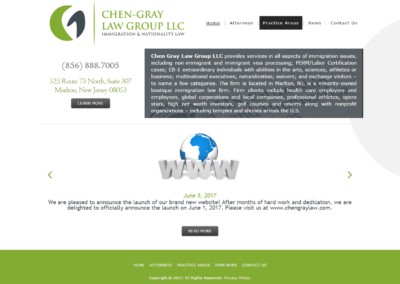
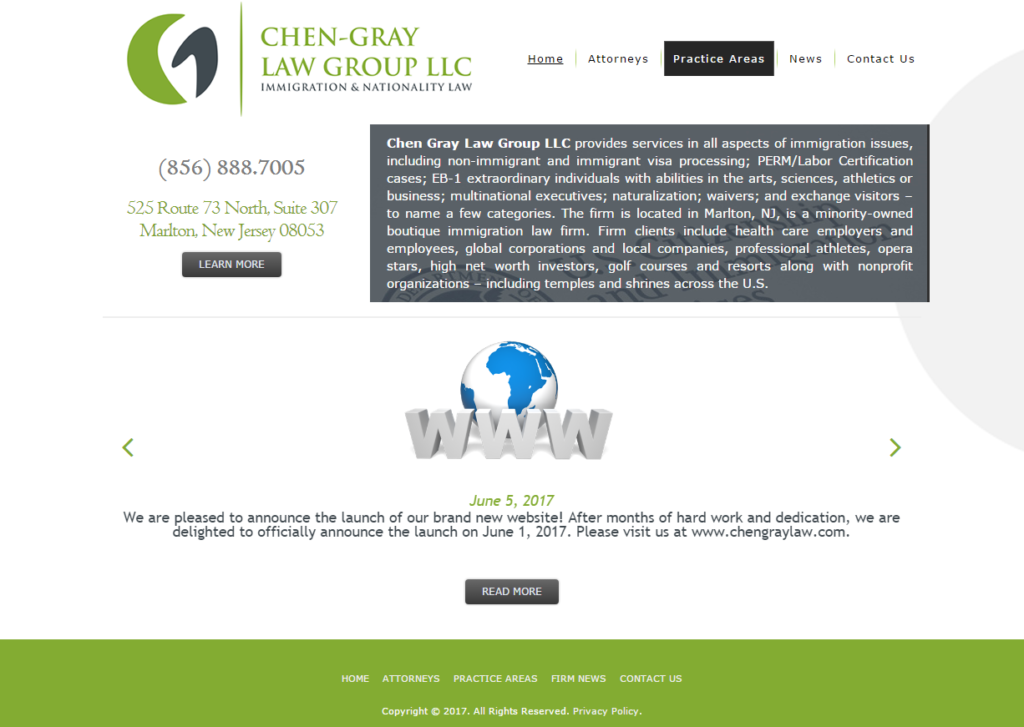
The Website Design team of South Jersey Techies has been constantly working on developing great looking websites using the latest web technologies. The most recent website developed by our team is for an Immigration Law Firm in South Jersey, Chen Gray Law Group LLC

Chen Gray Law Group provides services in all aspects of immigration issues, including non-immigrant and immigrant visa processing; PERM/Labor Certification cases; EB-1 extraordinary individuals with abilities in the arts, sciences, athletics or business; multinational executives; naturalization; waivers; and exchange visitors – to name a few categories. The Chen Gray Law Group is located in Marlton, NJ, is a minority-owned boutique immigration law firm. Firm clients include health care employers and employees, global corporations and local companies, professional athletes, opera stars, high net worth investors, golf courses and resorts along with nonprofit organizations – including temples and shrines across the U.S.


Have questions?

Our Web Design team is here to help
Call us at: 856-745-9990 or visit: https://southjerseytechies.net

South Jersey Techies, LLC is a full Managed Web and IT Services Company located in Marlton, NJ providing IT Services, Managed IT Services, Website Design ServicesServer SupportIT ConsultingVoIP PhonesCloud Solutions Provider and much more. Contact Us Today.

CALL US NOW!