Back to Top

Tech, Web, Cloud & Cabling Services

Killer keyboard shortcuts to help you master Windows

These Windows keyboard shortcuts help you navigate your PC faster, master documents, wrangle various virtual desktops, and shut down and secure a computer, using just a few keys.windows-keyboardDespite notable advancements in speech-recognition technology and voice input, and the popularity of tablets, the humble PC continues to be the workhorse device of choice for many workers around the world. And whether you’re an office-bound professional slouched behind a desktop PC, or a globetrotting executives armed with the latest ultrabook, the “physical” hardware keyboard continues to play a crucial role in productivity.The last thing you want in the heat of the moment is to fumble around for a mouse or have to take multiple steps to complete a task that could be done with a quick keyboard shortcut. Of course, learning and remembering such shortcuts can be hard work, and you’ll need to take some time to find the appropriate shortcuts for you.We’re here to assist. This list of valuable Windows keyboard shortcuts will help you work smarter and faster.

Keyboard shortcuts for the Windows surfer
windows-surfer

If you hope to master Windows keyboard shortcuts, you should start with the Windows desktop. The following shortcuts let you toggle between app windows and quickly resize them without having to reach for a mouse or align your apps.

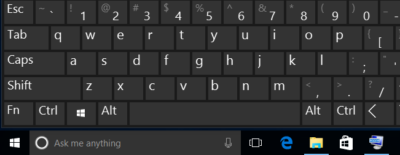
  • Windows key (a.k.a., “Winkey“) + D.  Minimize all app windows and jump straight to the desktop. Hit the shortcut again to bring all apps back to the foreground.
  • Winkey + Comma. Take a quick peek at your desktop, and then release the keys to snap all apps back to the foreground.
  • Winkey + Left Arrow, or Winkey + Right Arrow. Dock your app windows to the left or right of the screen.
  • Winkey + Down Arrow, or Winkey + Up Arrow. Maximize or minimize a selected app. Or dock your app windows to the top or bottom of your display, when app windows are already docked to the left or right.
  • F11 – Toggle an active window in and out of full screen mode.
  • Ctrl + Esc – Bring up your Start menu. (This is particularly helpful if you use a keyboard that doesn’t have a Winkey.)

Windows keyboard shortcuts for the Kung Fu typer

These useful shortcuts help zoom the cursor around your page much quicker than if you use a mouse or trackpad.

  • Ctrl + Right Arrow, or Ctrl + Left Arrow. Move the cursor one word to the right or left.
  • Ctrl + Down Arrow, or Ctrl + Up Arrow. Move the cursor to the start or end of the next or previous paragraph.
  • Ctrl + Z, or Ctrl + Y. Undo or redo almost any action, as long as the app supports the feature.

Windows keyboard shortcuts for virtual desktop Jujutsu

Long a staple feature in Linux and the Mac, Microsoft finally officially incorporated virtual desktops into its Windows 10 OS. The indispensable feature lets you create additional desktops to better manage multiple app windows.

  • Winkey + Ctrl + D, or Winkey + Ctrl + F4. Create or close a virtual desktop.
  • Winkey + Ctrl + Left Arrow, or Winkey + Ctrl +Right Arrow. Toggle through your virtual desktops.
  • Winkey + Tab. Display the “Task View” interface for an overview of all virtual desktops. You can use the Arrow keys to toggle through desktops if you also hit Tab when in this mode. Hit Enter to jump to a selected desktop.

Windows keyboard shortcuts for the browser ninja

You’ve probably used a web browser for as long as you’ve had a computer, but do you take full advantage of keyboard shortcuts for browser navigation? These browser shortcuts all work the in latest versions of Internet Explorer, Microsoft Edge, Mozilla Firefox and Google Chrome.

  • Alt + D. Put the cursor into the browser’s address bar.
  • Ctrl + W, or Ctrl + T. Close or open a new browser tab.
  • Ctrl + Shift + T. Reopen the last browser tab you closed. (This comes in handy when if you hit Ctrl + W too quickly.)
  • Ctrl + Plus sign, or Ctrl + Minus sign. Zoom in and out on a web page. Reset the zoom level with Ctrl + 0.
  • Ctrl + Tab, or Ctrl + Shift + Tab. Toggle to the next browser tab from left to right, or from right to left.
  • Alt + Right Arrow, or Alt + Left Arrow. Browse forward or backward through recently visited websites. These shortcuts perform the same function as a browser’sForward and Back buttons.

Windows keyboard shortcuts for locking up and shutting down

This guide wouldn’t be complete without some shortcuts that help you shut down your PC and then lock things up.

  • Winkey + L. Immediately lock your PC.
  • Ctrl + Shift + Esc. Open the Task Manager to monitor app or forcibly shut down frozen programs.
  • Alt + F4. Close an active app. Using this shortcut key when your desktop is at the forefront invokes the “Shut Down Windows” prompt.

Have questions?

Get answers from Microsofts Cloud Solutions Partner!
Call us at: 856-745-9990 or visit: https://southjerseytechies.net/

South Jersey Techies, LL C is a full Managed Web and Technology Services Company providing IT Services, Website Design ServicesServer SupportNetwork ConsultingInternet PhonesCloud Solutions Provider and much more. Contact for More Information.

To read this article in its entirety click here.

Holiday Food Drive


Holiday Food Drive!

South Jersey Techies has teamed up with local businesses to help replenish Cherokee High School’s Food Pantry this holiday season!

WHEN: Saturday, December 11th from 9:30a-11:30a
WHERE: Laurel Oak Garden Center

Bring your non-perishable food items on December 11th and get a FREE picture with Santa while enjoying our hot coco bar!

Can’t make it on December 11th but still want to donate? There are 6 drop off locations where donations can be delivered at any time before December 11th listed below.

Questions can be emailed to Scott Zielinski of The Zielinski Real Estate Group @ scott@zhomesrealestate.com

Pro tip: Sort table data in a Word document

sort word

Microsoft Word


Sorting data in a Word document isn’t something you routinely do. On the other hand, presenting list and table data is, so the potential exists that one day you’ll want to sort something. The good news is that it’s easy to sort data in a table or a list. In this article, I’ll show you how to do just that. We’ll work through a few simple sorting examples. You can use most any table, or you can download the example .docx or .doc file.

Behind the scenes

Word relies on paragraphs when sorting, which seems a bit odd within the context of a table (or list). The paragraph formatting mark determines where one paragraph ends and the next starts. As you can see in Figure A, there’s no paragraph mark in a table. The end-of-cell markers denote the end of each cell’s content. The similar marker at the end of each row (outside the right border) is an end-of-row marker. These markers also contain cell and row formatting. When sorting a table, Word relies on the end-of-row marker to identify where one row ends and the next begins, the same way the paragraph mark does. (To see a document’s formatting symbols, click Show/Hide in the Paragraph group on the Home tab.)

Figure A

Table end-of-row markers are similar to paragraph markers.

Sort by the first column

We’ll start with the simplest sort possible; we’ll sort a table by the values in the first column. To do so, select, the table by clicking its move handle (the small square in the top-left corner). If you don’t see this handle, check the view. It’s available only in Print Layout and Web Layout. With the entire table selected, do the following:

  1. Click the contextual Layout tab. In the Data group, click Sort — or click Sort in the Paragraph group on the Home tab. In Word 2003, choose Sort from the Table menu.
  2. The resulting dialog does a good job of anticipating the sort. Notice that the Header Row option (at the bottom) is selected. As a result, the Sort By field is set to Species — the label in the first column’s header (Figure B).
    Figure B

  3. This is exactly what we want, so click OK. Figure C shows the sorted table.
    Figure C

Before we move on, let’s discuss the Type and Using options to the right. We didn’t need to change either, but sometimes you will. The Type options are Text, Number, and Date. Word usually defaults to the appropriate data type. You can force a specific type by choosing a different option other than the one Word assumes (but you’ll rarely have reason to do so). The Using options defaults to Paragraph — we talked about that earlier.

Sort by the second column

That first exercise was easy. Let’s complicate things a bit by sorting by the second column. Fortunately, it’s just as easy as the first. Repeat steps 1 and 2 from the first exercise. Then, do the following:

  1. In the resulting dialog, click the Sort By drop-down.
  2. Choose Common Name, the header label for the second column.
  3. Click OK. Figure D shows the results of sorting by the second column.
    Figure D

That wasn’t any more difficult that the first sort. Tell Word which column contains the values you want to sort by and click OK — that’s it!

Sort by multiple columns

With only two sort tasks under your belt, you’re beginning to see how simple the sorting process in Word can be. Let’s complicate things a bit so you can see how flexible this feature truly is. Let’s sort by the Class column and then sort the bird and mammal groups in a secondary sort. Repeat steps 1 and 2 from the first two exercises. Then, do the following:

  1. To sort by the Class, choose Class from the Sort By drop-down.
  2. To further sort each class group, click Common Name from the Then by drop-down (Figure E). You could add a third column to the sort if the results warranted the additional grouping.
    Figure E

  3. Click OK to see the results shown in Figure F.
    Figure F

What about lists?

You might be wondering how to sort the same data in list form. Word handles the list sort the same way — the exact same way. Highlight the list and click Sort in the Paragraph group on the Home tab. In the resulting dialog, check the header option and set appropriately (if necessary). Then, determine the sort order by choosing the fields (columns), appropriately.Figure G shows the result of sorting the same data in list form.

Figure G

Sort a columnar list the same way you sort a table.


How to leave a Google review for South Jersey Techies, LLC

Google lets you write a review or describe a place

On Google Maps, you can write reviews for South Jersey Techies. Your reviews are public, so anyone can see what you write. You can’t add an anonymous review.

To leave us a review click here

Note: Google has a zero tolerance policy for fake reviews. Google reserves the right to take down any review that they deem to be fake or which doesn’t comply with their user content and conduct policies.

Why we want you to leave a review on Google?


At South Jersey Techies, we recognize the challenges businesses face and can help you improve your technology with affordable professional Managed IT Services and Website Maintenance Plans.We’ll help your company save time and money while giving you excellent service and tech support. In return we would like to know if we are doing our optimum best to help you and your business thrive

Here are some other things that others will be able to see:

> Your name that appears on your About me page
> Other reviews you’ve written on Google Maps
> Photos you’ve added to Google Maps

Tip: If you like adding place information or writing reviews, join the Local Guides community. By contributing to Google Maps, you can earn points and get a special badge next to your reviews. For more info and answers to your other questions, check out the Local Guides forum.

Computer

Find other people’s ratings or reviews

  1. On your computer, open Google Maps.
  2. Search for a place.
  3. Below the search box, you’ll see a rating.
  4. To read all the reviews for the place, to the right of the rating, click on the total number of reviews.

TipIf you want to see a translated review in another language, go to your languages and then on the right, click Edit Edit and then choose a language.

Add a rating or review

  1. On your computer, open Google Maps and make sure you’re signed in.
  2. Search for a place.
  3. Click Write a review.
  4. In the window that appears, click the stars to score the place. If you want, you can also write a review.


Android

Find or share other people’s ratings or reviews

  1. On your Android phone or tablet, open the Google Maps app Google Maps.
  2. Search for a place or tap it on the map
  3. At the bottom, tap the place’s name or address.
  4. At the top, tap Reviews.
  5. To share a review, go to the bottom of the review and tap Share Share.

Tips:

> To find high-quality reviews, look for Local Guides . A star means a Local Guide wrote the review.

> If you want to see a translated review in another language, go to your languages and then on the right, click Edit Edit and then choose a language.

Add a rating or review

  1. On your Android phone or tablet, open the Google Maps app Google Maps.
  2. Search for a place or tap it on the map.
  3. At the bottom, tap the place’s name or address.
  4. At the top, tap Reviews and then scroll down until you see 5 empty stars.
  5. Tap the stars to score a place or write a review.

iPhone & iPad

Find or share other people’s ratings or reviews

  1. On your iPhone or iPad, open the Google Maps app Google Maps.
  2. Search for a place or tap it on the map.
  3. At the bottom, tap the place’s name or address.
  4. Scroll down until you see reviews.
  5. To share a review, go to the bottom of the review and tap Share .

Tips:

> To find high-quality reviews, look for Local Guide  . A star means the review was written by a Local Guide.

> If you want to see a translated review in another language, go to your languages and then on the right, click Edit Edit and then choose a language.

Add a rating or review

  1. On your iPhone or iPad, open the Google Maps app Google Maps.
  2. Search for a place or tap it on the map.
  3. At the bottom, tap the place’s name or address.
  4. Scroll down until you see 5 empty stars.
  5. Tap the stars to score a place or write a review.

See Review

If you have Location History turned on, you can see a list of places you’ve visited or places that you might want to review.

  1. On your iPhone or iPad, open the Google Maps app Google Maps.
  2. In the top left, tap the Menu Menu and then Your contributions.
    • To see places that you’ve already reviewed, choose Reviews.
    • To see places you might want review, choose Contribute.

Share/Edit/Delete Review

  1. On your iPhone or iPad, open the Google Maps app Google Maps.
  2. In the top left, tap the Menu Menu and then Your contributions and then Reviews.
  3. Find the review you want to share, edit, or delete.
    • Share your review: Tap on your review and then scroll down until you see your review and then at the bottom of your review, tap Share .
    • Edit your review: Tap More More and then Edit review.
    • Delete your review: Tap More More and then Delete review.

Report a Review

  1. On your iPhone or iPad, open the Google Maps app Google Maps.
  2. Find the review that violates Google’s review policies.
  3. Next to the review, tap More More and then Report review.

Have questions?

Get answers from Microsofts Cloud Solutions Partner!
Call us at: 856-745-9990 or visit: https://southjerseytechies.net/

South Jersey Techies, LL C is a full Managed Web and Technology Services Company providing IT Services, Website Design ServicesServer SupportNetwork ConsultingInternet PhonesCloud Solutions Provider and much more. Contact for More Information.

Halloween Lights to Music!


HAPPY FALL Y’ALL!

South Jersey Techies invites you to stop by our office for a Holiday Lights-to-Music Display! This time we are celebrating Halloween!

Located at 229 North Locust Ave, Marlton NJ.

We hope you enjoy the show and have a Spooktacular time!!

Visit 7pm thru midnight each evening until Halloween


Park and Tune into 89.9FM


The Biggest Tablet Rumors So Far

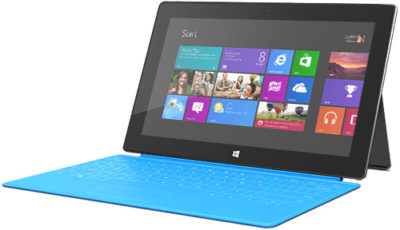
The latter half of 2012 should see some exciting developments in tech including a new iPhone,Windows Phone 8 smartphones, Microsoft’s Windows 8-powered Surface, Android 4.1 devices, and tablets, lots and lots of tablets.

Apple is expected to introduce a smaller iPad before December, Amazon may roll out its follow-up to the original Kindle Fire, and Samsung may be one of the first companies to get on board with Windows RT.

Here’s a look at some of the hottest tablet speculation that we may see turn into actual products before the holidays.

iPad Mini

Apple may be getting ready to stop competitors from invading the iPad’s turf with a low-priced 7-inch iPad to take on Amazon’s Kindle Fire and Google’s Nexus 7. Bloomberg recently reported that Apple was prepping a 7-inch tablet that would launch in October for $200. On Sunday the The New York Times reported a similar story to the news wire, but added the new iPad Mini will have a 7.85-inch screen.

The Kindle Fire and Google’s Nexus 7 are seeing some success against the iPad by not taking on the iPad. The two companies sell $200 tablets designed largely for content consumption instead of trying to offer an iPad-like device that can replace your laptop in a pinch.

The Fire and Nexus 7 each operate by providing deep hooks into each company’s content stores to make it easy for people to buy more movies, TV shows, apps, and games. The strategy of focusing on content consumption appeared to work for Amazon, and critics are already saying good things about Google’s Nexus 7.

Kindle Fire 2

Amazon announced the original Kindle Fire in September 2011 and, as we close in on the tablet’s one year anniversary, thoughts turn to what Amazon may have planned as a follow-up to this tablet.

A May Reuters report in May claimed the next Kindle Fire will offer an 8.9-inch display. Earlier in July, an analyst for NPD DisplaySearch told CNET that Amazon was prepping three versions of the Kindle Fire 2, including a 7-inch tablet with a screen with 1280-pixel-by-800-pixel resolution, a camera, and a 4G option.

The current Kindle Fire features a 7-inch display with a resolution of 1024 pixels by 600 pixels.

Kindle FirePad

The Times’ Sunday report about the mini iPad also claimed that Amazon is prepping a bigger version of the Fire to take on Apple’s tablet. There are no details about screen size or functionality, so it’s not clear what the purported device would be like or if it would actually be designed to take on the iPad.

More likely–at least in my view–is that Amazon would prep a larger version of the Kindle Fire that is better adapted to consuming visual content such as movies and gaming. But to keep the price low, Amazon would offer fewer hardware features than Apple’s tablet such as GPS, Bluetooth, and front- and rear-facing cameras.

Rumblings about a bigger Kindle Fire have been circulating for some time. The latest report before the Times claim was from BGR in June saying the new Amazon device would have a 10-inch display and quad-core processor.

Samsung RT

Samsung will have one of the first tablets out of the gate loaded with Windows RT, the version of Microsoft Windows 8 designed for ARM processors, according to Bloomberg.

The device will purportedly feature a Qualcomm Snapdragon processor, but no other device details are known. Samsung’s Windows RT tablet should debut in October when Windows 8 is set for a public launch.

Beyond the Rumors

We already know that Microsoft will roll out its Surface tablets later in 2012 and into 2013, and Acer in June said it plans to launch a Windows RT tablet in early 2013. As we get closer to the Windows 8 launch in October, more details should be announced about the upcoming crop of Windows 8-powered tablets.

To View Full Article Click Here

South Jersey Techies

Protect Your Data & Backup

Not sure your are protected? Contact us, we can help!

Hackers held two school districts on Long Island hostage over the summer, forcing one of them to pay $88,000 in cryptocurrency in order retrieve student and staff information before the school year started.

Despite using an anti-virus software and other firewalls for cyber security, the School District’s encrypted files were accessed this summer by Ryuk ransomware, which can infiltrate an entire server with one click of a malicious email attachment. The virus encrypts data, essentially locking users out of access to their files, and hackers are blackmailing schools until payment is made, usually in bitcoin, through school insurance to unlock the system’s server.

The Mineola School District was also attacked by the same virus. But they didn’t have to pay because they had a backup that wasn’t compromised.

What are some tips to avoid having to pay the ransomware

The nefarious ransomware business model has turned out to be a lucrative industry for criminals. Over the years its ill repute has made law enforcement team up with international agencies to identify and bring down scam operators.

Most of the ransomware attacks that have taken place in the past have been linked to poor protection practices by employees and businesses. There are ways to prepare and steps you can take to avoid the nuances these hackers are causing.

Here are a few dos and don’ts when it comes to ransomware.

  1. Do not pay the ransom. It only encourages and funds these attackers. Even if the ransom is paid, there is no guarantee that you will be able to regain access to your files.
  2. Restore any impacted files from a known good backup. Restoration of your files from a backup is the fastest way to regain access to your data.
  3. Do not provide personal information when answering an email, unsolicited phone call, text message or instant message. Phishers will try to trick employees into installing malware, or gain intelligence for attacks by claiming to be from IT. Be sure to contact your IT department if you or your coworkers receive suspicious calls or emails.
  4. Use reputable antivirus software and a firewall. Maintaining a strong firewall and keeping your security software up to date are critical. It’s important to use antivirus software from a reputable company because of all the fake software out there.
  5. Do employ content scanning and filtering on your mail servers. Inbound e-mails should be scanned for known threats and should block any attachment types that could pose a threat.
  6. Do make sure that all systems and software are up-to-date with relevant patches. Exploit kits hosted on compromised websites are commonly used to spread malware. Regular patching of vulnerable software is necessary to help prevent infection.
  7. If traveling, alert your IT department beforehand, especially if you’re going to be using public wireless Internet. Make sure you use a trustworthy Virtual Private Network (VPN) when accessing public Wi-Fi like Norton Secure VPN.

Ransomware criminals often attack small and medium sized businesses. Among other cyber attacks, ransomware is one criminal activity that can be easily worked around with the above-mentioned solutions. South Jersey Techies coupled with education about these threats is an excellent protection plan for today’s cyber landscape.

New Office – 229 North Locust Ave

Exciting things are happening at South Jersey Techies, LLC, and we want to share some important news. We are proud to announce that due to our business growth we will be moving to a new location in 2020. For the past two years we have been working with our township and service professionals to rezone and prepare to rehab a property to allow our business to continue to grow for the forseeable future. It’s not the most presentable place YET!

Office 2010 is Retiring

The popular Microsoft Office 2010 is reaching end of support in a few months. To avoid security risks, it’s time to upgrade to a newer version of Office. The good news is that you have options.

drawing of a man holding a laptop in front of a very large laptop with "update" on the screen and a wrench in front

What Does End of Support Mean?

Microsoft Office 2010 has been a popular version of the application over the last decade. The unfortunate news is that support for it ends this fall — on October 13, 2020, to be exact. All of your Office 2010 apps will continue to function. However, using an unsupported version of any software exposes your computer to serious and potentially harmful security risks. Microsoft will no longer provide technical support, bug fixes, or security fixes for Office 2010 vulnerabilities that may be subsequently reported or discovered. This includes security updates that help protect your PC from harmful viruses, spyware, and other malicious software.

  • You’ll no longer receive Office 2010 software updates from Microsoft Update.
  • You’ll no longer receive phone or chat technical support.
  • No further updates to support content will be provided, and most online help content will be retired.
  • Another difficulty you may face is incompatibility with some of the newer programs and file formats.

If you’re using Office 2010, it’s probably a good time to upgrade your version of Microsoft Office.

Upgrade Options

The best way to protect yourself and your organization is to upgrade to a newer version of Office:

  • Cloud upgrade: Subscriptions to Microsoft 365
  • On-premises upgrade: Office Standard 2019

Microsoft 365

Microsoft 365 is an all-in-one cloud solution with a number of different licensing options to fit your organization’s needs. The best part about cloud-based applications is that you no longer have to worry about retirements, patches, and end of support. Cloud licenses are automatically updated with new features, new applications, and security updates. Many cloud subscriptions also include installed (or desktop) versions of the application, so you can have the same look and feel of the Office applications you are accustomed to using, but built with more robust features and benefits.

Microsoft Office Standard 2019

Microsoft Office Standard 2019 is the latest version of the on-premises version of the office suite and is a good option for you if you are not ready for the cloud version at this time. This version of Office includes Word, Excel, PowerPoint, Outlook, OneNote, and Publisher.

If you have any questions, please email us at support@sjtechies.com or call us at (856) 745-9990.

Cyber Security Awareness

As school, socializing, and many aspects of life have moved online this year, it’s more important than ever that you protect your digital devices and steer clear of cybercriminals. Computer security threats are relentlessly inventive. Masters of disguise and manipulation, these threats constantly evolve to find new ways to annoy, steal and harm. Arm yourself with information and resources to safeguard against complex and growing computer security threats and stay safe online.

Examples of Online Cybersecurity Threats

Computer Viruses

Probably the most eminent computer security threat, a computer virus is a program written to alter the way a computer operates, without the permission or knowledge of the user. A virus replicates and executes itself, usually doing damage to your computer in the process.

What can you do to avoid computer viruses? Carefully evaluate free software, downloads from peer-to-peer file sharing sites, and emails from unknown senders. These things are critical to avoiding viruses. Most web browsers have security settings which can be configured for top defense against online threats. But, as we’ll say again and again, the single most-effective way of fending off viruses is up-to-date antivirus software and monitoring agent, like we include in our Managed Service Plans.

Spyware Threats

A serious computer security threat, spyware is any program that monitors your online activities or installs programs without your consent for profit or to capture personal information.

While many users won’t want to hear it, reading terms and conditions is a good way to build an understanding of how your activity is tracked online. As always, if a company you do not recognize is advertising for a deal that seems too good to be true, be sure you have an internet security solution in place and click with caution.

Hackers and Predators

People, not computers, create computer security threats and malware. Hackers and predators are programmers who victimize others for their own gain by breaking into computer systems to steal, change, or destroy information as a form of cyber-terrorism. These online predators can compromise credit card information, lock you out of your data, and steal your identity. As you may have guessed, online security tools with identity theft protection are one of the most effective ways to protect yourself from this brand of cybercriminal.

Phishing

Masquerading as a trustworthy person or business, phishers attempt to steal sensitive financial or personal information through fraudulent email or instant messages. Phishing attacks are some of the most successful methods for cybercriminals looking to pull off a data breach. Antivirus solutions with identity theft protection can be taught to recognize phishing threats in fractions of a second.

Cyber Safety Tips

  • Keep software systems up to date and use a good anti-virus program.
  • Examine the email address and URLs in all correspondence. Scammers often mimic a legitimate site or email address by using a slight variation in spelling.
  • If an unsolicited text message, email, or phone call asks you to update, check, or verify your account information, do not follow the link provided in the message itself or call the phone numbers provided in the message. Go to the company’s website to log into your account or call the phone number listed on the official website to see if something does in fact need your attention.
  • Do not open any attachments unless you are expecting the file, document, or invoice and have verified the sender’s email address.
  • Scrutinize all electronic requests for a payment or transfer of funds.
  • Be extra suspicious of any message that urges immediate action.
  • Confirm requests for wire transfers or payment in person or over the phone as part of a two-factor authentication process. Do not verify these requests using the phone number listed in the request for payment.


If you have any questions, please email us at support@sjtechies.com or call us at (856) 745-9990.

CALL US NOW!