Back to Top

Tech, Web, Cloud & Cabling Services

Organize your intranet with SharePoint hub sites

New SharePoint hub sites make organizing and connecting your intranet easy. 

As business goals and team structures evolve, so too must your sites and the content that lives within them. Ideas must flourish and grow, not become rigid or stale. SharePoint hub sites bring flexible, dynamic building blocks to your company intranet – connecting collaboration and communication. Associating sites together in a hub site enhances discovery and engagement with content, while creating a complete and consistent representation of your project, department or region.

Microsoft first disclosed SharePoint hub sites during Ignite 2017. And recently they announced that they are now rolling out to Targeted Release customers in Office 365. Microsoft encouraged by early adopter feedback, can’t wait for every customer to use and adopt them.

SharePoint hub sites bring the following new capabilities to you and your intranet:

  • Cross-site navigation – increase visibility of and navigation among associated sites
  • Content rollup – read aggregated news and discover related site activities
  • Consistent look-and-feel – establish a common theme to improve visitor awareness of connected sites
  • Scoped search – focus on finding content that resides within the hub site’s associated sites

Hub sites support good governance, giving admins a growth framework to maintain relationships between sites over time. They are easy for admins to establish and bring efficiencies for people who work inside and across the sites on a day-to-day basis. And when managing change within the business, it is easy to move a site from one hub site to another.


Getting started with SharePoint hub sites in Office 365

You can convert an existing communication site or modern team time into a hub site, or you can start with a brand-new modern site. We recommend selecting a communication site as the hub site. You can associate multiple team sites and communication sites to model and promote an intranet that reflects the way your people organize. It is easy for admins to create one or more hub sites. After a hub site is created, approved site owners can associate existing team sites and communication sites with the hub site.


Use the SharePoint Online Management Shell to establish your hub sites

Admins, you are the enablers. And the SharePoint Online Management Shell (aka, PowerShell for SharePoint in Office 365) is your enabling tool of choice.

The PowerShell cmdlet you’ll want to get most familiar with is: Register-SPOHubSite https://contoso.sharepoint.com/sites/HR (where HR URL is the full-path address of the existing site that you want to convert into a hub site). You then will assign a unique security group to designate approved site owners that can associate sites to this new hub. You simply create a mail-enabled security group and add the users. You then run an additional PowerShell command to give that group permissions to associate their sites to the hub site.

Note: You must be a SharePoint administrator or above in Office 365 to create SharePoint hub sites. Site owners, however, can associate a SharePoint site with a hub site that already exists.

Learn more how admins create and manage hub sites.


Associating a site under a hub site

Once a hub site is established, it’s then a two-click process to associate to the hub site.

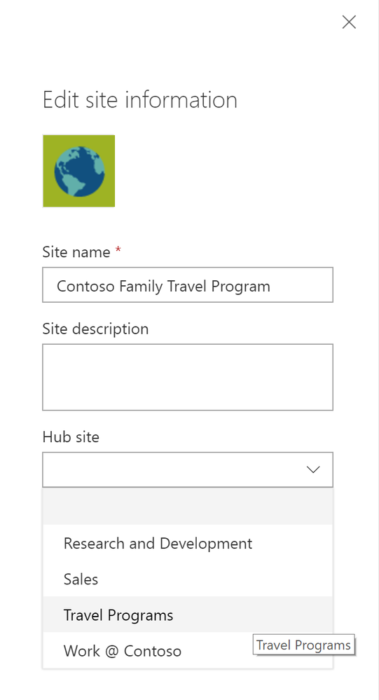
As the site owner, go to the site you want to have associated to the hub site. Click Settings (gear icon) > Site information > hub site association and select the desired hub.  You’ll only see the hubs you have permission to associate to. And then click Save. You will see the hub navigation appear above. The site itself will inherit the hub theme, and news and activities will begin to flow up to the hub site home page – along with a search crawl of content for any site associated to the hub site. And at any time, per a reorg or change in business direction, you can easily move sites between hub sites. This is the power of a dynamic intranet, one that can change and adapt with the ebb and flow of your ever-changing business landscape. Note: individual sites can only be associated to one hub site at a time.

Note: Sites associated with a SharePoint hub site don’t inherit the permissions of the hub site or any other sites associated with it. Each site, including the hub site, will retain their current permission settings. And as easy as it is to associate a site to a hub site, you, too, can dissaciate from one.

Learn more how to associate and dissociate your sites to and from hub sites.


Design your layout and choose you theme

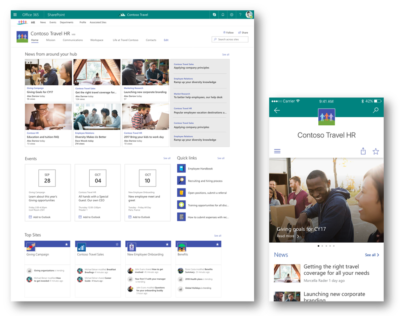
Once the hub site has been established, you’ll then want to further set it up and refine it for that organization — so the hub site carries the right name and logo, the preferred navigation elements, a preferred theme, and the desired layout for news, sites and highlighted content. And all will re-flow and present beautifully within the SharePoint mobile apps.

The SharePoint mobile apps will display hub sites, and their pages, news, and content, with smooth navigation between associated sites and the scoped search experience. Find what you need on the go and get going! Install or update the SharePoint mobile app today: aka.ms/getSPmobile.

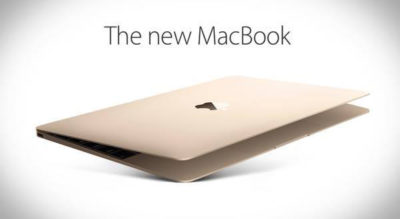
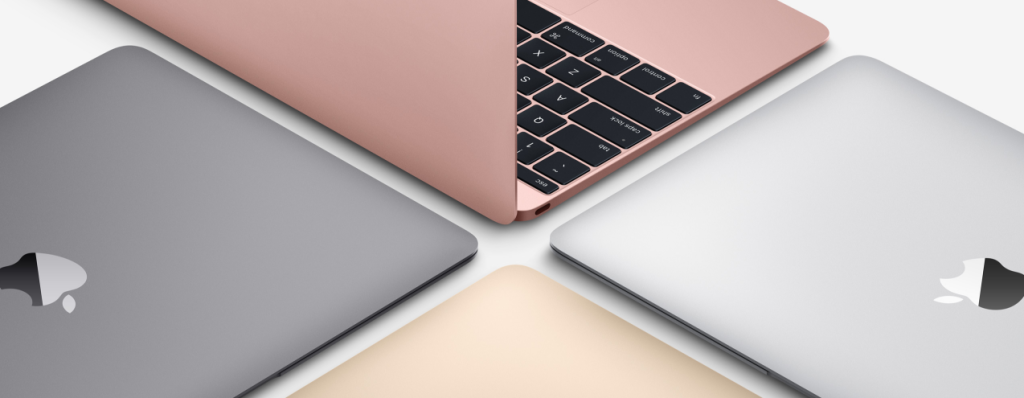
See what’s new with Macbook

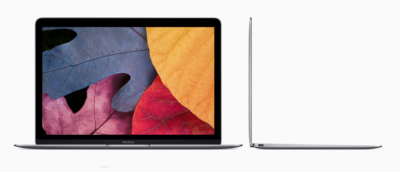
A Retina display that takes everything to the edge.

The moment you open your MacBook, its gorgeous 12-inch Retina display with edge-to-edge glass brings everything into focus. Every photo leaps off the screen in rich, vibrant detail. Over 3 million pixels render each letter with crystal clarity. And it all comes to light on the thinnest Retina display ever on a Mac, meticulously honed to deliver a bold visual experience within an impossibly minimal design.

Learn more about Design

Retina Display

A full-size keyboard.
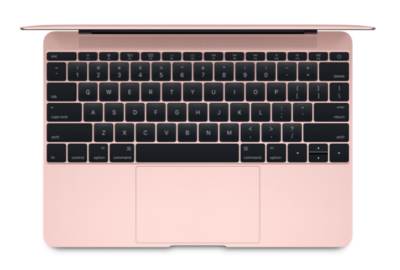
In a fraction of the space.

We believe that a comfortable, full-size keyboard is essential for a great notebook experience. But to fit one into the elegantly thin MacBook, we had to completely rethink how a keyboard is engineered and constructed. We redesigned each key and its underlying mechanism — not only making the whole keyboard much thinner, but also allowing for more comfortable, precise, and responsive typing that just feels right.

Learn more about Design

keyboard MacBook2016

The trackpad, pushed even further with Force Touch.

MacBook comes with a different way to experience a trackpad. The Force Touch trackpad is engineered to deliver a responsive, uniform click no matter where you press the surface. And underneath, force sensors detect how much pressure you’re applying. You can now use a Force click to enable useful capabilities, like quickly looking up the definition of a word or previewing a file just by clicking and continuing to press the trackpad. You’ll also experience haptic feedback — a tactile vibration from the trackpad that adds the sense of touch to what you see on the screen. These advanced capabilities work in addition to all the intuitive Multi-Touch gestures Mac users love. You’ll be more in touch with your Mac than ever before. Without lifting a finger.

Learn more about Design

Fully equipped for a wireless world.

MacBook is designed to fit effortlessly into our increasingly wireless world. Just about anything you do with a notebook can now be done over the air, thanks to Apple software that takes full advantage of the latest Wi-Fi and Bluetooth wireless technology. So no matter where you are, you can connect to the web, transfer files, organize your photos, listen to music, and more — without being tied down.

Learn more about Design

MacBook2016


USB-C.Singularly versatile.

As long as we were including a port for charging your MacBook, we wanted to make sure it was the most advanced and versatile one available. The USB-C port puts just about everything you need in a port all in one place. This amazing port provides charging, speedy USB 3 data transfer, and video output in a reversible design that’s one-third the size of a USB 3 port, giving you the flexibility to easily connect your favorite devices.

The capability to connect to everything you need.

We gave a lot of consideration to the way MacBook connects to peripherals and power. We chose USB-C for its compact design and versatility. This single port lets you connect your charger; HDMI, DisplayPort, and VGA displays; USB devices like external drives; and your iPhone or iPad. All of which goes to show that sometimes less really is more.

Mackbook2016

A range of accessories lets you connect virtually any device to your MacBook. For instance, the USB-C Digital AV Multiport Adapter lets you connect your MacBook to an HDMI display, as well as a standard USB device and a USB-C charging cable.

Quietly astonishing.

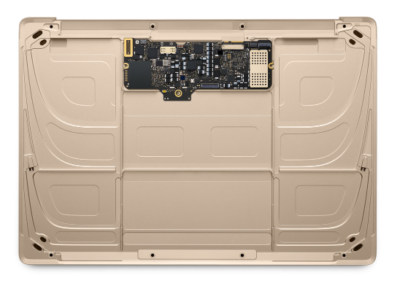
MacBook has been engineered from the ground up for silent, efficient performance. It includes sixth-generation Intel Core M processors that run on just 5 watts of power, made even more efficient by optimizations throughout OS X. Together the processor and OS X sip so little energy that the system generates very little heat, so no fan is required to cool the computer. That means when your MacBook is working, you won’t hear a thing. And the logic board on which the processor sits has been painstakingly engineered to pack all the capability you expect in a Mac into as little space as possible.

Measurably faster.

MacBook features sixth-generation Intel Core m3, m5, and m7 processors with speeds of up to 1.3GHz and up to 25 percent faster graphics. It also comes with faster 1866MHz memory. So your MacBook is quicker and more responsive.

Learn more about Design

MacBook

All-day battery life.
Now even longer.

With the slim MacBook enclosure, all-day battery life simply would not be achievable using traditional rectangular batteries. So we developed our own battery technology specifically designed to make use of every last millimeter of available space. The result is a terraced, contoured battery design that not only fits perfectly inside the incredibly slim MacBook, but also is unlike anything seen before in a notebook. And now, thanks to more efficient processors and improved battery chemistry, battery life has been extended by an hour.

Learn more about Design

OS X

OS X is the operating system that powers everything you do on a Mac. With OS X El Capitan, it’s simple to do amazing things and delightful to do all the everyday things. And it works seamlessly with your apps and iOS devices.

Built-in Apps

Every Mac comes with apps for creativity and apps for productivity. It also comes with a collection of great apps for things you do every day, like surfng the web, sending mail and messages, and organizing your calendar. It even comes with an app for finding new apps. Your Mac is more than fully featured, it’s fully loaded.

Learn more about Built-in Apps

Pure invention.

Learn more about the
design of MacBook

Have questions?

Get answers from Microsofts Cloud Solutions Partner!
Call us at: 856-745-9990 or visit: https://southjerseytechies.net/

South Jersey Techies, LL C is a full Managed Web and Technology Services Company providing IT Services, Website Design ServicesServer SupportNetwork ConsultingInternet PhonesCloud Solutions Provider and much more. Contact for More Information.

To read this article in its entirety click here.

New Website Design – L&D Design and Construction

The Website Design team of South Jersey Techies has been constantly working on developing great looking websites using the latest web technologies. The most recent website developed by our team is for L&D Design and Construction located in Linwood, New Jersey.

L&D Design and Construction is an interior and exterior design business in the South Jersey area serving Atlantic and Cape May County. Lauren McBride is the owner and main designer who has a true passion for helping her clients achieve their functional and aesthetic goals for all indoor and outdoor spaces. Lauren is known for having a brilliant eye for design and understanding exactly what her clients are looking for.

L&D Design and Construction NJ


Have questions?


Our Web Design team is here to help. Call us at: 856-745-9990 or visit: https://southjerseytechies.net.


South Jersey Techies, LLC is a full Managed Web and IT Services Company located in Marlton, NJ providing IT Services, Managed IT Services, Website Design Services, Server Support, IT Consulting, VoIP Phones, Cloud Solutions Provider and much more. Contact Us Today.

Surface Book pre-orders sold out at Microsoft’s online store

If you were still thinking about placing an order for a new Microsoft Surface Book, then you will have to look somewhere other than the Microsoft store.

surfacebook

While there doesn’t seem to be a massive supply issue with the new Apple iPhone 6s smartphone, in the past we have seen Apple products sell out quickly and deliveries move from days, to weeks, to months. It seems that Microsoft’s new Surface Book may be generating more interest than planned.

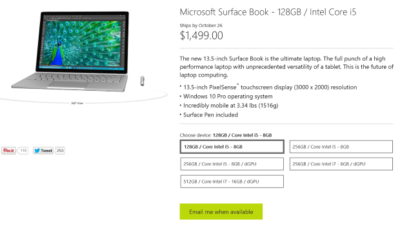
Last night I went to the online Microsoft Store to place an order for a base model Surface Book. I found that the only available status when choosing that model was, “Email me when available.” I jumped through the other four models and discovered the same thing. It seems Microsoft is sold out of pre-order stock for all models at its online store.

We reached out to Microsoft to try to find out more about stock status and when buyers could expect to place pre-orders. I also asked if there will be units in Microsoft retail stores on launch day, 26 October. Given that units are sold out online, we may even see people queue up for possible stock in stores.

A Microsoft spokesperson provided the following statement, “We’ve seen strong demand for Surface Book and have sold out of pre-order supply for October 26 availability. We will have limited quantities of Surface Book available in store on October 26 and will be updating online availability with new product ship dates soon.”

UPDATE: Microsoft updated its store and is no allowing customers to pre-order the five Surface Book variations. What you will find instead of an email me when available button is updated delivery expectations, ranging from five to six weeks for three models and seven to eight weeks for two models.

While I was disappointed that I couldn’t purchase a Surface Book through Microsoft directly, I found that Best Buy and Amazon will also be selling this new computer. Best Buy did not appear to be taking pre-orders, but I was able to purchase the Intel Core i5, 8GB, 128GB model from Amazon for $1,499.

The Amazon website does not appear to carry the 256GB i5 without dGPU or 256GB i7 models. The 256GB i5 with dGPU looks to be the only other model available for pre-order. The 512GB i7 model is on the site as an option, but redirects you to the Microsoft Store for purchase and it’s not avaialable there.

Have questions?

Get help from IT Experts/Microsofts Cloud Solutions Partner
Call us at: 856-745-9990 or visit: https://southjerseytechies.net/

South Jersey Techies, LLC is a full Managed Web and Technology Services Company providing IT Services, Website Design ServicesServer SupportNetwork ConsultingInternet PhonesCloud Solutions Provider and much more. Contact for More Information.

To read this article in its entirety click here.

Microsoft withdraws update causing Outlook to start in Safe Mode (with fix)

outlook-safe-mode

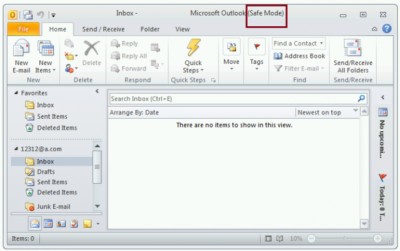
Microsoft has withdrawn the released Windows Update KB3114409 because it causes Outlook to start in Safe Mode. This loads the email client without customizations and plugins. Fortunately it can be easily fixed.

The patch was actually released to stop Outlook from starting in Safe Mode, but it appears something didn’t go the right way. Microsoft has decided to withdraw the update for now.

Users affected by the update can easily stop Outlook from starting in safe mode by uninstalling the KB3114409 update.

This can be done this way: Go to your Control Panel. Go to ‘Programs and Features’ and left click ‘View installed updates’. Find KB3114409. Once you’ve found the appropriate update, click ‘Uninstall’.

(Tip: copy/paste KB3114409 and enter it in the search field at the top right.)

After a reboot of the computer Outlook will no longer start in safe mode.

Have questions?

Get help from IT Experts/Microsofts Cloud Solutions Partner
Call us at: 856-745-9990 or visit: https://southjerseytechies.net/

South Jersey Techies, LLC is a full Managed Web and Technology Services Company providing IT Services, Website Design ServicesServer SupportNetwork ConsultingInternet PhonesCloud Solutions Provider and much more. Contact for More Information.

To read this article in its entirety click here.

Cyber Security

Intuit Cyber Alert

We have been alerted to a new Phishing scam that effects Quickbook and Intuit customers. Recently, Intuit published a security notice on their website warning customers of a Phishing scam which appears to be a direct email from Intuit’s customer service department using the domain of “intuit-solution”.  This sender is not associated with Intuit nor is it an authorized agent of Intuit. If you receive an email from this domain or any other email that appears suspicious, do not click on any links or attachments, do not reply to the email and do not forward it to anyone. It is recommended that you delete the email. If you mistakenly click or have already clicked on a link or downloaded something from the email, immediately (1) delete the download (2) scan your system using an up-to-date anti-virus program and (3) change your passwords. If you experience any issues and are worried you may have fallen subject to this scam, contact South Jersey Techies for immediate support.

Phishing is a cybercrime aimed to lure individuals into revealing personal information or expose them to downloads of malware that will infect their computer and networks. Phishing baits will impersonate real companies. The imposters are getting harder to spot and not all phishing scams work the same way.  You should never enter your username or password into a Login if you are not 100% confident of the source.  These scams are designed to retrieve sensitive information such as SSNs, credit card information and user names and passwords.

Following basic safety tips can help you keep your information safe:

  • Protect your computer with anti-virus software.
  • Keep your browser up to date and install any updates as they are pushed.
  • Contact your bank and any other financial institutions you use if you are a victim of identity theft. Check with your credit reporting agencies often and spot check for any inconsistencies.
  • Report any suspicious emails to your technology provider or third-party vendor so they may be tracked and logged.

If you have any questions, please email us at support@sjtechies.com or call us at (856) 745-9990.

Goodbye, Hotmail. Hello, Outlook.com

Summary: Microsoft’s flagship mail service for consumers gets a new name and a “modern” Metro-style interface. Here’s how to sign up for a preview and what to expect. So long, Hotmail. It was nice to know you. Microsoft unveiled a major update to its consumer mail platform today, with a new look, a slew of new features, and a new name that is surprisingly familiar.

The “modern email” service has been in super stealth mode for several months under the codename NewMail. With its formal launch as an open-to-the-public preview, the service gets a new name: Outlook.com. I’ve been using the NewMail beta for a week now and can share some first impressions here. Outlook, of course, is the serious, business-focused mail client included with Office. Microsoft used the brand with Outlook Express, its lightweight email client in Windows XP, but dumped the name with the launch of Windows Vista in 2006. Restoring the Outlook name to Microsoft’s consumer email service accomplishes two goals. First, it dumps the Hotmail brand, which is tarnished beyond redemption, especially among technically sophisticated users who have embraced Google’s Gmail as the default standard for webmail. More importantly, it replaces the Hotmail domain with a fresh top-level domain that’s serious enough for business use. (If you have an existing Hotmail.com or Live.com address, you can continue to use it with the new Outlook interface. But new addresses in the Outlook.com domain are up for grabs. if you have a common name, I recommend that you get yourself over to Outlook.com now to claim your preferred email address while it’s still available.) The Outlook.com preview will run alongside Hotmail for now, but when the preview ends, this will be the replacement for all Hotmail and Live Mail users. With Outlook.com, Microsoft is taking dead aim at Gmail, positioning Google’s flagship service as the old and tired player that is ready for retirement. Gmail, they point out, is eight years old, and its interface and feature set aren’t exactly modern. It doesn’t play well with any social media except its own, it handles attachments in a stodgy and traditional way, and it’s not particularly elegant when it comes to managing the deluge of email we all have to deal with every day. So what’s new about NewMail—sorry, Outlook.com? And why would anyone consider switching from Gmail? The most obvious change in the web interface, of course, is the overall design, which gets the full Metro treatment.

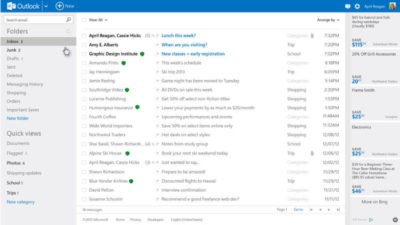
That three-pane layout follows the familiar Outlook standard, but the typography is definitely new. It’s clean and crisp with no wasted ornamentation or clutter. It should come as no surprise that the default organization is optimized for use on touch-enabled devices. A pane on the right shows different content, depending on the context. If you’re communicating with a friend of colleague who’s in your address book or connected via a social-media service, you’ll see updates about that person on the right side, with the option to chat with them (via Messenger or Facebook chat) in that pane. In a demo, Microsoft showed off Skype integration and said it will be coming later in the preview. If you’ve selected no message, the right pane might show ads, which appear in Metro style boxes with text–an image preview appears if you hover over the ad. As part of its positioning against Google, Microsoft has taken pains to note that your messages aren’t scanned to provide context-sensitive ads, as they are with Gmail. This is a pure HTML interface, which means the functionality is consistent across different browsers and on alternative platforms. I tested NewMail on a Mac using Safari and Chrome and in both Firefox and Chrome on several Windows PCs. Everything worked as expected. I also tested the web-based interface in mobile Safari on an iPad, where it also displayed perfectly (after switching from the default mobile layout). On mobile devices, you’ll be able to use native apps. An app for iOS devices should be available immediately. Microsoft promises an Android app “soon” that will enable Exchange ActiveSync support for older Android versions. A command bar at the top of the page provides access to commands as needed. If a command isn’t available in the current context, it’s not visible on the screen.

The preview pane (a feature that’s still experimental in Gmail even after eight years) lets you read and reply to messages without leaving the main screen. Action icons that appear when you move the mouse over an item in the message list let you file, delete, or flag the message with a single click or tap.

The new Outlook has some impressive mail management smarts built in. It automatically recognizes newsletters and other recurring types of mail. A Schedule cleanup option in the message header (also available on the command bar), lets you create rules on the fly that automatically delete or file similar messages to reduce clutter. You can specify, for example, that you want to keep only the most recent message from a “daily deals” site. You can also define how many messages you want to keep from a particular sender or automatically delete/file newsletters after a set number of days.

For newsletters that don’t contain an obvious unsubscribe link, the new Outlook adds a universal unsubscribe feature at the bottom of the message. When you select this option the web service sends an unsubscribe request on your behalf and creates a message-blocking rule. One huge differentiator between old-school webmail services like Gmail is the new Unified Address Book in Outlook.com. It takes a page from Microsoft’s People hubs in Windows 8 and the Windows Phone platform to pull together your traditional address book—where you manage names and details—and combine it with social media services of which you’re a member.

The advantage, of course, is that you always have the most up-to-date contact information for friends and colleagues, assuming they update their profiles. The new Outlook does a pretty good job of combining records. If you have contacts that appear in multiple locations, you can manually link or unlink those records as needed. Supported services include anything you can link to your Microsoft account, including Facebook, Twitter, LinkedIn, and Flickr. You can import contacts from Google and Facebook if you want to keep them locally. In terms of creating and sending photos and file attachments, the new Outlook integrates exceptionally well with SkyDrive, so that you can email large attachments and photo albums, storing them on SkyDrive with well-integrated links that the recipient can access with a click. The spec sheet says single attachments can be up to 300 MB in size. If they’re stored on SkyDrive, you don’t have to worry about the message being rejected by the recipient’s mail service. And of course, the service incorporates all of the Office Web Apps, which makes the process of sharing Word documents, PowerPoint slide decks, and Excel workbooks much more seamless. On the back end, the interface for managing an email account is cleaner. You can still create aliases that you use for sites and contacts where you don’t want to share your real address. And if you just want to experiment with the new service, you can redirect your Gmail messages temporarily to the new account or sign in with an existing Hotmail or Live address. (I’ve had my Gmail account redirected to Hotmail for a year without problems.)

To View Full Article Click Here

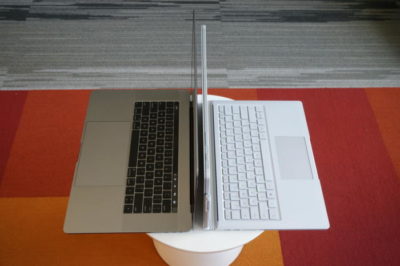
Surface Book i7 vs. MacBook Pro: Fight!

Now that Apple’s introduced the first major update to its MacBook Pro lineup in years, it’s time to square off the best of the best in Mac and PC laptops to see who currently prevails in this age-old rivalry. 
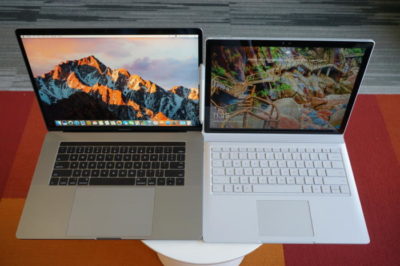
The contenders

The newest Surface Book is a top-of-the-line model with a Core i7-6600U, a GeForce GTX 965M, 16GB of RAM, and a 1TB SSD. The updated product line varies from $2,400 to $3,300 (our model) in price. All three net you a 6th-gen Skylake dual-core Core i7 chip, and all three get you the same Performance Base with a GeForce GTX 965M. The only differences are in the size of the SSD and how much RAM you get. Only the SSD would affect performance significantly.

On the Apple side, the contender is a $2,400 MacBook Pro 15 with a quad-core Core i7-6700HQ, 16GB of LPDDR/2133, and a 256GB SSD. I also had partial access to two MacBook Pro 13’s. The first was the non-touch bar model with a Core i5-6360U, 8GB of LPDDR/1866, and a 256GB SSD ($1,500). The second was the Touch Bar version with a Core i5-6267U, 8GB of LPDDR/2133, and a 256GB SSD ($1,800).
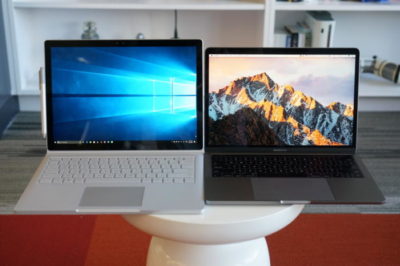
Why this contest isn’t rigged

Let’s make it clear from the outset: This isn’t a direct comparison of the laptops based on cost, but an attempt to compare the performance of the new MacBook Pros to that of similar PC laptops.

For those who’ve noticed the considerable price delta between the Surface Book i7 and the 15-inch MacBook Pro, the stack of other PCs used in this comparison will help smooth out that line. You might argue that it’s silly to compare a $3,300 Surface Book i7 against an $1,800 MacBook Pro 13, or a $1,100 Dell XPS 13 against an $1,800 MacBook Pro 13, or a $1,400 Dell XPS 15 against a $2,400 MacBook Pro 15. But these are all real-world models that you’ll find in a store, rather than configurations contrived to hit a number. Price differences are just part of the comparison puzzle.

For the same reason, we’re not loading the same OS on all the laptops—no OSX on PCs, no Windows on Macs. Real people wouldn’t do that, and neither will we.
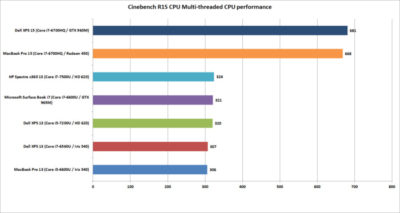
Cinebench R15 multi-threaded performance

Our first test is Cinebench R15. This is a 3D rendering test based on Maxon’s Cinema4D engine. The test is heavily multi-threaded, and the more cores or threads you can throw at it, the better the performance. The test is is a pretty harsh reminder that if your tasks demand a quad-core, listen to them.

Between the two quad-cores, the Dell XPS 15 crosses the finish line first—but not by much. Let’s just call it mostly a tie.

Among the dual-cores, the Core i5-based MacBook Pro 13 is last, but not by much. It’s basically the same as the last-gen XPS 13 with a similar Core i7-6560U.

The surprise is where the Surface Book i7 finishes. Its 6th-gen CPU is hanging right with the 7th-generation Kaby Lake CPUs in the new HP Spectre x360 13 and the new Dell XPS 13.
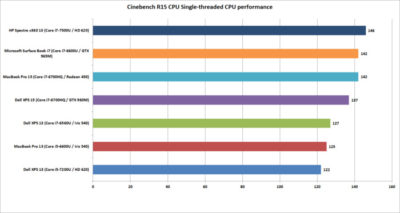
Cinebench R15 single-threaded performance

Cinebench R15 has an optional test that lets you measure the single-threaded performance. It’s a valuable way to gauge how fast a laptop will be in applications or tasks that don’t use all the cores available.

The surprise to many will be the result from the Dell XPS 13. Its 7th-generation Core i5 CPU could hang with the Core i7 chips on heavier loads, but on lighter loads, it ends up being last. That’s because Core i7 chips in laptops excel at short, “bursty” loads. Once you heat them up, the clock speeds crank back. When running a test in single-threaded mode, the Core i7’s advantage with short burst loads shows up big-time.

The real shocker is how the HP Spectre x360 with a 7th-gen CPU comes out the clear winner. The quad-core MacBook Pro 15 or Dell XPS 15 were expected to lead the pack, but nope. That Kaby Lake CPU is indeed pulling its weight.
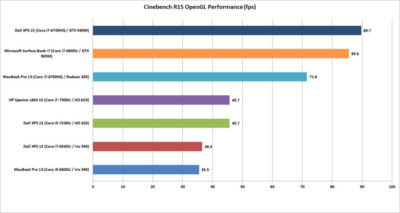
Cinebench R15 OpenGL performance

Our last Cinebench R15 test measures performance with OpenGL, a popular graphics API used for rendering professional CAD/CAM applications and a few games.

The results here break down into three bands. At the bottom is the new MacBook Pro 13 and an older Dell XPS 13 model. Both use Intel’s Skylake CPU and include “faster” Iris 540 graphics with 64MB of embedded DRAM inside the CPU. Both are nearly dead-even, which validates this test for comparing OSX to Windows 10 performance.

The second band up is a shocker to me. The pair of 7th-gen Kaby Lake laptops from Dell and HP are a good 25 percent faster than the 6th-gen Skylake laptops in OpenGL. The Iris 540 laptops were expected to come out in front. The results made us wonder whether this isn’t some driver optimization that Intel put into Kaby Lake but not Skylake.

The last band is the graphics performance of the discrete-GPU laptops. Unexpectedly, the GeForce GTX 960M in the XPS 15 finishes just ahead of the GTX 965M in the Surface Book i7. The MacBook Pro 15, with its Radeon Pro 450, finishes in a firm third place. Some MacBook Pro reviews have said the graphics don’t measure up in games, while in “work”-related tasks, they rules. So far, no one has seen that to be true.
GeekBench 4.01 multi-threaded performance

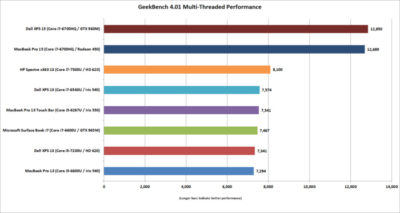
Another popular cross-platform benchmark is Primate Lab’s GeekBench. Experts may disdain its cross-platform results between ARM and x86. Within the same micro-architecture, however, it’s pretty kosher, especially when running the newest 4.01 version of the popular test. There is  also a score to report for the MacBook Pro 13 with Touch Bar

The first result we’ll look at is the multi-threaded performance. Like Cinebench R15, you can see the quad-core XPS 15 and MacBook Pro 15 step away from the dual-core laptops. It’s just more proof that if your tasks really need a quad-core chip, pay for it.

On the dual-cores, the redesigned HP Spectre x360 13 again shows the newest 7th-gen Core i7’s clock speed advantage over the Skylake models. The Surface Book i7 and MacBook Pro are pretty much dead-even. For MacBook Pro 13 fans that might be something to crow about, because we’re talking about a Core i5 MacBook Pro 13 vs. a Core i7 Surface Book.
GeekBench 4.01 single-threaded performance

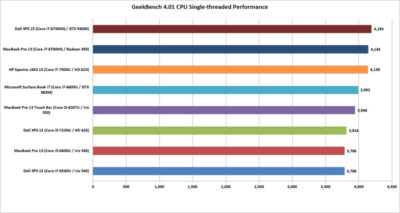
Moving on to the single-threaded performance in GeekBench 4.01, there are a few patterns we can discern. First, that 7th-gen Core i7 in the HP Spectre x360 13 is indeed faster in lighter loads, outpacing the Surface Book i7 and the Core i5-equipped MacBook Pro 13 with Touch Bar.

The Dell XPS 15 inches over the MacBook Pro 15, but the real takeaway is this: If you don’t do many multi-threaded tasks on your laptop, you don’t need a quad-core CPU.
GeekBench 4.01 OpenCL performance

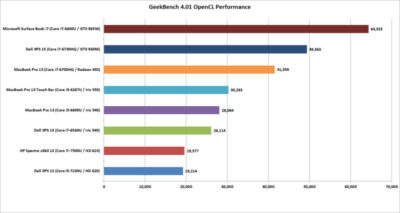
GeekBench also has an OpenCL test that simulates popular Computer Language tasks on a GPU that would normally be handled by the CPU.

The first takeaway: Unlike in the OpenGL performance tests, the older Iris 540 in the Skylake dual-cores is faster than the Kaby Lake integrated graphics for whatever tasks Prime Labs thinks best represent OpenCL.

The second takeaway: OpenCL loves fast GPUs. The Surface Book i7 and its GTX 965M run away with this test, and trash the MacBook Pro 13. For those who didn’t pony up for the MacBook Pro’s faster Radeon Pro 455 or 460 GPU, it’s hard to watch how thoroughly the the Surface Book i7 smokes the 450-equipped MacBook Pro. The Surface Book’s GTX 965M even makes a mockery of the GTX 960M in the XPS 15.
LuxMark 3.1 OpenCL GPU Render Performance

When you play the benchmarketing game, one truth that’s often overlooked is that no one test defines the entire category. You can’t take the results from Geek Bench 4.01 OpenCL and declare it representative of all OpenCL performance.

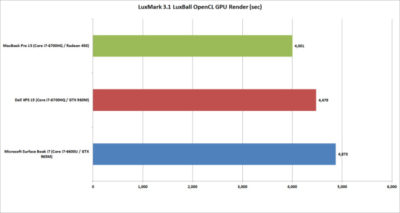
To balance Geek Bench 4.01, I also ran the free LuxMark 3.1 OpenCL test. This takes a scene and renders it using the LuxRender engine on the GPU (or CPU if you ask it to.)

The results put these GPUs a lot closer than the OpenCL numbers from Geek Bench 4.01 would have you believe. In the end, both the XPS 15 and Surface Book i7 again both clearly win. But would this be true if it were a Radeon 460 in the MacBook Pro 15? Probably not.
Blender 2.78 Performance

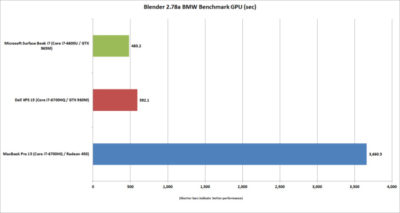
The last “work”-related graphics test we’ll run is Blender 2.78. This a free rendering application popular in a lot of indie movies. For a test render file, I used Mike Pan’s BMW Benchmark and set Blender to ray-trace the scene on the GPU rather than the CPU. The result is, frankly, beyond ugly. The Surface Book i7 finished in about eight minutes, and the XPS 15 took another two more minutes. The MacBook Pro 15 took more than an hour to complete the task.

This doesn’t mean the MacBook Pro 15’s Radeon Pro 450 is a dog. The other benchmarks should tell you that the Apple isn’t that bad in some tasks. Still, this kind of performance disparity indicates a serious problem at the OS or driver level, or something with this compile of Blender. Unless or until that mystery is solved, you’ll want to do your Blender renders on a PC laptop.
Tomb Raider performance

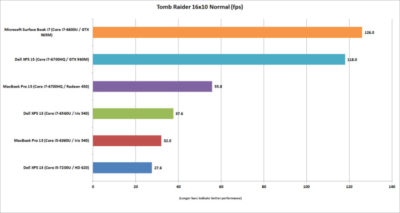
The last graphics test is Tomb Raider. It’s an older game available in both OSX and Windows and includes a built-in benchmark. While we could set the graphics settings the same on both platforms, we couldn’t quite sync the resolutions. Depending on the laptop, we could set the horizontal resolution at 1680-, 1650-, or 1600×1050 (the latter, for the Macs). The graphics setting on all of the laptops was Normal.

If you can’t bear to look, don’t: The Surface Book i7 and XPS 15 soundly thrashed the MacBook Pro 15. The Radeon Pro 460 would not make a difference here, either. If you want gaming performance at any decent levels, no surprise—buy a PC.
Battery life

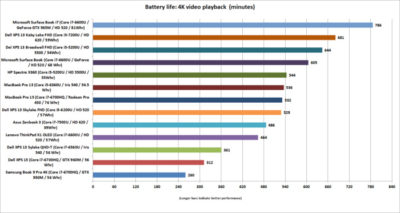
The final test is for all-important battery life. The same 4K-resolution were used, open-source Tears of Steel short video, looping continuously. On the Windows laptops, we used the Movies & TV player, and on OSX Sierra, we used QuickTime.

All of the laptops had their screens set at 250 to 260 nits in brightness. All laptops had the adaptive brightness setting turned off. All were tested with Wi-Fi disabled and with earbuds plugged into the analog ports. One thing to note: The Windows laptops are left in their default power settings, which means they use their last bits of battery life to shut off unused apps and slightly dim the screen. OSX was set not to dim the display on battery—otherwise, it immediately dims the screen once unplugged.

Our results on the pair of MacBook Pros were amazingly similar. Started both early in the morning and watched until they died in the early evening. Both were minutes apart.

Apple claims about 10 hours of run time in iTunes. We were pretty close in QuickTime at nearly 9 hours. The variance can be attributed to the video file and the settings the company uses.

For the MacBook Pro 15, that’s pretty impressive. The battery life for 15-inch laptops with quad-core CPUs, discrete graphics, and high-resolution screens tends to be mediocre. For example, look at the XPS 15 and its six hours of run time. (Dell offers an XPS 15 battery with about 50 percent more capacity—but it’s also heavier.)

Even worse is the Samsung Notebook 9 Pro, another quad-core laptop with the addition of a 4K screen. Ouch. Overall, I’d say the MacBook Pro 15 has decent battery life for a quad-core.

Moving to the MacBook Pro 13, the result is a little more nuanced. With roughly nine hours of run time, it compares well to some laptops, such as the XPS 13 with a QHD+ touchscreen. But there are a lot more PCs ahead of it. You know, like the Surface Book i7, which sets the bar at an amazing 13 hours of video run time. Other laptops with better video stamina include the newest XPS 13, HP’s redesigned Spectre x360 13, and even the older Surface Book. When you consider that all three are also generally faster, it’s not good.
The cost equation

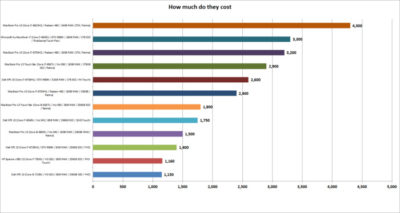
The most important question for users isn’t related to an obscure OpenCL benchmark but to how much these laptops cost. To help you understand just how much of a premium Apple and Microsoft are charging, I mapped out the cost of most of the laptops that appeared here, along with other configurations worth highlighting.

That top-spec Surface Book i7, formally known as Surface Book with Performance Base,  really pushes the boundaries of what people will pay for a dual-core laptop. To be fair, this is no ordinary laptop. It has a 1TB SSD and 16GB of RAM, plus pen support, a tablet mode, and probably class-leading GPU performance. But umm, yeah, 3,300 bucks.

Apple is no stranger to nose-bleed altitudes. When you throw a Core i7, 1TB SSD, and 16GB of RAM into the MacBook Pro 13 with Touch Bar, you’re looking at  $2,900. And you don’t even get the discrete GPU, touch, and tablet or pen support of the Surface Book. Apple’s most powerful MacBook Pro 15 tilts the meter all the way to $4,300. Granted, that’s with one of Intel’s priciest mobile CPUs and a whopping 2TB SSD, but that’s also the price of a modest used car.

Compared to a “normal” PC, both Microsoft and Apple give you a lot less performance for your cash. The Dell XPS 15, which pretty much aces the new MacBook Pro 15 except in battery life, is $1,400.

Take that Dell XPS 15 and load it up with a 1TB M.2 SSD, 32GB of RAM (which isn’t available on the MacBook Pro 15), a GTX 960M, 4K touchscreen, and a larger battery: $2,600. That’s only $200 more than what Apple charges for a machine with 16GB of RAM, a 256GB SSD, and the slowest Radeon Pro GPU.

You can do the same with the new HP Spectre x360 or Dell’s current XPS 13. Both give you a lot more value than either the MacBook Pro 13 or the MacBook Pro 13 Touch Bar.
Conclusion

Ten tests and one price comparison later, the PC wins. Again.

That’s no surprise. The MacBooks are caught in a tough spot—even if they were running higher-performance configurations. They’re both ultra-expensive compared to most PCs, and at the top-end, outclassed in GPU performance by Microsoft’s comparably expensive Surface Book i7.

It’s not all bad news for the Mac, though. The MacBook Pro 15’s battery life is impressive for a 15-inch laptop with a quad-core CPU and discrete GPU. Comparably powerful quad-core laptops we’ve seen can’t touch it in battery life. Even the MacBook Pro 13s do relatively well in battery life compared to a similar PC.

The problem for Apple and Mac fans is PC makers just don’t ever stand still. And as we know, Apple seemingly does that now with its Macs.

Have questions?

Get answers from Microsofts Cloud Solutions Partner!
Call us at: 856-745-9990 or visit: https://southjerseytechies.net/

South Jersey Techies, LL C is a full Managed Web and Technology Services Company providing IT Services, Website Design ServicesServer SupportNetwork ConsultingInternet PhonesCloud Solutions Provider and much more. Contact for More Information.

To read this article in its entirety click here.


Microsoft teases Windows 10’s sleek new look for the future

“Project Neon” will give your Windows 10 PC a fresh coat of paint later in 2017.

Microsoft’s planning a sleek visual refresh for Windows 10, and the company quietly teased its first official glimpse of what’s coming in the future during the Windows Developer Day keynote on Wednesday.

There aren’t many details being shared about “Project Neon” right now—as the refresh was called in earlier leaks—but the new visual look will focus on animations and transitions. The basic concept is “to add fluidity, animation, and blur to apps and the operating system,” as first reported by Windows Central. The new design language also hopes to make it easier for developers to create attractive apps.

The design refresh should extend to all Windows 10 devices including PCs and tablets, HoloLens, Xbox, and the few surviving Windows Phones, according to Windows Central.

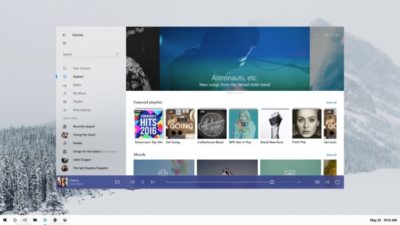
Twitter user Tom Hounsell shared a clean version of Microsoft’s first look at Windows 10’s forthcoming design tweaks. The image shown on the livestream had large text overlaid on top of the screenshot.

As you can see, this isn’t a huge change, but the visual refresh gives Windows 10 a sleeker, more modern feel. The taskbar icons look a little more dynamic and bolder. Cortana is using the icon instead of the search box, though it’s not clear if this will be the default look. The clock on the taskbar is also bolder, and the usual notification area icons including the Action Center are notably absent. The open Groove Music window itself looks more polished and Aero-esque as well, with no title bar to be seen—just unobtrusive options in the app’s upper-right corner.

The impact on you at home: Windows Central says that some of the code for Project Neon is already available in recent Insider Preview builds of Windows 10; however, it’s unlikely the visual refresh will be ready in time for the massive Creators Update this spring. Microsoft is expected to share more information about Neon during the Build conference in May. The Creators Update is expected to roll out in late March or early April, followed by a second major update later in 2017.

Have questions?

Get answers from Microsofts Cloud Solutions Partner!
Call us at: 856-745-9990 or visit: https://southjerseytechies.net/

South Jersey Techies, LL C is a full Managed Web and Technology Services Company providing IT Services, Website Design ServicesServer SupportNetwork ConsultingInternet PhonesCloud Solutions Provider and much more. Contact for More Information.

To read this article in its entirety click here.

How I deleted Google from my life

I realized handing over my entire life to one platform had its downsides.

I deleted Google from my life, and I can show you how to do it, too.

After being a devoted Googler for many years, I realized putting all my data on one platform had its downsides. A couple of factors in particular drove me to make a clean break.

Deleting Google for privacy and security

The appeal of escaping Google comes down to privacy. Google collects an alarming amount of data about you. It’s safe to say that if you’re not a paying customer then you’re the product being sold, and that’s Google’s business model.

Security goes hand-in-hand with that. I’m sure Google’s servers are closely guarded, but I still didn’t want all my data to be concentrated in one place.

To Google’s credit, the company gives you tools to opt out of the give-us-your-private-data-for-our-services game altogether. We cover the basics in these two articles:

  • How to download your Google data so you can see what’s being recorded.
  • How to delete your Google data to protect yourself.

Deleting Google for social impact

Another reason to get rid of Google is make your choice as a consumer for a healthier, more responsible media. As a working journalist, I’m acutely aware that Google and Facebook jointly dominate the media distribution and discovery landscape. With no strong competitors to Google Search in particular, Google’s algorithms hold unprecedented sway over the discourse in our society.

The importance of search discovery means that publishers and journalists must write stories to match the queries typed in by readers. That means coverage is guided by readers’ preconceived notions about a news event, not by objective reporting. That’s a deeply disturbing state of affairs for any democratic society.

Google outwardly seems as dedicated to responsible stewardship as one could hope, but it’s still concerning enough to merit supporting alternatives and competitors.

How my Google-free experiment started

When I decided to drop Google, I had just left a full-time job at a company that used Google mail and other apps. I stopped using all Google products while I freelanced. Note: If you’re an Android user, this is basically a no-go. Fortunately, I use a combination of Windows PCs, Macs, and iOS devices, so I wasn’t trapped.

Everyone uses Google differently, but I focused on forgoing the services that are core to the experience: Gmail, Docs, Drive, Calendar, Maps, and Search.

Dropping Gmail was easier than expected. I tried Yahoo! Mail, but there were too many ads for my taste. The web interface for Apple Mail at icloud.com was just adequate. I found Microsoft’s overhauled Outlook web interface (and truly excellent mobile app) was the best alternative.

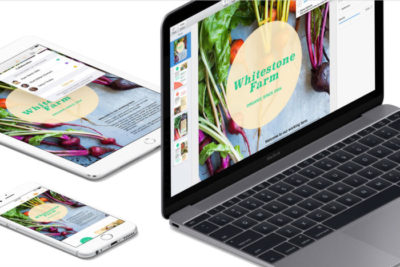
Apple’s iWork for iCloud lets you use its productivity applications and share content across devices.

Instead of Docs, I tried Office 365 and iWork for iCloud. I liked them both better than Docs because I prefer native apps to web apps, and because I think both have more elegant designs—especially iCloud. Apple’s iWork for iCloud is similar to Docs in that it’s online-only, and designed for collaboration. It also has a mobile app. Office 365 will be pretty familiar to anyone who’s worked with Office’s desktop versions.

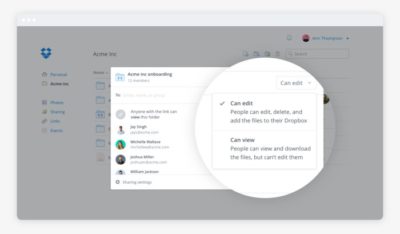
It was also pretty easy to kick Drive to the curb. Cloud storage competitors abound. I always preferred Dropbox to Drive anyway because I find that its OS X and Windows apps are better-integrated into the OS’s normal file browsing experience. Google Drive feels like it’s meant to be a place to store documents and back up files, not seamlessly augment your local storage—even though it does that in some ways.

Dropbox’s file-sharing features are competitive and in some ways better than those in Google Docs.

Google Calendar has plenty of competition. This is a more personal choice, and people can get very attached—consider the furor when Microsoft shuttered Sunrise Calendar. On the other hand, it inspired us to find third-party alternative calendars, which could also replace Google Calendar.

What didn’t go well

I tried Apple Maps. I tried Waze. Google Maps is still the best.

I couldn’t quit everything Google offered so easily. Google Maps alternatives were a challenge. Your best bets are Waze or Apple Maps, but let’s be honest—they have nothing on Google Maps. Unlike Apple Maps, Waze has a web app, and powerful community-sourced data is its biggest selling point. But guess what? Google uses Waze’s data in Maps! So rather than gaining that feature, you’re just losing all the stuff Maps has that Waze doesn’t.

Google Search rules for a reason. The only two decent alternatives I found were Bing and DuckDuckGo.

Bing is as good or better than Google in many respects, but Google’s algorithms and semantic search win hands-down.

Bing is a strong competitor. Some features, like video search, are even better than what Google offers. But Bing’s algorithm and the semantic search show more cracks than Google’s do.

DuckDuckGo isn’t as full-featured, but it records no user data—that’s the primary selling point of the platform. Both search options were passable, but Google has nailed semantic search with a precision that no one else can touch.

Back in Google’s grasp

I lived Google-free for five months, compromises and all. Then I was hired at a new job that required me to use Google. I considered the experiment a success, to the point that I was dismayed to abandon it at the new gig.

Google has us in its grasp for good reason. Looking back at my life without it, I can honestly say some alternatives couldn’t compare. Your mileage may vary based on which services you value most. If you decide to delete Google from your life, too, let us know how it goes on our Facebook page.

Have questions?

Get answers from Microsofts Cloud Solutions Partner!
Call us at: 856-745-9990 or visit: https://southjerseytechies.net/

South Jersey Techies, LL C is a full Managed Web and Technology Services Company providing IT Services, Website Design ServicesServer SupportNetwork ConsultingInternet PhonesCloud Solutions Provider and much more. Contact for More Information.

To read this article in its entirety click here.
CALL US NOW!