Back to Top

Tech, Web, Cloud & Cabling Services

Five Word tips that could change your life

Takeaway: Searching for ways to increase your Word productivity may get in the way of your productivity. So here are a few tricks you don’t need to go looking for. Efficient, simple to use, easy to remember.

Most of us don’t have time to discover all the ins and outs of the software we use on a daily basis. We learn on the fly, we occasionally pick up a tip or shortcut, and we grudgingly plow through the Help system when we absolutely have to.

But sometimes, just a few little tricks can make a big difference. Turning off an annoying feature, learning a keyboard trick that bypasses three dialog boxes, or taking advantage of an obscure option can save you a few headaches and a lot of time. Will they really change your life? Well that might be a stretch. But they could. Try these tips on for size and let me know.

1: Make vertical text selections

Usually, we select text horizontally — a word, a series of words, a paragraph — from left to right or vice versa. But sometimes the selection has to be vertical. For instance, suppose you wanted to delete the leading characters in Figure A.

Figure A

To make a vertical selection, hold down [Alt] as you drag down through the text you want to highlight. Figure B shows the column of unwanted characters selected using this technique. Hit [Delete] and bam, they’re gone.

Figure B


Although we selected text at the beginning of the lines in this example, you can make vertical selections anywhere on the page.

Note: Some users have reported that the Research pane appears when they try this selection technique. Here’s the secret: Release the [Alt] key before you let up on the mouse button. Word should retain the selection. If you hold down [Alt] but release the mouse button, Word may think “[Alt]-click” and open the Research pane in response.

2: Undo automatic changes you don’t want

By default, Word imposes lots of changes on the text you enter in a document. For example, it might convert a Web address to a hyperlink, replace straight apostrophes and quotation marks with their curly counterparts, or turn a pair of hyphens into an em dash. If that’s a welcome convenience, you’re in good shape. If you want to suppress those types of changes, you can disable them. See 10 annoying Word features (and how to turn them off) for details. But if you want to prevent those changes only from time to time, reach for the Undo command — [Ctrl]Z. Undo isn’t just for reversing something you’ve done; it also undoes some of the actions Word takes. Don’t want that em dash? When Word inserts it, hit [Ctrl]Z and change it back to the hyphens you intended to enter.

3: Get rid of a persistent border

This forehead-smacking solution earned considerable gratitude from stymied TechRepublic readers when Susan Harkins first provided it. Word offers a sometimes-handy option that lets you insert a border automatically. Type three hyphens on a blank line and press [Enter]. If the option is enabled, Word will replace the hyphens with a horizontal line. You can get rid of it if you press [Ctrl]Z after Word inserts it (see above). But if you try to select the border and delete it, you’re out of luck. You’re not dealing with a line object here. Word has applied the Bottom Border format to the paragraph.

To remove that format in Word 2003, click in the paragraph and choose No Border from the Borders drop-down list on the Formatting menu. In Word 2007/2010, click in the paragraph and then click the Border button in the Paragraph group of the Home tab. Just select No Border from the drop-down list (Figure C).

Figure C

If you like the automatic border feature, here’s a bonus tip: In addition to typing three hyphens to apply a bottom border (3/4-point), you can trigger different border styles. Typing:

  • Three tilde characters (~) will create a wavy line.
  • Three underscore characters (_) will create a 1.5-point line.
  • Three asterisks (*) will create a dotted line.
  • Three equal signs (=) will create a double line.
  • Three pound signs (#) will produce a “thin thick thin” line.

4: Move selected text up or down

This tip is probably most useful when you’re working in a table, although you can use it to reorder paragraphs outside a table, too. Let’s say you decide you want the third row of a table to be the top row. Just click within the third row, hold down [Alt][Shift] and press the up arrow key twice. Each time you press the arrow key, Word will move the row up one. You can select multiple contiguous rows to move them as a block, and you can use the down arrow key if you want to move text down instead of up.

Using this shortcut gets a little tricky if you’re moving big pieces of text outside a table. It’s easy to lose track of what’s being relocated where, and you might find it easier to take a standard cut-and-paste approach in those situations. But when the text is small and manageable, the shortcut is great. For example, if you need to move an item up or down within a bulleted or numbered list, you can just click in the item’s paragraph and use the [Alt][Shift] and arrow key combo to move the item to the desired spot.

5: Save changes to all open Word documents at one time

This simple technique comes in handy when you’re working in multiple documents and want to make sure you’ve saved your changes to all of them. I actually use it most often when I’ve made a change to a template and want a quick way to save that change on the fly (before I’ve had a chance to forget I made a change I want to keep).

In Word 2003 and earlier, just press the [Shift] key and pull down the File menu. Word will display the Save All command on the menu, above the Save As command. Choose Save All and Word will prompt you to save each document (or template) that has any unsaved changes. This is more efficient than having to navigate to each document individually and click Save.

If you use Word 2007/2010, this won’t work. But you can add the Save All command to your Quick Access Toolbar:

  1. Click the Office button (File in 2010) and click Word Options (Options in 2010).
  2. Click Customize in the left-hand column (Quick Access Toolbar in 2010).
  3. Select Commands Not In The Ribbon from the Choose Commands From drop-down list.
  4. Scroll down and select Save All.
  5. Click the Add button and then click OK.

South Jersey Techies was a proud sponsor of Evesham Education Foundation at this weeks’ Larry Kull Memorial Golf Classic

Why business-class PCs are a smart investment

Business PCs

Think back to the last time you bought a new PC or laptop for your business. Did you approach the purchase the same way you would for a personal device? And if you had a problem, were you satisfied with the level of service you received?

Many small and medium-sized businesses purchase consumer-grade PCs and notebooks by default, not realizing the amount of difference a business-class model can make. Consumer-grade devices can work fine for many organizations, but businesses with more stringent performance, reliability, and support needs can save time and frustration by moving up to business-class devices.

Think of it this way: when you purchase an economy-class plane ticket you know there’s going to be a marked difference between your experience and the experience of someone flying first class. More legroom, better menu options, more responsive service—the benefits are clear, and for many business travelers it makes sense to upgrade, especially if the flight is long.

When it comes to technology, the difference between consumer-grade and business-class PCs is just as marked as for flights—and for many businesses, the upgrade is just as worthwhile. Here’s the difference a business-class device can make for you:

  • Performance: Many modern consumer-grade processors and mobile operating systems prioritize battery life over processing power. Business-class PCs often offer both better performance and longer battery life, allowing users to work faster and longer while on the road.
  • Reliability: HP Elite PCs are designed to pass MIL STD testing and are tested for 115,000 hours to HP’s own testing standards to help ensure durability. New HP EliteBook 700 series notebooks are also made with Corning® Gorilla® Glass and a magnesium alloy chassis that’s 18 times stronger than plastic.
  • Support: Every HP Elite PC comes with HP Elite Premium Support, providing 24/7/365 dedicated service from U.S.-based specialists who are dedicated solely to supporting HP Elite products.
  • Software and security: Business-class devices help their users take advantage of their advanced features with free, bundled software that is not available (or requires an additional purchase) on consumer-grade PCs. For example, HP Elite family products come with security software and features that protect at the data, identity, and device levels to help keep proprietary data safe.

On average, small businesses hold on to their PCs for five to seven years. Your next device purchase will likely be with you for years to come. So when you consider that many of us are quick to upgrade our airline tickets—even though flights don’t last more than a day—upgrading to a business-class device can make a lot of sense. Weigh the benefits, and choose the device with the level of support and reliability that meets your business needs.

Have questions?

Get help from IT Experts/Microsofts Cloud Solutions Partner
Call us at: 856-745-9990 or visit: https://southjerseytechies.net/

South Jersey Techies, LLC is a full Managed Web and Technology Services Company providing IT Services, Website Design ServicesServer SupportNetwork ConsultingInternet PhonesCloud Solutions Provider and much more. Contact for More Information.

To read this article in its entirety click here.

End of Life Windows 7, Server 2008 R2, & Small Business Server 2011

The End of Life for Windows 7, Server 2008 R2, & Small Business Server 2008 + 2011

End of Life Windows 7, Server 2008 R2, & Small Business Server 2011
[wpdevart_countdown text_for_day=”Days” text_for_hour=”Hours” text_for_minut=”Minutes” text_for_second=”Seconds” countdown_end_type=”date” end_date=”13-01-2020 23:59″ start_time=”1556805309″ end_time=”0,1,1″ action_end_time=”hide” content_position=”center” top_ditance=”10″ bottom_distance=”10″ countdown_type=”button” font_color=”#000000″ button_bg_color=”#3DA8CC” circle_size=”130″ circle_border=”5″ border_radius=”8″ font_size=”30″ countdown_font_famaly=”monospace” animation_type=””][/wpdevart_countdown]

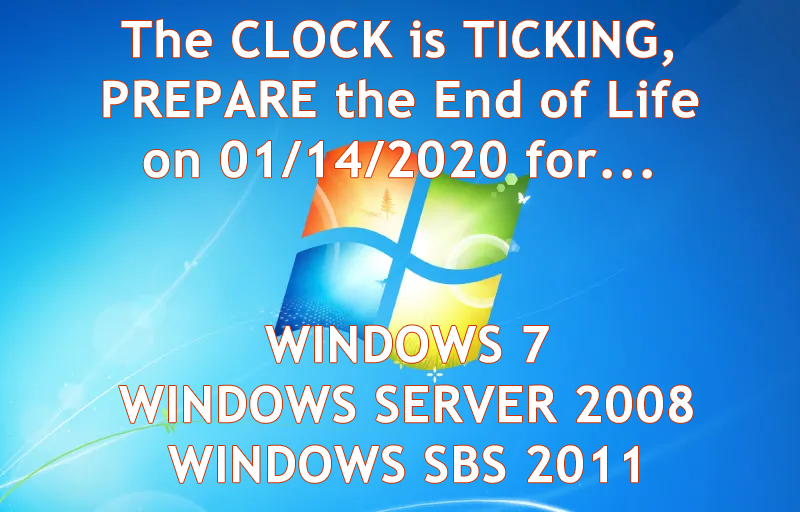
Microsoft has announced that its support for Windows 7, Windows Server 2008 R2, and Small Business Server (SBS) 2011 will be coming to an end on January 14, 2020.

What does that mean for you? First, security patches and updates will no longer be implemented, leaving Windows 7 workstations and servers susceptible to security breaches. On January 13, 2015, Microsoft ended mainstream support for Windows 7, but now extended support is ending as well. Extended support is still safe to use until 2020 currently. Normally Microsoft would add new features during the mainstream support phase, but they will not be being doing this anymore. They will however, continue to patch any security treats. South Jersey Techie’s strongly recommends upgrading your business’s servers and workstations before the January 2020 deadline- and to start planning now to avoid the urgency of the deadline. Businesses in the healthcare industry will be impacted by the changes in relation to HIPPA violations if their server isn’t updated before the deadline. The deadline will be here before you know it and updating an IT infrastructure is a large task and shouldn’t be put off until the last minute.

What are the next steps for your business? Many of our clients are starting to upgrade now or are planning to include the upgrades in their 2019 budget. Send us an email or give us a call and we will evaluate your line of business software for Windows 10 and upgraded server compatibility. If your company decides to upgrade its old server and workstations to meet the January 2020 deadline, South Jersey Techie’s has the reliable solutions and experienced technicians you need for managing the data migration and even the retired hardware. You can have peace of mind knowing your old data will be securely erased and destroyed.

Unsure if this deadline will affect your business? South Jersey Techie’s can review your server for you and determine its end of life date or if it will be affected by the 2020 end of support date. If you have any questions or concerns about your office and the 2020 end of support date, please give us a call today: (856)745-9990.

GET STARTED WITH A NEW WINDOWS 10 PC

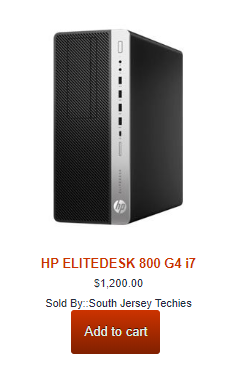
HP ELITEDESK 800 G4 – SFF – CORE I7
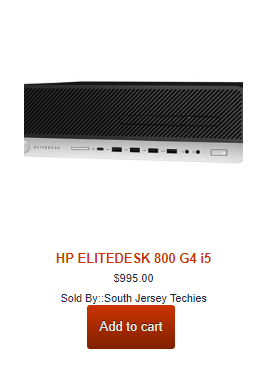
HP ELITEDESK 800 G4 – SFF – CORE I5
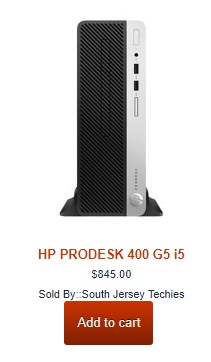
HP ProDesk 400 G5 – SFF – Core i5 8500

Can’t Find What You’re Looking For?

Whether you are upgrading an existing device, buying a new one, or just need support deploying, we have the help you need.


Here are the top features of iOS 11

The 10 best features you won’t be able to live without

Ready for some new iPhone and iPad features? iOS 11 is now out of beta and ready for the public. Here are the best features that came with it.

Get ready to back up your iPhone and iPad: iOS 11 is here. Apple released the latest version of its mobile operating system on Tuesday, introducing us to a handful of brand-new features. In fact, this version of iOS feels like the most ambitious version of iOS that Apple has launched in a while. Here are the best new features that we already can’t live without. 

Siri’s new tricks

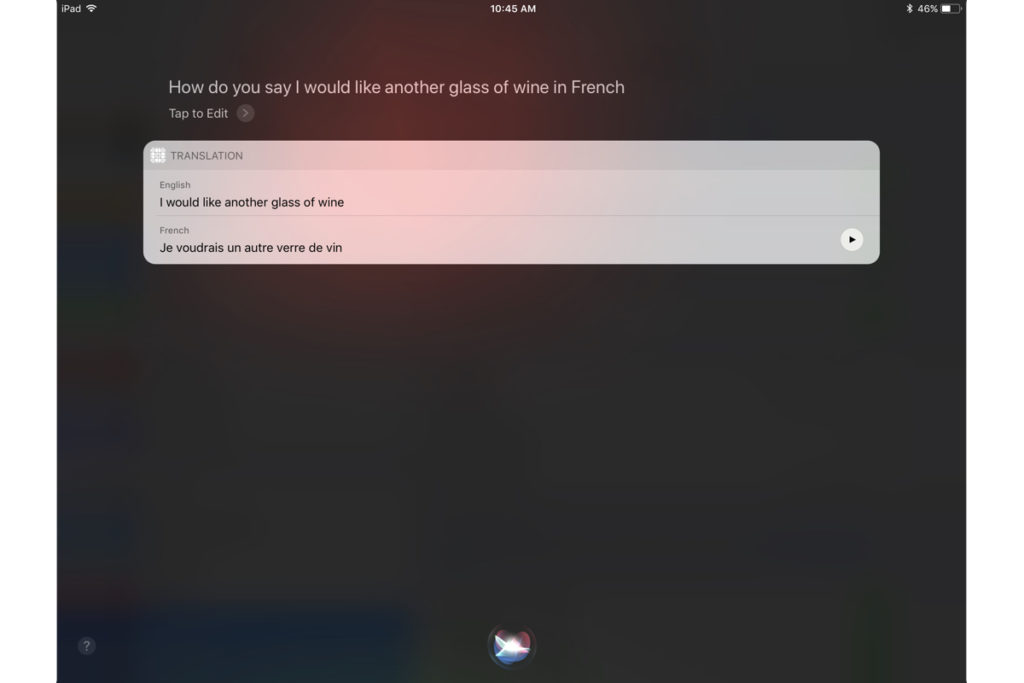
Siri is one of those features that keeps getting better with each software upgrade, and iOS 11 is no exception. This time, Siri gets a new voice, plus a super-helpful visual interface that lets you even edit your voice request with text input. And now, Siri is able to translate phrases for you—it can process English to Chinese, French, German, Italian, and Spanish. Apple said that it will add more languages in the months to come.


Customizable Control Center

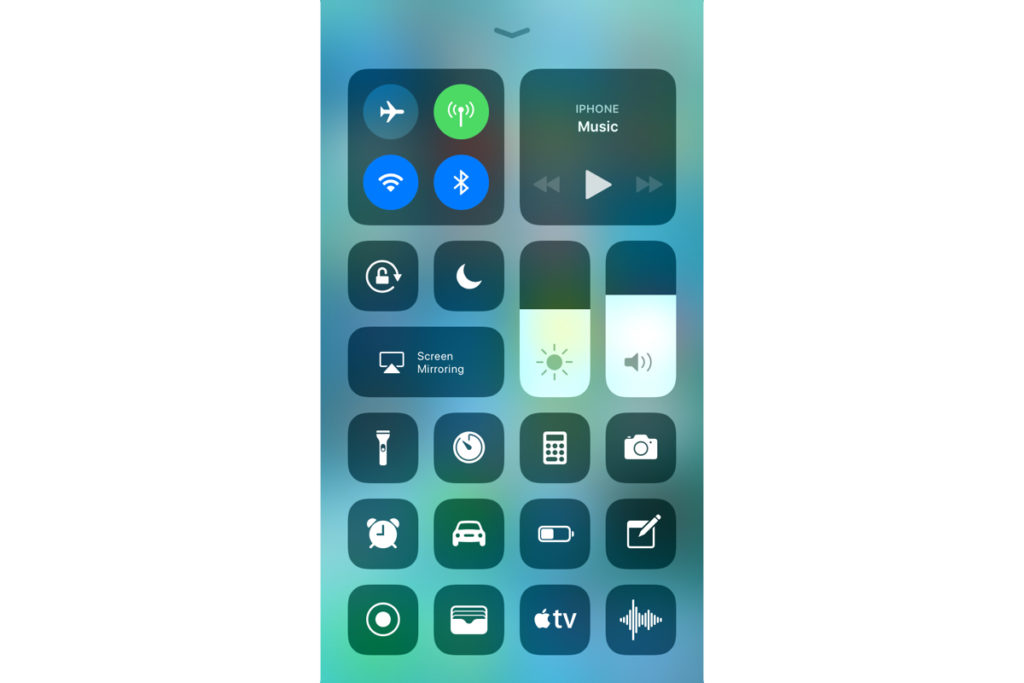
Currently, Control Center in iOS 10 takes up two panels, so you have to navigate to the second panel to access volume controls. However, iOS 11 brings everything back to a single screen and relies more on 3D Touch. Not only that, but you can also customize which controls you’d like to have on there. You can add new controls to quickly access your Wallet, turn on Low Power Mode, and even start Screen Recording—an all-new feature for iOS.


New Live Photo effects

Apple has given us more reasons to want to take Live Photos, those GIF-like moving images. In iOS 11, you can add effects to your Live Photos after you take them. Find a Live Photo on your camera roll and then swipe up. You will be able to add a looping effect to your photo or make it “bounce” back-and-forth, similar to an Instagram Boomerang. You can also make it a long exposure shot for better photos of low-lit scenarios.


Drag-and-drop on iPad

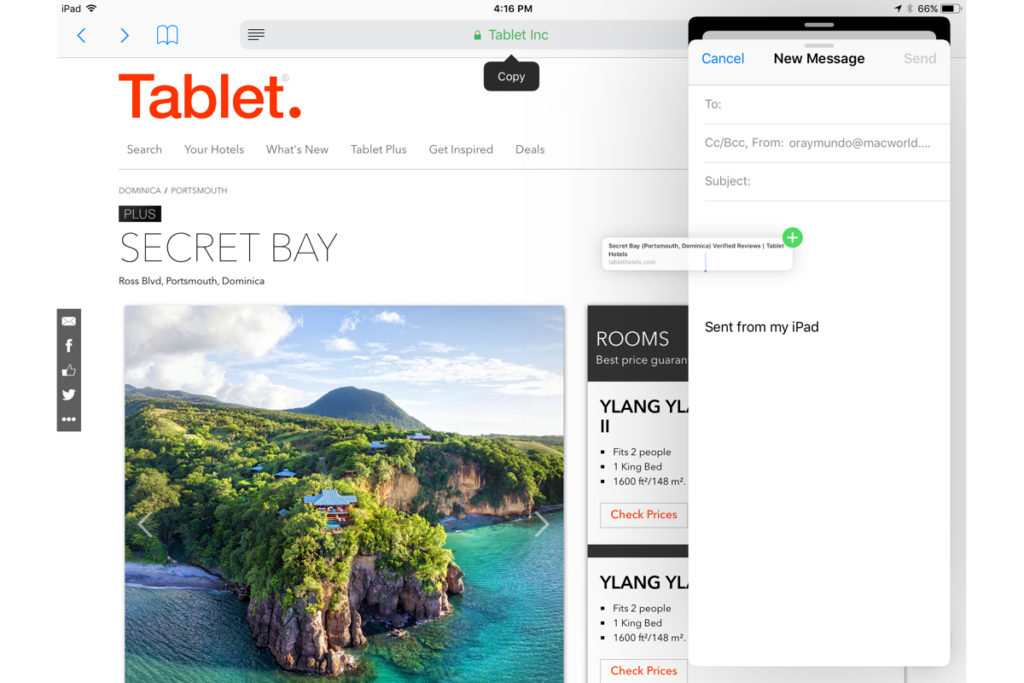
iOS 11 makes for better multitasking on iPad. Now you can drag-and-drop images, links, and files between apps that are open side-by-side, either in Split View or Side Bar mode. In fact, you can drag-and-drop an app from Dock onto Side Bar mode, and drag that secondary app from the right to the left side of the screen.


Markup your screenshots

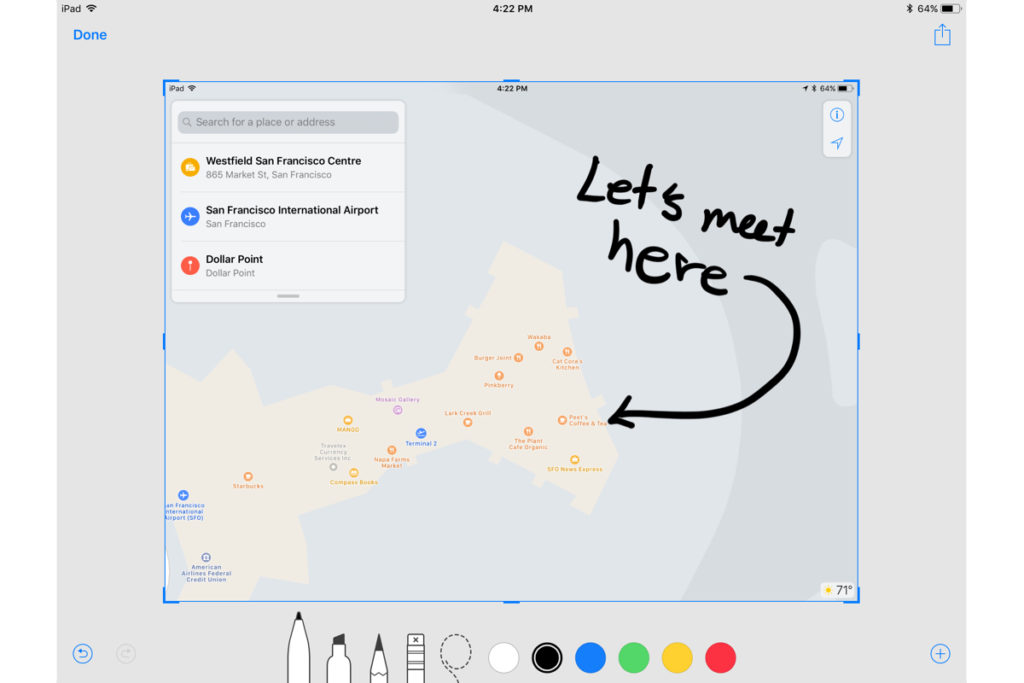
Everytime you take a screenshot in iOS 11, it will automatically remain floating on the lower left. You can swipe it offscreen to save it to your camera roll as per usual, or you can tap on it to go into Markup. So now, you can add handwritten notes or comments either with your finger or with your Apple Pencil if you’re using an iPad Pro.


Social profiles in Apple Music

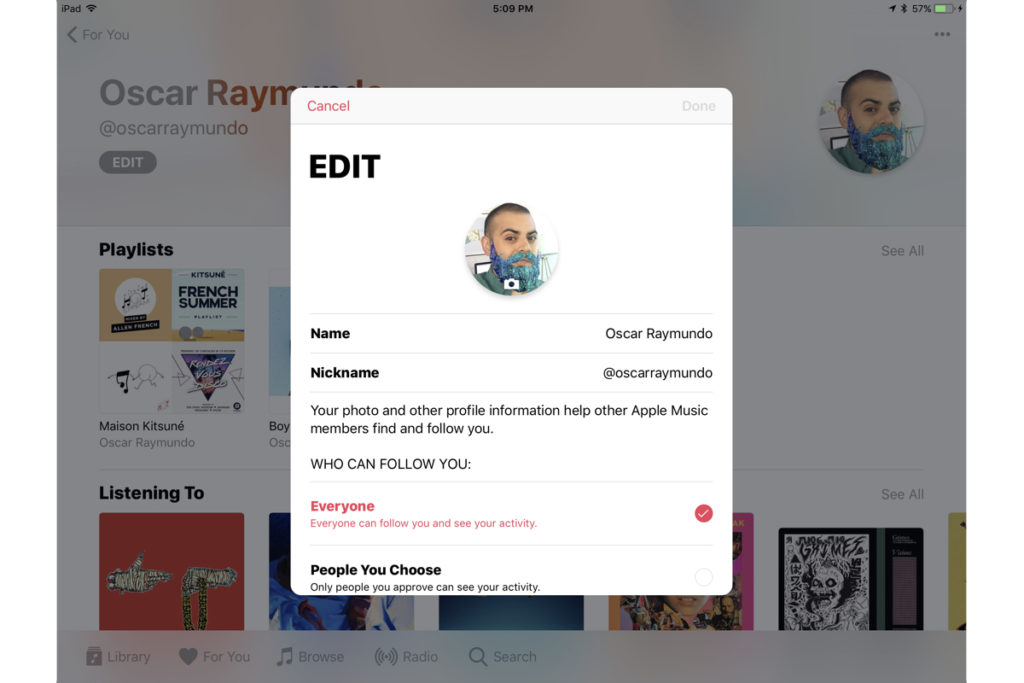
Apple Music gets social in iOS 11. Taking a page from Spotify, Apple Music members now have a profile on the streaming app. You can use your profile page to showcase your favorite playlists, as well as the albums you’ve recently listened to. You can also follow friends on Apple Music, and their profile photo will show up next to the albums they’ve listened to. However, there is currently no way to listen to music on private or secret mode, so be ready for your Apple Music followers to get a glimpse at all your guilty pleasures.


Do Not Disturb While Driving

This feature could be a real life-saver. iOS 11 also introduces “Do Not Disturb While Driving” so that the screen goes totally dark when you’re on the road. You can activate this mode manually via Control Center or have it turn on automatically whenever you’re connected to CarPlay or a car’s Bluetooth. In addition, you can go into your Do Not Disturb Settings to setup an automatic response to all your incoming texts to alert people that you’re driving and will get back to them as soon as you arrive.


Document scanner in Notes

There’s no reason to run to the office scanner anymore, thanks to iOS 11. Using the Notes app you can now press the plus (+) sign to access an all-new document scanner. You can scan several documents at once and apply different filters. The scans can be saved inside your Notes, and you can also export them as PDF files that are Markup-friendly, so you can add your signature and send it back.


Search for handwritten Notes

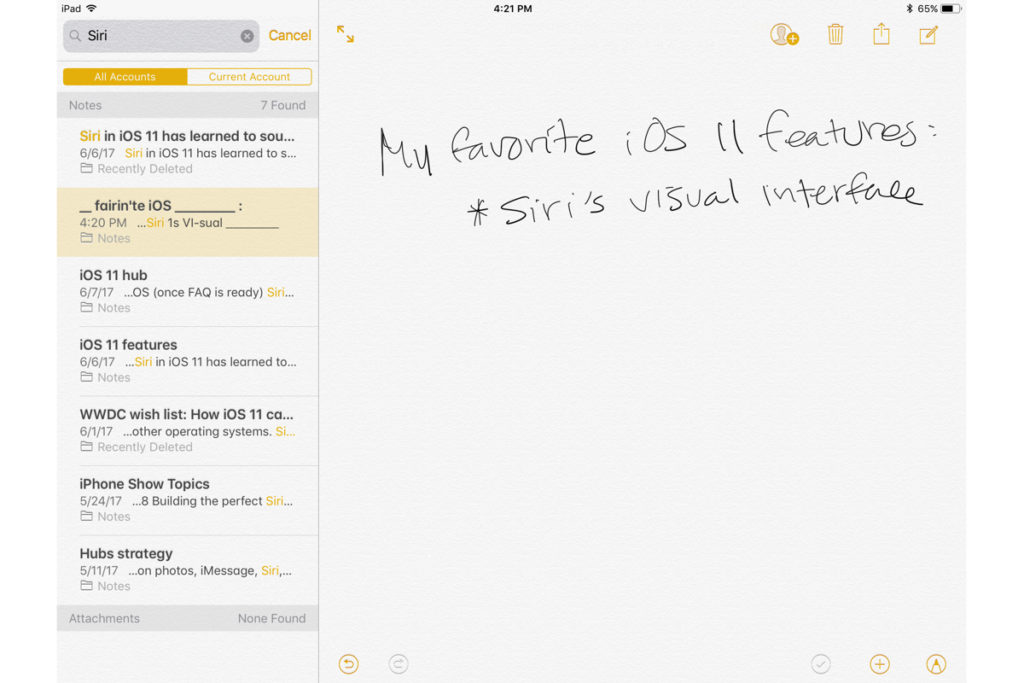
Another cool feature that iOS 11 brings to Notes is the ability to search for things you’ve written our by hand. If you prefer to take notes using your finger or your Apple Pencil on iPad Pro, they are now searchable. 


QuickType keyboard improvements

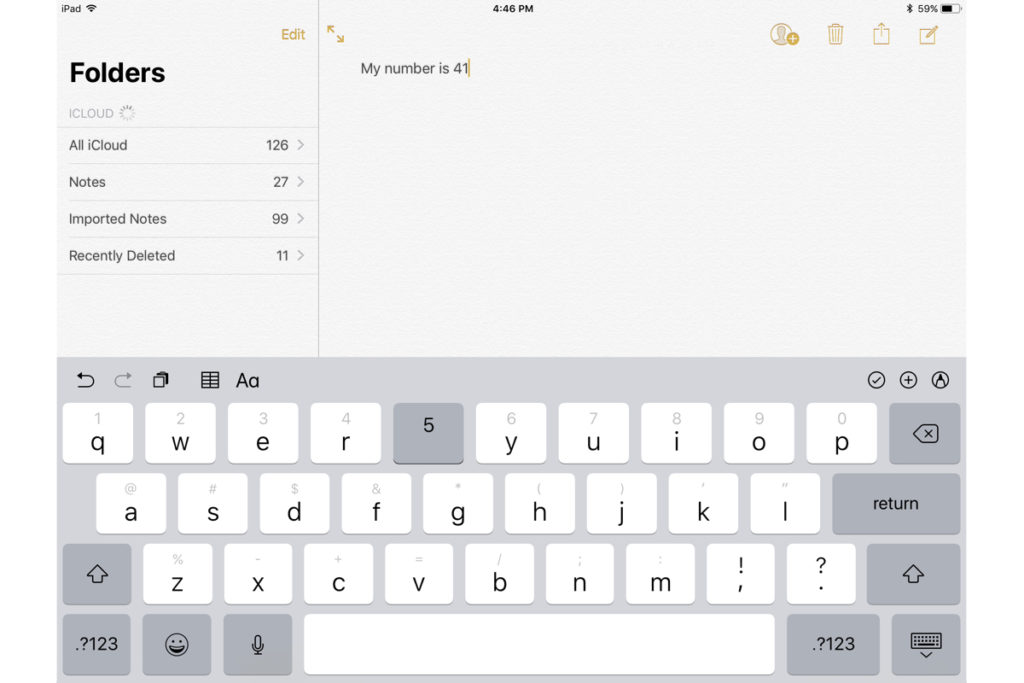
iOS 11 also makes significant improvements to the software keyboard. On iPhone, you can press-down on the globe icon and choose one-handed mode. This will bring all the keys closer to either the left or right side of the screen to make it easier to type with one hand. You can also make one-handed mode your default keyboard by going into Settings. For iPad, you can now type numbers, symbols, and punctuation marks without switching to a secondary keyboard. Simply flick down on the key to insert the character you need. 

What we’re still waiting for

Apple previewed a lot of new features for iOS 11, but not all of them are yet available. Here’s a quick look at what’s to come later this fall.

1. Apple Pay Cash for sending or receiving cash within Messages

2. Indoor maps for Apple Maps to help you navigate popular shopping centers and major airports worldwide. 

Have questions?

Get answers from Microsofts Cloud Solutions Partner!
Call us at: 856-745-9990 or visit: https://southjerseytechies.net/

South Jersey Techies, LL C is a full Managed Web and Technology Services Company providing IT Services, Website Design ServicesServer SupportNetwork ConsultingInternet PhonesCloud Solutions Provider and much more. Contact for More Information.

To read this article in its entirety click here.

Uninstall now! Apple abandons QuickTime for Windows despite lingering critical flaws

Apple is giving up on QuickTime for Windows.

Yet another program is joining Java 6 and Windows XP as big-name software you do not want running on your PC. Security firmTrend Micro and the U.S. Department of Homeland Security are advising all Windows users to uninstall Apple’s QuickTime as soon as possible. (The advisory does not affect Mac users.)

The reason for getting rid of QuickTime for Windows is twofold. First, Apple told Trend Micro it is deprecating the software and will no longer deliver security updates for it. Second, there are two known critical vulnerabilities that could allow an attacker to take control of a system running QuickTime.

That’s a hellacious combo.

Apple was unavailable for comment at this writing, but a quick look at QuickTime’s download page shows the software is still publicly available. It hasn’t been updated since at least January, however.

Trend Micro says it does not yet know of any instances where the two potential security threats are being used in the wild but that could change. Trend Micro’s Zero Day Initiative recently published some technical details about the vulnerabilities. ZDI did this because its disclosure policy requires it to publish threat information when a “vendor indicates that the product is deprecated,” and thus won’t be patched.

If you’re a longtime user of iTunes you may be running QuickTime. To dump the program, open the Control Panel on your PC and then from the “category” view go to Programs > Uninstall a program. Once the list of installed programs populates, scroll down until you find QuickTime. Select it with your mouse, and then click Uninstall towards the top of the window. A pop-up window will then appear asking to confirm that you want to uninstall the program. Click Yes and you’ll be QuickTime-free in no time.

A survey published by Secunia Research in late 2015 found that Apple software is among the programs that are updated the least often by Windows users.

Why this matters: Whenever software is about to be abandoned it’s always a good idea to move away from it—or at least start planning to. That goes double for software with known flaws that allow the bad guys to execute code on your machine. QuickTime used to be an important piece of software for Windows users. But these days you don’t need it to watch movie trailers on Apple’s site and it’s no longer used by iTunes to play media on Windows. There’s little reason for the vast majority of Windows users to keep QuickTime on their PCs.

Have questions?

Get answers from Microsofts Cloud Solutions Partner!
Call us at: 856-745-9990 or visit: https://southjerseytechies.net/

South Jersey Techies, LL C is a full Managed Web and Technology Services Company providing IT Services, Website Design ServicesServer SupportNetwork ConsultingInternet PhonesCloud Solutions Provider and much more. Contact for More Information.

To read this article in its entirety click here.

What’s new (and still to come) in Microsoft’s Office 2016 for Windows

Microsoft’s Office 2016 suite for Windows 7, 8 and 10 PCs and tablets is available since September 22, 2015. Here’s what’s new and what’s still to come for Office users.


Microsoft made a first public preview of the suite — which runs on Windows 7, Windows 8 and Windows 10 PCs and laptops — back in March of 2015. Testers had been working with private previews of the suite since 2014.

The full Office for Windows 2016 suite includes new versions of Word, Excel, PowerPoint, OneNote, Outlook, Project, Visio and Access.

There are not a lot of major new features in this release. Microsoft’s main focus with the new version of Office for Windows has been on adding team-collaboration functionality. Among some of the new features in the suite are coauthoring for Word, PowerPoint and OneNote; real-time typing in Word; new integrated Power BI publishing functionality in Excel; and updated search and navigational capabilities in Outlook.

Users who subscribe via Office 365 consumer and/or business plans which include rights to the Office apps also get will get additional, supplemental services and features, including Microsoft’s Sway digital-storytelling app/service; new Office 365 Groups functionality; and more.

As is the case with Windows 10, Microsoft is planning to fill out some of the partially baked Office 2016 features in the suite with regular updates in the coming months. Microsoft is still working on improving and syncing its OneDrive online-storage service. The promised new sync clients for Windows and Mac are due later this year. Built-in coauthoring for the other Office 2016 apps beyond Word is also still in the works. And Enterprise Data Protection, a security feature that Microsoft has promised for Windows 10, also will be coming for Office 2016 for Windows in early 2016, and the Office Mobile apps later this year, company officials said.

Starting with the Office 2016 for Windows release, Microsoft is moving to a new servicing model for Office 365 which is similar to the one it has put in place for Windows 10, with different servicing “branches” providing users with new Office features and fixes on a regular basis.

While on the subject of dates, here’s what Microsoft officials are saying in terms of availability for Office 2016 for Windows (and other related Office apps and services).

The Office 2016 apps are available in 40 languages starting today. Office 365 Office 2016subscribers can choose to download manually the new Office 2016 apps as part of their subscription starting today. Automatic updates of the Office 2016 apps will begin rolling out to consumer and small business subscribers in October 2015, and to commercial customers early next year. Office 2016 is also available today as a one-time purchase for both PCs and Macs.


Update:

A Microsoft spokesperson said MSDN subscribers will have access to both Office 2016 for Mac and Windows today, starting at about 9 am PT/noon ET. Volume Licensing Service Center (VLSC) availability for Office 2016 for Windows will be October 1. (VLSC customers got Office 2016 for Mac in August.)

Office 365 Planner, the lightweight project-management service (formerly codenamed “Highlander”), which Microsoft is building into its Office 365 business subscriptions, will be available in preview to Office 365 First Release customers starting next quarter. And GigJam — a new task-completion service which Microsoft demonstrated earlier this summer — is in private preview as of today, and will be available to Office 365 business subscribers in 2016.

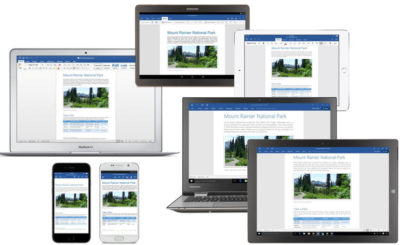
Office 2016 for Windows and Office 2016 for Mac are Microsoft’s two fully-featured Office desktop suites. The company also offers a variety of universal’ and/or mobile Office mobile apps for iPhones, iPads, Android phones and tablets, Windows Phones and Windows PCs and tablets.

Have questions?

Get help from IT Experts/Microsofts Cloud Solutions Partner
Call us at: 856-745-9990 or visit: https://southjerseytechies.net/

South Jersey Techies, LLC is a full Managed Web and Technology Services Company providing IT Services, Website Design ServicesServer SupportNetwork ConsultingInternet PhonesCloud Solutions Provider and much more. Contact for More Information.

To read this article in its entirety click here.


Create Your Own Online Web Store

Everything you need to open your own online store.

You don’t need technical skills to build a successful Web store. Quick Shopping Cart makes it easy to create an eye-catching store that accepts credit cards, integrates with Google® and eBay® and offers multiple shipping options – all with no set-up fees!

Powerful features that are there when you need them.

Quick Shopping Cart makes it easy for anyone to build an online web store, but it also has a rich collection of advanced features that allow you to enhance, manage and promote your store.

Easy, Flexible Web Store Design:

  • Select from over 1,500 design and color combinations, 14 Category page styles and 11 Product Detail page styles.
  • Personalize with your logo, brand and product images.
  • Make changes easily with click-&-type editing.
  • Easily customize navigation to integrate your store with your main Website.
  • Add impact to your shopping cart with royalty-free photos from Fotolia®. All plans include 10 free download credits.

Simple Catalog Set Up:

  • Navigate quickly and easily with a step-by-step Store Setup wizard.
  • Specify product details, including SKU, description, pricing, options and inventory tracking.
  • Add and manage product images, including enlargements. Deluxe and Premium plans support up to five images per product.
  • Configure your product search options.
  • Create nested categories to help your customers browse through your catalog.

Multiple Payment & Shipping Options:

  • Accept all major credit cards through FrontStream Payments®, Intuit® Authorize.net®, Innovative Merchant Solutions®, PayPal Express Checkout, PayPal Website Payments Pro, PayPay Website Payments Standard.
  • Pay no setup or percentage-of-sales fees.2
  • Get real-time U.S. and international shipping rate quotes from UPS, FedEx and the USPS – or create your own custom shipping rate table.
  • Use built-in shipping and tax calculators.

Coupons, up-sells & Featured Products:

  • Showcase featured products in your sidebar navigation. Specify multiple products for a rotating display.
  • Create product cross-sells and up-sells that suggest related products (ie: “You may also like…”).
  • Create coupon codes for an amount-off, percent-off or free shipping. Coupons can also require a minimum purchase amount.
  • Create product bundles with special discounts.

Market your Online Store:

  • Increase the visibility of your online store with search engine-friendly page URLs.
  • Track the response of your marketing campaigns with auto-generated links that include your promotional code.
  • Easily add your products to Google® Product Search and eBay®.

Manage your Orders & Customer:

  • See new orders, inventory status and member activity at a glance.
  • Search and filter orders and export information to a Microsoft® Excel file.
  • Capture credit card payments, enter shipping and tracking information and print shipping labels.
  • Receive email notification for orders.
  • Track product inventory and set minimum thresholds.

Hosting & Security:

  • FREE web hosting with guaranteed 99.9% network uptime.
  • Phone and online support.
  • SSL Certificate enabled to securely process credit cards.
  • PCI compliance verified by independent auditor.
  • Fraud Module
  • Offer easy and secure customer login and checkout.

Integrate your Store:

  • WebSite Tonight: Combine your store with a content-rich website using one of more than 200 common designs.
  • eBay: Quick Shopping Cart is a certified eBay listing tool.
  • Google Product Search: Help customers find your products online.
  • Microsoft Excel: Import and export data with ease.
  • Atandra T-HUB: Integrate with QuickBooks, UPS, USPS, and FedEx with T-HUB multi-channel order manager.

All Plans Include:

  • 1,500+ quick-start design and color combinations
  • Fast and easy setup
  • No set-up or per-sale fees
  • Accept credit cards, PayPal Express® or phone orders
  • UPS®, USPS®, and FedEx® shipping with real-time rates
  • Add your products to eBay and Google Product Search
  • FREE web hosting with guaranteed 99.9% network uptime!
  • Phone, email and Web support

Call (888) 505-1532 to get started now

New Website Design – Cumberland, Gloucester & Salem Family Support Organization

The Website Design team of South Jersey Techies has been constantly working on developing great looking websites using the latest web technologies. The most recent website developed by our team is for Cumberland, Gloucester & Salem Family Support Organization  . The Family Support Organization (FSO) of Cumberland, Gloucester, and Salem Counties has been a beacon of hope and assistance for families since 2005. This non-profit organization works tirelessly to support, educate, and advocate for parents and caregivers of children with special emotional, behavioral, and mental health needs. With a range of services including training workshops, support groups, and individual advocacy, the FSO empowers families to navigate the complexities of the Children’s System of Care in New Jersey. Their commitment to the community ensures that no family has to face these challenges alone.


Have questions?


Our Web Design team is here to help. Call us at: 856-745-9990 or visit: https://southjerseytechies.net.


South Jersey Techies, LLC is a full Managed Web and IT Services Company located in Marlton, NJ providing IT ServicesManaged IT ServicesWebsite Design ServicesServer SupportIT ConsultingVoIP PhonesCloud Solutions Provider and much more. Contact Us Today.

Atari’s Ataribox console will run Linux

Cost $250-$300, if it ever materializes

Now it just needs an E.T. game.

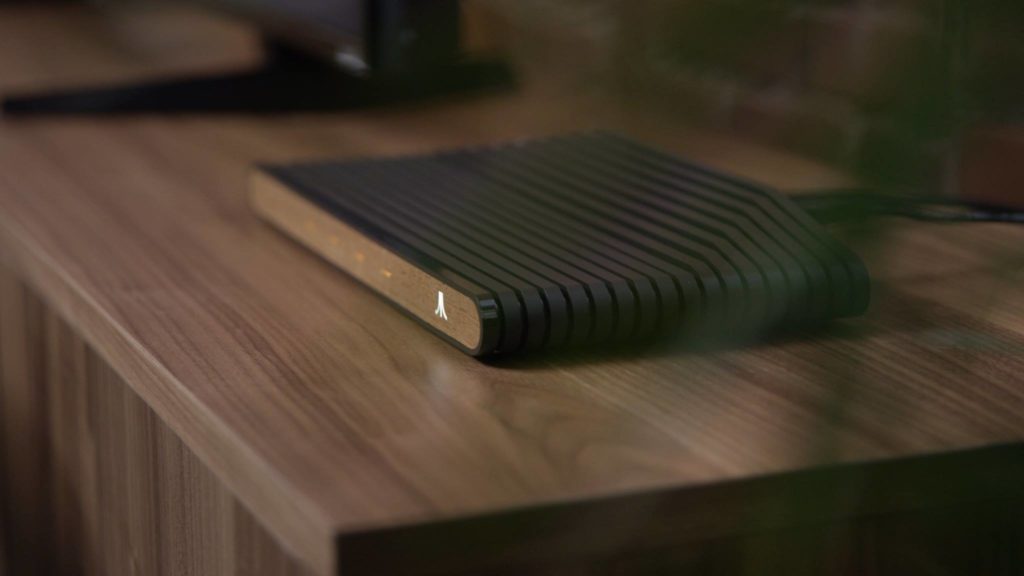
Atari announced in June that it was getting back into the hardware business, with plans for an upcoming “Ataribox” console. Of course, it didn’t release any actual details at the time—only a slick-looking render of a retro-styled box, complete with real wood paneling. Oh, plus a promise to crowdfund the upcoming console.

If alarm bells just started ringing in your head, visions of another Ouya-style disaster, well we can’t say those fears are unfounded. This week Atari further detailed the Ataribox to GamesBeat, and the plan seems even weirder than before.

According to Ataribox creator Feargal Mac, we’re looking at a device that will a) run Linux and b) cost in the neighborhood of $250 to $300. Featuring a custom AMD processor and launching alongside a catalog of classic Atari games, GamesBeat writes, “the idea is to create a box that makes people feel nostalgic about the past, but it’s also capable of running the independent games they want to play today, like Minecraft or Terraria.”

You know what? Best of luck to them. If Valve couldn’t make the Linux-centric living room PC a hot item, though, We’re not sure that Atari will be able to. And that’s all this is—a very cheap Steam Machine, cheaper even than Alienware’s quaint little model.

Is that enough? Probably not. The problem, as always, is the games. Linux gaming is worlds better than it was a few years ago, especially if Atari focuses on the indie scene. Still, we’re talking a pretty small subset of available titles. Atari’s trotted out the ol’ Valve line of “You can install Windows on it if you want,” and that’s not a great omen in my mind.

And even a $250 Ataribox is still plenty expensive considering this thing won’t run any big-budget games. You can buy an Xbox One S for $250 right now on Amazon, and a PlayStation 4 is only $50 more expensive. Sure, it’s a console, but it’ll at least play Wolfenstein II just as easily as it’ll play Terraria.

Atari’s also been quiet about how you’ll control the Ataribox. GamesBeat mentions a “user interface [Atari is] customizing for TVs,” so I assume a controller, but every photo of the Ataribox is just the console on its own. Hell, for all we know Atari will be buying Steam Controllers in bulk and packaging them with the system. Might as well. Those who want to get into the system level and tinker, though, will probably need a keyboard and mouse, which isn’t very living room-friendly.

One last red flag: It’s still being crowdfunded. Plans are for an Indiegogo campaign later this fall, with a release scheduled for Spring 2018. We’ll keep you updated.

Have questions?

Get answers from Microsofts Cloud Solutions Partner!
Call us at: 856-745-9990 or visit: https://southjerseytechies.net/

South Jersey Techies, LL C is a full Managed Web and Technology Services Company providing IT Services, Website Design ServicesServer SupportNetwork ConsultingInternet PhonesCloud Solutions Provider and much more. Contact for More Information.

To read this article in its entirety click here.

CALL US NOW!