Back to Top

Tech, Web, Cloud & Cabling Services

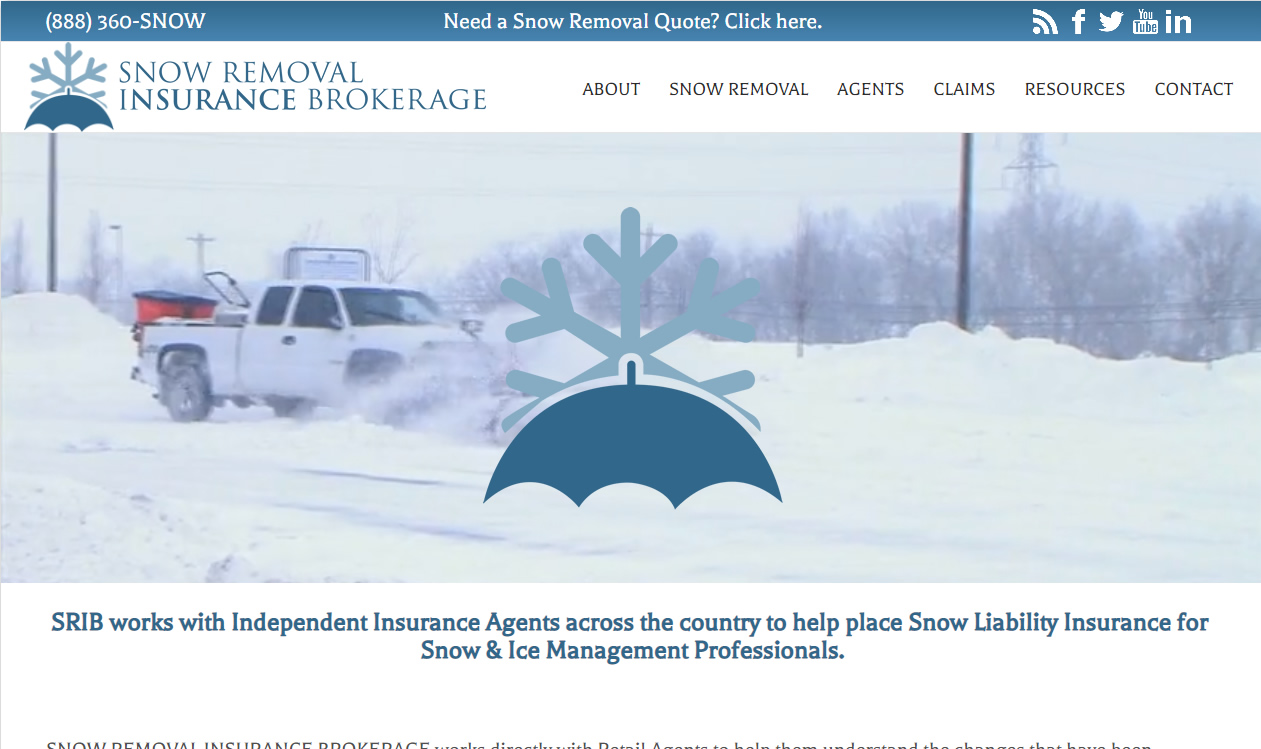
New Website Design – Snow Plow Risk Brokerage

The Website Design team of South Jersey Techies has been constantly working on developing great looking websites using the latest web technologies. The most recent website developed by our team is for Snow Removal Insurance Brokerage in Marlton, New Jersey.

Snow Removal Insurance Brokerage works directly with Retail Agents to help them understand the changes that have been implemented within the snow & ice management industry. Together they create policy with liability coverage suitable to the insured’s needs and future. SRIB is working together to change the insurance world’s perception of a greatly under-appreciated breed of contractor.

Have questions?

Our Web Design team is here to help
Call us at: 856-745-9990 or visit: https://southjerseytechies.net

South Jersey Techies, LLC is a full Managed Web and IT Services Company located in Marlton, NJ providing IT ServicesManaged IT Services, Website Design ServicesServer SupportIT ConsultingVoIP PhonesCloud Solutions Provider and much more. Contact Us Today.

Wawa introduces free WiFi services

PHILADELPHIA – Wawa began offering free WiFi Tuesday for customers at its 700-plus stores.

Wawa-free-xfinity


The service is available through a collaboration between the retailer and Philadelphia-based Comcast, the companies said.

To access the free service, Comcast said, “customers should log on to the ‘xfinitywifi’ SSID in the list of available networks on their devices.”

The service includes public Xfinity WiFi for Wawa customers and private access WiFi for employees and vendors.

Wawa stores operate across the tri-state area, as well as in Maryland, Virginia and Florida. The firm’s WiFi service will be available outside of Comcast’s traditional service areas, the companies said.

Wawa noted it needed “a fast and reliable WiFi solution to enable a consistent in-store experience for its mobile application.” It also said the service allows customers “to take advantage of a free connection without having to rely on their cellular service.”

Bill Stemper, president of Comcast Business, said WiFi has become a vital service for companies looking to improve “the customer experience at their branch locations.”

Have questions?

Get answers from Microsofts Cloud Solutions Partner!
Call us at: 856-745-9990 or visit: https://southjerseytechies.net/

South Jersey Techies, LL C is a full Managed Web and Technology Services Company providing IT Services, Website Design ServicesServer SupportNetwork ConsultingInternet PhonesCloud Solutions Provider and much more. Contact for More Information.

To read this article in its entirety click here.

South Jersey Cyber Crime

The hackers used “ransomware” to lock the hospital out of its own medical records.

Not all kidnappers grab your loved ones.

A growing online threat – ransomware – essentially abducts your computer system, putting data and services off-limits to users and demanding a payment to restore access.

“We are seeing more cases of this – sometimes almost on a daily basis,” said New Jersey State Police Capt. Steve Jones. “And we’re not seeing all of it, because people may be too embarrassed or don’t believe it can be helped.”

Ransomware viruses are a plague. Once infected — installed to your computer by a website you’ve visited, a rogue email attachment or link, or instant message — your computer will lock up. With names like CryptoWall, these types of viruses may create a popup window or Web page warning you that you’ve broken some law and have to pay a fine, anywhere from hundreds to thousands of dollars, according to the FBI.

These scams threaten to encrypt your files forever or destroy them unless a ransom is paid, according to the FBI.

Once paid, your computer is unlocked or a code is sent to unlock the machine, authorities said.

Between April 2014 and June 2015, the FBI received 992 CryptoWall-related complaints with victims reporting a loss of more than $18 million.

The state’s top cybersecurity unit recently launched an online effort to help people guard against ransomware.

“For many organizations, preventing ransomware entirely is nearly impossible,” says the New Jersey Cybersecurity and Communications Integration Cell (NJCCIC), which introduced a Ransomware Threat Profile page at its website in February.

But it notes individuals and companies can take measures to prevent infections and to limit their impact.

Although ransomware can lock up laptops and desktop computers, the risk is particularly great for data-dependent organizations like hospitals and accounting firms, said Jones, the State Police spokesman.

So far, at least three hospitals have been hit nationwide – in California, Kentucky and the Washington, D.C., area. South Jersey hospitals are well aware of the menace.

“It’s a big concern. It’s something that has really spiked,” said Tom Handlon, chief information security officer for Kennedy Health, which operates three acute-care hospitals in South Jersey.

Handlon gave no details, but said Kennedy seeks to protect itself through protective measures inside its computer system and by promoting safe conduct by employees.
“We’re monitoring it constantly and updating as we go along,” he said. “We are really educating the staff and our entire organization that we are a target.”

A similar view came from Tom Rubino, spokesman for Cooper University Healthcare System in Camden.

“We have tracked the recent wave of ransomware attacks that have targeted hospitals across the nation,” Rubino said. He said Cooper’s IT security team “is proactively taking measures to prevent ransomware infection of our computer systems.”

“Additionally, as a critical component for preventing all computer viruses, we are increasing our employee education efforts.”

A key precaution is to back up your computer’s contents on a frequent basis, Jones said. “But you’ve got to keep the backup drives disconnected,” he warned. “Otherwise, the ransomware can migrate to the backups.”

The State Police in March 2015 investigated a hacking incident that disabled much of the computer system for the Swedesboro-Woolwich school system. In that case, a hacker demanded more than $125,000 in the form of a digital currency called bitcoins.

The district, which did not pay the ransom, had to wipe clean its email servers and cafeteria lunch-ordering system to rid itself of ransomware. Only a handful of classroom computers were infected.

Hackers exploited a gap in the district’s computer security system and a vendor’s “weak” passport to take over the computer system, Michael Procopio, Educational Information and Resource Center’s director of technology, said at the time. EIRC experts helped the district restore its system.

The district’s hacker was believed to have struck from abroad – a familiar pattern, according to the State Police.

“Many of these messages and attacks are coming through foreign servers,” Jones said. “The countries that house these servers are not often countries that have a real open relationship with law enforcement.”

Tools have been available to help decrypt older versions of ransomware, said Dave Weinstein, New Jersey’s director of cybersecurity.

“At this point, the strain has morphed to the point where there is no releasing your files,” said Al Della Fave, a spokesman for the Ocean County Prosecutor’s office. “The lock these cybercriminals put on your files is foolproof at this point.”

Unless you’ve backed up your computer prior to the infection, Della Fave said, “The only way you would get your files back is to pay.”

“Ransomware is working” for cyberthieves, said Ben Johnson, chief security strategist at Carbon Black Inc., a  computer security firm in Waltham, Massachusetts. “People are paying.”

In the last few weeks, cybercriminals have come up with some new twists, he said. For instance, one version encrypts files more quickly after someone opens up a malware-filled Microsoft Word document or some other attachment.

Other versions encrypt the computer at its most basic level so it can’t even power on, or use the computer’s own system administration tools to infect itself, he said.

The best course of action is to make sure you don’t get the virus. “You must be super careful what you click on,” Della Fave said.

Here’s what you should do, according to Johnson and the Ocean County prosecutor’s office:

  • Keep your computer’s security software up to date.
  • Keep your network firewall turned on.
  • Do not open spam email messages or links to suspicious websites.
  • Back up your files, such as documents, photos and music, to a secondary storage device.
  • Be careful when you browse the web. Use ad blockers to help protect yourself.

Have questions?

Get answers from Microsofts Cloud Solutions Partner!
Call us at: 856-745-9990 or visit: https://southjerseytechies.net/

South Jersey Techies, LL C is a full Managed Web and Technology Services Company providing IT Services, Website Design ServicesServer SupportNetwork ConsultingInternet PhonesCloud Solutions Provider and much more. Contact for More Information.

To read this article in its entirety click here.

Save Big on Toner!

toner

TECHIEDEPOT.COM

Your #1 Source for the Best Printer Ink Cartridges

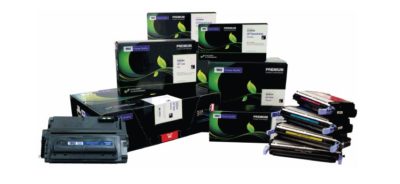
Looking to save on toner ?  Save upto 35% when you order Re-manufactured Toner Cartridges with TECHIE DEPOT. Our toner cartridges are intelligently re-engineered and environmentally friendly.   We offer a 3 year 100% warranty whereas most OEMs only offer a 1 year warranty.

We guarantee our products will perform better than any other aftermarket imaging product.  Rest assure you never have to worry about leaking cartridges because of our Patented Ultrasonic and Gasket Seal Technologies.  Our Secondary cleaning System also eliminates streaking.  Our toner cartridges are ISO Certified for OEM page yield and quality.  With our Extended Yield Cartridges you will get up to 100% more yield.

You will find that we are different because everyone is not as committed to quality like we are and our product is better built and more consistent.  Our cartridges have a documented 99.2% success rate and for 7 consecutive years we were awarded the best quality supplier in the aftermarket  by Recharger Magazine.

Pay less for great quality, we are sure you won’t be disappointed with our product.  Contact us and place your order today!

Tips for a Green PC

Takeaway:  Tips for making environmental choices whether buying a new computer or maintaining your current one.

To reduce energy intake you can use a power strip, monitor usage with utilities and unplug components when not in use.  Deciding to go green for current computers or buying a new computer can help with power management to cut down on wasted energy and costs.

Energy Star is a voluntary energy efficiency program that prevents greenhouse gas emissions with strict guidelines.  EPEAT is an assessment tool to help users compare and purchase computer equipment.  Both provide tools to help make an environmental choice.

epeat-logoenergystar-logo

Buying a New Computer Tips:

  • Research:  Find out if it is Energy Star rated, how much energy the computer will use and power management options.
  • Recommendations:  Check out product reviews from previous purchasers and from non-profit organizations that provide accurate feedback (Such as EPEAT and Energy Star)
  • Purify New PC:  Read the Hazardous Material Use Policy on manufacturer’s site.
  • Don’t be Greenwashed:  Research the company to make sure that their “Green Computer” is not a marketing campaign with few benefits towards the environment.
  • Green Guide:  If you would like user ratings and reviews for products, several websites provide these options as well as advice for purchasing new equipment. 

Upgrading Current Machine Tips:

  • General Health Check:  The three major components that play a role in energy are graphics card, microprocessor and monitor.
  • Replace CRT Monitor:  CRT Monitors may contain Lead, Mercury, Barium and more toxins.  Replace your old monitor with a new LCD or LED Monitor to save energy and money. 
  • Upgrading Memory:  Upgrading your RAM will increase the speed of your machine while lowering the power intake, which is a quick, inexpensive fix.
  • Greener Battery:  Similar to CRT Monitors, older laptop batteries contain hazardous chemicals such as lead.  Companies are starting to manufacturer Green Batteries that have a longer life expectancy using earth-friendly features.
  • Greener Power Supply:  The ability to scale the power required for particular actions with your power supply is an efficient way to save energy; while regular power supplies emit a steady rate of power at all times.


Go Daddy Posts Workaround for 60-Day Lock


I just found out from fellow domain blogger Kevin Murphy of DomainIncite that domain registrar Go Daddy has finally posted a workaround to their 60-day lock. Apparently their doing this is a response to the modified ICANN transfer policies taking effect since June 1, 2012.

One of the most common complaints I’ve encountered about domain registrar Go Daddy is their arbitrary 60-day transfer lock. In case you just came in, Go Daddy can prevent your domain name from being transferred to another domain registrar for 60 days if a certain condition is met.

All domain registrars have a rule wherein you can’t move your domain name to another registrar if it’s within its first 60 days of registration or recent transfer-in from elsewhere. Go Daddy is currently the only one who puts in another 60-day transfer lock on top of those.

Initially, Go Daddy’s 60-day transfer lock kicks in if the registrant or administrative contact’s name or contact details is changed. Go Daddy since evolved their 60-day lock to only if the registrant name is changed for whatever reason.

Before I describe the workaround, it might be important to know what ICANN’s recent policy change is, and how this affected Go Daddy.

ICANN mostly made just some language changes in their transfer policy among registrars, but there is one major change relevant to this. Namely:

Upon denying a domain transfer request for any of the following reasons, the Registrar of Record must provide the Registered Name Holder and the potential Gaining Registrar with the reason for denial. The Registrar of Record may deny a domain transfer request only in the following specific instances:

Express objection to the transfer by the authorized Transfer Contact. Objection could take the form of specific request (either by paper or electronic means) by the authorized Transfer Contact to deny a particular transfer request, or a general objection to all transfer requests received by the Registrar, either temporarily or indefinitely. In all cases, the objection must be provided with the express and informed consent of the authorized Transfer Contact on an opt-in basis and upon request by the authorized Transfer Contact, the Registrar must remove the lock or provide a reasonably accessible method for the authorized Transfer Contact to remove the lock within five (5) calendar days.

I bolded the portion starting from “a general objection” to indicate ICANN’s recognizing Go Daddy’s 60-day lock. However, they’re also requiring the registrar to allow the “authorized Transfer Contact” a means to do away with that within five calendar days.

In short, Go Daddy is being allowed to maintain their 60-day thing, yet allow the domain’s registrant or so a way to get around that if ever. The wording can be argued either way, but all this is a means of balancing competing interests.

I bolded the portion starting from “a general objection” to indicate ICANN’s recognizing Go Daddy’s 60-day lock. However, they’re also requiring the domain registrar to allow the “authorized Transfer Contact” a means to do away with that within five calendar days.

In short, Go Daddy is being allowed to maintain their 60-day thing, yet allow the domain’s registrant or so a way to get around that if ever. The wording can be argued either way, but all this is a means of balancing competing interests.

Domain Name Wire also has more from Go Daddy’s director of policy planning James Bladel:

“We understand our 60 day lock has been controversial,” said James Bladel, Director, Policy Planning for Go Daddy. “What is boils down to is, while it’s a very good tool for intercepting and preventing hijacking…we recognize that our efforts to address that problem shouldn’t be a hindrance to legitimate users of domain names that want transfers to be a little more simple.”

Kevin quotes Bladel’s rationale further:

“The bad guys are not going to call and ask us to take a second look at this,” he said. “The bad guys want it to happen under the radar.”

Bladel explains the lock can be lifted after a human review unless they suspect a hijacking is going on. Additionally, the domain name’s WHOIS information is changed to its original state.

I think that second part is going to pose some problems, particularly on ownership changes after a recent sale. Time will tell how this goes, and Go Daddy is surely going to adjust to that if need be.

So step by step, here’s how it goes:

1. If you change your domain name’s registrant name at Go Daddy, it turns on their 60-day transfer lock. They do post notices of this before you make the change, and they do email about it. (unless caught by your spam filter, knock on wood…)

2. You’ll get an email with an email address to contact a team at Go Daddy to appeal the lock.

I’m sure some of you wish it’s a way to call that team directly instead. Would be nice if Go Daddy accomodates that, though I also know they “need” to control that if ever.

I wish they thought of this sooner rather than have to inconvenience a lot of people unnecessarily because of this, though I know some people want this done away instead. Like I said, it’s a matter of balancing competing interests.

In any case, at least there’s now an option to go around their 60-day lock. 

To View Full Article Click Here

Our highly trained, courteous support staff is waiting to take your call. Whatever time it takes to assist you, that’s the time you’ll receive. We’ll resolve any issue to your complete satisfaction.

Call (856) 745-9990 to get started now or click here

Increase Sales & More with Site Analytics

Get the insight you need to succeed on the Web.

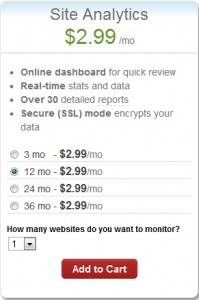
The key to any successful website is knowing your visitors. Site Analytics gives you the valuable, real-time data you need – information you can use to spotlight popular products, target new customers, track offer responses and much more. With over 30 detailed reports, you can find out where your visitors are coming from, what paths they take through your site, even where in the world they live.

Stats at-a-glance

  • Get the information you want – without having to click through countless screens – with our customizable dashboard view.

Real-time results

  • With Site Analytics’ real-time statistics, you don’t have to wait until tomorrow to find out if changes to your site are working. Plus, heat mapping and pinpoint functionality tell you which sections or links are getting the most attention.

In-depth reporting

  • Dig into the details and get a better understating of your customers with more than 30 reports. Find out who’s visiting, when they’re on your site, how they’re getting there and much more.

Choose your view

  • Site Analytics lets you decide how you want to view your data with three graphing options (Bar, Area and Line) as well as the ability to export to Microsoft Excel® or Adobe® PDF.

Powerful, easy-to-use features let you dig as deep as you want.

Everyone wants something different from their site statistics. Some people want a quick, birds-eye view; others want to get lost in the details. That’s the beauty of Site Analytics; it works for everyone. Our user-friendly interface and intuitive features put you in control so you can get exactly what you want.

See what’s happening

  • Get a quick overview of your site’s traffic and visitors with a selection of dashboard widgets.
  • Real-time statistics let you see, almost instantly, how changes to your site impact your traffic.
  • Improve your site’s structure and usability by seeing where people click and which links get the most attention with heat mapping.

Organize your data

  • Find the information you need with more than 30 reports in several categories: Visitor, Page, Referrer and Server.
  • Visualize the data the way you want with three different graphing options: Bar, Area and Line. Plus, set custom date ranges to target your results!
  • Share your data with co-workers and clients by exporting to Microsoft Excel® or Adobe® PDF. You can even create a schedule to email customized reports.
  • Get separate reports for each alias and subdomain — simply add them as separate Site Analytics accounts.

And much more

  • Easily collect stats on your WordPress® site with our free Site Analytics plugin.
  • Enable secure (SSL) mode to encrypt your data so it can’t be viewed by others during transmission.
  • Analyze long-term trends and improvements with up to 6 months of Log File data.
  • Use Site Analytics with any website, whether you host with us or a third party.


Our highly trained, courteous support staff is waiting to take your call. Whatever time it takes to assist you, that’s the time you’ll receive. We’ll resolve any issue to your complete satisfaction.

Call (888) 505-1532 to get started now or click here

SJT on FaceBook!

We have joined the social networking revolution. Please become a fan and join the South Jersey Techies, LLC FaceBook page. We will be providing information for SJTBackup.com; SJTHosting.net and TechieDepot.com as well as SJTechies.com

The 10 elite smartphones of 2010

Takeaway: With the rise of Android, the reboot of BlackBerry, and the redesigned iPhone, 2010 can rightly be called the year of the smartphone. Here are the best devices of the year.

10. BlackBerry Torch

BlackBerry came under intense pressure in 2010 from the rapid growth of iPhone and Android. The smartphone incumbent fired back with the release of the BlackBerry 6 OS and a new form factor with a slide-down keyboard in the BlackBerry Torch. The device is a bit underpowered, the OS isn’t a huge step forward, and overall it hasn’t been enough to stem the losses to Apple and Google. But, there are still a lot of BlackBerry fans out there — not to mention all of the enterprises locked into BlackBerry — and for them, the Torch is now the pre-eminent device on the market.

9. Motorola Droid 2

This shows how much progress the smartphone market has made in one year. Last year, I would have ranked the original Motorola Droid and the Apple iPhone 3GS as the two best smartphones on the market. This year, the Droid got a very nice upgrade but still struggled to make the top 10. Still, due to its increased specs, solid build quality, and very usable form factor, the Droid 2 belongs on this list. Also, don’t miss its cousins, the Droid Pro and the Droid 2 Global.

8. HTC Incredible

With much the same innards as the Google Nexus One (although not nearly as strong of a build quality), the HTC Incredible was a consolation prize for those who had been salivating for the Nexus One on Verizon. Unfortunately, Google and Verizon pulled the plug on those plans and instead HTC offered the Incredible through Verizon with the traditional two-year contract. The Incredible did get one thing that the Nexus One didn’t have: HTC’s Sense UI. Some viewed that as a bonus over the stock Android OS on the Nexus One, while others saw it as a detractor.

7. Samsung Focus

Microsoft finally got itself back in the smartphone game in 2010 with the launch of Windows Phone 7, and the first widely-available WP7 device was the Samsung Focus, which didn’t disappoint. The Focus sported nice hardware specs in an attractive, futuristic form factor (albeit with a lot of plastic, similar to the Galaxy S). And, Windows Phone 7 offered a new take on smartphone UI that is a little but more polished and fluid than Android or BlackBerry, although not quite as finished as the iPhone.

6. Motorola Droid X

Verizon Wireless went all-in on Android in 2010, launching a steady stream of new Android-powered devices throughout the year and replacing BlackBerry with Android as its primary smartphone platform. The Droid X served as Verizon’s flagship Android phone, with its huge screen, 8MP camera, enterprise-class hardware, and extensive list of high-end features.

5. HTC Desire

While the HTC Incredible had the same guts as the Nexus One but a much different outer shell, the HTC Desire had similar internals and an outer shell that closely resembled the high quality metal casing on the Nexus One. The Desire quickly became one of the most popular smartphones in Europe and Australia by mid-2010 and has spread to other carriers through the globe since then. Along with the Nexus One and the iPhone 4, the Desire feels like the most substantial and high quality smartphone on the market. You should also keep an eye on the HTC Desire HD and the HTC Desire Z.

4. Samsung Galaxy S

Samsung joined the Android movement with all guns blazing in the middle of 2010 by releasing its line of Galaxy S smartphones in a variety of different form factors (and a confusing array of product names) on all four US wireless carriers and a fleet of international carriers. In the US, the Samsung Vibrant and the Samsung Epic 4G were the most impressive of the Galaxy S phones, but all of the models across the globe have same technology base and generally provide a very good Android experience.

3. Google Nexus One

The first big smartphone of 2010 was the Google Nexus One, launched just after the new year and right before CES 2010. As a product, the long-rumored “Google Phone” wasn’t a disappointment. It had excellent build quality (developed by HTC) and ran the stock Android OS, which got all of the latest Android updates directly from Google. However, the phone failed in its larger mission of moving the US telecom market toward the European model of being able to buy phones and wireless service separately. The Nexus One was sold as an unlocked device at full price ($500) through Google’s online store. Google was not well prepared to handle customer service and didn’t give US consumers enough time to warm up to the idea of buying a full price device. It also never released the promised CDMA version of the Nexus One. Eventually, Google abandoned the product altogether and replaced it in December with the Nexus S, built by Samsung and available under traditional contract with T-Mobile.

2. HTC EVO 4G

The premier Android device of 2010 was the HTC EVO 4G. It was the first major smartphone to break the 4-inch screen barrier. It was the first 4G smartphone in the US. It was the first major smartphone with an 8.0 megapixel camera. It was the first major smartphone to feature a kickstand (for video viewing). I pejoratively called it the “Hummer of smartphones” because of its massive size and the fact that it’s such as battery hog, but there’s no arguing that the EVO 4G stretched the boundaries of what was possible in a smartphone and forced all of its competitors to play catch-up.

1. Apple iPhone 4

With all of the momentum that was gathering around Android during the first half of 2010, Apple’s iPhone 3GS was starting to look pretty stale by mid-year — especially since it was only a slight upgrade over the iPhone 3G from 2008. Then, Apple unveiled iOS4 and the iPhone 4 and launched itself back to the head of the class with top-quality hardware and a software experience that still outpaces all of its rivals in terms of ease of use, responsiveness, polish, and third-party software. The iPhone 4 antenna problem, which was more severe than Apple acknowledged but a lot less severe than the tech press portrayed it, was a wart for the iPhone 4. It also still lacks the widget capability of Android (and now Windows Phone 7). But, overall, the iPhone 4 remains the gold standard of the smartphone market.

Honorable mentions

  • Motorola Droid Pro
  • HTC HD7
  • Dell Venue Pro
  • T-Mobile G2
  • BlackBerry Bold 9780
  • HTC Aria


Five Word tips that could change your life

Takeaway: Searching for ways to increase your Word productivity may get in the way of your productivity. So here are a few tricks you don’t need to go looking for. Efficient, simple to use, easy to remember.

Most of us don’t have time to discover all the ins and outs of the software we use on a daily basis. We learn on the fly, we occasionally pick up a tip or shortcut, and we grudgingly plow through the Help system when we absolutely have to.

But sometimes, just a few little tricks can make a big difference. Turning off an annoying feature, learning a keyboard trick that bypasses three dialog boxes, or taking advantage of an obscure option can save you a few headaches and a lot of time. Will they really change your life? Well that might be a stretch. But they could. Try these tips on for size and let me know.

1: Make vertical text selections

Usually, we select text horizontally — a word, a series of words, a paragraph — from left to right or vice versa. But sometimes the selection has to be vertical. For instance, suppose you wanted to delete the leading characters in Figure A.

Figure A

To make a vertical selection, hold down [Alt] as you drag down through the text you want to highlight. Figure B shows the column of unwanted characters selected using this technique. Hit [Delete] and bam, they’re gone.

Figure B


Although we selected text at the beginning of the lines in this example, you can make vertical selections anywhere on the page.

Note: Some users have reported that the Research pane appears when they try this selection technique. Here’s the secret: Release the [Alt] key before you let up on the mouse button. Word should retain the selection. If you hold down [Alt] but release the mouse button, Word may think “[Alt]-click” and open the Research pane in response.

2: Undo automatic changes you don’t want

By default, Word imposes lots of changes on the text you enter in a document. For example, it might convert a Web address to a hyperlink, replace straight apostrophes and quotation marks with their curly counterparts, or turn a pair of hyphens into an em dash. If that’s a welcome convenience, you’re in good shape. If you want to suppress those types of changes, you can disable them. See 10 annoying Word features (and how to turn them off) for details. But if you want to prevent those changes only from time to time, reach for the Undo command — [Ctrl]Z. Undo isn’t just for reversing something you’ve done; it also undoes some of the actions Word takes. Don’t want that em dash? When Word inserts it, hit [Ctrl]Z and change it back to the hyphens you intended to enter.

3: Get rid of a persistent border

This forehead-smacking solution earned considerable gratitude from stymied TechRepublic readers when Susan Harkins first provided it. Word offers a sometimes-handy option that lets you insert a border automatically. Type three hyphens on a blank line and press [Enter]. If the option is enabled, Word will replace the hyphens with a horizontal line. You can get rid of it if you press [Ctrl]Z after Word inserts it (see above). But if you try to select the border and delete it, you’re out of luck. You’re not dealing with a line object here. Word has applied the Bottom Border format to the paragraph.

To remove that format in Word 2003, click in the paragraph and choose No Border from the Borders drop-down list on the Formatting menu. In Word 2007/2010, click in the paragraph and then click the Border button in the Paragraph group of the Home tab. Just select No Border from the drop-down list (Figure C).

Figure C

If you like the automatic border feature, here’s a bonus tip: In addition to typing three hyphens to apply a bottom border (3/4-point), you can trigger different border styles. Typing:

  • Three tilde characters (~) will create a wavy line.
  • Three underscore characters (_) will create a 1.5-point line.
  • Three asterisks (*) will create a dotted line.
  • Three equal signs (=) will create a double line.
  • Three pound signs (#) will produce a “thin thick thin” line.

4: Move selected text up or down

This tip is probably most useful when you’re working in a table, although you can use it to reorder paragraphs outside a table, too. Let’s say you decide you want the third row of a table to be the top row. Just click within the third row, hold down [Alt][Shift] and press the up arrow key twice. Each time you press the arrow key, Word will move the row up one. You can select multiple contiguous rows to move them as a block, and you can use the down arrow key if you want to move text down instead of up.

Using this shortcut gets a little tricky if you’re moving big pieces of text outside a table. It’s easy to lose track of what’s being relocated where, and you might find it easier to take a standard cut-and-paste approach in those situations. But when the text is small and manageable, the shortcut is great. For example, if you need to move an item up or down within a bulleted or numbered list, you can just click in the item’s paragraph and use the [Alt][Shift] and arrow key combo to move the item to the desired spot.

5: Save changes to all open Word documents at one time

This simple technique comes in handy when you’re working in multiple documents and want to make sure you’ve saved your changes to all of them. I actually use it most often when I’ve made a change to a template and want a quick way to save that change on the fly (before I’ve had a chance to forget I made a change I want to keep).

In Word 2003 and earlier, just press the [Shift] key and pull down the File menu. Word will display the Save All command on the menu, above the Save As command. Choose Save All and Word will prompt you to save each document (or template) that has any unsaved changes. This is more efficient than having to navigate to each document individually and click Save.

If you use Word 2007/2010, this won’t work. But you can add the Save All command to your Quick Access Toolbar:

  1. Click the Office button (File in 2010) and click Word Options (Options in 2010).
  2. Click Customize in the left-hand column (Quick Access Toolbar in 2010).
  3. Select Commands Not In The Ribbon from the Choose Commands From drop-down list.
  4. Scroll down and select Save All.
  5. Click the Add button and then click OK.
CALL US NOW!