Back to Top

Tech, Web, Cloud & Cabling Services

Windows 10 hack: How to beef up your jump lists to show more pinned items

The Windows 10 jump lists feature offers a convenient way to start your apps–but there’s no easy way to increase the size of the list. Here’s a hack for that.

giphy

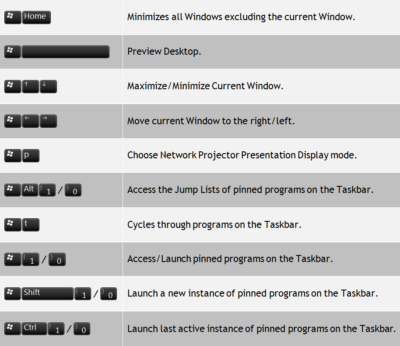
Microsoft Windows 10 gives users several choices when it comes to how and where to start their applications. Some people use the desktop exclusively and some swear by the Start Menu, while others, prefer the pinned lists that hang off the icons on the Taskbar.

However, there is one small problem with the Taskbar pinned list in Windows 10—by default, there is a 12-slot limit.

Windows 7 allowed users to extend that number with a simple change to a configuration setting. But that feature is currently missing in Windows 10 for reasons no one has been able to explain. The workaround involves editing the Windows Registry file.

Standard disclaimer: Incorrectly editing the Windows Registry file could break your computer. Create a Restore Point before making any changes.

Jump listItems

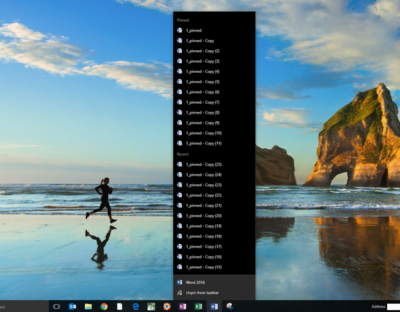
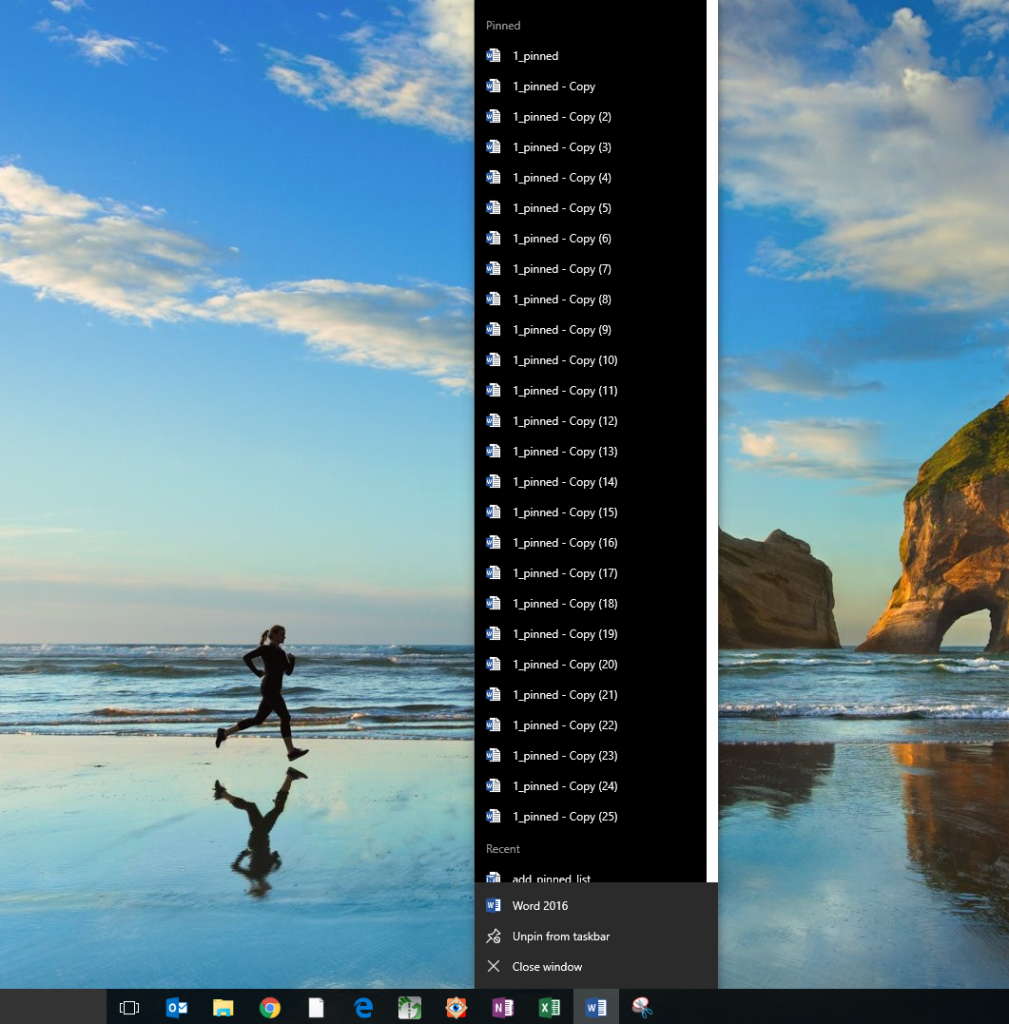
Figure A shows an example of the default jump list hanging off the Word icon in a typical Windows 10 Taskbar. Note that there are 26 copies of the example file, but only 12 are listed in the pinned section. This is despite the fact that I have actually pinned them all, which is why the Recent section is fully populated.

Figure A

addpinnedlist

To increase the number of pinned items displayed, we’ll have to change the maximum number of jump list items associated with a particular key in the Windows Registry file.

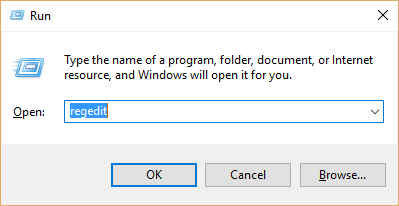
Press Windows key + R or right-click the Start Menu icon and navigate to the Run command to open the Run prompt (Figure B). Type regedit into the box and click OK.

Figure B

addpinnedlist1

Navigate to this set of keys in the Windows Registry:

HKEY_CURRENT_USER\SOFTWARE\Microsoft\Windows\CurrentVersion\Explorer\Advanced

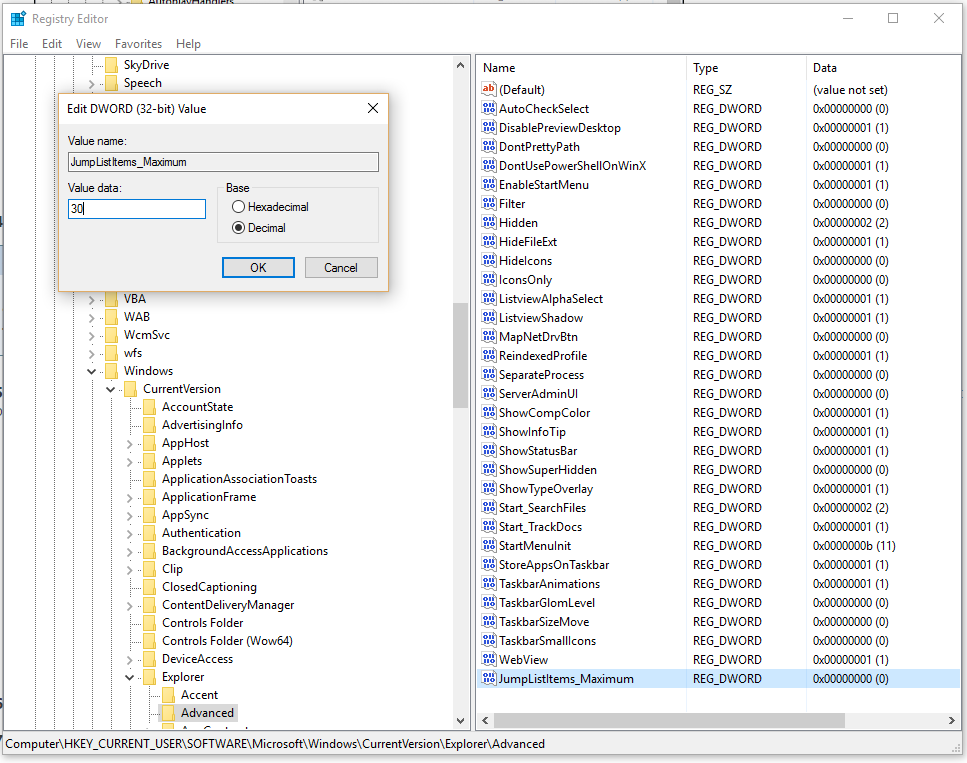
Look through the list in the right-hand pane until you find this DWORD: JumpListItems_Maximum

In case, the JumpListItems_Maximum DWORD is not there, create it.

Right-click the JumpListItems_Maximum DWORD and select Modify. Click the Decimal radio button and change the number to a value that works for you. As you can see in (Figure C).

Figure C

addpinnedlist2

To complete the change, you may need to restart your computer. You should now be able to see the number of pinned items you specified (Figure D).

Figure D

addpinnedlist4

Have questions?

Get answers from Microsofts Cloud Solutions Partner!
Call us at: 856-745-9990 or visit: https://southjerseytechies.net/

South Jersey Techies, LL C is a full Managed Web and Technology Services Company providing IT Services, Website Design ServicesServer SupportNetwork ConsultingInternet PhonesCloud Solutions Provider and much more. Contact for More Information.

To read this article in its entirety click here.

The best new features coming to Microsoft’s latest OS: Windows 10

Windows10

Microsoft continues to build out Windows 10 – with a bumper crop of new features announced at its Build conference last week.

These enhancements will be pushed to to Windows 10 users over the coming months, with many arriving in summer when the OS will get a major upgrade dubbed the Windows 10 Anniversary Edition.

Here are the key upgrades heading to Windows 10.

The write stuff

ink-SJTechies

Using a digital pen to write and scribble on the screen of Windows 10 PCs and tablets will get easier.

In a boost to devices that support such pens, such as the Microsoft’s Surface tablet, the OS’ new Windows Ink feature will allow users to jot down notes on the screen without unlocking the device.

Windows Ink will also allow users to write messages on sticky notes and, if appropriate, have them automatically translated into calendar appointments and reminders.

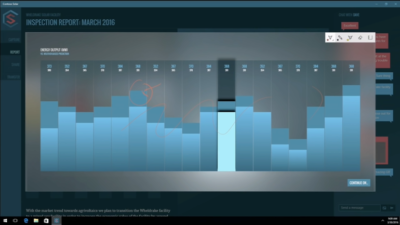
Support for Windows Ink in Microsoft Office, Maps, the Edge browser and other apps will allow users to draw, write and annotate using their pen. Windows Ink will make using the pen in Office more satisfying than it currently is, for example tidying up highlighted marks on documents so they neatly align with text.

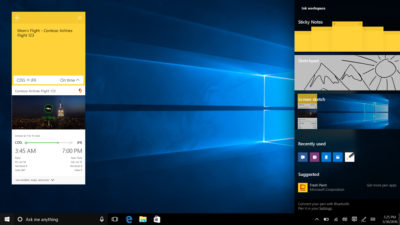
Windows 10 will also gain the Ink Workspace, a hub for launching apps that support writing and sketching using the Surface Pen.

Ink everywhere

win10-inking-SJTechies

Support for drawing, writing and annotating using digital pens will likely come to many apps.

Microsoft says that support for Microsoft Ink will be easily added to Universal Windows Platform apps, requiring just two lines of XAML code.

Digital ruler

win10-ruler-SJTechies

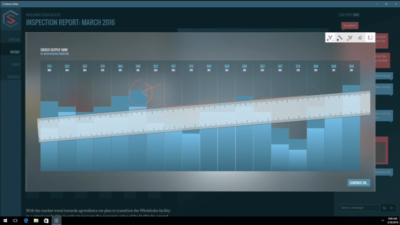
It sounds simple, but the new on-screen ruler should prove to be a useful addition for those who want to draw straight lines using a digital pen.

Smarter Cortana

cortana-SJTechies

The attraction of a virtual assistant is the simplicity with which they allow you to carry out tasks.

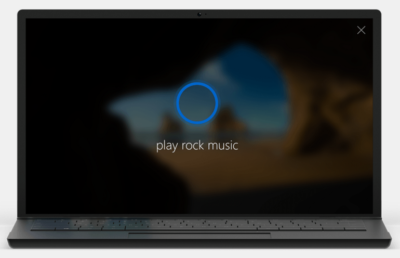
To ease the process of using Windows 10’s Cortana, the voice-controlled assistant will no longer require you to log into Windows, with users able to make a note, play music or set a reminder from the lock screen.

Cortana will also become more proactive and make suggestions based on a user’s past behaviour – offering to order lunch or to arrange transportation.

More apps will also be able to use Cortana to automatically complete tasks for users or to carry out actions based on context, such as the user’s current location or time of day.

Windows Hello comes to apps and the web

hello-SJTechies

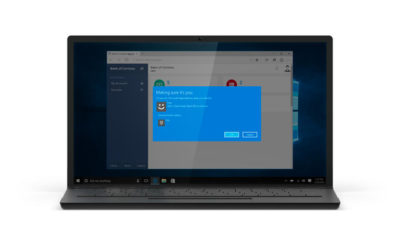
Windows 10 already lets you log into the OS using your face.

The anniversary edition will extend this biometric log-in to Windows apps and websites via Microsoft Edge. As with the OS, users will be able to authenticate their identity using a facial, iris or fingerprint scan.

Another new feature will allow users to unlock a PC running Windows 10 Enterprise Edition by tapping a Windows Hello-enabled phone, although Microsoft has said the feature will only be available on “select premium phones”.

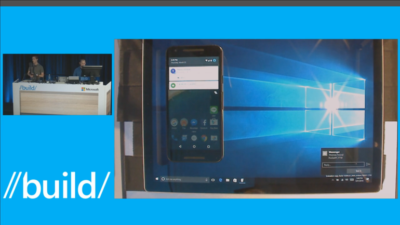
Android app notifications on Windows 10

android-SJTechies

In future, notifications on Android devices will be able to show on Windows 10 PCs.

Any notification popping up on the Android notification panel can, via the Cortana Android app, also appear as a notification on a linked Windows 10 desktop.

Microsoft demoed the ability at its recent Build conference for developers.

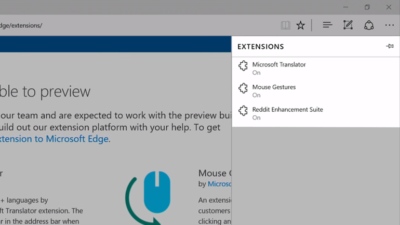
Browser extensions

extensions-SJTechies

Microsoft’s Edge browser will soon gain support for extensions.

Extensions are small programs that can be downloaded to add new functionality to a browser, and are already found in Chrome, Firefox and other browsers today.

Support for extensions has already been added to Edge for those testing pre-release builds of Windows 10 under the Insider program.

The first extensions to be supported by Edge are Microsoft Translator, an extension that automatically translates pages in over 50 different languages, an extension to augment mouse gestures support, and a preview version of the Reddit Enhancement Suite.

Microsoft promises more extensions will be added later this year, including AdBlock, LastPass and Evernote.

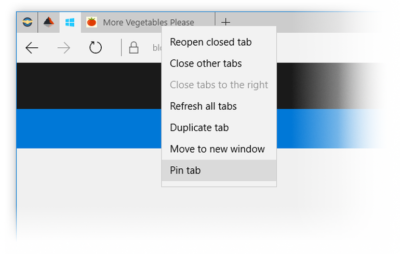
Pinned browser tabs

pinned-tabs-SJTechies

Microsoft is also adding to Edge the ability to pin your favorite sites and web apps so they always have a tab open in the browser.

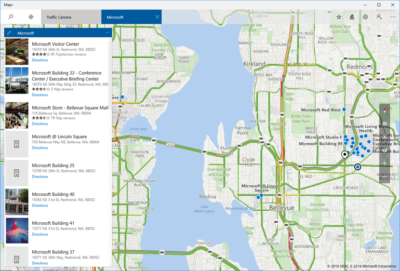
Updated Maps app

maps-app-pc-SJTechies

The Maps app has several new features, as well as UI and performance improvements.

Additions include one-tap access to search and directions, the ability to view multiple searches and directions at the same time, labels for search results on the map and turn-by-turn directions read by Cortana.

The improved app is available now to those testing Windows 10 under the Insider program.

Access Linux command-line tools in Windows

bash-win10-SJTechies

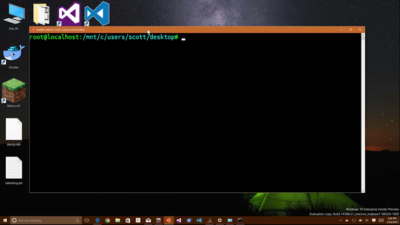
More one for developers, Microsoft is also bringing the ability to run the Bash shell to Windows.

The Bash shell is a command line interpreter that is available on many different Linux distributions, as well as Mac OS X.

The shell includes a host of tools that allow power users to carry out and orchestrate complex chains of commands.

Bash will be available via a Universal Windows Platform app, which will provide an image of the Linux distribution Ubuntu and run on the Windows 10 desktop.

Users will be able to use the Bash shell to download and install programs from the command line, as they do from inside Ubuntu. Microsoft says Ubuntu software will run as fast in the Windows app as it does natively, thanks to a software subsystem for handling Linux system calls.

Microsoft has described the app as offering a developer toolset. While it has access to the files on the Windows PC, the app only provides access to a command line — not a graphical desktop — and reportedly has limits on what it can be used for, such as not being able to run a server.

Have questions?

Get answers from Microsofts Cloud Solutions Partner!
Call us at: 856-745-9990 or visit: https://southjerseytechies.net/

South Jersey Techies, LL C is a full Managed Web and Technology Services Company providing IT Services, Website Design ServicesServer SupportNetwork ConsultingInternet PhonesCloud Solutions Provider and much more. Contact for More Information.

To read this article in its entirety click here.

Wi-Fi-enabled ‘Hello Barbie’ records conversations with kids and uses AI to talk back

Today, Mattel released Hello Barbie, a WiFi-enabled doll that detects language and ‘talks back.’ But how will this high-tech toy impact real-life relationships?

Hello-barbie

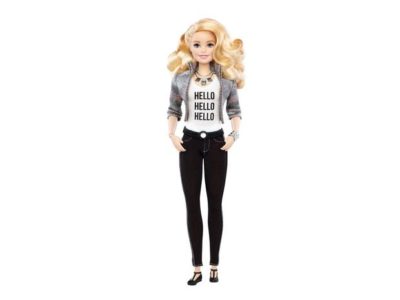
She wears black flats, a motorcycle jacket, and skinny jeans. Her curly, bleach-blonde hair falls just past her shoulders. She has a permanent smile and large blue eyes. And, when you talk to her, she listens.

But this young woman isn’t an ordinary friend. “Hello Barbie” is less than a foot tall, weighs just under two pounds, and is made of plastic. And she is on sale for $74.99.

Mattel’s latest Barbie, marketed for children six and up, has just hit the shelves. She is unlike any doll before her—not only does she listen, but she can talk back.

To get started, kids simply download the Hello Barbie companion app. And to turn her on, you push a button on her silver belt buckle. Hello Barbie’s necklace is both a recorder and a microphone. Using WiFi, the jewelry will pick up a child’s questions and conversations—and transmit them back to a control center for processing. Speech-recognition software, operated through ToyTalk, will detect the input. Then, Hello Barbie will reply, using one of 8,000 pre-programmed lines. Examples include:

  • You know, I really appreciate my friends who have a completely unique sense of style…like you!
  • Here’s what’s up: I’m worried my sister Stacie is having a hard time finishing her homework. Does that ever happen to you?
  • I think Santa is real. There’s something very magical about the holiday season and I think he helps bring that magic to all of us!
  • So if you were planning the biggest, raddest, most unforgettable party of the year, what would it be like?
  • Of course we’re friends! Actually, you’re one of my best friends. I feel like we could talk about anything!

Hello Barbie’s dialogue, while perky and fashion-focused, reflects an attempt by Mattel to create a more well-rounded character than in the past. In 1992, Mattel pulled its string-operated Teen Talk Barbie from shelves after being criticized by The American Association of University Women for the inclusion of an unfortunate line: “math class is tough.” It is no mistake that Hello Barbie’s lines includes: “Oh nice! Fun with numbers! Teaching math sounds like a lot of fun. What kinds of things would you teach—Counting? Addition? Subtraction?”

Still, the implication that Barbie is being sold as a ‘friend’ is unsettling. “Hello Barbie can interact uniquely with each child by holding conversations, playing games, sharing stories, and even telling jokes!” boasts Mattel’s website. Hello Barbie, claims Mattel, is “Just like a real friend. [She] listens and remembers the user’s likes and dislikes, giving everyone their own unique experience.”

But is she really listening?

While Barbie may appear to listen and respond, “pretend empathy is not empathy,” said Sherry Turkle, professor at MIT and author of Reclaiming Conversation. Turkle worries about how children will understand their new ‘friend.’

“They are drawn into thinking that pretend empathy is the real thing,” said Turkle. “But objects that have not known the arc of a human life have no empathy to give. We put our children in a compromised position.”

Beyond the social implications of the doll, the capabilities of the recording technology raise privacy issues.

Using Hello Barbie involves recording voice data (see the privacy policy here) and requires parental consent. However, Mattel states that “parents and guardians are in control of their child’s data and can manage this data through the ToyTalk account.” The company also states that the recordings are protected under the “Children’s Online Privacy Protection Act,” and recordings containing personal information will be deleted once they “become aware of it.”

Still, the potential for misuse of this private data is a legitimate concern. “Obviously it is a security and privacy nightmare,” said Roman Yampolskiy, director of the Cybersecurity Lab at the University of Louisville. “[The] company [is] collecting data from kids—hackers [could be] getting access to private info.”

However, like Turkle, Yampolskiy is “more concerned about social development of the children interacting with it.”

“We are basically running an experiment on our kids and have no idea if it will make them socially awkward, incapable of understanding body language, tone of voice and properly empathize with others,” he said.

It all raises the question of what is meant, exactly by ‘real’ conversation? Turkle said, “Why would we take such risks with something so delicate, so crucial: Our children’s ability to relate to each other as human beings?”

Despite concerns, Hello Barbie is here, being shipped to homes across the globe beginning today. She is being turned on, spoken to, and listened to. And when children are finished with her, she is shut down, stood on a charger (Hello Barbie cannot stand on her own) and charged back up.

When she is turned on again, Barbie might ask: “Did you miss me at all?”

“Not even an itsy bitsy, eensy weensy bit?”

How children will respond remains to be seen.

Mattel did not respond to repeated requests for comment for this story.

Have questions?

Get help from IT Experts/Microsofts Cloud Solutions Partner
Call us at: 856-745-9990 or visit: https://southjerseytechies.net/

South Jersey Techies, LLC is a full Managed Web and Technology Services Company providing IT Services, Website Design ServicesServer SupportNetwork ConsultingInternet PhonesCloud Solutions Provider and much more. Contact for More Information.

To read this article in its entirety click here.

The 18 scariest computer viruses of all time

virus


Anna Kournikova (2001)

The Anna Kournikova virus is so named because it tricked its recipients into thinking they were downloading a sexy picture of the tennis star. Financial damages associated with Kournikova were limited, but the virus had a big pop culture impact: It became a plot point in a 2002 episode of the sitcom Friends.

Sasser (2004)

In April 2004, Microsoft issued a patch for a vulnerability in Windows’ Local Security Authority Subsystem Service (LSASS). Shortly after, a teenager in Germany released the Sasser worm to exploit the vulnerability in unpatched machines. Multiple variants of Sasser took out airline, public transportation, and hospital networks, causing $18 billion in damage.

Skulls.A (2004)

The Skulls.A is a legitimately spooky mobile trojan that affected the Nokia 7610 smartphone and other SymbOS devices. The malware was designed to change all icons on infected phones to Jolly Rogers and disable all phone functions, save for making and receiving calls.

F-Secure says Skulls.A caused little damage, but the trojan is undeniably creepy.

Zeus (2009)

While many malware programs on this list are little more than nuisances, Zeus (AKA Zbot) was a tool used by a complex criminal enterprise.

The trojan uses phishing and keylogging to steal online banking credentials, draining a cumulative $70 million from the accounts of its victims.

Melissa (1999)

Named after a Florida stripper, the Melissa virus was designed to propagate by sending itself to the first 50 contacts in its victims’ e-mail Outlook address book. The attack was so successful that the virus infected 20 percent of the world’s computers, causing an estimated $80 million in damage.

Virus creator David L. Smith (shown) was caught by the FBI, served 20 months in jail, and paid a $5,000 fine.

Sircam (2001)

Like many early malware scripts, Sircam used social engineering to trick people into opening an email attachment.

The worm chooses a random Microsoft Office file on victims’ computers, infects it, and sends it to all the people in the victims’ email contact list. A University of Florida study pegged Sircam cleanup costs at $3 billion.

Stuxnet (2009)

Stuxnet is one of the first known viruses created for cyberwarfare. Created in a joint effort between Israel and the U.S., Stuxnet targeted nuclear enrichment systems in Iran.

Infected computers instructed nuclear centrifuges to physically spin until they broke, all while providing fake feedback that operations were normal.

SQL Slammer/Sapphire (2003)

Taking up just 376 bytes, the SQL Slammer worm packed a lot of destruction into a tiny package. The worm slowed down the Internet, disabled 911 call centers, took down 12,000 Bank of America ATMs, and caused much of South Korea to go offline. It also crashed the network at Ohio’s Davis-Besse nuclear power plant.

Storm Trojan (2007)

Storm Trojan is a particularly sinister piece of email-distributed malware that accounted for 8 percent of all global infections just three days after its January 2007 launch.

The trojan created a massive botnet of between 1 and 10 million computers, and because it was designed to change its packing code every 10 minutes, Storm Trojan proved incredibly resilient.

Code Red (2001)

The Code Red worm, named after the Mountain Dew flavor preferred by its creators, infected up to one-third of all Microsoft ISS web servers upon release.

It even took down whitehouse.gov, replacing its homepage with a “Hacked by Chinese!” message. Estimated damages due to Code Red were in the billions of dollars worldwide.

Nimda (2001)

Released just after the 9/11 attack, many thought the devastating Nimda worm had an Al Qaeda connection (never proven).

It spread via multiple vectors, bringing down banking networks, federal courts and other key computer systems. Cleanup costs for Nimda exceeded $500 million in the first few days alone.

ILOVEYOU (2000)

The ILOVEYOU worm, AKA Love Letter, disguised itself in email inboxes as a text file from an admirer.

But this Love Letter was anything but sweet: In May 2000, it quickly spread to 10 percent of all Internet-connected computers, leading the CIA to shut down its own email servers to prevent its further spread. Estimated damages were $15 billion.

Cryptolocker (2014)

Computers infected with Cryptolocker have important files on their hard drives encrypted and held at ransom. Those who pay approximately $300 in bitcoin to the hackers are given access to the encryption key; those who fail to pay have their data deleted forever.

Netsky (2004)

The Netsky worm, created by the same teen who made Sasser, made its way around the world by way of email attachments. The P variant of Netsky was the most widespread worm in the world even more than two years after its February 2004 launch.

Conficker (2008)

The Conficker worm (AKA Downup, Downadup, Kido), first detected in December 2008, was designed to disable infected computers’ anti-virus programs and block autoupdates that may otherwise remove it from computers.

Conficker quickly spread to numerous important computer networks, including those of the English, French, and German armed forces, causing $9 billion in damage.

Michaelangelo (1992)

The Michelangelo virus itself spread to relatively few computers and caused little real damage. But the concept of a computer virus set to “detonate” on March 6, 1992 caused a media-fueled mass hysteria, with many afraid to operate their PCs even on anniversaries of the date.

Sobig.F (2003)

The Sobig.F trojan infected an estimated 2 million PCs in 2003, grounding Air Canada flights and causing slowdowns across computer networks worldwide. This tricky bug-in-disguise cost $37.1 billion to clean up, making it one of the most expensive malware recovery efforts in history.

MyDoom (2004)

In September 2004, TechRepublic called MyDoom “the worst virus outbreak ever,” and it’s no surprise why. The worm increased the average page load time on the Internet by 50 percent, blocked infected computers’ access to anti-virus sites, and launched a denial-of-service attack on computing giant Microsoft.

The worldwide costs associated with cleanup of MyDoom is estimated to be just shy of $40 billion.

Have questions?

Get help from IT Experts/Microsofts Cloud Solutions Partner
Call us at: 856-745-9990 or visit: https://southjerseytechies.net/

South Jersey Techies, LLC is a full Managed Web and Technology Services Company providing IT Services, Website Design ServicesServer SupportNetwork ConsultingInternet PhonesCloud Solutions Provider and much more. Contact for More Information.

To read this article in its entirety click here.

Microsoft Snip brings Windows screenshots to life with voice and ink

Microsoft released a free app for capturing, annotating, and explaining screenshots.

Snip

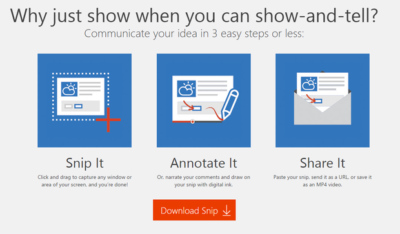
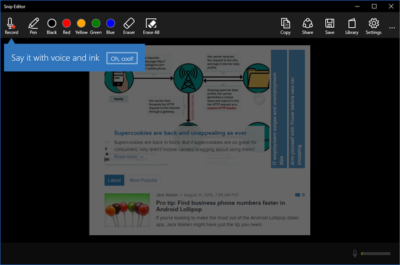
In late August 2015, Microsoft released a free screen capture and annotation application called Snip (Figure A). But the twist in the story is the fact that Snip is not part of some master strategic plan.

Figure A

Snip

Snip

While the name is a bit confusing, Snip is not the same thing as the improved Snipping Tool that comes free with Windows 10. The Snipping Tool will capture screenshots, but it does not have any annotation features.

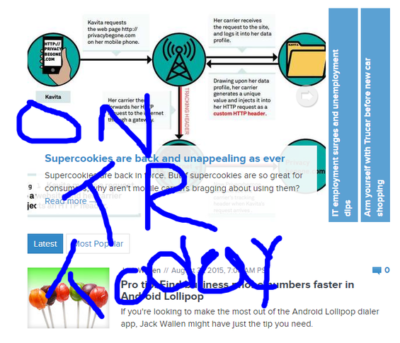
Snip, on the other hand, is a free tool developed through a Microsoft Garage project that allows users to capture screenshots and then annotate them (Figure B). With the Snip app, users can draw on their captured screenshots using a software pen, which is available in various colors and sizes.

Figure B

Snip

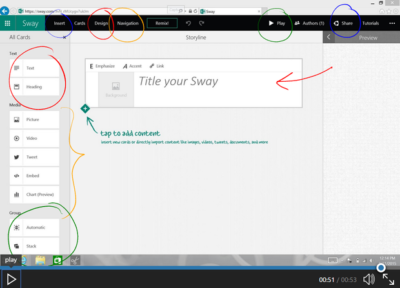
Snip can also record the annotation, and your vocal description of it, to create a short video that users can share as a URL or as an MP4 video (Figure C). These features make Snip very useful for creating and sharing short instructional videos.

Figure C

Snip

Cultural shift

The important thing to note about Snip is the way it was developed and released. Under the Garage program, Microsoft employees are encouraged to work on projects outside of their official duties. The idea is to create an environment where employees can experiment, innovate, and exercise their creativity.

Releasing an app like Snip in beta form to the general public indicates a shift in attitude when it comes to app development at Microsoft. Snip has been released without worrying about whether it will generate a revenue stream or ever make a profit. As far as I can tell, there are no expectations regarding Snip and how it fits into the overall corporate strategy.

Snip is just a nice little program that Microsoft thinks people will find useful, and they’d appreciate some feedback on how to make it even better. No promises, no expectations, no quid pro quo. Microsoft is trying hard not to be the stodgy old software company anymore.

Snip also fits in well with Microsoft’s major theme for Office 365, which postulates that a modern productive workforce needs better collaboration tools. When you consider recent app releases like Edge, Sway, and now Snip, you can begin to see where Microsoft is heading.

If you need to communicate an idea in a simple but effective way, Microsoft is saying it has the tool you seek. It would not  be a surprise if Snip become an integrated part of Office 365 in the near future.

Have questions?

Get answers from Microsofts Cloud Solutions Partner!
Call us at: 856-745-9990 or visit: https://southjerseytechies.net/

South Jersey Techies, LLC is a full Managed Web and Technology Services Company providing IT Services, Website Design ServicesServer SupportNetwork ConsultingInternet PhonesCloud Solutions Provider and much more. Contact for More Information.

To read this article in its entirety click here.

IBM Watson is coming to the iPhone, and that’s big news for business users

Last Tuesday, IBM announced it will be combining its enterprise iOS mobile apps with IBM Watson for better decision-making and productivity.

watson

IBM Watson may be coming soon to an enterprise iOS app near you, the company announced at the IBM World of Watson 2016 event on October 25. In a first-of-its-kind move, IBM MobileFirst for iOS apps can now integrate Watson technology to enhance decision-making, productivity, and the employee experience.

With Watson’s cognitive and conversational capabilities, these enterprise apps will be able to understand, reason, and learn using data analytics, according to a press release.

“Apple and IBM set out more than two years ago to define the enterprise mobility market, ensuring that professionals could finally enjoy at work the same experience they’d come to expect as consumers,” said Mahmoud Naghshineh, general manager, Apple partnership at IBM, in a press release. “We are taking that to a whole new level by combining the power of Watson with the new speech framework of iOS 10. The combinations and possibilities are virtually endless.”

Watson is available for both IBM MobileFirst for iOS apps, as well as custom-built iOS apps from IBM, and will allow business users to integrate APIs based on their needs. Users will also have the ability to control apps with speech. This feature could be especially helpful for positions such as field technicians, who can verbally interact with an app like Find & Fix—inputting schedule changes, notifying dispatch, asking questions and tapping Watson’s knowledge reserves—while repairing equipment, according to the release.

“IBM Natural Language Processing, Watson Conversation and other Watson APIs have been optimized to work with the new iOS 10 speech framework,” the press release stated. “The combination of Watson, iOS and IBM services allows the apps to support conversational interaction, bringing deep insight to the end user so they can make more informed decisions.”

The new capabilities will be delivered through IBM Cloud for easy integration into apps, even those that are already in use in a business, the release stated.

IBM offered the following examples of how enterprises might use apps integrated with Watson:

  • Flight attendants using the Passenger+ app enhanced with Watson can gain a deeper view into a traveler’s personality to deliver more personal and relevant customer care while inflight. For example, if the app reveals a passenger is a strong brand advocate with a strong social footprint, the airline may choose to prioritize his or her requests.
  • Retail sales associates using Sales Assist can access data across different resources—social media, customer databases and product forums—for deeper insights into a customer’s unique preferences as well as the latest purchasing trends and popular products to assist customers in choosing the right item.
  • Financial advisors using Trusted Advice with deep learning technology from Watson gain highly targeted search and trend analysis into market history and happenings to optimize the investment recommendations made to individual clients.

“This is a digital assistant for the business—one that creates the next-generation professional experience tailored for enterprise processes,” Naghshineh said in the press release.

The partnership with Watson furthers Apple’s recent moves to increase business appeal. In recent years, Apple has inked deals with IBM, Cisco, SAP, and Deloitte to integrate iOS devices into the enterprise.

IBM is perhaps Apple’s highest-profile corporate partner, representing the world’s largest enterprise Mac deployment, with over 90,000 Macs currently used by workers. The company recently reported that it is rolling out Macs to employees at a rate of 1,300 per week—putting it on track to cross the 100,000 machine mark by the end of the year, as Jason Hiner reported.

The IBM Watson iOS integration also demonstrates how important cognitive computing and AI will be to the future of mobile, with the rise of specialized AI assistants in a variety of industries, and the release of the Google Pixel phone, enabled with Google Assistant.

The 3 big takeaways for readers

  1. IBM Watson will now power enterprise iOS apps with its cognitive and speech capabilities, the company announced at the IBM World of Watson event on Tuesday.
  2. Tapping Watson’s information reserves and language capabilities could help professionals in a variety of fields increase productivity and decision-making, the company stated.
  3. Integrating Watson into enterprise iOS apps is another move by Apple to increase its business use, following previous app partnerships with IBM, Cisco, SAP, and Deloitte.

Have questions?

Get answers from Microsofts Cloud Solutions Partner!
Call us at: 856-745-9990 or visit: https://southjerseytechies.net/

South Jersey Techies, LL C is a full Managed Web and Technology Services Company providing IT ServicesWebsite Design ServicesServer SupportNetwork ConsultingInternet PhonesCloud Solutions Provider and much more. Contact for More Information.

To read this article in its entirety click here.

Use Windows 7 Event Viewer to track down issues that cause slower boot times

Here’s how to use some of the new features in Windows 7’s Event Viewer to investigate a slow boot time.
Overview

Windows 7’s Event Viewer includes a new category of event logs called Applications and Services Logs, which includes a whole host of subcategories that track key elements of the operating system. The majority of these subcategories contain an event log type called Operational that is designed to track events that can be used for analyzing and diagnosing problems. (Other event log types that can be found in these subcategories are Admin, Analytic, and Debug; however, describing them is beyond the scope of this article.)

Now, within the operating system section is a subcategory titled Diagnostic-Performance with an Operational log that contains a set of a Task Category called Boot Performance Monitoring. The Event IDs in this category are 100 through 110. By investigating all the Event ID 100 events, you will be able to find out exactly how long it took to boot up your system every time since the day you installed Windows 7. By investigating all the Event ID 101 thru 110 events, you will be able to identify all instances where boot time slowed down.

Getting started

You can find and launch Event Viewer by opening the Control Panel, accessing the System and Security category, selecting the Administrative Tools item, and double-clicking the Event Viewer icon. However, you can also simply click the Start button, type Event in the Start Search box, and press Enter once Event Viewer appears and the top of the results display.

Creating a Custom View

Once you have Event Viewer up and running, you can, of course, drill down through the Applications and Services Logs and locate the Diagnostic-Performance Operational log and begin manually looking through the events recorded in the log. However, you can save yourself time and energy by taking advantage of the new Custom View feature, which is essentially a filter that you can create and save.

To do so, pull down the Action menu and select the Create Custom View command. When you see the Create Custom View dialog box, leave the Logged option set at the default value of Any Time and select all the Event level check boxes. Next, select the By Log option button, if it is not already selected, and click the dropdown arrow. Then, drill down through the tree following the path: Applications and Services Logs | Microsoft | Windows | Diagnostics-Performance. When you open the Diagnostics-Performance branch, select the Operational check box, as shown in Figure A.

Figure A
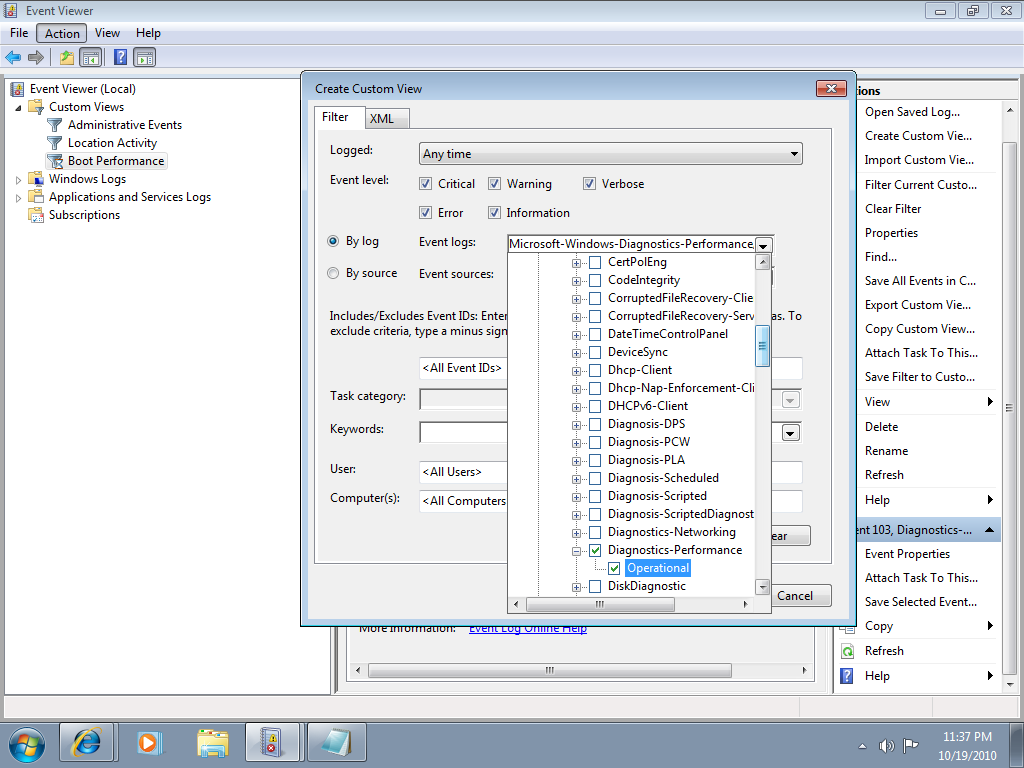
When you get to the Diagnostics-Performance branch, select the Operational check box.

To continue, type 100 in the Includes/Excludes Event IDs box, as shown in Figure B, and then click OK.

Figure B
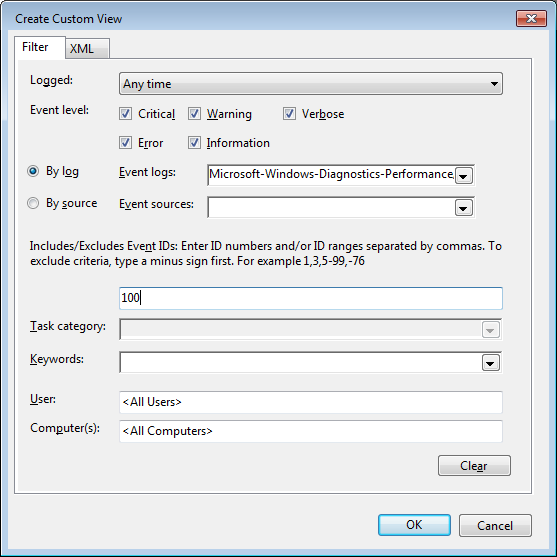
Event ID 100 records how long it takes to boot up your system.

When you see the Save Filter to Custom View dialog box, enter a name, as shown in Figure C, and click OK.

Figure C
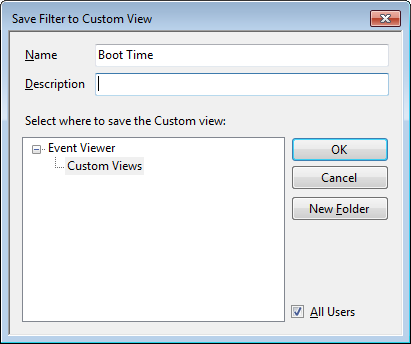
To save the filter as a Custom View, simply provide an appropriate name, such as Boot Time.

You’ll now repeat these steps and create another Custom View, and this time, you’ll type 101-110 in the Includes/Excludes Event IDs box and name it Boot Degradation.

Investigating Boot Time

To investigate your Windows 7 system’s boot time, select Boot Time in the Custom Views tree and then sort the Date and Time column in ascending order. When you do, you’ll see a complete history of every time you have booted your system since the day you installed Windows 7. In Figure D, you can see that we have hidden the Console Tree and the Action Pane to focus on the events.

Figure D
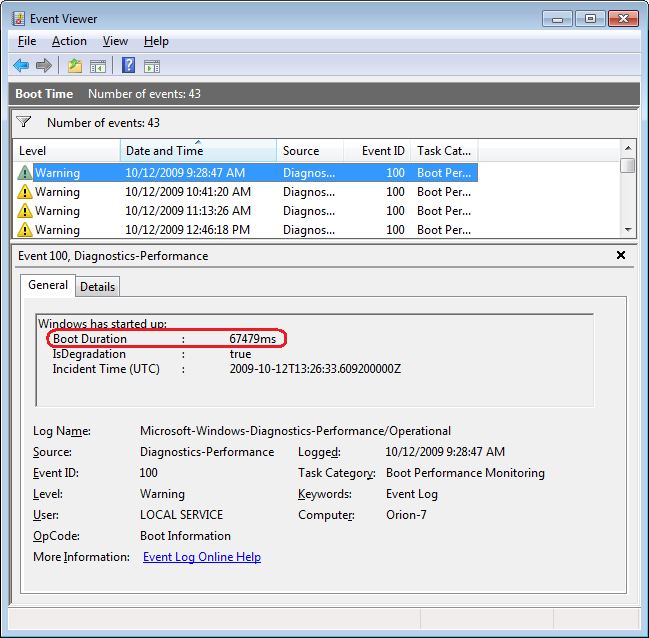
By sorting the Date and Time column in ascending order, you’ll see a complete history of every time you have booted your system since the day you installed Windows 7.

As you can see, the first recorded Boot Time on my sample system was 67479 milliseconds in October 2009. Dividing by 1,000 tells me that it took around 67 seconds to boot up. Of course, this was the first time, and a lot was going on right after installation. For example, drivers were being installed, startup programs were being initialized, and the SuperFetch cache was being built. By December 2009 the average boot time was around 37 seconds.

In any case, by using the Boot Time Custom View, you can scroll through every boot time recorded on your system. Of course, keep in mind that there will be normal occurrences that may lengthen the boot time, such as when updates, drivers, and software is installed.

Now, if you click the Details tab, you’ll see the entire boot process broken down in an incredible amount of detail, as shown in Figure E. (You can find more information about the boot process in the “Windows On/Off Transition Performance Analysis” white paper.) However, for the purposes of tracking the boot time, we can focus on just three of the values listed on the Details tab.

Figure E
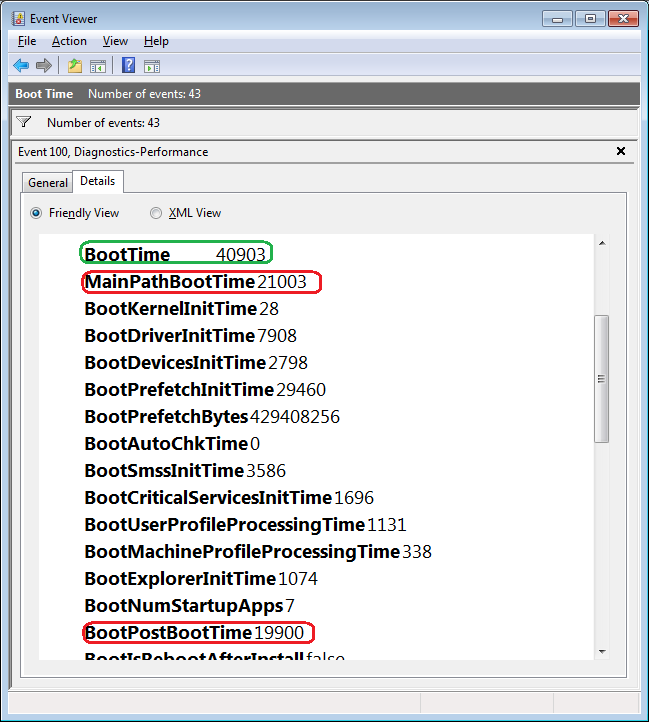
The Details tab contains an incredible amount of detail on the boot time.

MainPathBootTime

MainPathBootTime represents the amount of time that elapses between the time the animated Windows logo first appears on the screen and the time that the desktop appears. Keep in mind that even though the system is usable at this point, Windows is still working in the background loading low-priority tasks.

BootPostBootTime

BootPostBootTime represents the amount of time that elapses between the time that the desktop appears and the time that you can actually begin using the system.

BootTime

Of course, BootTime is the same value that on the General tab is called Boot Duration. This number is the sum of MainPathBootTime and BootPostBootTime. Something that we didn’t tell you before is that Microsoft indicates that your actual boot time is about 10 seconds less that the recorded BootTime. The reason is that it usually takes about 10 seconds for the system to reach an 80-percent idle measurement at which time the BootPostBootTime measurement is recorded.

Investigating Boot Degradation

To investigate instances that cause Windows 7 system’s boot time to slow down, select Boot Degradation in the Custom Views tree and then sort Event ID column in ascending order. Each Event ID, 101 through 110, represents a different type of situation that causes degradation of the boot time.

While there are ten different Event IDs here, not all of them occur on all systems and under all circumstances. As such, I’ll focus on the most common ones that we have encountered and explain some possible solutions.

Event ID 101

Event ID 101 indicates that an application took longer than usual to start up. This is typically the result of an update of some sort. As you can see in Figure F, the AVG Resident Shield Service took longer than usual to start up right after an update to the virus database. If you look at the details, you can see that it took about 15 seconds for the application to load (Total Time), and that is about 9 seconds longer than it normally takes (Degradation Time).

Figure F
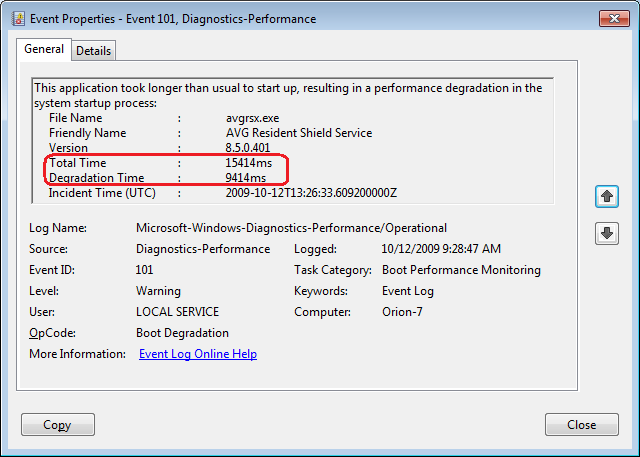
Event ID 101 indicates that an application took longer than usual to start up.

An occasional degradation is pretty normal; however, if you find that a particular application is being reported on a regular basis or has a large degradation time, chances are that there is a problem of some sort. As such, you may want to look for an updated version, uninstall and reinstall the application, uninstall and stop using the application, or maybe find an alternative.

(In the case of my friend’s Windows 7 system, there were several applications that were identified by Event ID 101 as the cause of his system slowdown. Uninstalling them was the solution, and he is currently seeking alternatives.)

Event ID 102

Event ID 102 indicates that a driver took longer to initialize. Again, this could be the result of an update. However, if it occurs regularly for a certain driver or has a large degradation time, you should definitely look in to a newer version of the driver. If a new version is not available, you should uninstall and reinstall the driver.

Event ID 103

Event ID 103 indicates that a service took longer than expected to start up, as shown in Figure G.

Figure G
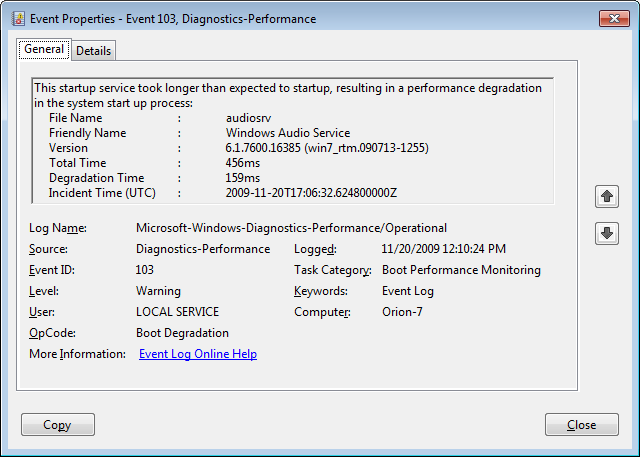
Event ID 103 indicates that a service took longer than expected to start up.

Services can occasionally take longer to start up, but they shouldn’t do so on a regular basis. If you encounter a service that is regularly having problems, you can go to the Services tool and experiment with changing the Startup type to Automatic (Delayed Start) or Manual.

Event ID 106

Event ID 106 indicates that a background optimization operation took longer to complete. On all the Windows 7 systems that we investigated, this event identified the BackgroundPrefetchTime as the culprit, as shown in Figure H. Since the Prefetch cache is a work in progress, this should not really represent a problem.

Figure H
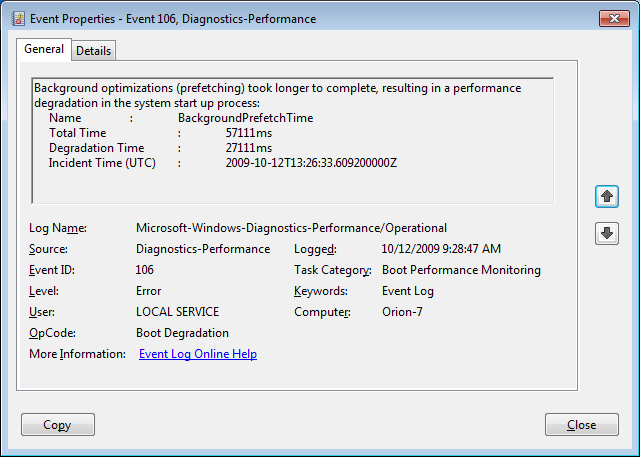
Event ID 106 indicates that a background optimization operation took longer to complete.

If you encounter regular or long degradation times related to Prefetch, you may want to investigate clearing this cache and allowing the operating system to rebuild it from scratch. However bear in mind that doing so can be tricky and instructions on doing so are beyond the scope of this article.

Event ID 109

Event ID 109 indicates that a device took longer to initialize. Again, if this is happening occasionally, there shouldn’t be anything to worry about. But if it is occurring regularly, you should make sure that you regularly back up your hard disk and begin investigating replacing the device in question.

Have questions?

Get answers from Microsofts Cloud Solutions Partner!
Call us at: 856-745-9990 or visit: https://southjerseytechies.net/

South Jersey Techies, LL C is a full Managed Web and Technology Services Company providing IT Services, Website Design ServicesServer SupportNetwork ConsultingInternet PhonesCloud Solutions Provider and much more. Contact for More Information.

To read this article in its entirety click here.

Modifying the Windows 7 boot loader with the Boot Configuration Data Editor tool

In Windows Vista and later versions of Windows, the bootloader was moved from boot.ini to a utility called BCDEdit. Here’s how to modify the boot config data with the new tool.

Sometimes dual-booting a system is a handy way to test new software, a new operating system, or an application that needs to be run in a specific version of Windows. Other reasons to dual-boot might include replication of a client environment.

Windows handles dual-booting by using boot.ini to display a menu of bootable choices or partitions found on the current system. In Windows Vista and later versions of Windows, the bootloader was moved from boot.ini to a utility called BCDEdit.

Recently, we decided we could make better use of some disk space that we had set aside to create a bootable VHD for Windows Server 2008 R2. There was no data other than the OS installation contained within the file because we had used it only to prepare a blog post about booting from Virtual Hard Disks. To free up the space, we deleted the VHD.

Note: Always make sure to back up any data that you want to keep before deleting or modifying partitions on VHDs. Your changes could make the partition unbootable.

Once we had the VHD removed, we thought Windows would be smart enough to clean up the boot loader, but we were not so lucky. We had Windows 7 set as the primary OS, so we were not without a system.

We started looking around for boot.ini and was directed toward the Boot Configuration Data Editor (BCDEdit) as the utility to use when editing boot loader information in Windows 7 (and in Vista too).

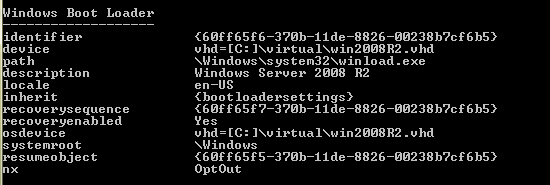
To begin, open the Start menu, select All Programs, and then choose Accessories. Right-click on Command Prompt and select Run As Administrator. Once in the command window, type bcdedit. This will return the current running configuration of your boot loader, showing any and all items that can boot on this system.

In this example, we decided to remove the entry for my Windows 2008 R2 installation, as we wouldn’t need it for the time being. To remove an entry, you will need to know the Boot Loader Identifier (found in curly braces in Figure A).

Figure A

we copied the whole list into Notepad and then selected and copied just the ID, braces included.

Removing an entry from the Boot Loader

One simple command got the Windows Server 2008 R2 entry out of the boot loader. At the command prompt, enter the following:

Bcdedit /delete {boot loader identifier}

Press Enter, and the Boot Configuration Data Editor (BCDEdit) will remove the entry for the ID you specified and display a message when finished. When Windows starts, the only choice available in the boot menu should be the current Windows installation.

Warning: Be careful when editing the boot configuration data. If you mistakenly remove the current instance of Windows, you may render your computer unbootable.

Have questions?

Get answers from Microsofts Cloud Solutions Partner!
Call us at: 856-745-9990 or visit: https://southjerseytechies.net/

South Jersey Techies, LL C is a full Managed Web and Technology Services Company providing IT Services, Website Design ServicesServer SupportNetwork ConsultingInternet PhonesCloud Solutions Provider and much more. Contact for More Information.

To read this article in its entirety click here.

CALL US NOW!