Back to Top

Tech, Web, Cloud & Cabling Services

How to Make a PowerPoint Countdown

Takeaway: Here’s a cool attention-grabber: a countdown to kick off your presentation or lead into a big announcement. Follow these easy steps or download our ready-to-use slides.

A quick countdown — 5, 4, 3, 2, 1 — can add a bit of excitement to the beginning of your presentation or to an announcement at any point in the presentation. Fortunately, it’s an easy effect to create. In 10 steps, you can add five slides that seem to act as one as they count down from 5 to 1. I’ve kept the graphic elements simple, so as not to distract from the technique. Entrance and exit effects and a simple transition work together to build this countdown. There are other ways to achieve the same result, but this method is the simplest. My instructions will apply to PowerPoint 2010, but I’ll supply alternative steps for PowerPoint 2007/2003 where applicable.

Note: This article and our sample countdown slides are available as a download.

1: Create the slide

Insert a new blank slide and set the background color, which should be a strong contrasting or complementary color to the number elements and the enclosing circle. I used a black background and a white circle and numbers in this example. Right-click the slide, choose Format Background (Background in PowerPoint 2003), click Fill in the left pane (skip this step in PowerPoint 2003), and choose Black from the Color drop-down, as shown in Figure A. Click Close (Apply in PowerPoint 2003) to return to the slide.

Figure A
This black background will contrast nicely to the white numbers we’ll add.

2: Add a circle AutoShape

Next, add a circle AutoShape by clicking the Insert tab and clicking the Shapes drop-down in the Illustrations group. Choose Oval in the Basic Shapes section. (In PowerPoint 2003, click Oval on the Drawing toolbar.) As you draw the circle, hold down the [Shift] key to draw a true circle. Make the circle almost as big as the slide and center it. Then, right-click the circle and choose Format Shape (AutoShape in PowerPoint 2003). In the Fill section, choose No Fill. In the Line section, select Solid Line and choose White from the Color drop-down. In the Line Style section, set the Width property to 5 points. Then, click Close to return to the slide.

3: Add 5

A text box will house the numbers in the countdown. Click the Insert tab and click Text Box in the Text group. (In PowerPoint 2003, choose Text Box from the Insert menu.) Draw the text box inside the circle. Enter a 5 and use the Font group on the Home tab to format the number as Arial, 300 point, and White. (In PowerPoint 2003, the font options are on the Formatting toolbar.) If you use a different font, you may need to adjust the font size. Center the text box in the circle.

4: Set the number’s entrance effect

Now you’re ready to add the entrance effect. Select the text box and click the Animations tab. Click Add Animation in the Advanced Animation group and choose Fade from the Entrance section. (In PowerPoint 2007, click Custom Animation in the Animations group. Then, in the Custom Animation pane, click Add Effect, choose Entrance, and select Fade. In PowerPoint 2003, choose Custom Animation from the Slide Show menu, click Add Effect, and choose Entrance and Fade.)

In the Timing group, change the Start property to With Previous. (In PowerPoint 2007/2003, click the Start drop-down and choose With Previous.) PowerPoint will display an animation tag with the number 0 next to the text box.

5: Set the number’s timing

The next step is to specify how long the number should be displayed. In the Timing group, set the Duration to 01.00. (In PowerPoint 2007/2003, choose Fast from the Speed drop-down.) At this point, your slide should resemble the one in Figure B.

Figure B
PowerPoint displays an animation tag next to the text box.

6: Set the number’s exit effect and timing

To set the number’s exit effect, select the text box and click the Animations tab. Click Add Animation and choose Fade from the Exit section. (In PowerPoint 2007, click Add Effect in the Custom Animation pane, then choose Exit and Fade. In PowerPoint 2003, choose Custom Animation from the Slide Show menu, click Add Effect, and choose Exit and Fade.)

In the Timing group, change the Start setting from On Click to After Previous and change the Duration setting to 01.00 second. (In PowerPoint 2007/2003, choose After Previous from the Start drop-down and Fast from the Speed drop-down.)

7: Add a transition

To add the transition, click the Transition tab. In the Advance Slide section of the Timing group, uncheck On Mouse Click and select After. Don’t change the setting though — leave it at 00:00:00. (In PowerPoint 2007, you’ll find the Advance Slide section at the right end of the Transition To This Slide tab. Select the On Mouse Click and Automatically After check boxes. In PowerPoint 2003, choose Slide Transition from the Slide Show menu. The default speed is Fast; you don’t need to change this, but you can.)

8: Make copies of your slide

Click the Slides pane if necessary (it’s the default) and select slide 1. Right-click the slide and choose Copy. Then, right-click the blank area and choose Keep Source Formatting from the Paste Special options. Repeat this three more times. You’ll have five slides. (In PowerPoint 2007, right-click the first slide in the Slides pane, and choose Duplicate Slide. In PowerPoint 2003, select the first slide and choose Duplicate Slide from the Insert menu.)

9: Change the digits

Now, change the 5 in each of the duplicate slides to the remaining countdown numbers — 4, 3, 2, and 1. When you finish, you’ll have five slides with the numbers 5, 4, 3, 2, 1, as shown in Figure C.

Figure C
The Slides pane shows your five countdown slides.

10: Run the presentation

To run the countdown, press [F5]. Each slide will transition into the next automatically. The current settings keep a constant flow of fading one number into the next. You might want to adjust the fade timing, making it a little faster or a little slower.


To read the original article in it’s entirety, Click Here

Top 10 Things to Love About Google Plus

Takeaway: Google+ includes several attention-grabbing items — like Circles, Google Takeout, and Sparks — but there are some great subtle features you should know about as well.

Have you heard about all the nifty things the new Google Plus social network can do? Of course you have. But have you dug around to see what’s really good beyond the headline items? Well we have, and we’ve brought back some small yet superb details to crow about.

1: Automatic photo uploading from your phone

At first, the Android app for Google+ seems like a nice way to check activity, post about how awesome it is to skip work for a ball game, and so on. But head into the app’s settings, enable Instant Upload, and the way you use your phone, and Google+, changes entirely. Everything you shoot is almost instantaneously synced to a private album in Google+. From there, it’s just one click to sharing the photo, but you’ll want to type out a sentence. Even if you don’t share your stuff, Google+ is basically freeing you from the need to find a cord, fire up a program, and monkey around with your phone storage — everything you shoot is in Google+, too. But you decide whether to put it out there.

2: Unlimited photo storage (pretty much) in Picasa

To make Google+ a place where people want to share their photos, among many, many competitors, Google had to pull out the big guns. In this case, those guns are server storage, something Google has more of than anybody else, by a good long shot. Google can offer almost unlimited photo storage in Picasa, so that photos smaller than 2048 by 2048 in pixels and videos less than 15 minutes long don’t “count” against your storage space. Shoot and shoot and share and shoot again, and Google just keeps smiling at your feeble attempts to take up space.

3: Quick, easy, undo-able photo editing, with I’m Feeling Lucky

Photo presentation in Google+ is a nice, content-forward experience, with a black backdrop and easy sharing or deletion. Even nicer is that Google threw a few of the most helpful photo filters and editing tools in there, too. Click the Actions button just underneath a photo, and you’ll get rotation tools — and more important, Edit Photo. A right-hand sidebar pops up with some Instagram-like filters: cross-process, Orton, and black-and-white. There’s auto-color and auto-contrast and the ever-helpful I’m Feeling Lucky button, which helps non-photo-nerds by applying the most common light and color corrections to your shots.

4: Profiles for better Google search results

Sensing some need to let actual people have a say over the machine math that produces search results, Google previously offered Google Profiles as a dedicated spot where you, the person, could have a say and show up in searches. But like the best advice about vegetables and tax receipts, Profiles weren’t widely adopted by the general user. As Google+ gains users, it’s making the Profile an essential tool in connecting to others and discovering interests, which in turn is causing users to more accurately and fully fill out their Profile. It’s a sweet syrup that helps us swallow the bitter bill of self-promotion, with the healthy result of having a say in what Google says about us.

5: Keyboard shortcuts, both built-in and add-on

Like most Google products, Google+ has a good built-in list of keyboard shortcuts that let you run through stream items, start a new post, and generally navigate the social realm without reaching for your mouse or moving your fingers onto the trackpad. If you want even more no-pointer-needed functionality, try the Google+ Manager for Firefox or Goo Plus Manager in Chrome.

6: Simultaneous YouTube video watching for groups

The group video chat Hangouts inside Google+ have received lots of attention and rave reviews, and for good reason. Hangouts are like group Skype chats, just with Google helping on the server side and with a more polite single-focus video window. But the part that gets less play is how everyone in the Hangout can see the same YouTube video at once, watching it in real time and commenting on specific moments (in text by default, but by voice if you’d like). That’s handy for training, presentation critiques, and other moments when you can’t all be around the same screen.

7: Drag-and-drop sharing

Technically, yes, you can grab links from other Web pages and drop them into Facebook or Twitter for sharing. But Google+ lets you snag photos, links, YouTube videos, and other items and just drag them into the sharing panel. You can even drag Web items into the Share box on that black Google toolbar we mentioned above for truly lazy content making.

8: The universal Google toolbar

Once you’ve activated Google+, nearly every Google Web service shows a kind of universal toolbar, black and seemingly bolted to the top of your viewing window. It provides universal notifications about new Google+ happenings in a little red number square, quick posting to your Google+ stream, and a quick click to see your profile. But it also somewhat normalizes the links to other Google services you’ll see (Gmail, Calendar, Documents, etc.) and provides a consistent feeling to Google’s Web services, a win/win for both the search giant and its most dedicated users.

9: Handy chat client to unburden Gmail

Google+ has the same kind of built-in Gmail/AIM chat window in its lower-left corner that Gmail offers. Gmail, which now does far more than it was originally built for (including free phone calls), could use some help lightening its loading time and memory bulk. So consider keeping Gmail for email and opening Google+ when you are available to be social.

10: Post-publish editing… Enough said

Inspiration comes a lot faster than clean, conscientious copy. On most social networks, that’s just too bad. Twitter and Facebook don’t let you clean up your words or remove photos — you have to delete your post entirely and destroy the comment or reply chain. Google+ provides a little arrow in the upper-right corner of all your posts that drops down to offer editing — as well as comment striking, turning off comments, and yes, post deletion if things really went the wrong way.

10 Reasons Windows 10 May Not Be Right

The end of Microsoft’s free Windows 10 upgrade offer is right around the corner. But while Windows 10 is great, there are valid reasons to reject it.

windows-7-to-windows-10

An offer you can refuse

The clock is ticking, folks. If you want to upgrade to Windows 10 for free, you only have until July 29, 2016 to do so. And most people should! Windows 10 is the best Windows yet, chock full of handy new features, sleek under-the-hood improvements, andheadache-killing extras.

But it’s not for everybody. There are some very real, very valid reasons not to upgrade to Windows 10.

If you’re on the fence about whether to accept or reject Microsoft’s freebie, read on for some concrete justifications for staying put.

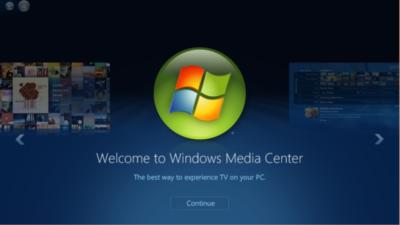
windows-media-center

No Windows Media Center or DVD support

Before we dig into the meatier stuff, let’s take a look at what you’ll potentially give up if you upgrade to Windows 10, starting with some robust media playback options.

Windows 10 kills Windows Media Center off completely, after Windows 8 pushed it into a dark corner. There’s a reason for that: Windows Media Center is fairly niche, and not a lot of people use it. But if you do, you won’t want to upgrade to Windows 10 unless you’re prepared to dive into alternatives like Kodi, Plex, and DVR workarounds.

Oh, and if you’re on Windows 7, be aware that Windows 10 doesn’t offer native DVD playback, though there are no-cost alternatives you can use.

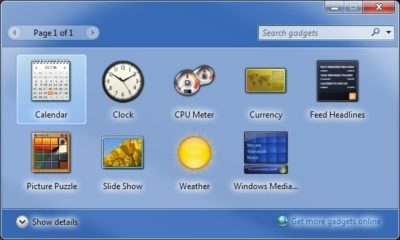
windows-gadgets

No desktop gadgets or widgets

Likewise, if you’re a big fan of Windows 7’s gadgets and widgets for the desktop, they aren’t available in Windows 10. Which is good, because they’re horribly insecure. Whether you choose to stay on Windows 7 or upgrade to Windows 10, you’d probably be better off using Rainmeter’s seriously slick interactive desktop software.

onedrive

No OneDrive placeholders

Windows 8.1 offered a handy feature for hardcore OneDrive users: placeholders. Placeholders showed everything stored in your OneDrive account in the Windows 8.1 file system, but only downloaded files to your PC when you opened them. It was a wonderful way to stay on top of your cloud-stored files without downloading all of them to every Windows device you logged into with your Microsoft account, especially if you’ve stashed dozens of gigabytes’ worth of stuff into OneDrive.

Unfortunately, users found it confusing, and Microsoft ripped placeholders out of Windows 10. There are hints that a similar feature may make an appearance someday, but it hasn’t yet, so if placeholders are a must-have feature for you, you’ll want to avoid upgrading to Windows 10. The new operating system’s less granular selective sync options just aren’t the same.

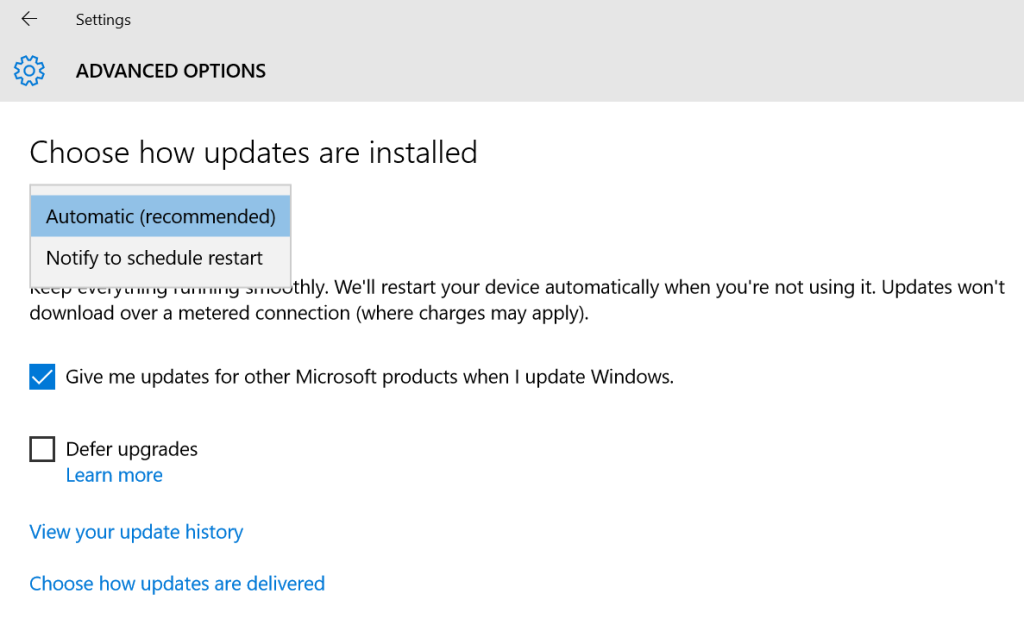
windows-10-updates

No control over Windows Updates

Aaaaaand here’s the biggie. Windows 10 utterly eradicates the ability to manually control your system updates. Windows 10 Pro will let you defer updates for a few months, but that’s the extent of it. If Microsoft pushes out an update, your system willinstall it eventually (though identifying your Wi-Fi connection as “metered” lets youchoose when updates download, at least).

This isn’t a big deal for people who stuck with Windows 7 and 8’s default Windows Update options, which downloaded patches automatically. But if you like to control your own update destiny, this could be a showstopper.

privacy

Privacy concerns

That segues nicely into another controversial Windows 10 “feature.” Microsoft’s new operating system tracks you far more closely than previous versions of Windows, especially if you use the express settings during the initial setup. The search bar utilizes Cortana, Windows 10’s digital assistant, and sends all your queries to Microsoft servers. Your Windows Store app usage is tracked for ad targeting. Windows 10 tracks your typing, location, Edge browser behavior, program installations and more.

It’s a lot. To be fair, a lot of the concern roaring around this is overblown; most of Windows 10’s potential privacy concerns can be disabled. But there’s no way to turn off some of the telemetry data Windows 10 collects about your system and beams back to the mothership. Microsoft executives don’t consider this a privacy issue. If you do, Windows 10 isn’t for you.

get-office-windows-10-pop-up

Ads and more ads

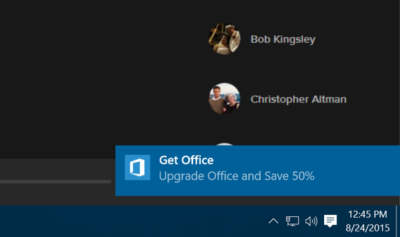
Windows 10 doesn’t only track your Windows Store app usage for improved ad targeting; it frequently pushes ads of its own at you. By default, you’ll see pop-up notification ads imploring you to get Skype or Office (even if you have Office), ads for suggested Windows Store apps slipped into your Start menu, and even occasional full-screen lockscreen ads for high-profile Windows Store releases.

I loathe the idea that my paid-for operating system—and yes, Windows 10 isn’t truly free—is pushing ads in my face. Fortunately, all of the offenders can be disabled. But doing so requires diving into arcane system settings located in different far-flung corners of the operating system.

 windows-10-full-screen-prompt

Microsoft’s aggressive upgrade tactics

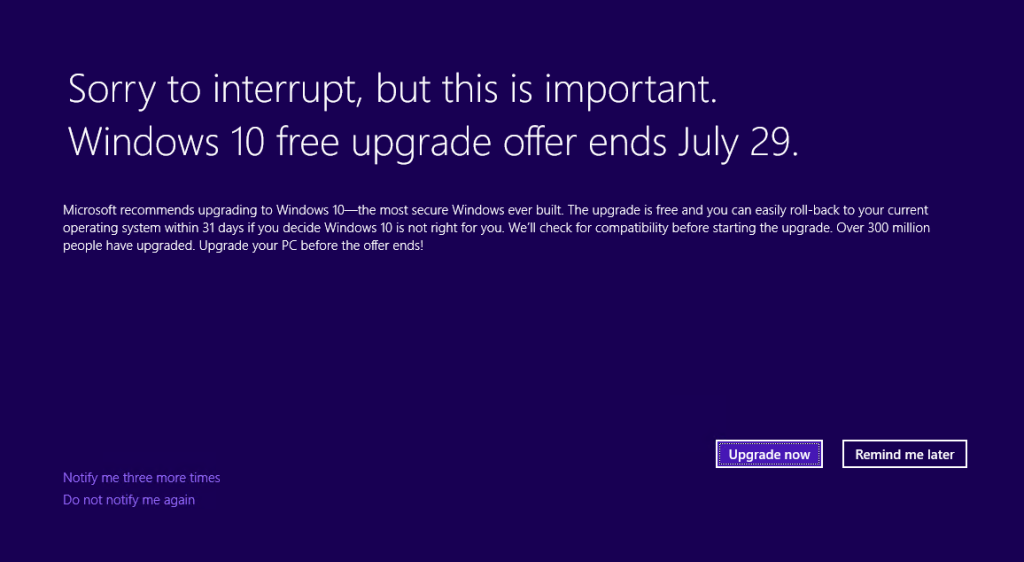
Microsoft’s been acting pretty shady in its aggressive quest to push Windows 7 and 8 users to Windows 10, employing unstoppable pop-ups, malware-like tactics, forced upgrades, intrusive full-screen takeovers, and nasty tricks to coax—and sometimes outright deceive—people into adopting the new OS. It eventually became so heavy-handed that some users have disabled Windows Updates entirely rather than suffer the barrage.

But you know that. If you’re still considering upgrading to Windows 10, you’ve lived through it.

None of that detracts from Windows 10’s underlying awesomeness. But it may have detracted from your desire to upgrade to Windows 10—and rightfully so. If you’re unhappy with Microsoft’s ethics and tactics in handling Windows 10 upgrades, you’re well within your rights to stay put where you’re at.

windows-xp-mode-windows-7

Software compatibility

In the wake of those forced upgrades, dozens and dozens of readers reached out to me with tales of woe, many revolving around software that simply doesn’t work with Windows 10. As my colleague Glenn Fleishman recently pointed out at Macworld, old software isn’t inherently bad software—but some of it won’t work in Windows 10.

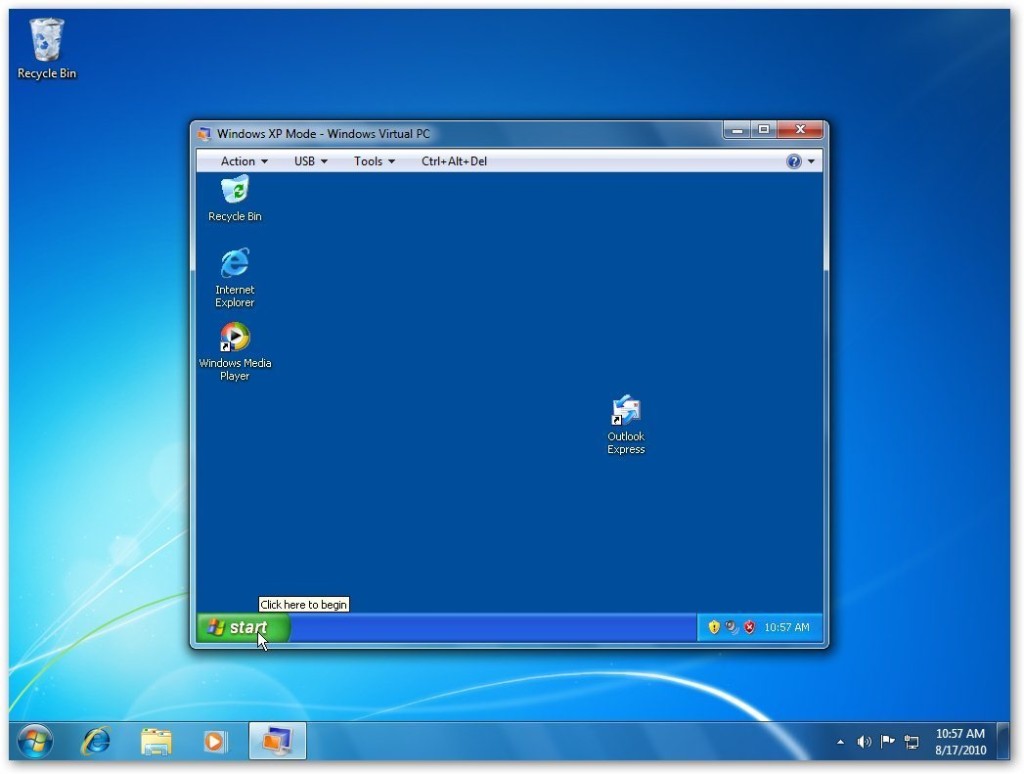
If you rely on particular pieces of software, do a quick Google search to make sure they’ll work in Windows 10 before you upgrade. Office 2003—the last pre-Ribbon UI Office—isn’t compatible, for instance, nor is software that requires the use of Windows 7’s “XP Mode” compatibility, which isn’t available in Windows 10. Microsoft’s upgrade advisor is supposed to let you know if any software won’t work with Windows 10, but users report that it isn’t very reliable. Doing some homework now could save you some big headaches in the future.

printers

Hardware compatibility

Similarly, you’ll want to make sure Windows 10 works with your PC, too. No matter whether you’re running Windows 7 or Windows 8.1, I’d recommend running Microsoft’s hardware compatibility tool to scan your system. To do so, open the Get Windows 10 app—the taskbar icon that’s been tossing out all the upgrade pop-ups—and click on the compatibility report option.

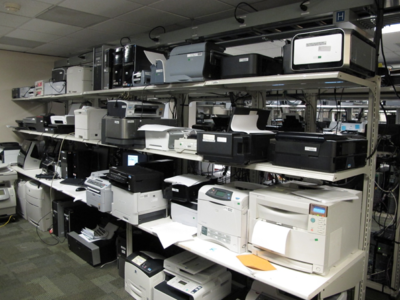
But wait! That’s not all. The tool only checks your core PC reliably. Some people who upgrade to Windows 10 discover that their hardware peripherals won’t work, particularly older printers and scanners. If you have any aging peripherals connected to your PC, be it a printer or a beloved keyboard, I’d again suggest conducting some quick Google searches to ensure your gear won’t become paperweights if you decide to upgrade.

 windows-10-samsung-laptop

Ain’t broke, don’t fix it

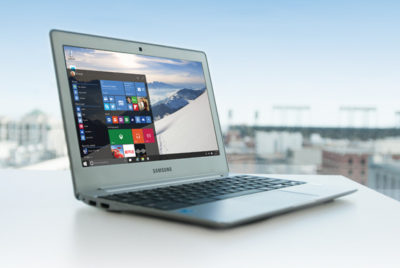
This final reason applies more to people who resist change or aren’t very technically savvy. Yes, Windows 10 is stellar and absolved Windows 8’s worst sins. Getting used to the new operating system shouldn’t be too difficult for many PC users—but the transition isn’t entirely seamless. From Cortana to the introduction of the Edge browser to the radically new-look Start menu, and Windows 10’s evolution into being a more cloud-centric operating system, there are some big changes you’ll need to wrap your head around.

Do Windows 10’s new features and under-the-hood improvements make upgrading worthwhile? I think so. But if you aren’t comfortable dealing with changes on your computer, you might want to stay put. I know several less technically inclined people who paid technicians to revert their PCs to Windows 7 after they couldn’t wrap their heads around Windows 10.

Conversely, if you’ve perfected your workflow on your current operating system and don’t see much benefit in marquee Windows 10 features such as Cortana, the Windows Store, DirectX 12, and virtual desktops, it may not be worth the hassle to switch over to Windows 10.

Have questions?

Get answers from Microsofts Cloud Solutions Partner!
Call us at: 856-745-9990 or visit: https://southjerseytechies.net/

South Jersey Techies, LL C is a full Managed Web and Technology Services Company providing IT Services, Website Design ServicesServer SupportNetwork ConsultingInternet PhonesCloud Solutions Provider and much more. Contact for More Information.

To read this article in its entirety click here.


Top 10 Benefits of Windows SBS 2011

Protect Your Data. Stay Connected. Save Time and Money.

Get ready to take your business to the next level. With Windows Small Business Server 2011 Standard (SBS 2011 Standard) you can get business done faster, be more productive, and stay better connected. For a greater business capacity and a new competitive edge, the time for upgrading to Windows Small Business Server 2011 Standard is now.

Top Ten Reasons to Upgrade

Enjoy updated component technologies, increased data protection, and new tools to help you grow your business capacity.

1. Get a Comprehensive, All-in-One Solution:

Get the newest releases of all the SBS 2011 Standard technology components that are designed to deliver an optimal experience for small businesses in an affordable all-in-one solution. The solution suite includes Windows Server® 2008 R2 technologies, Microsoft® Exchange Server 2010 SP1, Microsoft SharePoint® Foundation 2010, and Windows Software Update Services. Also, Premium Add-on includes Windows Server 2008 R2 Standard and Microsoft SQL Server 2008 R2 for Small Business.

2. Simplify IT Management:

Manage common IT tasks and address technology issues before they occur with a unified view of the health and security of your computers and servers in the network from one administrative console.

3. Run Line of Business Applications:

Get access to the large Windows Server 2008 R2 ecosystem of applications as the SBS 2011 Standard is built on Windows Server 2008 R2 code base.

4. Stay Connected to the Business:

Provide your users the freedom to securely access all of their communications—e-mail, voice mail, instant messaging, and more—from virtually any platform, Web-browser, or device to get more done wherever they are with the integrated Exchange Server 2010 and Microsoft Outlook® Web Access (OWA) capabilities.

5. Access Business Information from Virtually Anywhere, Anytime:

Get direct, secure access to your files, calendars, tasks, and contacts through any common browser, from virtually anywhere.

6. Built-in document collaboration:

SBS 2011 Standard features Microsoft SharePoint® Foundation Services 2010 – the newest version of Microsoft Windows SharePoint Services. It powers exciting new features and capabilities that help you collaborate securely online—no matter where you are.

7. Simplify IT Management:

Reduce the cost of deploying and maintaining your network with streamlined setup and deployment for both the server and clients

8. Easy Migration:

Easily migrate to the new platform with enhanced migration tools, extensive pre-migration checks, and prescriptive guidance.

9. Simplified Back-up for Business Data:

Help protect your vital business information from loss with automatic backups and recover accidentally deleted files in the event of disaster. With easy-to-use interfaces and backup capabilities, you or your IT consultant can gain better control of your data, PCs, and network.

10. Keep your Network Healthy and Up-to-Date:

Help ensure the health of your network and keep your PCs and servers current with easy-to-read “green check” reports that give you a quick view of PC and server status, antivirus status, Microsoft software updates, and backup progress.

10 Must-Have Purchases for SMBs

Saving-Money

Small and Medium-Size Businesses (SMBs) will often take shortcuts to cut costs when purchasing.  To avoid disasters such as a loss of data or work, SMBs are strongly suggested to focus on the ten points below.

Hardware

Considering the rapid change of technology requirements, a pro-active approach for replacing desktops, laptops, servers, and networking hardware is to look five years into the future.

Backup Software

Although built-in backup software and Windows Server backup are adequate, purchasing a third-party backup solution will have the ability to recover from an image.

Internet Connection

Providing your SMB with a consumer-grade DSL line would not be an efficient business plan. Setting up a network that provides your business with more bandwidth than required will prevent a network bottleneck from occuring.

Firewall

Securing your business with only Windows built-in firewall is not ideal.  Configuring a Cisco, Fortinet, or Sonicwall is more secure, reliable and flexible in a SMB environment.

Cloud Storage

Cloud storage provides scalability, reliability and portability.  Cloud storage is divided into three categories:  Infrastructure-as-a-Service (IaaS), Platform-as-a-Service (PaaS) and Software-as-a-Service (SaaS).  Many companies are transferring to Cloud services for access to data outside the network.

Website

Online presence has become an important key for all businesses.  A solid solution is to have a strong website, blogging and effectively using social media.

Redundancy

Redundancy is an appropriate investment towards ensuring that your SMBs network does not go down.  Similar to backups, redundancy does not affect everyday business but should an incident arise, you’ll be glad it’s there.

Support

IT Support is a necessity, whether it’s an in-house department, third-party service provider, or support for software.

Mobile Devices

The ability to work from outside the office and accessing data from anywhere  is now an important key for businesses.  Setting up a virtual private network enables laptops, tablets and smartphones to connect and work from anywhere.

Printers

Supply your SMB with a printer that has the sustainability and features required for business use.


10 Places To Recycle Your Cell Phone

EcoAtm

Here are 10 places to take your phones so they can be refurbished, reused, or recycled and diverted from the landfill.
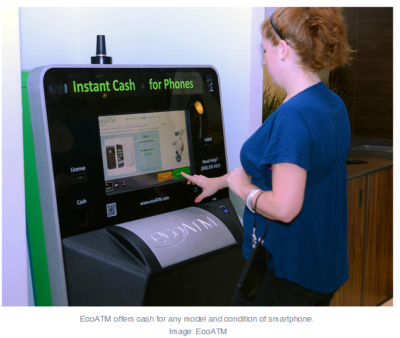
1. EcoATM

EcoATM is an automated kiosk that collects your unwanted cell phones and tablets and gives you cash for them. It’s made by the same people that make CoinStar, so you’ll find them by the checkout lines at various grocery store chains. It accepts devices from any era or in any condition, and offers anywhere between a few bucks to a few hundred dollars in return. EcoATM partners with R2 certified e-waste reclamation facilities to ensure they are recycled, or gives the phones a second life.

2. Eco-Cell

Eco-Cell is a Louisville, Kentucky-based e-waste recycling company. It partners with nonprofits and organizations such as the Jane Goodall Institute. Bins are located in coffee shops and other businesses around the country, where the collected phones are shipped to Eco-Cell in Louisville. If the phones are reusable, they resell them and pass some of the money back to the owner. If they are not reusable, the phones are recycled and the owner is paid the money for the value of the recycled materials.

3. Best Buy

Best Buy has recycling kiosks in their stores in the US, as well as recycling in-store for no charge to you. They typically limit it to three items per family, per day. From there, they work with recycling companies to make sure the phones and other electronics don’t end up in landfills.

4. Hope Phones

The Hope Phones campaign was started in 2009 by Medic Mobile, which works to advance health care in 16 countries by using mobile technology. Individuals, nonprofits, groups, or businesses can host a Hope Phones campaign to donate old phones. They are recycled and valued so the nonprofit can get new technology for the field. Most old models are valued at $5, but newer smartphones are regularly valued at $80, according to the website.

5. Cell Phones for Soldiers

Cell Phones for Soldiers is a nonprofit that works to provide cost-free communication services to active-duty military and veterans. New or gently used mobile phones are accepted and each device valued at $5 turns into 2.5 hours of free talk time for the soldiers.

6. Gazelle

Gazelle is one of the most popular trade-in options for old cell phones. The company is headquartered in Boston, with locations in Louisville, Kentucky and in Texas. Pick your brand, model, carrier, and plug in what kind of shape it’s in, then get an offer. Ship it for free, and receive a check or gift card to Amazon.com or PayPal after they check it out and make sure it’s worth what you say it is.

7. Call2Recycle

Call2Recyle  is a no-cost recycling program for batteries and cell phones in the US and Canada. It has collection boxes that can be placed anywhere, which have shipping permits so mailing them is easy. They also have bulk shipping if there is a large amount of recyclables.

8. Your carrier

AT&T has a trade-in program for unwanted phones and accessories regardless of manufacturer or carrier. The owner gets a “promotion card” which can then be used to take money off a new phone or other purchase. Make sure you erase all your information before you turn them in, though.

Verizon also offers a trade-in program where the owner can receive an electronic gift card once they send in the phone and have it appraised.

9. Local places

Your city undoubtedly has places to recycle old phones. Most local government websites, like New York’s, have directions of where to go to recycle phones. A lot of cities usually have nonprofits that donate old phones as well. The EPA also has an option to find out what electronics you can recycle with mail-in options.

10. Recycling for Charities

This nonprofit features one charity at a time, for which they donate money from recycling old phones. All makes and models are welcome at Recycling for Charities, and the phone condition is not an issue. They make an attempt to refurbish it first, then find recycling centers to ensure the materials won’t go into landfills if the phones cannot be reused.

These 10 services are well-researched and well-known options, but make sure to research on your own where your phone is going to make sure it is going to a certified e-waste recycler, so it doesn’t end up in a landfill despite your efforts.


10 New Security Products to Check Out

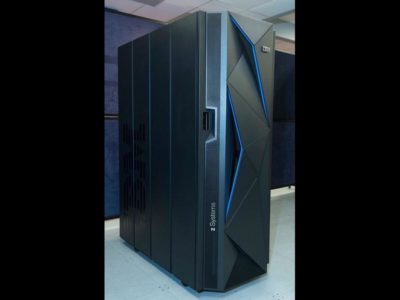
1. IBM z13s mainframeIBM z13s mainframe

Image: IBM

Security standards are constantly changing. Here are some of the latest software and hardware products to help keep your organization secure.
In February 2016, IBM announced the IBM z13s, a mainframe with cryptographic features built directly into the hardware. According to IBM it can decrypt at twice the speed of the generations before it.

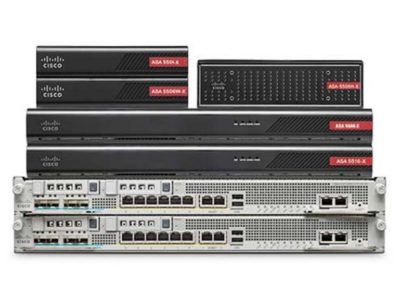
2. Cisco Firepower NGFW

Cisco Firepower NGFW

Image: Cisco

Cisco recently announced its Firepower series appliances with its next-generation firewall (NGFW) technology. There are 16 models in the series that include integrated NGIPS and advanced malware protection.
3. Illumio

Illumio

Image: Illumio

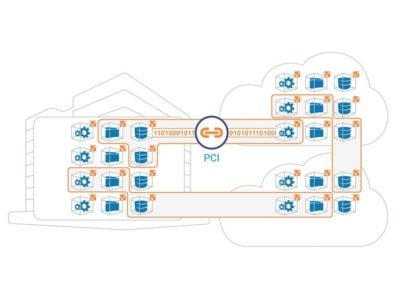
Illumio is a startup that provides adaptive security for the data center and cloud environments. The company recently achieved unicorn status as its value topped $1 billion, and it is consistently named a top enterprise security provider.

4. GOTPass

GOTPass

Image: University of Plymouth, H. Alsaiari, M. Papadaki, P. Dowland, and S. Furnell

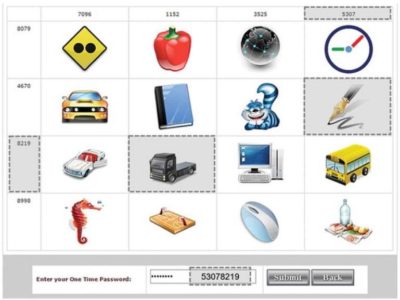
GOTPass is a graphical authentication system developed by researchers at the University of Plymouth. It uses images to authenticate instead of traditional passwords.

5. Skyport Systems SkySecure

Skyport Systems SkySecure

Image: Skyport Systems

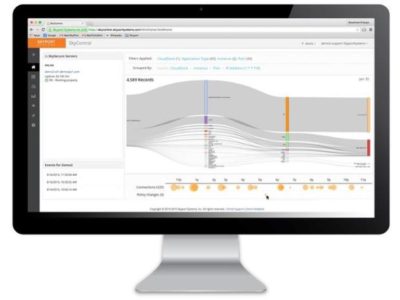
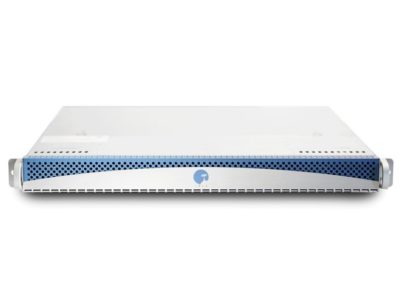
SkySecure is an out-of-the-box enterprise security solution to protect application workloads. The systems includes hardware, software, and management tools.

6. Spikes Security Isla

Spikes Security Isla

Image: Spikes Security

The Isla is an enterprise appliance that “isolates and eliminates all browser-borne malware.” It was launched in mid-2015, but it was independently certified as invulnerable to web malware exploits in early 2016.

7. Blackphone 2

Blackphone 2

Image: Zack Whittaker/CNET

The Blackphone by Silent Circle is an Android-powered smartphone with a built-in security center to lock down your data. The most recent iteration, the Blackphone 2, released late last year.

8. Imation IronKey Enterprise H350

Imation IronKey Enterprise H350

Image: Imation

The IronKey Enterprise H350 is a rugged, military-grade encrypted hard drive. It is available in multiple capacities and is FIPS 140-2 Level 3 certified.

9. Bitdefender Total Security 2016

Bitdefender Total Security 2016

Image: Bitdefender

For home users and small businesses, the Total Security 2016 by Bitdefender is a great option. It stacks up well against key competitors and includes device anti-theft features.

10. Qubes OS 3.1 rc2

Qubes OS 3.1 rc2

Image: Qubes

Qubes OS is a Linux-based, security-oriented OS that is focused on compartmentalization using VMs. It’s been around for a few years, but the latest version released in January 2016.

Have questions?

Get answers from Microsofts Cloud Solutions Partner!
Call us at: 856-745-9990 or visit: https://southjerseytechies.net/

South Jersey Techies, LL C is a full Managed Web and Technology Services Company providing IT Services, Website Design ServicesServer SupportNetwork ConsultingInternet PhonesCloud Solutions Provider and much more. Contact for More Information.

To read this article in its entirety click here.

10 Missing Features from Outlook 2013

Takeaway:  Ten popular features that are missing from Outlook 2013.
outlook

Right-click Lookup

Outlook 2013 does not include ‘Lookup’ when right-clicking a word.  This feature is still available:

            1. Open a new e-mail message.
            2. Click inside the message body.
            3. Select the Review tab.
            4. Select ‘Research’ in the Proofing section.
            5. Press [ALT] and select the word or phrase that you would like to look up.  Also, you can type the word or phrase in the ‘Search For:’ box.

Right-click AutoCorrect

Outlook 2013 does not include ‘AutoCorrect’ when right-clicking a word. This feature is still available but will have to be entered manually.  (Right-click Add to Dictionary is still available using a right-click.)

Import/Export Formats

Outlook 2013 only allows .pst (Outlook’s data file format) and comma-delimited data as import formats.  Previous versions allowed many file formats to be imported and exported.

Meeting Workspace

Outlook 2013 does not include Meeting Workplace.  Also, this feature cannot be added to the Quick Acces Toolbar.  Meeting Workplace was a website that supplied Attendees, Date, Time and Location for meetings.

Outlook Mobile Service

Outlook 2013 does not support Outlook Mobile Service (OMS).  OMS let you create and send text/multimedia messages to a mobile device from Outlook, similar to e-mail(s).

Windows Search

Windows 8 does not support using Windows Search to search Outlook e-mail. Previously, you could using Windows Search without opening Outlook to search for e-mail(s).

Calendar Publishing

Outlook 2013 does not support Calendar Publishing; the replacement is Office.com.  Microsoft cut service for previous versions on April 5, 2014.

Drag-and-Drop

Office 2013 does not support “dragging-and-dropping” e-mail(s) in the To-Do bar to create a calendar entry.  You can “drag-and-drop” an e-mail to a shortcut to create a calendar or task entry.

Notes and Journal

Office 2013 supports ‘Notes’ but ‘Journal’ is no longer available.

Suggested Contacts

Office 2013 does not support Suggested Contacts.  Suggested contacts gathers contacts that are not in your list and suggests them.


Top 10 Mechanical Keyboards for Work

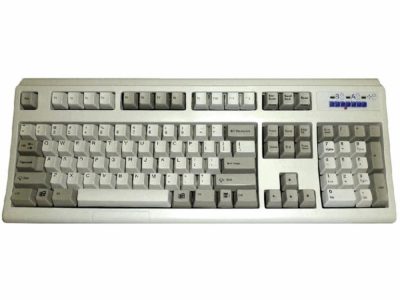
1. Unicomp Ultra Classic

unicomp-SJTechies

Mechanical keyboards started as a trend among PC gamers but have crossed over into the realm of developers and IT pros. Here are 10 models worth checking out.

Modeled after the grandaddy of all mechanical keyboards, the IBM Model M, the Unicomp Ultra Classic offers the same buckling spring design and a similar aesthetic (which makes sense because Unicomp bought the technology behind the Model M in the 1990s). If you want the reliability of a classic Model M, but don’t want to deal with decades of keyboard funk on a vintage model, go with the Unicomp. But, if you want the nostalgia factor, you can probably find an old Model M on eBay.

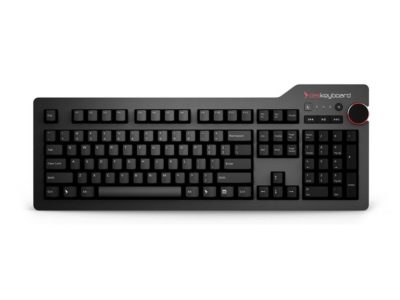
2. Das Keyboard 4 Professional

das-SJTechies

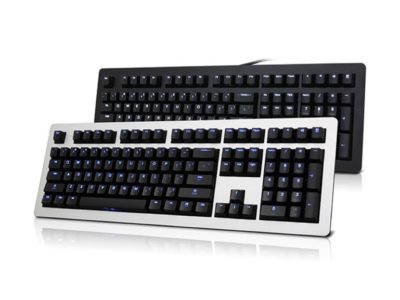
Known for its sleek designs and strong build quality, Das is one of the biggest names in mechanical keyboards. The Das Keyboard 4 Professional uses cherry MX switches with gold contacts, and has a design that would fit well in an office environment.

3. Ducky Legend

duckylegend-SJTechies

Ducky is better known for its Shine series of keyboards, but the aluminum case Legend would be more at home in an office setting. The keys are backlit by LEDs and users can choose which switches they want to use.

4. Logitech G710

logitech710-SJTechies

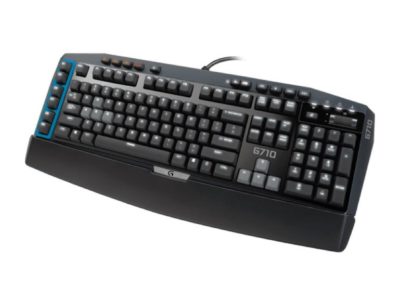
The G710 is a good middle-of-the-road selection from Logitech’s G series keyboards. The G710 uses Cherry MX blue switches for a good mechanical feel, but operates quietly so you won’t disturb your coworkers.

5. Kinesis Advantage

advantagekinesis-SJTechies

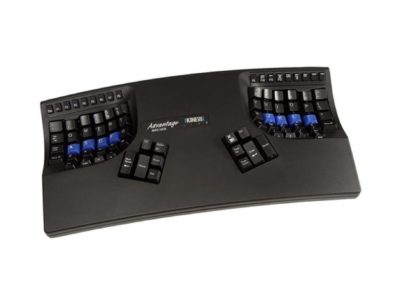
The Kinesis Advantage combines the tactile comfort of Cherry MX brown switches with the support of an ergonomic design. It’s a little on the pricey side, but it comes with a 60 day guarantee.

6. Ultimate Hacking Keyboard

uhk-SJTechies

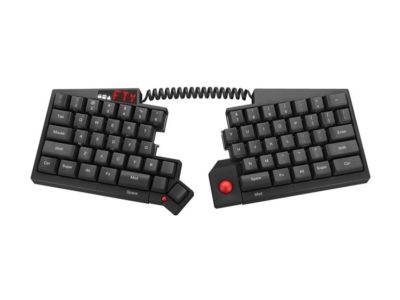
The Ultimate Hacking Keyboard bills itself as a split design mechanical keyboard for professionals. This keyboard uses Cherry MX switches and has additional modules that can be snapped into place to customize it.

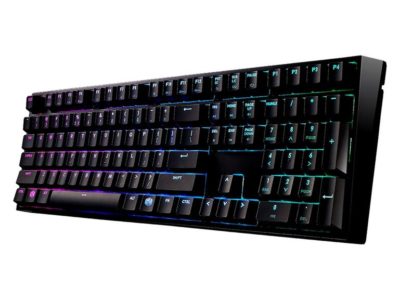
7. Cooler Master MasterKeys Pro L

coolermaster-SJTechies

If you’re after cool lighting options and good performance, consider the Cooler Master MasterKeys Pro L. This keyboard is powered by a ARM Cortex M3 processor and brings a minimal design.

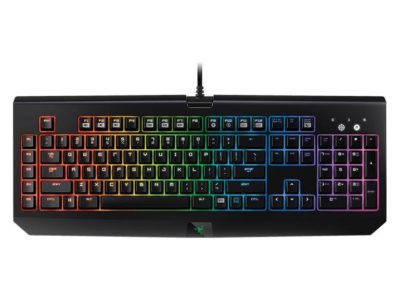
8. Razer BlackWidow

razerwidow-SJTechies

Razer is a big name in the gaming world and their BlackWidow is a mechanical keyboard built for gaming. It uses proprietary Razer switches and gold contact points, and offers lots of lighting options.

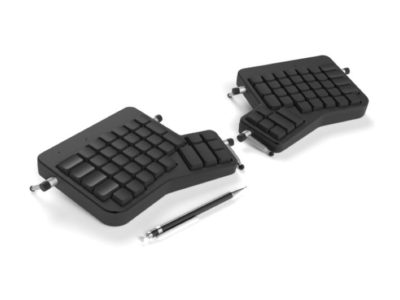
9. ErgoDox EZ

ergodox-SJTechies

ErgoDox initially made noise in the keyboard market with its ErgoDox kit that required a lot of assembly, including soldering all the points by hand. The ErgoDox EZ, however, is a ready-made kit based on an open source design that is a nice split design option.

10. CODE Mechanical Keyboard

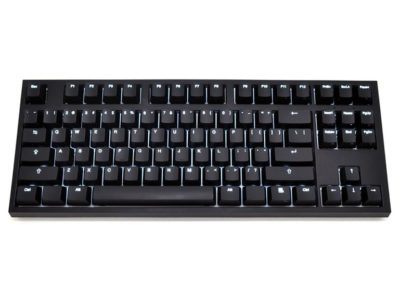
code-SJTechies

The CODE mechanical keyboard was designed with developers in mind. Using 6-Key USB rollover, it opens up many options for shortcuts.

Have questions?

Get answers from Microsofts Cloud Solutions Partner!
Call us at: 856-745-9990 or visit: https://southjerseytechies.net/

South Jersey Techies, LL C is a full Managed Web and Technology Services Company providing IT Services, Website Design ServicesServer SupportNetwork ConsultingInternet PhonesCloud Solutions Provider and much more. Contact for More Information.

To read this article in its entirety click here.

10 Enterprise Benefits of Windows 8.1

3

Windows 8.1 will be released on October 17, 2013, followed by a full launch on October 18, 2013.  Although Windows 8.1 is not a “new” operating system, the major updates created for 8.1 have made the upgrade more than a simple service pack.

Enterprise Benefits:

1.  Mobility

Windows 8.1 benefits a wider range of employees to include a combination of productivity and mobility.  IT can manage Windows 8.1 devices, such as desktops, laptops, and tablets, with a universal management client.

2.  Tablets

Enabled hardware for Windows 8  offers the option to have a standard operating system for enterprises, but allow individual users to select their device, such as desktops, laptops, and tablets, and have a consistent interface across these devices. 

3.  Application Development

Streamlining Windows 8.1 allow developers to design applications that can work across devices, such as desktops, laptops, tablets and smartphones.

4.  IT Support

To reduce the strain on IT resources for business mobility, standardizing on Windows 8.1 allows a majority of IT support to become simplified. 

5.  Total Savings

Standardizing on Windows 8.1 will reduce the cost for development, maintenance and support.  Also, reducing costs by eliminating licensing/support costs of a enterprise environment with varied devices.

6.  Restore Optimization

Windows 8.1 has the ability to restore factory settings for the operating system.  For all businesses, this is an advantage and a simple way to reduce costs and recover time for IT departments. 

7.  IT Operations

Windows 8.1 is a services pack for Windows 8 that includes new features, not just fixes.  Creating user documentation can be streamlined for Windows 8.1 for all applications.  Additionally, future service packs will follow in the footsteps of Windows 8.1 to include new features; then IT departments can frequently provide updates to user documentation.

8.  Reduced Confusion

To reduce user confusion, after a user joins to Windows Intune Management Service the user gains access to the Company Portal.  The company portal has access to the applications, data, and device settings.  Also, users can troubleshoot their own devices using the service desk self-help portal.

9.  Security

Microsoft is enhancing security with Windows 8.1 with Remote Business Data Removal and the new Internet Explorer.  Remote Business Data Removal provides control over encrypted data that can be wiped from any device.  The new Internet Explorer has Anti-Malware included to scan binary extensions to prevent infections.

10.  Education

Windows 8.1 offers an evaluation of current infrastructure, how to execute migrations plans and ways to educate users on how to use the new version.  Microsoft ends support for Windows XP on April 8, 2014, business should consider the option of upgrading to Windows 8.1. 

For more information regarding Windows 8.1 click here.


CALL US NOW!