Back to Top

Tech, Web, Cloud & Cabling Services

Author Archives: Website Admin

Uninstall now! Apple abandons QuickTime for Windows despite lingering critical flaws

Apple is giving up on QuickTime for Windows.

Yet another program is joining Java 6 and Windows XP as big-name software you do not want running on your PC. Security firmTrend Micro and the U.S. Department of Homeland Security are advising all Windows users to uninstall Apple’s QuickTime as soon as possible. (The advisory does not affect Mac users.)

The reason for getting rid of QuickTime for Windows is twofold. First, Apple told Trend Micro it is deprecating the software and will no longer deliver security updates for it. Second, there are two known critical vulnerabilities that could allow an attacker to take control of a system running QuickTime.

That’s a hellacious combo.

Apple was unavailable for comment at this writing, but a quick look at QuickTime’s download page shows the software is still publicly available. It hasn’t been updated since at least January, however.

Trend Micro says it does not yet know of any instances where the two potential security threats are being used in the wild but that could change. Trend Micro’s Zero Day Initiative recently published some technical details about the vulnerabilities. ZDI did this because its disclosure policy requires it to publish threat information when a “vendor indicates that the product is deprecated,” and thus won’t be patched.

If you’re a longtime user of iTunes you may be running QuickTime. To dump the program, open the Control Panel on your PC and then from the “category” view go to Programs > Uninstall a program. Once the list of installed programs populates, scroll down until you find QuickTime. Select it with your mouse, and then click Uninstall towards the top of the window. A pop-up window will then appear asking to confirm that you want to uninstall the program. Click Yes and you’ll be QuickTime-free in no time.

A survey published by Secunia Research in late 2015 found that Apple software is among the programs that are updated the least often by Windows users.

Why this matters: Whenever software is about to be abandoned it’s always a good idea to move away from it—or at least start planning to. That goes double for software with known flaws that allow the bad guys to execute code on your machine. QuickTime used to be an important piece of software for Windows users. But these days you don’t need it to watch movie trailers on Apple’s site and it’s no longer used by iTunes to play media on Windows. There’s little reason for the vast majority of Windows users to keep QuickTime on their PCs.

Have questions?

Get answers from Microsofts Cloud Solutions Partner!
Call us at: 856-745-9990 or visit: https://southjerseytechies.net/

South Jersey Techies, LL C is a full Managed Web and Technology Services Company providing IT Services, Website Design ServicesServer SupportNetwork ConsultingInternet PhonesCloud Solutions Provider and much more. Contact for More Information.

To read this article in its entirety click here.

What’s new (and still to come) in Microsoft’s Office 2016 for Windows

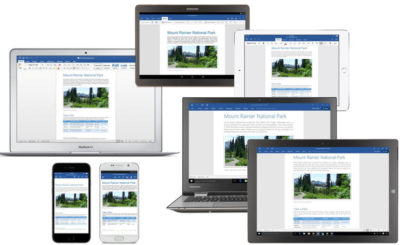
Microsoft’s Office 2016 suite for Windows 7, 8 and 10 PCs and tablets is available since September 22, 2015. Here’s what’s new and what’s still to come for Office users.


Microsoft made a first public preview of the suite — which runs on Windows 7, Windows 8 and Windows 10 PCs and laptops — back in March of 2015. Testers had been working with private previews of the suite since 2014.

The full Office for Windows 2016 suite includes new versions of Word, Excel, PowerPoint, OneNote, Outlook, Project, Visio and Access.

There are not a lot of major new features in this release. Microsoft’s main focus with the new version of Office for Windows has been on adding team-collaboration functionality. Among some of the new features in the suite are coauthoring for Word, PowerPoint and OneNote; real-time typing in Word; new integrated Power BI publishing functionality in Excel; and updated search and navigational capabilities in Outlook.

Users who subscribe via Office 365 consumer and/or business plans which include rights to the Office apps also get will get additional, supplemental services and features, including Microsoft’s Sway digital-storytelling app/service; new Office 365 Groups functionality; and more.

As is the case with Windows 10, Microsoft is planning to fill out some of the partially baked Office 2016 features in the suite with regular updates in the coming months. Microsoft is still working on improving and syncing its OneDrive online-storage service. The promised new sync clients for Windows and Mac are due later this year. Built-in coauthoring for the other Office 2016 apps beyond Word is also still in the works. And Enterprise Data Protection, a security feature that Microsoft has promised for Windows 10, also will be coming for Office 2016 for Windows in early 2016, and the Office Mobile apps later this year, company officials said.

Starting with the Office 2016 for Windows release, Microsoft is moving to a new servicing model for Office 365 which is similar to the one it has put in place for Windows 10, with different servicing “branches” providing users with new Office features and fixes on a regular basis.

While on the subject of dates, here’s what Microsoft officials are saying in terms of availability for Office 2016 for Windows (and other related Office apps and services).

The Office 2016 apps are available in 40 languages starting today. Office 365 Office 2016subscribers can choose to download manually the new Office 2016 apps as part of their subscription starting today. Automatic updates of the Office 2016 apps will begin rolling out to consumer and small business subscribers in October 2015, and to commercial customers early next year. Office 2016 is also available today as a one-time purchase for both PCs and Macs.

Update:

A Microsoft spokesperson said MSDN subscribers will have access to both Office 2016 for Mac and Windows today, starting at about 9 am PT/noon ET. Volume Licensing Service Center (VLSC) availability for Office 2016 for Windows will be October 1. (VLSC customers got Office 2016 for Mac in August.)

Office 365 Planner, the lightweight project-management service (formerly codenamed “Highlander”), which Microsoft is building into its Office 365 business subscriptions, will be available in preview to Office 365 First Release customers starting next quarter. And GigJam — a new task-completion service which Microsoft demonstrated earlier this summer — is in private preview as of today, and will be available to Office 365 business subscribers in 2016.

Office 2016 for Windows and Office 2016 for Mac are Microsoft’s two fully-featured Office desktop suites. The company also offers a variety of universal’ and/or mobile Office mobile apps for iPhones, iPads, Android phones and tablets, Windows Phones and Windows PCs and tablets.

Have questions?

Get help from IT Experts/Microsofts Cloud Solutions Partner
Call us at: 856-745-9990 or visit: https://southjerseytechies.net/

South Jersey Techies, LLC is a full Managed Web and Technology Services Company providing IT Services, Website Design ServicesServer SupportNetwork ConsultingInternet PhonesCloud Solutions Provider and much more. Contact for More Information.

To read this article in its entirety click here.


Create Your Own Online Web Store

Everything you need to open your own online store.

You don’t need technical skills to build a successful Web store. Quick Shopping Cart makes it easy to create an eye-catching store that accepts credit cards, integrates with Google® and eBay® and offers multiple shipping options – all with no set-up fees!

Powerful features that are there when you need them.

Quick Shopping Cart makes it easy for anyone to build an online web store, but it also has a rich collection of advanced features that allow you to enhance, manage and promote your store.

Easy, Flexible Web Store Design:

  • Select from over 1,500 design and color combinations, 14 Category page styles and 11 Product Detail page styles.
  • Personalize with your logo, brand and product images.
  • Make changes easily with click-&-type editing.
  • Easily customize navigation to integrate your store with your main Website.
  • Add impact to your shopping cart with royalty-free photos from Fotolia®. All plans include 10 free download credits.

Simple Catalog Set Up:

  • Navigate quickly and easily with a step-by-step Store Setup wizard.
  • Specify product details, including SKU, description, pricing, options and inventory tracking.
  • Add and manage product images, including enlargements. Deluxe and Premium plans support up to five images per product.
  • Configure your product search options.
  • Create nested categories to help your customers browse through your catalog.

Multiple Payment & Shipping Options:

  • Accept all major credit cards through FrontStream Payments®, Intuit® Authorize.net®, Innovative Merchant Solutions®, PayPal Express Checkout, PayPal Website Payments Pro, PayPay Website Payments Standard.
  • Pay no setup or percentage-of-sales fees.2
  • Get real-time U.S. and international shipping rate quotes from UPS, FedEx and the USPS – or create your own custom shipping rate table.
  • Use built-in shipping and tax calculators.

Coupons, up-sells & Featured Products:

  • Showcase featured products in your sidebar navigation. Specify multiple products for a rotating display.
  • Create product cross-sells and up-sells that suggest related products (ie: “You may also like…”).
  • Create coupon codes for an amount-off, percent-off or free shipping. Coupons can also require a minimum purchase amount.
  • Create product bundles with special discounts.

Market your Online Store:

  • Increase the visibility of your online store with search engine-friendly page URLs.
  • Track the response of your marketing campaigns with auto-generated links that include your promotional code.
  • Easily add your products to Google® Product Search and eBay®.

Manage your Orders & Customer:

  • See new orders, inventory status and member activity at a glance.
  • Search and filter orders and export information to a Microsoft® Excel file.
  • Capture credit card payments, enter shipping and tracking information and print shipping labels.
  • Receive email notification for orders.
  • Track product inventory and set minimum thresholds.

Hosting & Security:

  • FREE web hosting with guaranteed 99.9% network uptime.
  • Phone and online support.
  • SSL Certificate enabled to securely process credit cards.
  • PCI compliance verified by independent auditor.
  • Fraud Module
  • Offer easy and secure customer login and checkout.

Integrate your Store:

  • WebSite Tonight: Combine your store with a content-rich website using one of more than 200 common designs.
  • eBay: Quick Shopping Cart is a certified eBay listing tool.
  • Google Product Search: Help customers find your products online.
  • Microsoft Excel: Import and export data with ease.
  • Atandra T-HUB: Integrate with QuickBooks, UPS, USPS, and FedEx with T-HUB multi-channel order manager.

All Plans Include:

  • 1,500+ quick-start design and color combinations
  • Fast and easy setup
  • No set-up or per-sale fees
  • Accept credit cards, PayPal Express® or phone orders
  • UPS®, USPS®, and FedEx® shipping with real-time rates
  • Add your products to eBay and Google Product Search
  • FREE web hosting with guaranteed 99.9% network uptime!
  • Phone, email and Web support

Call (888) 505-1532 to get started now

New Website Design – Cumberland, Gloucester & Salem Family Support Organization

The Website Design team of South Jersey Techies has been constantly working on developing great looking websites using the latest web technologies. The most recent website developed by our team is for Cumberland, Gloucester & Salem Family Support Organization  . The Family Support Organization (FSO) of Cumberland, Gloucester, and Salem Counties has been a beacon of hope and assistance for families since 2005. This non-profit organization works tirelessly to support, educate, and advocate for parents and caregivers of children with special emotional, behavioral, and mental health needs. With a range of services including training workshops, support groups, and individual advocacy, the FSO empowers families to navigate the complexities of the Children’s System of Care in New Jersey. Their commitment to the community ensures that no family has to face these challenges alone.


Have questions?


Our Web Design team is here to help. Call us at: 856-745-9990 or visit: https://southjerseytechies.net.


South Jersey Techies, LLC is a full Managed Web and IT Services Company located in Marlton, NJ providing IT ServicesManaged IT ServicesWebsite Design ServicesServer SupportIT ConsultingVoIP PhonesCloud Solutions Provider and much more. Contact Us Today.

Old Windows PCs can stop WannaCry ransomware with new Microsoft patch

In a rare step, Microsoft published a patch for Windows XP, Windows Server 2003 and Windows 8

Users of old Windows systems can now download a patch to protect them from this week’s massive ransomware attack.

In a rare step, Microsoft published a patch for Windows XP, Windows Server 2003 and Windows 8 — all of them operating systems for which it no longer provides mainstream support.

Users can download and find more information about the patches in Microsoft’s blog post about Friday’s attack from the WannaCry ransomware.

The ransomware, which has spread globally, has been infecting computers by exploiting a Windows vulnerability involving the Server Message Block protocol, a file-sharing feature.

Computers infected with WannaCry will have their data encrypted, and display a ransom note demanding $300 or $600 in bitcoin to free the files.

Fortunately, Windows 10 customers were not targeted in Friday’s attack. In March, Microsoft patched the vulnerability that the ransomware exploits — but only for newer Windows systems. That’s left older Windows machines, or those users who failed to patch newer machines, vulnerable to Friday’s attack.

Researchers originally believed the ransomware was spread through attachments in email phishing campaigns. That no longer appears to be the case.

Infection attempts from the WannaCry ransomware.

Once a vulnerable PC becomes infected, the computer will attempt to spread to other machines over the local network as well as over the internet. The ransomware will specifically scan for unpatched machines that have the Server Message Block vulnerability exposed.

Businesses can prevent this by disabling the Server Message Block protocol in vulnerable PCs. They can also use a firewall to block unrecognized internet traffic from accessing the networking ports the Server Message Block uses.

Fortunately, Friday’s ransomware attack may have been contained. A security researcher who goes by the name MalwareTech has activated a sort of kill-switch in WannaCry that stops it from spreading.

As a result, over 100,000 new infections were prevented, according to U.K.’s National Cyber Security Centre. But experts also warn that WannaCry’s developers may be working on other versions that won’t be easy to disable.

“It’s very important everyone understands that all they (the hackers) need to do is change some code and start again. Patch your systems now!” MalwareTech tweeted.

Unfortunately, the kill-switch’s activation will provide no relief to existing victims. The ransomware will persist on systems already infected.

Friday’s ransomware attack appears to have spread mainly in Europe and Asia, with Russia among those nations hardest hit, according to security researchers.

Security experts are advising victims to wait before paying the ransom. It’s possible that researchers will develop a free solution that can remove the infection.

Have questions?

Get answers from Microsofts Cloud Solutions Partner!
Call us at: 856-745-9990 or visit: https://southjerseytechies.net/

South Jersey Techies, LL C is a full Managed Web and Technology Services Company providing IT Services, Website Design ServicesServer SupportNetwork ConsultingInternet PhonesCloud Solutions Provider and much more. Contact for More Information.

To read this article in its entirety click here.

Atari’s Ataribox console will run Linux

Cost $250-$300, if it ever materializes

Now it just needs an E.T. game.

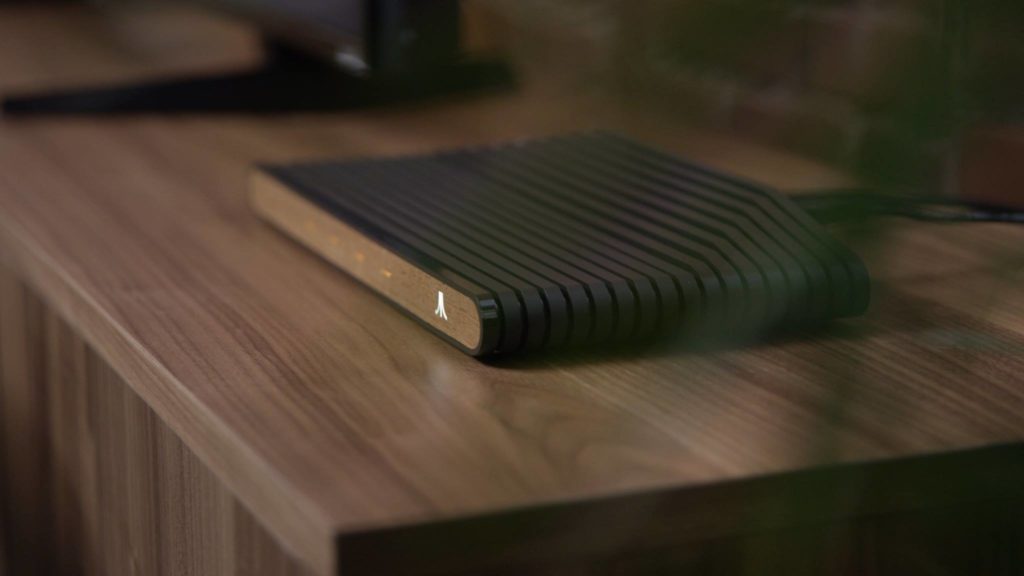
Atari announced in June that it was getting back into the hardware business, with plans for an upcoming “Ataribox” console. Of course, it didn’t release any actual details at the time—only a slick-looking render of a retro-styled box, complete with real wood paneling. Oh, plus a promise to crowdfund the upcoming console.

If alarm bells just started ringing in your head, visions of another Ouya-style disaster, well we can’t say those fears are unfounded. This week Atari further detailed the Ataribox to GamesBeat, and the plan seems even weirder than before.

According to Ataribox creator Feargal Mac, we’re looking at a device that will a) run Linux and b) cost in the neighborhood of $250 to $300. Featuring a custom AMD processor and launching alongside a catalog of classic Atari games, GamesBeat writes, “the idea is to create a box that makes people feel nostalgic about the past, but it’s also capable of running the independent games they want to play today, like Minecraft or Terraria.”

You know what? Best of luck to them. If Valve couldn’t make the Linux-centric living room PC a hot item, though, We’re not sure that Atari will be able to. And that’s all this is—a very cheap Steam Machine, cheaper even than Alienware’s quaint little model.

Is that enough? Probably not. The problem, as always, is the games. Linux gaming is worlds better than it was a few years ago, especially if Atari focuses on the indie scene. Still, we’re talking a pretty small subset of available titles. Atari’s trotted out the ol’ Valve line of “You can install Windows on it if you want,” and that’s not a great omen in my mind.

And even a $250 Ataribox is still plenty expensive considering this thing won’t run any big-budget games. You can buy an Xbox One S for $250 right now on Amazon, and a PlayStation 4 is only $50 more expensive. Sure, it’s a console, but it’ll at least play Wolfenstein II just as easily as it’ll play Terraria.

Atari’s also been quiet about how you’ll control the Ataribox. GamesBeat mentions a “user interface [Atari is] customizing for TVs,” so I assume a controller, but every photo of the Ataribox is just the console on its own. Hell, for all we know Atari will be buying Steam Controllers in bulk and packaging them with the system. Might as well. Those who want to get into the system level and tinker, though, will probably need a keyboard and mouse, which isn’t very living room-friendly.

One last red flag: It’s still being crowdfunded. Plans are for an Indiegogo campaign later this fall, with a release scheduled for Spring 2018. We’ll keep you updated.

Have questions?

Get answers from Microsofts Cloud Solutions Partner!
Call us at: 856-745-9990 or visit: https://southjerseytechies.net/

South Jersey Techies, LL C is a full Managed Web and Technology Services Company providing IT Services, Website Design ServicesServer SupportNetwork ConsultingInternet PhonesCloud Solutions Provider and much more. Contact for More Information.

To read this article in its entirety click here.

Windows 10 quick tips: 10 ways to speed up your PC

Want Windows 10 to run faster? Take a few minutes to try out these tips, and your machine will be zippier and less prone to performance and system issues.


1. Change your power settings

If you’re using Windows 10’s Power saver plan, you’re slowing down your PC. That plan reduces your PC’s performance in order to save energy. (Even desktop PCs typically have a Power saver plan.) Changing your power plan from Power saver to High performance or Balanced will give you an instant performance boost.

To do it, launch Control Panel, then select Hardware and Sound > Power Options. You’ll typically see two options: Balanced (recommended) and Power saver. (Depending on your make and model, you might see other plans here as well, including some branded by the manufacturer.) To see the High performance setting, click the down arrow by Show additional plans.
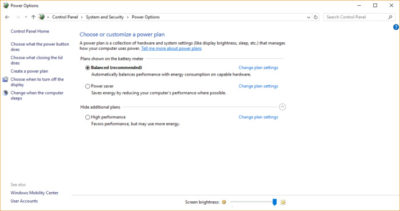
To change your power setting, simply choose the one you want, then exit Control Panel. High performance gives you the most oomph, but uses the most power; Balanced finds a median between power use and better performance; and Power saver does everything it can to give you as much battery life as possible. Desktop users have no reason to choose Power saver, and even laptop users should consider the Balanced option when unplugged and High performance when connected to a power source.


2. Disable programs that run on startup

One reason your Windows 10 PC may feel sluggish is you’ve got too many programs running in the background programs that you may never use, or only rarely use. Stop them from running, and your PC will run more smoothly.

Start by launching the Task Manager: Press Ctrl-Shift-Esc or right-click the lower-right corner of your screen and select Task Manager. If the Task Manager launches as a compact app with no tabs, click “More details” at the bottom of your screen. The Task Manager will then appear in all of its full-tabbed glory. There’s plenty you can do with it, but we’re going to focus only on killing unnecessary programs that run at startup.

Click the Startup tab. You’ll see a list of the programs and services that launch when you start Windows. Included on the list is each program’s name as well as its publisher, whether it’s enabled to run on startup, and its “Startup impact,” which is how much it slows down Windows 10 when the system starts up.

To stop a program or service from launching at startup, right-click it and select “Disable.” This doesn’t disable the program entirely; it only prevents it from launching at startup — you can always run the application after launch. Also, if you later decide you want it to launch at startup, you can just return to this area of the Task Manager, right-click the application and select “Enable.”
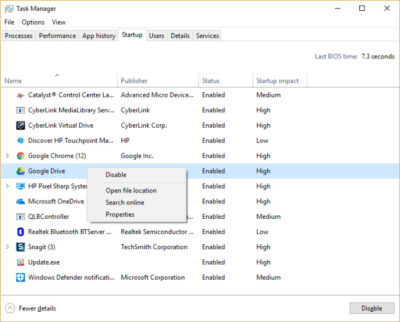
Many of the programs and services that run on startup may be familiar to you, like OneDrive or Evernote Clipper. But you may not recognize many of them. (Anyone who immediately knows what “bzbui.exe” is, please raise your hand. No fair Googling it first.)

The Task Manager helps you get information about unfamiliar programs. Right-click an item and select Properties for more information about it, including its location on your hard disk, whether it has a digital signature, and other information such as the version number, the file size and the last time it was modified.

You can also right-click the item and select “Open file location.” That opens File Explorer and takes it to the folder where the file is located, which may give you another clue about the program’s purpose.

Finally, and most helpfully, you can select “Search online” after you right-click. Bing will then launch with links to sites with information about the program or service.

If you’re really nervous about one of the listed applications, you can go to a site run by Reason Software called Should I Block It? and search for the file name. You’ll usually find very solid information about the program or service.

Now that you’ve selected all the programs that you want to disable at startup, the next time you restart your computer, the system will be a lot less concerned with unnecessary program.


3. Turn off search indexing

Windows 10 indexes your hard disk in the background, allowing you – in theory – to search your PC more quickly than if no indexing were being done. But slower PCs that use indexing can see a performance hit, and you can give them a speed boost by turning off indexing. Even if you have an SSD disk, turning off indexing can improve your speed as well, because the constant writing to disk that indexing does can eventually slow down SSDs.
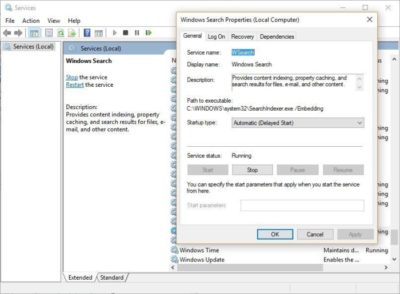
To get the maximum benefit in Windows 10, you need to turn indexing off completely. To do so, first type services.msc in the Start Menu search box, and click the Services result that come up. The Services app then appears. Scroll down to either Indexing Service or Windows Search in the list of services. Double-click it, and from the screen that appears, click Stop. Then reboot. Your searches may be slightly slower, although you may not notice the difference. But you should get an overall performance boost.

If you’d like, you can turn off indexing for only files in certain locations. To do this, first type index in the Start Menu search box, and click the Indexing Options result that appears. The Indexing Options page of Control Panel appears. Click the Modify button and you’ll see a list of locations that are being indexed, such as Microsoft Outlook, your personal files, and so on. Uncheck the boxes next to any location, and it will no longer be indexed.


4. Clean out your hard disk

If you’ve got a bloated hard disk filled with files you don’t need, you could be slowing down your PC. Cleaning it out can give you a speed boost. Windows 10 has a surprisingly useful built-in tool for doing this called Storage Sense. Go to Settings > System > Storage and at the top of the screen – in the Storage Sense section – move the toggle from Off to On. When you do this, Windows constantly monitors your PC, and deletes old junk files you no longer need; temporary files; files in the Downloads folder that haven’t been changed in a month; and old Recycle Bin files.

You can customize how Storage Sense works and also use it to free up even more space than it normally would. Underneath Storage Sense, click “Change how we free up space automatically.” From the screen that appears, you can change how often Storage Sense deletes files (every day, every week, every month or when Windows decides). You can also tell Storage Sense to delete files in your Download folder, depending on how long they’ve been there. And you can also set how long to wait to delete files in the Recycle Bin automatically.
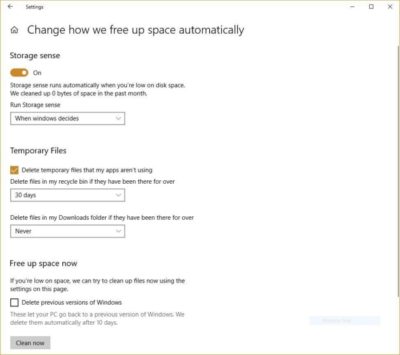
You can also delete old versions of Windows that might be hogging space. At the bottom of the screen, check the box next to “Delete previous versions of Windows.” Storage Sense will then delete old versions of Windows ten days after you’ve installed an upgrade. Note that if you do this, you won’t be able to revert to the older version of Windows.


5. Clean out your Registry

Under the Windows hood, the Registry tracks and controls just about everything about the way Windows works and looks. That includes information about where your programs are stored, which DLLs they use and share, what file types should be opened by which program or just about everything else.

But the Registry is a very messy thing. When you uninstall a program, for example, that program’s settings don’t always get cleaned up in the Registry. So over time, it can get filled with countless outdated settings of all types. And that can lead to system slowdowns.

Don’t even think of trying to clean any of this out yourself. It’s impossible. To do it, you need a Registry Cleaner. There are plenty available, some free and some paid. But there’s really no need to outright buy  one, because the free Auslogics Registry Cleaner does a solid job.

Before using Auslogics or any other Registry Cleaner, you should back up your Registry so you can restore it if anything goes wrong. (Auslogics Registry Cleaner does this for you as well, but it can’t hurt to have it backed up twice.) To do your own Registry backup, type regedit.ext in the search box, then press Enter. That runs the Registry editor.  From the File menu, select Export. From the screen that appears, make sure to choose the “All” option in the Export range section at the bottom of the screen. Then choose a file location and file name and click Save. To restore the Registry, open the Registry editor, select Import from the File menu, then open the file you saved.
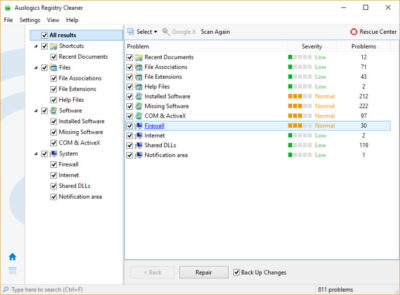
Now download, install and run Auslogics Registry Cleaner. On the left-hand side of the screen you can select the kinds of Registry issues you want to clean up – for example, File Associations, Internet or Fonts. I generally select them all.

Next tell it to scan the Registry for problems. To do that, click “Scan Now” and from a drop-down menu that appears select Scan. That lets you first examine the Registry problems it finds. If you instead choose “Scan and Repair,” it makes the fixes without you checking them.

It now scans your Registry for errors, then shows you what it found. It ranks the errors according to their severity, to help you decide which to fix. Click Repair when you’ve made your decision, and make sure that “Back up Changes” is checked, so you can restore the Registry easily if something goes wrong.


6. Disable shadows, animations and visual effects

Windows 10 has some nice eye candy — shadows, animations and visual effects. On fast, newer PCs, these don’t usually affect system performance. But on slower and older PCs, they can exact a performance hit.
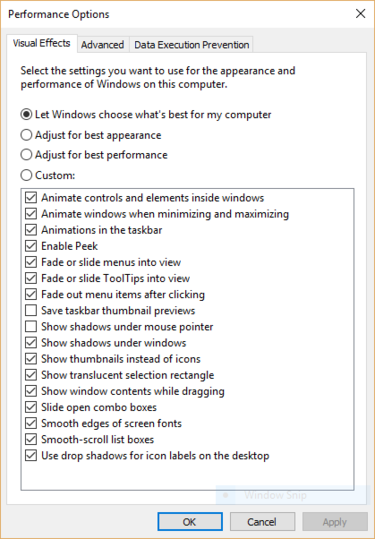
It’s easy to turn them off. In the Windows 10 search box type sysdm.cpl and press Enter. That launches the System Properties dialog box. Click the Advanced tab and click “Settings” in the Performance section. That brings you to the Performance Options dialog box. You’ll see a varied list of animations and special effects.

If you have time on your hands and love to tweak, you can turn individual ones on and off. These are the animations and special effects you’ll probably want to turn off, because they have the greatest effect on system performance:

  • Animate controls and elements inside windows
  • Animate windows when minimizing and maximizing
  • Animations in the taskbar
  • Fade or slide menus into view
  • Fade or slide ToolTips into view
  • Fade out menu items after clicking
  • Show shadows under windows

However, it’s probably a lot easier to just select “Adjust for best performance” at the top of the screen and then click OK. Windows 10 will then turn off the effects that slow down your system.


7. Launch the Windows troubleshooter
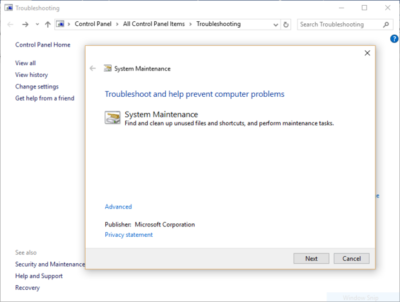
Windows 10 has a very useful, little-known tool that can sniff out performance problems and solve them. To launch it, run Control Panel and select System and Security > Security and Maintenance > Troubleshooting > Run maintenance tasks. A screen titled “Troubleshoot and help prevent computer problems” will appear. Click Next.

The troubleshooter will find files and shortcuts you don’t use, identify any performance and other issues on your PC, report them to you and then fix them. Note that you may get a message that says, “Try troubleshooting as an administrator.” If you have administrative rights to the PC, click it and the troubleshooter will launch and do its work.


8. Get help from the Performance Monitor

There’s a great tool in Windows 10 called the Performance Monitor that can, among other things, create a detailed performance report about your PC, detail any system and performance issues, and suggest fixes.

To get the report, type perfmon /report into your search box and press Enter. (Make sure there’s a space between “perfmon” and the slash mark.) The Resource and Performance Monitor launches and gathers information about your system. It will say that it will take 60 seconds, but I’ve found that it takes several minutes. When the Monitor finishes, it will launch an interactive report.

You’ll find a lot of extremely detailed information in the report, and it can take a lot of time to go through. Your best bet is to first look at the Warnings section, which details the biggest issues (if any) it found on your PC, such as problems with Windows, with drivers and so on. It also tells you how to fix each problem — for example, how to turn on a device that has been disabled.
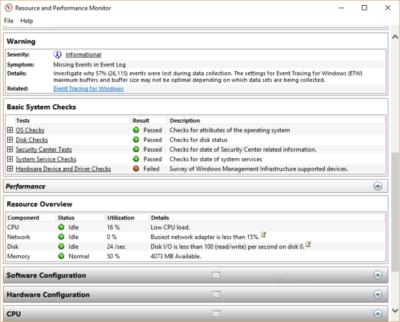
It is also worthwhile to scroll down to the Resource Overview section, where you’ll find an analysis of how well your CPU, network, disk and memory are performing. Each result is color-coded, with green meaning no problems, yellow meaning potential issues, and red showing a problem.

Beyond that, the Resource Overview also reports performance metrics and explanatory details. For example, for the CPU, it might show green and a utilization of 21%, with the details, “Normal CPU load.” Or for Memory, it might show yellow, with 62% utilization and the details, “1520 MB is available.” Based on what you get, you might want to do something about your hardware — for example, add more memory.


9. Kill bloatware

Sometimes the biggest factor slowing down your PC isn’t Windows 10 itself, but bloatware or adware that takes up CPU and system resources. Adware and bloatware are particularly insidious because they may have been installed by your computer’s manufacturer. You’d be amazed at how much more quickly your Windows 10 PC can run if you get rid of it.

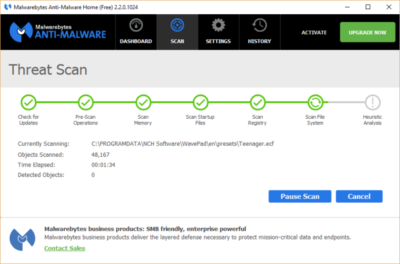
First, run a system scan to find adware and malware. If you’ve already installed a security suite such as Norton Security or McAfee LiveSafe, you can use that. You can also use Windows 10’s built in anti-malware app — just type Windows Defender in the search box, press Enter, and then click Scan Now. Windows Defender will look for malware and remove any it finds.

It’s a good idea to get a second opinion, though, so consider a free tool like Malwarebytes Anti-Malware. The free version scans for malware and removes what it finds; the paid version offers always-on protection to stop infections in the first place.

Now you can check for bloatware and get rid of it. Several free programs will do this for you; your best bet is to run several of them, because no single one will find all the bloatware on your PC. Good choices are the PC Decrapifier, Should I Remove It? and SlimComputer.
 

10. Shut down and restart Windows

Here’s one of IT’s not-quite-secret weapons for troubleshooting and speeding up a PC: Shut it down and restart it. Doing that clears out any excess use of RAM that otherwise can’t be cleared. It also kills processes that you might have set in motion and are no longer needed, but that continue running and slow your system. If your Windows 10 PC has turned sluggish over time for no apparent reason, you may be surprised at how much more quickly it will run when you do this.

Try just some of these tricks, and you’ll find that you’ve got a faster Windows 10 PC — and one that is less likely to have any reliability problems.


Chrome turns 50 and stands at a crossroads

As Google reaches a major milestone, let’s reflect on its uncertain future.

google_chrome

Google’s Chrome browser has just reached a major milestone, hitting its 50th release.

For Google, it’s a moment for positive reflection. To emphasize Chrome’s might, the company points to the browser’s 771 billion page loads per month, 1 billion monthly active mobile users, 9.1 billion auto-filled forms, and 145 million malicious webpages averted. One might also point to Chrome’s ever-growing usage, accounting for 47 percent of all worldwide pageviews, including mobile, according to StatCounter.

Indeed, Chrome has become an indispensable tool for many web users, and has served as a leader in the browser world. It introduced the idea of limiting menu clutter around actual webpages, and popularized the syncing of bookmarks, tabs, and browser history across devices. After all these years, it remains PCWorld’s most highly-recommended web browser.

Yet for all the good Chrome has done, Google’s browser now stands at a crossroads. Aside from just another way to browse the Internet, it’s unclear exactly what Google wants Chrome to be.

Browser or platform?

In the beginning, Google’s key tenets for Chrome were speed and simplicity. The browser’s minimal menu system (or “chrome,” hence the name) got out of the way, and its JavaScript engine crushed the competition as websites grew more advanced in the late aughts.

Those advantages are less pronounced now. Nearly every other browser has embraced restraint with their own chrome, and Chrome is no longer the clear victor in benchmarks. Meanwhile, the ever-increasing demands of the modern web have given Chrome a reputation for being a resource hog and a battery killer, even if other browsers aren’t markedly better.

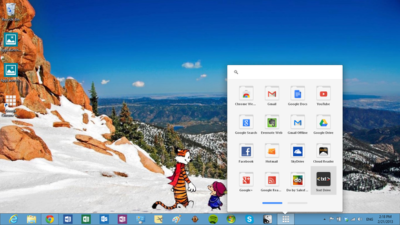
A few years after Chrome launched, Google started broadening its ambitions. It introduced the Chrome Web Store, and eventually the concept of native Chrome apps with offline functionality. A Chrome app launcher followed, along with push notifications from web services and Google Now. These new features were supposed to turn Chrome into a platform-within-a-platform on Windows and Mac, while making Chrome OS into a legitimate desktop operating system.

fullscreenapplauncher

But over the last year, Google has dismantled or abandoned many of those efforts. The Chrome notification center is now dead on Windows and Mac, as Google considersembracing native notifications on those platforms. The Chrome Web Store fell into disrepair years ago, and Google has shown little interest in cleaning it up. The Chrome app launcher got nixed on Windows, Mac, and Linux because no one was using it.

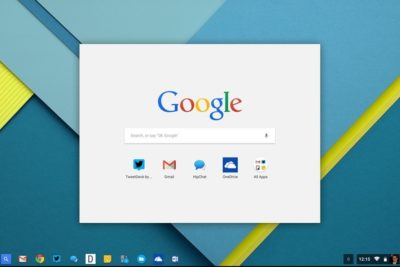
As for Chrome OS, its future is far from certain. Although the platform has traction in the education world, and probably isn’t going away, a merged Chrome-Android operating system for consumers seems likely.

chromeoslauncher

Amid all these retrenchments, Chrome has introduced no big noteworthy features to its desktop browser. The most interesting browser developments are instead happening on alternatives such as Microsoft Edge (with its page annotation and embedded Cortana assistant) and Vivaldi (with its web panels and tab stacking).

Google may arguably be more interested in mobile Chrome, now that smartphone usage has eclipsed the desktop. But in a world of apps, Facebook, and Instant Articles, the idea that users will spend significant amounts of time in a browser seems quaint. Perhaps that’s why Google’s 1 billion mobile user statistic is on a monthly basis, not a daily one.

So as Google celebrates Chrome’s 50th release, it should also ask itself what Chrome is now trying to accomplish. Will it recommit to its original focus on speed and simplicity, or will it try to innovate with new features? Is Chrome a platform unto itself, or just a really good way to access webpages? Are the fates of the desktop and mobile versions intertwined, or are they separate? If Google can’t answer those questions, version 100 might not be so celebratory.

Have questions?

Get answers from Microsofts Cloud Solutions Partner!
Call us at: 856-745-9990 or visit: https://southjerseytechies.net/

South Jersey Techies, LL C is a full Managed Web and Technology Services Company providing IT Services, Website Design ServicesServer SupportNetwork ConsultingInternet PhonesCloud Solutions Provider and much more. Contact for More Information.

To read this article in its entirety click here.

Windows phones’ free-fall may force Microsoft to push harder on Windows 10 adoption

Microsoft needs to protect its access to your wallet.

Windows_Phone_logo


Poor little Windows phone could have a bigger effect on Microsoft’s business than you’d think. As the company’s mobile device strategy continues to disintegrate, Microsoft may feel compelled to push harder on Windows 10 adoption and paid services to prove it can survive without a viable smartphone—and that could be bad news for consumers.

The raw numbers are shocking: Microsoft sold a minuscule 2.3 million Lumia phones last quarter, down from 8.6 million a year ago. Phone revenue declines will only “steepen” during the current quarter, chief financial officer Amy Hood warned during a conference call. That’s dragged down Microsoft’s results as a company, too.

Chief executive Satya Nadella opened his remarks to analysts optimistically, however, by noting that Windows 10 now powers 270 million devices in active use, a steady increase in its user base since the formal launch of Windows 10 last July. Later on, he summed up Microsoft’s message: “In this world, what matters most is the mobility of a person’s experience, not any one single device,” he said.

Will Wall Street buy it? If it does, Nadella will be free to continue. But if investors begin to get cold feet, you might see Microsoft push Windows 10 more aggressively to keep its numbers up.

Microsoft

Selling hardware to sell services

Nadella’s strategy is simple enough: grow Microsoft’s revenues, in part by convincing customers to adopt its paid subscription services. The most direct way is through sales of Surface or Lumia hardware. If that fails, then a third-party Windows 10 PC will suffice. Failing that, Microsoft apps like Bing or Cortana running on iOS or Android are acceptable as well.

But what Microsoft really wants is to sign you up for paid subscription services: Office 365 and Xbox Live, plus the corresponding enterprise licenses for Windows 10, Office 365, and Azure. ”Overall, the thing that we’re most focused on with Office 365 is how do we make sure we have the Office 365 endpoints everywhere, [with] good usage,” Nadella said.

bing-home-page

According to Verto, which measures online audience across all devices, Microsoft has four online properties with more than 100 million users per month: Microsoft Live (177.1 million), Bing (138.9 million), Microsoft Office (136.3 million), and MSN (121.5 million). Skype has 83.7 million users.

Viewed through the lens of “constant currency” adjustments that discount inflation, Microsoft’s strategy seems to be working: commercial Office 365 license revenue was up 7 percent, consumer Office 365 license revenue by 6 percent. Windows non-Pro revenue growth was 15 percent, though Pro revenue to the commercial market dipped by 11 percent. Xbox Live active users are now at 46 million, up 24 percent from a year ago.

Hidden dangers

Peer a little closer, though, and you begin to see signals that may be worrying the more impatient sectors of Wall Street. For one, device revenue is expected to continue falling. Save for a $12.7 billion holiday quarter, revenue in Microsoft’s “More Personal Computing” group has bumped along each quarter for the past year at about $9.3 billion or so. It’s expected to fall to between $8.7 billion and $9 billion this quarter, CFO Amy Hood said, apparently all attributable to the decline in phone sales.

The PC is the most frequently used device to access Microsoft services, Verto found, with 195.6 million monthly users. The smartphone is second, with 85.8 million users—but few of those devices are Windows phones.

lumia950

”Microsoft is clearly in an interesting position,” said Hannu Verkasalo, the chief executive of Verto, in an emailed statement.Microsoft has said in the past that the service matters more than the device, and the company does have software traction. “They have quickly pushed their mobile reach with their new device agnostic strategy,” Verkasalo continued.

Here’s the catch: “Even though they still have twice as many users using Microsoft services on PCs versus smartphones,” Verksala pointed out, “the mobile segment is the growth area.”Lacking a viable mobile device, Microsoft is missing out on opportunities to get even closer to users—and their wallets—in this growth area.

There’s also some evidence that Microsoft isn’t selling services as quickly as it could. Microsoft added just 1.6 million Office 365 consumer subscribers during the quarter, for a total of just 22.2 million users. Remember, at least 60 million Windows 10 PCs were sold during that quarter alone.

Keep your eyes open

All this means that the process of locking in customers to the Microsoft platform might be taking longer than expected. To date, investors haven’t minded, generally cheering Nadella’s leadership and sending the company’s stock up to near its all-time high in 1999.

But given Microsoft’s lower earnings and revenue—and downward guidance in key business units—it’s possible Microsoft may come under greater pressure to make its Windows 10 vision a reality. That’s not necessarily great news for consumers.

We all know how Microsoft originally made Windows 10 a free update, then began essentially forcing upgrades on users. To be fair, the company hasn’t stopped rolling out updates and new features, with the so-called Anniversary Update on the horizon.

So far, the company has taken the same “softly, softly” approach to Office 365: New Skype for Business features essentially require Office 365, as do new unsafe email warnings for Outlook. But what might Microsoft do if it feels it needs to make Office 365 stickier—put all of Office Online behind a paywall, perhaps?

Several analysts questioned Microsoft about potential profit margin declines. Nadella and other Microsoft executives indicated they’re staying the course. Eventually, though, Wall Street is going to take a harder look at how Microsoft’s strategy is playing out—and the one-year anniversary of Windows 10 could be the ideal time.

Say what you will about Windows 10 and privacy—Microsoft remains generally benign. But if investors start putting the screws in, you can’t help but wonder if there will be more pressure to pay up.

Have questions?

Get answers from Microsofts Cloud Solutions Partner!
Call us at: 856-745-9990 or visit: https://southjerseytechies.net/

South Jersey Techies, LL C is a full Managed Web and Technology Services Company providing IT Services, Website Design ServicesServer SupportNetwork ConsultingInternet PhonesCloud Solutions Provider and much more. Contact for More Information.

To read this article in its entirety click here.

The 16 most pivotal events in Windows history

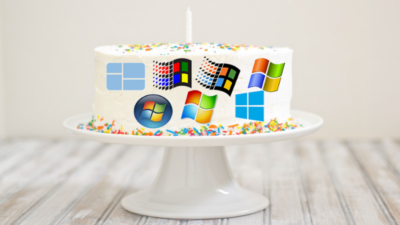
Thirty years of Windows is a lifetime.

30yearsofwindows-1

Thirty years of Windows

For better or for worse, Windows has defined the modern era of personal computing. Microsoft’s signature OS runs on the vast majority of PCs worldwide, and it has also worked its way into servers, tablets, phones, game consoles, ATMs, and more.

Windows’ 30 years or so of existence has spanned generations of computing and entire lifetimes of companies and their products. Understandably, choosing the most noteworthy moments of Windows’ long life has been a challenging task, but we went for it. On the following slides we present our our list of the obvious, and not-so-obvious, milestones in Windows history.

30yearsofwindows-2

Windows 1.0

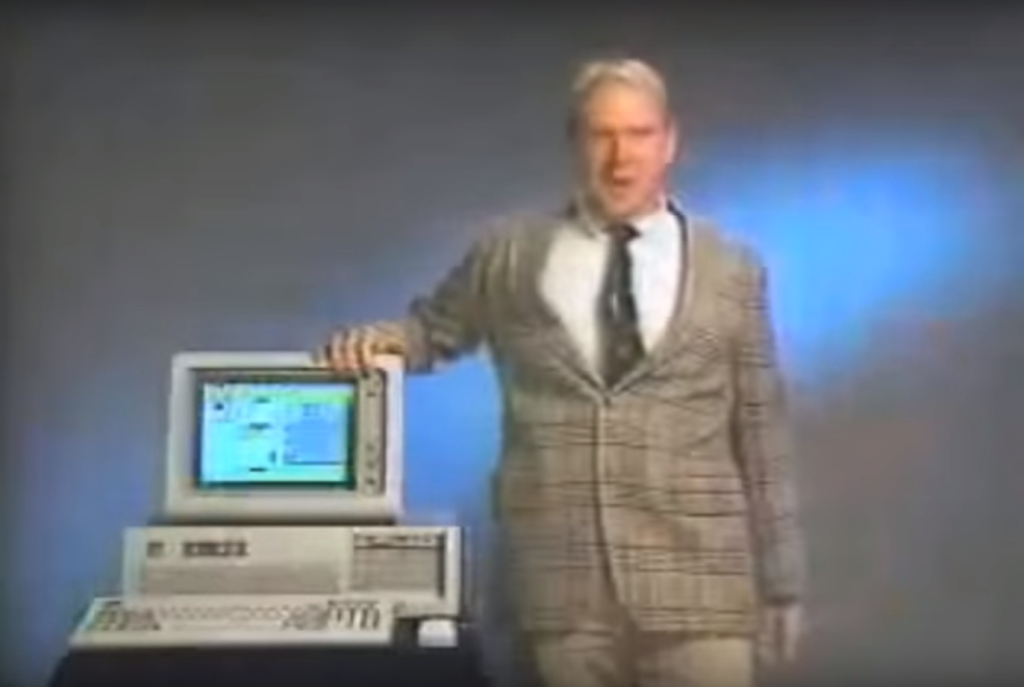
On Nov. 20, 1985, Microsoft launched the first iteration of Windows, essentially a graphical shell that overlaid Microsoft’s well-known MS-DOS. Requiring a couple of floppy drives, 192KB of RAM, and, most importantly, a mouse, Windows wasn’t actually that well-received. But Bill Gates told InfoWorld that “only applications that run Windows will be competitive in the long run.” He was right—for a time.

Featuring tiled windows that could be minimized or extended to cover the full screen, plus “apps” like Calendar and Write, Windows was the precursor to what the majority of PC users run today. Oh, and it was sold by Microsoft’s eventual CEO, Steve Ballmer, in perhaps the best computer commercial (Apple’s “1984” ad notwithstanding) ever shown.

30yearsofwindows-3

Windows 3.x

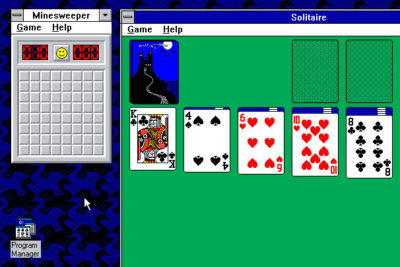
Windows puttered along until May 1990, when the first iconic Windows release, Windows 3.0, was released. It’s difficult to decide whether Windows 3.0 or its immediate successor, Windows 3.1, was more important; Windows 3.0 introduced sound to the Windows platform, but Windows 3.1 added TrueType fonts.

Yes, Windows 3.1 included File Manager (drag and drop!) and Program Manager, but the real innovations were more fun: support for MIDI sound and AVI files.  More importantly, Windows 3.x introduced screensavers (a staple of shovelware for years) and the ultimate timewasters: Solitaire (Windows 3.0) and Minesweeper (Windows 3.1). An entire generation learned how to place digital playing cards, one on top of the other, all for the glory of seeing all the cards bounce when a game was completed.

30yearsofwindows-4

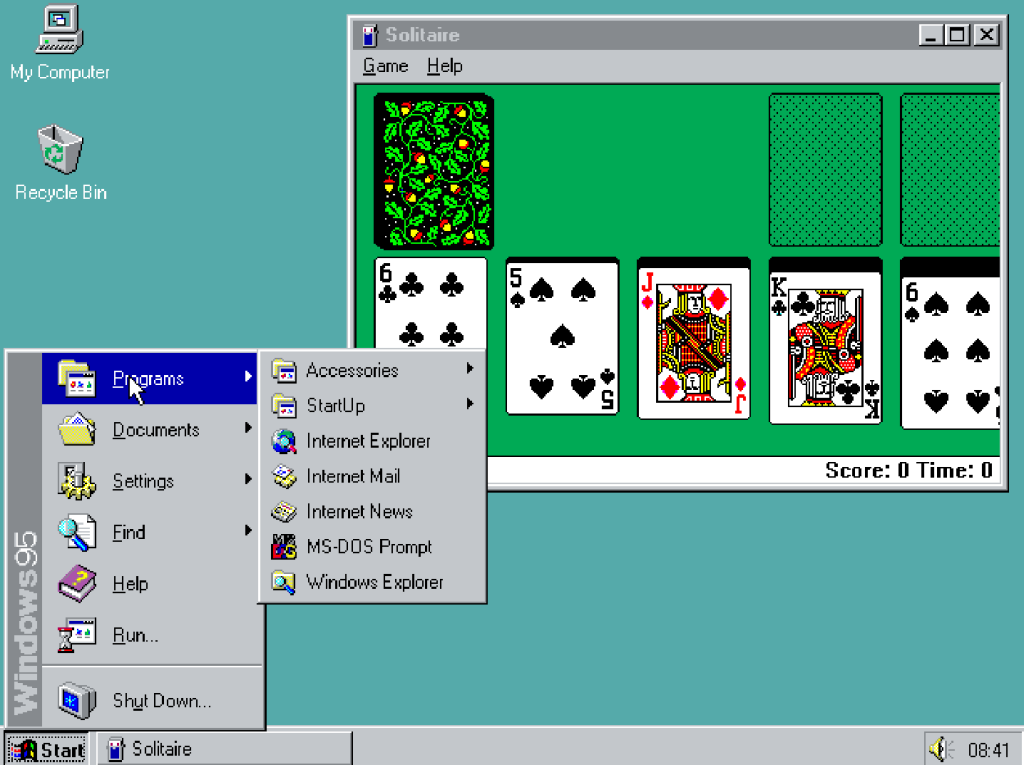
Windows 95

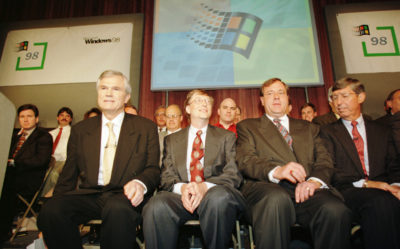
Early iterations of Microsoft’s Windows operating system catered more toward the business user than anyone else. That changed on August 24, 1995 with the launch of Windows 95.

It featured a few key technical upgrades: Windows 95 was Microsoft’s first “mass-market” 32-bit OS. It was the also first to add the Start button that we use today. The first integrated web browser, Internet Explorer, just missed the launch and shipped later.

With a promotional budget of hundreds of millions of dollars, much of what we remember about Windows 95, though, was tied up in the marketing: a midnight launch, an ad campaign built around the The Rolling Stones hit “Start Me Up,” a partnership with Brian Eno that produced the iconic boot melody.

Oh, and Windows 95 also allowed users to pay $19.95 to try out a time-limited beta of the OS, which expired at the launch. Good times.

30yearsofwindows-5

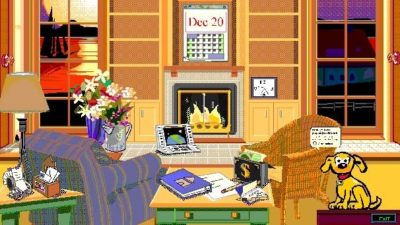
Microsoft Bob

Windows 3.1, however, also gave us Microsoft Bob, a March 1995 release that remodeled Windows as a series of “rooms.” Each was populated by virtual objects that might have a purpose—but you wouldn’t know until you clicked on them. Bob also featured a series of “assistants” that offered to help you perform all sorts of tasks, whether you wanted to or not.

Bob bombed. But Microsoft never quite gave up on trying to humanize Windows, a noble if slightly pathetic effort that would later produce the unfortunately iconic Clippy assistant.

30yearsofwindows-6

Windows NT

Though PCWorld tends to focus on the PC (natch), we’d be remiss to neglect Windows NT, the precursor to Windows’ expansion into the server and workstation space. Windows NT was Microsoft’s first 32-bit OS designed (and priced) for both the server and workstation market, with specific versions optimized for the X86, DEC Alpha, and MIPS series of microprocessors. It eventually was combined with the standard Windows architecture to form Windows XP.

Today, Microsoft has built a sizeable portion of its business upon Windows Server, SQL Server, and Windows Center, among others, plus its investments in the Azure cloud. All of this originated with Microsoft’s desire to take on UNIX in the server space.

30yearsofwindows-7

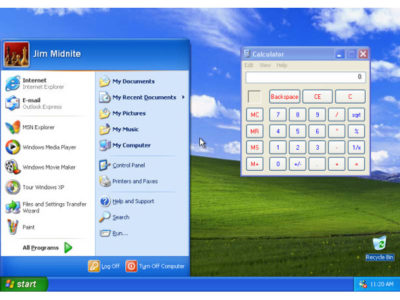
Windows XP

Whether it’s due to nostalgia, good design, or the famous “Bliss” backdrop featuring an emerald-green hillside in California’s wine country, 2001’s Windows XP remains one of the more beloved Windows operating systems. Shoot, it managed to erase the memory of Windows ME, one of Microsoft’s biggest blunders.

Windows XP shipped in two editions: one for professionals, the other for home users, with features stripped out of the “pro” version, such as domain join. But Windows XP also shipped with a Media Center edition that transformed a PC equipped with a TV tuner into a powerful DVR. (Media Center remains one of the more popular, and mourned, features of Windows today—it’s one reason users cite for refusing to upgrade to Windows 10.)

30yearsofwindows-8

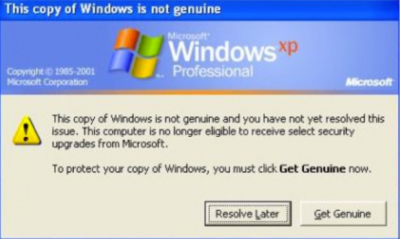
Windows Genuine Advantage

Maybe you thought every pivotal Windows moment was a product release. Not so. As good as it was, Windows XP also unleashed Windows Genuine Advantage—or what we now refer to as “activation”—upon an unsuspecting world. It was the first step in evolving Windows from a “hobby” to what some would refer to as “Micro$oft.”

This attitude was nothing new. In 1976, Bill Gates penned “An Open Letter to Hobbyists,” where he complained that the amount of royalties paid by customers using its BASIC software amounted to about $2 per hour. “Most directly, the thing you do is theft,” Gates wrote, essentially equating sharing code with outright stealing.

Microsoft sought to curtail this activity with the release of Windows Genuine Advantage, which stealthily installed itself onto millions of PCs by way of a high-priority “update.” (Sound familiar?) Windows Genuine Advantage consisted of two parts, one to actually validate the OS and another to inform users whether they had an illegal installation: In 2006, Microsoft said it had found about 60 million illegal installations that failed validation.

Now? Virtually every standalone product Microsoft sells comes with its own software protections and licenses. If you want a “hobby” OS, you run Linux—which Microsoftalso spent millions trying to discredit, to no avail.

30yearsofwindows-9

United States v. Microsoft

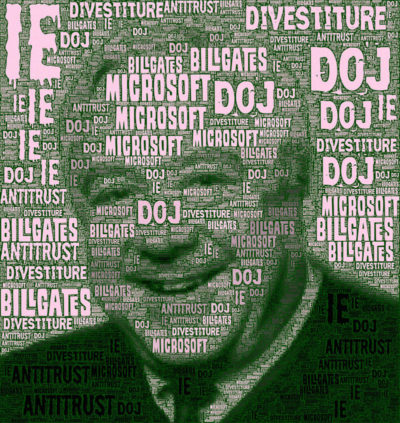
In May of 1998, following government concerns that bundling Internet Explorer within its operating system gave Microsoft an unfair advantage, the Department of Justice and several states filed a landmark antitrust suit against the company.

The trial lasted 76 days. Cofounder and chief executive Bill Gates appeared on videotape, seemingly dismissing questions put to him by government lawyers. Judge Thomas Penfield Jackson ultimately ruled that Microsoft had acted as a monopoly and should be broken up into two companies, though that ruling was later overturned by an appeals court.

Years later, an integrated browser is generally viewed as part and parcel of an OS, though consumers are free to select any browser they choose. Today, Microsoft and IE still power most older PCs, but consumers selecting new browsers are turning to Chrome.

Judge Penfield argued that consumers would have benefitted from a breakup of Microsoft. But we’ve argued before that Microsoft would have, too.

30yearsofwindows-10

Browser-choice screen

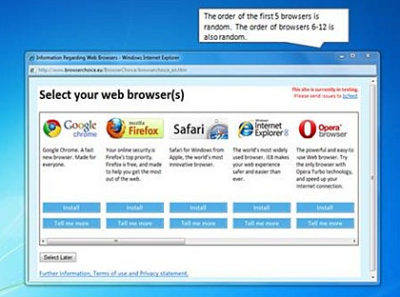
In 2009, Microsoft struck a deal with the European Commission, ending the EU’s own antitrust investigation. That agreement created what became known as the “browser-choice screen,” encouraging European consumers to pick a browser besides Internet Explorer.

The browser-choice screen didn’t kill Internet Explorer; in fact, IE remained the most popular downloaded browser until March 2016, when Windows 10 helped push it out of the top spot. But the browser-choice screen certainly reminded consumers that other browsers existed, and that they could pick and choose whichever they preferred, rather than accepting what Microsoft provided to them.

30yearsofwindows-11

Windows 7

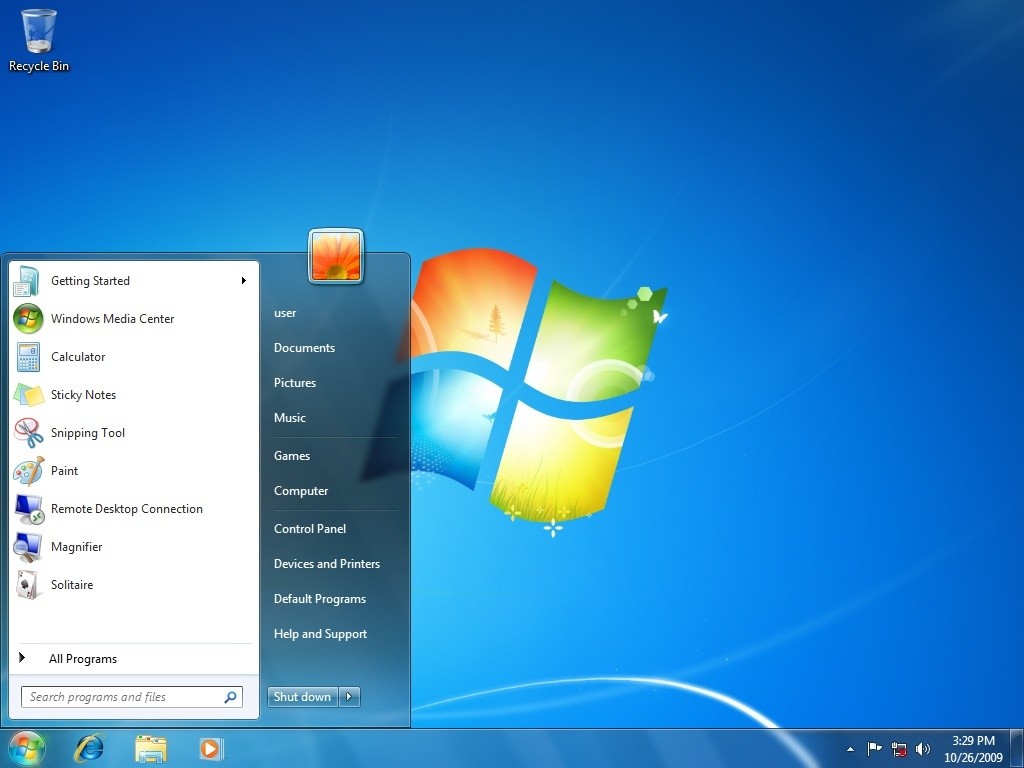
For many, Windows reached its apex with Windows 7, which continues to be the dominant OS in Windows’ history: It reached a high of almost 61 percent market share in June 2015, and still commands about 47 percent of the market today.

Why? Any number of reasons, not the least of which is familiarity: Windows’ UI remained relatively static for almost 11 years, from the 2001 launch of Windows XP on up to the dramatic tiled revamp of 2012’s Windows 8. Windows 7 also added several elements that we take for granted in Windows today: the taskbar, a more evolved Snap function, and support for multiple graphics cards. It’s also important to note that Windows 7 supports DirectX 11.1, which is arguably still the dominant graphics API today. Until DirectX12 supersedes it, gamers won’t have a reason to leave.

Windows 7 also eliminated many of the annoying UAC popups that its predecessor, Windows Vista, had put in place. And (as our commenters have repeatedly pointed out) it lacks the frustratingly frequent updates of the current Windows 10, allowing users to essentially “set it and forget it.”

30yearsofwindows-12

Laptop Hunters ads

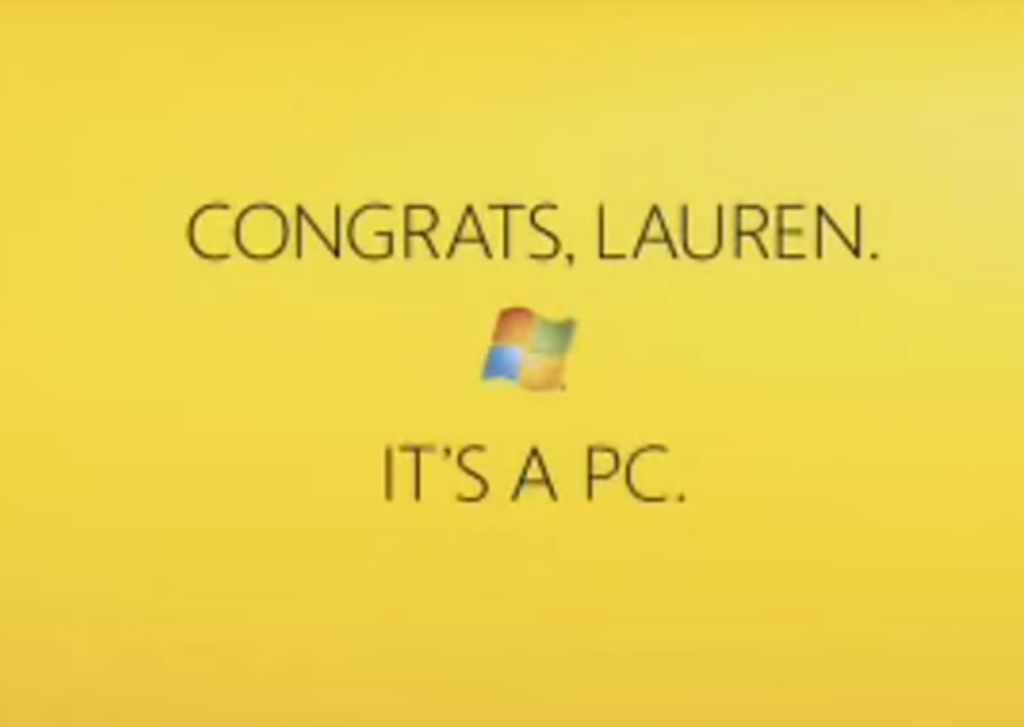
Microsoft ran a series of “Laptop Hunters” ads during 2009, featuring real people buying real laptops from real stores—and consistently picking Windows PCs over the more expensive Apple options. For about three years, Microsoft had been stung by the barrage of “I’m a Mac/I’m a PC” ads portraying PCs as clunky and out of touch, and “Laptop Hunters” effectively skewered that message as pretentious and expensive.

The campaign followed a $300 million “I’m a PC” push a year earlier, which lacked the real-world punch of Lauren and other real-world customers. Both campaigns illustrated Microsoft’s pivot to being the face of the PC. The “Dude, you’re getting a Dell!” days are long gone.

30yearsofwindows-13

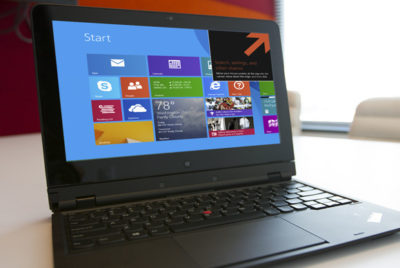
Windows 8.1

I vividly remember the first time I saw a Windows 7 user try out Windows 8: He stabbed at tile after tile, unable to figure out what to do with Microsoft’s new OS. Most of the public did the same. Today, we barely even talk about Windows 8.

Instead, we talk about Windows 8.1: the “service pack” update that undid at least some of the flaws that plagued Windows 8. In my opinion, the most notable thing about Windows 8.1 was that it showed Microsoft was listening to its customers again, even adding a hidden “boot to desktop” command to remedy one of its users’ biggest complaints. (It also was the last time SkyDrive, later renamed OneDrive, actually acted like the cloud backup we wanted.)

By itself, Windows 8.1 is a relatively minor release. But it stands as an important admission of guilt, and an apology, for the sins of its predecessor.

30yearsofwindows-14

The rise of Android, the fall of Windows Mobile

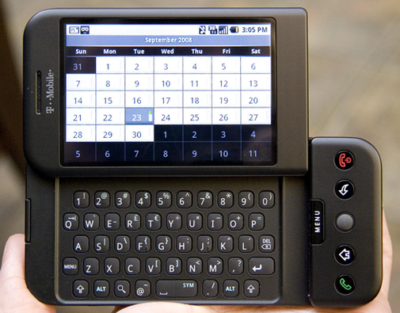
In February 2007, Microsoft debuted Windows Mobile 6, its first mobile operating system for true smartphones and arguably one of the company’s most successful. In November 2007, however, the free Android OS debuted. A year later, HTC launched the first Android smartphone: the HTC Dream, seen here. It was all downhill from there for Microsoft.

Yes, you could make a strong argument that Microsoft’s massive $7.8 billion acquisition of Nokia’s devices business in 2013—which, by now, has been almost completely written off—was actually the last gasp of Microsoft’s mobile vision. But the launch of the Dream, and the hundreds of millions of Android phones that followed it, lured away third-party developers Microsoft needed for its mobile aspirations to thrive.

30yearsofwindows-15

Windows 10: The ‘last Windows’

With Windows 10, Microsoft made the gutsy call to bring beta testers in as partners rather than as guinea pigs. The Windows Insider program lets users try out and evaluate builds almost as quickly as Microsoft can churn them out, fostering an air of camaraderie between users and Microsoft.

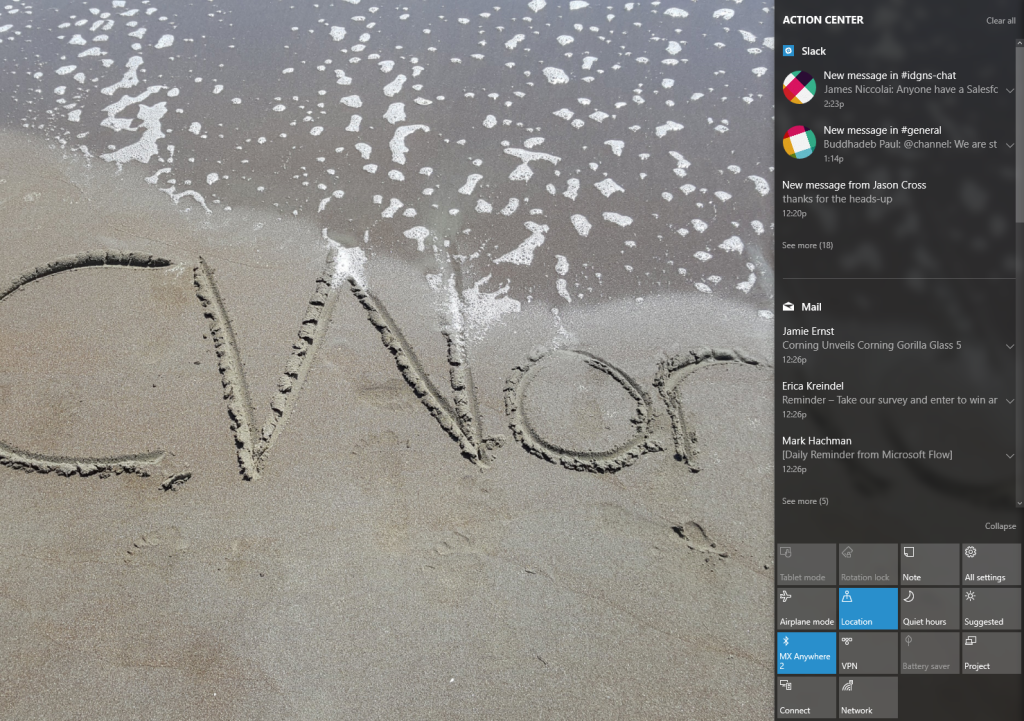
Windows 10 also introduced a number of features: a revamped Start menu, better notifications, virtual desktops, and more. It launched Cortana, a digital assistant that Microsoft hoped would eliminate the grunt work of setting reminders and sending quick texts and email.

But Cortana’s privacy-intruding nature and Microsoft’s aggressive upgrade practiceswashed away some of the goodwill Windows 10 originally engendered. Today, Windows 10 is one of the more polarizing operating systems in recent memory, with many Windows 7 fans loudly criticizing it, and others supporting the direction Microsoft has taken.

30yearsofwindows-16

The evolution of the digital assistant

 Of course, Microsoft has a long, controversial history with digital assistants, beginning way back in 1995 with the debut of Microsoft Bob. That program was meant to help familiarize Windows users with various applications by anticipating the users’ needs. While universally derided, Bob introduced the concept of ostensibly helpful characters, from a superhero dog to a clone of Albert Einstein to the infamous Office assistant  “Clippit,” aka “Clippy.”

You can make the case that Clippy and its ilk evolved, over time and behind the scenes, into the far more sophisticated digital assistant that’s built into Windows 10: Cortana. The difference, of course, is that Cortana is part of a larger trend, joined by Google Now and Siri, digital assistants in their own rights for the Android and iOS platforms, respectively. Indeed, Microsoft is pushing its Bot Framework, which enables the creation of intelligent digital helpers, into all sorts of new applications beyond the OS, such as Skype and Bing.

30yearsofwindows-17

Patches, good and bad

Windows has bugs. Windows requires patches. And while there have been many, many updates over the years to fix bugs, slowdowns, and other incompatibilities, there have also been many, many screwups, too. InfoWorld has an entire list of them.

My favorite? A patch that put a mysterious black bar on one side of Internet Explorer—and if you clicked it—CRASH!—down came your machine with a BSOD. For a time, Microsoft allowed you to refuse Windows patches. Windows 10, unfortunately, did away with all that.

That concludes our list of Windows’ most pivotal moments. We could have spent dozens upon dozens of slides diving deep into Windows’ history, but we had to stop somewhere. Is there anything we missed? Tell us below.

Have questions?

Get answers from Microsofts Cloud Solutions Partner!
Call us at: 856-745-9990 or visit: https://southjerseytechies.net/

South Jersey Techies, LL C is a full Managed Web and Technology Services Company providing IT Services, Website Design ServicesServer SupportNetwork ConsultingInternet PhonesCloud Solutions Provider and much more. Contact for More Information.

To read this article in its entirety click here.

CALL US NOW!