Back to Top

Tech, Web, Cloud & Cabling Services

Author Archives: Website Admin

Ransomware-as-a-service is exploding: Be ready to pay

RaaS has outgrown smaller targets and now threatens governments, NGOs, and SMBs.

ransomware

It starts with a fast click on a link in a harmless-looking email. Then your PC slows to a crawl. A message suddenly pops up and takes over your screen. “Your files and hard drive have been locked by strong encryption. Pay us a fee in 12 hours, or we will delete everything.” Then a bright red clock begins counting down. No antivirus will save your machine. Pay the fee or lose everything.

You’re the latest victim of a ransomware attack. The scary thing is, you’re not alone. The ransomware market ballooned quickly, from a $400,000 US annual haul in 2012, to nearly $18 million in 2015. The average ransom—the sweet spot of affordability for individuals and SMBs—is about $300 dollars, often paid in cash vouchers or Bitcoin.

The ransomware market scaled up so quickly, claims a recent report by Imperva, due to the rise of ransomware-as-a-service, or RaaS. Here’s how it works:

  • Ransomware authors are marketing on-demand versions of code, using traditional malware distributors in a classic affiliate model.
  • The ransomware author collects the ransom and shares it with the distributor.
  • Malware is distributed through spam email messages, malicious advertisements, and BlackHat SEO sites.
  • According to the Imperva report, “in classical affiliate marketing, the larger cut goes to the possessor of the product. In RaaS … the ransomware author gets a small cut of the funds (5%-25%) while the rest goes to the distributor (affiliate).”
  • Using the deep web, TOR, and Bitcoin, the report says, “this model, based on TOR and Bitcoins, is designed to keep the identity of the author and the distributor hidden from law enforcement agencies.”

Phishing in particular, is a highly effective tactic for malware distribution.

The well-worded email appears to come from a legitimate email address and domain name, and raises very few irregularities. The email comes with a demand for money for an arbitrary service, along with a link that purports to be an “overdue invoice.”

Click that link and open the file (which looks like a Word document), and you’ll become the latest victim of ransomware — that is, malware that encrypts your files and locks you out of your computer until you pay a ransom.

Phishing attacks have also helped ransomware move into the enterprise. In 2015 the medical records system at Hollywood Presbyterian Medical Center was attacked. The hospital paid $17,000 in Bitcoin to unlock the sensitive records. In early 2016 the Lincolnshire County Council was snagged by a phishing scheme and held up for 500 dollars.

To prevent your business from attack, make sure the IT department and communication team are in sync, keep your company’s security systems updated, and remind employees to use caution when clicking on email links from unknown addresses.

If you’ve been hacked, the ransomware rescue kit provides a suite of tools designed to help clean particularly pugnacious malware.

Businesses that suffer ransomware attacks face a tough choice. Paying the fee could restore access to mission-critical data, but there’s no guarantee the extortionists will honor the deal. And of course, paying a ransom provides incentive to hackers and validates the attack.

Have questions?

Get answers from Microsofts Cloud Solutions Partner!
Call us at: 856-745-9990 or visit: https://southjerseytechies.net/

South Jersey Techies, LL C is a full Managed Web and Technology Services Company providing IT Services, Website Design ServicesServer SupportNetwork ConsultingInternet PhonesCloud Solutions Provider and much more. Contact for More Information.

Office 365 gets Six new Excel Functions

Microsoft made several new updates to Office 365 in February, including the addition of six useful functions for Excel.

EcxelOffice365

When it comes to general updates to Microsoft Office 365, February 2016 was a fairly significant month. Microsoft rolled out numerous improvements to Office 365, like better pen annotation integration, the ability to pin documents to the Start menu, a new feature that allows images to be inserted into documents directly from the camera, and the best—adding more functions to Excel.

Six new functions

Using, combining, and creating formulas in Microsoft Excel is where true Excel gurus separate themselves from the pretenders and wannabes. For an Excel aficionado, the satisfaction of creating the perfect nested formula is second to none when it comes to Excel coding. So when Microsoft adds six new functions to Excel in one month it is a very big deal.

Of course, while there is great satisfaction when you figure out the perfect formula, a certain amount of despair also goes with it—because now you have to apply that complicated nested formula over and over again. This is where the six new functions are supposed to help.

The first updated functions are TEXTJOIN and CONCAT, and they are replacements for the old concatenate function, which gave the user the power to join strings of separate text into one cell. This comes up with addresses all the time—a common task for spreadsheets since they were invented.

In the past, the formula would look something like this:

=CONCATENATE(A3, “, “, B3, “, “, C3,”, “, D3, “, “, E3)

With the new TEXTJOIN formula, the same process would look something like this:

=TEXTJOIN(“, “, TRUE, A3:E3)

This is just one example of how these new functions are designed to simplify users’ lives when it comes to advanced Excel tasks.

The next two new functions are IFS and SWITCH, which provide an alternative to using the infamous series of nested IF functions. The old IF function was the mainstay for Excel coders looking to apply logic to sets of data. You know what I mean: If this is larger than this, than this; but if it is larger than this but less than that, then this, etc. The more nested IF functions the more complicated the formula and the more likely you are to make a mistake.

The last two new functions are MAXIFS and MINIFS. They are designed to supplement the MAX and MIN functions by allowing users to apply conditions to the maximum and minimum calculations and thereby filter results. In the past you may have had to use the IF function to create your filtered conditions. These new functions eliminate the need and make your life just that much simpler.

Office365

Bottom line

When Microsoft began trying to convince us that subscribing to Office 365 was a better idea than repurchasing new versions every few years, the ability to update the productivity suite regularly at no extra cost was one of the main selling points. As the new six functions illustrate, that was not a false promise.

These functions are just the tip of the iceberg when it comes to Office 365 improvements. However, the problem with continuous updates to the software is that users have to try to keep up.

Even though there are some users out there who will keep using nested IF functions no matter what improvements come along, for example. But for the rest of us, it would seem to be worthwhile to pay attention to whatever improvements Microsoft rolls out each month. Because for better or worse, changes to Office 365 are going to keep coming.

Have questions?

Get answers from Microsofts Cloud Solutions Partner!
Call us at: 856-745-9990 or visit: https://southjerseytechies.net/

South Jersey Techies, LL C is a full Managed Web and Technology Services Company providing IT Services, Website Design ServicesServer SupportNetwork ConsultingInternet PhonesCloud Solutions Provider and much more. Contact for More Information.

Yammer is on the way to Office 365: Are you ready?

Microsoft is activating Yammer for every Office 365 subscription. But is this one collaboration tool too many?

On February 2, 2016, Kirk Koenigsbauer announced in the official Microsoft Office 365 blog that Yammer is now being activated for every eligible Office 365 subscription. In a nutshell, that means Yammer is going to be another app on the Office 365 app list unless an admin specifically turns off access. Your enterprise should plan accordingly.

Yammer

For those of you unfamiliar with the product, Yammer bills itself as an enterprise internal social network. It mixes the typical chat messenger application with collaboration tools available in Office 365.

Similar to the Delve tool we looked at last week, Yammer can serve as the central hub for team collaboration. From within a Yammer discussion, teams can set up meeting appointments using Outlook, switch to a full-fledged Skype for Business video meeting, and access OneDrive for Business to create collaborative documents.

The initial rollout of Yammer took place on February 2, 2016; the rest of the rollout will take place in stages. The next release is March 1, 2016, and the last is April 1, 2016. According to the blog post, the first wave is for “Office 365 customers with a business subscription who purchased fewer than 150 licenses that includes Yammer and who have zero or one custom domains for Yammer.”

The second wave is for “Office 365 customers with a business subscription who purchased fewer than 5,000 licenses that includes Yammer.” Customers with an education subscription are not included.

The final wave is for “remaining customers with a business subscription and all customers with an education subscription.” For subscribers who have never had a Yammer account, the rollout will take place last, in April. Alas, that is the wave I’ll have to wait for.

Collaboration

Yammer is the latest, and perhaps the last, major teamwork collaboration app to be added to Office 365. In Microsoft’s vision of a mobile-first, cloud-first enterprise, teams collaborate across distances using shared documents, video conferencing, and applications that tie it all together in one virtual location.

YammerForOffice365

With the addition of Yammer, Microsoft is offering several tools teams can use to manage and organize their collaboration activities. Teams can use Yammer, Delve, Groups, Sites, SharePoint, and OneNote to manage their shared conversations and documents across the enterprise. One of those tools should be able to satisfy even the most persnickety of teams.

Bottom line

But then again, that may be where we run into problems. One could argue that there are too many collaboration tools available in Microsoft Office 365. While all these wonderful choices may seem good at first glance, it is possible that subscribers may become overwhelmed.

Microsoft’s idea that teams can choose the best tool for them or for the project they are working on sounds all well and good, but it does still require someone to make an important initial decision. For some people, making a decision that will affect a project from start to finish can be a daunting task.

In the long run, it may be beneficial for organizations to establish guidelines for when each of the collaboration tools works best. They may even decide to block some of the tools from use altogether in favor of a recommended best practice.

Having myriad collaboration tools is generally a good thing, but it might help move things along if the enterprise establishes some well thought out guidelines.

Have questions?

Get answers from Microsofts Cloud Solutions Partner!
Call us at: 856-745-9990 or visit: https://southjerseytechies.net/

South Jersey Techies, LL C is a full Managed Web and Technology Services Company providing IT Services, Website Design ServicesServer SupportNetwork ConsultingInternet PhonesCloud Solutions Provider and much more. Contact for More Information.

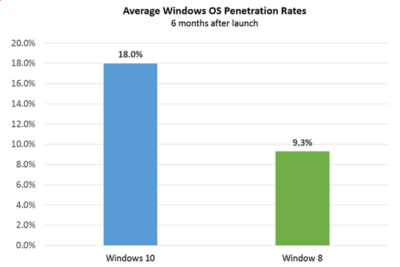
Windows 10 is being adopted by business at nearly twice the rate of Windows 8

Microsoft’s latest OS is proving more attractive to firms than Windows 8 – particularly among larger businesses.

Windows 10


Businesses are proving far more willing to experiment with Windows 10 than they were with Windows 8.

Six months after Windows 10’s launch nearly one in five firms, 18 percent, appear to be testing the OS, research by professional IT network Spiceworks found. In contrast, at the same point after Windows 8’s release, the OS was only being trialled by just over nine percent of businesses.

The anonymised data on what proportion of firms are using at least one Windows 10 machine was gathered from the millions of IT pros that use its software. Spiceworks says businesses of all sizes use the software to inventory devices connected to their networks.

This faster pace of enterprise adoption is backed up by figures from IT asset management company Samanage, told that 62.4 percent of its enterprise customers have at least one managed PC running Windows 10. These are sizeable businesses, with each of Samanage’s enterprise customers having an average of more than 1,000 seats. Microsoft also claims that 76 percent of its enterprise customers are piloting its new OS.

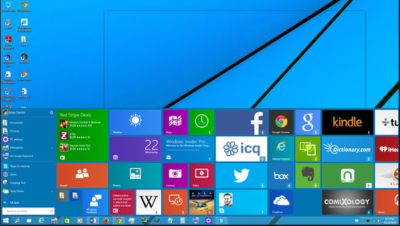
“Our data shows that IT pros were most excited about the return of the familiar start button experience in Windows 10, which reduces the need for end-user training required for Windows 8,” said Peter Tsai, IT analyst at Spiceworks in his assessment of why the new OS is proving more popular than Windows 8.

“Many IT pros also liked the free upgrade offer via Windows Update, which makes it easy for many to test the new OS. And lastly, they were looking forward to new security features that promise to make Windows 10 a more secure operating system than previous versions.”

Windows 10 is benefiting from a comparison to an unpopular OS, demand for Windows 8 was so weak that analyst firm Canalys warned in 2014 that “Microsoft risks losing momentum unless it does something drastic to turn its Windows business around”.

And while a significant proportion of businesses may be experimenting with Windows 10, it is likely to be some time before a large number move to the OS, as business typically lag behind consumers due to the complexity of managing such upgrades at scale. Of those firms testing Windows 10, about 40 percent have three or more devices running the OS, according to Spiceworks’ data.

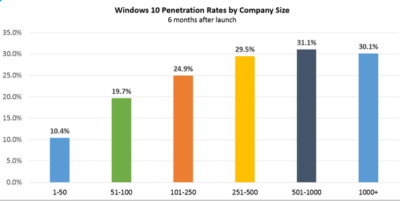
Medium and large businesses were the most likely to have at least one Windows 10 machine Spiceworks found – with 31 percent of firms with more than 500 people trialling the OS, compared to 10 percent of companies with 50 employees or fewer.

Windows 10


“We also know from many conversations with IT pros that smaller companies tend to have fewer resources for OS migration, so many SMBs could be holding off on Windows 10 until they have the time and manpower to adequately test the OS for hardware and application compatibility,” said Tsai.

Last year, half of the 500 IT pros surveyed by Spiceworks expressed an interest in adopting Windows 10 inside their business.

Microsoft’s decision to phase out support for Windows 7 and 8 on new PC hardware will also put pressure on businesses not to downgrade new Windows 10 machines to an earlier OS, as has been common in the past in order to standardize corporate hardware.

Microsoft is also reporting rapid adoption of Windows 10 by home users, with more than 200 million devices worldwide running the OS.

The popularity of the OS may, in part, be a result of Microsoft’s tactics to get consumers to upgrade. This aggressive approach includes recently implementing changes that will trigger the free upgrade to Windows 10 to begin automatically installing on many Windows 7 and Windows 8.1 PCs used in homes. Microsoft is making this push as part of its drive to get one billion devices running Windows 10 by 2018.

Have questions?

Get help from IT Experts/Microsofts Cloud Solutions Partner
Call us at: 856-745-9990 or visit: https://southjerseytechies.net/

South Jersey Techies, LL C is a full Managed Web and Technology Services Company providing IT Services, Website Design ServicesServer SupportNetwork ConsultingInternet PhonesCloud Solutions Provider and much more. Contact for More Information.

To read this article in its entirety click here.

Seven ways to sort and view Outlook email by accounts

Outlook


Most users manage more than one e-mail account. Outlook 2010 and 2013 automatically create individual folders for each account. If you’re still using Outlook 2007 or earlier, you can simulate this convenience, but you’ll have to set it up yourself. In this article, I’ll show you seven ways to sort or view email messages by their accounts. I’ll include instructions for 2010 and 2013; even if you need to sort by accounts, you might want to use these methods to sort by other criteria.

1. Create account-specific folders

You can simulate the account-specific Inbox configuration in Outlook 2010 and 2013 by creating new download folders for each account. Doing so is easy, and it’s probably the best way to manage multiple accounts in Outlook 2007 and earlier. You’ll create an account-specific folder as follows:

  1. Choose Account Settings from the Tools menu in Outlook 2007. (In Outlook 2010 and 2013, Account Settings are on the File tab.)
  2. Select the POP3 account you want to reconfigure.
  3. Click the Change Folder button. (This button isn’t available for IMAP accounts.)
  4. Use the resulting dialog to identify the folder you want to download your POP3 account mail to (Figure A) or create a new folder if it doesn’t already exist.
    Figure A

    Figure A
  5. Click OK and then Close.

After making this change, Outlook will download that account’s mail into the specified folder. You can create specific folders for every POP3 account you have.

Unlike the 2010/2013 configuration, all of your messages download into the same .pst file. In addition, Outlook will save copies of all sent messages in the default account, not in the account-specific folder.

2. Use a rule

Rules have been around for a long time. They’re commonly used to manipulate mail as it arrives. You can also use a rule to manipulate mail received from a specific account as follows:

  1. Select the Inbox.
  2. In Outlook 2003 and 2007, choose Rules and Alerts from the Tools menu. In Outlook 2010 and 2013, click the File tab and click Manage Rules & Alerts in the Account Information section. (Outlook 2010 and 2013 users won’t need this rule unless they choose to combine all accounts into the same Inbox. Although this is unlikely, I’m including the instructions to be as comprehensive as possible.)
  3. Click New Rule on the E-Mail Rules tab.
  4. In Outlook 2003 and 2007, use Check messages when they arrive. Outlook 2010 and 2013 users, select Apply rule on message I receive.
  5. Click Next.
  6. Check the through the specified account option.
  7. Click the specified link in the bottom pane (Figure B).
    Figure B

    Figure B
  8. Choose the account from the resulting drop-down, click OK, and then click Next.
  9. Check move it to the specified folder.
  10. Click the specified folder link in the bottom pane. Then, identify the folder to which you want to download mail from the specified account (Figure C), and click OK. You can create a folder at this point, if necessary.
    Figure C

    Figure C
  11. Click Next twice (you won’t want to include any exceptions to the rule most likely).
  12. Give the rule a name. I recommend a name that includes the account’s name, such as “Move message for account name.”
  13. Turn the message on if necessary.
  14. Select Run this rule now on messages already in “Inbox” (Figure D) if you want Outlook to move existing messages into the folder. Doing so can save a lot of time.
    Figure D

    Figure D
  15. Click Finish, and then click OK.

This rule works similarly to the account-specific folder tip in #1. If you’re not familiar with rules, take a minute to review the many conditions and actions; you can do a lot with rules.

3. Use the Account view option

You can use a view property to sort message by their accounts. In Outlook 2003 and 2007, choose Arrange By from the View menu and then select E-mail Account. The change is immediate, but its helpfulness in a busy Inbox is limited. You’ll probably find it more useful to combine this setting with other sorting methods, such as search folders and filters. After creating the main sort, apply this setting to further define the results by account. In addition, you can quickly apply this setting to all folders by modifying the default Messages view and then copying it. (For more complete instructions on applying this setting to all folders, read “Pro tip: Use standard and custom views to personalize an Outlook folder.”)

In Outlook 2010 and 2013, you can combine individual .pst files into one and download all mail into the same Inbox. You’ll find this setting in the Arrangement gallery on the View tab. (Click the More button to see all of the settings.)

4. Sort by the E-mail Account column

Similar to changing a view’s configuration, you can sort multi-account folders by accounts. You might find this alternative easier or preferable to creating or modifying a view. To add this column, do the following:

  1. Right-click the title bar (in the Mail window).
  2. Select Field Chooser from the resulting dialog.
  3. Choose All Mail Fields from the drop-down.
  4. Drag E-mail Account to the title bar (Figure E) and release it. If it’s not where you want it, drag it accordingly.
    Figure E

After adding the E-mail Account column, you can click it to sort all mail in the folder by their accounts.

5. Use a view

Both the Account view and adding the E-mail Account column will sort messages by accounts, but you’ll still see mail for all of your accounts. If you want to view mail from a single account, create a view. Then you can apply views to filter messages accordingly. To view messages from a single account using a filtered view, do the following:

  1. In Outlook 2003, choose Arrange By from the View menu. In Outlook 2007, choose Current View from the View menu. In Outlook 2010 and 2013, click the View tab and choose Manage Views from the Change View drop-down in the Current View group.
  2. Click New.
  3. Give the view a name. I recommend naming the view for the account.
  4. Select Table and All Mail and Post Folders (the default).
  5. Click OK.
  6. Click Filter.
  7. Click the Advanced tab in the resulting dialog.
  8. Choose All Mail fields from the Field drop-down, and then choose E-mail Account (Figure F).
    Figure F

  9. Choose is (exactly) from the Condition drop-down.
  10. Set the Value using the account’s name (Figure G).
    Figure G

  11. Click Add to List.
  12. Press OK twice.
  13. Click OK to close the Manage All Views dialog and return to the Mail window.

Repeat the above steps to create a custom view for each account. To view all the messages for only one account, choose the appropriate view from the Change View drop-down (in the Current View group).

6. Sort into search folders       billionphotos-1647683

Similar to filtering with a view, you can display account-specific mail in a search folder. The difference, of course, is the difference between a view and a folder. The view merely filters mail to determine what you see, but all of the messages are still there. A search folder contains links to only those messages that meet the folder’s search criteria. To create a search folder for this purpose, do the following:

  1. In Outlook 2003 and Outlook 2007, choose New from the File menu, and then select Search folder. In Outlook 2010 and 2013, click the Folder tab and then click New Search Folder in the New group.
  2. In the resulting dialog, choose Create a custom Search Folder (in the Custom section at the bottom of the list).
  3. Click Choose, and then name the new folder. I recommend that you name the folder for the account.
  4. Click Browse, exclude folders and subfolders you don’t want to search, and click OK. Doing so will speed up your search.
  5. Click Criteria, and then click the Advanced tab.
  6. Choose All Mail Fields from the Field drop-down and then choose E-mail Account.
  7. Choose is (exactly) from the Condition drop-down.
  8. Set the Value using the account’s name.
  9. Click Add to List.
  10. Click OK four times.

Create a folder for each of your accounts. To read the mail for an account, open that account’s search folder.

7. Format by account

Sometimes, a visual clue is all you need. When this is the case, apply a format to distinguish accounts as follows:

  1. In Outlook 2003 and 2007, choose Arrange By from the View menu. Choose Custom, and then select Automatic Formatting. In Outlook 2010 and Outlook 2013, click the View tab. Then, click View Settings in the Current View group. In the resulting dialog, click Conditional Formatting.
  2. Click Add and name the new View. I recommend that you name the view after the account.
  3. Click Condition.
  4. Click the Advanced tab.
  5. Choose All Mail Fields from the Field drop-down and then choose E-mail Account.
  6. Choose is (exactly) from the Condition drop-down.
  7. Set the Value using the account’s name.
  8. Click Add to List, and then click OK.
  9. In the Conditional Formatting dialog, click Font and change the formats accordingly. Changing the font’s color is a common choice.
  10. Click OK three times to return to the Mail window.

Outlook will update the folder immediately by applying the formats for the specified account.

About the .pst files

It might never matter to you, but should .pst management become an issue, keep the following in mind:

  • Outlook 2010 and 2013 download POP3 mail into separate (dedicated) .pst files. For each account, you’ll have a dedicated Inbox.
  • Outlook 2007 and earlier download all mail into the same .pst file, regardless of the changes you make for viewing the mail via the interface.

sjt


Have questions?

Our small business team is here to help.
Call us at: 856-745-9990

South Jersey Techies, LL C is a full Managed Web and Technology Services Company providing IT Services, Website Design ServicesServer SupportNetwork ConsultingInternet PhonesCloud Solutions Provider and much more. Contact for More Information.

 To read this article in its entirety click here.

Windows 10: Ten big things to watch for in 2016

This year will mark the first full year of release for Microsoft’s new OS. A look at what’s in store for Windows 10 this year.
Windows

Windows 10 was described as the “last version of Windows” – an OS that would evolve over time rather than be superceded.

In the few months since Windows 10’s launch Microsoft says it has been installed on more than 110 million devices. But just what lies in store for the OS in 2016, how will it get better and what new devices will it find its way onto?

1. Windows 10 will begin automatically installing on your old machine

Windows 10 is available as a free upgrade to Windows 7 and 8.1 users and Microsoft is getting increasingly aggressive about moving these users to the new OS.

From this year Windows 10 will automatically begin installing on most Windows 7 and 8.1 machines.

Users will still need to confirm the installation manually for it to continue. However, if they choose not to proceed it’s unclear if they can cancel it altogether, with Jeremy Korst, general manager of the Windows and Devices team at Microsoft, saying only that “the customer will have the ability to delay it for some period”.

If users do upgrade but don’t like Windows 10 they will have 31 days to roll back to their previous OS.

The automatic installation, the result of Microsoft changing the status of the Windows 10 upgrade to a Recommended update, will be preceded by increasingly insistent nag messages to upgrade. These notices are already being shown to some Windows users and have been criticised for not offering an easy opt-out.

2. Microsoft Edge will get extensions

Windows 10 launched with Microsoft Edge, a new browser that cast off a lot of the legacy code holding Internet Explorer back.

However, while speedy and capable on paper, the browser suffers from its share of bugs and is missing support for extensions, a key feature found in competitors such as Chrome and Firefox.

Microsoft will rectify this omission “early next year” when Korst said it will add extensions to Edge in test builds of Windows 10, ahead of being made generally available.

Extensions are small software programs, typically written using HTML, CSS and JavaScript, that augment the functionality of a browser.

Earlier this month, Microsoft accidentally published a website announcing the introduction of extensions to test builds of Windows 10. The site, which was taken down, referenced extensions for Pinterest and Reddit.

Microsoft originally planned to add support for extensions to Edge this year.

3. Windows 10 will blur the virtual and real world

Microsoft’s Windows 10-powered augmented reality headset HoloLens will ship to developers in the first quarter of 2016.

The augmented reality headset places 3D virtual images in the wearer’s vision so that they appear part of the real world – for instance, a Minecraft landscape sits on a coffee table or a Skype video sits on the wall.

After trying a demo of the headset this week, TechRepublic senior writer Dan Patterson said that though the headset had a limited “field of vision”, “the 3D animations are smooth, easy to interactive with, and result in only marginal eyestrain”.

The HoloLens doesn’t come cheap, with the developer kit priced at $3,000 – although Microsoft says this early release is meant for developers and commercial customers.

Although HoloLens has obvious consumer and gaming uses, Microsoft is stressing its use for business and is working with NASA, AutoDesk, Volvo, Dassault Aviation, Case Western Reserve University, and other large organisations to develop applications for it.

4. More security for enterprise

The coming year will also see some notable new features added to the enterprise version of Windows 10.

Key among these additions is Enterprise Data Protection, which will allow companies to separate work and personal data on devices using containerisation file techniques. It will also encrypt data as it moves around the organisation – helping to ensure that information isn’t accessed by the wrong people.

The feature will be rolled out to people testing Windows under the Insider Program “early this year”.

5. Testers will get a peek at even earlier builds

Those testing early releases of Windows 10 under the Windows Insider Program will be able to get earlier access to new features from January this year.

Those who choose to be in the “fast” ring of the Insider Program will receive builds of Windows 10 more frequently in 2016, according to Microsoft VP Gabe Aul.

The price of testers getting their hands on early builds more regularly will be that this software will likely include more bugs, he said. Those testers who prefer stability to early access should opt for the “slow” ring, he said.

6. Cortana will be everywhere

Microsoft is planning a major upgrade to Windows 10, codenamed Redstone, next year – with reports the upgrade will put Microsoft’s virtual assistant Cortana at the core of the OS.

An unnamed source told The Verge the new Cortana will help users with a much wider range of tasks inside Windows 10, appearing contextually in documents to provide “information and assistance” and giving Cortana control over a wider range of notifications.

The other major upgrade to Cortana will reportedly be an ability to start a task on one device and pick it up on another, for instance if you get a missed call on an Android phone running the Cortana app you could reply from your Windows 10 PC via text.

7. Microsoft doubles down on Windows 10 phones as desktops

A much touted feature of Windows 10 is its ability to run a desktop OS from a phone.

Microsoft’s new Lumia 950 and 950XL handsets can – wirelessly or via a dock – be hooked up to a monitor, mouse and keyboard and used to run a Windows desktop.

The Windows 10 OS can change the look and feel of certain apps, as well as its own appearance, to suit the phone or the desktop, as well as coping with everyday desktop tasks, such as multitasking and copying files from a USB stick.

The expectation is that Microsoft will further commit to this idea of using your phone as a desktop in 2016, with rumours that Panos Panay and the team behind the high-end Surface Book laptop are working on a Surface Phone that will release next year.

8. No more free upgrade

Windows 10 is available as a free upgrade to everyone running Windows 7 or 8.1 but only for a limited time.

The offer of a free upgrade will expire on 29 July 2016 – after which point it seems that users will have to buy a Windows 10 licence.

However, due to the in-your-face tactics that Microsoft is adopting to persuade people to upgrade, it seems unlikely that Windows 7 and 8.1 users will inadvertently miss out on the offer.

9. Windows 10 replaces its predecessors on new PCs

If you’re not a fan of Windows 10 then you should buy a new PC before October.

From the end of October 2016, PC makers will have to sell new machines with Windows 10, rather than Windows 7 or 8.1.

After that point businesses that want to run older Windows versions on new machines will have to rely on downgrade rights or software assurance rights under volume license agreements.

10. Windows 10 Surface Hub arrives

From January 2016 Windows 10 will power another new piece of hardware,Microsoft’s touchscreen computer the Surface Hub.

The successor to its large-screen Perceptive Pixel displays, the Surface Hub will run a custom version of Windows 10 and various apps needed for workplace communication and collaboration, including OneNote, Skype for Business and Office.

The 55-inch, Intel Core i5-based Surface Hub model will sell for $6,999 (estimated retail price), and the Intel Core i7-based 84-inch version for $19,999 ERP.

Have questions?

Get help from IT Experts/Microsofts Cloud Solutions Partner
Call us at: 856-745-9990 or visit: https://southjerseytechies.net/

South Jersey Techies, LLC is a full Managed Web and Technology Services Company providing IT Services, Website Design ServicesServer SupportNetwork ConsultingInternet PhonesCloud Solutions Provider and much more. Contact for More Information.

To read this article in its entirety click here.

The 10 most important lessons IT learned in 2015

Every year brings with it new challenges, and new lessons, for IT in the enterprise. Here are 10 of the lessons IT learned this past year.

IT lessons


The end of a year is always a good time for reflection, especially so if you’re evaluating what your business did right and what you can improve upon. In an increasingly digital world, IT has quickly become one of, if not the most, important aspects of an organization. So, it should be with great care that executives and admins look back on their year and try to glean some wisdom about what can be done differently in the year to come.

Here are 10 of the most important lessons that IT learned in 2015.

1. BYOX is here to stay

As smartphone use grew to near ubiquity in the enterprise, it brought with it the trend of BYOD, or, bring your own device. While that originally referred to mobile devices such as smartphones and tablets, it spawned as host of “bring your own” everything else.

“BYOX is the new mantra with consumers bringing their own applications, cloud sharing tools, social media into the enterprise; essentially bringing their own expectations of which technology they want to use and how and where they want to work in a corporate environment,” said Chuck Pol, president of Vodafone Americas.

2. DevOps is no longer just a buzzword

The term “DevOps” gained huge popularity in 2015 as a reference to an agile method that stresses the collaboration of development and operations. The goal is to connect the writers of the code with those who maintain the systems that run it. However, DevOps continues to evolve and, although it has its own set of challenges, it could be poised to become the method of choice for enterprise IT starting in 2016.

3. Data is currency

Data, especially as it relates to big data has been steadily growing in value but 2015 felt like a tipping point. Tools for both structured and unstructured data exploded in popularity and major data service providers went public, adding credibility to the field and likely creating a better inroad into the enterprise. Also, businesses got better at distinguishing between relevant and irrelevant data.

“It is no longer credible to look at data as big static objects in a deep lake, but rather be considered a set of fast moving assets in a raging river,” said Neil Jarvis, CIO of Fujitsu America. “In 2016 and beyond, companies need to look at the data that creates business-relevant information for today and tomorrow.”

4. Finding talent is problematic

Talent shortages don’t just affect startups on the West Coast. CompTIA CIO Randy Gross said that current estimates suggest there are more than one million IT job opening across the US alone, ranging across skill level from support specialists to network admins. Enterprises are going to have to work harder to attract and retain talent.

“Wise employers with IT jobs to fill have engaged in a self-examination of the tactics and strategies they’re using to attract new talent—and adjusting accordingly,” Gross said. “For some companies, new telecommuting and remote work options have helped them fill their talent gaps.”

5. SMAC is still relevant

The SMAC stack, which stands for social, mobile, analytics, and cloud, is also known by some as the “third platform.” As all of these individual components continue to grow and thrive in the workplace, their interdependencies will grow along with them.

“Senior management must become well versed about these technologies and their possibilities to create new value and new competitive advantages in their own business and markets,” Pol said.

6. Cloud lost its fear factor

Cloud acceptance was a mixed bag for a long time, but 2015 brought a more widespread embrace of cloud technologies and services in the enterprise. In fact, some trends are making it almost a necessity.

“The complete adoption of virtualization, as well as investigation into cloud and other strategies, is far more advanced than expected—particularly amongst SMBs,” said Patrick Hubbard, technical product marketing director at SolarWinds. “Making operating systems and applications truly mobile is redefining how companies think about their IT infrastructure.”

7. The security mindset is changing

Anthem BlueCross BlueShield and Harvard University were among the major organizations that dealt with a public security breach in 2015. With today’s social media, you can almost guarantee any data breach that occurs in the enterprise won’t stay a secret. And, with the risk of a breach high, Intel Security CTO Steve Grobman said that teams must adopt a new way of thinking.

“IT must embrace the mindset that they have already been breached, now how do you protect your environment with this new default outlook?,” Grobman said.

8. Shadow IT is a line item

Shadow IT carries nowhere near the same amount of scorn it once did in the enterprise. Some organizations are even openly embracing it, and making it a foundational part of their IT strategy. And, as shadow IT continues to grow, Pol said, it needs to be properly accounted for in the budget.

“As technology continues to transform business, IT infrastructure will become more complex and more difficult to have a complete view of technology across the business,” Pol said. “The role of IT will need to become more strategic and set clear lines of accountability between IT and line of business budget holders.”

9. Employees are the biggest security risk

When most people think about security risks to their organization, the image of the hooded hacker furiously typing away in a dark room. However, employees themselves pose a real threat to the security of an organization as well. Issues such as poor password practices and using unsecured networks with company devices are a real problem. Kelly Ricker, senior vice president of events and education at CompTIA, said mobile, while helping with agility and productivity, is a cybersecurity nightmare.IT

“Every device that employees use to conduct business—smartphones and smartwatches, tablets and laptops—is a potential security vulnerability,” Ricker said. “Companies that fail to acknowledge and address this fact face the very real risk of becoming a victim of cyber criminals and hackers.”

10. Commoditization is a threat

With the plethora of tools available to build and replicate popular tech, it is increasingly important for organizations to guard against the threat of commoditization.

“As development cycles become shorter and the potential for intellectual property to be recreated and copied increases, it is becoming more difficult to create a sustainable competitive advantage for your products and services,” Pol said.

Have questions?

Get help from IT Experts/Microsofts Cloud Solutions Partner
Call us at: 856-745-9990 or visit: https://southjerseytechies.net/

South Jersey Techies, LLC is a full Managed Web and Technology Services Company providing IT Services, Website Design ServicesServer SupportNetwork ConsultingInternet PhonesCloud Solutions Provider and much more. Contact for More Information.

To read this article in its entirety click here.

BYOD and the danger of litigation

BYOD means you must make a few extra preparations to protect your organization in cases of litigation and eDiscovery.

BYOD devices

It’s a fact that we live in a litigious world. Bring Your Own Device (BYOD) and even corporate-owned mobile devices often are caught up in legal cases. Chris Gallagher, national director for Adecco eQ, a nationwide eDiscovery firm gives an overview of how businesses can navigate eDiscovery when a business has BYOD devices seized as part of a court case.

eDiscovery and mobile devices

BYOD and corporate-owned devices can be put a litigation hold (sometimes called a “preservation order”) when an organization must preserve all forms of relevant information when there’s the anticipation of litigation.

Gallagher’s firm helps legal counsel with data forensic collection, acquisition on mobile devices and PCs. His company processes the data on these devices and uses advanced analytics to locate information pertinent to the litigation

eDiscovery and BYOD: The blurred line

BYOD is still, from a legal perspective, in its infancy, Gallagher said. He said every time his firm does a customer survey, they still hear about strong BYOD activity in the market.

He said, “Of course, from a discovery perspective, from a litigation hold perspective, it makes both the general counsel’s life that much more difficult as well as the law firm’s life more difficult because number one, there’s that blurred line, what is corporate data versus what is personal and individual data, where does that line cease?”

Gallagher points out that anytime you have devices entering and leaving a network there’s a control factor. Companies who master that control have a better (but still not perfect) time when they get called into discovery.

“When you have a device that is not a corporate-owned device that is accessing corporate information, the ownership of that information always comes into question,” Gallagher said.

“When dealing with eDiscovery, part of discovery requests are information that is under your direction and control,” he said. “It’s on a personal device, it’s not owned by the corporation, but it’s corporate-owned data, so is that under your control? Absolutely.”

Litigation holds on BYOD devices can be an added nuance and one more gray area that corporation have to deal with when it comes to BYOD in their enterprise.

Gallagher said you need to ask, ” How do you get that data back? How do you ensure that you’re not losing, not only from a litigation perspective, but the other major issue is corporate information, trademark secrets, corporate secrets, confidential information that you wouldn’t want to enhance?”

He further explained that a litigation hold over a BYOD devices means going beyond the normal things like a desk drawer, files, email, and shared devices. It means you have to ask “Okay, what else have you used to access the corporate network in the last year?

Wearables and eDiscovery

Wearable tech would have minimal impact on eDiscovery. Gallagher said, “Now, if you’re a corporate attorney, if you’re a defense counsel, one of the things you’re going to argue is “Well, the watch, everything that’s available on the watch, it’s just email, weather, that’s available on the server anyway, so you have another place to get it.”

The wearable is a highly discoverable type of device because most of that information is just replicating from somewhere else, Gallagher said. Usually, you are replicating wearable data from your phone so if you have the phone then everything’s replicated.

“For smaller cases, for cases at a location, for criminal cases, or matrimonial cases, where location is important, wearables could come into play,” he said.

Onboarding BYOD devices and eDiscovery

Much of what Gallagher said around BYOD policies is standard fare. I asked Gallagher how a company could protect themselves in the cases of salespeople (the “original BYOD”users) contracts and non-compete agreements. Competitors in highly competitive industries sue each over this kind of stuff all the time.

Career salespeople have their contacts (built from years of selling in an industry) that they keep on their phones. They may have sold to these customers over the years.

From a legal perspective in this scenario, Gallagher recommends that corporations have an addendum added to their standard employment agreement. The addendum should state, “I certify that I am not bringing anything from my former employee. We are hiring you for your knowledge of the industry in general and not any specific contacts that you may or may not have from former employees.

Gallagher said this sort of contract boilerplate puts the responsibility on their shoulders and that you aren’t hiring them for a particular contact.

He also advised that you want to make sure that they abide by their previous non-compete, but you don’t want them downloading or taking anything with them from their previous employer. Gallagher cautioned that you should not place any data from their previous employer on your corporate-owned system. Take, for example, syncing a personally owned smartphone to a corporate-owned laptop. Along with that sync can come corporate data from your competitor. eDiscovery can detect that data.

He further recommends that you have that new sales rep come to you with a clean slate of a cell phone.

Bringing contacts along on a personal device has become much easier legally speaking according to Gallagher. He said, “One of the recent things that’s come out of court cases is if you look at LinkedIn profiles, if you look at customer information but the sales rep proved that most of the information that he had from his ‘client’ was available publicly on their LinkedIn profiles.”

You don’t want them backing up their tablet to their new computer that could result in a breach of their non-compete, and now it’s backed up on your servers according to Gallagher.

Conclusion

Above and beyond the usual BYOD and challenges that enterprises face each day, you may also be navigating a blurred legal line so prepare yourself accordingly with BYOD policies and advice from your counsel to ensure that you are prepared if and when BYOD devices get put on a litigation hold.

Have questions?

Get help from IT Experts/Microsofts Cloud Solutions Partner
Call us at: 856-745-9990 or visit: https://southjerseytechies.net/

South Jersey Techies, LLC is a full Managed Web and Technology Services Company providing IT Services, Website Design ServicesServer SupportNetwork ConsultingInternet PhonesCloud Solutions Provider and much more. Contact for More Information.

To read this article in its entirety click here.

Which deployment option for Microsoft Office 2016 is best for your organization?

Microsoft Office 2016 is now available for deployment in your enterprise. There are several options to choose from, but which one is right for you?

Office 2016

As of September 22, 2015, the official version for Microsoft’s productivity and collaboration suite has been upgraded to Office 2016. For consumers and small businesses who subscribe to Office 365, the upgrade to Office 2016 will be deployed automatically. For IT administrators working in enterprise environments, however, the deployment of Microsoft Office 2016 is a bit more complicated.

The plan

How IT admins will chose to deploy Office 2016 will be determined, at least in part, by how they subscribe to the productivity suite in the first place.

For example, if you subscribe under the Office 365 Pro Plus plan, your enterprise can continue to receive feature and security updates on a monthly basis as you have been. Microsoft has dubbed this always up-to-date deployment process as “Current Branch.” Under this plan, your enterprise will always have deployed the most current version of Microsoft Office. The Current Branch for this month released on September 22, so congratulations Current Branch subscribers, you have all the latest Office 2016 apps available.

Office 2016

However, the Current Branch is not the only option for enterprise deployments. If you choose, you can opt to deploy Office 2016 using what Microsoft calls “Current Branch for Business.” This method is particularly useful for enterprises who require more compatibility testing for new features.

Under the Current Branch for Business plan, enterprises will still receive monthly security updates, but they’ll only receive new feature updates three times per year. The first Current Branch for Business build will be deployed in February 2016, and it will include the September 22, 2015, features available under the Current Branch plan, along with any after-the-fact security updates associated with those features.

It’s important to note that the Current Branch for Business plan is the default plan for Office 365 Pro Plus subscribers.

What’s in a name?

As is typical, Microsoft’s naming scheme for Office 2016 deployment lacks imagination and descriptive clues about what to expect from each method, but the concept is relatively straightforward. If compatibility is not a problem in your enterprise, you should probably opt to use the Current Branch method for deployment.

Enterprises with a volume licensing agreement can download Office 2016 from the Microsoft Volume Licensing Service Center starting October 1, 2015.

However, if your enterprise has issues with compatibility that require extensive testing before deploying new features, then you’ll want to keep using the Current Branch for Business plan.

No matter which plan you choose to use, if your enterprise is of significant size, you’ll likely want to use the Background Intelligent Transfer Service (BITS) to help control network traffic.

Bottom line

There are many new features in Microsoft Office 2016 that may be beneficial to users in your enterprise, including Skype for Business, Clutter for Outlook, better cloud collaboration tools for all apps, real time co-authoring in Word, and built-in business intelligence tools. This is a significant update to Office, so the decision on when and how to deploy it is not a trivial matter.

Microsoft has provided numerous tools and options to help IT admins deploy Office 2016, so there is really no excuse not to find a way to get it to your users. After all, you’re subscribing to Office 365, so you’re paying for Office 2016 apps whether you deploy them or not. Therefore, you might as well let your users take advantage of the latest features. It only makes sense.

Have questions?

Get help from IT Experts/Microsofts Cloud Solutions Partner
Call us at: 856-745-9990 or visit: https://southjerseytechies.net/

South Jersey Techies, LLC is a full Managed Web and Technology Services Company providing IT Services, Website Design ServicesServer SupportNetwork ConsultingInternet PhonesCloud Solutions Provider and much more. Contact for More Information.

To read this article in its entirety click here.

Windows 10: The end of computing as we know it

IT leaders considering a Windows 10 migration as a cornerstone initiative risk having a focus that is a decade behind.windows 10

Microsoft and I have been “partners” in computing since my father brought home a strange beige box with MS-DOS 2.11 installed. I remember a few years later shuffling through a half-dozen 3.5-inch floppy disks and watching in amazement as my C:\> prompt was replaced with the seemingly magical Windows 3.0 user interface, kicking off years of computing bliss (and occasional frustration) with the famed Wintel alliance at my side.

Much as my early days of computing were defined by Microsoft, CIOs, and even average computer-using “civilians,” hung on the company’s every announcement. A Service Pack release, let alone a new version of Windows, was a cornerstone item in most IT project portfolios. In the past few years, a confluence of developments brought us to today, where Windows 10 — Microsoft’s soon to be latest and greatest OS update — barely registers on most CIOs’ radars.

The end of desktop dominance

Sales of traditional desktops and laptops, and now even tablet computers, have been fading for several years. Perhaps the greatest contributor to this trend is the rise of hosted applications, whether they’re public web apps like Gmail, heavy-duty enterprise applications accessed through a browser, or cloud offerings. Increasingly, Windows is merely a portal to get to the web-based tools we need to get our jobs done.

Even the web browser, once the subject of complex anti-trust lawsuits and one of the greatest “battles” in technology history, has become largely irrelevant. Whether Chrome, Firefox, IE, or Safari is the “weapon of choice,” they’re now about as relevant to how we consume computing services as a Samsung TV vs. a Sony TV is to experiencing the latest episode of Game of Thrones.

The failed “Windows Everywhere” gambit

Microsoft did something bold with Windows 8 by attempting to create an OS that transparently adapted to the user’s device. Dock your tablet, and the OS would theoretically adapt to a keyboard and mouse-centric computing experience. For developers, write a single “Modern” app and easily run it on a variety of Microsoft products from Xboxes to phones.

Unfortunately, the gamble failed. Windows 8 was panned by enterprise customers, most of whom migrated from XP to Windows 7 as support for XP ended, even though Windows 8 was an available option. Consumers were confused by the new user interface, and developers opted to follow the money to the Android and iOS platforms.

Windows 10 promises to rectify many of the failures of Windows 8, much as Windows 7 helped the company regain its footing after stumbling with Vista. However, we’re in a very different place than the summer of 2009, when the iPhone was still largely scoffed at as a “serious” enterprise device, and most corporate software still ran on fat clients that necessitated a capable desktop. The world was clamoring for a better Windows; now, most of that excitement is reserved for the latest Android device or iPhone.

Freeing Windows

Microsoft seems to have recognized this trend, and has made upgrades to its desktop OS free for consumers and made its crown jewel, Microsoft Office, available on platforms ranging from Android phones, to Mac desktops, to web browsers. Rather than a destination in itself, the desktop is now a gateway to a company’s cloud offerings like iTunes, Azure, Siri, and Cortana. Even Google is in on this game, offering its own platform with just enough muscle to get a user online and connected to Google’s portfolio of services.

The bottom line for IT leaders

Even though Windows 10 may be relevant to your organization, it doesn’t mean you should let Microsoft define your enterprise computing strategy. It seems even the vaunted company realizes that Windows is little more than a gateway to higher value services. As IT leaders, we need to make sure we’ve acknowledged the same trend.

Have questions?

Get help from Microsoft’s Cloud Solutions Partner.
Call us at: 856-745-9990 or visit: https://southjerseytechies.net/

South Jersey Techies, LLC is a full Managed Web and Technology Services Company providing IT Services, Website Design ServicesServer SupportNetwork ConsultingInternet PhonesCloud Solutions Provider and much more. Contact for More Information.

To read this article in its entirety click here.
CALL US NOW!