Back to Top

Tech, Web, Cloud & Cabling Services

Author Archives: Website Admin

Microsoft Surface: iPad knockoff for enterprise?

As I’ve said many times, I barely have any use for the new iPad. Most technologists I know feel the same way about tablets. However, most of us understand that we’re an anomaly. For tens of millions of people, using a tablet like the iPad is infinitely easier and less frustrating that dealing with a Windows laptop. That’s why tablets are eating the bottom out of the PC market, and the trend is accelerating.

Microsoft knows this. It also knows that an alarming number of companies are allowing their employees to use iPads and some are even running trials to hand out the new iPads to lots of highly mobile employees. What’s even worse for Microsoft is that most of these employees are loving it and are gladly chucking their Windows laptops aside.


While a lot of these employees will still periodically use Windows machines for some of their work, they’re using them less frequently and that means slower PC upgrades and less urgency to jump to Microsoft Windows 8. We’re still only talking about a fraction of the market — iPad will sell 60 million units in 2012 versus 400 million PCs, according to Gartner. Nevertheless, it has Microsoft freaked out because it’s been just a little over two years since the iPad debuted.

That’s a lot of disruption in a short period of time.

Of course, that brings us to the announcement of the Microsoft Surface tablet this week. Microsoft turned a lot of heads by revealing that it is going to build its own line of Microsoft Windows 8 tablet devices, à la Zune and Xbox. The hardware design for the Surface that Microsoft showed off on Monday was impressive enough to pique the interest of the tech press and the public.

The tablet itself looks a lot like the new iPad and many of the high-end Android tablets, but there were a pair of features that stood out. The first was a sturdy built-in kickstand that stealthily pops out from the back of the tablet. The second is the magnetic cover that doubles as a keyboard and touchpad. When you put these two features together you suddenly have a tablet that easily doubles as a laptop. That eliminates the need for someone to have two devices.

Sure, the hardware of the Microsoft Surface Tablet echoes the iPad. But, Microsoft did use a special magnesium body that makes it light, thin, and durable. Sure, the cover of the Surface is a copy of the iPad’s Smart Cover, but Microsoft did innovate by adding a keyboard on the inside.

There’s plenty about the Microsoft Surface Tablet that screams, “iPad knockoff!” and the failure of Android tablets and the tablet debacles at RIM and HP show that trying to build an iPad competitor for the enterprise can be a brutal business.

Still, the Microsoft Surface Tablet has something going for it that the BlackBerry PlayBook, HP TouchPad, and the parade of Android tablets don’t — it’s going to automatically drop into the Windows networks that most Fortune 500 companies as well as a lot of small and medium businesses already have in place. That’s going to mean a lot fewer worries about compatibility, security, and data protection. In other words, it means a lot less work for IT on the backend and a smoother transition for many users

That doesn’t mean the Microsoft Surface Tablet is a slam dunk. There is still a big question about whether users are going to find the Windows 8 interface as easy to use as the new iPad. And, will spyware and malware become a big problem on the Surface since it’s running the full version of Windows? Above all, how much is it going to cost? The Pro version of the Microsoft Surface Tablet that most businesses are going to want is expected to cost about the same price as an Ultrabook — in the $800-$1000 range.

Ultimately, if you want to think of the Microsoft Surface Tablet as an iPad knockoff with a few key innovations and additions that make it a legitimate option for businesses, that’s fine. A lot of companies will be happy to pay a premium for an iPad look-alike that automatically fits into their current networks and is guaranteed to work with their existing applications.

To View Full Article Click Here

iPhone 7 rumors: Goodbye 16GB, hello 256GB and ‘Pro’ line

The new iPhone doesn’t come out until September, but that won’t stop the rumor mill from churning at a furious pace.
iphone-7

Now that WWDC is over, the iPhone 7 rumors are getting even louder, since its expected unveiling in September is probably the next time we’ll see Tim Cook on stage. Yes, that’s still a good while from now. To help keep track of all the scuttlebutt, we’re collecting every rumor we’ve heard so far—and every new one that crops up between now and the day Tim pulls the new iPhone out of his pocket. Then we’ll assess whether each rumor seems legit or absurd, and we’d love to hear your thoughts too. Sound off in the comments.

What’s the latest?

The rumor: Pricing specs for the upcoming iPhone 7 have allegedly leaked on Weibo, according to 9to5Mac. If believed, the specs show that Apple is looking to release a 256GB model of the iPhone 7 that will be the same price as the 128GB model of the current generation iPhone 6s. Furthermore, Apple would drop the meager 16GB models, offering instead 32GB, 64GB, and 256GB for the iPhone 7 and 32GB, 128GB, and 256GB for iPhone 7 Plus. And that’s not all, the rumor on Weibo has it that Apple is gearing up an iPhone 7 Pro line. This Pro model would be the only one to offer the dual-camera system that’s been rumored before, and a Smart Connector for accessories similar to the iPad Pro.

Plausible: Generation after generation, Apple has mostly retained the same pricing for iPhone models, so the fact that the 256GB iPhone 7 would cost the same as the current 128GB wouldn’t be unheard of. However, we’re a little skeptical that Apple would get rid of the 16GB base models, especially since iOS 10 seems to have been designed to optimize storage. And the Pro line would be an interesting addition, and would certainly make up for the fact that the iPhone 7 is rumored to be almost-identical to the 6s models. Apple is also making some strides in enterprise software, so an iPhone Pro would be a logical next-step.

Headphone jack after all?

The rumor: Via Engadget comes some component photos from Rock Fix, a smartphone repair shop in China. They allegedly show a dual-SIM tray, another shows a dual-lens camera for the larger Plus model, and curiously, there’s even an Lightning assembly that still has the headphone jack attached. People who need a lot of storage will be pleased to hear another photo shows SanDisk memory ships up to 256GB, which would be the most storage Apple’s ever offered in an iPhone.

Plausible? It’s hard to give much weight to photos of components, and as reported in the same Engadget article, conflicting rumors about the dual-lens camera surfaced within days. But it is plausible that these components could be for the iPhone 7—and we know plenty of people who would be thrilled if the new phone had a headphone jack after all.

New colors?
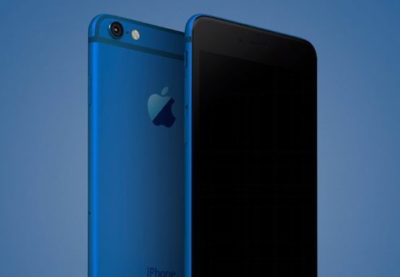
navy-blue-iphone-7-concept

The rumor: It’s not easy being green, and iPhone owners might be starting to get envious of how many colors you can get an Android phone in. iPhones used to be pretty monochromatic, until Apple added gold and then an even brighter splash of color with last year’s rose gold hue (OK, OK, it’s pink). Japanese blog Macotara is reporting that Apple is switching it up this year, swapping the space gray color for navy blue instead.

Plausible? This is absolutely plausible. Apple’s iPhones have never been colorful, but the iPod touch comes in beautiful colored aluminum, and Apple has also set a tradition recently of switching up its Apple Watch bands to fit the season. One of the latest additions is a handsome navy Sport Band, and the Classic Buckle, Leather Loop, Modern Buckle, and two of the Hermès bands come in navy too. Navy looks great on both men and women, but we can’t help being a bit surprised it’s the “basic black” space gray color that’s rumored to be replaced.

A flat Home button?

The rumor:  Blurry, possibly fake spy photos from mobipicker (via 9to5Mac) seem to show a very flat-looking Home button. As in, maybe it’s not a button, maybe it’s just a touch-sensitive place you touch (and/or 3D Touch) instead of physically clicking it.

A fully flat Home button could have 3D Touch potential too.

Plausible? The Touch ID button got a lot faster between the iPhone 6 and 6s, but any button that physically clicks is another opportunity for hardware failure. With the rise of installment plans and the iPhone Upgrade program, we expect Apple to keep making little tweaks that make its phones more durable, so they’re turned in good enough shape to be possibly refurbished and resold. So yes, this is very plausible, and we think Apple could pull it off where the experience is the same, perhaps even using a little haptic feedback to make it feel like the button is clicking but it’s not—just like the Force Touch trackpad.

What about storage size?

The rumor: Apple is ditching the 16GB base model iPhone at long last, at least according to an IHS Technology analyst. The analyst posted on Chinese social media that the base model iPhone 7 will start at 32GB of storage space and 2GB of RAM, based on supply chain research.

Plausible? We sure hope so. Long-time Apple watchers have criticized the company for years over refusing to drop the 16GB model and forcing buyers to choose between the paltry base model and a 64GB option, with no 32GB in between. This is a tale as old as iPhones. In fact, when iOS 8 was released two years ago, many 16GB iPhone owners had to choose between offloading some of their apps, photos, and other files to upgrade to the space-hogging new version or hold off. Apple made iOS 9 a smaller, smarter upgrade, with temporary app deletion making the process easier. But apps easily eat up storage space, and Apple has improved its camera with Live Photos and 4K video-recording, both of which create large files. Sure, you can accept reality and choose the 64GB model, but it’s a lot more expensive. A 32GB base would hit the sweet spot and show Apple can change with the times.

Leaked photos show conflicting design tweaks?
iphone_7_plus_rear

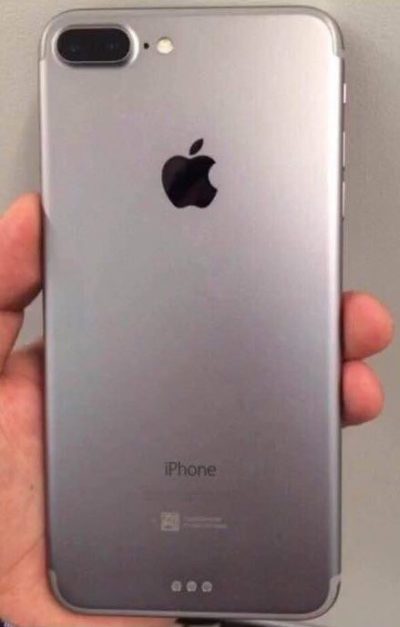
The rumor: Forbes reported on leaked photos that allegedly depict the iPhone 7 chassis. First posted on French tech site NowhereElse.fr, the photos suggest that Apple’s forthcoming iPhone with have double speakers on the top and the bottom, created quad array audio experience similar to the iPad Pro. The photos also seem to confirm, yet again, that the iPhone 7 will not have a headphone jack. Lastly, this iPhone 7 chassis has the flash repositioned underneath the camera, instead of right next to it.

But hold on… according to another recent iPhone 7 photo leak picked up by 9to5Mac, the flash will remain where it is on the 6s. So now we have conflicting rumors. Both sets of photos, however, do show that Apple has redesigned the antenna lines. Instead of horizontal lines, the antenna lines on the iPhone 7 will allegedly be traced along the top and bottom edge of the device.

Plausible? These conflicting Apple rumors could mean a few things. Either both leaked photos are fake, one of them is fake, or both of them are real. According to Forbes, Apple is known for creating several different prototypes of its upcoming products to test, so these photos could both be depicting early but different iterations of the iPhone 7. That both of them would leak, however, seems unlikely.

Smart connector?

The rumor: New images and renderings have surfaced allegedly depicting the iPhone 7 and 7 Plus models. Quoting the Japanese site Mac Otakara, MacRumors reported that these images could be the “real thing.” The leaked image of the iPhone 7 Plus shows a Smart Connector, hinting at the possibility of a Smart Keyboard. While the Mac Otakara report seems to confirm previous rumors the iPhone 7 and 7 Plus will have a similar design to the current generation 6s and 6s Plus, the website also contests previous reports. Most notably, Mac Otakara now refutes the rumor that these new iPhones will have a second speaker to create stereo sound.

Plausible? Apple has been releasing a lot of accessories in the last few months, especially for the iPad Pros. It’s possible the company wants to continue this trend and adding Smart accessories to the 7 Plus. However, a Smart Keyboard suggests that the larger iPhone could have some Pro-style features, and we’re not sure if Apple would want to have it compete with the just-released 9.7-inch iPad Pro.

No headphone jack, really?

beatsheadphones.1.medium

The rumor: Here it is: a leaked iPhone 7 case… allegedly!9to5Mac reported the leaked images as first posted on the@OnLeaks Twitter account. The leaks seem to corroborate a few other rumors about the iPhone 7. For example, the case has no slot for a 3.5mm audio jack, signaling that Apple might be pushing for only Bluetooth and Lightning-connected headphones. The case also has two equally sized speaker grills on each side of the Lightning port slot, confirming that the iPhone 7 will be the first to sport two speakers for stereo sound. Other than that, the purported case points to an iPhone 7 hardware design that’s nearly identical to the iPhone 6s.

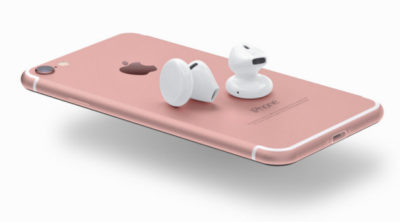
The no-headphone-jack rumor has been around for a while, previously reported by Fast Company and others. Apple is said to be developing wireless EarPods to be sold separately, alongside the iPhone 7. The premium EarPods will reportedly support Siri and wireless phone calls and ship with a carrying case that doubles as a charger.

Plausible? The larger design of the iPhone 6 and 6s lines have proven very successful for Apple, so we can see why the company would want to play it safe design-wise with the iPhone 7. But this similar design may not offer enough reasons to upgrade as we’ve seen with previous numbered upgrades—and if the major innovation requires a lot of people to ditch their 3.5mm headphones or use an adapter, get ready to hear some major griping.

This is the most controversial iPhone rumor in years, even more than the change of sizes with the iPhone 6. Some people love the idea. Others hate it. There’s even a petition to convince Apple that people still love the headphone jack. That petition has just over 300,000 signatures.

How does the dual-lens camera work?

The rumor: We previously reported on the rumor that Apple is looking to bring a dual-lens camera to forthcoming iOS devices. Based on LinX camera technology that Apple acquired last year, the dual-lens incorporates a wide-angle lens and a telephoto lens. According to MacRumors, a recent Apple patent shows for a a split-screen viewfinder where users can see the full image in the wide-angle lens and zoom in with the telephoto lens. The camera will be able to take two separate pics, or use one of the lenses to shoot video and the other to take stills. More impressively, the camera could also implement LinX’s technology to stitch it all together into one really crisp image.

Plausible? The race for bringing DSLR-quality cameras into smartphones is on. Samsung’s recently-unveiled Galaxy S7 garnered rave reviews for its use of Duo Pixel Technology to take photos. Apple may be feeling the heat to create an equally-stunning photo experience to the iPhone 7. If the dual-lens technology as outlined in this patent comes to fruition, it would help the iPhone regain its reputation as the best camera phone on the market.

How thin will the iPhone 7 be?
iphone-7-thickness

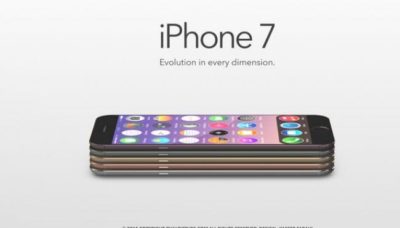
The rumor: Macotakara reported this week that the iPhone 7 will be 6.1mm thick. That’s one whole millimeter thinner than the current iPhone 6s, which measures 7.1mm. This new thinner model will be accompanied by a flush rear camera (so not protruding) for a design that’s sleeker overall.

Plausible? If this rumor is true, Apple seems to be under the impression that thinner is better. Apple has already made a device that measures just 6.1mm: the iPod touch. So it makes sense that the company would want to try to make the newest iPhone be just as thin. Hopefully, the iPhone 7 won’t be affected by any “Bendgate” issues because of this thinner design.

Will the thinner Lightning port mean I have to get new cables?

The rumor: In addition to getting rid of the 3.5mm headphone jack to achieve this new thinness, the iPhone 7 is rumored to integrate a thinner Lightning port. This will not affect the actual Lighting cables, however, so you won’t have to get all new connectors for the iPhone 7. What Apple is doing is simply making the cutout around the port smaller, so it should only affect case-makers, according to 9to5Mac.

Plausible? If Apple is already going insofar as to removing the headphone jack, which has already sparked plenty of controversy, then a slight redesign of the Lightning port doesn’t seem like a big deal. Especially if our current Lightning connectors will still be able to hook up to it.

Camera differences between the 7 and 7 Plus?
iphone-7-plus-dual-camera-1

The iPhone 7 Plus might have the most amazing smartphone camera ever.

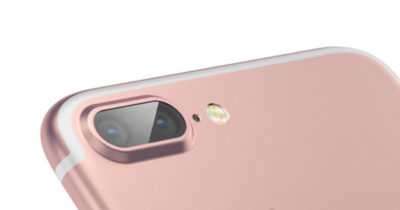
The rumor: The iPhone 7 Plus will have a better camera, to the chagrin of small-handed amateur photographers around the world. According to MacRumors, the 7 Plus may have a dual-lens camera with optical zoom, which means this phone will take better photos than many traditional cameras. Instead of pinching to zoom in digitally, which usually results in a terrible grainy photo, the 7 Plus camera will have an optical zoom. That’s where the second camera lens comes in: It’s essentially a zoom lens.

Plausible? Yes. The iPhone 6s and 6s Plus have most of the same features, but the larger phone has a small but key difference: optical image stabilization. That feature uses the Plus’s gyroscope and camera array to steady your photos even if your hand shakes. The 6 and 6s rely on camera software to achieve the same effect, though the resulting images aren’t quite as clear. If the 7 Plus has a dual-lens camera with optical zoom, it would be a huge differentiator—the Plus could become the phone to beat for serious photographers.

Is that unsightly camera lens bulge going away?

The rumor: Apple redesigned the 6 and 6s models to be thinner and lighter than ever before, but there’s one big problem: The rear-facing camera lens juts out of the body, so the phones won’t sit flat on a surface. For a company that’s all about the details, this seemed like a strange design decision. The iPhone 7 is reportedly getting a camera that sits flush against the phone, according to MacRumors, so your eyes won’t be offended any longer.

Plausible? We sure hope so. That camera protrusion had to happen for a reason, but even Apple design chief Jony Ive is not a fan.

Will the iPhone 7 be waterproof?

The rumor: Making the iPhone thinner than ever and adding a DLSR-quality camera aren’t game-changing enough for Apple, apparently, so the company is reportedly working on ways to waterproof the iPhone 7. Ambitious? Yes. Possible? Definitely. Without a headphone jack to trap water, Apple could coat the iPhone with a waterproof coating and make those third-party rugged, waterproof cases obsolete.

Plausible? Actually, yes. Apple took several steps to waterproof the iPhone 6s without actually calling it waterproof, as detailed here, and word on the street from people who have accidentally submerged a 6s indicates that those techniques worked. All Apple needs is some waterproof buttons (which it’s reportedly working on), and they’re set.

Next year’s iPhone

Yes, you read that right. In this craziest of iPhone rumor cycles, we’re been reading rumors for the 2017 iPhone mixed in with rumors of the iPhone that should come out in September of 2016. Just to keep them all straight, here are the things we may have to look forward tonext year.

An OLED screen and glass on both sides

The rumor: Remember the iPhone 4, encased in glass on both sides, so you’d have twice as many surfaces that could shatter every time it slipped out of your hand? Apple might bring back an all-glass design in 2017. Hopefully it’s a bit more durable this time.

KGI Securities analyst Ming-Chi Kuo thinks that Apple is planning a major iPhone redesign for 2017—not this fall. In a note to investors, he predicted an iPhone with a 5.8-inch OLED screen that’s encased in glass on both sides, yet smaller than the current iPhone 6s Plus, meaning Apple would be looking to eliminate as much bezel and “chin” as possible. DisplayMate President Ray Soneira echoed Kuo’s OLED predictions in a recent report, citing the “rapid improvements” in OLED performance over the last six years.

“Apple simply has no choice in switching,” Soneira said, because OLEDs are thinner, lighter, more responsive, and can be curved or bent in ways that LCD displays just can’t.

Kuo also predicted the all-glass 2017 iPhone would have wireless charging, and some kind of biometrics, like face recognition or iris scanning. The Home button takes up a lot of space on the current iPhones, and replacing it with other biometrics for login and Apple Pay (along with deep-touch gestures for exiting apps) could let Apple expand the screen.

Plausible? In Apple’s usual “tick-tock” cycle, the 2016 iPhone would get a redesign, since the current iPhone 6s and 6s Plus are upgrades to the iPhone 6 and 6 Plus designs that launched in 2014. But if Apple really is switching to OLED, that’s a major shift that might need more time to perfect. It’ll be interesting to see what innovations Apple can add in 2016 to make the iPhone seem exciting even if the overall design stays the same—a better camera and a Smart Connector are a start.

More evidence of OLED

The rumor:  According to a recent Bloomberg report, Applied Materials, an Apple supplier, has received almost four times the amount of orders for its display-making machines. This jump is linked to Apple retooling the iPhone manufacturing process to include OLED screens in the fall of 2017.

Plausible? We’ve already bought into the general rumor that Apple would switch to OLED, and this report supports the 2017 timeline—according to Applied Materials, it takes about 3 quarters for their machines to be build, delivered, and installed.

Have questions?

Get answers from Microsofts Cloud Solutions Partner!
Call us at: 856-745-9990 or visit: https://southjerseytechies.net/

South Jersey Techies, LL C is a full Managed Web and Technology Services Company providing IT Services, Website Design ServicesServer SupportNetwork ConsultingInternet PhonesCloud Solutions Provider and much more. Contact for More Information.

To read this article in its entirety click here.

12 Upcoming Fitness Devices to Watch

If you still think Fitbit’s wristbands are the coolest wearables around, you’re behind the times. These lesser-known fitness gadgets are designed to help improve your health, and they’re all worth a look.

FitnessDevices

12 worthy wearables, activity trackers and health gadgets

Everything is “smart” these days, it seems, especially when it comes to gadgets designed to help people improve their health and boost fitness levels. Smart mirrors and body scanners, smart running socks, a smart vest, smart drinking cups, smart sleeves and smart sleep masks are all now available, or will be soon. Many of these Internet of Things things are wearables — except for the “naked 3D” full-body mirror, of course— while others are designed to be carried in a pocket or clipped to a belt or bra.

The following 12 devices, many of which aren’t yet available, are all notable for some reason. So sit back, relax, take a sip from your smart water bottle, and check them out.

FitnessDevices1

Naked 3D Fitness Tracker

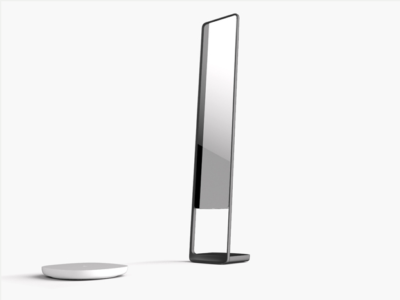
What it is: Naked 3D Fitness Tracker isa full-length mirror with a built-in body scanner, and it’s “the world’s first 3D fitness tracker for consumers,” according to its manufacturer.The mirror incorporates Intel RealSense 3D sensors for body imaging, along with Wi-Fi and Bluetooth for setup and syncing data to its companion mobile app. The included turntable and scale rotates 360 degrees when you step on it. Its goal is to help you better understand your body and visualize progress toward goals.

Cool factor: Using the mobile app, you can create a “custom time lapse” of your body’s progress.

Uncool factor: It’s expensive and won’t be available for almost a year.

Price and availability: Currently available for preorder for $999 (discounted to $599 as of this writing), and it’s expected to ship in March 2017.

FitnessDevices2

AIO Sleeve

What it is: “The world’s first activity tracking compression sleeve,” AIO Sleeve claims to be more accurate than the average fitness tracker at gathering data, such as heart rate information, because it covers the entire arm, rather than just a wrist. The developer says the sleeve’s sensors go beyond typical step, distance, sleep and heart rate tracking by using ECG and MET readings, which tell you how your body responds to physical activity while you work out, so you know whether to step it up or slow down.

Cool factor: It provides ECG readings for workouts.

Uncool factor: The sleeve can’t possibly be comfortable in hot weather.

Price and availability: Currently available for preorder for between $99 and $130, and it’s expected to ship in September 2016.

FitnessDevices3

GOQii

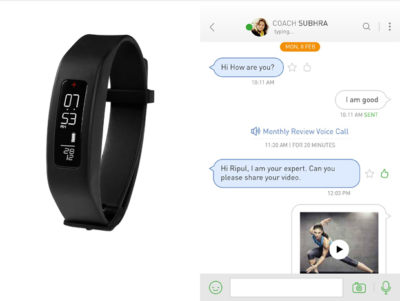
What it is: GOQii is a digital fitness coaching service that pairs with a wearable activity tracker, and it’s designed to help you make sense of all the data your tracker collects. GOQii coaches are certified nutritionists, personal trainers and life coaches, and they aim to help you better understand your activity data, as well as use that data to make healthier choices, according to the developer.

Cool factor: The service includes a monthly call with a coach to review your data, and it lets you text message coaches from within the GOQii app. The service integrates with popular wearables from Fitbit, Jawbone, Google and Apple, so you can use it along with many different activity trackers.

Uncool factor: That name. It’s also a little pricey, but the monthly fee includes a tracker.

Price and availability: Currently available for $29 a month.

FitnessDevices4

Neuroon

What it is: A smart sleep mask, Neuroon promises to help you beat jetlag. A “smart pack” is embedded in the eye mask and contains four biometric sensors that measure EEG, EOG, pulse, motion and temperature, along with four LED lights (to help you “reschedule your body clock” when traveling across time zones) and two rechargeable lithium-ion batteries. A companion app syncs sleep data via Bluetooth.

Cool factor: It’s a sleep mask with built-in lights!

Uncool factor: How well will you really be able to sleep while wearing a sleep mask with built-in lights?

Price and availability: Currently available for $299.

FitnessDevices5

Soltrackr

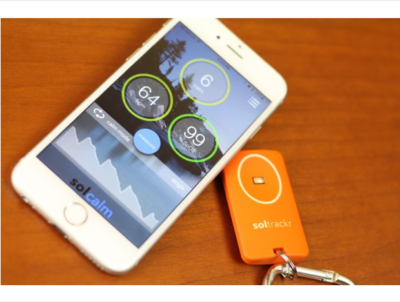
What it is: Soltrackr is designed to measure UV radiation levels and provide personalized feedback via a mobile app. The device can help you determine how long you should stay in the sun, which SPF level sunscreen you need to apply, and how much vitamin D you absorb. The “wireless health companion” also promises to provide biofeedback, to optimize workouts and manage stress levels. It measures heart rate and blood oxygen levels, as well, and records improvements in cardiovascular fitness.

Cool factor: It’s reasonably priced and fits on a key ring.

Uncool factor: Does anyone really need another gadget to carry?

Availability: Now available for $49, though it’s currently backordered.

FitnessDevices6

Thin Ice

What it is: Thin Ice is a piece of “smart clothing” that’s designed to be worn under clothes. Its goal is to help your body burn up to 1,000 additional calories each day, if you wear it for four hours. The garment, controlled by a mobile app, reportedly “cools parts of the body with high concentrations of thermo receptors, which stimulate the brown adipose tissue (BAT) pathway.” This specific pathway supposedly burns “bad fat,” which produces heat and eats calories in the process.

Cool factor: It’s supposed to burn calories without its user having to do anything.

Uncool factor: It sounds too good to be true, and the vest looks bulky.

Price and availability: Currently available for preorder for an “early bird” price of $99, and it’s expected to ship in November 2016.

FitnessDevices7

Zenytime

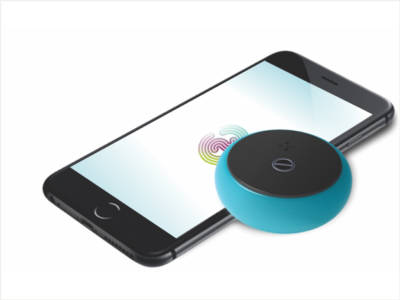
What it is: Zenytime is a Bluetooth-enabled puck that fits in a pocket, and you can whip it out, and then blow into it to measure two stress biomarkers: heart rate variability, and respiratory sinus arrhythmia. The developer says Zenytime checks “the actual impact of stress on [users’] brains and bodies in real-time.” The gadget, when paired with a mobile app, employs interactive breathing games to collect your baseline data and coach you toward reducing stress.

Cool factor: It’s available in multiple colors.

Uncool factor: If you don’t like games, you probably won’t like Zenytime.

Price and availability: Currently available for preorder for $99, and it’s expected to ship in June 2016.

FitnessDevices8

Spire

What it is: Spire is a small gadgetthat clips to a belt or bra, and it is designed to help you manage stress by monitoring your breathing patterns via the rise and fall of your chest or stomach. The device pairs with an iOS app, which charts inhales and exhales in real-time and provides alerts when your breathing patterns suggest you’re stressed. The app also provides guided meditation exercises.

Cool factor: Spire, which looks like a stone with a clip, “can tell you you’re stressed before you’re even aware of it yourself,” according to Outside magazine.

Uncool factor: A Forbes reviewer says he “occasionally got false reads.”

Price and availability: Currently available for $150.

FitnessDevices9

Rufus Cuff

What it is: Rufus Cuff is an Android OS-based “wrist communicator” with a 3.2-inch color display that works as a standalone device for video and voice communications over Wi-Fi networks. The Cuff has an accelerometer, gyroscope and compass, as well as GPS for activity tracking. It’s designed for consumers and industrial users, and the developer says it can easily integrate into B2B communication networks that have an existing Wi-Fi infrastructure.” Rufus Cuff can also run apps, surf the Web, and do basically anything that an Android device can.

Cool factor: It’s a tiny tablet you wear on a wrist, and it’s made in the United States.

Uncool factor: Do you really want to wear a tiny tablet on your wrist?

Price and availability: Currently available for preorder for $299, and it’s expected to ship in July 2016.

FitnessDevices10

Sensoria Fitness Running System

What it is: Sensoria’s Fitness Running System combines two pairs of “smart socks,” two anklets, and a sports bra for women, or a smart t-shirt for men. The system measures steps, calories and pace to provide running feedback, such as how your feet land. The sports bra and shirt both monitor heart rate. Everything connects to the Sensoria Fitness mobile app. The developer recently released a new iOS app, Sensoria Walk, that’s designed to track steps, distance and cadence, and it’s meant for use by consumers and patients in rehab following a stroke or surgical procedure.

Cool factor: You don’t need to wear a chest strap or wristband for heart rate monitoring, and you get feedback on running performance.

Uncool factor: It’s a bit pricey.

Price and availability: Available now for $399 for men, and $389 for women.

FitnessDevices11

Nex

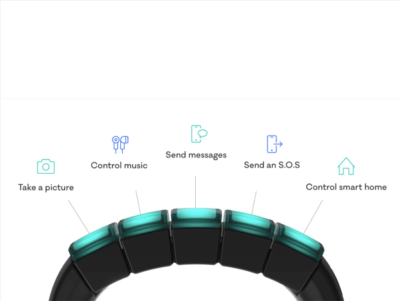
What it is: The Nex band is a modular wristband that features five touch-sensitive, LED-lit modules, called “Mods,” which snap on and off. Each Mod can be programmed using an iOS app, to do things such as track activities, control music, take pictures (via a connected smartphone), and manage smart home devices. Integration with thepopular IFTTT service lets you create other, similar “hacks,” as well. Nex’s developer offers an SDK and API to encourage third-party companies to add more functionality to its Mods.

Cool factor: The Wall Street Journal says Nex “feels like what the Apple Watch was supposed to be.”

Uncool factor: If you already wear an Apple or Android smartwatch, a Fitbit or other band, do you have any more room on your wrists for another wearable?

Price and availability: Available for preorder for $99, and it’s expected to ship during the summer of 2016.

FitnessDevices12

Vessyl

What it is: Vessyl is a”smart cup” that reportedly measures and tracks “everything you drink” from it, according to the developer. Trying to cut down on caffeine? The cup can track how much you consume. Want to lose weight? Vessyl tells you how many liquid calories you quaff. Need to cut out sugar? Vessyl monitors your liquid sweet-treat intake. Its associated mobile app shows stats and lets you set up “lenses” to track goals.

Cool factor: The cup looks sleek.

Uncool factor: It’s been in development since at least 2014 and is still not available.

Price and availability: Projected price is $199, but it’s unclear when Vessyl will be released.

Have questions?

Get answers from Microsofts Cloud Solutions Partner!
Call us at: 856-745-9990 or visit: https://southjerseytechies.net/

South Jersey Techies, LL C is a full Managed Web and Technology Services Company providing IT Services, Website Design ServicesServer SupportNetwork ConsultingInternet PhonesCloud Solutions Provider and much more. Contact for More Information.

To read this article in its entirety click here.

iOS 9 PPTP VPN Setup Tutorial

Manual Setup

Step 1

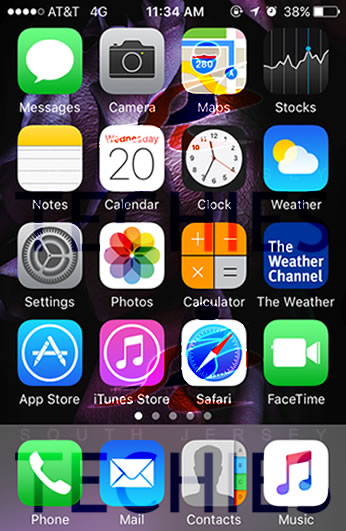
Start from the home screen. Go to “Settings“.


sjt-blog-iphone-vpn-01

Step 2

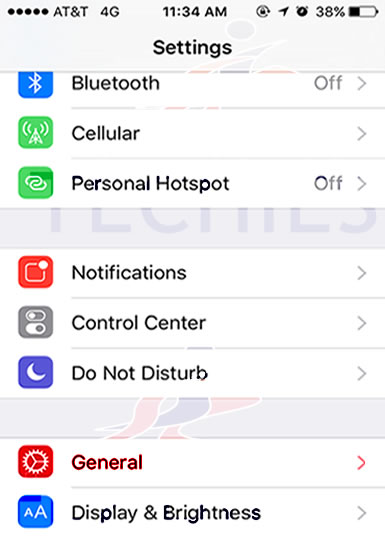
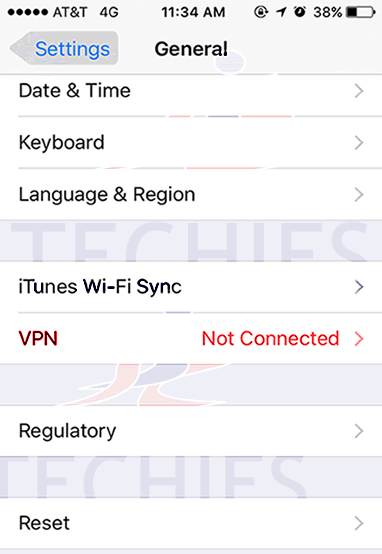
Go to “General“.


sjt-blog-iphone-vpn-02

Step 3

Then proceed to “VPN“. You may need to scroll down to find it.


sjt-blog-iphone-vpn-03

Step 4

Tap on “Add VPN Configuration…“.


sjt-blog-iphone-vpn-04

Step 5

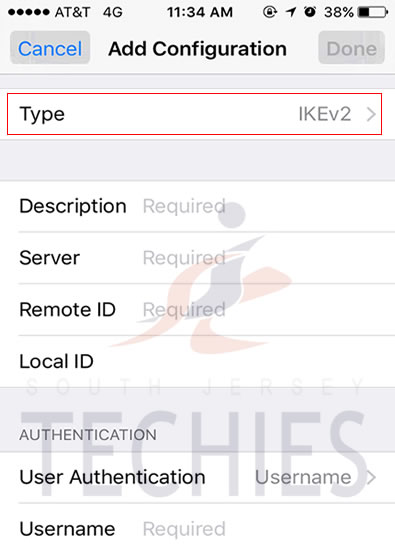
Tap on “Type“.


sjt-blog-iphone-vpn-05

Step 6

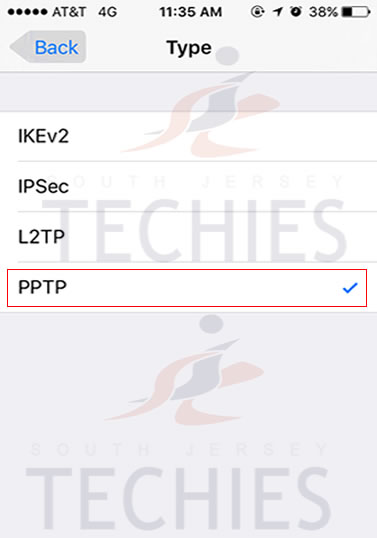
Select “PPTP” by tapping on it.


sjt-blog-iphone-vpn-06

Step 7

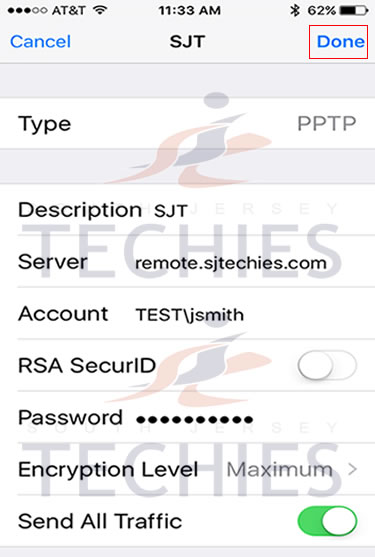
Description” is the name of the connection, can be any as you like, we recommend StrongVPN.
Fill the “Server“, “Account” and “Password” fields.
Server” is your server address. It is not remote.sjtechies.com, that is just an example.
Account” and “Password”. Account is neither Test\jsmith nor your email.
Encryption Level” option must be set to “Auto“. “Send All Traffic” should be “ON“.
When the fields are filled up correctly, tap “Done“.


sjt-blog-iphone-vpn-07

Step 8

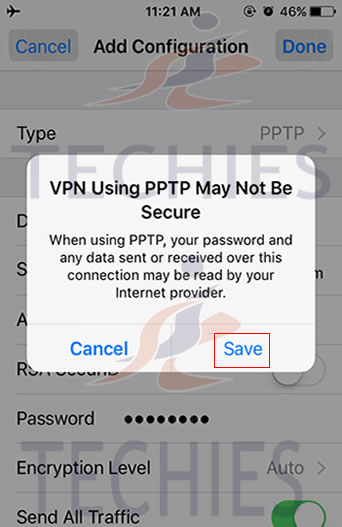
It will give you the warning about using the PPTP connection, which has some downsides.
Tap Save button. (Hint: If you want stronger encryption just use L2TP.)


sjt-blog-iphone-vpn-08

Step 9

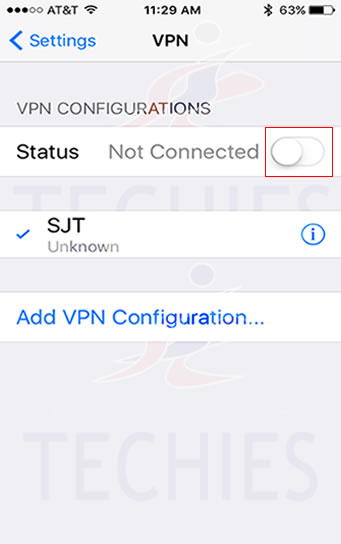
Now connect by tapping the switch button to the right of VPN Status.
(If you have more than one VPN configuration listed, the one with a check next to it will be connected. You can tap on a vpn configuration name to select it, or tap on the ‘i’ to the right of the name if you need to update the settings.)


sjt-blog-iphone-vpn-09

Step 10

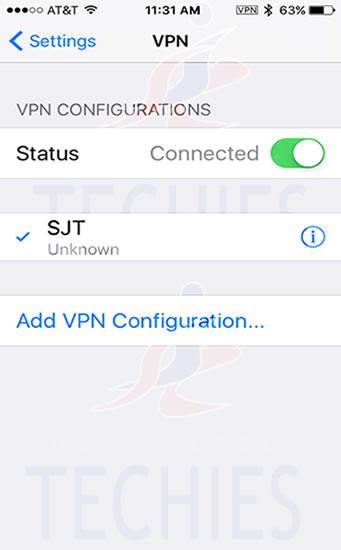
It will show you “Connecting…” status, wait while it connects.
When the VPN connection is established the status will be “Connected“. Also notice the “VPN” badge on the top bar.


sjt-blog-iphone-vpn-10

Step 11

To check if your IP address is changed successfully open the Safari browser and proceed to http://strongvpn.com/.

Have questions?

Get help from IT Experts/Microsofts Cloud Solutions Partner
Call us at: 856-745-9990 or visit: https://southjerseytechies.net/

South Jersey Techies, LLC is a full Managed Web and Technology Services Company providing IT Services, Website Design ServicesServer SupportNetwork ConsultingInternet PhonesCloud Solutions Provider and much more. Contact for More Information.

To read this article in its entirety click here.

 

If Microsoft can’t install Windows 10 on your PC, it’ll give you a new one

Terms and conditions apply, but if the company’s stores can’t perform a same-day upgrade on your Windows 10-compatible PC, it’ll give you a new Dell notebook.

Windows 10- SJTechies

As the free Windows 10 upgrade offer nears its end on July 29, Microsoft is pulling out all the stops to convince users to upgrade. It’s even willing to give you a new laptop.

As spotted, Microsoft retail stores are offering to install Windows 10 on any compatible machine for free. If the store’s technicians don’t complete the upgrade by the end of that business day, they’ll give you a free 15-inch Dell Inspiron notebook.

The offer runs between now and July 29.

There is, of course, plenty of fine print. The free installation offer only applies to a single PC that’s capable of running Windows 10 (If it isn’t, you may be eligible for a $150 credit toward a new PC). You also need to check in your computer by noon for the offer to be valid. It’s also limited only to the US and Canada, so customers of the Microsoft Store in Sydney are out of luck.

The story behind the story: This free PC offer is the latest in a series of highly aggressive moves Microsoft has made to get its users onto Windows 10. Its deceptive, malware like pop-ups in Windows 7 and 8.1 effectively trick users into installing Windows 10, whether they want to or not. Windows 10 spiked in market share in June, seemingly as a result of these forced updates, but the company has since admitted that it likely won’t hit its goal of having Windows 10 on one billion devices by mid-2018.

Have questions?

Get answers from Microsofts Cloud Solutions Partner!
Call us at: 856-745-9990 or visit: https://southjerseytechies.net/

South Jersey Techies, LL C is a full Managed Web and Technology Services Company providing IT Services, Website Design ServicesServer SupportNetwork ConsultingInternet PhonesCloud Solutions Provider and much more. Contact for More Information.

To read this article in its entirety click here.

Set Up Exchange E-Mail on an Android Mobile Phone

Set Up Exchange E-Mail on an Android Mobile PhoneWindows_Start_Button

You can set up e-mail using an Exchange account on an Android mobile phone. If you have a different phone, see Mobile Phone Setup Reference. If you are having trouble connecting your device after following these steps, see “What else to I need to know?” at the end of this Help topic.

How do I set up Exchange ActiveSync on an Android mobile phone?


  1. From the Applications menu, select Email. This application may be named Mail on some versions of Android.
  2. Type your full e-mail address, for example tony@contoso.com, and your password, and then select Next.
  3. Select Exchange account. This option may be named Exchange ActiveSync on some versions of Android.
  4. Enter the following account information and select Next.
    • Domain\Username   Type your full e-mail address in this box. If Domain and Username are separate text boxes in your version of Android, leave the Domain box empty and type your full e-mail address in the Username box.
      Note:
      On some versions of Android, you need to use the domain\username format. For example, if your e-mail address is tony@contoso.com, type contoso.com\tony@contoso.com. Your username is your full e-mail address.
    • Password   Use the password that you use to access your account.
    • Exchange Server   Use the address of your Exchange server. To find this address, see “Finding the Server Name” later in this topic.
  5. As soon as your phone verifies the server settings, the Account Options screen displays. The options available depend on the version of Android on your device. The options may include the following:
    • Email checking frequency   The default value is Automatic (push). When you select this option, e-mail messages will be sent to your phone as they arrive. We recommend only selecting this option if you have an unlimited data plan.
    • Amount to synchronize   This is the amount of mail you want to keep on your mobile phone. You can choose from several length options, including One day, Three days, and One week.
    • Notify me when email arrives   If you select this option, your mobile phone will notify you when you receive a new e-mail message.
    • Sync contacts from this account   If you select this option, your contacts will be synchronized between your phone and your account.
  6. Select Next and then type a name for this account and the name you want displayed when you send e-mail to others. Select Done to complete the e-mail setup and start using your account.
    Tip:
    You may need to wait ten-to-fifteen minutes after you set up your account before you can send or receive e-mail.

Finding the Server Name


If your email program isn’t able to automatically find your Exchange ActiveSync server name, you may need to look it up.

  1. Sign in to your e-mail account using Outlook Web App.
  2. If you’re connecting to an Exchange mailbox, your Exchange ActiveSync server name is contained in the address bar in your browser when you are signed in to Outlook Web App, but without the leadinghttps:// and without the trailing /owa. For example, if the address you use to access Outlook Web App is https://mail.contoso.com/owa, your Exchange ActiveSync server name is mail.contoso.com.
  3. If you’re unable to connect to your mailbox using the information earlier in this section, you can try using the server name value that you can view in Outlook Web App options. Do the following:
    1. In Outlook Web App, click Options > See All Options > Account > My Account > Settings for POP, IMAP, and SMTP access.
      Note:
      Although you’re not setting up a POP3 account, you will use this value to determine your Exchange ActiveSync server name.
    2. Under POP setting, view the value for Server name.
    3. Try setting up your email using the server name listed on your options page. For example if the value for Server name under POP setting is mail.contoso.com, try using mail.contoso.com as your Exchange server name.

What else do I need to know?

  • If your e-mail account is the type that requires registration, you must register it the first time you sign in to Outlook Web App. Connecting to your e-mail account through a mobile phone will fail if you haven’t registered your account through Outlook Web App. After you sign in to your account, sign out. Then try to connect using your mobile phone. For more information about how to sign in to your account using Outlook Web App, see How to Sign In to Outlook Web App. If you have trouble signing in, see FAQs: Sign-in and Password Issues or contact the person who manages your e-mail account.

12 Tips to Save on Your Cell Phone Bill

Why pay more than you have to every month? These tips, tricks, and services can help you SAVE plenty of money on that monster cell phone bill.

See that cell phone next to you? Unfortunately, you’re paying too much money for it–every month. If overpaying for what you need sounds like a bad idea to you, stop doing it. We’ve assembled 12 simple actions that you can take to reduce your cell phone bill, so that some of the cash you now spend for service–maybe even half of it–remains in your possession. So check out our tips, and use one or more of them to save big bucks on your bill.


Covering the Basics

1. Find the right plan for you: Carefully review how often and in what ways you use your phone. Ideally, you should do this before signing a cell phone contract, but of course it can be difficult to know exactly how you’ll use your phone until you spend time with it every day.

If you’re already using your phone, take a close look at your cell phone plan, examining the calling, messaging, and data plan options you’ve chosen. Then scrutinize your usage pattern. Check several months of phone bills to see whether you pay for more minutes and megabytes than you use, or whether you regularly exceed your usage limits.

How much can I save? Let’s use a Verizon Wireless plan as an example

Possible Savings on Monthly Cell Phone Voice Plan (One Example: Verizon Wireless)

USAGE LIMITS Price per month Overage fee (per minute) Cost of using 750 minutes in one month Savings Advice
450 minutes per month $39.99 $0.45 $135 over your $39.99 monthly fee You don’t have any–and you’re paying much more than your monthly fee Bump up the minutes on your voice plan if you consistently exceed your minutes limit.
900 minutes per month $59.99 $0.45 $59.99 $135 versus the 450-minute plan with overage charges Drop to a lower monthly rate if you would almost never exceed its lower minutes limit.

On the other hand, if where you exceed the 450-minutes-per-month maximum just once during the life of your two-year service plan–even if you exceed it by a lot that one time, you still come out ahead with the lower limit overall. Suppose that you incur $157.50 in overage fees one month but stay under the 450-minute limit during the other 23 months of the service contract. Then you’ve saved overall by opting for the $39.99-per-month contract instead of the $59.99-per-month contract, since paying $20 more each month for 24 months would cost you an extra $480. Suddenly, that one-time surcharge of $135 seems like a bargain.

2. Trim the fat: Examine your cell phone plan to see what services you’re paying for above and beyond your voice and data plan. Are you paying your carrier for mobile insurance? A GPS service? Roadside assistance? Visual voicemail? Then think about whether you need these extras. In the case of voicemail, for example, your call log shows you the name and number of incoming callers, anyway–and that’s free.

How much can I save? This time, let’s use AT&T as an example.

Monthly Costs of AT&T’s Extra Services

AT&T Navigator $9.99
AT&T Family Map for iPhone $9.99
AT&T Mobile Insurance $6.99
Smart Limits for Wireless Parental Controls $4.99
Enhanced Voicemail $1.99
Detailed Billing $1.99

Opting out of just half of these billing add-ons can save you anywhere from $7.97 to $26.97 each month.

Get the Details on Data

3. Go data-free: Kick it old-school style by dropping your data plan altogether. This option may not be available if you’ve purchased a smartphone that requires a data plan; but for some consumers it’s a sensible move.

And it is possible: When my iPhone 4 suffered a fatal fall recently, I went back to my elderly flip phone and relied on an iPod Touch for apps and Internet services. When I wanted to check email or browse the Web, it was Wi-Fi only.

My pockets were heavier, in part because I was carrying two devices around, but also because my pockets had more cash in them thanks to my lower monthly bill.

How much can I save? $15 to $50 a month, or more.

4. Go on a data plan diet: Not ready to opt out of a data plan completely? Try cutting back instead.
Opt for the lowest-tiered data plan that your carrier offers, and make sure that you stay within your limits. Visit WhatIsMyCap.org, a handy site that offers tips on avoiding overage charges, using your current data plan as an example.

Also, find out what apps are claiming most of your bandwidth; the culprits may be obvious ones like Pandora and Netflix, or sneaky ones like Google Maps that increase your data usage by serving up ads.

How much can I save? $15 to $35 a month, or more.


5. Compress, compress:
 Having trouble reducing your data usage? Check out Onavo’s free iPhone and Android app, called Onavo Extend, which claims to make your data usage up to five times more efficient.

How much can I save? $15 a month or more.

Shake Things Up

6. Switch carriers: AT&T, Sprint, T-Mobile, and Verizon Wireless are the big four in cell phone service, but they’re hardly your only options.

Signing up with a smaller carrier, like Boost Mobile or US Cellular, can cut your monthly cost significantly

How much can I save? Boost Mobile offers an unlimited Android Plan for $55 per month, and an unlimited BlackBerry Plan for $60. (Both of these plans cover unlimited nationwide talk, text, Web access, 411 service, instant messaging, and email.)

In contrast, opting for a similar plan from Sprint, which is one of the only big carriers still offering an unlimited data plan option, will cost you $99.99 a month for unlimited voice, data, and messaging.

How much can I save? $40 to $45 per month.

7. Go contract free: It may seem counterintuitive, but one way to lower your monthly cell phone bill is to go contract-free. This isn’t the same as buying a prepaid cell phone (we’ll get to that next); here, you still pay your carrier month-to-month for cellular service, but you pay less. The trade-off is that you pay more for the phone itself up-front. But depending on the phone you choose, you could save big in the long run with this strategy.

How much can I save? You’ll pay T-Mobile $350 for its MyTouch Android phone, but you won’t sign a contract. A monthly service plan from T-Mobile with unlimited talk, text, and data costs $59.99 per month, so the cost of buying and using this phone (spread over two years) is about $1790.

That may sound like a lot, but consider this: It’s actually a savings of $180 over buying the phone with a two-year contract. In the latter case, T-Mobile subsidizes the cost of the phone, so the same myTouch device will cost you just $50, but the monthly service charge rises to $79.99 (or roughly $1920 over the life of the contract). So over two years, the total cost of the same phone and service comes to $1970–and you’re locked into a 24-month service contract.

8. Go prepaid: Paying for your phone service ahead of time is a sure-fire way to save money. After all, it guarantees that you pay only for minutes that you’ll use. And prepaid phones have come a long way in recent years, with carriers offering various cell phones and smartphones with prepaid plans.

How much can I save? With one of Virgin Mobile’s prepaid “PayLo” plans, you can spend as little as $20 per month for cell phone service. The lowest-cost plan includes 400 voice minutes.

charges messages (at 15 cents per message) and data (at $1.50 per megabyte of data used) on this plan against your $20 balance, and your credits are valid for 30 days. In one month, a light user could save as much as $40 off the price of a standard cell phone plan with messaging and data from a major carrier.

9. Dump the smartphone: Sure, your smartphone is cool. And you may think that you can’t live without it…but giving it up can be surprisingly easy. If you can’t bear to surrender access to the Web, email, and apps, try using a Wi-Fi-device, such as an iPod Touch, instead.

How much can I save? $15 to $50 a month–that’s how much you’re likely paying for the data plan on your smartphone.

Use the Web to Your Advantage

10. Go VoIP only: If you’re paying for a data plan on that smartphone, why not put it–and your phone’s Wi-Fi access–to good use?
Fring is one of a number of budget-friendly Voice-over-IP phone services.Dump your voice plan (if your contract permits you to, of course) and use a voice-over-IP service, such as Fring, Google Voice, or Skype, to make calls. A PCWorld writer took the plunge, and lived to tell the tale. Voice quality may not be perfect, but when was the last time your cell phone offered perfect voice quality?

How much can I save? $40 a month, or more–whatever the monthly cost of your voice plan is.

11. Get texting help: When it comes to texting, you probably think that you have to pay for a texting plan (at anywhere from $5 to $20 per month) or have to pay a per-message fee (of around 20 cents).

But you have a third alternative, and it’s free: Use an app to text at no charge. Free texting apps–which include Nimbuzz, WhatsApp,GroupMe, among many others–let you text and IM for free, using popular messaging networks such as Facebook and AIM.
You may have to get your friends or family to sign on in order to obtain completely free texting, but convincing them of the app’s merits is likely to be worth your while.

How much can I save? When you kiss your texting plan goodbye, you’ll be able to pocket an extra $5 to $20 per month.

12. Get outside help:Not sure which path will save you the most money? Get help at BillShrink.com. This very cool site analyzes your cell phone usage (you can grant it access to your account or enter the information manually), and points out plans that will save you money while meeting your needs.

How much can I save? BillShrink alerted me to a $30-per-month plan on T-Mobile that would save me about $50 per month.

And when I requested to keep using an iPhone, it alerted me to a $70-per-month plan on Sprint, which would save me $10 per month or more. (AT&T charges for data overages, while Sprint offers unlimited data.)

I think it’s time to make a change.

To View Entire Article Click Here

200M Now Use Windows 10 In The Enterprise

The latest numbers from the company show businesses are close to schedule to move away from Windows 7 before the older OS retires in early 2020.

Windows10 Enterprise

Microsoft on Tuesday said that some 200 million enterprise workers now run Windows 10, a sign that corporations and other businesses are close to schedule to scrub Windows 7 from their machines before that older OS retires in about 20 months, an analyst argued.

“The 200 million resonates with me, based on what I’m hearing from clients,” said Stephen Kleynhans of Gartner Research. Migrations to Windows 10, he added, are progressing “pretty aggressively.”

Joe Belfiore, a corporate vice president who leads the Windows 10 team, revealed the number at Microsoft’s Build developers conference Tuesday. “Right now, there are over 200 million people in corporate accounts using Windows 10,” Belfiore said as he claimed deployment is “really ramping up” in the enterprise. “We’ve seen that [Windows 10] adoption rate increase now at 79% year-over-year growth.”

The day before, Microsoft contended that “nearly 700 million” devices are running Windows 10 worldwide. On that basis, enterprises accounted for less than 30% of all copies of Windows 10.

(Although the two numbers – Belfiore’s 200 million people using Windows 10 in corporate settings and Microsoft’s 700 million devices powered by the operating system – measured two different things, it’s not uncommon for Microsoft to obfuscate this way to prevent direct comparisons. In actuality, because Microsoft typically sells licenses on a per user basis, with multiple devices allowed for each user, 200 million people may be using more than that number of Windows 10 devices.)

While neither the percentage nor the 200 million are to be sneezed at, the former is significantly less than the average overall for commercial PCs, which have historically accounted for more than half – 55% has been an often-cited figure – of all personal computers.

And while Kleynhans did not dispute Microsoft’s claim of 200 people running Windows 10 in the enterprise, he sounded a bit disappointed in the number. “Is it a low number? It’s a little behind where I thought it would be,” Kleynhans said, noting that he expected it to be around 250 million by this point, perhaps even close to 300 million.

That 2009 operating system will fall off Microsoft’s support list on Jan. 14, 2020, meaning that while Windows 7 will continue to work as before, the Redmond, Wash. will stop distributing security updates to it.

It’s unrealistic to expect that all commercial customers will have purged Windows 7 by the retirement date, Kleynhans said, pointing out that he has recently spoken with clients who still run some instances of Windows XP (retired from support in 2014) and even Windows 98 (2006).

“What we [Gartner] expect is that enterprises will get to the 85%-90% level by the deadline,” Kleynhans said of the percentage of corporate devices shifted to Windows 7, “maybe even a little higher than that.” Nothing that’s happened has changed that estimate, he added.

“There are always laggards,” Kleynhans said.

According to other metrics, there may be a considerable number of them.

Estimates from analytics vendors, including U.S.-based Net Applications, which measure user and usage shares, signal that a large resorvoir of Windows 7 users will remain after the operating system’s retirement in 20 months. Net Applications’ latest data, for example, drove a Computerworld forecast that of the world’s Windows personal computers – all the PCs, not just those in the enterprise – 42% would still be running Windows 7 in January 2020, a much larger percentage than the 29% powered by Windows XP when that edition fell off the support list in April 2014.

In the end, large organizations will do what it takes to get off Windows 7 and onto Windows 10 by the former’s support cut-off date. The 200 million touted by Belfiore this week will be quite different a year from now, Kleynhans was certain.

“The speed with which I see Windows 10 moving now, it’s not going to be an issue,” he said.

Windows 10 deployment is, like previous iterations of the OS, on a timetable not of its own making. Instead, because of the vagarities of Microsoft’s historical release schedule and corporate acceptance (or rejection) of some editions, there is a clock ticking on Windows 10 because of the impending retirement of the current corporate standard, Windows 7.

Have questions?

Get answers from Microsofts Cloud Solutions Partner!
Call us at: 856-745-9990 or visit: https://southjerseytechies.net/

South Jersey Techies, LL C is a full Managed Web and Technology Services Company providing IT Services, Website Design ServicesServer SupportNetwork ConsultingInternet PhonesCloud Solutions Provider and much more. Contact for More Information.


Microsoft IIS: Disabling the SSL v3 Protocol


Depending on how your Windows servers are configured, you may need to disable SSL v3.

Note that older versions of Internet Explorer may not have the TLS protocol enabled by default. If you disable SSL versions 2.0 and 3.0, the older versions of Internet Explorer will need to enable the TLS protocol before they can connect to your site.

For a Simpler Way to Disable the SSL v3 Protocol:

DigiCert is not responsible for any complications or problems if you decide to use this .zip file to disable the SSL v3 protocol on your server.

  1. Log into your server as a user with Administrator privileges.
  2. Download DisableSSL3.zip, extract the .zip file contents, and then double-click DisableSSL3.reg.
  3. In the Registry Editor caution window, click Yes.
  4. Restart server.

If you prefer to do it yourself, follow the steps in the instruction below.

Microsoft IIS: How to Disable the SSL v3 Protocol

  1. Open the Registry Editor and run it as administrator.For example, in Windows 2012:
    1. On the Start screen type regedit.exe.
    2. Right-click on regedit.exe and click Run as administrator.
  2. In the Registry Editor window, go to:HKEY_LOCAL_MACHINE\SYSTEM\CurrentControlSet\Control\SecurityProviders\Schannel\Protocols\
  3. In the navigation tree, right-click on Protocols, and in the pop-up menu, click New > Key.
  4. Name the key, SSL 3.0.
  5. In the navigation tree, right-click on the new SSL 3.0 key that you just created, and in the pop-up menu, click New > Key.
  6. Name the key, Client.
  7. In the navigation tree, right-click on the new SSL 3.0 key again, and in the pop-up menu, click New > Key.
  8. Name the key, Server.
  9. In the navigation tree, under SSL 3.0, right-click on Client, and in the pop-up menu, click New > DWORD (32-bit) Value.
  10. Name the value DisabledByDefault.
  11. In the navigation tree, under SSL 3.0, select Client and then, in the right pane, double-click the DisabledByDefault DWORD value.Windows Registry Key
  12. In the Edit DWORD (32-bit) Value window, in the Value Data box change the value to 1 and then, click OK.
  13. In the navigation tree, under SSL 3.0, right-click on Server, and in the pop-up menu, click New > DWORD (32-bit) Value.
  14. Name the value Enabled.
  15. In the navigation tree, under SSL 3.0, select Server and then, in the right pane, double-click the Enabled DWORD value.
  16. In the Edit DWORD (32-bit) Value window, in the Value Data box leave the value at 0 and then, click OK.
  17. Restart your Windows server.You have successfully disabled the SSL v3 protocol.

For instructions about disabling browser support for the SSL v3 protocol, see Disabling Browser Support for the SSL 3.0.


CALL US NOW!