Back to Top

Tech, Web, Cloud & Cabling Services

Tag Archives: Windows

Windows tag

Rogue Anti-Virus Software Explained

What Is Rogue Anti-virus Software?

It is almost unheard of in this day and age to be online without using anti-spyware and anti-virus software to safeguard your computer against viruses and other malicious code. It’s not surprising to see the prevalence of rogue anti-virus software.

Also called scareware, or rogue security software, or smitfraud, this type of software is also most commonly defined as malware—it is designed specifically to damage or disrupt your computer system. In this case, not only is the software going to disrupt your system, it’s going to try and trick you into making an unsecure credit card purchase.
Rogue anti-virus programs usually appears in the form of a fake Windows warning on your computer system that reads something like, you have a specific number of viruses on your computer (usually in the hundreds) and that this software has detected those viruses. To get rid of these viruses, you’re prompted to buy the full-version of the antivirus software (which is really rogue antivirus software).

The good news is that you probably do not have a computer that is infested with hundreds of viruses as the rouge software claims. The bad news is that the rogue antivirus software itself is on your computer and you must remove it. Removal is hindered as rouge software can lock the control panel and the the Add/Remove Programs function to prevent you from removing it easily.

Other things that may be disrupted by the rogue software include being unable to visit reputable and valid anti-virus and malware Web sites, being able to install legitimate antivirus software and also being unable to access your desktop.

The rogue software wants to stop users from removing the program and proceeding with the purchase instead. It’s important to remember that by purchasing the “claimed full version to remove the viruses” you will be submitting your personal information to unscrupulous persons and may also end up being a victim of credit card or identity theft.

Common names of rogue antivirus software include; AntiVirus (2007, 2008, and 2009), MS-Antispyware, XP AntiVirus (2007, 2008, and 2009), Home Antivirus 2009, SpyWareGuard, Malware Cleaner, Extra Antivirus, AV AntiSpyware, SpywareProtect2009, WinPC Defender as well as many other names.

How Does a Computer Get Infected with Rogue Antivirus Programs?
The reason these rogue anti-virus programs are successful (for the malicious coders) is because the warning screens very closely resemble legitimate Windows warning screens, plus the rouge software program names closely resemble or sound like legitimate antivirus programs.

When you load an infected Web site you might see a warning screen pop up and think that it is a legitimate Windows warning. Users unknowingly are tricked into downloading the software because they believe the warning to be a legitimate Windows messages.

You might also be on a Web site trying to view a video and a screen may pop-up telling you that you need to download a codec to view the file. The window prompting you to download the codec looks legitimate, however you are not going to download a codec—instead you will receive one of the many rogue antivirus software programs.

In April of this year, it was also reported that systems that had been previously infected with Conficker, found this worm had began installing rogue antivirus programs on infected machines. In the early cases this turned out to be a rogue application called SpywareProtect2009. Kaspersky researchers reported this was a typical rogue program that offered to clean the computer for $49.95.

Lastly, if you use file sharing networks you also risk downloading a rogue antivirus as it can be easily hidden inside a legitimate program—that you may or may not be legitimately downloading.
How to Spot Rogue Antivirus Warnings

For the most part, you need to look at the windows that are popping up and the name of the program being shown. If you know the program name of the antivirus and spyware software you use, then seeing a different name in the warning window is the first clue. Also, Windows itself doesn’t warn you of a virus. Legitimate warnings on your system would come from the anti-virus program you have installed, not a random Windows operating system style pop-up window. A great resource for learning how to spot these malicious programs through fake warning messages can be found on bleepingcomputer.com. This page lists the text of some of the more common false warning screens, including the following:

Malware Cleaner: Trojan detected! A piece of malicious code was found in your system that can replicate itself if no action is taken. Click here to have your system cleaned by Malware Cleaner.

AV AntiSpyware: Spyware Alert! Your computer is infected with spyware. It could damage your critical files or expose your private data on the Internet. Click here to register your copy of AV AntiSpyware and remove spyware threats from your PC.
How Do I Get Rid of Rogue Antivirus Programs?

It can be a difficult task to get rogue anti-virus programs off your computer. To complicate the matter, there are many variations of this malicious program and not all variants can be removed in the same way. This is not something that novice computer users may be able to deal with on their own.

Also, due to the popularity of these infections and people searching for answers on how to remove the program a number of scam programs also exist that lead users to believe it will remove the infection. Yes, these programs that claim to rid your system of Antivirus 2009 (or whichever variant you have been infected with) will scan your system and then prompt you for a credit card number so you can download a full version to remove the infection. Sound familiar? It should. This is a vicious cycle that users can unwittingly become trapped in.

Still, the good news is that in many instances you can get rid of the rouge antivirus program without wiping and formatting your hard drive. If you are already infected and you cannot access legitimate security related Web sites, you will need to download the following programs from a second computer and burn them to CD to run on the infected computer.

WARNING: Before running any of the following programs, you should turn off System Restore (you won’t be able to use System Restore as this deletes all restore points). If you don’t turn it off, the programs may not be able to access those system files to clean them. If you are infected the System Restore is not going to return you to an earlier uninfected date anyway. You can turn it back on after you have successfully removed the rouge antivirus program.

The quickest way, and first thing to try is to download Malwarebytes Anti-Malware to get rid of the rogue antivirus. On it’s own this will usually rid your computer of the problem. If Malwarebytes didn’t have the desired results, or you simply want to do a total and complete system clean, you will want to use a combination of CCleaner, Malwarebytes, Asquared, and SpyBot Search and Destroy. These programs all offer freeware versions.

NOTE: In some cases, the rogue anti-virus may block one or more of these legitimate programs. If this is the case, you will need to open the folder where you installed the program on your hard drive and rename the executable file (.exe) to anything other than the program’s name. (e.g. rename mbam.exe to aaa.exe).

Once you have run all the programs, be sure to go back and run CCleaner a final time to get rid of dead registry links from having the rouge antivirus removed. Continue to run the registry option of this program until no problems are found.

Here are additional removal resources:
bleepingcomputer.com: How to remove Extra Antivirus
bleepingcomputer.com: How to uninstall and remove AV AntiSpyware
bleepingcomputer.com: How to uninstall and remove WiniBlueSoft
bleepingcomputer.com: How to uninstall and remove HomeAntivirus 2009
bleepingcomputer.com: How to uninstall and remove Antivirus 2009 (Antivirus 09)
bleepingcomputer.com: How to uninstall and remove PAntispyware09
bleepingcomputer.com: How to uninstall and remove Virus Sweeper
bleepingcomputer.com: How to uninstall and remove WinPC Antivirus
Kaspersky Technical Support and Knowledge Base: How to disinfect rogue spyware

DID YOU KNOW…

In December 2008 it was reported that a Google sponsored link pointed to a malicious Web site where users were redirected to a spoofed CNET Download.com site with offers to download a “spyware free” copy of Winrar. This file included the rogue antivirus program “AntiSpyware2008” (Source)

To read the original article in it’s entirety Click Here
Can’t Change Windows 7 Theme?

Can’t change the Windows 7 theme? Is your Windows 7 theme stuck on “classic”? If it is stuck, then you can try to apply a few fixes and see if if you can unstuck it! Often it is stuck, because your PC is configured to be optimized for best performance, rather than best appearance!


Windows

Overview

Configure PC for better Appearance
Start Windows 7 Themes Service
Problem: Themes Service Cannot Be Started

Use Visual Styles on Windows and Buttons

Often the reason why your Windows 7 theme could be stuck on classic is that your PC is configured to be optimized for better performance. I could imagine that some laptops are even pre-configured that way. Actually, it’s a good setting, but if you want a better appearance I can understand that it’s annoying to be stuck on “classic” theme. So, if you can’t change your Windows 7 theme, you might want to check your PC configuration first:

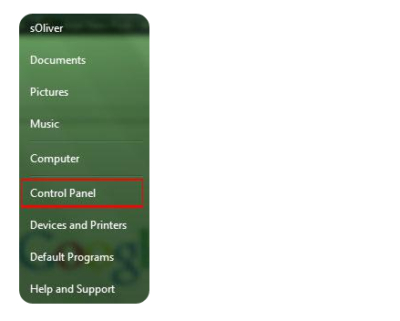
1. StepOpen the Control Panel

Control Panel


2.
Click on “System and Security”:

3. Step Click on “System”.

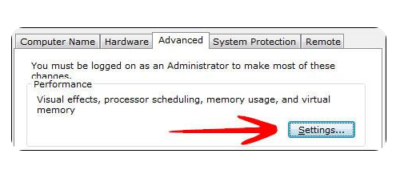
4. Step In the sidebar, click on “Advanced System Settings”:

5. Go to the tab “Advanced” and click on “Settings”:

System and Security


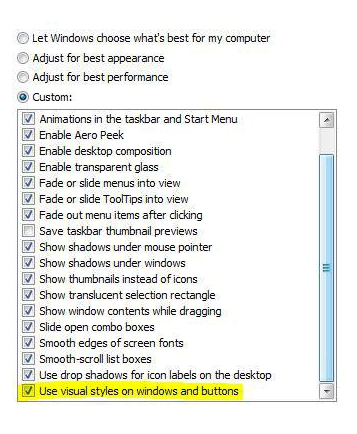
6. Step Scroll down the list, at the bottom double-check that the item “Use Visual Styles on Windows and Buttons” is checked. If this is not checked, your Windows 7 theme will be stuck on “classic” for a long time, because this completely disables your fancy visual Aero appearance.

Windows 7 Themes

This is also often the problem why people can’t seem to be able to active the Windows 7 Aero theme, because their PC is configured to be optimized for the best performance and not the best appearance.

Themes service is not started

If your Windows 7 themes service is not started your Windows 7 theme will be stuck on “classic”. You can’t change your Windows 7 theme when the theme service is disabled. So, let’s check if your themes service is up and running.

1. Step Click on “Start” and enter “services.msc” into the search field. Click on the item that appears.

2. Step Scroll down the list until you find the item “Themes” (or enter Themes while one item is selected)

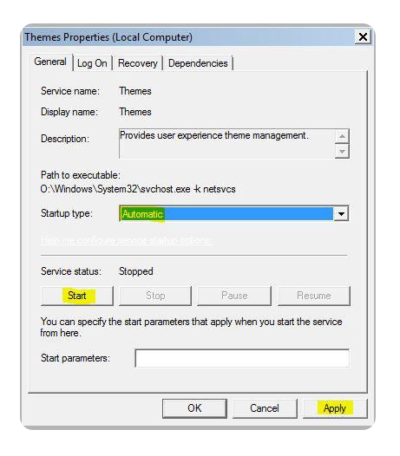
3. StepYou will now see if the Themes service is running currently and what mode it is in (Automatic, Disabled, Manual):

If it’s currently “Disabled” or in “Manual” mode and not started, you have to start it manually and change the mode to “Automatic”.

4. StepDouble-click on “Themes” and from the dropdown select “Automatic”, click on “Start” and then on “Apply”.

Themes Properties

Have questions?

Microsoft’s Cloud Solutions Partner are here to help.
Call us at: 856-745-9990 or visit: http://southjerseytechies.net/

South Jersey Techies, LLC is a full Managed Web and Technology Services Company providing IT Services, Website Design ServicesServer SupportNetwork ConsultingInternet PhonesCloud Solutions Provider and much more. Contact for More Information.

To read this article in its entirety click here.


End of Support: Server 2003

end windows server 2003


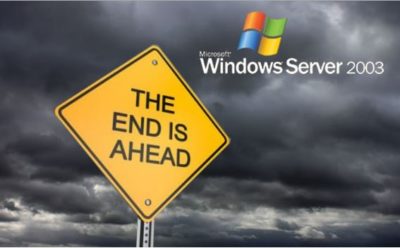
A large number of businesses still run Microsoft MSFT -1.71% Windows Server 2003 and it’s unlikely they all will upgrade before Microsoft Corp. ends support on July 14, 2015, say analysts. Companies that don’t upgrade increase their cyber security risks because the company will no longer issue security updates and these systems will be more vulnerable to hackers.

Businesses worldwide run an estimated 23.8 million physical and virtual instances of Windows Server 2003, according to data released by Microsoft in July 2014. Analysts say the technology is more prevalent in industries such as health care, utilities and government. Yet it’s also still used in about 7% of retail point of sale systems, according to a report Thursday by Trend Micro Inc.4704.TO -1.11%

“Microsoft does not plan to extend support for Windows Server 2003 and encourages customers who currently run Windows Server 2003 and have not yet begun migration planning to do so immediately,” said Vivecka Budden, a Microsoft spokesperson, in an email.

South Jersey Techies offers various migration options to include Windows Server 2012 R2, Microsoft Azure, hosting partners and Office 365.

“It is going to be difficult to get this done in time,” said David Mayer, practice director of Microsoft Solutions at Insight Enterprises Inc.NSIT -1.12%, a provider of IT hardware, software and services.

Many of these same industries were impacted by the end of service for the Windows XP operating system on April 8.  Microsoft broadcasts these sorts of moves years in advance, so it shouldn’t come as a surprise to anyone. But, the product was stable and for many companies there simply wasn’t incentive to update.

“In general, everyone has been slow to migrate, especially those with servers that are running applications,” said Rob Helm, vice president of research at Directions on Microsoft consulting firm.

The problem in industries such as health care and utilities is that companies run legacy apps written by vendors who still require Windows Server 2003. For example, there are smaller vendors in health care that have not kept up with development and application modernization, said a health-care CIO who asked not to be identified. A hospital may have an inventory of 100 to 500 different applications and many applications will still require Windows Server 2003, he added.

Electric utilities, for example, widely use Windows Server 2003. There hasn’t been much movement to upgrade those systems, said Patrick C. Miller, founder of the nonprofit Energy Sector Security Consortium and a managing partner at The Anfield Group, a security consulting firm. Instead, utilities are working to better secure and isolate those systems.

“I’m concerned about directory services such as application authentication and user permissions,” said Mr. Miller. “If you compromise an Active Directory server, you get access to everything.”

For now, analysts are recommending that companies work out their risk of exposure and make plans to first migrate those applications that will be most difficult. Companies should make plans to harden servers that can’t be updated. That might entail putting those systems on an isolated network, where they’d be less prone to outside attack, said Mr. Helm.

To protect and upgrade your home or business

 please contact us 856-745-9990 or click here.


CES 2016: Fitbit Takes on Apple Watch

Step aside, Apple, there’s a new watch in town. At CES 2016, Fitbit unveiled the Blaze, a smartwatch that does things the Apple Watch can’t, and at a lower price point.

fitbit-blaze

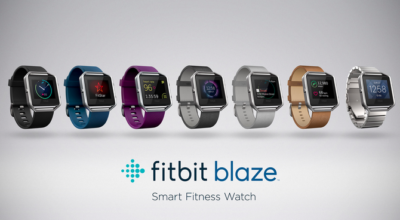
The new Fitbit Blaze is a smart fitness watch unveiled at CES 2016. Image: Fitbit

The basic utilitarian look of Fitbit is so last week, with today’s CES 2016 debut of Fitbit Blaze, a smart fitness watch with a color touchscreen that heralds in the next generation of the company’s popular fitness device line.

Fitbit Blaze does many of the same things as more expensive smartwatches, such as the Apple Watch, but it does it at a lower price point. The basic Fitbit Blaze comes with an elastomer band and will be available for retail sales in March 2016 with a $199 price tag. It tracks fitness and sleep stats and provides notifications for calls, texts, calendar alerts and music control. It’s compatible with Windows, iOS, and Android platforms.

One of the main features of the watch is how the bands are interchangeable to go from the gym to the office and out for the evening. Accessories will include additional elastomer bands for $29.95 each, leather bands for $99.95 each, and a steel link band for $129.95 each. The device is available for presale beginning today at Fitbit.com and tomorrow at various major retailers. For those who want to see the watch in person before ordering, on February 20 customers can go into Best Buy to try on the watch and pre-order.

“The product is about the balance of fitness and style. While it may look like a smartwatch, we think we’ve gotten it right. It has a distinct focus on fitness. That’s why we’re calling it a smart fitness watch. It puts fitness first,” said James Park, CEO and co-founder of Fitbit, at the CES 2016 press conference.

Fashion and style have long been a sore spot in the world of wearables and smartwatches. Because, even if a device has a stylish appearance, oftentimes it’s not feasible to wear the same product 24/7 for every occasion. The Fitbit Blaze eliminates this issue with the range of affordable interchangeable bands.

Fitbit Blaze includes many of the same features as previous Fitbit wearable fitness devices, such as all-day activity stats, but it also includes a color touchscreen, along with a partnership with FitStar for an onscreen workout. It also includes connected GPS for real-time exercise stats and PurePulse wrist-based heart rate tracking, which the company introduced last year.

The watch has a substantial battery life, lasting up to five days and nights, according to Fitbit Chief Business Officer Woody Scal.

Park said the Fitbit Charge, which was introduced last year, is the number one selling activity tracking device in North America, and the Fitbit Surge is the number one selling GPS tracking watch. On Christmas Day and the day after, Fitbit was the number one free app download.

“We are one of the larger technology IPOs of 2015. We are still trading about offering price which we think is rare. We’re pretty proud of that,” Park said.

Park took the opportunity at the press conference to point out how Fitbit is mentioned in the media, such as numerous photos with President Obama wearing a Fitbit Surge.

“For me it’s been really fun to see Fitbit mentioned on popular TV shows such as Big Bang Theory,” he said.

One of the biggest challenges that Fitbit faces is that its products have a 50% abandonment rate, compared to 6% for the Apple Watch. That makes the Blaze a strategically important move for Fitbit. The early reaction to the Blaze has been mixed as Fitbit’s stock dropped 13% following the announcement.

Have questions?

Get help from IT Experts/Microsofts Cloud Solutions Partner
Call us at: 856-745-9990 or visit: https://southjerseytechies.net/

South Jersey Techies, LL C is a full Managed Web and Technology Services Company providing IT Services, Website Design ServicesServer SupportNetwork ConsultingInternet PhonesCloud Solutions Provider and much more. Contact for More Information.

To read this article in its entirety click here.

Top 10 Benefits of Windows SBS 2011

Protect Your Data. Stay Connected. Save Time and Money.

Get ready to take your business to the next level. With Windows Small Business Server 2011 Standard (SBS 2011 Standard) you can get business done faster, be more productive, and stay better connected. For a greater business capacity and a new competitive edge, the time for upgrading to Windows Small Business Server 2011 Standard is now.

Top Ten Reasons to Upgrade

Enjoy updated component technologies, increased data protection, and new tools to help you grow your business capacity.

1. Get a Comprehensive, All-in-One Solution:

Get the newest releases of all the SBS 2011 Standard technology components that are designed to deliver an optimal experience for small businesses in an affordable all-in-one solution. The solution suite includes Windows Server® 2008 R2 technologies, Microsoft® Exchange Server 2010 SP1, Microsoft SharePoint® Foundation 2010, and Windows Software Update Services. Also, Premium Add-on includes Windows Server 2008 R2 Standard and Microsoft SQL Server 2008 R2 for Small Business.

2. Simplify IT Management:

Manage common IT tasks and address technology issues before they occur with a unified view of the health and security of your computers and servers in the network from one administrative console.

3. Run Line of Business Applications:

Get access to the large Windows Server 2008 R2 ecosystem of applications as the SBS 2011 Standard is built on Windows Server 2008 R2 code base.

4. Stay Connected to the Business:

Provide your users the freedom to securely access all of their communications—e-mail, voice mail, instant messaging, and more—from virtually any platform, Web-browser, or device to get more done wherever they are with the integrated Exchange Server 2010 and Microsoft Outlook® Web Access (OWA) capabilities.

5. Access Business Information from Virtually Anywhere, Anytime:

Get direct, secure access to your files, calendars, tasks, and contacts through any common browser, from virtually anywhere.

6. Built-in document collaboration:

SBS 2011 Standard features Microsoft SharePoint® Foundation Services 2010 – the newest version of Microsoft Windows SharePoint Services. It powers exciting new features and capabilities that help you collaborate securely online—no matter where you are.

7. Simplify IT Management:

Reduce the cost of deploying and maintaining your network with streamlined setup and deployment for both the server and clients

8. Easy Migration:

Easily migrate to the new platform with enhanced migration tools, extensive pre-migration checks, and prescriptive guidance.

9. Simplified Back-up for Business Data:

Help protect your vital business information from loss with automatic backups and recover accidentally deleted files in the event of disaster. With easy-to-use interfaces and backup capabilities, you or your IT consultant can gain better control of your data, PCs, and network.

10. Keep your Network Healthy and Up-to-Date:

Help ensure the health of your network and keep your PCs and servers current with easy-to-read “green check” reports that give you a quick view of PC and server status, antivirus status, Microsoft software updates, and backup progress.

10 Enterprise Benefits of Windows 8.1

3

Windows 8.1 will be released on October 17, 2013, followed by a full launch on October 18, 2013.  Although Windows 8.1 is not a “new” operating system, the major updates created for 8.1 have made the upgrade more than a simple service pack.

Enterprise Benefits:

1.  Mobility

Windows 8.1 benefits a wider range of employees to include a combination of productivity and mobility.  IT can manage Windows 8.1 devices, such as desktops, laptops, and tablets, with a universal management client.

2.  Tablets

Enabled hardware for Windows 8  offers the option to have a standard operating system for enterprises, but allow individual users to select their device, such as desktops, laptops, and tablets, and have a consistent interface across these devices. 

3.  Application Development

Streamlining Windows 8.1 allow developers to design applications that can work across devices, such as desktops, laptops, tablets and smartphones.

4.  IT Support

To reduce the strain on IT resources for business mobility, standardizing on Windows 8.1 allows a majority of IT support to become simplified. 

5.  Total Savings

Standardizing on Windows 8.1 will reduce the cost for development, maintenance and support.  Also, reducing costs by eliminating licensing/support costs of a enterprise environment with varied devices.

6.  Restore Optimization

Windows 8.1 has the ability to restore factory settings for the operating system.  For all businesses, this is an advantage and a simple way to reduce costs and recover time for IT departments. 

7.  IT Operations

Windows 8.1 is a services pack for Windows 8 that includes new features, not just fixes.  Creating user documentation can be streamlined for Windows 8.1 for all applications.  Additionally, future service packs will follow in the footsteps of Windows 8.1 to include new features; then IT departments can frequently provide updates to user documentation.

8.  Reduced Confusion

To reduce user confusion, after a user joins to Windows Intune Management Service the user gains access to the Company Portal.  The company portal has access to the applications, data, and device settings.  Also, users can troubleshoot their own devices using the service desk self-help portal.

9.  Security

Microsoft is enhancing security with Windows 8.1 with Remote Business Data Removal and the new Internet Explorer.  Remote Business Data Removal provides control over encrypted data that can be wiped from any device.  The new Internet Explorer has Anti-Malware included to scan binary extensions to prevent infections.

10.  Education

Windows 8.1 offers an evaluation of current infrastructure, how to execute migrations plans and ways to educate users on how to use the new version.  Microsoft ends support for Windows XP on April 8, 2014, business should consider the option of upgrading to Windows 8.1. 

For more information regarding Windows 8.1 click here.


The 16 most pivotal events in Windows history

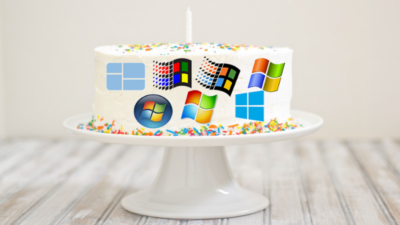
Thirty years of Windows is a lifetime.

30yearsofwindows-1

Thirty years of Windows

For better or for worse, Windows has defined the modern era of personal computing. Microsoft’s signature OS runs on the vast majority of PCs worldwide, and it has also worked its way into servers, tablets, phones, game consoles, ATMs, and more.

Windows’ 30 years or so of existence has spanned generations of computing and entire lifetimes of companies and their products. Understandably, choosing the most noteworthy moments of Windows’ long life has been a challenging task, but we went for it. On the following slides we present our our list of the obvious, and not-so-obvious, milestones in Windows history.

30yearsofwindows-2

Windows 1.0

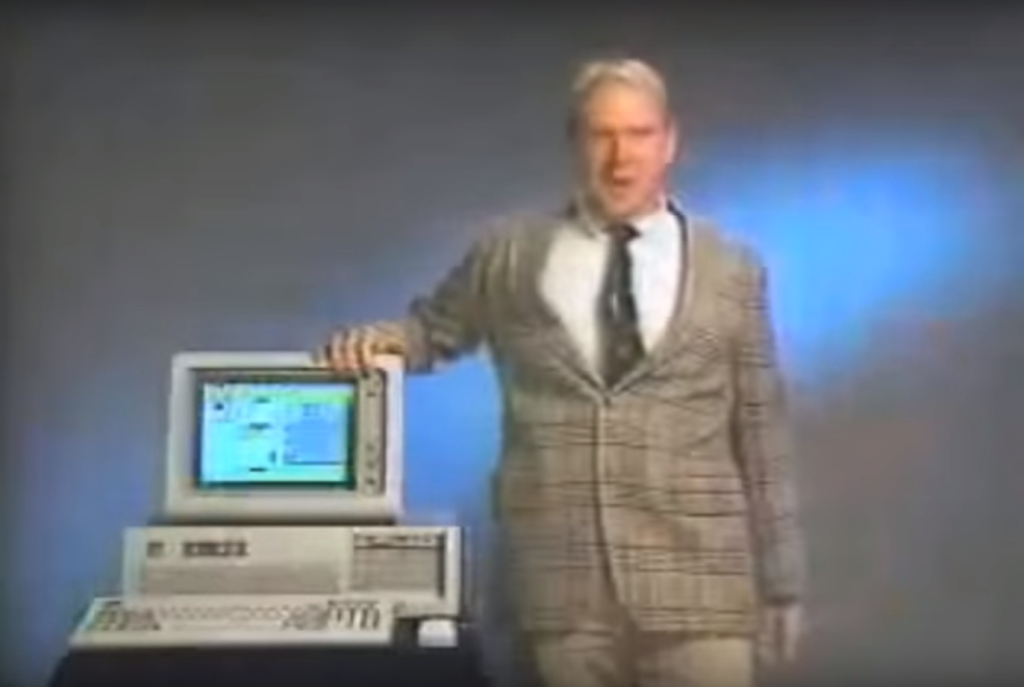
On Nov. 20, 1985, Microsoft launched the first iteration of Windows, essentially a graphical shell that overlaid Microsoft’s well-known MS-DOS. Requiring a couple of floppy drives, 192KB of RAM, and, most importantly, a mouse, Windows wasn’t actually that well-received. But Bill Gates told InfoWorld that “only applications that run Windows will be competitive in the long run.” He was right—for a time.

Featuring tiled windows that could be minimized or extended to cover the full screen, plus “apps” like Calendar and Write, Windows was the precursor to what the majority of PC users run today. Oh, and it was sold by Microsoft’s eventual CEO, Steve Ballmer, in perhaps the best computer commercial (Apple’s “1984” ad notwithstanding) ever shown.

30yearsofwindows-3

Windows 3.x

Windows puttered along until May 1990, when the first iconic Windows release, Windows 3.0, was released. It’s difficult to decide whether Windows 3.0 or its immediate successor, Windows 3.1, was more important; Windows 3.0 introduced sound to the Windows platform, but Windows 3.1 added TrueType fonts.

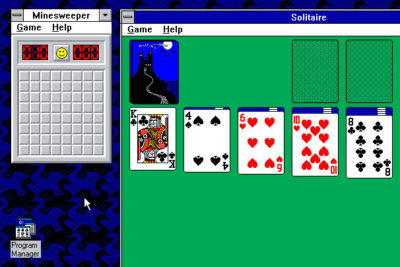
Yes, Windows 3.1 included File Manager (drag and drop!) and Program Manager, but the real innovations were more fun: support for MIDI sound and AVI files.  More importantly, Windows 3.x introduced screensavers (a staple of shovelware for years) and the ultimate timewasters: Solitaire (Windows 3.0) and Minesweeper (Windows 3.1). An entire generation learned how to place digital playing cards, one on top of the other, all for the glory of seeing all the cards bounce when a game was completed.

30yearsofwindows-4

Windows 95

Early iterations of Microsoft’s Windows operating system catered more toward the business user than anyone else. That changed on August 24, 1995 with the launch of Windows 95.

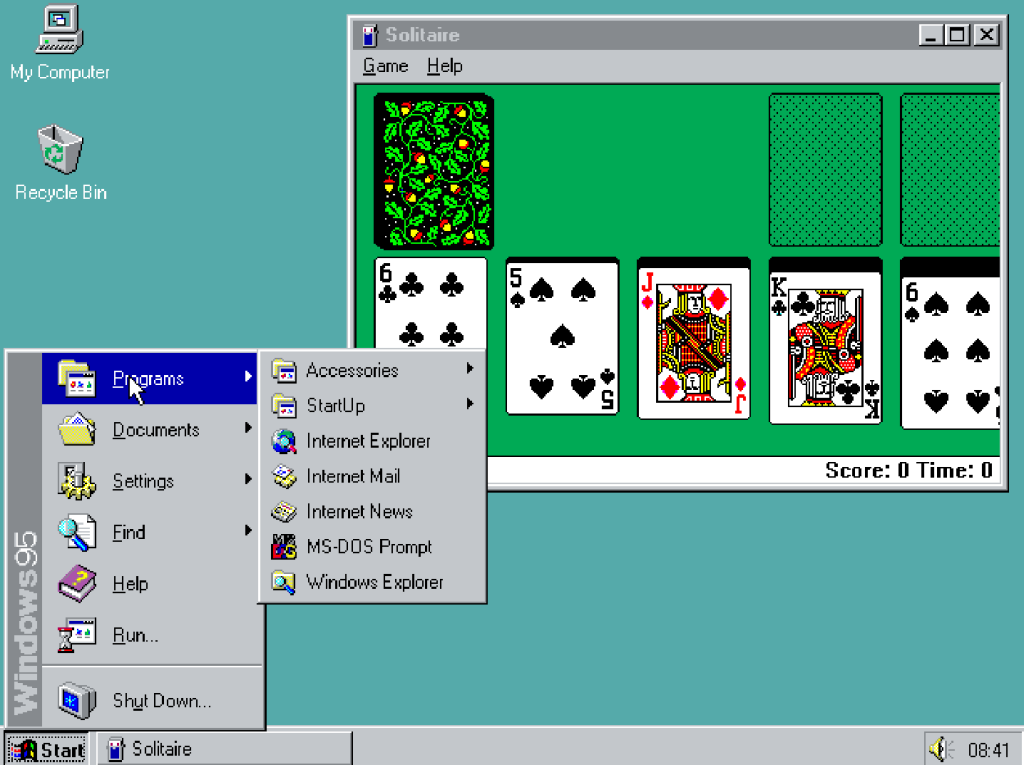
It featured a few key technical upgrades: Windows 95 was Microsoft’s first “mass-market” 32-bit OS. It was the also first to add the Start button that we use today. The first integrated web browser, Internet Explorer, just missed the launch and shipped later.

With a promotional budget of hundreds of millions of dollars, much of what we remember about Windows 95, though, was tied up in the marketing: a midnight launch, an ad campaign built around the The Rolling Stones hit “Start Me Up,” a partnership with Brian Eno that produced the iconic boot melody.

Oh, and Windows 95 also allowed users to pay $19.95 to try out a time-limited beta of the OS, which expired at the launch. Good times.

30yearsofwindows-5

Microsoft Bob

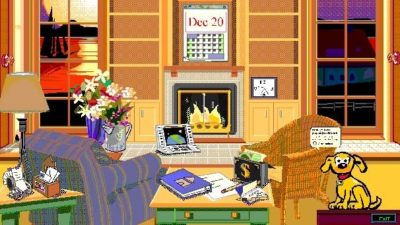
Windows 3.1, however, also gave us Microsoft Bob, a March 1995 release that remodeled Windows as a series of “rooms.” Each was populated by virtual objects that might have a purpose—but you wouldn’t know until you clicked on them. Bob also featured a series of “assistants” that offered to help you perform all sorts of tasks, whether you wanted to or not.

Bob bombed. But Microsoft never quite gave up on trying to humanize Windows, a noble if slightly pathetic effort that would later produce the unfortunately iconic Clippy assistant.

30yearsofwindows-6

Windows NT

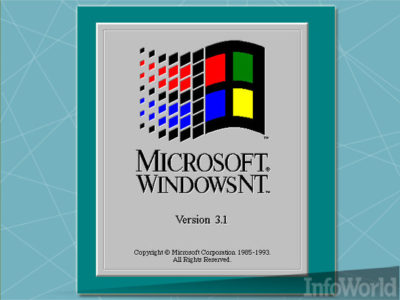
Though PCWorld tends to focus on the PC (natch), we’d be remiss to neglect Windows NT, the precursor to Windows’ expansion into the server and workstation space. Windows NT was Microsoft’s first 32-bit OS designed (and priced) for both the server and workstation market, with specific versions optimized for the X86, DEC Alpha, and MIPS series of microprocessors. It eventually was combined with the standard Windows architecture to form Windows XP.

Today, Microsoft has built a sizeable portion of its business upon Windows Server, SQL Server, and Windows Center, among others, plus its investments in the Azure cloud. All of this originated with Microsoft’s desire to take on UNIX in the server space.

30yearsofwindows-7

Windows XP

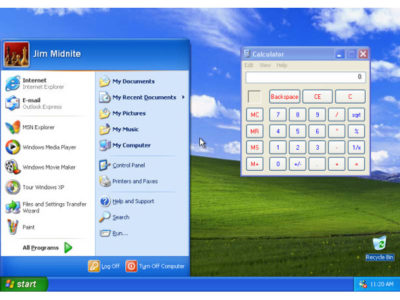
Whether it’s due to nostalgia, good design, or the famous “Bliss” backdrop featuring an emerald-green hillside in California’s wine country, 2001’s Windows XP remains one of the more beloved Windows operating systems. Shoot, it managed to erase the memory of Windows ME, one of Microsoft’s biggest blunders.

Windows XP shipped in two editions: one for professionals, the other for home users, with features stripped out of the “pro” version, such as domain join. But Windows XP also shipped with a Media Center edition that transformed a PC equipped with a TV tuner into a powerful DVR. (Media Center remains one of the more popular, and mourned, features of Windows today—it’s one reason users cite for refusing to upgrade to Windows 10.)

30yearsofwindows-8

Windows Genuine Advantage

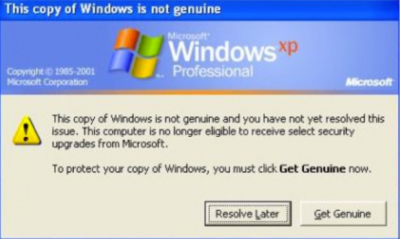
Maybe you thought every pivotal Windows moment was a product release. Not so. As good as it was, Windows XP also unleashed Windows Genuine Advantage—or what we now refer to as “activation”—upon an unsuspecting world. It was the first step in evolving Windows from a “hobby” to what some would refer to as “Micro$oft.”

This attitude was nothing new. In 1976, Bill Gates penned “An Open Letter to Hobbyists,” where he complained that the amount of royalties paid by customers using its BASIC software amounted to about $2 per hour. “Most directly, the thing you do is theft,” Gates wrote, essentially equating sharing code with outright stealing.

Microsoft sought to curtail this activity with the release of Windows Genuine Advantage, which stealthily installed itself onto millions of PCs by way of a high-priority “update.” (Sound familiar?) Windows Genuine Advantage consisted of two parts, one to actually validate the OS and another to inform users whether they had an illegal installation: In 2006, Microsoft said it had found about 60 million illegal installations that failed validation.

Now? Virtually every standalone product Microsoft sells comes with its own software protections and licenses. If you want a “hobby” OS, you run Linux—which Microsoftalso spent millions trying to discredit, to no avail.

30yearsofwindows-9

United States v. Microsoft

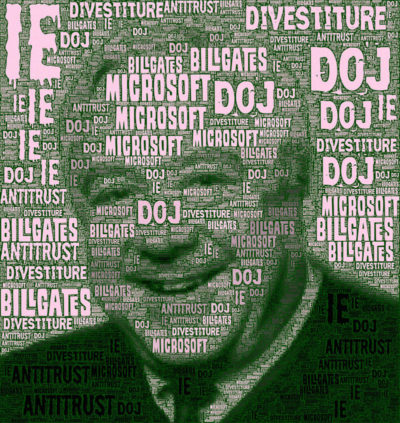
In May of 1998, following government concerns that bundling Internet Explorer within its operating system gave Microsoft an unfair advantage, the Department of Justice and several states filed a landmark antitrust suit against the company.

The trial lasted 76 days. Cofounder and chief executive Bill Gates appeared on videotape, seemingly dismissing questions put to him by government lawyers. Judge Thomas Penfield Jackson ultimately ruled that Microsoft had acted as a monopoly and should be broken up into two companies, though that ruling was later overturned by an appeals court.

Years later, an integrated browser is generally viewed as part and parcel of an OS, though consumers are free to select any browser they choose. Today, Microsoft and IE still power most older PCs, but consumers selecting new browsers are turning to Chrome.

Judge Penfield argued that consumers would have benefitted from a breakup of Microsoft. But we’ve argued before that Microsoft would have, too.

30yearsofwindows-10

Browser-choice screen

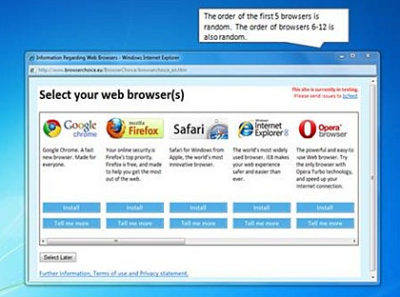
In 2009, Microsoft struck a deal with the European Commission, ending the EU’s own antitrust investigation. That agreement created what became known as the “browser-choice screen,” encouraging European consumers to pick a browser besides Internet Explorer.

The browser-choice screen didn’t kill Internet Explorer; in fact, IE remained the most popular downloaded browser until March 2016, when Windows 10 helped push it out of the top spot. But the browser-choice screen certainly reminded consumers that other browsers existed, and that they could pick and choose whichever they preferred, rather than accepting what Microsoft provided to them.

30yearsofwindows-11

Windows 7

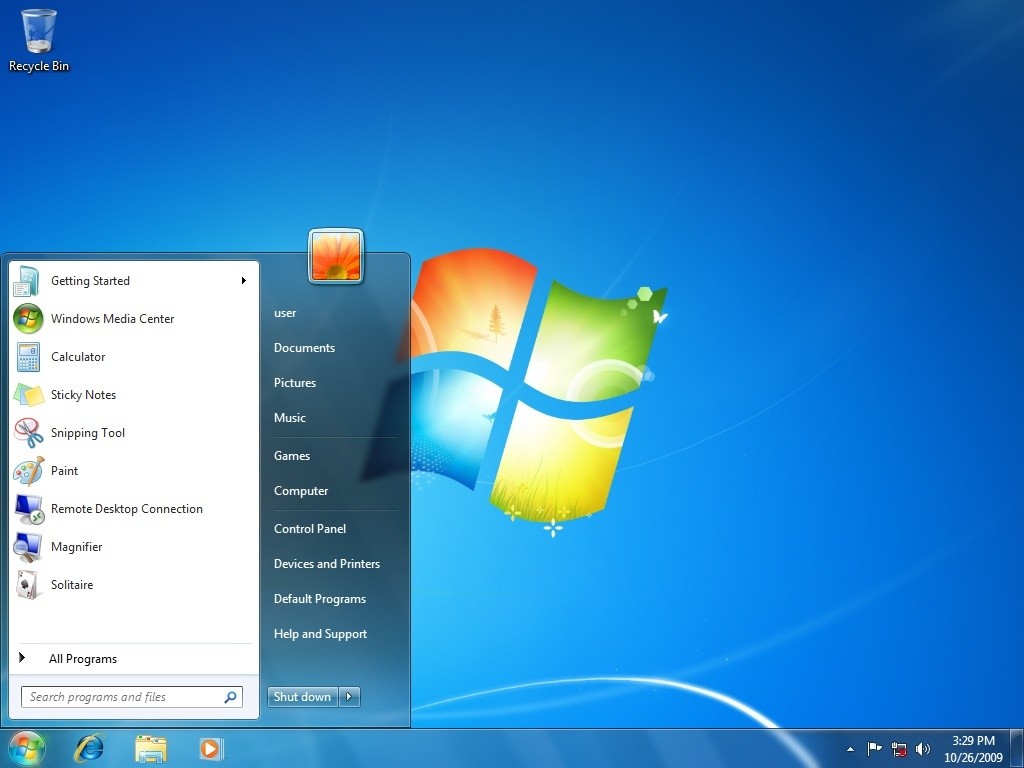
For many, Windows reached its apex with Windows 7, which continues to be the dominant OS in Windows’ history: It reached a high of almost 61 percent market share in June 2015, and still commands about 47 percent of the market today.

Why? Any number of reasons, not the least of which is familiarity: Windows’ UI remained relatively static for almost 11 years, from the 2001 launch of Windows XP on up to the dramatic tiled revamp of 2012’s Windows 8. Windows 7 also added several elements that we take for granted in Windows today: the taskbar, a more evolved Snap function, and support for multiple graphics cards. It’s also important to note that Windows 7 supports DirectX 11.1, which is arguably still the dominant graphics API today. Until DirectX12 supersedes it, gamers won’t have a reason to leave.

Windows 7 also eliminated many of the annoying UAC popups that its predecessor, Windows Vista, had put in place. And (as our commenters have repeatedly pointed out) it lacks the frustratingly frequent updates of the current Windows 10, allowing users to essentially “set it and forget it.”

30yearsofwindows-12

Laptop Hunters ads

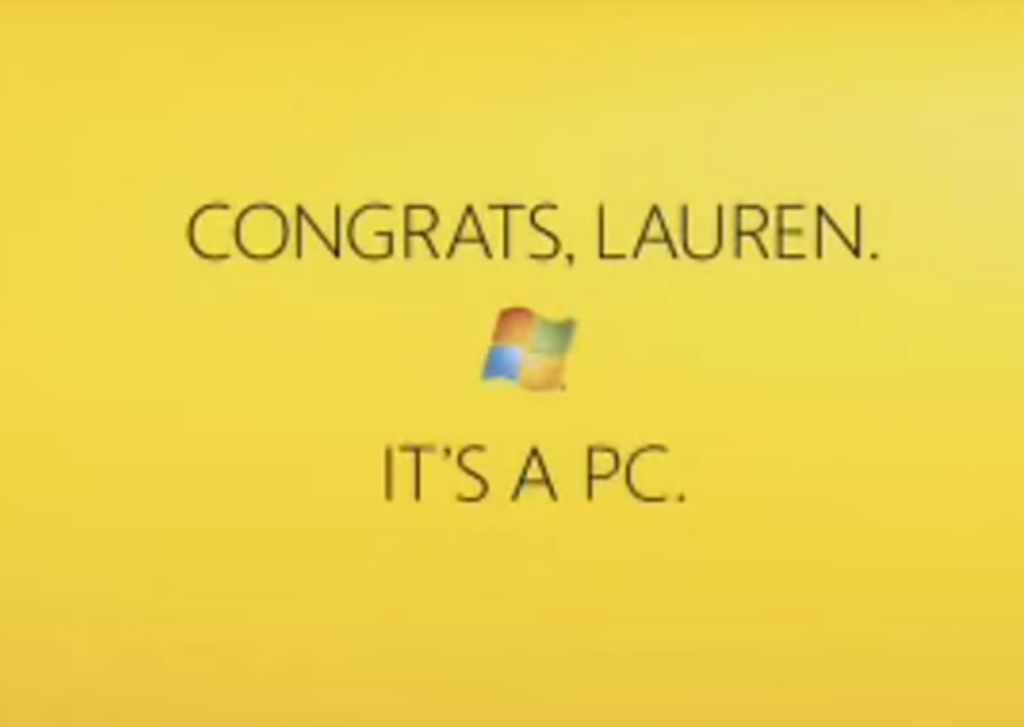
Microsoft ran a series of “Laptop Hunters” ads during 2009, featuring real people buying real laptops from real stores—and consistently picking Windows PCs over the more expensive Apple options. For about three years, Microsoft had been stung by the barrage of “I’m a Mac/I’m a PC” ads portraying PCs as clunky and out of touch, and “Laptop Hunters” effectively skewered that message as pretentious and expensive.

The campaign followed a $300 million “I’m a PC” push a year earlier, which lacked the real-world punch of Lauren and other real-world customers. Both campaigns illustrated Microsoft’s pivot to being the face of the PC. The “Dude, you’re getting a Dell!” days are long gone.

30yearsofwindows-13

Windows 8.1

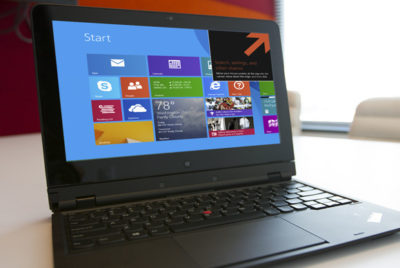
I vividly remember the first time I saw a Windows 7 user try out Windows 8: He stabbed at tile after tile, unable to figure out what to do with Microsoft’s new OS. Most of the public did the same. Today, we barely even talk about Windows 8.

Instead, we talk about Windows 8.1: the “service pack” update that undid at least some of the flaws that plagued Windows 8. In my opinion, the most notable thing about Windows 8.1 was that it showed Microsoft was listening to its customers again, even adding a hidden “boot to desktop” command to remedy one of its users’ biggest complaints. (It also was the last time SkyDrive, later renamed OneDrive, actually acted like the cloud backup we wanted.)

By itself, Windows 8.1 is a relatively minor release. But it stands as an important admission of guilt, and an apology, for the sins of its predecessor.

30yearsofwindows-14

The rise of Android, the fall of Windows Mobile

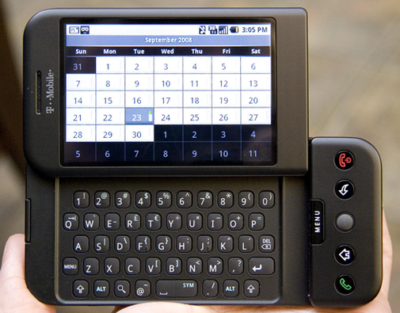
In February 2007, Microsoft debuted Windows Mobile 6, its first mobile operating system for true smartphones and arguably one of the company’s most successful. In November 2007, however, the free Android OS debuted. A year later, HTC launched the first Android smartphone: the HTC Dream, seen here. It was all downhill from there for Microsoft.

Yes, you could make a strong argument that Microsoft’s massive $7.8 billion acquisition of Nokia’s devices business in 2013—which, by now, has been almost completely written off—was actually the last gasp of Microsoft’s mobile vision. But the launch of the Dream, and the hundreds of millions of Android phones that followed it, lured away third-party developers Microsoft needed for its mobile aspirations to thrive.

30yearsofwindows-15

Windows 10: The ‘last Windows’

With Windows 10, Microsoft made the gutsy call to bring beta testers in as partners rather than as guinea pigs. The Windows Insider program lets users try out and evaluate builds almost as quickly as Microsoft can churn them out, fostering an air of camaraderie between users and Microsoft.

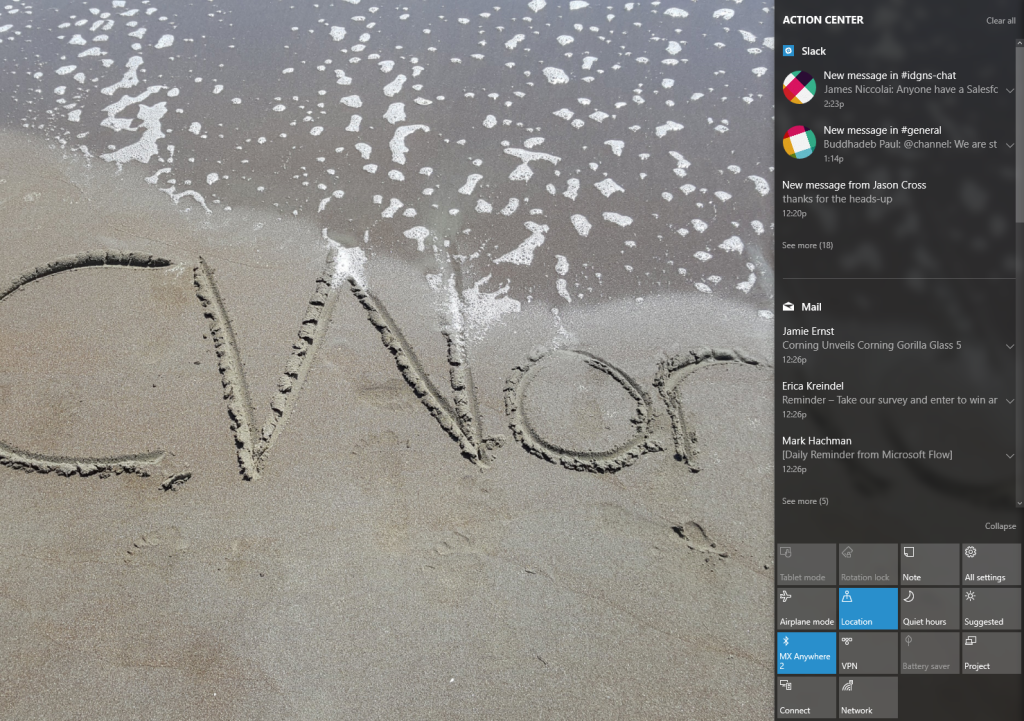
Windows 10 also introduced a number of features: a revamped Start menu, better notifications, virtual desktops, and more. It launched Cortana, a digital assistant that Microsoft hoped would eliminate the grunt work of setting reminders and sending quick texts and email.

But Cortana’s privacy-intruding nature and Microsoft’s aggressive upgrade practiceswashed away some of the goodwill Windows 10 originally engendered. Today, Windows 10 is one of the more polarizing operating systems in recent memory, with many Windows 7 fans loudly criticizing it, and others supporting the direction Microsoft has taken.

30yearsofwindows-16

The evolution of the digital assistant

 Of course, Microsoft has a long, controversial history with digital assistants, beginning way back in 1995 with the debut of Microsoft Bob. That program was meant to help familiarize Windows users with various applications by anticipating the users’ needs. While universally derided, Bob introduced the concept of ostensibly helpful characters, from a superhero dog to a clone of Albert Einstein to the infamous Office assistant  “Clippit,” aka “Clippy.”

You can make the case that Clippy and its ilk evolved, over time and behind the scenes, into the far more sophisticated digital assistant that’s built into Windows 10: Cortana. The difference, of course, is that Cortana is part of a larger trend, joined by Google Now and Siri, digital assistants in their own rights for the Android and iOS platforms, respectively. Indeed, Microsoft is pushing its Bot Framework, which enables the creation of intelligent digital helpers, into all sorts of new applications beyond the OS, such as Skype and Bing.

30yearsofwindows-17

Patches, good and bad

Windows has bugs. Windows requires patches. And while there have been many, many updates over the years to fix bugs, slowdowns, and other incompatibilities, there have also been many, many screwups, too. InfoWorld has an entire list of them.

My favorite? A patch that put a mysterious black bar on one side of Internet Explorer—and if you clicked it—CRASH!—down came your machine with a BSOD. For a time, Microsoft allowed you to refuse Windows patches. Windows 10, unfortunately, did away with all that.

That concludes our list of Windows’ most pivotal moments. We could have spent dozens upon dozens of slides diving deep into Windows’ history, but we had to stop somewhere. Is there anything we missed? Tell us below.

Have questions?

Get answers from Microsofts Cloud Solutions Partner!
Call us at: 856-745-9990 or visit: https://southjerseytechies.net/

South Jersey Techies, LL C is a full Managed Web and Technology Services Company providing IT Services, Website Design ServicesServer SupportNetwork ConsultingInternet PhonesCloud Solutions Provider and much more. Contact for More Information.

To read this article in its entirety click here.

Patience will be the key to a successful Windows 10 upgrade

let the dust settle before you attempt the free Windows 10 upgrade.

Windows 10

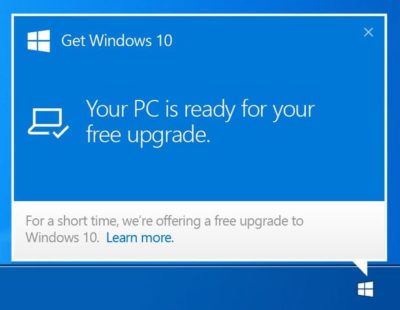
With the official Windows 10 launch and Microsoft’s promise that the upgrade for Windows 7/8.1 systems will be free for the first year after launch, you’ll have until July 29, 2016, to make your move. Just because it’s free doesn’t mean you have to rush to get your copy—unless, of course, it’s a status thing.

For the ordinary Windows user, there really isn’t any immediate need to be one of the first people to download Windows 10. In fact, you’ll probably have a better upgrade experience if you hold off for a bit. Wait for the hype to die down, wait for the load on the Windows Update servers to wane, and more importantly, wait for the first wave of updates to make their way out to the masses of Windows users who had to be the first.

Besides, unless you’re a Windows Insider program participant, chances are that you won’t be able to get Windows 10 right away anyhow.

In his July 2nd blog post, “Windows 10: Preparing to Upgrade One Billion Devices,” Terry Myerson stated:

“We want to make sure all of you have a great upgrade experience, so we’ll roll-out Windows 10 in phases to help manage the demand.”

He then goes on to say:

“Starting on July 29, we will start rolling out Windows 10 to our Windows Insiders. From there, we will start notifying reserved systems in waves, slowly scaling up after July 29th. Each day of the roll-out, we will listen, learn and update the experience for all Windows 10 users.”

That last sentence hints at the fact that the Microsoft is anticipating the possibility that there may be some glitches in the first wave of the roll out.

To be sure, I’m not suggesting that you hold out for months before you upgrade—rather, I’m saying that you may want to give it a couple of weeks just to see how others are faring with Windows 10. With Microsoft’s Windows as a service model, the ongoing testing via the extension of the Windows Insider program, and the rapid update system developed during the Windows Insider preview program, the hope is that any issues that crop up in the first weeks after initial availability will be quickly resolved.

Have questions?

Get help from IT Experts/Microsofts Cloud Solutions Partner
Call us at: 856-745-9990 or visit: https://southjerseytechies.net/

South Jersey Techies, LLC is a full Managed Web and Technology Services Company providing IT Services, Website Design ServicesServer SupportNetwork ConsultingInternet PhonesCloud Solutions Provider and much more. Contact for More Information.

To read this article in its entirety click here.

Two great laptops for Windows

For those infatuated with the 11-inch MacBook Air’s svelte form factor but still tethered to Windows, I’ve got two nice alternatives that are worth considering: The Sony Vaio X1 and the Acer Timeline X. I’ve put together a gallery of unboxing and product photos of both machines, along with some comparison shots next to the 11-inch MacBook Air.

While the Sony Vaio X1 and the Acer Timeline X are both worthy competitors to the 11-inch MacBook Air, they are two very different machines that will appeal to different sets of users. Here’s my quick take on the two of them.

Sony Vaio X1

Sony is known for its stylish PC hardware, but it often comes at a premium price tag — similar to Apple. However, in this case, the 11-inch MacBook Air and the Sony Vaio X1 have similar price tags to the Acer Timeline X. All three systems have a base price of roughly $1000. At that price, the three of them have remarkably different hardware profiles.

The Sony Vaio is the lightest of the three machines, and it’s also the most lightly powered. It runs a 2.0GHz Intel Atom processor, the same one that powers many netbooks (compared to the speedier 1.4GHz Core 2 Duo that powers the 11-inch MacBook Air). Here are some of the additional specs of the model we tested (VPCX131KX/B):

•2GB of RAM
•11.1-inch display with LED backlight and 1366×768 resolution
•Integrated Intel graphics
•64GB of flash storage
•2 USB ports, VGA port, Ethernet port, SD card slot
•3 hours of battery life (standard battery) or 12 hours battery life (expanded battery)
•Weighs 1.6 pounds (with standard battery)

The Vaio X1 is even a little smaller than the 11-inch MacBook Air. A business professional could easily slip it into a padfolio. Its portability and weight (or lack thereof) are its greatest assets, and it’s a solid machine for email, Web, and basic business apps. The tradeoffs are that it’s not a very fast or powerful machine and it feels a little overpriced for what you get.

My other concern with this machine is durability. Unlike the MacBook Air, which is made almost entirely of aluminum, the Sony Vaio X1 is totally plastic and not an especially durable blend. That makes it light, but also makes it feel very flimsy. I had the sense that I could have almost broken it in half with my bare hands if I twisted it hard enough.

Still, if you’re not too concerned about performance and you need a super-portable system, then the Vaio X1 is pretty impressive and worth a look.


Acer Timeline X

The Acer Timeline X can’t match Sony or Apple for style or thinness, but it packs a lot more power under the hood. The model we tested (1830T-68U118) was running an Intel Core i7 processor (1.46GHz) and offered very zippy performance for just about any task. The rest of the specs for the Timeline X included:

•4GB of RAM
•11.6-inch display with LED backlight and 1366×768 resolution
•Integrated Intel graphics
•500 GB hard disk storage
•3 USB ports, VGA port, HDMI port, Ethernet port, SD card slot
•8 hours of battery life

The Timeline X can keep up with a lot of desktop machines. It’s that fast. This is the system for someone who needs to pack a lot of performance but wants to do it in as small a package as possible. The Timeline X is certainly a little more heavy and bulky than the MacBook Air of the Vaio X1, but it is far smaller than most of the other laptops in its power class.

My beefs with the Timeline X are mostly qualitative. The touchpad is just too small to be very useful. The 11-inch MacBook Air is literally about three times the size of the Timeline X — and although I’m not a fan of touchpads in general, the one on the Air is one of the few that are useful in a pinch. With the Timeline X, make sure you have a good notebook mouse and plan to use it most of the time. On a related note, the keyboard on the Timeline X is not great either. The keys are huge but they are very close together, which makes it easy to hit the wrong key. The keys are also stiff and shallow, which isn’t very friendly for typing. This is one of the main areas where the Timeline X doesn’t match up very well with the MacBook Air, and to a lesser extent, the Sony Vaio X1.

However, if you want a lot of power in a small package and you want it to run Windows, the Timeline X is one of your best bets.

To view the original article in it’s entirety, Click Here
CALL US NOW!