Back to Top

Tech, Web, Cloud & Cabling Services

Tag Archives: iPad

iPad tag

Microsoft Surface: iPad knockoff for enterprise?

As I’ve said many times, I barely have any use for the new iPad. Most technologists I know feel the same way about tablets. However, most of us understand that we’re an anomaly. For tens of millions of people, using a tablet like the iPad is infinitely easier and less frustrating that dealing with a Windows laptop. That’s why tablets are eating the bottom out of the PC market, and the trend is accelerating.

Microsoft knows this. It also knows that an alarming number of companies are allowing their employees to use iPads and some are even running trials to hand out the new iPads to lots of highly mobile employees. What’s even worse for Microsoft is that most of these employees are loving it and are gladly chucking their Windows laptops aside.


While a lot of these employees will still periodically use Windows machines for some of their work, they’re using them less frequently and that means slower PC upgrades and less urgency to jump to Microsoft Windows 8. We’re still only talking about a fraction of the market — iPad will sell 60 million units in 2012 versus 400 million PCs, according to Gartner. Nevertheless, it has Microsoft freaked out because it’s been just a little over two years since the iPad debuted.

That’s a lot of disruption in a short period of time.
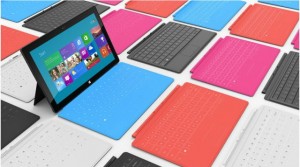
Of course, that brings us to the announcement of the Microsoft Surface tablet this week. Microsoft turned a lot of heads by revealing that it is going to build its own line of Microsoft Windows 8 tablet devices, à la Zune and Xbox. The hardware design for the Surface that Microsoft showed off on Monday was impressive enough to pique the interest of the tech press and the public.

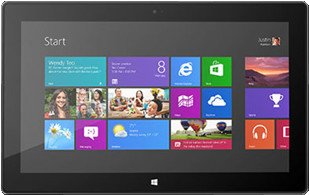
The tablet itself looks a lot like the new iPad and many of the high-end Android tablets, but there were a pair of features that stood out. The first was a sturdy built-in kickstand that stealthily pops out from the back of the tablet. The second is the magnetic cover that doubles as a keyboard and touchpad. When you put these two features together you suddenly have a tablet that easily doubles as a laptop. That eliminates the need for someone to have two devices.

Sure, the hardware of the Microsoft Surface Tablet echoes the iPad. But, Microsoft did use a special magnesium body that makes it light, thin, and durable. Sure, the cover of the Surface is a copy of the iPad’s Smart Cover, but Microsoft did innovate by adding a keyboard on the inside.

There’s plenty about the Microsoft Surface Tablet that screams, “iPad knockoff!” and the failure of Android tablets and the tablet debacles at RIM and HP show that trying to build an iPad competitor for the enterprise can be a brutal business.

Still, the Microsoft Surface Tablet has something going for it that the BlackBerry PlayBook, HP TouchPad, and the parade of Android tablets don’t — it’s going to automatically drop into the Windows networks that most Fortune 500 companies as well as a lot of small and medium businesses already have in place. That’s going to mean a lot fewer worries about compatibility, security, and data protection. In other words, it means a lot less work for IT on the backend and a smoother transition for many users

That doesn’t mean the Microsoft Surface Tablet is a slam dunk. There is still a big question about whether users are going to find the Windows 8 interface as easy to use as the new iPad. And, will spyware and malware become a big problem on the Surface since it’s running the full version of Windows? Above all, how much is it going to cost? The Pro version of the Microsoft Surface Tablet that most businesses are going to want is expected to cost about the same price as an Ultrabook — in the $800-$1000 range.

Ultimately, if you want to think of the Microsoft Surface Tablet as an iPad knockoff with a few key innovations and additions that make it a legitimate option for businesses, that’s fine. A lot of companies will be happy to pay a premium for an iPad look-alike that automatically fits into their current networks and is guaranteed to work with their existing applications.

To View Full Article Click Here
9 things you’ll love about iOS 9

Proactive Siri

Proactive Siri

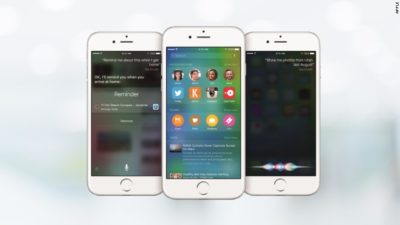
Of all the upcoming iOS 9 features for the iPhone and iPad, the biggest updates are coming to Siri

Siri is going to become “proactive,” predicting what you want to know before you even ask it. It’s a feature similar to Google Now or Microsoft’s Cortana.

The new, proactive Siri will display relevant information based on your location, search history, emails, calendar and habits.

For example, the new Siri will look at your calendar and tell you when it’s time to leave for your next appointment based on traffic data. It can search through your email to identify phone numbers that you don’t recognize. And it can suggest apps to use and places to visit based on the time of day.

Transit

Transit Media

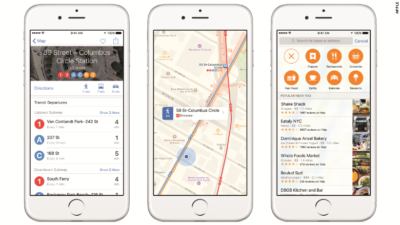
Finally, transit directions are coming to the Apple Maps app. It’s only in 12 cities to start, but Apple said it will expand its transit maps in the future.

Transit has been a long time coming. The lack of public transit information is one of the many reasons Apple CEO Tim Cook apologized for its subpar Maps app in 2012.

News

News Stand

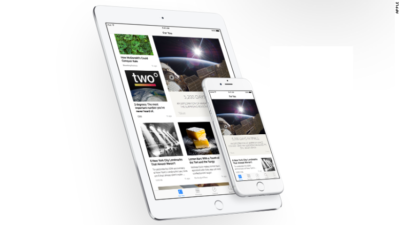
Apple’s new News app is a Flipboard-like personalized news reader that will replace the oft-ignored Newsstand store.

News will be powered by 20 publishers and 50 titles, including ESPN, CNN, Conde Nast, and The New York Times.

Apple said its app will combine “the visually rich layout of a magazine with the immediacy and customization of digital media.”

Wallet

Wallet

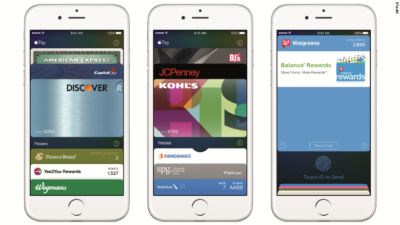
Apple’s Passbook app is getting a new name (Wallet) and some welcome new features.

In iOS 9, Wallet will store Discover credit cards, store credit cards and loyalty cards. That’s in addition to the Visa, MasterCard and American Express cards Apple Pay and Passbook customers can currently use. IPhone users will be able to double-click the home button when their iPhones are locked to access the Wallet app.

Notes

Notes

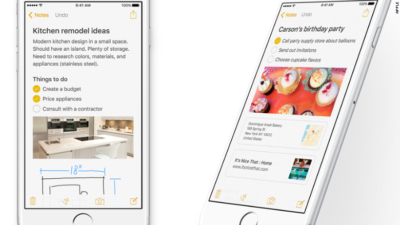
The Notes app is getting a big makeover in iOS 9, letting you draw sketches, drop in photos, maps and links and add items from other apps.

The new Notes will also let you create instant checklists and take photos from within the app.

Multitasking

Multitasking

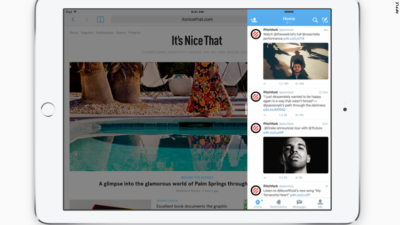
Soon, iPad owners will be able to run two apps at the same time on the same screen.

With a split-screen function, picture-in-picture video, a new app switcher and keyboard shortcuts, the iPad is getting closer to becoming a serious word-processing device.

Quicktype

Quicktype

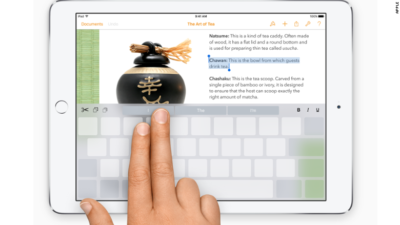
In addition to multi-tasking, Apple is introducing gestures for the iPad in iOS 9, turning the keyboard into a trackpad.

Using two fingers, iPad owners can select text and move the cursor like a mouse.

Better battery life

Better Battery Life

Apple says iOS 9 will give iPhones and iPads up to an hour more battery life every day. It’s also adding a low-power mode to squeeze out three extra hours of juice.

Public beta

Public beta

Excited about iOS 9? It doesn’t debut until the fall, but you’ll be able to get your hands on it early. For the first time ever, Apple will let anyone test out its new iPhone software — before it gets released to the general public.

In July, iOS 9 will go into “public beta,” meaning anyone with an iPhone or iPad will be able to noodle around with iOS 9.

Have questions?

Get answers from our IT Experts
Call us at: 856-745-9990 or visit: https://southjerseytechies.net/

South Jersey Techies, LLC is a full Managed Web and Technology Services Company providing IT Services, Website Design ServicesServer SupportNetwork ConsultingInternet PhonesCloud Solutions Provider and much more. Contact for More Information.

To read this article in its entirety click here.

iPad’s big upgrade: The top 10 iOS features for business

Apple has released the first major software update for the iPad. The 4.2 version of iOS brings a slew of new capabilities to the iPad, including many that will be of interest to business professionals and to IT departments that have deployed or are considering a deployment of the iPad.

The update, which is available as a free download through iTunes, is the first jump to iOS 4 for the iPad. The iPhone got iOS 4 in the spring but the iPad has been stuck on iOS 3.2 until now. With iOS 4.2, the two devices are now unified on the same operating system (along with the iPod Touch as well).

Below is my list of the 10 most important iOS 4 updates for iPad business users.

1. Multitasking
The biggest factor holding back the iPad has been its lack of multitasking. With the 4.2 update, multitasking has finally arrived. It works the same way as iPhone multitasking, which arrived earlier this year. To be clear, iOS 4.2 multitasking is actually more like quick-switching between apps while saving the state of open apps. But, at least it changes the iPad from being a one-app-at-a-time experience. This is especially important for workers who need to copy-and-paste between apps and do other types of multi-app integration. To access multitasking you simply double-click the home button.

2. AirPlay
AirPlay is the flashiest new feature in iOS 4.2. It allows you to quickly stream media from an iPad (or iPhone or iPod Touch) to an Apple TV. The functionality is in its infancy and it may not sound like it has much use for business, but it could be huge. Today, once you have video or photo open, it only takes two taps to throw it up on the big screen. Plus, you can almost-instantaneously switch between different presenters. In the future, imagine hooking up an Apple TV — a tiny $99 box not much bigger than a smartphone — to a projector or a 60-inch LCD TV in a conference room and being able to quickly and easily share charts, graphs, media clips, and presentations straight from your iPad. Look for lots of apps to find ways to take advantage of AirPlay.

3. Wireless app distribution
With 4.2, enterprises can push out their own custom business apps to corporate iPad users over Wi-Fi or 3G. The apps don’t have to go through the Apple App Store and users don’t have to sync through iTunes or a computer in order to get the company apps.

4. AirPrint
Another one of the most talked-about features of 4.2 is AirPrint, which lets you print wirelessly from the iPad. The implementation on this is pretty good. A print option is added to the menu for printing documents, photos, and web pages and the iPad automatically recognizes compatible printers nearby. Unfortunately, the list of compatible printers is very small for now, and apps will need to add this functionality to their software so that printing will be possible in more places on the iPad.

5. Find My iPad
This was previously part of Apple’s paid MobileMe service but with iOS 4.2 it is now a free option. Once you activate this on your iPad you can go to the Apple website to locate your lost iPad on a map, send a message to display on the iPad screen (”I lost my iPad, please call 987-654-3210?), set a remote passcode to lock out prying eyes, or even remotely wipe the device and all of its data.

6. Folders
You can now create folders on the iPad to organize your apps into groups, tuck away the apps you don’t use as often, and save yourself from having to flip through an endless number of screens to find the app you’re trying to locate.

7. Unified inbox
The Mail app offers an improved interface that reminds me of the terrific email functionality on the Palm Pre. It gives you a quick jump directly to the inbox (new messages) of each of your multiple email accounts, or to your list of folders for those email accounts, or into a unified inbox where you can see all of your latest messages threaded together by timestamp. The 4.2 upgrade also now supports multiple Microsoft Exchange mailboxes.

8. Remote device management
Another development on the enterprise front is that the 4.2 upgrade offers Mobile Device Management APIs that allow companies to wirelessly push out configuration changes, monitor compliance with policies, and lock or wipe an iPad managed by the IT department. These features are aimed squarely at the companies deploying fleets of iPads to workers.

9. Web browser search on page
The web browser on the iPad has always had a search box for searching the Internet, but now Apple has added functionality to that box that allows you to use it to search for text on the current web page as well. This is especially useful when you do a web search and land on a page but can’t find the reference to the keyword you were looking for.

10. New quick controls console
If you click the Home button twice to go into multitasking and swipe to the panel on the left you’ll find a new quick control console that has a play/pause button and forward/back buttons for the iPod app, a volumne control slider, a brightness slider, and a new virtual orientation lock setting. The old physical orientation lock button (on the right side above the volumn buttons) has now been converted into a mute button

To view the original article in it’s entirety Click Here

Microsoft Office for iPad is here!

ipad-office

Edit, work, create, and get more done from your iPad, for free

ipad-office3

Four new, free apps are available on your iPad®. With both Microsoft OneDrive and Dropbox access, online storage—and access to your files—is always just a click away on your iPad. The new Microsoft Office apps give you the ability to flat out get more done.

  • With the new Microsoft Word app, you can edit, create, and save your docs, wherever work takes you
  • The new Excel app lets you analyze your data on the fly
  • Build and deliver your presentations—right from your tablet or phone—with the new PowerPoint app
  • The new Microsoft OneNote app helps you work collaboratively and stay organized on the go

With these apps, you can now access, edit, and save directly to your Dropbox account. You can even open and edit files that have already been saved in Dropbox.

Adding Dropbox is easy.  When you are in any of the new apps, follow these simple steps:

1. Tap on the arrow in the top left, then tap Open
2. Tap “Add a Place”
3. Select Dropbox

To get the Office apps for iPad®, open www.appstore.com/microsoftoffice from your iPad’s web browser.


What you need to know about iOS 5

Takeaway: The fifth generation iOS, the engine that powers Apple’s popular iPhone and iPad devices (among others), introduces several important changes and refinements.

Apple’s iOS, though only four years old, has changed the way users connect, purchase and maintain applications, collaborate, and more. The fifth generation iOS, the engine that powers Apple’s popular iPhone and iPad devices (among others), introduces several important changes and refinements. Here are the top 10 things you should know about Apple’s new iOS 5.

1: Requirements

The fall 2011-release iOS 5 upgrade works with a variety of current and legacy handsets, tablets, and devices. iOS 5 is compatible with the iPhone 3GS and iPhone 4. iOS 5 is also supported on the 3rd and 4th generation iPod Touch as well as the original iPad and iPad 2. There is no cost for the upgrade.

2: PC Free

One common complaint prior to iOS 5 has been that a computer was required to fully utilize and back up new iPads, iPhones, and iPod Touch devices. No more. iOS 5 severs the tether and makes it possible to activate and configure new devices without having to tie them to a computer. Further, with iCloud support, iOS 5 devices can be backed up automatically without having to use a computer.

3: Mail improvements

iOS 5 also introduces overdue Mail improvements. The new iOS provides indentation support, enables rich text (bold, italic, and underline) formatting, and can even flag messages. iCloud, meanwhile, helps ensure email accounts stay synchronized across multiple devices. As email’s importance continues to grow, such refinements on the iPhone and iPad platforms are a necessity.

4: Tabbed browsing

A seemingly minor innovation when originally introduced on computers, tabbed browsing enables users to maintain multiple active Web pages within a single browser instance. The feature has proven popular, especially as users have become more dependent upon Web-based applications and Web-based email. iOS 5 updates the Safari browser to bring tabbed browsing to compatible iPhones, iPod Touches, and iPads. This enables multiple concurrent Web page sessions and considerably simplifies the process of switching between open pages,.

5: Reminders

A cottage industry of iOS to-do and task list application providers has arisen over the past few years. That’s because Apple’s iOS didn’t previously do a very good job natively managing or synchronizing organizational tasks. Reminders is a new iOS 5 feature that addresses that shortcoming. With iCal, Outlook, and iCloud integration, changes automatically synchronize across multiple devices. Better yet, users can associate due dates and locations with the tasks they set. Productivity and efficiency result, while dependency upon a third-party application decreases or is eliminated altogether.

6: iCloud support

iCloud support within iOS 5 means applications, photos, music, settings, and other data isn’t lost if a compatible Apple device goes missing. Because iCloud stores data on the Web, files, configuration information, and even applications previously purchased on one device can be pushed to a replacement or other authorized device wirelessly. Calendars, contacts, and mail benefit from iCloud, which powers wireless synchronization between devices, too. iCloud even enables synchronizing iOS data with a PC, so Windows users benefit from iCloud/iOS 5 integration. And 5GB of free storage means the price is right.

7: iMessage

The simplicity and immediacy of text messaging has fueled its meteoric popularity. One can hardly even visit a neighborhood grocery or airport without hearing others’ text alert beeps. Built into the Messages app, iOS 5’s new iMessage feature enhances traditional messaging by adding support for sending photos, videos, locations, and contacts for iPad and iPod Touch users. iMessaging includes group messaging support, too, which better enables team collaboration and communication. iMessage also synchronizes iMessage conversations across multiple devices.

8: Notification Center

As iPhone and iPad use has grown within businesses and as users have loaded a veritable cornucopia of applications on those devices, mobile users sometimes feel assaulted by the number of updates, new email alerts, unread text messages, and other notifications.

Prior to iOS 5, all these different updates lived in different locations and sometimes proved distracting. iOS 5 users can take advantage of the new Notification Center to select which notifications they receive. And copping a popular feature I associate as being introduced with Microsoft Outlook 2003, new notifications appear briefly (in this case at the top center of the screen) before fading out of view. The Notification Center presentation of these messages is less distracting and doesn’t require switching applications, yet it still communicates the same information quickly.

9: AirPlay

Many users will find iOS 5’s new AirPlay innovation a critical component of the new OS. Others may never use it. But those who do will find the video mirroring feature an intriguing and convenient improvement in the mobile OS.

AirPlay enables presenters to wirelessly stream their iPad 2 display information to an HDTV via an Apple TV device. Attendees see exactly what’s on the presenter’s iPad, meaning iPads can fully replace desktop or laptop presentation systems in boardrooms, classrooms, conference rooms, and other presentation areas.

10: Calendar improvements

Calendar operations receive a needed boost within iOS 5, too. iOS 5-powered Calendars now synchronize across multiple devices leveraging Apple’s iCloud technology. Further, iPad users can display year views of their Calendar, while iPhone and iPod Touch users can display a weekly view of their calendar — previously unavailable options. Individual calendars can now be added and edited directly from iOS 5-powered iPhones, iPads, and iPod Touches. Possibly most important, though, is the fact that Calendar attachments are now viewable on compatible iOS 5 devices without having to switch applications.


To view the original article in it’s entirety, Click Here

Microsoft Office Mobile

ios-office365-hero2Microsoft released Office Mobile in the Apple Store for free to all Office 365 users on June 14, 2013.  Office Mobile has a lot of stipulations and only provides the basic document editing capabilities.  Integrating Office Mobile with SkyDrive and Office 365 is a smooth process.

The first stipulation is Office Mobile is designed for iPhone.  The app is not optimized for iPad use; older iPad(s) receive errors.  The second stipulation is Office Mobile requires an Office 365 subscription.  A large percent of businesses have not switched to Office 365 which excludes potiential Office Mobile users.

For Office 365 subscribers, Office Mobile is a free app that provides the ability to view, edit and save Office documents.  All users that are not Office 365 subscribers can continue to use Office-compatible mobile apps that provide the same functionality.

Office Mobile has a similar interface to Windows phone.  After installing Office Mobile, users can view, edit and save Word, Excel and Powerpoint documents.  Users may be surprised with the limited editing abilities.  SkyDrive, SkyDrive Pro and SharePoint are ways to access documents.  ”Recent Documents” tracks the most recent documents that you viewed or changed and makes them easily accessible.

For more information on Hosted Services and Office 365

 please contact us 856-745-9990 or click here.


Apple iOS 7

FINALiOS7.2

Apple iOS 7 is expected to be released this Fall for both, iPhone and iPad users.  Apple created a simple and more useful experience with iOS 7 that includes many new features.

Control Center

Control Center allows access to common controls and apps from any screen with just one swipe.  Controls included are turning on/off Wi-Fi, turning on/off Bluetooth and adjusting the display brightness.  Apps included are Camera, Flashlight, Calculator and many more.

Notification Center

Notification Center allows you to view new messages, mail, to-dos and missed calls from any screen with just one swipe.  The Notification Center has a new feature called Today.  Today allows you to view everything for “Today” including weather, appointments and local traffic.  Also, this feature gives you a glance at Tomorrow. 

Multitasking

Multitasking is smart way to switch between apps quickly.  To access “Multitasking” press the “Home” button twice.  Multitasking with iOS 7 is more efficient because it learns how you use your apps.  If you check a specific app every day at the same time, your app will be waiting for you.

AirDrop

AirDrop allows you to easily share photos, videos, contacts with the app and a Share button.  AirDrop transfers are encrypted and use Wi-Fi or Bluetooth to share data securely.

Siri

Siri has a redesigned user interface with a new sound and many new capabilities.  Siri has a more natural sounding voice (female/male) and is easier to understand.  Siri’s great new look fades on top of your screen.  Additionally, Siri can answer questions using Bing and Wikipedia, control iTunes radio, return phone calls, play voicemails and many more.

Mail

Mail has a redesigned user interface with many new features and controls.  New features  include the ability to view PDF comments and annotations, add/reorganize the mailbox list, and Mac and PC users with Microsoft Exchange 2010 can also now sync notes.


Tablet War-Is Microsoft The Winner?

Takeaway: Find out why Microsoft may still win the tablet war, even if its early efforts are unsuccessful.

After spending time with Microsoft’s Surface RT tablet, we were left with more questions than answers. The further we considered Microsoft’s tablet strategy, the more we wondered if it were genius or madness driving its recent moves. Depending on what we see in the next few months, it just might be the former.

Leaving the Home Court

Surface was most perplexing in that Microsoft aced the hardware of the device — an area most pundits, expected it to miss completely. The device was sleek and well-assembled, and it brought unique and noteworthy features to the table rather than simply trying to copy market leaders. If only the software were on par with the hardware.

The OS was particularly troubling, considering Microsoft essentially invented the tablet category a decade ago, only to let it languish until Apple ate its lunch and dominated the market in a matter of months. While all this is old news, and Windows RT remains what seems to be a compromised OS, there are some interesting things happening on the software front.

An Office for Everyone

Microsoft began its life as an applications software company, achieving dominance in the desktop space through luck and tenacity. People often forget that Microsoft set out to build applications for a variety of platforms rather than create the one that would dominate desktop computing for a generation. While Microsoft has released its Office suite for some competing platforms, the most interesting missing links in the Office world are mobile versions of the software for iOS and Android. There have been enough rumors and rumblings about an iOS version of Office that the rumor has a measure of credibility.

Microsoft also seems a bit more pragmatic and less dogmatic than Apple, and it has released several applications for the iOS platform, from relatively innocuous photography applications to versions of its SkyDrive cloud-based file storage platform. SkyDrive is available for all major OSs, and Microsoft’s cloud strategy points toward open platforms rather than a walled garden like Apple’s iCloud. With a Microsoft-based cloud storage service already gaining traction on a variety of platforms, mobile versions of Office don’t seem as much of a stretch as they might have been a few months ago.

Returning to its roots around application software might not be a bad strategy for Microsoft. Clearly, Surface has not lit the world afire in its first incarnation, so launching popular applications on a variety of platforms would keeps Microsoft relevant in the enterprise and personal space, no matter which tablet device an enterprise ends up selecting.

There’s also the possibility of a halo effect should Microsoft deliver a quality mobile Office experience on a variety of platforms. The iPod music player and iPhone arguably sold more Mac computers than any ad campaign, and a suite of compelling software and services might make a case for a deeper Microsoft experience, especially in the enterprise.

The End of the Platform

While the proclamations that the “desktop is dead” have not been as dire as predicted, many applications are shifting to the cloud- and browser-based interfaces. In mobile, especially, core application logic and data are cloud-based for most popular applications. Tablets and smartphones generally don’t have the “baggage” of legacy applications that have saddled our desktop computing experience, so in many ways, mobile operating systems are more likely to fade toward irrelevancy beyond running cloud-based applications. If Microsoft can rekindle its multi-platform application heritage and combine it with a strong hardware competency, it might successfully win the longer tablet war, even if its early efforts sputter.

Protection for WiFi

Takeaway:  Five simple ways to protect your information when using WiFi and Hotspots.LOCK2

WiFi is exchanging data through a wireless local area network (WLAN) from electronic devices including smartphones, laptops and tablets.

Also, WiFi is available in public places such as Airports and Restaurants.  Identity Thieves, Hackers and Criminals take advantage of WiFi because it is convenient for users to access personal information.

1.  Avoid accessing your bank accounts & online stores:

When using public WiFi, it is best to avoid using your credit card or banking information.

2.  Double check the WiFi name:

Prior to connecting to a public network double check with an employee for their network name.  Identity thieves can create a false Hot-Spot, have users connect and then steal personal information.

3.  Turn-Off “Auto Connect”:

Stay in control of what networks you connect to, smartphones have a setting that automatically connects you to the closest open network.  Simply, turn this setting off to decide what networks to connect to.

4.  Never use the same Password:

An additional step you can take to keep online accounts safe is to use different passwords for each account.   Using the same password makes stealing your information easier for criminals.

5.  Check the Lock:

The extra layer of security is the locked padlock in the address bar of your browser or “https” which means that your information has been encrypted.

Surface 2 for 2014

surface2Technology is a fast paced industry; current technology and devices are just making way for tomorrow’s new technology. With that said, Microsoft is developing their second generation tablet, Surface 2.

Although in the Top Five Tablets for the first quarter of 2013, Microsoft has not been as successful as planned with the Surface Tablets, only selling half of the units required for their intended goal.

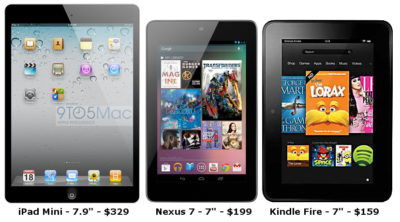
inkTo conquer the growing demand for smaller tablets, Surface 2 will have a 7-9 inch display with a higher screen resolution than its competitors, iPad Mini, Nexus 7 and Kindle Fir..  The iPad Mini offers 1024×768 resolution, the Nexus 7 offers 1280×800 resolution and Kindle Fire offers 1024×600 resolution.  Microsoft expects Surface 2 to offer 1400×1050 resolution.

Partners from the Surface RT and Surface Pro development are working together including Pegatron Technology, Ju Teng, Samsung, LG, Corning, Intel and NVIDIA to build the second generation.

The rumored price of the Surface 2 will be approximately $400.  Microsoft’s Build Developer Conference at the end of June will announce more information regarding the Surface 2 including a possible release date, specifications and features.


CALL US NOW!