Back to Top

Tech, Web, Cloud & Cabling Services

Tag Archives: Apple

Apple tag

Critical iPhone Spyware Fix Released

Apple has updated its software for iPhones to address a critical vulnerability that independent researchers say has been exploited by notorious surveillance software to spy on a Saudi activist.

Researchers from the University of Toronto’s Citizen Lab said the software exploit has been in use since February and has been used to deploy Pegasus, the spyware made by Israeli firm NSO Group that has allegedly been used to surveil journalists and human rights advocates in multiple countries.

The urgent update that Apple (AAPL) released Monday plugs a hole in the iMessage software that allowed hackers to infiltrate a user’s phone without the user clicking on any links, according to Citizen Lab. The Saudi activist chose to remain anonymous, Citizen Lab said.

Apple credited the Citizen Lab researchers for finding the vulnerability.

“Attacks like the ones described are highly sophisticated, cost millions of dollars to develop, often have a short shelf life, and are used to target specific individuals,” Ivan Krsti?, head of Apple Security Engineering and Architecture, said in a statement.

Krsti? said Apple rapidly addressed the issue with a software fix and that the vulnerability is “not a threat to the overwhelming majority of our users.”

Still, security experts encouraged users to update their mobile devices for protection.

In a statement, NSO Group did not address the allegations, only saying, “NSO Group will continue to provide intelligence and law enforcement agencies around the world with life saving technologies to fight terror and crime.”

The firm has previously said its software is only sold to vetted customers for counterterrorism and law enforcement purposes.

Researchers, however, say they have found multiple cases in which the spyware was deployed on dissidents or journalists. In 2019, Citizen Lab analysts alleged that Pegasus was used on the mobile phone of the wife of a slain Mexican journalist.

In a lawsuit filed in 2019, Facebook accused NSO Group of being complicit in a hack of 1,400 mobile devices using WhatsApp. (NSO Group disputed the allegations at the time.)

The proliferation of easy-to-use mobile hacking tools has given governments around the world a new and stealthy means of targeting adversaries. Sophisticated spyware made by NSO Group and other vendors has been reportedly used from Uzbekistan to Morocco.

The surge in spyware prompted a United Nations panel of human rights experts in August to call for a moratorium on the sale of such surveillance tools. The UN panel said the ban should remain in place until governments have “put in place robust regulations that guarantee its use in compliance with international human rights standards.”

Apple HomeKit Launching in June

Devices based on Apple Inc.’s HomeKit will appear in stores next month, the company said.

HomeKit, which is built into Apple’s iOS 8 mobile operating system, provides software so makers of garage door openers, light switches and other home devices can be controlled with an iPhone or iPad.

“HomeKit has been available for just a few months and we already have dozens of partners who have committed to bringing HomeKit accessories to market and we’re looking forward to the first ones coming next month,” Trudy Muller, a spokeswoman for Cupertino, California-based Apple, said Thursday in a statement.

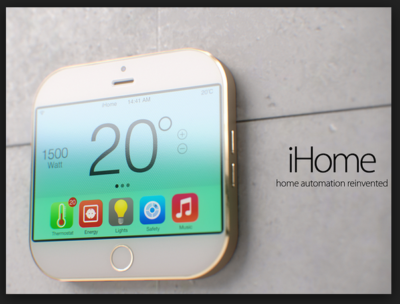
Apple Homekit

IDevices has said it will begin selling in the fourth quarter a HomeKit-compatible switch to control doors, lights and other products.

“We’re testing the software, and it works very well,” Chris Allen, chief executive officer of Avon, Connecticut-based iDevices, said Thursday.

Fortune reported earlier Thursday that HomeKit had been delayed by a few months, until August or September.

apple

Have questions?

Our small business team is here to help.
Call us at: 856-745-9990

South Jersey Techies, LLC is a full Managed Web and Technology Services Company providing IT Services, Website Design ServicesServer SupportNetwork ConsultingInternet PhonesCloud Solutions Provider and much more. Contact for More Information.

Watch out, Chrome, there’s new browser in town!

browser

With the latest release of Windows 10 and the Edge browser, Microsoft looks increasingly ready to tackle Chrome’s performance lead.

Over the years Microsoft has fallen behind its competitors in the battle to provide the best performing browser.

Google’s focus on making Chrome feel fast and responsive has won the browser millions of users at the expense of the more sluggish-feeling Internet Explorer (IE).

With the release of Windows 10, Microsoft is hoping to change the status quo and offer the fastest on-ramp to the web.

To this end it has been reworking how its new Edge browser handles JavaScript (JS), the default scripting language of the web.

JavaScript is at the core of the modern web, with heavy pages loading in tens of scripts that in turn fetch more JavaScript. If your browser is slow at JavaScript, it’s slow full-stop.

At the heart of every browser is a JavaScript engine that parses the JS, interprets its commands and compiles its instructions into machine code.

Like IE 11 before it, the Edge browser uses the Chakra JS engine, and Microsoft has been tweaking Chakra to give Edge a boost on Windows 10.

This fine tuning has allowed the Edge browser to outgun not only IE, but also the latest experimental builds of Chrome and Mozilla Firefox, according to benchmarks run by Microsoft.

The Octane and JetStream benchmarks measure JavaScript performance and importantly are not produced by Microsoft but by their rivals, Octane by Google and JetStream by Apple.

The tests found Edge to be 2.25 times faster than IE in the Octane 2.0 benchmark and 1.6 times faster in the JetStream benchmark.

“The key is that Microsoft Edge has already come a long way from IE11 in terms of improved JavaScript performance on both, benchmarks and real world web as it exists today,” said Gaurav Seth, principal PM lead for Chakra at Microsoft in blog post.

“As mentioned in the beginning, performance is a never-ending pursuit. We will continue pushing the performance boundaries for JavaScript in Microsoft Edge.”

Edge’s relative performance in Octane is a step above its showing when TechRepublic ran the benchmark earlier this year, which saw Edge achieving an 8.8 percent worse score than IE.

To check this latest performance win, we replicated the benchmark run by Microsoft using the same browsers under build 10122 of a 64-bit version of the Windows 10 Technical Preview.

Tests were run on a Toshiba Portege laptop. The machine has an 2.1GHz Intel Core i7 4600U processor, with 8GB of memory and a 256GB SSD.

Although Edge didn’t come out on top in our tests it did put in a good showing, bettering IE’s score by an impressive 44 percent and Firefox Nightly by five percent in the Octane test. Edge still lagged behind Chrome Canary by just under six percent in Octane, but came within spitting distance of Chrome in JetStream, racking up a benchmark just three percent shy of Google’s browser.While our benchmarks found Edge failing to match Microsoft’s claims, it does appear to be a noticeable step forward, leaving IE in the dust and edging closer to the performance of Chrome.

Edge doesn’t appear to have snatched the performance crown as of yet but with work continuing to improve the browser, Microsoft finally seems to have produced a contender in the browser wars.

Have questions?

Our small business team is here to help.
Call us at: 856-745-9990

South Jersey Techies, LLC is a full Managed Web and Technology Services Company providing IT Services, Website Design ServicesServer SupportNetwork ConsultingInternet PhonesCloud Solutions Provider and much more. Contact for More Information.

Android Dominates Apple & Microsoft

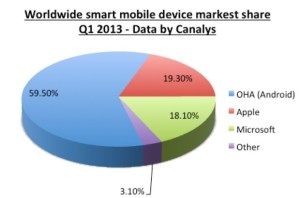
aam1 Takeaway:  Canalys’ Market Shares for Quarter 1 of 2013 showing that Android is dominating the Worldwide Smart Mobile Market.

After being released in 2007, this Linux-based operating system is the most used platform for smartphones. According to BBC News, Android has 900 million activations.

Android has 59.50% Market Share for the first quarter of 2013, according to Canalys.  Apple has 19.30% Market Share and Microsoft has 18.10%, together does not equal to the Android market.  The  Worldwide Smart Mobile Market includes Netbooks, Smarphones and Tablets

Chart

iPad’s big upgrade: The top 10 iOS features for business

Apple has released the first major software update for the iPad. The 4.2 version of iOS brings a slew of new capabilities to the iPad, including many that will be of interest to business professionals and to IT departments that have deployed or are considering a deployment of the iPad.

The update, which is available as a free download through iTunes, is the first jump to iOS 4 for the iPad. The iPhone got iOS 4 in the spring but the iPad has been stuck on iOS 3.2 until now. With iOS 4.2, the two devices are now unified on the same operating system (along with the iPod Touch as well).

Below is my list of the 10 most important iOS 4 updates for iPad business users.

1. Multitasking
The biggest factor holding back the iPad has been its lack of multitasking. With the 4.2 update, multitasking has finally arrived. It works the same way as iPhone multitasking, which arrived earlier this year. To be clear, iOS 4.2 multitasking is actually more like quick-switching between apps while saving the state of open apps. But, at least it changes the iPad from being a one-app-at-a-time experience. This is especially important for workers who need to copy-and-paste between apps and do other types of multi-app integration. To access multitasking you simply double-click the home button.

2. AirPlay
AirPlay is the flashiest new feature in iOS 4.2. It allows you to quickly stream media from an iPad (or iPhone or iPod Touch) to an Apple TV. The functionality is in its infancy and it may not sound like it has much use for business, but it could be huge. Today, once you have video or photo open, it only takes two taps to throw it up on the big screen. Plus, you can almost-instantaneously switch between different presenters. In the future, imagine hooking up an Apple TV — a tiny $99 box not much bigger than a smartphone — to a projector or a 60-inch LCD TV in a conference room and being able to quickly and easily share charts, graphs, media clips, and presentations straight from your iPad. Look for lots of apps to find ways to take advantage of AirPlay.

3. Wireless app distribution
With 4.2, enterprises can push out their own custom business apps to corporate iPad users over Wi-Fi or 3G. The apps don’t have to go through the Apple App Store and users don’t have to sync through iTunes or a computer in order to get the company apps.

4. AirPrint
Another one of the most talked-about features of 4.2 is AirPrint, which lets you print wirelessly from the iPad. The implementation on this is pretty good. A print option is added to the menu for printing documents, photos, and web pages and the iPad automatically recognizes compatible printers nearby. Unfortunately, the list of compatible printers is very small for now, and apps will need to add this functionality to their software so that printing will be possible in more places on the iPad.

5. Find My iPad
This was previously part of Apple’s paid MobileMe service but with iOS 4.2 it is now a free option. Once you activate this on your iPad you can go to the Apple website to locate your lost iPad on a map, send a message to display on the iPad screen (”I lost my iPad, please call 987-654-3210?), set a remote passcode to lock out prying eyes, or even remotely wipe the device and all of its data.

6. Folders
You can now create folders on the iPad to organize your apps into groups, tuck away the apps you don’t use as often, and save yourself from having to flip through an endless number of screens to find the app you’re trying to locate.

7. Unified inbox
The Mail app offers an improved interface that reminds me of the terrific email functionality on the Palm Pre. It gives you a quick jump directly to the inbox (new messages) of each of your multiple email accounts, or to your list of folders for those email accounts, or into a unified inbox where you can see all of your latest messages threaded together by timestamp. The 4.2 upgrade also now supports multiple Microsoft Exchange mailboxes.

8. Remote device management
Another development on the enterprise front is that the 4.2 upgrade offers Mobile Device Management APIs that allow companies to wirelessly push out configuration changes, monitor compliance with policies, and lock or wipe an iPad managed by the IT department. These features are aimed squarely at the companies deploying fleets of iPads to workers.

9. Web browser search on page
The web browser on the iPad has always had a search box for searching the Internet, but now Apple has added functionality to that box that allows you to use it to search for text on the current web page as well. This is especially useful when you do a web search and land on a page but can’t find the reference to the keyword you were looking for.

10. New quick controls console
If you click the Home button twice to go into multitasking and swipe to the panel on the left you’ll find a new quick control console that has a play/pause button and forward/back buttons for the iPod app, a volumne control slider, a brightness slider, and a new virtual orientation lock setting. The old physical orientation lock button (on the right side above the volumn buttons) has now been converted into a mute button

To view the original article in it’s entirety Click Here

The 10 elite smartphones of 2010

Takeaway: With the rise of Android, the reboot of BlackBerry, and the redesigned iPhone, 2010 can rightly be called the year of the smartphone. Here are the best devices of the year.

10. BlackBerry Torch

BlackBerry came under intense pressure in 2010 from the rapid growth of iPhone and Android. The smartphone incumbent fired back with the release of the BlackBerry 6 OS and a new form factor with a slide-down keyboard in the BlackBerry Torch. The device is a bit underpowered, the OS isn’t a huge step forward, and overall it hasn’t been enough to stem the losses to Apple and Google. But, there are still a lot of BlackBerry fans out there — not to mention all of the enterprises locked into BlackBerry — and for them, the Torch is now the pre-eminent device on the market.

9. Motorola Droid 2

This shows how much progress the smartphone market has made in one year. Last year, I would have ranked the original Motorola Droid and the Apple iPhone 3GS as the two best smartphones on the market. This year, the Droid got a very nice upgrade but still struggled to make the top 10. Still, due to its increased specs, solid build quality, and very usable form factor, the Droid 2 belongs on this list. Also, don’t miss its cousins, the Droid Pro and the Droid 2 Global.

8. HTC Incredible

With much the same innards as the Google Nexus One (although not nearly as strong of a build quality), the HTC Incredible was a consolation prize for those who had been salivating for the Nexus One on Verizon. Unfortunately, Google and Verizon pulled the plug on those plans and instead HTC offered the Incredible through Verizon with the traditional two-year contract. The Incredible did get one thing that the Nexus One didn’t have: HTC’s Sense UI. Some viewed that as a bonus over the stock Android OS on the Nexus One, while others saw it as a detractor.

7. Samsung Focus

Microsoft finally got itself back in the smartphone game in 2010 with the launch of Windows Phone 7, and the first widely-available WP7 device was the Samsung Focus, which didn’t disappoint. The Focus sported nice hardware specs in an attractive, futuristic form factor (albeit with a lot of plastic, similar to the Galaxy S). And, Windows Phone 7 offered a new take on smartphone UI that is a little but more polished and fluid than Android or BlackBerry, although not quite as finished as the iPhone.

6. Motorola Droid X

Verizon Wireless went all-in on Android in 2010, launching a steady stream of new Android-powered devices throughout the year and replacing BlackBerry with Android as its primary smartphone platform. The Droid X served as Verizon’s flagship Android phone, with its huge screen, 8MP camera, enterprise-class hardware, and extensive list of high-end features.

5. HTC Desire

While the HTC Incredible had the same guts as the Nexus One but a much different outer shell, the HTC Desire had similar internals and an outer shell that closely resembled the high quality metal casing on the Nexus One. The Desire quickly became one of the most popular smartphones in Europe and Australia by mid-2010 and has spread to other carriers through the globe since then. Along with the Nexus One and the iPhone 4, the Desire feels like the most substantial and high quality smartphone on the market. You should also keep an eye on the HTC Desire HD and the HTC Desire Z.

4. Samsung Galaxy S

Samsung joined the Android movement with all guns blazing in the middle of 2010 by releasing its line of Galaxy S smartphones in a variety of different form factors (and a confusing array of product names) on all four US wireless carriers and a fleet of international carriers. In the US, the Samsung Vibrant and the Samsung Epic 4G were the most impressive of the Galaxy S phones, but all of the models across the globe have same technology base and generally provide a very good Android experience.

3. Google Nexus One

The first big smartphone of 2010 was the Google Nexus One, launched just after the new year and right before CES 2010. As a product, the long-rumored “Google Phone” wasn’t a disappointment. It had excellent build quality (developed by HTC) and ran the stock Android OS, which got all of the latest Android updates directly from Google. However, the phone failed in its larger mission of moving the US telecom market toward the European model of being able to buy phones and wireless service separately. The Nexus One was sold as an unlocked device at full price ($500) through Google’s online store. Google was not well prepared to handle customer service and didn’t give US consumers enough time to warm up to the idea of buying a full price device. It also never released the promised CDMA version of the Nexus One. Eventually, Google abandoned the product altogether and replaced it in December with the Nexus S, built by Samsung and available under traditional contract with T-Mobile.

2. HTC EVO 4G

The premier Android device of 2010 was the HTC EVO 4G. It was the first major smartphone to break the 4-inch screen barrier. It was the first 4G smartphone in the US. It was the first major smartphone with an 8.0 megapixel camera. It was the first major smartphone to feature a kickstand (for video viewing). I pejoratively called it the “Hummer of smartphones” because of its massive size and the fact that it’s such as battery hog, but there’s no arguing that the EVO 4G stretched the boundaries of what was possible in a smartphone and forced all of its competitors to play catch-up.

1. Apple iPhone 4

With all of the momentum that was gathering around Android during the first half of 2010, Apple’s iPhone 3GS was starting to look pretty stale by mid-year — especially since it was only a slight upgrade over the iPhone 3G from 2008. Then, Apple unveiled iOS4 and the iPhone 4 and launched itself back to the head of the class with top-quality hardware and a software experience that still outpaces all of its rivals in terms of ease of use, responsiveness, polish, and third-party software. The iPhone 4 antenna problem, which was more severe than Apple acknowledged but a lot less severe than the tech press portrayed it, was a wart for the iPhone 4. It also still lacks the widget capability of Android (and now Windows Phone 7). But, overall, the iPhone 4 remains the gold standard of the smartphone market.

Honorable mentions

  • Motorola Droid Pro
  • HTC HD7
  • Dell Venue Pro
  • T-Mobile G2
  • BlackBerry Bold 9780
  • HTC Aria


Office Mobile for iPhones

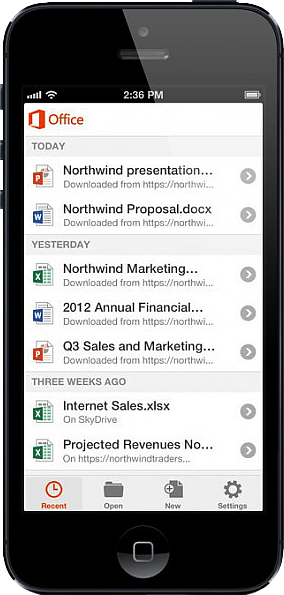
Untitled On June 14, 2013, Microsoft released Office Mobile in the Apple Store for all Office 365 users at no cost.  This app is available for iPhone 4 and up, iPad 3rd generation and up, iPad Mini and iPod Touch 5th generation.  All devices are required to run iOS 6 and up.

Office Mobile allows you to view and edit Word, Excel, and PowerPoint documents.   SkyDrive, SkyDrive Pro and SharePoint are ways to access documents.  “Recent Documents” tracks the most recent documents that you viewed or changed and makes them easily accessible.  Offline editing does not require a constant internet connection but allows you to save your changes once reconnected to a network.

On June 10, 2013 Apple announced that iWork Apps, such as Pages, Numbers and Keynote, can cross platforms to be used on Windows Systems.  Although, iWork Apps are proficient, they can not compare to the Office Suite. 

Microsoft has taken a huge step by crossing platforms with Office software and returning the upper hand to Microsoft.  Office 365 has become more valuable for businesses and home users.  

For more information on Hosted Services and Office 365

 please contact us 856-745-9990 or click here.


Office 2016 for Mac is here!

Kirk Koenigsbauer, corporate vice president for the Office Client Applications and Services team said “Today we are taking a big step forward for Mac® users—Office 2016 for Mac is now available in 139 countries and 16 languages. Based on feedback from the great Mac Office community, we’ve made major updates to each of the apps, and we couldn’t be more pleased to deliver it first to our Office 365 customers.”

Unmistakably Office, designed for Mac

The new versions of Word, Excel, PowerPoint, Outlook and OneNote provide the best of both worlds for Mac users—the familiar Office experience paired with the best of Mac.

If you already use Office on a PC or iPad, you will find yourself right at home in Office 2016 for Mac. It works the way you expect, with the familiar ribbon interface and powerful task panes. Mac users will appreciate the modernized Office experience and the integration of Mac capabilities like Full Screen view and Multi-TouchTM gestures. With full Retina® display support, your Office documents look sharper and more vibrant than ever.

Office for Mac is cloud-connected, so you can quickly get to the documents you’ve recently used on other devices and pick up where you left off. New, built-in document sharing tools make it easy to invite teammates to work on a document together. When sharing documents, you won’t have to worry about losing content or formatting, as Office for Mac offers unparalleled compatibility with Office on PCs, tablets, phones and online.

Five modern, first-class applications
Word for Mac


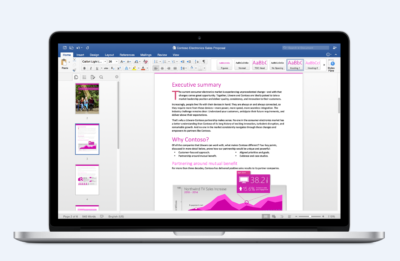
Word for Mac—Word’s powerful writing and reviewing tools make it easy to create great-looking documents. The new Design tab lets you easily apply designer-quality layouts, colors and fonts throughout your document. You can work on the same document simultaneously with your teammates and use threaded comments to have a conversation right next to the corresponding text.
 

Excel for Mac


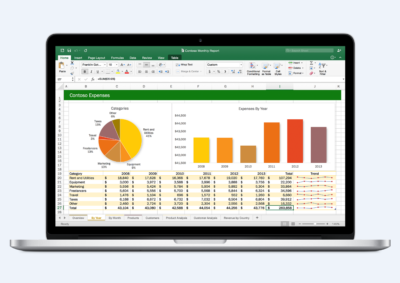
Excel for Mac—The new Excel for Mac helps you visualize your information by recommending charts best suited for your data with chart previews. Familiar keyboard shortcuts, autocomplete and an improved formula builder save you time when creating spreadsheets or entering data. For deeper analysis, new PivotTable Slicers help you filter large volumes of data and discover patterns.
PowerPoint for Mac

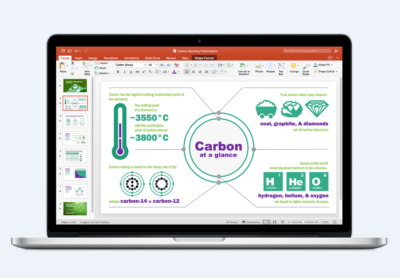
PowerPoint for Mac—PowerPoint’s improved Presenter View gives you full control when you present by showing you the current slide, next slide, speaker notes and a timer on your Mac screen, while the audience only sees your presentation on the big screen. The new animation pane helps you design and fine-tune animations, and the latest set of slide transitions add polish to your presentations.
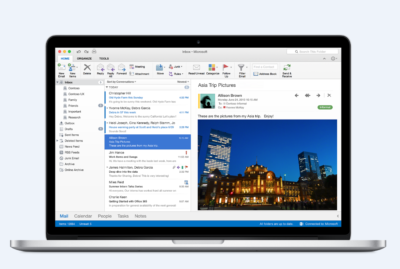
Outlook for Mac

Outlook for Mac—Managing your email, calendar, contacts and tasks has never been easier. The new Outlook for Mac has push mail support so your inbox is always up-to-date. The improved conversation view automatically organizes your inbox around threaded conversations, so you won’t have to hunt for related messages. And the new message preview shows you the first sentence of an email just below the subject line so you can quickly decide if you want to read it now or come back later.
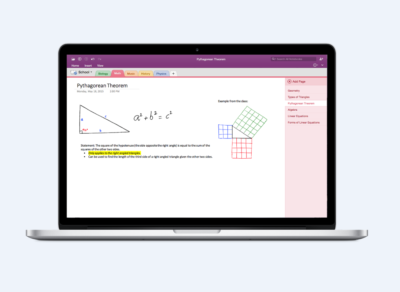
One Notebook for Mac

OneNote for Mac—OneNote is the newest addition to Office for Mac. You can capture your ideas in digital notebooks and access them on any device. Find things quickly with the OneNote search engine that tracks your tags, indexes your typed notes and recognizes text in images and handwritten notes. Bold, italicize, underline or highlight notes, insert files, pictures and tables and organize your notes however you want. You can also share notebooks with friends, family or colleagues so everyone can work together on travel plans, household tasks or work projects.

Made better by Mac users

The customer participation in Office for Mac preview since its launch in March exceeded expectations, making it largest Office for Mac beta ever. Thanks to everyone who participated in the preview program and helped improve the product.

Mac preview participants provided with over 100,000 pieces of feedback. Based on this feedback, Office released seven updates in four months with significant improvements in performance and stability. Also added features like improved Mail Merge in Word, Propose New Time in Outlook and support for External Data Connections in Excel.

And the best news is that Office for Mac will continue to see ongoing improvements over time. With released updates and new features for Office 365 customers at least once per quarter.

Available today for Office 365 customers

Office 365 subscribers can get the newest version of Office for Mac today. All you need is an Office 365 subscription (Office 365 Home, Personal, Business, Business Premium, E3 or ProPlus), which includes the rights and access to use Office applications on Mac, Windows, iOS and Android devices, along with additional value in OneDrive and Skype.

Here are a few different ways to get Office 2016 for Mac today:

  • Already an Office 365 customer? On your Mac, just browse to your account page (office.com/myaccount), sign in and follow the installation instructions. If you have Office 365 through your organization, go to portal.office.com/OLS/MySoftware.aspx.
  • Are you a student? You may get Office 2016 for Mac for free or at a substantial discount. It takes only 30 seconds to find out at office.com/student.
  • Otherwise, go to office.com/mac or buy an Office 365 subscription at your local retailer.

Office 2016 for Mac will become available as a one-time purchase option this September.

We hope you’re as excited as we are about the new Office for Mac. It’s one of many important releases this summer. “We released Word, Excel and PowerPoint for Android phones just two weeks ago, which join Outlook and OneNote for Android phones, and we are just weeks away from delivering Office Mobile apps for Windows 10.” said Kirk Koenigsbauer

Have questions?

Get help from Microsoft’s Cloud Solutions Partner.
Call us at: 856-745-9990 or visit: https://southjerseytechies.net/

South Jersey Techies, LLC is a full Managed Web and Technology Services Company providing IT Services, Website Design ServicesServer SupportNetwork ConsultingInternet PhonesCloud Solutions Provider and much more. Contact for More Information.

To read this article in its entirety click here.

Apple iOS 7

FINALiOS7.2

Apple iOS 7 is expected to be released this Fall for both, iPhone and iPad users.  Apple created a simple and more useful experience with iOS 7 that includes many new features.

Control Center

Control Center allows access to common controls and apps from any screen with just one swipe.  Controls included are turning on/off Wi-Fi, turning on/off Bluetooth and adjusting the display brightness.  Apps included are Camera, Flashlight, Calculator and many more.

Notification Center

Notification Center allows you to view new messages, mail, to-dos and missed calls from any screen with just one swipe.  The Notification Center has a new feature called Today.  Today allows you to view everything for “Today” including weather, appointments and local traffic.  Also, this feature gives you a glance at Tomorrow. 

Multitasking

Multitasking is smart way to switch between apps quickly.  To access “Multitasking” press the “Home” button twice.  Multitasking with iOS 7 is more efficient because it learns how you use your apps.  If you check a specific app every day at the same time, your app will be waiting for you.

AirDrop

AirDrop allows you to easily share photos, videos, contacts with the app and a Share button.  AirDrop transfers are encrypted and use Wi-Fi or Bluetooth to share data securely.

Siri

Siri has a redesigned user interface with a new sound and many new capabilities.  Siri has a more natural sounding voice (female/male) and is easier to understand.  Siri’s great new look fades on top of your screen.  Additionally, Siri can answer questions using Bing and Wikipedia, control iTunes radio, return phone calls, play voicemails and many more.

Mail

Mail has a redesigned user interface with many new features and controls.  New features  include the ability to view PDF comments and annotations, add/reorganize the mailbox list, and Mac and PC users with Microsoft Exchange 2010 can also now sync notes.


Set Up Microsoft Exchange E-Mail on iPhone

Set Up Microsoft Exchange E-Mail on an Apple iPhone, iPad, or iPod Touch3

You can set up Exchange e-mail on an Apple iPhone, iPad, or iPod Touch. When you set up an Exchange account on your device, you’ll be able to access and synchronize your e-mail, calendar, and contacts. If you have a different device, or if you want to connect using POP or IMAP.

How do I set up Microsoft Exchange e-mail on an Apple iPhone, iPad, or iPod Touch?


  1. Tap Settings > Mail, Contacts, Calendars > Add Account.
  2. Tap Microsoft Exchange.
  3. You don’t need to enter anything in the Domain box. Enter the information requested in the Email,Username, and Password boxes. You need to enter your full e-mail address in the Email and Usernameboxes (for example, tony@contoso.com).
  4. Tap Next on the upper-right corner of the screen. Your iPhone will try to find the settings it needs to set up your account. Go to step 7 if your iPhone finds your settings.
  5. If your iPhone can’t find your settings, you’ll need to manually look up your Exchange ActiveSync server name. For instructions for how to determine your Exchange ActiveSync server name, see the Finding My Server Name section below.
  6. In the Server box, enter your server name, and then tap Next.
  7. Choose the type of information you want to synchronize between your account and your device, and then touch Save. By default, Mail, Contacts, and Calendar information are synchronized.
    Caution:
    If you’re prompted to create a passcode, tap Continue and enter a numeric passcode. If you don’t set up a passcode, you can’t view your e-mail account on your iPhone. You can set up a passcode later in iPhone Settings.

Finding My Server Name


If your email program isn’t able to automatically find your Exchange ActiveSync server name, you may need to look it up.

  1. Sign in to your e-mail account using Outlook Web App. For help signing in, see How to Sign In to Outlook Web App.
  2. If you’re connecting to an Exchange mailbox, your Exchange ActiveSync server name is contained in the address bar in your browser when you are signed in to Outlook Web App, but without the leadinghttps:// and without the trailing /owa. For example, if the address you use to access Outlook Web App is https://mail.contoso.com/owa, your Exchange ActiveSync server name is mail.contoso.com.
  3. If you’re unable to connect to your mailbox using the information earlier in this section, you can try using the server name value that you can view in Outlook Web App options. Do the following:
    1. In Outlook Web App, click Options > See All Options > Account > My Account > Settings for POP, IMAP, and SMTP access.
      Note:
      Although you’re not setting up a POP3 account, you will use this value to determine your Exchange ActiveSync server name.
    2. Under POP setting, view the value for Server name.
    3. Try setting up your email using the server name listed on your options page. For example if the value for Server name under POP setting is mail.contoso.com, try using mail.contoso.com as your Exchange server name.

What else do I need to know?

  • If you’re prompted to create a passcode and don’t create one, you won’t be able to send and receive e-mail.

CALL US NOW!