Back to Top

Tech, Web, Cloud & Cabling Services

Category: News

What’s new in search in Office 365

SharePoint now serves up search results personalized to your previous activity and permissions.

In SharePoint Online and on office.com, search is personal, and the search results are even easier to explore. Another user will see different results than you, even when you both search for the same words.

You’ll only see results that you already have access to, and other users can’t find your private documents.

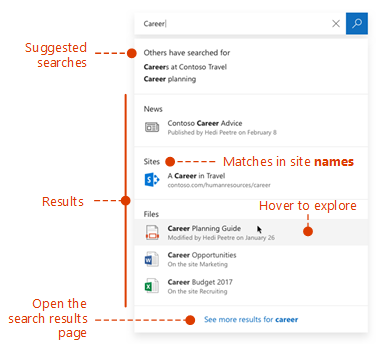
Even before you start typing, you’ll see results based on your previous activity in Office 365. The results update as you start typing.

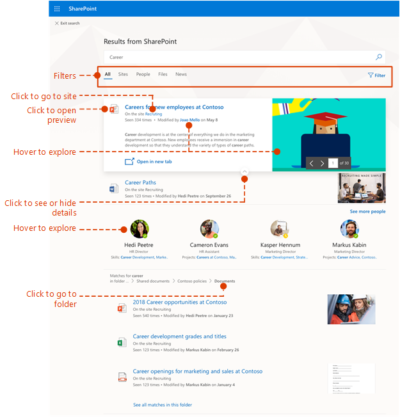
If these results aren’t what you’re looking for, click the link to see more results or press Enter to open the search results page and see and explore all the results. Here’s an example of search results from SharePoint:

Explore the search results to see more details about the people and files you’ve found, or refine your search to get other results. Here’s an expert tip to quickly see more, or less, details of a result – you can actually click anywhere in the empty space of the result.

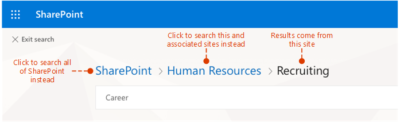
You can navigate to locations that you want to explore further and, if you’ve searched in SharePoint Online, you can change where the results come from. For example, if you searched from a site, but really meant to search all of SharePoint, then you’re just one click away. Or, if the site you searched from is associated with another site, but you want to search all the associated sites.

When you exit a search results page, you return to the page where you started your search.

Windows 10 Pro is a dead end for the enterprise, Gartner says

Recent changes by Microsoft to the Windows 10 support schedule underline why Windows 10 Pro is an ill fit for most companies.

Windows 10 Pro is a dead end for enterprises, a prominent Gartner analyst has argued.

“[We] predict that Microsoft will continue positioning Windows [10] Pro as a release that is not appropriate for enterprises by reducing … support and limiting access to enterprise management features,” Stephen Kleynhans, a research vice president at Gartner and one of the research firm’s resident Windows experts, said in a report he co-authored.

Microsoft’s Windows 10 Pro occupies the middle ground between the consumer-grade Home and the corporate-level Enterprise in features, functionality and price. Because Enterprise versions of Windows have never been available to computer makers, Pro – sometimes, as in Windows 7, tagged Professional instead – has been the most popular pre-installed OS on new business PCs. (Corporations typically re-image new personal computers with Enterprise upon receipt of the devices.)

But although Pro or Professional has a long history in business settings, Microsoft has made numerous decisions in its Windows 10 migration campaign to separate Pro and Enterprise even more, pushing them apart. In Kleynhans’ view, the gap has become unbridgeable.

The last straw was Microsoft’s on-the-fly changes to Windows 10 support.

Last year, the Redmond, Wash. developer announced a six-month support extension for Windows 10 1511, the November 2015 feature upgrade, “to help some early enterprise adopters that are still finishing their transition to Windows as a service.” In February, Microsoft added versions 1609, 1703 and 1709 – released in mid-2016, and in April and October of 2017, respectively – to the extended support list, giving each 24 months of support, not the usual 18.

“Some customers have requested an extension to the standard 18 months of support for Windows 10 releases,” a Microsoft executive said at the time.

There was a catch: Only Windows 10 Enterprise (and Windows 10 Education, a similar version for public and private school districts and universities) qualified for the extra six months of support. Users running Windows 10 Pro were still required to upgrade to a successor SKU (stock-keeping unit) within 18 months to continue receiving security patches and other bug fixes.

Windows 10 Enterprise 1709, for example, and its free “supplemental servicing,” will exhaust support in October 2019. But Windows 10 Pro 1709 runs out of support on April 9, 2019.

“The one thing that really surprised me about the added support,” said Kleynhans in an interview, “was the fact that it didn’t apply to Pro. I think that this telegraphed the fact that, for businesses, Pro is being dead-ended.”

Even though the six-month support extension ended with the 1803 feature upgrade, the one that began reaching some users late last month, in the report Kleynhans co-wrote with Gartner colleague Michael Silver, the duo made clear that they believe Pro is viewed by Microsoft as a second-class citizen.

“Customers currently using Windows 10 Pro should continue to monitor Microsoft’s life cycle announcements because they will eventually need to budget for Windows [10] Enterprise as Windows [10] Pro becomes more ‘pro-sumer’ and small-business oriented,” they wrote in a six-item list of recommendations.

Another component of Microsoft’s current Windows 10 support strategy, something the company has labeled “paid supplemental servicing,” was also out of bounds for those running Windows 10 Pro. The extra support, which Microsoft will sell at an undisclosed price, is available only to Enterprise and Education customers.

Paid supplemental servicing adds 12 months to the 18 months provided free of charge.

“The extensions and paid support option only apply to the Enterprise and Education SKUs,” Kleynhans and Silver said in their report, “Plan and Budget for Short Windows and Office Support Cycles Based on Microsoft’s February 2018 Announcements,” which was published by Gartner last month. “Customers using Windows 10 Pro will still see support end after 18 months. In this way, Microsoft is further reinforcing that it expects enterprise customers to move to the Enterprise edition of Windows 10.”


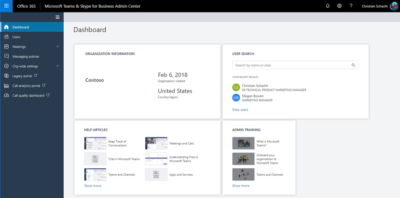
Microsoft announces the new Teams & Skype for Business Admin Center

To enable IT admins to better manage the various aspects of Microsoft Teams and Skype for Business services, Microsoft is announcing the new Microsoft Teams & Skype for Business Admin Center.

Now, there’s an admin center just for calling and messaging.

This new portal will offer a unified experience to manage both Teams and Skype for Business and will also include Call Analytics and the Call Quality Dashboard. Admins can also get end-to-end insights and the ability to manage Teams settings on a user level in this new portal.

Following features are available in this release:

Microsoft Teams messaging policy: Create custom policies for messaging scenarios for your users.

User management: Assign policies and configure your users.

Microsoft Teams guest messaging settings: Control the messaging capabilities for guest accounts in Microsoft Teams.

Federation settings: Manage federation between tenants for Microsoft Teams and Skype for Business. (Please note that federation for Microsoft Teams and Skype for Business will roll out in stages and this setting might not be visible for you during the initial rollout.)

Audio conferencing: Configure dial-in numbers and settings for Microsoft Teams and Skype for Business.

Office 365 to get enhanced Anti-spoofing capabilities

Enhanced anti-spoofing safeguards are rolling out for Office 365.

Microsoft services like OneDrive for Business, SharePoint Online, and Microsoft Teams are closely guarded by ATP (Advanced Threat Protection). Besides, there are numerous feature updates available in Office 365 threat protection service to address the evolution and advances in the threat landscape. The addition of enhanced Anti-Spoofing capability in Office ATP for protecting against spoofed emails from external domains further strengthens this security framework.

Anti-spoofing in Office 365 Advanced Threat Protection

The newest anti-spoof features help protect organizations from external domain spoof.  Office 365 recognizes emails from external domains having proper SPF, DMARC, and DKIM authentication settings as legitimate/authentic and therefore allow them to pass authentication, uninterrupted.

This normal process is however challenged when external domains do not have these settings properly configured. Without enforcement of these settings, domains show a high likelihood of being manipulated and maliciously spoofed, leaving customers vulnerable to phishing or spam attacks. The new external domain anti-spoofing capabilities help detect and block emails from external domains that do not have the following features,

  1. Correct authentication configuration
  2. An email infrastructure source with an unknown history

How does it work?

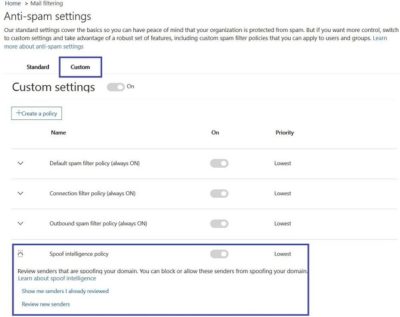
A newly enhanced filter in ATP first checks if the email from external domains, passes SPF, DKIM, and DMARC test.  If not, the filter thoroughly checks for historical sending patterns of that domain and associated infrastructure. If any suspicious behavior is noted, ATP assumes the sender does not bear a good reputation and as such, proceeds to junk the message.

Also, a feature worth noticing about Anti-spoofing – The filter constantly evolves and enhances itself based on mail flow patterns it observes.  ATP subscribers can access the spoof intelligence report in their Antispam Policy and take necessary actions if required.

Office 365: New capabilities for iPad and iPhone

New features make Office and OneDrive the best place to work on iPad and iPhone
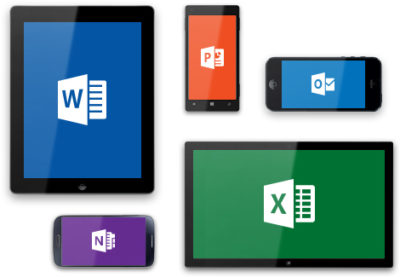
More and more, people around the world are working on the go, changing locations and devices as they create and collaborate with others throughout their day. As they work across their PCs, Macs and mobile devices, they expect an uncompromising experience that is familiar yet optimized for the device they are using.

Microsoft is committed to providing best in class experiences on all devices, and today, we are proud to share with you a set of new Office capabilities across Word, Excel, PowerPoint, and OneDrive on iOS that will delight and make iPad and iPhone users more productive than ever before.

Real-time co-authoring in Word, Excel, and PowerPoint on iOS – We live in a world where we’re often collaborating with multiple people in different locations and Office 365 provides the broadest and deepest toolkit for collaboration between individuals, teams, and entire organizations. Using real-time co-authoring, colleagues, friends, and family can contribute to and edit documents simultaneously in the Word, Excel and PowerPoint iOS apps. This allows you to know who else is working with you in a document, see where they’re working, and view changes automatically within seconds. The co-authoring experiences are also available in Office Online and the latest versions of Word, Excel and PowerPoint on the PC and Mac, all made possible by storing your documents in OneDrive or SharePoint.
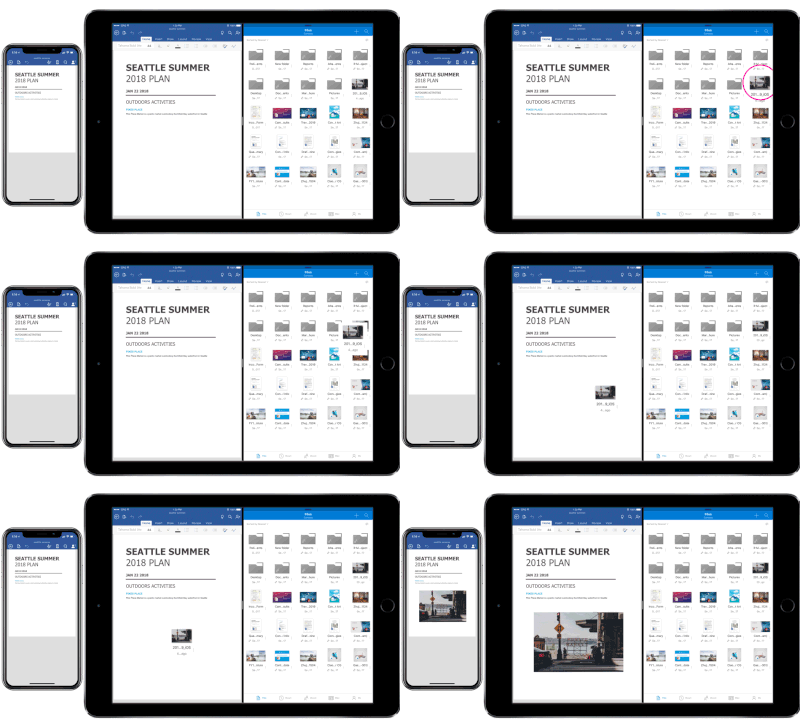
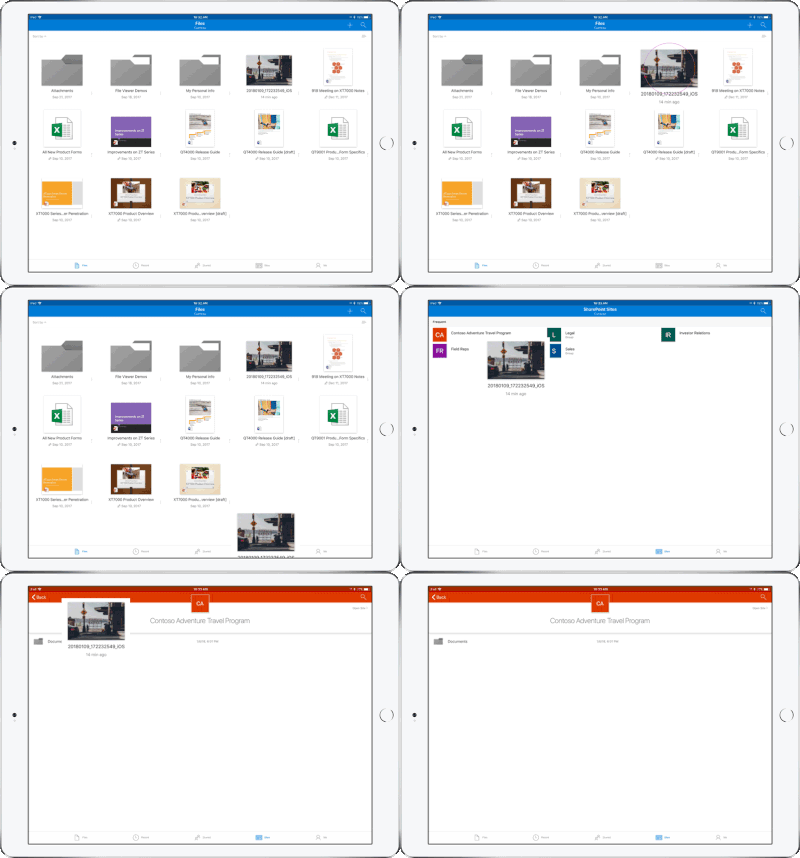
Drag and drop files anywhere with OneDrive – Sometimes your files can get scattered between different folders or even services and applications. Now it’s easier than ever to organize and rearrange your files. You can drag files in between folders in OneDrive and, if your teammates use SharePoint to work together, you can even drag OneDrive files to a SharePoint site giving them immediate access. On iPad, you can also drag files from other apps, such as iMessage, into your OneDrive and drag files out of your OneDrive to other apps.

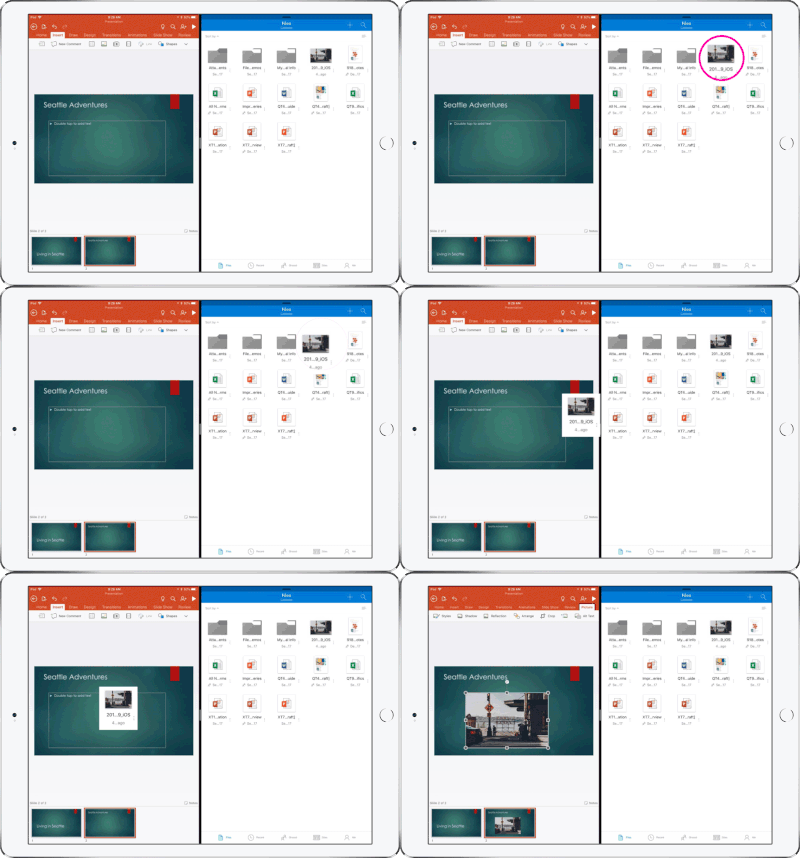
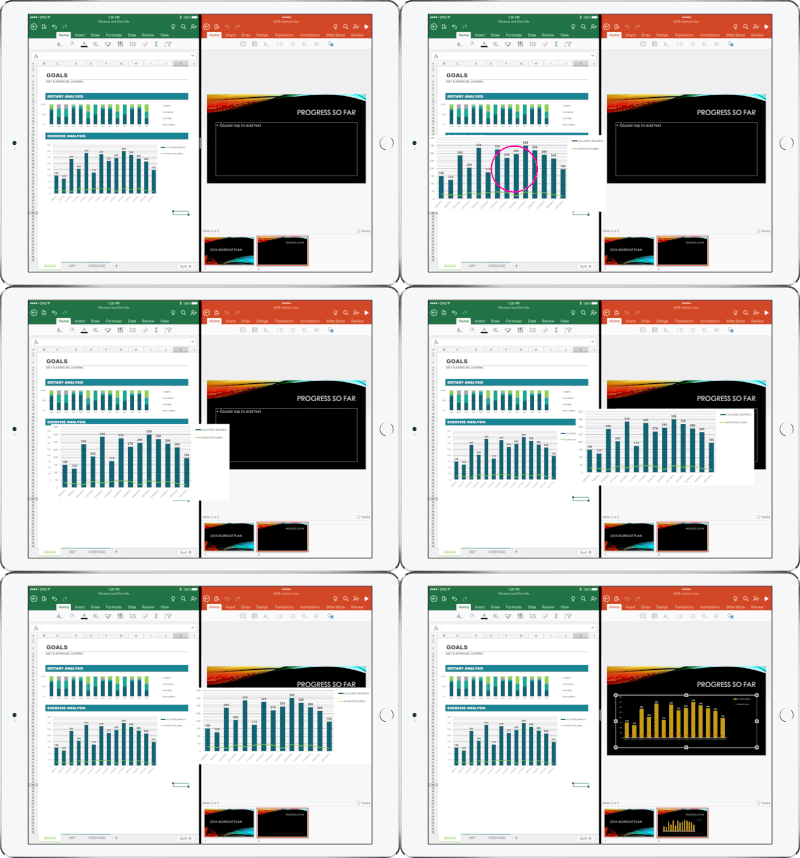
Drag and drop content between Word, Excel, PowerPoint, and OneDrive on iPad – One of the most common and powerful tasks when creating content is pulling in text, photos, graphs, and other objects from different sources. Now you can pull in content with ease on your iPad with drag and drop support in Office and OneDrive. Easily drag and drop objects from OneDrive or from one Office app to another.

OneDrive Files app support – Today we’re also announcing native support for the Files app in iOS 11. OneDrive integration with the Files app allows you to access, upload, edit, and save your content to OneDrive or SharePoint from apps that support Files app integration. You can also tag and favorite your OneDrive and SharePoint files from within the Files app.
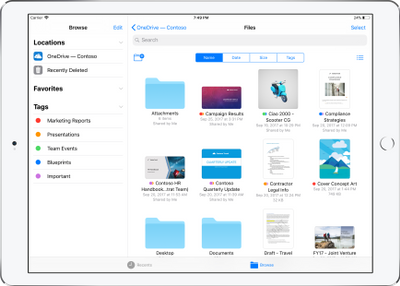
OneDrive redesigned to find the files that matter – The OneDrive iOS app has been redesigned from the ground up with a new layout that uses your screen space more efficiently allowing you to find your files faster. It’s easier to scan across file names, see the information that matters to you, and sort files how you want. New metadata is visible in the list view, so you can easily identify new files and files that have been shared.

Universal link support for shared files – Being able to seamlessly share and securely access files is essential for teamwork. Previously when you received a link to a shared file, you would be directed to a browser and prompted to re-authenticate. Today, we are announcing universal link support, which will open the document directly in the Word, Excel, or PowerPoint iOS apps. Further, if you don’t have a supporting application for the file, you’ll be directed to the OneDrive app to preview the file.

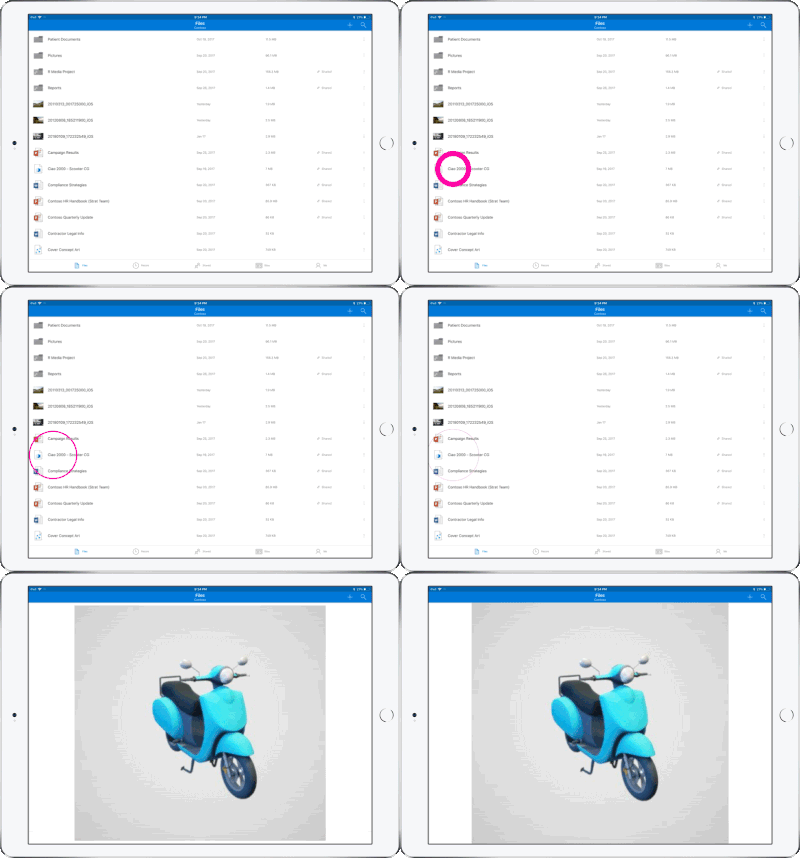
Preview 130+ file types in your OneDrive app – You and the people you work with use a variety of different file formats, but when you’re on your mobile device you might not have access to the native applications for those files. Now, the OneDrive iOS app creates crisp thumbnails and supports large previews of over 130 file types, including Adobe Photoshop and Illustrator, RAW, 3D objects, and high-precision DICOM images. OneDrive lets you open, view, and share all of your files without leaving the app.
New accessibility features for Word, Excel and PowerPoint on iOS 11
The VoiceOver rotor in iOS improves navigation and the accessibility of content. For example, you can use the built-in rotor on iOS to navigate line-by-line or word-by-word and change the speed at which VoiceOver speaks. The new Office-specific rotors also let people with vision impairments navigate more efficiently in Word across tables and links, slides in PowerPoint, and sheets in Excel.

Users can also leverage larger text options in accessibility settings to modify the text size in the core Office apps. Visit the support pages for Excel, Word, and PowerPoint to learn more.

You can use take advantage of these new capabilities in the coming days by updating the Word, Excel, PowerPoint, and OneDrive apps in the Apple App Store.


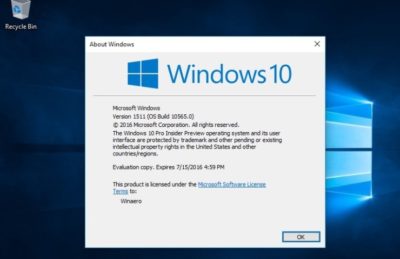
Microsoft finally retired Windows 10 1511


The company also ended support for 1607 to users of Windows 10 Home and Pro.

Microsoft finally retired a 2015 version of Windows 10, marking 29 months of support for the untitled feature upgrade, nearly as long a stretch as the time between the releases of Windows 8 and Windows 10.

Windows 10 1511 – Microsoft labels its feature upgrades in a yymm format – received a final set of security patches on April 10.

The retirement date had originally been slated for Oct. 10, 2017, but last November Microsoft extended it an additional six months, albeit only for commercial customers. “To help some early enterprise adopters that are still finishing their transition to Windows as a service, we will be providing a supplemental servicing package for Windows 10, version 1511, for an additional six months, until April 2018,” Michael Niehaus, at the time a director of product marketing for Windows, said in a 2017 post to a company blog.

Customers running Windows 10 Enterprise or Windows 10 Education were given the support reprieve; those operating lesser SKUs (stock-keeping units), including Windows 10 Home and Windows 10 Pro, had their support curtailed last October.

Earlier this year, Microsoft added six months of support to all versions of Enterprise and Education, raising the support roof from 18 months to 24 for not only 1511, but also for 1607, 1703 and 1709. The less expensive, less expansive, Home and Pro, however, retained the 18-month support timeline.

Also destined for an April 10 retirement party was Windows 10 1607, the mid-2016 feature upgrade that received its last security patches that day on Windows 10 Home and Windows 10 Pro. Meanwhile, version 1607 on Enterprise and Education will continue receiving fixes until Oct. 9.

Windows 10’s bifurcated support timelines – 18 months for some SKUs, 24 months for others – complicate what had been an easy-to-understand practice of patching versions for a year and a half. Period.

Microsoft has tried to inform customers of the support due them by reminding them in January’s and February’s cumulative updates that patches end for Enterprise and Education, version 1511. “The additional servicing offer for Windows 10, version 1511 ends on April 10, 2018, and doesn’t extend beyond this date. To continue receiving security and quality updates, Microsoft recommends updating to the latest version of Windows 10,” the March documentation said.

The company has extended the lifespan of other software previously, including the original version of Windows 10, tagged as 1507. In February 2017, it added six weeks to the timetable. Generally, however, Microsoft has been hard-nosed about support deadlines, and for good reason.

“The danger is that customers won’t believe Microsoft will end support when they say [they will],” said Gartner analyst Michael Silver in a 2017 interview. “It would set a bad precedent if organizations think that they can rely on Microsoft to constantly extend [support].”

By hewing to the once-revised deadline for 1511, Microsoft had drawn a line in the sand, showing commercial customers that while it may bend to their demands, it will not break with critical policies, like these, which are foundation to its Windows-as-a-service concept.

Second Generation Surface Tablets

mss2_1

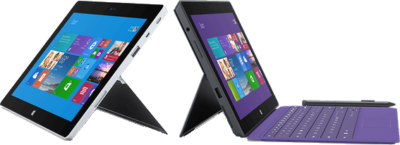
Microsoft has offically announced that the release date for the second generation surface tablets, Surface 2 and Surface Pro 2, will be October 22, 2013.  Pre-order for Surface 2 and Surface Pro 2 is available.

Both new Surface tablets will have a dual-angle kickstand and multiple connectivity options such as Bluetooth 4.0, Wi-Fi 802.11, USB 3.0, micro-SD expansion and HD video-out port.

The new Type and Touch Covers will be released with both tablets.  Both Covers include backlighting and additional sensors.  Also, Microsoft has designed a Power cover that is designed to add additional battery life to both Tablets.

mss21

The Surface 2 has a 10.6 Clear Type Full HD (1920×1080) Display and will run Windows RT 8.1 Operating System on an nVidia Tegra 4 Processor. The Surface Pro 2 has two storage options including, 32 GB and 64 GB.  Surface 2 is priced at $449.

sur2

Pre-order a Surface 2 Tablet.

mss22

The Surface Pro 2 has a 10.6 Clear Type Full HD (1920×1080) Display and will run Windows 8.1 Pro Operating System on an Intel Core i5 Processor. The Surface Pro 2 has multiple storage options including 64 GB, 128 GB, 256 GB and 512 GB.  Surface Pro 2 is priced at $899.  

surp2

Pre-order a Surface Pro 2 Tablet.

Microsoft – Retiring TechNet Subscription

Microsoft TechNet Logo color_4

Microsoft TechNet Subscription service is a subscription program and resource center for IT Professionals.  On July 1, 2013 Microsoft announced that as of August 31, 2013, all sales for TechNet Subscription service will be discontinued.  Active accounts will have access for the remainder of their subscription.  Once the subscription period ends, subscribers will no longer have access to the TechNet Subscriptions benefits portal.Microsoft is focusing on developing free offerings for the IT community.

Improved Free Offerings for IT Professionals:

  • TechNet Evaluation Center is a free evaluation software available for 30-180 days with no feature limits. 
  • TechNet Virtual Labs allows you to evaluate software without the need to install bits locally.  For more information or to visit the Virtual Labs click here.
  • TechNet Forums is a free online forums where IT professionals can ask technical questions and receive rapid responses from members of the community. 
  • Microsoft Virtual Academy is a free online learning site, with over 200 expert-led technical training courses across more than 15 Microsoft technologies (additional courses added weekly).

Microsoft Xbox One

Xbox One can be pre-ordered starting today for the release date in November 2013.  Microsoft has created an All-In-One entertainment system.  Xbox One is more than just a gaming console; it can be used for movies, music, gaming and the ability to connect set-top boxes using HDMI.

This All-In-One system is built with 8GB GDDR3 RAM, 8 Core Microsoft Custom CPU and 500GB Storage.  Connections include Gigabit Ethernet and IEEE 802.11 b/g/n WiFi.  Also built-in are USB ports, Optical Output and HDMI input and output.

Kinect 2 has a 1080p camera and can process 2GB of data per second.  Kinect 2 has “Unparalleled voice, vision, and motion technology lets you reach into games and entertainment like never before.”

Microsoft Smart Glass App is a secondary screen allows you to interact with your Xbox while watching movies, listening to music, surfing the Internet or gaming.  Smart Glass App is available for both Microsoft and Android users.

Above all, the wireless controller is new and improved.  Haptic technology is used to enhance the controller triggers.  Also improved are the thumb sticks and D-Pad.

What is new and improved with 802.11ac?

Wi-Fi_Logo.svg

Takeaway:  IEEE 802.11ac is the next generation wireless networking protocol as the successor of IEEE 802.11n.

What is 802.11?

IEEE 802.11 is a group of physical layer standards that provide the foundation for wireless networks.

802.11 Timeline:

  • 1997:  802.11 – 1 or 2 Mbps in 2.4 GHz spectrum (Legacy)
  • 1999:  802.11a – 54 Mbps in 5 GHz spectrum
  • 1999:  802.11b – 11 Mbps in 2.4 GHz spectrum
  • 2003:  802.11g –  54 Mbps in 2.4 GHz spectrum
  • 2009:  802.11n – 600 Mbps in 2.4 GHz and 5 GHz spectrum

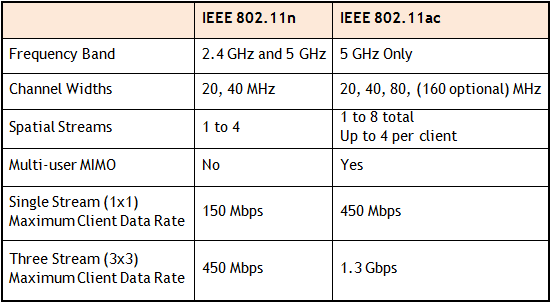
802.11n vs. 802.11ac

802.11ac offers the freedom of a wireless network combined with the capabilities of Gigabit Ethernet.  In a 5.0 GHz spectrum, 802.11ac will provide up to 500Mbps (single) or 1000 Mbps (multi).  Final ratification for 802.11ac expected in December 2013.

table


CALL US NOW!