Go to your Primary Windows Partition Drive (ex. C:) and type the following:
CD Windows
CD PCHEALTH
CD HELPCTR
CD Binaries
Msconfig.exe

Tech, Web, Cloud & Cabling Services

Go to your Primary Windows Partition Drive (ex. C:) and type the following:
CD Windows
CD PCHEALTH
CD HELPCTR
CD Binaries
Msconfig.exe
Check out our newly redesigned website for Gaetano’s of Marlton. Click Here
Takeaway: Before rushing out to buy the new iPhone 5s, take a look at the Nokia Lumia Specifications compared to the iPhone 5s.

Nokia Lumia 1020 is equipt with dynamic live tiles, Office Mobile, a 4.5 Puremotion HD+ AMOLED display and is the winner of the Best Smartphone Camera Award by Gizmodo for the 41-megapixel camera.
Apple’s iPhone 5s will be released on Today, September 20, 2013. The iPhone 5s is available in three colors and will run the recently released, iOS 7.
iPhone 5s |
Nokia Lumia 1020 |
|
|---|---|---|
| Price (2-YR Contract) | $199.99 – $399 | $199.99 |
| Carrier | Verizon, AT&T, Sprint, T-Mobile | AT&T |
| Operating System | iOS 7 | Windows Phone 8 |
| Dimensions | 4.87 x 2.31 x .30 | 5.13 x 2.81 x .41 |
| Weight | 3.95 ounces | 5.57 ounces |
| Display | 4 inch, 326 ppi, 1136×640 | 4.5 inch, 334 ppi, 1280×768 |
| Battery Life | 10 hours Browsing, 10 hours Talking and 10.4 days Standby | 6.7 hours Browsing, 12.5 hours Talking and 16 days Standby |
| Camera (Back) | 8 MP, f/2.2 aperture, LED Flash, 5-Element Lens, 3X Zoom, Digital Image Stabilization, Backside Illumination Sensor | 41 MP, f/2.2 aperture, Xenon Flash, 6-Element Lens, 3X Zoom, Optical Image Stabilization, Backside Illumination Sensor |
| Camera (Front) | 1.2 MP, 1280×960, Backside Illumination Sensor | 1.2 MP, f/2.4 aperture, 1280×960, Backside Illumination Sensor |
| Colors | Gold, Gray, Silver | Yellow, White, Black |
| Audio | iTune Store for music, Support AAC, Protected AAC, HE-AAC, MP3, MP3 VBR, AIFF, WAV, Apple Losssless and Audible (2, 3, 4, Enhanched Audio, AAX and AAX+) | Xbox music or Nokia music; Supports MP3, AMR-NB, ASF, MP4, AAC, AMR, MP3, M4A, WMA, 3GP, 3G2, WMA 10 Pro, GSM FR, WMA 9, AAC LC, AAC+/HEAAC and eAAC+/HEAACv2 codecs |
| Video | 1080p, Full HD, 1920×1080 at 60 frames per second, 3X Zoom, Slow-Motion video, Video Stabilization, Face Detection, Geotagging, Still Photos while Recording | 1080p, Full HD, 1920×1080 at 30 frames per second, 6X Zoom, Video Streaming, Five White Balance Modes, Video Stabilization, Autofocus |
| Memory | N/A | 2 GB |
| Storage | 16, 32 or 64 GB local (5 GB Free – Cloud) | 32 GB local (7 GB Free – Cloud) |
| Processor | Apple A7, dual-core, 1.7 GHz | Qualcomm Snapdragon S4, dual-core, 1.5 GHz |
| Connectivity | Lightning (Charge), Nano SIM (Storage), 3.5 mm audio, USB, Bluetooth 4.0, 802.11 a/b/g/n Wi-Fi | Micro USB (Charge), Micro SIM (Storage), 3.5 mm audio, USB 2.0, Bluetooth 3.0, 802.11 a/b/g/n Wi-Fi |
Takeaway: A new Computerworld survey indicates the nine IT skills that will be in demand in 2012.
Here are the skills that the IT executives say they will be hiring for:
Takeaway: Don’t get caught out in the field without the tools you need. A USB stick equipped with a few essential apps might just save the day.
Ah, the USB stick — one of the IT admin’s best friends. It travels with you and helps you rescue machines, work magic, and make end users sigh with relief. Some of these USB apps you copy to the hard drive and install; others can be run from the USB stick itself. A few of them are full-blown operating systems that can help you completely recover a corrupted or infected platform.
Whatever the style and purpose, there are plenty of portable apps for the USB stick that can be hard to live without. Here are five tools I deem must-haves.
SystemRescueCD is the Linux distribution to have if you’re going to carry one around on a USB stick. With this distribution, you can recover partitions, recover data, image a disk, test a hard disk, edit configuration files, burn a disk, check for rootkits, run an antivirus scan, securely wipe a hard drive, and much more.
Portable Firefox is there when you need it. Sometimes, a Web browser is a necessity for solving a problem. But when the browser on the desktop won’t run, what do you do? You break out your portable edition of Firefox. This version of Firefox has all the great features you’re used to. In fact, some will be hard-pressed to figure out that Firefox is running from a USB stick.
ComboFix makes almost every recovery tool list for me. No admin kit is complete without this powerhouse. It is my go-to tool when I encounter some of the nastier viruses and rootkits. Almost without fail, if an antivirus can’t catch it, ComboFix can. Unlike common antivirus and anti-malware applications, ComboFix will display (upon completion of running) a detailed report of exactly what it took action on. Note: To run ComboFix, you’ll need to copy the .exe over to the computer and install it.
FileZilla Portable is the one and only FTP client to carry around with you. Why would you need an FTP client? There will be times when you must load a file from a troubled computer to another machine. The easiest way to do this (when all other methods fail) is by using a portable FTP client. This is especially crucial when the file is too large to fit on a USB drive or if the file must be loaded to a remote machine you do not have physical access to. This application is run directly from the USB drive and isn’t installed on the PC.
Explorer++ Portable is a file manager with all the usual features you’ve grown to expect from a file manager. But why should you carry a file manager with you? Have you ever had to repair a machine where Explorer won’t run? Makes for a major challenge. Having a portable file manager gets around that issue with ease. And why not have a file manager with features like tabs, keyboard shortcuts, a customizable UI, drag-and-drop support, and merging and splitting? In the end, the file manager is one of the most important tools on a PC. Without it, a machine can easily become crippled.
You might have noticed some of these apps link directly to the PortableApps site. That is a tool designed to make your life much easier. You can install PortableApps on your USB drive and then have a user-friendly system to add and remove apps to and from that USB drive with ease. I highly recommend this application for any and all IT admins.
You can prevail in the seemingly endless battle against email chaos — it’s just a matter of knowing which Outlook tools to use and how to set them up to fit your needs.
When oh when oh when will we ever feel that we are back in control of our Inboxes? It seems that the faster technology moves, the more mail pours in on us from all sides. We get messages from colleagues and peers, from family and friends, from causes and social media sites. Much of this stuff we need to know, of course. But it doesn’t need to take up permanent residence in our Inboxes. Here are some practical ways to use Outlook 2010 features to bring your Inbox back under control.
1: Use Conversation view
Conversation view is a new feature in Outlook 2010 that threads together all e-mail messages in a particular conversation among two or more people. The conversation includes sent and received messages so that you can easily see the whole conversation at a glance. Turn on Conversation view by clicking the View tab and clicking Conversations. Choose Show Messages In Conversations to get started. You can also set other options, such as Always Expand Conversations, in the Conversations list to set up the conversation display the way you want it.
2: Ignore threads that annoy you
Have you ever been cc’d on a conversation that made your eyes roll up in your head? Or perhaps two team members are debating the use of the serial comma and you really have other things you need to focus on today. You can ignore a conversation and remove yourself from receiving further posts in that particular thread. Click the last message in the thread you want to ignore. Then, in the Home tab, click Ignore in the Delete group. A message box appears telling you what to expect. Click Ignore Conversation to complete the job.
You can opt out of future messages in conversations that leave you cold.
3: Automate message management with Quick Steps
Quick Steps are a new feature in Outlook 2010 that enables you to automate mail management tasks with a single click of the mouse. You can use the Quick Steps that come with the program — Add To Calendar, To Manager, Done, Team E-mail, and Reply & Delete — to instantly send messages where they need to go. You can also create your own Quick Steps by clicking the More button in the Quick Steps gallery and choosing Create New.
4: Build your junk mail file
This may seem like a no-brainer, but it is important to right-click any junk message you receive, point to Junk, and click Block Sender. Over time, this creates quite a file of spammers and other unwanted senders you can immediately cut right out of your Inbox real estate. Nice.
5: Make your peace with AutoArchive
Those of us who like to have quick access to important messages may not be too comfortable letting Outlook wrap old messages up in a bundle and tuck them away in an archive file on our computers or the company server. But if you’re game, AutoArchive can help you keep your Inbox uncluttered. By default, AutoArchive is turned off. You can enable the feature and tailor your settings by clicking the Folder tab and clicking AutoArchive Settings in the Properties group. In the AutoArchive tab, select the Archive This Folder Using These Settings option and enter the age of items you want to archive, where you want the older items stored, and whether you want the removed items to be deleted from your Inbox. After you make your choices, click OK to save the changes.
Out with the old and in with the new with AutoArchive.
6: Who makes the rules around here?
Sometimes rules aren’t such a bad idea, especially if you manage huge volumes of email and you need to organize what you receive by client, project, or contact. You can easily create rules that file your messages for you so that you can read them in detail when you get a chance or put your fingers on the one you need quickly when you go searching for it. Start by clicking the message from the sender you want to create a rule to manage. Then, click Rules in the Move group of the Home tab and choose Create Rule. Enter the desired conditions (Who is the message from? What’s in the subject line?) and choose what you want Outlook to do with it. Click OK to create the rule, and Outlook will start carrying out your wishes with the very next email message you receive.
7: Get rid of those invitations
Outlook includes a number of options that make it easy for you to tailor how mail behaves after you receive it. Some messages you really don’t need to leave in your Inbox forever. Case in point: meeting invitations. You can tell Outlook to automatically delete any message you respond to by displaying the Outlook Options dialog box (click File, click Options, and click the Mail tab). Scroll down to the Send Messages area and click the Delete Meeting Requests and Notifications From Inbox After Receiving check box. Click OK to save the change.
8: Clean everything up
So do you have a clean Inbox? One where you can go directly to a message you’re looking for without a lot of searching and scrolling? Do you organize your messages by folder and discard the ones you don’t need right away? I thought so. Me neither.
Outlook includes a few cleanup features that can help you create some breathing room in your Inbox once again. The tool gives you three choices for the item you want to clean up. You can clean up the selected conversation, clean up the current folder, or clean up folders and subfolders (which means everything). When you click the tool, Outlook lets you know that it’s going to delete redundant messages and put them in your Deleted Items folder. You can change that by clicking Settings and entering the settings you’re most comfortable with. Click OK to clean up your selection and gain a little more room for incoming mail.
9: Search smart using filters
People shy away from Outlook filters because they think they are too much trouble to use properly. But actually, the opposite is true. If you consider the time you spend pushing PgDn and scanning the various messages looking for that one you need, you know that any tool that helps you cut to the chase is a good thing. The filters in Outlook help you find messages that meet specific criteria. For example, you can instantly display only messages that have attachments, messages you sent to a specific person, messages with the word “petunia” in the body of the message, and so on. Once you create this focused subset of messages, you can do what you like with them — delete them, put them in a folder that won’t clog up your Inbox, or print them and hang them on your cubicle wall (but why?). You’ll find the filters in the Filter E-mail tool in the Find group of the Home tab. You can click More Filters to display the Search Tools contextual tab so that you can see all the filters together in convenient spot.
10: Combine and conquer
Okay so it may seem counterintuitive, but it actually saves you time to bring all your different Web-based email accounts into Outlook 2010. You can easily set up your accounts by clicking the File tab and choosing Add Account in the top of the center column in the Info tab of Backstage view. Follow the prompts to get the email working properly. This will create a new email folder for your Web-based account. So anytime you check email (or Outlook does it automatically), all accounts are checked and you never have to go out to the various sites, enter your email address and password, and do the checking yourself. Yes, it could give you more messages to deal with. But after reading through the other nine tips in this article, you have a handle on how to do that, right?

September 18, 2013 was the official release of iOS 7. Complementary to iOS 7 are several support questions for corporate-owned iOS devices, including Bring Your Own Device (BYOD) and Corporate Owned Personally Enabled (COPE) devices.
COPE devices are corporately compliant prior to distribution to employees; this allows consistency and higher security for all enterprise devices.
There may be a few problems when upgrading to iOS 7 such as older iPhone/iPad devices may not support iOS 7 and not all features are available on all devices or in all countries.
Here are some tips for supporting iOS 7 in the enterprise.
Apple now offers a Volume Purchase Program (VPP) for business. VPP can retain volume licenses for Apps and Books. Download Apple’s VPP Guide.
Configuring third-party apps can be completed in iOS 7, Mobile Device Management (MDM) distributes the third-party configuration and the developer needs to enables it.
The most important step before deploying in-house developed enterprise app(s) is to test and troubleshoot. Testing and troubleshooting will save time and resources after deployment.
Per app VPN ensures that only managed app data travels through VPN. iOS 7 apps can automatically be connected to VPN when launched. Also, for security purposes this tool will separate corporate data and personal data.
A virtual dedicated server is a virtual machine provided by an internet hosting company. Unlike normal hosting plans, which put many customers’ accounts on a single server, a Virtual Dedicated Server is reserved exclusively for the account and usage of a single customer. This means that the Virtual Dedicated Server customer has exclusive rights to their server’s bandwidth, memory and storage space and performance is not affected by traffic and the usage patterns of other customers.
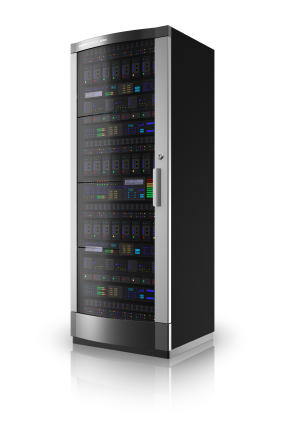
When you purchase a Virtual Dedicated Server, you are actually leasing a server box that is configured and set up according to your preferences, but remain at a remote data center. A Virtual Dedicated Server Server account provides you with a dedicated IP address and full control of server usage and software installation, with admin (root) access to the server.
A Virtual Dedicated Server can be used for a variety purposes, including gaming servers, database management and traffic-intensive websites. Dedicated servers are particularly useful for companies and individuals who run very-high-traffic websites or applications and who need the bandwidth, versatility and consistent performance of a dedicated box. You may install anything you want on a dedicated server, as long as the installed material does not violate the restrictions listed on in the license agreement.
Virtualization is the perfect solution for applications that are meant for small-to medium scale usage.
For more information on Dedicated Virtual Servers please contact our support team by email at sales@sjtechies.com or by telephone at (856) 745-9990.
Excel 2013 has easy access tools that generate professional-looking results quickly. There are several new features with the new version that should not be overlooked.
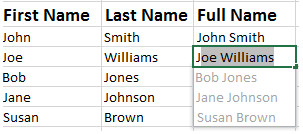
Flash Fill identifies and adapts to basic formatting to automatically input your data. This tool performs several tasks such as merging information from multiple columns, adding formatting to current column and fixing anomalies with data. Flash Fill will recognize and apply the selected format to your data but if data differs from row to row, it will not format correctly.
 Recommended Charts identifies data guides the user to choose the best chart type for their data. The main objective of using a chart is to highlight your work in a significant way.
 Recommended PivotTables are interactive tables that can analyze data, compare data and detect patterns/relationships. In previous versions, PivotTables were too complex.
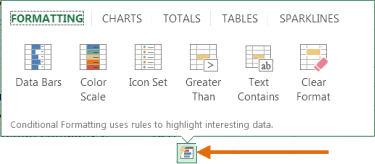
Quick Analysis is an additional way to generate a chart for data. To generate a chart to highlight your work in a significant way, select the data and click the Quick Analysis Icon.
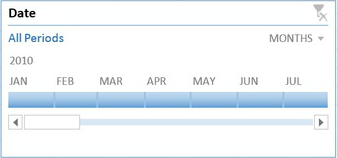
Timelines let you filter through PivotTables, similar to a slicer. The timeline will be embedded alongside the Pivot Table.
Cloud Support by Microsoft allows users to save Excel files to SkyDrive or SharePoint site. Saving to SkyDrive or a SharePoint site allows users to review and edit files from any device with an Office 365 subscription.
 Microsoft offers Apps for Excel to enhance what you can do with Excel. Categories for Apps include Content Management, Financial Management, Productivity, Workflow and Process Management and many more.
Present Online is a way to share workbooks and allows others to update it. Present Online requires the installation of Lync (if you have Office Professional Plus; Lync is already installed).
We set out to make it as easy as possible for everyone to upgrade to Windows 8. Starting at general availability, if your PC is running Windows XP, Windows Vista, or Windows 7 you will qualify to download an upgrade to Windows 8 Pro for just $39.99 in 131 markets. And if you want, you can add Windows Media Center for free through the “add features” option within Windows 8 Pro after your upgrade.
When you use Windows.com to purchase an upgrade to Windows 8 Pro, the Windows 8 Upgrade Assistant makes upgrading simple by walking you through the upgrade process step-by-step from purchase to download and then of course installation.
The Windows 8 Upgrade Assistant will check to make sure your PC is ready for Windows 8. It will provide a detailed compatibility report that lets you know of anything you may have to address before or after the upgrade and outlines actions to take.
It will also inform you of any application or device compatibility issues. It will ask you what you want to keep from your current Windows installation. You will be able to upgrade from any consumer edition of Windows 7 to Windows 8 Pro and bring everything along which includes your Windows settings, personal files, and apps. If you are upgrading from Windows Vista, you will be able to bring along your Windows settings and personal files, and if you are upgrading from Windows XP you will only be able to bring along your personal files. Of course, if you want to start fresh, you can choose to bring nothing along. Or if you prefer to format your hard drive as part of your upgrade experience, you can do so as long as you boot from media and then format your hard drive from within the setup experience for installing Windows 8, not prior to it.
Once you purchase your upgrade, the Windows 8 Upgrade Assistant kicks off your download. It has a built-in download manager that allows you to pause and continue your download at any time as well as a check to ensure your download completes successfully.
After your download finishes, you can choose to proceed with the upgrade (“Install now”) or install later either from your desktop or by creating your own media. If you choose to create your own media, you will be able to create your own bootable USB or .ISO file which can be burned onto a DVD for upgrade and backup purposes. If you prefer, you also have the option of purchasing a backup DVD for $15 plus shipping and handling.
We believe that your upgrade experience in Windows 8 will be a breeze by offering a faster experience, a single upgrade path, and compatibility from prior versions of Windows. We’ve continued to listen to our customers and have expanded the ability to download to over 100 countries and 37 languages. We have simplified the Windows upgrade experience with the Windows 8 Upgrade Assistant which supports you during your upgrade with everything from selecting your language to pausing your download to built-in compatibility checks – it’s seamless. And if you’re an enthusiast you will have the flexibility to download and control how you upgrade.
If you prefer to shop at a local store, a packaged DVD version of the upgrade to Windows 8 Pro will be available for $69.99 during this promotion.
This upgrade promotion for Windows 8 Pro both online and at retail runs through January 31st, 2013.
Oh, and by the way – if you’re not upgrading from a prior version of Windows and are building your own PC or installing Windows 8 in a virtual machine or a separate partition, you will be able to purchase and install the Windows 8 and Windows 8 Pro System Builder product.
 CALL US NOW!