Back to Top

Tech, Web, Cloud & Cabling Services

Which Cell Phone is Right for You?

There are so many choices these days when it comes to choosing a new cellphone or smartphone. Believe it or not there are now utilities out there that can help you make an educated decision based on your answers to a handful of questions. WWW.TopTenREVIEWS.com has a great Mobile Phone Configuration that can guide you in the direction to your perfect phone match. Click Here to be directed to their site to try out this very helpful utility.

Microsoft Launches Windows 8 Today

Microsoft kicks off Windows 8, on sale today

Microsoft hopes it can capture the imaginations of tech consumers again, as Apple has.

That was the subtext Thursday for a splashy launch of Microsoft’s Windows 8, the new operating system upgrade on sale today.

“What you’ve seen and heard should leave no doubt that Microsoft’s Windows 8 shatters perceptions of what a PC truly is,” said Microsoft CEO Steve Ballmer. “We’ve re imagined Windows and kicked off a new era for Microsoft and our customers.”

For the first time, the new Windows has a touch-screen interface, with movable tiles, instead of the traditional “Start Menu” and screen. For older computers that upgrade, the touch-screen will not be accessible, but the tiles can be accessed by mouse or touch-pad.

Microsoft says that 1 billion people use its Windows operating system, with 670 million on Microsoft’s Windows 7, which was introduced in 2009.

At Thursday’s launch party, PC partners — including Lenovo, Sony, Toshiba, Dell and Hewlett-Packard — showed off new computers sporting Microsoft’s Windows 8. Many of the laptops have splashy new designs with removable screens that morph into portable tablets.

Microsoft’s new operating system works on tablets and traditional PCs and laptops. Despite twin versions, Windows 8 and Windows RT, Microsoft is taking a notably different course than Apple by providing the same look and feel to both types of devices.

Apple still markets separate operating systems for Macintosh computers (OS X Mountain Lion) and for the iPhone, iPad and iPod Touch (iOS 6), even though some features are common to both operating systems.

“I think they did a really good job of reintroducing themselves to the consumer today, Microsoft, not just Windows,” says Michael Gartenberg, analyst for technology research firm Gartner.

He says part of Microsoft’s challenge is to explain to consumers why the radically different approach is better.

“Consumers have shown a willingness to learn. They learned how to use mice and keyboards. They learned how to use touch and pinch-to-zoom. They can learn how to do this, too,” he says.

Microsoft’s unified approach to the operating system is based on its belief that touch-screens will soon dominate PCs, says Ross Rubin, principal analyst at Reticle Research.

“Rather than come to market with another tablet operating system — seeing how (Google’s) Android has struggled in that space — they (Microsoft) decided to leverage the high shipping volumes of PCs every year in order to build developer support for a tablet operating system,” he says.

To View Full Article Click Here

What is new and improved with 802.11ac?

Wi-Fi_Logo.svg

Takeaway:  IEEE 802.11ac is the next generation wireless networking protocol as the successor of IEEE 802.11n.

What is 802.11?

IEEE 802.11 is a group of physical layer standards that provide the foundation for wireless networks.

802.11 Timeline:

  • 1997:  802.11 – 1 or 2 Mbps in 2.4 GHz spectrum (Legacy)
  • 1999:  802.11a – 54 Mbps in 5 GHz spectrum
  • 1999:  802.11b – 11 Mbps in 2.4 GHz spectrum
  • 2003:  802.11g –  54 Mbps in 2.4 GHz spectrum
  • 2009:  802.11n – 600 Mbps in 2.4 GHz and 5 GHz spectrum

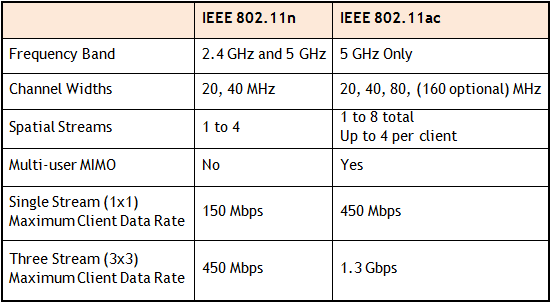
802.11n vs. 802.11ac

802.11ac offers the freedom of a wireless network combined with the capabilities of Gigabit Ethernet.  In a 5.0 GHz spectrum, 802.11ac will provide up to 500Mbps (single) or 1000 Mbps (multi).  Final ratification for 802.11ac expected in December 2013.

table


Set Up Microsoft Exchange E-Mail on iPhone

Set Up Microsoft Exchange E-Mail on an Apple iPhone, iPad, or iPod Touch3

You can set up Exchange e-mail on an Apple iPhone, iPad, or iPod Touch. When you set up an Exchange account on your device, you’ll be able to access and synchronize your e-mail, calendar, and contacts. If you have a different device, or if you want to connect using POP or IMAP.

How do I set up Microsoft Exchange e-mail on an Apple iPhone, iPad, or iPod Touch?


  1. Tap Settings > Mail, Contacts, Calendars > Add Account.
  2. Tap Microsoft Exchange.
  3. You don’t need to enter anything in the Domain box. Enter the information requested in the Email,Username, and Password boxes. You need to enter your full e-mail address in the Email and Usernameboxes (for example, tony@contoso.com).
  4. Tap Next on the upper-right corner of the screen. Your iPhone will try to find the settings it needs to set up your account. Go to step 7 if your iPhone finds your settings.
  5. If your iPhone can’t find your settings, you’ll need to manually look up your Exchange ActiveSync server name. For instructions for how to determine your Exchange ActiveSync server name, see the Finding My Server Name section below.
  6. In the Server box, enter your server name, and then tap Next.
  7. Choose the type of information you want to synchronize between your account and your device, and then touch Save. By default, Mail, Contacts, and Calendar information are synchronized.
    Caution:
    If you’re prompted to create a passcode, tap Continue and enter a numeric passcode. If you don’t set up a passcode, you can’t view your e-mail account on your iPhone. You can set up a passcode later in iPhone Settings.

Finding My Server Name


If your email program isn’t able to automatically find your Exchange ActiveSync server name, you may need to look it up.

  1. Sign in to your e-mail account using Outlook Web App. For help signing in, see How to Sign In to Outlook Web App.
  2. If you’re connecting to an Exchange mailbox, your Exchange ActiveSync server name is contained in the address bar in your browser when you are signed in to Outlook Web App, but without the leadinghttps:// and without the trailing /owa. For example, if the address you use to access Outlook Web App is https://mail.contoso.com/owa, your Exchange ActiveSync server name is mail.contoso.com.
  3. If you’re unable to connect to your mailbox using the information earlier in this section, you can try using the server name value that you can view in Outlook Web App options. Do the following:
    1. In Outlook Web App, click Options > See All Options > Account > My Account > Settings for POP, IMAP, and SMTP access.
      Note:
      Although you’re not setting up a POP3 account, you will use this value to determine your Exchange ActiveSync server name.
    2. Under POP setting, view the value for Server name.
    3. Try setting up your email using the server name listed on your options page. For example if the value for Server name under POP setting is mail.contoso.com, try using mail.contoso.com as your Exchange server name.

What else do I need to know?

  • If you’re prompted to create a passcode and don’t create one, you won’t be able to send and receive e-mail.

Small Business Phone Services

I have a small business that is growing rapidly- I hope to double my payroll
this year. My need for comprehensive business services is going to grow even
faster than my staff. We are a technical company that offers services over the
phone, as well as personal service right to our client’s locations. That means
we need to be able to receive calls, transfer them to our reps in the field, and
have them be able to transfer calls right back to the office all on the same
phone system. Up until now, we have been using a plan from a business cell phone
company, but as we grow, we are going to need a service to handle our own PBX.
That’s a private branch exchange- basically our own internal business phone
service. The days of ‘family plan,’ style business phone services are
(thankfully) behind us.

We are going to be moving into a multi- floor office building, so we will
need a service that can provide my people with business phone lines at their
desks, but also with cell phones that are part of the same system. I need to be
able to monitor and record calls, direct clients to the right place with a
short, simple automated system, and even make automated message calls to clients
at their request. Basically, I’m pretty sure we need everything a business phone service
could offer. I need one that does it all- but don’t let that fool you; we’re
still a small business with only about one hundred regular clients.

I have been looking into enterprise business services for business cell phones, and it is a
complicated world. There are a lot of companies that make bold, vague promises
about ‘providing solutions,’ ‘business services,’ etc. There’s lots of smug,
high-brow language that does not say very much. I won’t know if a company can
help me, and for how much, until I actually tell them what I need. We are in a
precarious position- needing a lot of different services but still being
relatively small, so I want to avoid the big companies. I don’t want to get
locked into a service that has an attractive introductory deal and then held in
by a complicated contract. I want a company that just handles business phones. I
want a small, dedicated company like mine to handle our phone system for
life.

Cloud Based Telecommunications

The Genie in the Phone Cloud: Top 5 Small Biz Features

Entrepreneurship is at an all-time high and innovative small businesses are sprouting and flourishing. Personal service, attention to detail, and feeling good about supporting local and sustainable companies are some of the most popular reasons people choose the little guy over big, aggressive brands.
Maybe you sell delectable gluten-free scones out of a food truck, or are a general housing contractor with a small team of employees. Being great at your trade is one thing, but there’s also the matter of managing communications and connecting smoothly with your customers. With a cloud-based phone system from RingCentral, small businesses are able to walk (and talk) in big business shoes. You can become the wizard behind the curtain, orchestrating spectacular feats with ingenuity and some smart technology.

The Auto-Receptionist is always in and on

Your Auto-Receptionist is the personal assistant that never calls in sick! You or your administrator set the parameters so you can be reached anytime and everyplace. Define the routing criteria, and you’re connected to customers, vendors, and your cycling group, with calls forwarded to multiple numbers and devices, text-to-speech translation of messages, and department-specific messaging. Want someone with a crisp English accent orating your menus for callers? Greetings are customizable, and you can even source professional talent for your recordings. Your three-person organization can perform with the finesse and functionality of a traditionally larger and more established operation.

Unlimited Toll-Free, Local, and Vanity Numbers

Your phone number says a lot about you. Literally it could spell out a memorable word or two. A standard toll-free number, including the classic 1-800 number, tells your customers you’re well established and ensures that your customers can reach you at no cost to themselves. Choose a few local numbers for areas you want to service and instantly become a hot, new, neighborhood business.

Yes, that’s my Department

Getting dumped into a general voicemail box or simply not being able to reach someone in a timely manner is alienating for callers and can send potential customers searching for a more responsive and better-prepared business. Instead, create virtual departments with a group of extensions as a fantastic way to add real structure to your business and make it easy for your contacts to connect with you. For example, create the ‘Sales’ department and when the designated reps aren’t available, the system puts callers on hold until someone can take the call. Hold times can be customized as well, so your callers never feel lost or unimportant.

Get ahead with Call Forwarding

So what happened to the caller on hold for sales? Realizing every second counts and all’s fair in love and brand loyalty, you set Call Forwarding to reach you or another contact after, say, a 30-second hold time. The call instantly goes to your business partner’s mobile phone. If they’re also not available, the call finds the next contact and, as a last resort, it routes to the extension at your poolside cabana in Orlando. You can set specific parameters for After Hours as well and avoid the cost (and antiquated style) of an outside answering service.

The thrill of the (easy) chase

You want your business to be pursued and easily caught. FindMe-FollowMe is the cyber stalker you’re glad to have on your side. You control connectivity by directing incoming calls to any and all your phones, whenever you want. You can even set it to call multiple phones simultaneously, in a specific order and even by date, time, the caller’s Caller ID, or the number dialed.

You had the vision and grit to launch your business, and the progressive thinking to ditch the room full of obsolete and costly phone system hardware. Your contacts will be amazed at how you always seem to magically appear when they need you. Building a successful business starts with the basic steps like establishing a phone system, and being easily reachable by customers whenever they need to reach you.

To View Full Article Click Here

Ten Top Microsoft Office Tips

The ten most popular Microsoft Office tips

Takeaway:  Susan Harkins lists ten most popular Office tips published in the Windows and Office Blog, and the now inactive Office Blog.MS_Office_2007_Logo.svg

When considering tips to share, think about ease-of-use and efficiency. A few naturally rise to the top as your favorites. For your commemoration, here are 10 of 2012’s most popular posts from both the Office Blog, which was deactivated in mid-2012, and the current Windows and Office Blog. Thank you for reading, and thank you for sharing your thoughts and enhancements with one another throughout the year.

1: A quick Word trick for typing text into a scanned document

The response to this limited technique surprised me. It’s something only a few will use, but if you’re one of those few, it can be a big help! I was pleasantly surprised at the positive response it received and the way readers enhanced the technique.

2: Use Word macros to save your place in a document

These two short macros make quick work of bookmarking work areas in a Word document. When the built-in navigation techniques just don’t get the job done for you, consider these macros or one of the alternative methods that readers shared.

3: A quick and dirty way to compare columns of Excel data

This quick Go To comparison solution is great for a one-time task. Comparing Excel data is a common task, and I receive frequent questions for solutions. This solution is a great one to add to your bag of tricks.

4: Demystify Excel’s PivotTable feature with this simple method

Sometimes a great tip doesn’t offer a specific solution, but rather guides you to using a feature more efficiently and effectively. Users tend to ignore Excel’s pivot table feature because they don’t really understand it – hence this blog post offers some quick insight into how to use this feature without mind-bending tricks.

5: Create a dynamic Excel chart and make your own dashboard

This blog post is one of my favorites. I enjoyed sharing the technique, but more than that, I loved the way the readers jumped in to help one another with a step I accidentally omitted in the instructions. TechRepublic readers rock!

6: A quick Excel keyboard trick for selecting large ranges

This technique uses Go To ([F5]) in an unusual way – to anchor two cells, creating a range. The ensuing conversation shared a number of great selection tips!

7: Three tips for rounding Excel time values

Using the right function can help you round up your rounding woes. Excel offers three rounding functions and knowing them all will round out your skills nicely. (Okay, I promise to stop that.)

8: Three things you must do when you inherit an Excel workbook

I review a lot of workbooks, so this blog was one of my favorites to write. In my experience, performing these three quick tasks when inheriting a workbook can speed up your troubleshooting time. Fortunately, it sparked some insightful conversation into what others do.

9: Launch Word with the most recently used document

Reader response sometimes surprises me, as it did for this easy technique. I hadn’t expected so many great alternatives from the readers.

10: Run a list of rolling credits at the end of your PowerPoint presentation

I’m glad a PowerPoint technique made the top list, but it wasn’t because the readers loved my technique. Mostly, the conversation centered on the typo I missed, and then my lack of proper contrition for said typo. It was fun while it lasted.

CALL US NOW!