Back to Top

Tech, Web, Cloud & Cabling Services

Author Archives: Website Admin

Top IT skills wanted for 2012


Takeaway: A new Computerworld survey indicates the nine IT skills that will be in demand in 2012.

Nearly 29 percent of the 353 IT executives who were polled in Computerworld’s annual Forecast survey said they plan to increase IT staffing through next summer. (That’s up from 23% in the 2010 survey and 20% in the 2009 survey.)

Here are the skills that the IT executives say they will be hiring for:

  1. Programming and Application Development61% plan to hire for this skill in the next 12 months, up from 44% in the 2010 survey. This covers the gamut from website development to upgrading internal systems and meeting the needs of mobile users.
  2. Project Management (but with a twist) The twist is that they’re not going to just be looking for people who can oversee and monitor projects. They also want people who can identify users’ needs and translate them for the IT staffers-the increasingly popular business analysts.
  3. Help Desk/Technical SupportMobile operating systems have added a new dimension to help desk and tech support.
  4. NetworkingThis demand is being fueled partially by virtualization and cloud computing projects. The survey also revealed that execs will be looking for people with VMware and Citrix experience.
  5. Business IntelligenceComputerworld interprets this uptick to a focus shift in many companies, from cost savings to investing in technology. That will be nice if it pans out that way.
  6. Data CenterVirtualization and the Cloud could also be behind the increased need for IT professionals with backgrounds in data center operations and systems integration.
  7. Web 2.0Tech skills centered around social media will be in demand, with .Net, AJAX and PHP as key back-end skills, with HTML, XML, CSS, Flash and Javascript, among others, on the front end.
  8. SecurityAlthough down from 32 percent in the 2010 survey, security stays a top concern of IT executives.
  9. TelecommunicationsThe survey indicates a demand for people with IP telephony skills, and for those familiar with Cisco IPCC call center systems.

Five Must-Have Apps For Your USB Stick

Takeaway: Don’t get caught out in the field without the tools you need. A USB stick equipped with a few essential apps might just save the day.

Ah, the USB stick — one of the IT admin’s best friends. It travels with you and helps you rescue machines, work magic, and make end users sigh with relief. Some of these USB apps you copy to the hard drive and install; others can be run from the USB stick itself. A few of them are full-blown operating systems that can help you completely recover a corrupted or infected platform.

Whatever the style and purpose, there are plenty of portable apps for the USB stick that can be hard to live without. Here are five tools I deem must-haves.

1: SystemRescueCD

SystemRescueCD  is the Linux distribution to have if you’re going to carry one around on a USB stick. With this distribution, you can recover partitions, recover data, image a disk, test a hard disk, edit configuration files, burn a disk, check for rootkits, run an antivirus scan, securely wipe a hard drive, and much more.

2: Portable Firefox

Portable Firefox is there when you need it. Sometimes, a Web browser is a necessity for solving a problem. But when the browser on the desktop won’t run, what do you do? You break out your portable edition of Firefox. This version of Firefox has all the great features you’re used to. In fact, some will be hard-pressed to figure out that Firefox is running from a USB stick.

3: ComboFix

ComboFix makes almost every recovery tool list for me. No admin kit is complete without this powerhouse. It is my go-to tool when I encounter some of the nastier viruses and rootkits. Almost without fail, if an antivirus can’t catch it, ComboFix can. Unlike common antivirus and anti-malware applications, ComboFix will display (upon completion of running) a detailed report of exactly what it took action on. Note: To run ComboFix, you’ll need to copy the .exe over to the computer and install it.

4: FileZilla Portable

FileZilla Portable is the one and only FTP client to carry around with you. Why would you need an FTP client? There will be times when you must load a file from a troubled computer to another machine. The easiest way to do this (when all other methods fail) is by using a portable FTP client. This is especially crucial when the file is too large to fit on a USB drive or if the file must be loaded to a remote machine you do not have physical access to. This application is run directly from the USB drive and isn’t installed on the PC.

5: Explorer++ Portable

Explorer++ Portable is a file manager with all the usual features you’ve grown to expect from a file manager. But why should you carry a file manager with you? Have you ever had to repair a machine where Explorer won’t run? Makes for a major challenge. Having a portable file manager gets around that issue with ease. And why not have a file manager with features like tabs, keyboard shortcuts, a customizable UI, drag-and-drop support, and merging and splitting? In the end, the file manager is one of the most important tools on a PC. Without it, a machine can easily become crippled.

6: PortableApps

You might have noticed some of these apps link directly to the PortableApps site. That is a tool designed to make your life much easier. You can install PortableApps on your USB drive and then have a user-friendly system to add and remove apps to and from that USB drive with ease. I highly recommend this application for any and all IT admins.

Tips for Supporting iOS 7

ios7

September 18, 2013 was the official release of iOS 7.  Complementary to iOS 7 are several support questions for corporate-owned iOS devices, including Bring Your Own Device (BYOD) and Corporate Owned Personally Enabled (COPE) devices.

COPE devices are corporately compliant prior to distribution to employees; this allows consistency and higher security for all enterprise devices.

There may be a few problems when upgrading to iOS 7 such as older iPhone/iPad devices may not support iOS 7 and not all features are available on all devices or in all countries. 

Here are some tips for supporting iOS 7 in the enterprise. 

Implement VPP

Apple now offers a Volume Purchase Program (VPP) for business.  VPP can retain volume licenses for Apps and Books.  Download Apple’s VPP Guide.

Third-Party iOS Apps

Configuring third-party apps can be completed in iOS 7,  Mobile Device Management (MDM) distributes the third-party configuration and the developer needs to enables it.

Test and Troubleshoot

The most important step before deploying in-house developed enterprise app(s) is to test and troubleshoot.  Testing and troubleshooting will save time and resources after deployment.

Per App VPN

Per app VPN ensures that only managed app data travels through VPN.  iOS 7 apps can automatically be connected to VPN when launched.  Also, for security purposes this tool will separate corporate data and personal data.


Hosted Dedicated Server Virtualization

Virtual Dedicated Server Can Replace On-Premise Hardware

A virtual dedicated server  is a virtual machine provided by an internet hosting company.  Unlike normal hosting plans, which put many customers’ accounts on a single server, a Virtual Dedicated Server is reserved exclusively for the account and usage of a single customer.  This means that the Virtual Dedicated Server customer has exclusive rights to their server’s bandwidth, memory and storage space and performance is not affected by traffic and the usage patterns of other customers.

When you purchase a Virtual Dedicated Server, you are actually leasing a server box that is configured and set up according to your preferences, but remain at a remote data center. A Virtual Dedicated Server Server account provides you with a dedicated IP address and full control of server usage and software installation, with admin (root) access to the server.

A Virtual Dedicated Server can be used for a variety purposes, including gaming servers, database management and traffic-intensive websites. Dedicated servers are particularly useful for companies and individuals who run very-high-traffic websites or applications and who need the bandwidth, versatility and consistent performance of a dedicated box. You may install anything you want on a dedicated server, as long as the installed material does not violate the restrictions listed on in the license agreement.

Virtualization is the perfect solution for applications that are meant for small-to medium scale usage.

For more information on Dedicated Virtual Servers please contact our support team by email at sales@sjtechies.com or by telephone at (856) 745-9990.

Popular Tools in Excel 2013

Excel 2013 has easy access tools that generate professional-looking results quickly.  There are several new features with the new version that should not be overlooked.

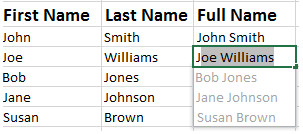
Flash Fill

Flash Fill identifies and adapts to basic formatting to automatically input your data.  This tool performs several tasks such as merging information from multiple columns, adding formatting to current column and fixing anomalies with data.  Flash Fill will recognize and apply the selected format to your data but if data differs from row to row, it will not format correctly.

EFF1

Recommended Charts

rcRecommended Charts identifies data guides the user to choose the best chart type for their data.  The main objective of using a chart is to highlight your work in a significant way.

      1. Open the Excel Spreadsheet needed to create a chart.
      2. Select the Insert Tab.
      3. Select the Recommended Charts button to see suggested charts.

Recommended PivotTables

rptRecommended PivotTables are interactive tables that can analyze data, compare data and detect patterns/relationships.  In previous versions, PivotTables were too complex.

      1. Open the Excel Spreadsheet needed to create a table.
      2. Select the Insert Tab.
      3. Select the Recommended Charts PivotTables to see suggested tables. 

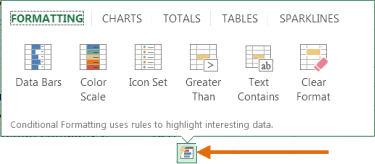
Quick Analysis

Quick Analysis is an additional way to generate a chart for data. To generate a chart to highlight your work in a significant way, select the data and click the Quick Analysis Icon.

Untitled

Timelines

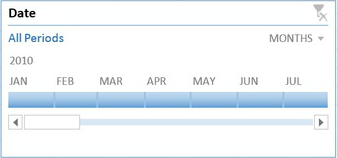
Timelines let you filter through PivotTables, similar to a slicer.  The timeline will be embedded alongside the Pivot Table.

  1. Select the PivotTable.
  2. Click the contextual Analyze Tab.
  3. Select Insert Timeline (in the Filter Group).
  4. Then select OK.
  5. In the upper-right corner you can select years, quarters, months or days.

Excel_New_Ftrs.FigE

Cloud Support

Cloud Support by Microsoft allows users to save Excel files to SkyDrive or SharePoint site.  Saving to SkyDrive or a SharePoint site allows users to review and edit files from any device with an Office 365 subscription.

Apps for Excel

appsMicrosoft offers Apps for Excel to enhance what you can do with Excel.  Categories for Apps include Content Management, Financial Management, Productivity, Workflow and Process Management and many more. 

Present Online

Present Online is a way to share workbooks and allows others to update it.  Present Online requires the installation of Lync (if you have Office Professional Plus; Lync is already installed).

  1. Sign into Lync.
  2. Open all workbooks you need to share. (Close workbooks you do not want to share).
  3. In Excel, click the File Tab.
  4. In the left pane, choose Share.
  5. Click Present Online.
  6. Click Present.
  7. Select a Lync meeting or create a new one.
  8. Click OK.


Microsoft Offers $40 Windows 8 Pro Upgrade

We set out to make it as easy as possible for everyone to upgrade to Windows 8. Starting at general availability, if your PC is running Windows XP, Windows Vista, or Windows 7 you will qualify to download an upgrade to Windows 8 Pro for just $39.99 in 131 markets. And if you want, you can add Windows Media Center for free through the “add features” option within Windows 8 Pro after your upgrade.

When you use Windows.com to purchase an upgrade to Windows 8 Pro, the Windows 8 Upgrade Assistant makes upgrading simple by walking you through the upgrade process step-by-step from purchase to download and then of course installation.

The Windows 8 Upgrade Assistant will check to make sure your PC is ready for Windows 8. It will provide a detailed compatibility report that lets you know of anything you may have to address before or after the upgrade and outlines actions to take.

It will also inform you of any application or device compatibility issues. It will ask you what you want to keep from your current Windows installation. You will be able to upgrade from any consumer edition of Windows 7 to Windows 8 Pro and bring everything along which includes your Windows settings, personal files, and apps. If you are upgrading from Windows Vista, you will be able to bring along your Windows settings and personal files, and if you are upgrading from Windows XP you will only be able to bring along your personal files. Of course, if you want to start fresh, you can choose to bring nothing along. Or if you prefer to format your hard drive as part of your upgrade experience, you can do so as long as you boot from media and then format your hard drive from within the setup experience for installing Windows 8, not prior to it.

Once you purchase your upgrade, the Windows 8 Upgrade Assistant kicks off your download. It has a built-in download manager that allows you to pause and continue your download at any time as well as a check to ensure your download completes successfully.

After your download finishes, you can choose to proceed with the upgrade (“Install now”) or install later either from your desktop or by creating your own media. If you choose to create your own media, you will be able to create your own bootable USB or .ISO file which can be burned onto a DVD for upgrade and backup purposes. If you prefer, you also have the option of purchasing a backup DVD for $15 plus shipping and handling.

We believe that your upgrade experience in Windows 8 will be a breeze by offering a faster experience, a single upgrade path, and compatibility from prior versions of Windows. We’ve continued to listen to our customers and have expanded the ability to download to over 100 countries and 37 languages. We have simplified the Windows upgrade experience with the Windows 8 Upgrade Assistant which supports you during your upgrade with everything from selecting your language to pausing your download to built-in compatibility checks – it’s seamless. And if you’re an enthusiast you will have the flexibility to download and control how you upgrade.

If you prefer to shop at a local store, a packaged DVD version of the upgrade to Windows 8 Pro will be available for $69.99 during this promotion.

This upgrade promotion for Windows 8 Pro both online and at retail runs through January 31st, 2013.

Oh, and by the way – if you’re not upgrading from a prior version of Windows and are building your own PC or installing Windows 8 in a virtual machine or a separate partition, you will be able to purchase and install the Windows 8 and Windows 8 Pro System Builder product.

Save Your Place In Word With Macros

Save your place in word a document using macros!

Takeaway: Use these two simple Word macros to temporarily bookmark a spot you want to return to later.

Large documents offer a few navigating challenges, especially when you need to jump back and forth between two areas. You could split the document, but that splits the screen and that might not be the right solution for you. Or, you could use any of the normal navigation tools and shortcuts, but it’s easy to get lost that way. Using VBA, you can insert a bookmark that acts as a placeholder. Then, when you’re ready to return, a single quick click is all that’s required.

This technique requires two quick macros, which follow:

Public Sub InsertBookmark ()

‘Insert bookmark for srz.

Call Bookmarks.Add(“srz”, Selection.Range)

End Sub

Public Sub ReturnToBookmark ()

‘Return to previously inserted bookmark.

ActiveDocument. Bookmarks(“srz”).Range.Select

End Sub

To add the macros, press [Alt]+[F11] to launch the Visual Basic Editor (VBE). In the Project Explorer, find ThisDocument for the current document. Then, enter the two sub procedures shown above.

Next, return to the document and add the macros to the Quick Access Toolbar (QAT), as follows:

  1. From the QAT dropdown, choose More Commands.
  2. From the Choose Commands From dropdown, choose Macros.
  3. In the list on the left, find InsertBookmark.
  4. Click Add to add the macro to the list of commands on the right.
  5. With the macro still selected, click Modify.
  6. In the resulting dialog, enter Mark in the Display Name control, and click OK. You could also change the macro’s display icon.
  7. Repeat steps 3 through 6 to add ReturnToBookmark to the list on the right and add the display name, Return.
  8. Click OK.
In Word 2003, drag the macros to the toolbar as follows:


  1. Launch the Customize dialog box by double-clicking a toolbar or menu or by choosing Customize from the Tools menu.
  2. Click the Commands tab.
  3. Choose Macros from the Categories list.
  4. Find InsertBookmark in the Commands list and drag it to the toolbar.
  5. Find Return ToBookmark and drag it to the toolbar.
  6. Click Close.
Using the macros is simple. 

“Hurricane Sandy: Coming Together”

This Friday night, the networks of NBCUniversal will host “Hurricane Sandy: Coming Together,” a one-hour live telethon to benefit the American Red Cross, from 8:00 – 9:00 p.m. ET.

Hosted by Matt Lauer (NBC’s “Today Show”), the November 2 program will feature scheduled performances by Sting, Bruce Springsteen, Christina Aguilera (NBC’s “The Voice”), Bon Jovi and Jimmy Fallon (NBC’s “Late Night with Jimmy Fallon”). NBC Nightly News Anchor Brian Williams will also appear.

The networks of NBCUniversal include NBC, USA, E!, G4, Syfy, Bravo, Oxygen, Discovery and A&E, which represent a huge swath of the most popular channels on cable TV. The telethon will be broadcast from the New York studios of NBC at 30 Rockefeller Plaza. It will air live across the East Coast and tape-delayed on the West. It will also will be live-streamed on NBC.com.  All donations will go to the American Red Cross to help with relief aide of Hurricane Sandy.

Tune in Friday night from 8:00 – 9:00 p.m. ET, as the American Red Cross and NBCUniversal Networks host a live telethon benefit.

South Jersey Techies – Managed Services for Businesses

If you’re  tired of the break and fix relationship you have with technology, and would  like a proactive approach for keeping your business running smoothly…

Managed Services

South Jersey Techies, LLC offers complete Flat Rate IT management solutions that take the hassle out  of managing and maintaining your critical IT systems. We’ll customize a managed services support  plan that is tailored to your environment and meets and exceeds the specific  needs for your technology management and support.

What is Managed IT Services?

Managed IT Services is a new solution to an old problem. Instead of the traditional pay to fix a problem as it happens, you pay one  consistent monthly price and your computers, servers and network are  continuously and proactively kept running efficiently.

Automate IT Actions

Automate | Cut Costs | Boost Profits

Being more productive and proactive brings more success in your business. Automation is the key to increase productivity. Maximize  your IT budget and staff by offloading routine IT functions to South Jersey Techies, LLC.

South Jersey Techies, LLC is  always working to provide you with the tools you need to control cost, maintain  continuity, and manage change in your evolving business environment.

Cut Operational Cost

Our  Managed Services enable you to focus more on your business while South Jersey Techies, LLC  proactively manages and monitors your data, security and voice networks.

South Jersey Techies automates your repeated activities such as updating antivirus definitions, upgrading Internet Explorer, installing software, executing scripts, etc. and helps you to concentrate on things that offer more value to your business.

Automation drives to cut down operational costs and achieve higher profits. Our Operations Center will proactively monitor the desktops, servers and applications for availability and performance and reduce down times of business critical applications.


CALL US NOW!