Back to Top

Tech, Web, Cloud & Cabling Services

Category: Windows

Windows Category

Surface Pro 4 and Surface Book race ahead of iPad Pro and Pixel C at the high end

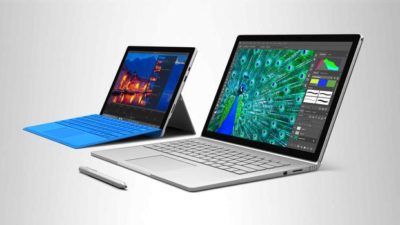
Microsoft gave its high-end Surface a leap forward on Tuesday with the unveiling of the Surface Pro 4 and the surprise launch of the Surface Book, the company’s first laptop.

surface-4-surface-book

Microsoft’s love affair with hardware just got more intense. If there were any doubts about the software juggernaut staying in the devices game, they were erased on Tuesday with one of the biggest and broadest hardware announcements in the company’s history.

Microsoft showed off a fleet of new and freshly updated Windows 10-powered devices in New York. The stars of the show were the Surface Pro 4 and the new Surface Book laptop, which were a potent answers to Apple’s recently unveiled iPad Pro and Google’s newly announed Pixel C.

According to Microsoft Devices lead engineer Panos Panay there are nearly 110 million devices running Windows 10. Most of the products Microsoft unveiled at Tuesday’s press event were intended to show how important mobile hardware and software integration with Windows 10 is to the company.

The event’s biggest surprise, the Surface Book, and the new Surface Pro 4 are powerful machines, and both aim to connect with both enterprise users and creative professionals. They succeed big time in the specs department. In terms of usability and adoption, we’ll know more after both are released on October 26.

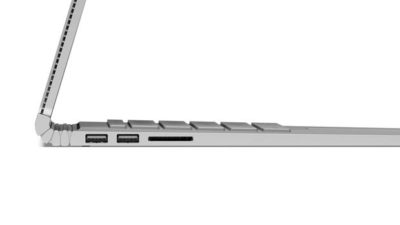
The Surface Book is Microsoft’s first laptop, and it’s a fiery, ambitious device. The specs are decked, particularly given that the price is comparable to a Macbook Pro. The Surface Book starts at $1499, and comes with a full Intel Core i5 or i7 processor, 1TB of storage, 16GB RAM, and a GPU designed for gaming and multimedia editing by the Xbox team. Additionally, the 13.5-inch screen (3000 x 2000 resolution) can detach to become a stand-alone tablet.

The Surface Pro 4 tablet runs Windows 10 and, like its predecessors, can serve as a full-fledged laptop replacement. The Surface Pro 4 is, as expected, somewhat thinner and 30 percent faster than the previous model. It has 16GB of RAM, and comes with up to a terabyte of storage, and a 12.3-inch screen (2736 x 1824 resolution). Microsoft cloud and productivity apps Cortana, Windows Hello, Microsoft Office, and OneDrive are deeply integrated. The Surface Pro 4 starts at $899.

When the Surface debuted in 2012 running Windows 8, the tablet seemed like an awkward, out-of-place device. Today, the Surface Pro has been owning and innovating in the high-end tablet space. It’s become a favorite of design professionals, IT administrators, and others who want a productivity tablet.

Arguably, the success of the Surface Pro helped pull Apple and Google into the high-end professional tablet market. Google’s comparable new Pixel C is similarly powerful, features a keyboard cover, and is deeply tied to the Google cloud ecosystem. Yet, Google’s device does not feel as durable as the Surface Pro 4, and Office is still often an essential tool for business users looking for a full laptop replacement.

Apple’s iPad Pro is a powerful professional and creative tool. Apple’s high-end tablet is larger and slightly more expensive than the Surface Pro 4. Microsoft is banking that the integration of Windows 10 and universal apps will help the Surface stand on par with the iPad Pro.

Microsoft’s attention to detail with peripheral devices like the Type Pro cover and the Surface Pen stylus may lend them a slight edge in the professional tablet market. The new Surface Pro Type Cover, notable for its “precision glass trackpad” is a significant refinement over the previous generation. The cover still costs 130 dollars, but is lighter, more responsive, and features more space between the keys than the previous version.

Microsoft has worked hard to make the stylus seem useful and cool. The new Surface Pen is intended to feel like writing on paper. The stylus features a tip with 1,024 points of pressure sensitivity, an eraser (yes, an eraser!), year-long battery life, and comes in five colors. When not in use the pen is held snugly to the top of the tablet by magnets. Microsoft took great care to display the tablet tilted in portrait mode like a clipboard, with a pen resting on top. The company emphasized the tablet itself “just fades into the background” when used by office workers, doctors, architects, and musicians.

surface-book-two

As with the Surface Pro 4 and Surface Book, the new Lumia 950 and 950 XL phones are powered by Windows 10, with special consideration to mobile productivity. The devices measure at 5.2 and 5.7 inches respectively, and feature an upgraded camera with a dedicated shutter release button.

The most unique and innovative announcement from Microsoft may have been the Display Doc. Intended to maximize workplace flexibility, and uncouple the enterprise user from the constraints of a laptop, the Microsoft Display Doc was initially announced at last spring’s Build conference as the Continuum docking station. The Display Doc is a small, square device that connects to any compatible Windows 10 mobile device like the Lumia 950 using three USB Type-3 ports, a DisplayPort and HDMI. When connected to a monitor using Display Doc, the phone will present a traditional Windows home screen, complete with the familiar Start button and icon tray. Though not as robust as a true desktop PC, the experience resembles desktop Windows and is able to manage productivity tasks like mail and messaging, document creation and sharing, and web browsing.

Windows 10 is at the core of the new Microsoft device environment. The company also announced updates to the Windows 10 universal app ecosystem [LINK], and a launch partnership with Facebook to expand the core Facebook, Messenger, and Instagram applications.

CEO Satya Nadella closed the event by stressing the importance of Windows 10 as a unified platform. Every device Microsoft released on Tuesday is a step towards fulfilling that vision. As impressive as the devices were, the biggest thing standing in their way perhaps is the stability of Windows 10

Have questions?

Get help from IT Experts/Microsofts Cloud Solutions Partner
Call us at: 856-745-9990 or visit: https://southjerseytechies.net/

South Jersey Techies, LLC is a full Managed Web and Technology Services Company providing IT Services, Website Design ServicesServer SupportNetwork ConsultingInternet PhonesCloud Solutions Provider and much more. Contact for More Information.

To read this article in its entirety click here.

Patience will be the key to a successful Windows 10 upgrade

let the dust settle before you attempt the free Windows 10 upgrade.

Windows 10

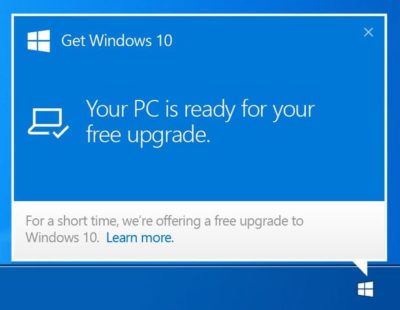
With the official Windows 10 launch and Microsoft’s promise that the upgrade for Windows 7/8.1 systems will be free for the first year after launch, you’ll have until July 29, 2016, to make your move. Just because it’s free doesn’t mean you have to rush to get your copy—unless, of course, it’s a status thing.

For the ordinary Windows user, there really isn’t any immediate need to be one of the first people to download Windows 10. In fact, you’ll probably have a better upgrade experience if you hold off for a bit. Wait for the hype to die down, wait for the load on the Windows Update servers to wane, and more importantly, wait for the first wave of updates to make their way out to the masses of Windows users who had to be the first.

Besides, unless you’re a Windows Insider program participant, chances are that you won’t be able to get Windows 10 right away anyhow.

In his July 2nd blog post, “Windows 10: Preparing to Upgrade One Billion Devices,” Terry Myerson stated:

“We want to make sure all of you have a great upgrade experience, so we’ll roll-out Windows 10 in phases to help manage the demand.”

He then goes on to say:

“Starting on July 29, we will start rolling out Windows 10 to our Windows Insiders. From there, we will start notifying reserved systems in waves, slowly scaling up after July 29th. Each day of the roll-out, we will listen, learn and update the experience for all Windows 10 users.”

That last sentence hints at the fact that the Microsoft is anticipating the possibility that there may be some glitches in the first wave of the roll out.

To be sure, I’m not suggesting that you hold out for months before you upgrade—rather, I’m saying that you may want to give it a couple of weeks just to see how others are faring with Windows 10. With Microsoft’s Windows as a service model, the ongoing testing via the extension of the Windows Insider program, and the rapid update system developed during the Windows Insider preview program, the hope is that any issues that crop up in the first weeks after initial availability will be quickly resolved.

Have questions?

Get help from IT Experts/Microsofts Cloud Solutions Partner
Call us at: 856-745-9990 or visit: https://southjerseytechies.net/

South Jersey Techies, LLC is a full Managed Web and Technology Services Company providing IT Services, Website Design ServicesServer SupportNetwork ConsultingInternet PhonesCloud Solutions Provider and much more. Contact for More Information.

To read this article in its entirety click here.

Microsoft Surface Studio: The smart person’s guide

Everything you need to know about the Surface Studio, Microsoft’s new all-in-one PC designed to tempt professional artists and designers over to Windows.

microsoft-surface-studio

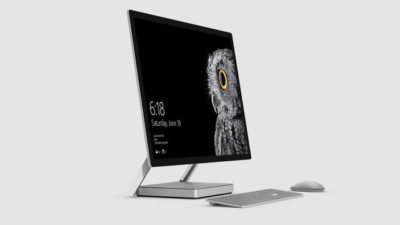
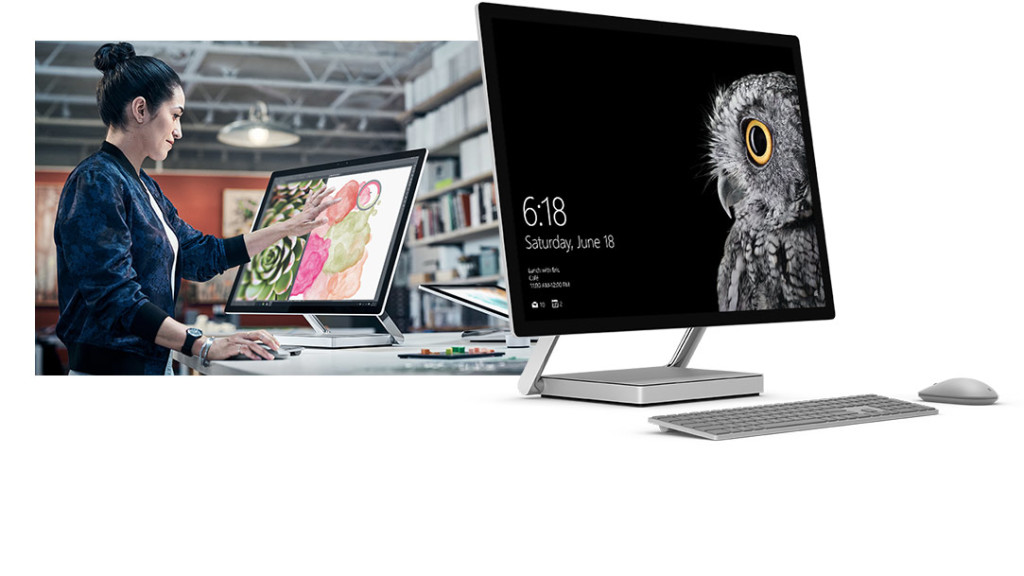
The Surface Studio is an all-in-one PC with premium specs, designed to wow professional artists, designers, architects and other creatives.

While the $2,999 price tag will deter most consumers, Microsoft seems to be targeting the Studio at design professionals, who would otherwise be using Apple Macs alongside specialist devices like Wacom’s Cintiq drawing tablet.

The Studio is a machine with a lot to recommend it, but one that could still be a leap too far for creatives already heavily invested in alternative tech.

Executive summary

  • What it is: The Surface Studio is a high-end, all-in-one PC aimed at being a drafting table and canvas for creatives.
  • Why it matters: The machine marks Microsoft’s first venture into designing desktop PCs and may put pressure on Apple and other manufacturers to crank up specs on competing machines.
  • Who it is for: Artists, designers, architects — creative professionals who want a machine that shows off their work at its best.
  • Why you should get it: For its super sleek, razor-sharp display that lets users draw straight onto the screen.
  • Why you shouldn’t get it: The price is too high or you’re a professional already heavily invested in alternative software and hardware.
  • How to get it: Pre-order online, although stock is limited according to Microsoft

What it is

An all-in-one, Windows 10 PC designed to dazzle users with its superlative display.

The screen, a 28-inch touchscreen LCD monitor, is ‘the thinnest in the world’ according to Microsoft, and sits on a counterbalanced hinge that makes it easy to push down onto the desk, and start drawing on with a digital pen.

The monitor’s 4K+ resolution and ability to display more than one billion colors, as well as to show drawings and documents at 1:1 scale with their paper equivalents, is designed to give professionals the ability to see how their creations would look in the real world.

Sketching on the screen with the Surface Pen is made easier when the Studio is used with the newly released Surface Dial, a brushed silver knob that can be rotated to select a new color when drawing on the screen or to turn the image.

Why it matters

From the point of view of artists and designers, the Studio offers a high-end computer built around their creative needs, which does away with having to use a separate drawing tablet and computer.

Even if creatives ignore the Surface Studio, its release is good news, likely to prompt incumbents like Apple and Wacom to spec up and cut the prices of new machines — in particular for the iMac, which the Studio has been compared to many times, despite the iMac lacking a touchscreen.

By following up the immaculately designed Surface Book laptop with a striking machine like the Surface Studio, Microsoft also appears to be trying to establish itself as a competitor to Apple on the design front.

Who it is for

Broadly, the Studio seems to be aimed at anyone who draws or designs for a living.

In launch videos, the Studio was seen being used by artists, architects and product designers.

The multi-purpose nature of the Studio, a machine that combines a Windows desktop PC with the functionality of a separate digital drawing tablet, such as the Cintiq 27 QHD Touch, will likely make the $2,999 price tag easier to swallow among those in the creative industries.

Why you should get it

If you draw or design for a living there are plenty of reasons why you might want the Studio. For example, there’s the quality of the display and the ease with which the Surface Pen draws on the screen. Microsoft describes this experience as virtually as fluid as drawing on paper. Then there’s the Studio’s significant graphical processing power, the ability to view documents and drawings actual size on screen and the ease with which you can switch push down the monitor and begin drawing.

Why you shouldn’t get it

Despite the Studio’s looks, its high price makes it hard to recommend as a consumer purchase, particularly when an iMac with a higher resolution, and only very slightly smaller screen, will cost less money.

Even professional creators are unlikely to abandon their current expensive setup for a Studio, as Mikako Kitagawa, principal research analyst with Gartner, pointed out.

“An all-in-one device is not the most cost-effective device, as the users pay for both the computing unit and monitor at the same time,” she said.

“Creative professionals have already invested heavily in hardware and software. For instance, many professional illustrators use a high-end drawing tablet and high-resolution monitor at the same time.”

If those same professionals exclusively use macOS, as is the case in some creative outlets, then the high cost of switching to Windows will also be a deterrent, she said.

There is also Microsoft’s odd decision not to include the $99 Surface Dial with the Studio, despite the peripheral featuring so heavily in demos of the machine, and being particularly useful for tasks like changing colors while drawing with the Surface Pen.

How to get it

The Surface Studio is available to pre-order from Microsoft, with prices starting at $2,999 and shipping starting from 12 December. Microsoft has warned the machine will be available in limited quantities.

Tech specs:

$2,999: 1TB drive; Intel Core i5 CPU; 8GB RAM; 2GB GPU

$3,499: 1TB drive; Intel Core i7 CPU; 16GB RAM; 2GB GPU

$4,199: 2TB drive; Intel Core i7 CPU; 32GB RAM; 4GB GPU

Display: 28″ PixelSense Display; 4500 x 3000 resolution; 192 DPI; Color settings: Adobe sRGB, DCI-P3 and Vivid Color Profiles; Touch: 10-point multi-touch; Aspect ratio: 3:2 TB drive; Intel Core i5 CPU; 8GB RAM; 2GB GPU

Processor: Quad-core 6th Gen Intel Core i5 or i7

Graphics: NVIDIA GeForce GTX 965M 2GB GPU GDDR5 memory or NVIDIA GeForce GTX 980M 4GB GPU GDDR5 memory

Storage: 1TB or 2TB ‘rapid hybrid drive’

Memory: 8GB, 16GB, or 32GB RAM

Wireless: 802.11ac Wi-Fi; Bluetooth 4.0; Xbox Wireless built-in3

Dimensions: Display: 25.09 x 17.27 x 0.44 in (637.35 x 438.90 x 11.4 mm); Base: 9.84 x 8.66 x 1.26 in (250.00 x 220.00 x 32.20 mm)

Weight: 21.07 lbs max (9.56 kg)

Connections: 4 USB 3.0; Full-size SD card reader (SDXC compatible); Mini Displayport; 3.5mm headset jack; Compatible with Surface Dial onscreen interaction

Cameras: 5.0MP front-facing camera with 1080p HD video

Audio: Dual microphones; Stereo 2.1 speakers with Dolby Audio Premium

Buttons: Volume and power

Surface Pen

Surface Keyboard

Surface Mouse

Power cord with grip-release cable

Security: TPM chip for enterprise security; Enterprise-grade protection with Windows Hello face sign-in

Have questions?

Get answers from Microsofts Cloud Solutions Partner!
Call us at: 856-745-9990 or visit: https://southjerseytechies.net/

South Jersey Techies, LL C is a full Managed Web and Technology Services Company providing IT ServicesWebsite Design ServicesServer SupportNetwork ConsultingInternet PhonesCloud Solutions Provider and much more. Contact for More Information.

To read this article in its entirety click here.

Microsoft Office 2016: Lots of upgrade questions and some answers

Microsoft began rolling out Office 2016 for Windows on September 22. Since then, there have been a lot of questions around timing and installation techniques from those attempting to move to the latest version of Microsoft’s Office suite.

Office 2016

It turns out that not everyone has been able to upgrade to the latest release this week, in spite of Microsoft declaring the suite generally available. Instead, as many have discovered, the Office 2016 rollout is a staggered one, and one which has resulted in some OneDrive, Skype for Business and other app and service installation and compatibility issues.

While Microsoft officials did say a week ago that the company would be moving to a servicing/branch model with Office 2016 similar to the one the Windows 10 team is using, details on exactly how that would play out for Office users were scarce. But thanks to Microsoft pages and KB articles — we now know more.

Office 2016

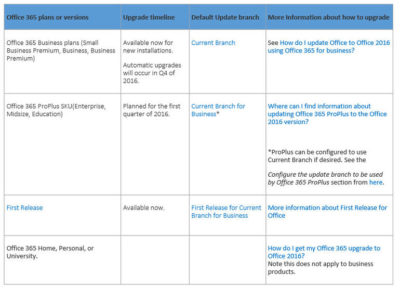
It turns out anyone in the Office 365 First Release program was able to get the latest Office 2016 apps for Windows as of this week. The same is true of those on the existing Office 365 Small Business Premium, Business and/or Business Premium — but only for those who are buying new subscriptions, according to the chart from a Microsoft community answers post, embedded above. Automatic updates to Office 2016 for those on these three plans won’t begin until the fourth quarter of 2016..

Just to add a little more complexity to this already complex set of rules, Microsoft is in the midst of replacing its Office 365 Small Business, Small Business Premium and Midsize Busines plans with three new ones. The three: Office 365 Business, Business Essentials and Business Premium. Microsoft has pushed the suggested migration date kick-off for these new plans back from October 1 to December 1, 2015, The reason for the date change: “The renewal experience will be best for users who have the latest version of Office,” meaning Office 2016.

Those with Office 365 ProPlus SKUs — meaning Office 365 Enterprise, Midsize and Education — are on the Current Branch for Business. This means these users cannot upgrade to the new Office 2016 for Windows bits right now unless the administrators change the update branch to be used by some/all of their users to Current Branch.

“For Office 365 ProPlus subscribers, administrators can opt to upgrade by manually rolling out to their users with Office deployment tools available today, September 22. Automatic updates for Office 365 ProPlus customers will begin early next year,” a Microsoft spokesperson confirmed when I asked.

Here are some more links that might help those interested in making the move to Office 2016:

Microsoft made the Office 2016 for Windows release available to MSDN subscribers on September 22. Volume licensees will have access to the new release via the Volume License Servicing Center (VLSC) as of October 1.

DreamSpark users got access to Office 2016 on September 22. Microsoft Action Pack and MPN subscribers will get access on October 1. And Home Use Rights for Office 2016 for Windows and Mac, both, will be available as of October 7, according to Microsoft.

Have questions?

Get help from IT Experts/Microsofts Cloud Solutions Partner
Call us at: 856-745-9990 or visit: https://southjerseytechies.net/

South Jersey Techies, LLC is a full Managed Web and Technology Services Company providing IT Services, Website Design ServicesServer SupportNetwork ConsultingInternet PhonesCloud Solutions Provider and much more. Contact for More Information.

To read this article in its entirety click here.

Change the Processor Affinity setting in Windows 7 to gain a performance edge

Under specific circumstances and with careful tweaking, you can increase Windows 7’s performance using the Processor Affinity setting.

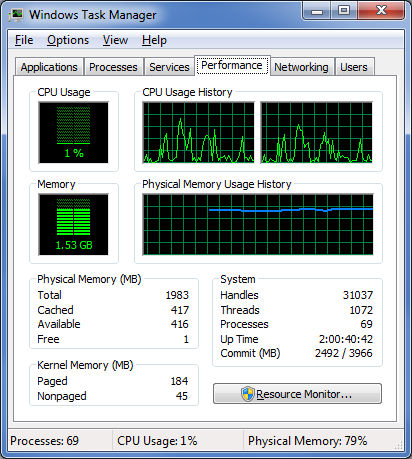
If you have a multi-core processor, chances are good that on the Performance tab in Windows Task Manager, you have noticed that the CPU Usage History graphs look about the same for each core, as shown in Figure A. The reason for this is that most applications you run these days have been designed with multi-core processors in mind and will work with the operating system to distribute their operations as evenly as possible across all the available cores.

Figure A

In most cases, you’ll notice that the CPU Usage History graphs look about the same for each core.

In most cases this even distribution provides you with the best performance possible. However, that’s not always going to be the case. For instance, older applications that were designed for single-core processors can behave irrationally — they may all of a sudden begin maxing out the CPU usage at 100 percent and appear to be locked up. In other circumstances, you might be able to achieve better overall performance from certain applications by configuring each of them to run on different processor cores.

Fortunately, Windows 7 allows you to configure applications to use only one, or several, of the processor cores in a multi-core system by using the Processor Affinity setting.

In this edition of the Windows Desktop Report, Iwe’ll show you two ways to change the Processor Affinity setting in Windows 7.

From Task Manager

Changing the Processor Affinity setting from within Task Manager is a pretty straightforward operation once you know how to do it. To launch Task Manger, you can use the keystroke combination [Ctrl] + [Shift] + [Esc] or you can simply right-click on the taskbar and select Task Manager from the context menu.

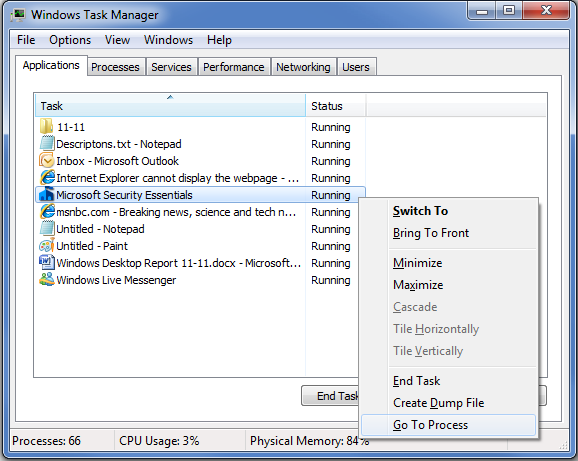
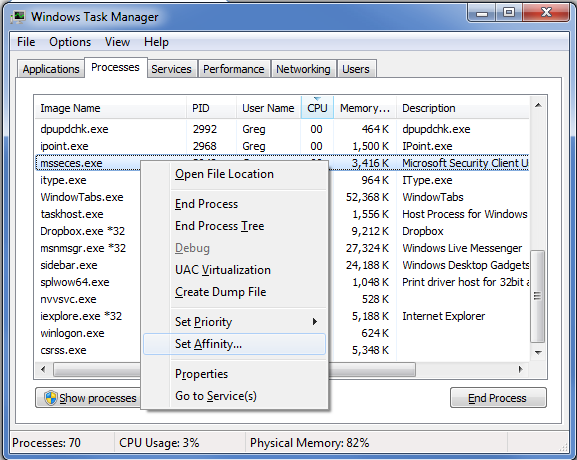
Once Task Manager is up and running, select the Applications tab, right-click on the application that you want to work with, and select the Go to Process command, as shown in Figure B. When you get to the Processes tab, right-click on the process and from that context menu, select the Set Affinity command, as shown in Figure C. (If the processes are jumping around, it may be hard to select the correct process, so you might just want to press the Application key or [Shift]+[F10].)

Figure B

Right-click on an application and select the Go to Process command.

Figure C

Right-click on the process and select the Set Affinity command.

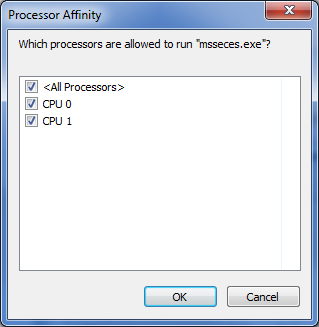
After you select the Set Affinity command, you’ll see the Processor Affinity dialog box shown in Figure D. As you can see, the default setting is All Processors, which in the case of my example system are CPU 0 and CPU 1. At this point, you can clear the All Processors check box and then select the CPU on which you want the process to run.

Figure D

The Processor Affinity dialog box allows you to choose which processor(s) you want to use.

An example

To take a look at the effects of using the Set Affinity command, we launched two applications: Microsoft Security Essentials and Disk Defragmenter. Next we used the Set Affinity command to assign Microsoft Security Essentials to CPU 0 and Disk Defragmenter to CPU 1. We then started each application running — Microsoft Security Essentials performing a full scan and Disk Defragmenter defragging a 500GB disk.

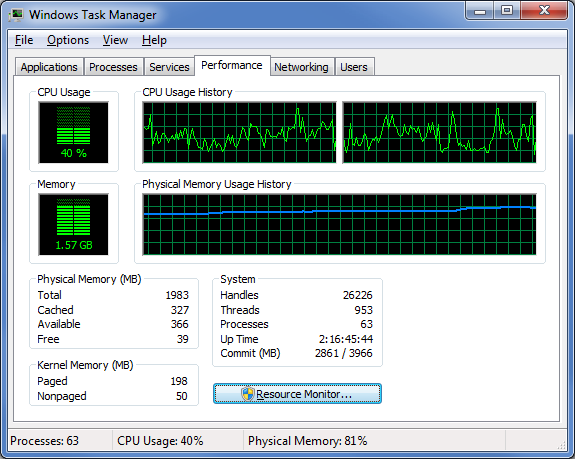
Once each application began working, they started sucking up CPU time, so we went to the Performance tab in Windows Task Manager to look at the CPU Usage History graphs. When we did, we could see that each graph was showing different measurements, as shown in Figure E.

Figure E

Each of the CPU Usage History graphs shows different measurements.

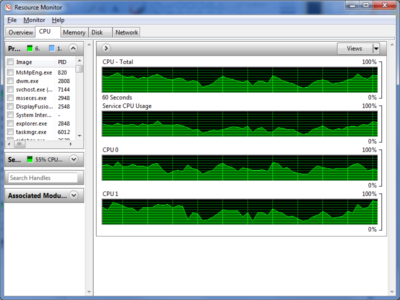
To specifically see how each CPU core was faring, we launched Resource Monitor and selected the CPU tab. Again, we could see that each CPU core was showing different usage measurements, as shown in Figure F.

Figure F

Resource Monitor’s CPU tab specifically identifies each CPU core and its usage.

Now, of course, my example combination is purely for the sake of showing each CPU handling a separate process. However, there are instances where running Microsoft Security Essentials on a separate CPU core would be beneficial.

From a shortcut

Now if you find that running an application on a specific CPU core works well, you might want to use it again in the future. If so, chances are that you won’t want to have to go through the Task Manager each time. Fortunately you can create a shortcut to launch an application with a specific affinity setting.

For example, to launch Disk Defragmenter so that it runs only on CPU 0, you would create a shortcut with the following command line:

C:\Windows\System32\cmd.exe /C start /affinity 1 dfrgui.exe

To launch Disk Defragmenter on CPU 1, you would create a shortcut with the following command line:

C:\Windows\System32\cmd.exe /C start /affinity 2 dfrgui.exe

The number that follows the start /affinity command is called the affinity mask and is defined as a hexadecimal number. However, the CPU core number can be calculated more easily using binary numbers. For instance, the command

C:\Windows\System32\cmd.exe /C start /affinity 3 dfrgui.exe

will launch Disk Defragmenter on both CPU 0 and CPU 1. If you convert 3 into a binary number you will get 0011. Under the affinity mask system, processors are numbered from the right to left beginning with 0 and since there are 1’s in the first two places, this indicates CPU 0 and CPU 1.

Suppose you have a Quad core processor. If so and you use an affinity mask of 4, that will convert into binary 0100, which indicates CPU 2. If you use an affinity mask of 9, that will convert into binary 1001, which indicates CPU 0 and CPU 3.

For more information on the start /affinity command, open a Command Prompt window and type the command

start /?

Have questions?

Get answers from Microsofts Cloud Solutions Partner!
Call us at: 856-745-9990 or visit: https://southjerseytechies.net/

South Jersey Techies, LL C is a full Managed Web and Technology Services Company providing IT Services, Website Design ServicesServer SupportNetwork ConsultingInternet PhonesCloud Solutions Provider and much more. Contact for More Information.

To read this article in its entirety click here.

Microsoft’s latest Windows 10 ad annoys Chrome users with taskbar pop-ups

Ads on the Windows 10 taskbar aren’t just for Microsoft Edge anymore.

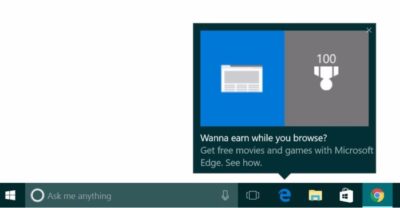
Microsoft’s aggressive advertising push inside Windows 10 is going beyond pop-ups for Microsoft Edge.

Myce recently spotted yet another pop-up ad on the taskbar in Windows 10. This time around Microsoft was advertising its extension for Chrome dubbed the Personal Shopping Assistant (Beta). The extension is a Microsoft Garage project that lets you compare prices across shopping sites.

Prior to the Chrome extension pop-up, Microsoft was advertising its rewards program for Microsoft Edge, which we spotted in early November. The earlier ad appeared to be targeted at people who didn’t use Edge that frequently.

A pop-up ad that promotes Windows 10’s Edge browser and Bing Rewards. The pop-up for the Chrome extension looks similar, as you can see on Myce.

The Chrome one, by comparison, is probably targeted at people who use Chrome as their default browser. Microsoft’s likely thinking that if people won’t stop using Chrome on Windows, at least they can use some Microsoft software while they’re doing it.

Microsoft told Thurrott.com that ads like the one for the Chrome extension are part of the company’s tests to provide, “new features and information that can help people enhance their Windows 10 experience.”

Tests or not, it’s unlikely that Microsoft will ever stop these taskbar ads even though users pay $100 or more for Windows. Thus far, Microsoft has advertised its own software and services.

The impact on you at home: If you want to make sure you don’t get pop-up ads on your taskbar you can turn them off. Open the Settings app and go to System > Notifications & Actions. On this screen under “Notifications” turn off Get tips, stricks, and suggestions as you use Windows. That’s not the only way Microsoft can advertise to you.

Have questions?

Get answers from Microsofts Cloud Solutions Partner!
Call us at: 856-745-9990 or visit: https://southjerseytechies.net/

South Jersey Techies, LL C is a full Managed Web and Technology Services Company providing IT Services, Website Design ServicesServer SupportNetwork ConsultingInternet PhonesCloud Solutions Provider and much more. Contact for More Information.

To read this article in its entirety click here.

Surface Book pre-orders sold out at Microsoft’s online store

If you were still thinking about placing an order for a new Microsoft Surface Book, then you will have to look somewhere other than the Microsoft store.

surfacebook

While there doesn’t seem to be a massive supply issue with the new Apple iPhone 6s smartphone, in the past we have seen Apple products sell out quickly and deliveries move from days, to weeks, to months. It seems that Microsoft’s new Surface Book may be generating more interest than planned.

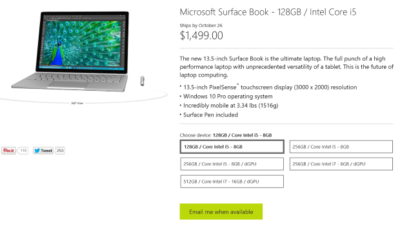
Last night I went to the online Microsoft Store to place an order for a base model Surface Book. I found that the only available status when choosing that model was, “Email me when available.” I jumped through the other four models and discovered the same thing. It seems Microsoft is sold out of pre-order stock for all models at its online store.

We reached out to Microsoft to try to find out more about stock status and when buyers could expect to place pre-orders. I also asked if there will be units in Microsoft retail stores on launch day, 26 October. Given that units are sold out online, we may even see people queue up for possible stock in stores.

A Microsoft spokesperson provided the following statement, “We’ve seen strong demand for Surface Book and have sold out of pre-order supply for October 26 availability. We will have limited quantities of Surface Book available in store on October 26 and will be updating online availability with new product ship dates soon.”

UPDATE: Microsoft updated its store and is no allowing customers to pre-order the five Surface Book variations. What you will find instead of an email me when available button is updated delivery expectations, ranging from five to six weeks for three models and seven to eight weeks for two models.

While I was disappointed that I couldn’t purchase a Surface Book through Microsoft directly, I found that Best Buy and Amazon will also be selling this new computer. Best Buy did not appear to be taking pre-orders, but I was able to purchase the Intel Core i5, 8GB, 128GB model from Amazon for $1,499.

The Amazon website does not appear to carry the 256GB i5 without dGPU or 256GB i7 models. The 256GB i5 with dGPU looks to be the only other model available for pre-order. The 512GB i7 model is on the site as an option, but redirects you to the Microsoft Store for purchase and it’s not avaialable there.

Have questions?

Get help from IT Experts/Microsofts Cloud Solutions Partner
Call us at: 856-745-9990 or visit: https://southjerseytechies.net/

South Jersey Techies, LLC is a full Managed Web and Technology Services Company providing IT Services, Website Design ServicesServer SupportNetwork ConsultingInternet PhonesCloud Solutions Provider and much more. Contact for More Information.

To read this article in its entirety click here.

Microsoft withdraws update causing Outlook to start in Safe Mode (with fix)

outlook-safe-mode

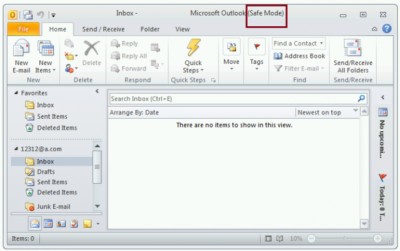
Microsoft has withdrawn the released Windows Update KB3114409 because it causes Outlook to start in Safe Mode. This loads the email client without customizations and plugins. Fortunately it can be easily fixed.

The patch was actually released to stop Outlook from starting in Safe Mode, but it appears something didn’t go the right way. Microsoft has decided to withdraw the update for now.

Users affected by the update can easily stop Outlook from starting in safe mode by uninstalling the KB3114409 update.

This can be done this way: Go to your Control Panel. Go to ‘Programs and Features’ and left click ‘View installed updates’. Find KB3114409. Once you’ve found the appropriate update, click ‘Uninstall’.

(Tip: copy/paste KB3114409 and enter it in the search field at the top right.)

After a reboot of the computer Outlook will no longer start in safe mode.

Have questions?

Get help from IT Experts/Microsofts Cloud Solutions Partner
Call us at: 856-745-9990 or visit: https://southjerseytechies.net/

South Jersey Techies, LLC is a full Managed Web and Technology Services Company providing IT Services, Website Design ServicesServer SupportNetwork ConsultingInternet PhonesCloud Solutions Provider and much more. Contact for More Information.

To read this article in its entirety click here.

Microsoft teases Windows 10’s sleek new look for the future

“Project Neon” will give your Windows 10 PC a fresh coat of paint later in 2017.

Microsoft’s planning a sleek visual refresh for Windows 10, and the company quietly teased its first official glimpse of what’s coming in the future during the Windows Developer Day keynote on Wednesday.

There aren’t many details being shared about “Project Neon” right now—as the refresh was called in earlier leaks—but the new visual look will focus on animations and transitions. The basic concept is “to add fluidity, animation, and blur to apps and the operating system,” as first reported by Windows Central. The new design language also hopes to make it easier for developers to create attractive apps.

The design refresh should extend to all Windows 10 devices including PCs and tablets, HoloLens, Xbox, and the few surviving Windows Phones, according to Windows Central.

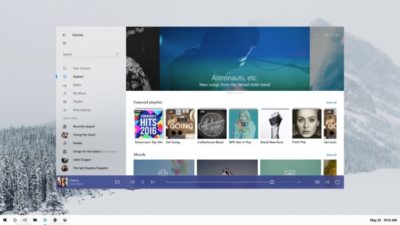
Twitter user Tom Hounsell shared a clean version of Microsoft’s first look at Windows 10’s forthcoming design tweaks. The image shown on the livestream had large text overlaid on top of the screenshot.

As you can see, this isn’t a huge change, but the visual refresh gives Windows 10 a sleeker, more modern feel. The taskbar icons look a little more dynamic and bolder. Cortana is using the icon instead of the search box, though it’s not clear if this will be the default look. The clock on the taskbar is also bolder, and the usual notification area icons including the Action Center are notably absent. The open Groove Music window itself looks more polished and Aero-esque as well, with no title bar to be seen—just unobtrusive options in the app’s upper-right corner.

The impact on you at home: Windows Central says that some of the code for Project Neon is already available in recent Insider Preview builds of Windows 10; however, it’s unlikely the visual refresh will be ready in time for the massive Creators Update this spring. Microsoft is expected to share more information about Neon during the Build conference in May. The Creators Update is expected to roll out in late March or early April, followed by a second major update later in 2017.

Have questions?

Get answers from Microsofts Cloud Solutions Partner!
Call us at: 856-745-9990 or visit: https://southjerseytechies.net/

South Jersey Techies, LL C is a full Managed Web and Technology Services Company providing IT Services, Website Design ServicesServer SupportNetwork ConsultingInternet PhonesCloud Solutions Provider and much more. Contact for More Information.

To read this article in its entirety click here.

Surface Book i7 vs. MacBook Pro: Fight!

Now that Apple’s introduced the first major update to its MacBook Pro lineup in years, it’s time to square off the best of the best in Mac and PC laptops to see who currently prevails in this age-old rivalry. 
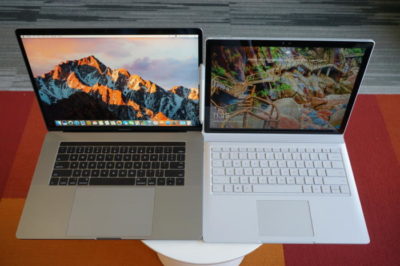
The contenders

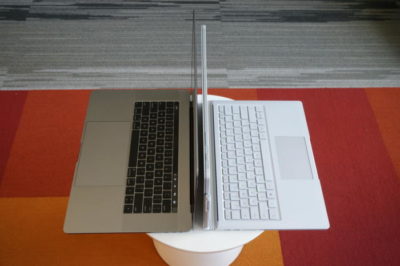
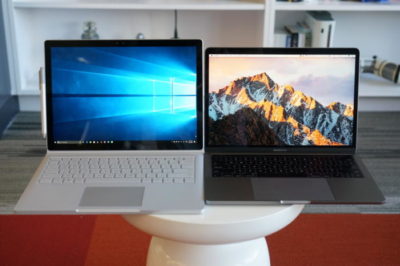
The newest Surface Book is a top-of-the-line model with a Core i7-6600U, a GeForce GTX 965M, 16GB of RAM, and a 1TB SSD. The updated product line varies from $2,400 to $3,300 (our model) in price. All three net you a 6th-gen Skylake dual-core Core i7 chip, and all three get you the same Performance Base with a GeForce GTX 965M. The only differences are in the size of the SSD and how much RAM you get. Only the SSD would affect performance significantly.

On the Apple side, the contender is a $2,400 MacBook Pro 15 with a quad-core Core i7-6700HQ, 16GB of LPDDR/2133, and a 256GB SSD. I also had partial access to two MacBook Pro 13’s. The first was the non-touch bar model with a Core i5-6360U, 8GB of LPDDR/1866, and a 256GB SSD ($1,500). The second was the Touch Bar version with a Core i5-6267U, 8GB of LPDDR/2133, and a 256GB SSD ($1,800).
Why this contest isn’t rigged

Let’s make it clear from the outset: This isn’t a direct comparison of the laptops based on cost, but an attempt to compare the performance of the new MacBook Pros to that of similar PC laptops.

For those who’ve noticed the considerable price delta between the Surface Book i7 and the 15-inch MacBook Pro, the stack of other PCs used in this comparison will help smooth out that line. You might argue that it’s silly to compare a $3,300 Surface Book i7 against an $1,800 MacBook Pro 13, or a $1,100 Dell XPS 13 against an $1,800 MacBook Pro 13, or a $1,400 Dell XPS 15 against a $2,400 MacBook Pro 15. But these are all real-world models that you’ll find in a store, rather than configurations contrived to hit a number. Price differences are just part of the comparison puzzle.

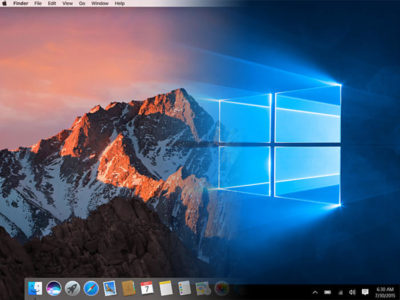
For the same reason, we’re not loading the same OS on all the laptops—no OSX on PCs, no Windows on Macs. Real people wouldn’t do that, and neither will we.
Cinebench R15 multi-threaded performance

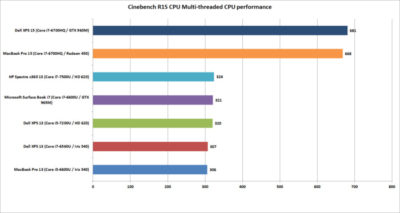
Our first test is Cinebench R15. This is a 3D rendering test based on Maxon’s Cinema4D engine. The test is heavily multi-threaded, and the more cores or threads you can throw at it, the better the performance. The test is is a pretty harsh reminder that if your tasks demand a quad-core, listen to them.

Between the two quad-cores, the Dell XPS 15 crosses the finish line first—but not by much. Let’s just call it mostly a tie.

Among the dual-cores, the Core i5-based MacBook Pro 13 is last, but not by much. It’s basically the same as the last-gen XPS 13 with a similar Core i7-6560U.

The surprise is where the Surface Book i7 finishes. Its 6th-gen CPU is hanging right with the 7th-generation Kaby Lake CPUs in the new HP Spectre x360 13 and the new Dell XPS 13.
Cinebench R15 single-threaded performance

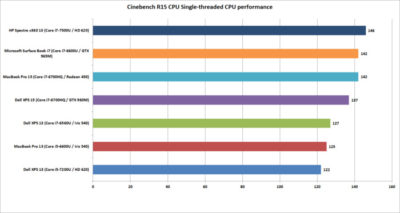
Cinebench R15 has an optional test that lets you measure the single-threaded performance. It’s a valuable way to gauge how fast a laptop will be in applications or tasks that don’t use all the cores available.

The surprise to many will be the result from the Dell XPS 13. Its 7th-generation Core i5 CPU could hang with the Core i7 chips on heavier loads, but on lighter loads, it ends up being last. That’s because Core i7 chips in laptops excel at short, “bursty” loads. Once you heat them up, the clock speeds crank back. When running a test in single-threaded mode, the Core i7’s advantage with short burst loads shows up big-time.

The real shocker is how the HP Spectre x360 with a 7th-gen CPU comes out the clear winner. The quad-core MacBook Pro 15 or Dell XPS 15 were expected to lead the pack, but nope. That Kaby Lake CPU is indeed pulling its weight.
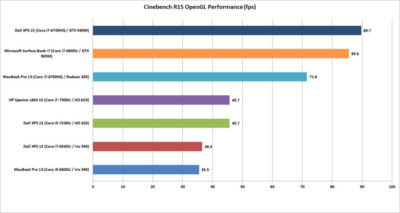
Cinebench R15 OpenGL performance

Our last Cinebench R15 test measures performance with OpenGL, a popular graphics API used for rendering professional CAD/CAM applications and a few games.

The results here break down into three bands. At the bottom is the new MacBook Pro 13 and an older Dell XPS 13 model. Both use Intel’s Skylake CPU and include “faster” Iris 540 graphics with 64MB of embedded DRAM inside the CPU. Both are nearly dead-even, which validates this test for comparing OSX to Windows 10 performance.

The second band up is a shocker to me. The pair of 7th-gen Kaby Lake laptops from Dell and HP are a good 25 percent faster than the 6th-gen Skylake laptops in OpenGL. The Iris 540 laptops were expected to come out in front. The results made us wonder whether this isn’t some driver optimization that Intel put into Kaby Lake but not Skylake.

The last band is the graphics performance of the discrete-GPU laptops. Unexpectedly, the GeForce GTX 960M in the XPS 15 finishes just ahead of the GTX 965M in the Surface Book i7. The MacBook Pro 15, with its Radeon Pro 450, finishes in a firm third place. Some MacBook Pro reviews have said the graphics don’t measure up in games, while in “work”-related tasks, they rules. So far, no one has seen that to be true.
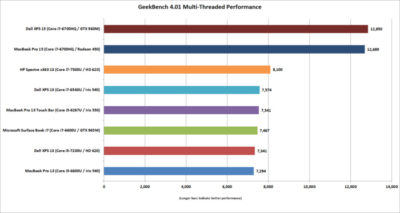
GeekBench 4.01 multi-threaded performance

Another popular cross-platform benchmark is Primate Lab’s GeekBench. Experts may disdain its cross-platform results between ARM and x86. Within the same micro-architecture, however, it’s pretty kosher, especially when running the newest 4.01 version of the popular test. There is  also a score to report for the MacBook Pro 13 with Touch Bar

The first result we’ll look at is the multi-threaded performance. Like Cinebench R15, you can see the quad-core XPS 15 and MacBook Pro 15 step away from the dual-core laptops. It’s just more proof that if your tasks really need a quad-core chip, pay for it.

On the dual-cores, the redesigned HP Spectre x360 13 again shows the newest 7th-gen Core i7’s clock speed advantage over the Skylake models. The Surface Book i7 and MacBook Pro are pretty much dead-even. For MacBook Pro 13 fans that might be something to crow about, because we’re talking about a Core i5 MacBook Pro 13 vs. a Core i7 Surface Book.
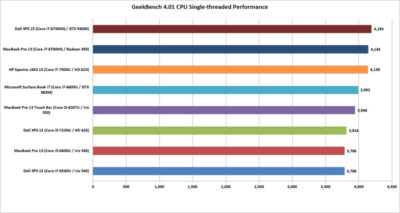
GeekBench 4.01 single-threaded performance

Moving on to the single-threaded performance in GeekBench 4.01, there are a few patterns we can discern. First, that 7th-gen Core i7 in the HP Spectre x360 13 is indeed faster in lighter loads, outpacing the Surface Book i7 and the Core i5-equipped MacBook Pro 13 with Touch Bar.

The Dell XPS 15 inches over the MacBook Pro 15, but the real takeaway is this: If you don’t do many multi-threaded tasks on your laptop, you don’t need a quad-core CPU.
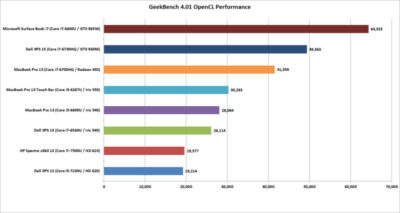
GeekBench 4.01 OpenCL performance

GeekBench also has an OpenCL test that simulates popular Computer Language tasks on a GPU that would normally be handled by the CPU.

The first takeaway: Unlike in the OpenGL performance tests, the older Iris 540 in the Skylake dual-cores is faster than the Kaby Lake integrated graphics for whatever tasks Prime Labs thinks best represent OpenCL.

The second takeaway: OpenCL loves fast GPUs. The Surface Book i7 and its GTX 965M run away with this test, and trash the MacBook Pro 13. For those who didn’t pony up for the MacBook Pro’s faster Radeon Pro 455 or 460 GPU, it’s hard to watch how thoroughly the the Surface Book i7 smokes the 450-equipped MacBook Pro. The Surface Book’s GTX 965M even makes a mockery of the GTX 960M in the XPS 15.
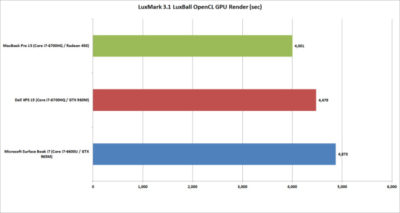
LuxMark 3.1 OpenCL GPU Render Performance

When you play the benchmarketing game, one truth that’s often overlooked is that no one test defines the entire category. You can’t take the results from Geek Bench 4.01 OpenCL and declare it representative of all OpenCL performance.

To balance Geek Bench 4.01, I also ran the free LuxMark 3.1 OpenCL test. This takes a scene and renders it using the LuxRender engine on the GPU (or CPU if you ask it to.)

The results put these GPUs a lot closer than the OpenCL numbers from Geek Bench 4.01 would have you believe. In the end, both the XPS 15 and Surface Book i7 again both clearly win. But would this be true if it were a Radeon 460 in the MacBook Pro 15? Probably not.
Blender 2.78 Performance

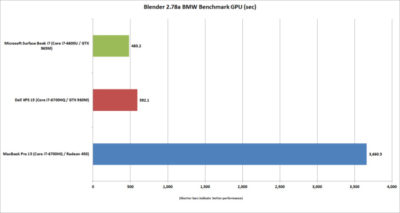
The last “work”-related graphics test we’ll run is Blender 2.78. This a free rendering application popular in a lot of indie movies. For a test render file, I used Mike Pan’s BMW Benchmark and set Blender to ray-trace the scene on the GPU rather than the CPU. The result is, frankly, beyond ugly. The Surface Book i7 finished in about eight minutes, and the XPS 15 took another two more minutes. The MacBook Pro 15 took more than an hour to complete the task.

This doesn’t mean the MacBook Pro 15’s Radeon Pro 450 is a dog. The other benchmarks should tell you that the Apple isn’t that bad in some tasks. Still, this kind of performance disparity indicates a serious problem at the OS or driver level, or something with this compile of Blender. Unless or until that mystery is solved, you’ll want to do your Blender renders on a PC laptop.
Tomb Raider performance

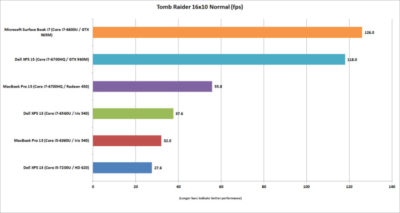
The last graphics test is Tomb Raider. It’s an older game available in both OSX and Windows and includes a built-in benchmark. While we could set the graphics settings the same on both platforms, we couldn’t quite sync the resolutions. Depending on the laptop, we could set the horizontal resolution at 1680-, 1650-, or 1600×1050 (the latter, for the Macs). The graphics setting on all of the laptops was Normal.

If you can’t bear to look, don’t: The Surface Book i7 and XPS 15 soundly thrashed the MacBook Pro 15. The Radeon Pro 460 would not make a difference here, either. If you want gaming performance at any decent levels, no surprise—buy a PC.
Battery life

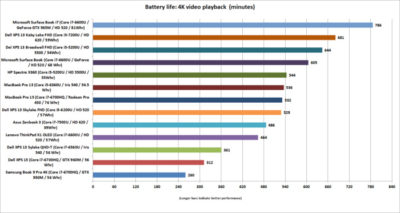
The final test is for all-important battery life. The same 4K-resolution were used, open-source Tears of Steel short video, looping continuously. On the Windows laptops, we used the Movies & TV player, and on OSX Sierra, we used QuickTime.

All of the laptops had their screens set at 250 to 260 nits in brightness. All laptops had the adaptive brightness setting turned off. All were tested with Wi-Fi disabled and with earbuds plugged into the analog ports. One thing to note: The Windows laptops are left in their default power settings, which means they use their last bits of battery life to shut off unused apps and slightly dim the screen. OSX was set not to dim the display on battery—otherwise, it immediately dims the screen once unplugged.

Our results on the pair of MacBook Pros were amazingly similar. Started both early in the morning and watched until they died in the early evening. Both were minutes apart.

Apple claims about 10 hours of run time in iTunes. We were pretty close in QuickTime at nearly 9 hours. The variance can be attributed to the video file and the settings the company uses.

For the MacBook Pro 15, that’s pretty impressive. The battery life for 15-inch laptops with quad-core CPUs, discrete graphics, and high-resolution screens tends to be mediocre. For example, look at the XPS 15 and its six hours of run time. (Dell offers an XPS 15 battery with about 50 percent more capacity—but it’s also heavier.)

Even worse is the Samsung Notebook 9 Pro, another quad-core laptop with the addition of a 4K screen. Ouch. Overall, I’d say the MacBook Pro 15 has decent battery life for a quad-core.

Moving to the MacBook Pro 13, the result is a little more nuanced. With roughly nine hours of run time, it compares well to some laptops, such as the XPS 13 with a QHD+ touchscreen. But there are a lot more PCs ahead of it. You know, like the Surface Book i7, which sets the bar at an amazing 13 hours of video run time. Other laptops with better video stamina include the newest XPS 13, HP’s redesigned Spectre x360 13, and even the older Surface Book. When you consider that all three are also generally faster, it’s not good.
The cost equation

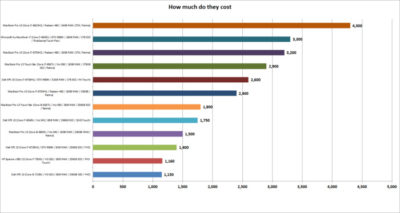
The most important question for users isn’t related to an obscure OpenCL benchmark but to how much these laptops cost. To help you understand just how much of a premium Apple and Microsoft are charging, I mapped out the cost of most of the laptops that appeared here, along with other configurations worth highlighting.

That top-spec Surface Book i7, formally known as Surface Book with Performance Base,  really pushes the boundaries of what people will pay for a dual-core laptop. To be fair, this is no ordinary laptop. It has a 1TB SSD and 16GB of RAM, plus pen support, a tablet mode, and probably class-leading GPU performance. But umm, yeah, 3,300 bucks.

Apple is no stranger to nose-bleed altitudes. When you throw a Core i7, 1TB SSD, and 16GB of RAM into the MacBook Pro 13 with Touch Bar, you’re looking at  $2,900. And you don’t even get the discrete GPU, touch, and tablet or pen support of the Surface Book. Apple’s most powerful MacBook Pro 15 tilts the meter all the way to $4,300. Granted, that’s with one of Intel’s priciest mobile CPUs and a whopping 2TB SSD, but that’s also the price of a modest used car.

Compared to a “normal” PC, both Microsoft and Apple give you a lot less performance for your cash. The Dell XPS 15, which pretty much aces the new MacBook Pro 15 except in battery life, is $1,400.

Take that Dell XPS 15 and load it up with a 1TB M.2 SSD, 32GB of RAM (which isn’t available on the MacBook Pro 15), a GTX 960M, 4K touchscreen, and a larger battery: $2,600. That’s only $200 more than what Apple charges for a machine with 16GB of RAM, a 256GB SSD, and the slowest Radeon Pro GPU.

You can do the same with the new HP Spectre x360 or Dell’s current XPS 13. Both give you a lot more value than either the MacBook Pro 13 or the MacBook Pro 13 Touch Bar.
Conclusion

Ten tests and one price comparison later, the PC wins. Again.

That’s no surprise. The MacBooks are caught in a tough spot—even if they were running higher-performance configurations. They’re both ultra-expensive compared to most PCs, and at the top-end, outclassed in GPU performance by Microsoft’s comparably expensive Surface Book i7.

It’s not all bad news for the Mac, though. The MacBook Pro 15’s battery life is impressive for a 15-inch laptop with a quad-core CPU and discrete GPU. Comparably powerful quad-core laptops we’ve seen can’t touch it in battery life. Even the MacBook Pro 13s do relatively well in battery life compared to a similar PC.

The problem for Apple and Mac fans is PC makers just don’t ever stand still. And as we know, Apple seemingly does that now with its Macs.

Have questions?

Get answers from Microsofts Cloud Solutions Partner!
Call us at: 856-745-9990 or visit: https://southjerseytechies.net/

South Jersey Techies, LL C is a full Managed Web and Technology Services Company providing IT Services, Website Design ServicesServer SupportNetwork ConsultingInternet PhonesCloud Solutions Provider and much more. Contact for More Information.

To read this article in its entirety click here.


CALL US NOW!