Back to Top

Tech, Web, Cloud & Cabling Services

Category: Windows

Windows Category

Use Windows 7 Event Viewer to track down issues that cause slower boot times

Here’s how to use some of the new features in Windows 7’s Event Viewer to investigate a slow boot time.
Overview

Windows 7’s Event Viewer includes a new category of event logs called Applications and Services Logs, which includes a whole host of subcategories that track key elements of the operating system. The majority of these subcategories contain an event log type called Operational that is designed to track events that can be used for analyzing and diagnosing problems. (Other event log types that can be found in these subcategories are Admin, Analytic, and Debug; however, describing them is beyond the scope of this article.)

Now, within the operating system section is a subcategory titled Diagnostic-Performance with an Operational log that contains a set of a Task Category called Boot Performance Monitoring. The Event IDs in this category are 100 through 110. By investigating all the Event ID 100 events, you will be able to find out exactly how long it took to boot up your system every time since the day you installed Windows 7. By investigating all the Event ID 101 thru 110 events, you will be able to identify all instances where boot time slowed down.

Getting started

You can find and launch Event Viewer by opening the Control Panel, accessing the System and Security category, selecting the Administrative Tools item, and double-clicking the Event Viewer icon. However, you can also simply click the Start button, type Event in the Start Search box, and press Enter once Event Viewer appears and the top of the results display.

Creating a Custom View

Once you have Event Viewer up and running, you can, of course, drill down through the Applications and Services Logs and locate the Diagnostic-Performance Operational log and begin manually looking through the events recorded in the log. However, you can save yourself time and energy by taking advantage of the new Custom View feature, which is essentially a filter that you can create and save.

To do so, pull down the Action menu and select the Create Custom View command. When you see the Create Custom View dialog box, leave the Logged option set at the default value of Any Time and select all the Event level check boxes. Next, select the By Log option button, if it is not already selected, and click the dropdown arrow. Then, drill down through the tree following the path: Applications and Services Logs | Microsoft | Windows | Diagnostics-Performance. When you open the Diagnostics-Performance branch, select the Operational check box, as shown in Figure A.

Figure A
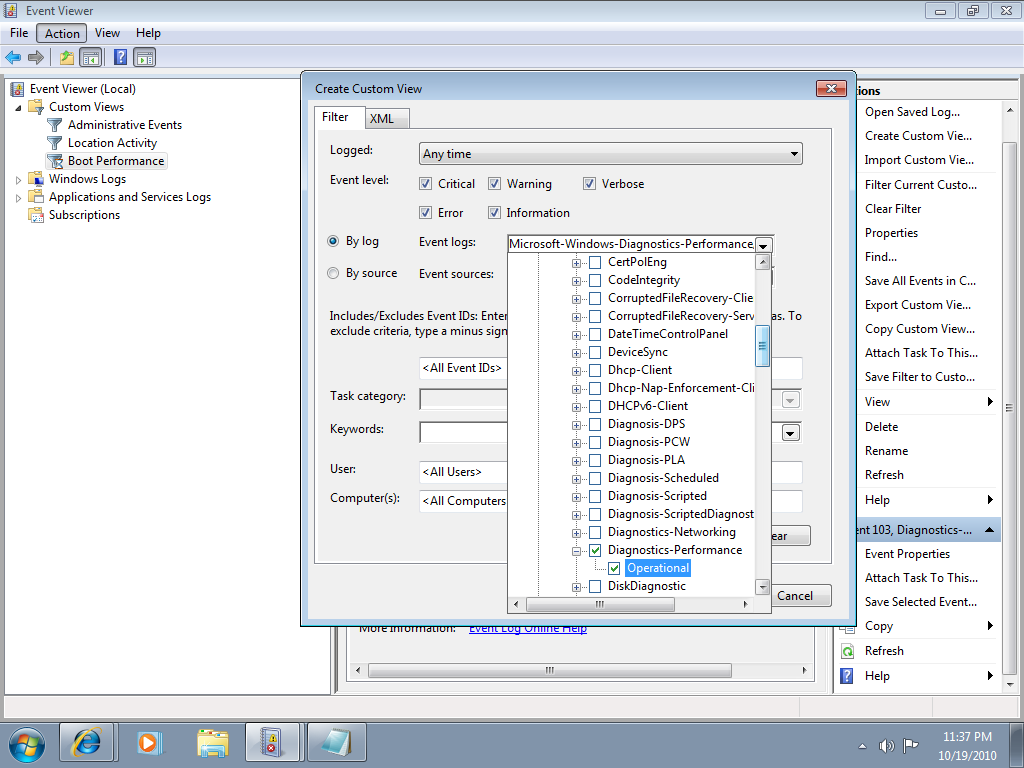
When you get to the Diagnostics-Performance branch, select the Operational check box.

To continue, type 100 in the Includes/Excludes Event IDs box, as shown in Figure B, and then click OK.

Figure B
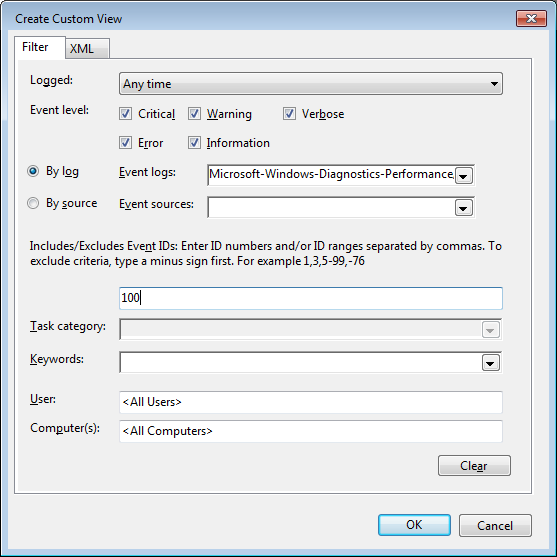
Event ID 100 records how long it takes to boot up your system.

When you see the Save Filter to Custom View dialog box, enter a name, as shown in Figure C, and click OK.

Figure C
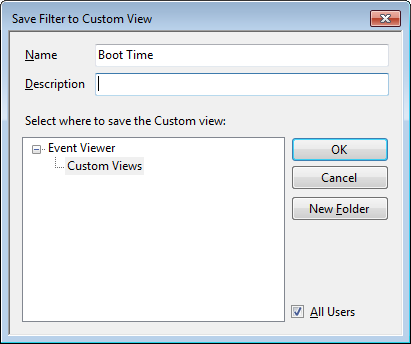
To save the filter as a Custom View, simply provide an appropriate name, such as Boot Time.

You’ll now repeat these steps and create another Custom View, and this time, you’ll type 101-110 in the Includes/Excludes Event IDs box and name it Boot Degradation.

Investigating Boot Time

To investigate your Windows 7 system’s boot time, select Boot Time in the Custom Views tree and then sort the Date and Time column in ascending order. When you do, you’ll see a complete history of every time you have booted your system since the day you installed Windows 7. In Figure D, you can see that we have hidden the Console Tree and the Action Pane to focus on the events.

Figure D
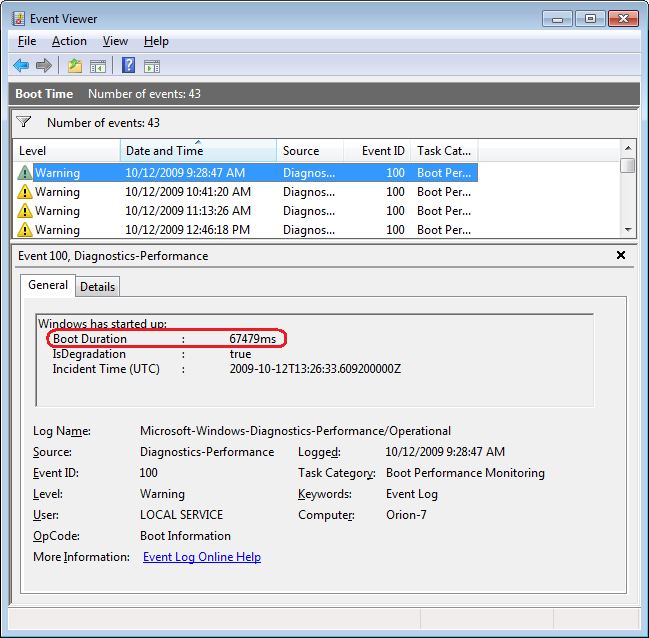
By sorting the Date and Time column in ascending order, you’ll see a complete history of every time you have booted your system since the day you installed Windows 7.

As you can see, the first recorded Boot Time on my sample system was 67479 milliseconds in October 2009. Dividing by 1,000 tells me that it took around 67 seconds to boot up. Of course, this was the first time, and a lot was going on right after installation. For example, drivers were being installed, startup programs were being initialized, and the SuperFetch cache was being built. By December 2009 the average boot time was around 37 seconds.

In any case, by using the Boot Time Custom View, you can scroll through every boot time recorded on your system. Of course, keep in mind that there will be normal occurrences that may lengthen the boot time, such as when updates, drivers, and software is installed.

Now, if you click the Details tab, you’ll see the entire boot process broken down in an incredible amount of detail, as shown in Figure E. (You can find more information about the boot process in the “Windows On/Off Transition Performance Analysis” white paper.) However, for the purposes of tracking the boot time, we can focus on just three of the values listed on the Details tab.

Figure E
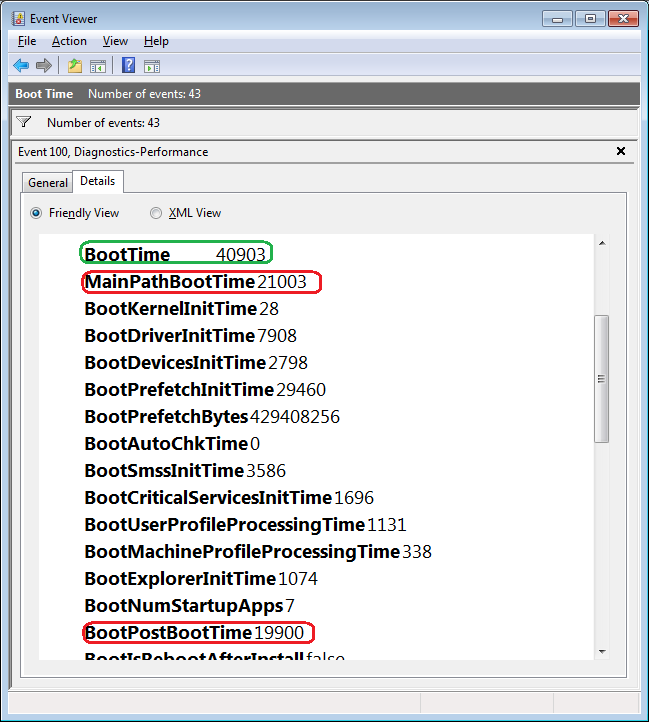
The Details tab contains an incredible amount of detail on the boot time.

MainPathBootTime

MainPathBootTime represents the amount of time that elapses between the time the animated Windows logo first appears on the screen and the time that the desktop appears. Keep in mind that even though the system is usable at this point, Windows is still working in the background loading low-priority tasks.

BootPostBootTime

BootPostBootTime represents the amount of time that elapses between the time that the desktop appears and the time that you can actually begin using the system.

BootTime

Of course, BootTime is the same value that on the General tab is called Boot Duration. This number is the sum of MainPathBootTime and BootPostBootTime. Something that we didn’t tell you before is that Microsoft indicates that your actual boot time is about 10 seconds less that the recorded BootTime. The reason is that it usually takes about 10 seconds for the system to reach an 80-percent idle measurement at which time the BootPostBootTime measurement is recorded.

Investigating Boot Degradation

To investigate instances that cause Windows 7 system’s boot time to slow down, select Boot Degradation in the Custom Views tree and then sort Event ID column in ascending order. Each Event ID, 101 through 110, represents a different type of situation that causes degradation of the boot time.

While there are ten different Event IDs here, not all of them occur on all systems and under all circumstances. As such, I’ll focus on the most common ones that we have encountered and explain some possible solutions.

Event ID 101

Event ID 101 indicates that an application took longer than usual to start up. This is typically the result of an update of some sort. As you can see in Figure F, the AVG Resident Shield Service took longer than usual to start up right after an update to the virus database. If you look at the details, you can see that it took about 15 seconds for the application to load (Total Time), and that is about 9 seconds longer than it normally takes (Degradation Time).

Figure F
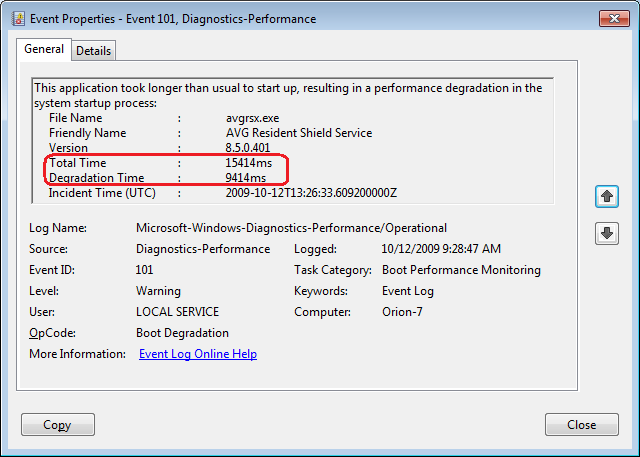
Event ID 101 indicates that an application took longer than usual to start up.

An occasional degradation is pretty normal; however, if you find that a particular application is being reported on a regular basis or has a large degradation time, chances are that there is a problem of some sort. As such, you may want to look for an updated version, uninstall and reinstall the application, uninstall and stop using the application, or maybe find an alternative.

(In the case of my friend’s Windows 7 system, there were several applications that were identified by Event ID 101 as the cause of his system slowdown. Uninstalling them was the solution, and he is currently seeking alternatives.)

Event ID 102

Event ID 102 indicates that a driver took longer to initialize. Again, this could be the result of an update. However, if it occurs regularly for a certain driver or has a large degradation time, you should definitely look in to a newer version of the driver. If a new version is not available, you should uninstall and reinstall the driver.

Event ID 103

Event ID 103 indicates that a service took longer than expected to start up, as shown in Figure G.

Figure G
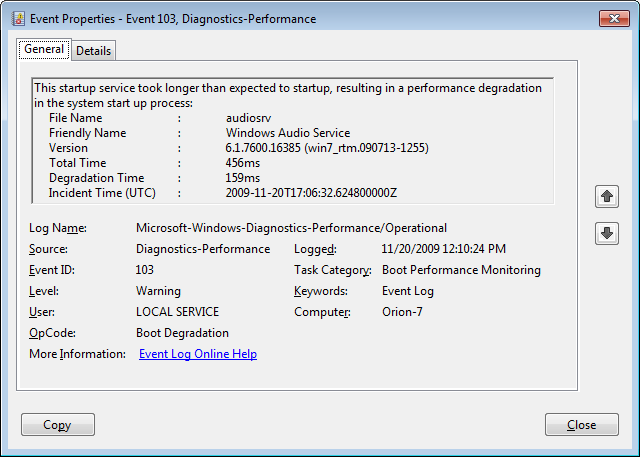
Event ID 103 indicates that a service took longer than expected to start up.

Services can occasionally take longer to start up, but they shouldn’t do so on a regular basis. If you encounter a service that is regularly having problems, you can go to the Services tool and experiment with changing the Startup type to Automatic (Delayed Start) or Manual.

Event ID 106

Event ID 106 indicates that a background optimization operation took longer to complete. On all the Windows 7 systems that we investigated, this event identified the BackgroundPrefetchTime as the culprit, as shown in Figure H. Since the Prefetch cache is a work in progress, this should not really represent a problem.

Figure H
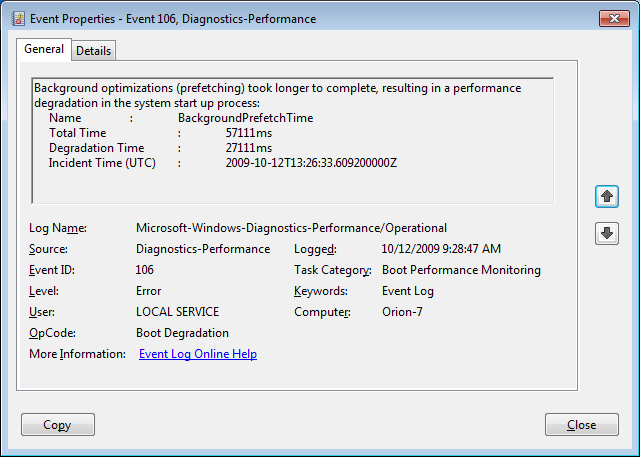
Event ID 106 indicates that a background optimization operation took longer to complete.

If you encounter regular or long degradation times related to Prefetch, you may want to investigate clearing this cache and allowing the operating system to rebuild it from scratch. However bear in mind that doing so can be tricky and instructions on doing so are beyond the scope of this article.

Event ID 109

Event ID 109 indicates that a device took longer to initialize. Again, if this is happening occasionally, there shouldn’t be anything to worry about. But if it is occurring regularly, you should make sure that you regularly back up your hard disk and begin investigating replacing the device in question.

Have questions?

Get answers from Microsofts Cloud Solutions Partner!
Call us at: 856-745-9990 or visit: https://southjerseytechies.net/

South Jersey Techies, LL C is a full Managed Web and Technology Services Company providing IT Services, Website Design ServicesServer SupportNetwork ConsultingInternet PhonesCloud Solutions Provider and much more. Contact for More Information.

To read this article in its entirety click here.
Modifying the Windows 7 boot loader with the Boot Configuration Data Editor tool

In Windows Vista and later versions of Windows, the bootloader was moved from boot.ini to a utility called BCDEdit. Here’s how to modify the boot config data with the new tool.

Sometimes dual-booting a system is a handy way to test new software, a new operating system, or an application that needs to be run in a specific version of Windows. Other reasons to dual-boot might include replication of a client environment.

Windows handles dual-booting by using boot.ini to display a menu of bootable choices or partitions found on the current system. In Windows Vista and later versions of Windows, the bootloader was moved from boot.ini to a utility called BCDEdit.

Recently, we decided we could make better use of some disk space that we had set aside to create a bootable VHD for Windows Server 2008 R2. There was no data other than the OS installation contained within the file because we had used it only to prepare a blog post about booting from Virtual Hard Disks. To free up the space, we deleted the VHD.

Note: Always make sure to back up any data that you want to keep before deleting or modifying partitions on VHDs. Your changes could make the partition unbootable.

Once we had the VHD removed, we thought Windows would be smart enough to clean up the boot loader, but we were not so lucky. We had Windows 7 set as the primary OS, so we were not without a system.

We started looking around for boot.ini and was directed toward the Boot Configuration Data Editor (BCDEdit) as the utility to use when editing boot loader information in Windows 7 (and in Vista too).

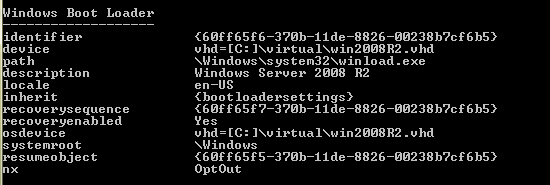
To begin, open the Start menu, select All Programs, and then choose Accessories. Right-click on Command Prompt and select Run As Administrator. Once in the command window, type bcdedit. This will return the current running configuration of your boot loader, showing any and all items that can boot on this system.

In this example, we decided to remove the entry for my Windows 2008 R2 installation, as we wouldn’t need it for the time being. To remove an entry, you will need to know the Boot Loader Identifier (found in curly braces in Figure A).

Figure A

we copied the whole list into Notepad and then selected and copied just the ID, braces included.

Removing an entry from the Boot Loader

One simple command got the Windows Server 2008 R2 entry out of the boot loader. At the command prompt, enter the following:

Bcdedit /delete {boot loader identifier}

Press Enter, and the Boot Configuration Data Editor (BCDEdit) will remove the entry for the ID you specified and display a message when finished. When Windows starts, the only choice available in the boot menu should be the current Windows installation.

Warning: Be careful when editing the boot configuration data. If you mistakenly remove the current instance of Windows, you may render your computer unbootable.

Have questions?

Get answers from Microsofts Cloud Solutions Partner!
Call us at: 856-745-9990 or visit: https://southjerseytechies.net/

South Jersey Techies, LL C is a full Managed Web and Technology Services Company providing IT Services, Website Design ServicesServer SupportNetwork ConsultingInternet PhonesCloud Solutions Provider and much more. Contact for More Information.

To read this article in its entirety click here.
What did Microsoft get right in 2016?

2016 was a very good year for Microsoft in terms of decision making. Here is a  list of five things the company got right.

Since its inception way back in the ancient epoch known as the 1970s, Microsoft has often been ridiculed for making mistakes. Whether it was for bad business strategies, poor products, or unscrupulous practices, Microsoft seemed to bring out the passionate ire in many people.

But what often gets overlooked is what Microsoft does right each year. And by just about any measurement, 2016 was a remarkable year for the company. Under the leadership of Satya Nadella, Microsoft has changed its business strategy to reflect what it describes as a mobile-first, cloud-first business world. And in 2016, that strategy began show results.

Here, in no particular order, are five things Microsoft got right in 2016.

1. Windows 10 Anniversary Update

To mark the one-year anniversary of Windows 10, Microsoft released a large patch it dubbed the Windows 10 Anniversary Update. Okay, so Microsoft is not very clever in naming things. But the patch itself was well received. It included new security measures, new program features, Microsoft Edge browser extensions, and advanced support for digital pens, among many other enhancements. If you were already using Windows 10, the Anniversary Update was a must.

2. Surface Studio

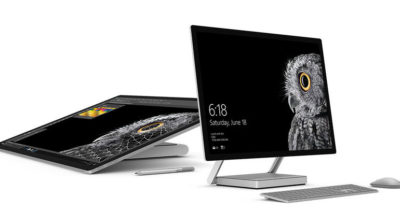
While not its primary business, Microsoft has been developing some noteworthy pieces of hardware the past few years and in 2016, the company generated a large amount of buzz with the release of the Surface Studio. This elegant computer combines the best of the desktop, laptop, and tablet to create a unique and innovative platform perfect for artists, designers, and other creative people. With data visualization becoming ever more important, Microsoft may have invented the perfect tool for the big data generation.

3. Microsoft Office 365

I have been wondering aloud if it is a bit too much, but there can be no doubt that with the dozens of program and feature updates released in 2016, Microsoft Office 365 is the alpha and omega of productivity software. Rather than trying to name all of the new features, it would be best to concentrate on the underlying theme: collaboration. Whether it is Yammer, Skype for Business, or the intelligent cloud, Microsoft is concentrating on features necessary for success in a collaborative environment.

4. LinkedIn

In 2016, Microsoft made several acquisitions of both companies and their technologies. Perhaps the most high-profile of these acquisitions was LinkedIn. Despite all of its efforts to create a collaboration platform with Office 365, the one thing Microsoft needed was a social networking component. LinkedIn gives the company a jump start toward establishing a social networking presence that can compete with the likes of Twitter and Facebook. It will be interesting to see what Microsoft does with this acquisition.

5. IoT, AI, and machine learning

While we may live in a mobile-first, cloud-first world right now, the future may very well revolve around the Internet of Things (IoT), artificial intelligence, and machine learning. To its credit, Microsoft sees the potential of these technologies and has taken steps to get ahead of the curve. In terms of recent history, getting ahead of the curve is not something Microsoft has done very well, so it is difficult to know where the research will lead, but it should prove to be worth watching closely.

Despite what some people may tell you, Microsoft does do some things right. In fact, for the most part, the company does more things right than it does wrong. In 2016, Microsoft did many things right and consumers and businesses have been the beneficiaries. Let’s hope Microsoft can continue the trend in 2017.

Have questions?

Get answers from Microsofts Cloud Solutions Partner!
Call us at: 856-745-9990 or visit: https://southjerseytechies.net/

South Jersey Techies, LL C is a full Managed Web and Technology Services Company providing IT Services, Website Design ServicesServer SupportNetwork ConsultingInternet PhonesCloud Solutions Provider and much more. Contact for More Information.

To read this article in its entirety click here.
Windows 10: The top 10 features headed your way in 2017

A look at the most significant changes due to hit Microsoft’s evolving OS in the coming year.

Microsoft has made many promises about what Windows 10 will do, and while some have materialized, others still remain ambitions.

As a perpetual work-in-progress, Windows 10 continues to accrue new features, as Windows catches up with Microsoft’s vision of it being an OS that runs anywhere, syncs with the cloud and has an intelligent assistant at its core.

While Windows 10 will be buffed up by the arrival of the Windows 10 Creators Update early next year, 2017 as a whole will see the OS undergo significant changes, some of which are long-awaited. Here’s what to look out for.

Windows 10 phones edge closer to replacing desktop PCs

Microsoft has long pushed the idea that Windows 10 on phones will be so powerful, it’ll be akin to carrying a full PC in your pocket, courtesy of the OS’ Continuum feature.

“With Continuum for phones, we believe that any screen can be your PC,” Joe Belfiore, Microsoft’s corporate VP of the operating systems group, told the Microsoft Build Developer Conference in 2015, going on to add:

“Imagine the effect this could have on mobile first countries, where individuals could be as effective with the phone that they’re buying.”

Today the reality of using Continuum on Windows 10 falls somewhat short of Belfiore’s future-gazing. While a select Windows 10 phones, such as the Lumia 950, can be hooked up to mouse, keyboard and monitor and used as a Windows desktop there are significant limitations. Only one fullscreen app can be used at a time, legacy Windows apps won’t run on existing handsets and even Universal Windows Platform apps need to explicitly support Continuum.

However, in addition to the possibility of legacy apps running on smartphones, see below, various improvements to Continuum are due to land with the Creators Update in early 2017.

These include support for more PC features, such as running multiple Windows side-by-side on the desktop, pinning apps to the Taskbar and hitting the Windows button to bring up the search box. Other improvements include the ability to keep your phone in your pocket and have it connect wirelessly to a docking station and to independently customize the Windows Start screen on the phone display and on a PC monitor.

Running classic Windows software on your phone

This one’s a rumor but based on solid foundations, and with the potential to transform Windows 10’s appeal on mobile if correct.

The big fly in the ointment when it comes to using Windows 10’s Continuum feature to run a phone as a PC is that Windows 10 phones only run Universal Windows Platform apps. This incompatibility means that widely-used Windows apps from desktop PCs can’t be used on handsets.

However, by sniffing around inside Windows 10’s code, users have uncovered signs that Microsoft is working on bringing these apps to Windows phones.

The code in question suggests that Microsoft is building an emulator that would allow desktop x86 apps to work on the ARM64-based handsets.

As reported by ZDNet’s Mary Jo Foley last month, Twitter user WalkingCat found a reference to what he termed “Windows’s hybrid x86-on-ARM64 tech” in Windows’ codebase, which also referenced the term, “CHPE.”

The clue chimed with Foley, who said her sources had told her that Windows 10 will gain this x86 on ARM64 emulation capability, but not until Fall 2017.

Foley guesses that C stands for Cobalt, the codename for x86 emulation on ARM, and that HP relates to the tech giant HP, which has been working with Microsoft on its the HP Elite x3 Windows Phone, a Windows 10 handset that can serve as a desktop PC via Continuum.

Microsoft certainly has good reasons for wanting such emulation to work. If Windows 10 phones could run as Windows desktops with full support for legacy apps, without having to resort to remote desktop software, Windows 10 phones could suddenly be far more appealing to business.

Return of OneDrive placeholders

Since the launch of Windows 10, many users have been petitioning Microsoft to reintroduce placeholders to the OS’ built-in OneDrive cloud storage service.

In Windows 8.1, placeholders, also called smart files, let users see all of their files stored on OneDrive, whether those files were stored on the device or not.

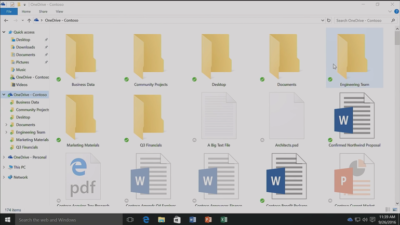
This feature was removed from Windows 10 but is now due to be bought back in Windows 10 File Explorer when browsing OneDrive. The returning feature will work in a similar fashion to Windows 8.1’s placeholders, showing users files both stored locally and on OneDrive, allowing them to download files and folders to the device and keep them in sync with OneDrive.

Orchestrate Windows apps using Linux tools

Microsoft recently updated Windows 10 to let users run a range of Linux tools from inside the OSand seems committed to continuing to improve support for Linux command-line software in Windows.

In Windows 10, Ubuntu/Linux software runs on top of the Windows Subsystem for Linux (WSL). Users run Linux software and issue commands at the command line via the Bash shell.

Microsoft is working to increase the range of commands that can be run via the shell but perhaps the most significant change on the horizon is increased interoperability between the Bash and Windows environments. Effectively this will let developers call Windows applications from within Bash — allowing them to write a Bash script to automate a complex build that includes Windows applications — and to invoke Bash applications from Windows PowerShell.

These changes will be generally available in Windows 10 after the Creators Update early next year.

Easy communication with friends and family

Next year’s Creators Update will boost Windows 10’s social credentials, with a series of changes to make it simpler to stay in touch and share content with friends and family.

The Windows MyPeople feature will allow users to pin their favorite contacts to the right-hand side of Windows taskbar. Clicking on a pinned contact’s face brings up email or Skype messages from only that person and files can be dragged files to that person’s face for quick sharing. Informal check-ins also become easier, with the Shoulder Taps feature allowing pinned contacts to send friends animated emojis and other clipart, which pop up above that contact’s face on the taskbar.

Focusing Windows around virtual and augmented reality

Microsoft plans to put 3D and virtual reality at the heart of Windows 10, as it bets on the success of low-cost headsets due out next year.

Acer, Asus, Dell, HP and Lenovo will release virtual reality head-mounted displays, with prices starting from $299.

Some of these headsets will be released in March, to coincide with the release of the Windows 10 Creators Update, which will include various tools to simplify the creation and sharing of 3D content, including a new version of Microsoft Paint.

In a demo earlier this year, Microsoft showed how Windows 10 could work on virtual reality headsets, demonstrating a mock-up of a virtual space with a large TV screen and virtual shelves stocked with apps and 3D models, and with the Edge browser appearing as a large window in the wearer’s view.

Another demo, this time using the far more expensive Microsoft HoloLens, showed Microsoft’s Edge browser as a window in the user’s vision, from which the demoer dropped actual-sized 3D models of stools from the furniture site Houzz around the room, in order to see what they looked like in real life.

Allowing Windows to function in this way is Windows Holographic, a variant of the Microsoft OS that provides a platform for virtual and augmented reality headsets to run Universal Windows Platform apps.

More detail on Microsoft’s VR and AR plans are expected this week at the WinHEC conference in China.

Better battery life

Windows 10 PCs and tablets should have better battery life after the Creators Update lands in March, thanks to changes to how the OS is patched.

The steady stream of updates isn’t going to slow down but they are going to suck up less bandwidth and reduce strain on phone and laptop batteries.

Download sizes for major updates will be cut by about 35 percent and battery life of Windows 10 mobile devices will improve, due to each device spending less time checking for updates.

The improvements will stem from Windows 10’s new Unified Update Platform, already used for Windows 10 on phones, which only updates each device with the files it needs, rather than delivering all updates to date, and doesn’t rely so heavily on the user’s device to process update data.

Windows Defender Application Guard

Coming to Windows 10 Enterprise users early next year, Windows Defender Application Guard is designed to help protect firms against online threats.

The new safeguard will add container-based isolation to Windows 10’s Edge browser.

Application Guard will ensure that when Edge accesses a website not designated as trusted, the browser will be launched inside a container, a virtualized environment isolated from the rest of the Windows OS.

If the site tries to download and run malicious code on the device, that code remains within the container, unable to permanently compromise the Windows device or the wider network, and disappears when the browser session shuts down.

Unlike the software-based sandboxes that are offered by other browsers, Microsoft says that Application Guard provides a hardware-based container that offers greater protection to the device.

Other enterprise-focused changes in the forthcoming Creators Update include improvements to Windows Defender Advanced Threat Protection’s ability to detect and respond to network attacks, an upgrade to the Windows Analytics dashboard to display additional information about the composition of IT estates, a new tool for in-place UEFI conversion, and a mobile application management feature for protecting data on employees’ personal devices.

Home Hub

Rather than building hardware to challenge voice-controlled virtual assistants such as Amazon Echo and Google Home, it seems as if Microsoft is working on transforming Windows 10 into what it calls a Home Hub.

Evidence of this shift comes from a Windows Central interview with unnamed sources. These sources claim that Home Hub will turn Windows into a shared computing environment for the home, allowing family members to more easily share calendars, apps and services.

A future-gazing Microsoft video from 2013, dug out by ZDNet’s Mary Jo Foley, shows how this system might eventually work. In it, family members share access to photos, apps and calendars on a screen attached to a wall and interact with computers around the home, for example scanning carrots to find appropriate recipes. Adding credence to the Home Hub rumor are references to Home Hub being a shared family account in Windows 10, as discovered by Twitter user WalkingCat.

ZDNet’s Foley also references a recent Microsoft job posting for a software engineer in the Windows and Devices Group, which is seeking someone to expand Windows’ “family” credentials.

According to the ad, this engineer will play a critical role in helping families to “share pictures, videos, applications, games, and other purchases easily” and to “communicate freely and stay in touch” using Windows 10.

Blue light reduction

One more unconfirmed new feature appears to be aimed at helping Windows 10 users get a good night’s sleep.

Being exposed to blue light from computer screens late at night can supposedly disrupt the body’s sleep cycle.

To counter this disturbance, Windows 10 already has f.lux software that reduces blue light emitted by screens close to bedtime.

But it seems that Microsoft may be working on its own feature to address the issue.

Twitter user Core has discovered references to “BlueLightReduction” hidden within early builds of the OS being tested under the Windows Insider Program, a setting which appears as if would be toggled from Windows 10’s Action Center.

Have questions?

Get answers from Microsofts Cloud Solutions Partner!
Call us at: 856-745-9990 or visit: https://southjerseytechies.net/

South Jersey Techies, LL C is a full Managed Web and Technology Services Company providing IT Services, Website Design ServicesServer SupportNetwork ConsultingInternet PhonesCloud Solutions Provider and much more. Contact for More Information.

To read this article in its entirety click here.
Windows 10 Anniversary Update: Watch out for these nasty surprises

A major update to Windows 10 is being rolled out. These are the gotchas that are catching out early users.

windows-10-anniversary-update

Windows 10 users are getting the first major update to the operating system in just under a year, with the release of the Anniversary Update.

But alongside the new features and fixes are some more unwelcome changes, ranging from less control for users to frozen machines.

Here are the main gotchas to look out for, as well as some fixes.

Less time to change your mind

With the arrival of the Anniversary Update, those upgrading to Windows 10 from Windows 7 or 8 have less time to switch back to the earlier OS.

Prior to the Anniversary Update, Windows 10 users had 30 days during which they could choose to reset their machine and restore their original OS. However, following the update Microsoft has reduced this period to 10 days.

Microsoft claims it reduced the period after noticing that most users who chose to switch back did so within a few days of upgrading, adding the change will free storage space on users’ machines.

The reduction also coincides with the end of period during which Windows 7 and 8 users could upgrade to Windows 10 for free – meaning those now paying $120 or more to upgrade will likely be less keen to switch back.

Frozen computers and broken systems

When you update software there is always risk that something will break, and that’s exactly what seems to be happening for some who have received the Windows 10 Anniversary Update.

The most common complaint seems to be that the update causes the computer to lock-up soon after loading the desktop.

In response to the problem, Microsoft has been advising users to run Windows 10’s Maintenance Troubleshooter and if that doesn’t work, to perform a clean boot of the system.

Meanwhile, users are reporting the most reliable fix has been to roll back to an earlier build of Windows 10.

Another repeated complaint is that Microsoft’s virtual assistant Cortana is missing from the Task Bar, replaced instead with a search box. In affected systems, Cortana also seems to be disabled inside the Edge web browser.

Some users of Avast and McAfee anti-virus – both widely used products – are also reporting problems after the upgrade, as are gamers trying to use Xbox One controllers.

Cortana is more difficult to get rid of

If you’re not a fan of Microsoft’s virtual assistant Cortana then prepare to dislike the Anniversary Update.

Following the update, it is no longer possible to turn off Cortana from the virtual assistant’s in-built Settings menu.

Instead, if users want to ditch Cortana they will need access to specific admin tools or to edit the registry.

Users can also minimise the information that Cortana collects, although thisdoes require altering various settings.

Harder for admins to block ads

Another less welcome change is that Windows 10 Pro users lose the ability to use admin tools to block ads.

Prior to the update, admins could edit Group Policy settings to stop ads for apps showing in the Start menu and on the lock screen.

However, Windows 10 Pro users will lose that ability, and, following the update, disabling these ads via Group Policy settings will only be available to those running Windows 10 Enterprise, Windows 10 Pro Education, or Windows 10 Education editions.

Individual users should be able to turn off many of these ads by disabling Windows 10 tips, tricks, and suggestions and Windows Store suggestions in the Settings app, however.

Following the Windows 10 Anniversary Update, new installs of Windows 10 will show double the number of ads for Windows Store apps in the Start Menu. Some users have also reported a possible increase in the number of ads shown on the lock screen following the update.

Have questions?

Get answers from Microsofts Cloud Solutions Partner!
Call us at: 856-745-9990 or visit: https://southjerseytechies.net/

South Jersey Techies, LL C is a full Managed Web and Technology Services Company providing IT Services, Website Design ServicesServer SupportNetwork ConsultingInternet PhonesCloud Solutions Provider and much more. Contact for More Information.

The end is near: Say goodbye to the Windows 10 free upgrade

The deadline for a free Windows 10 upgrade is right around the corner. Find out what happens after the offer expires.

Windows 10-July29

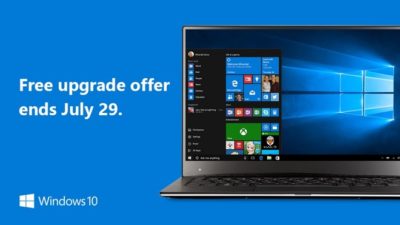
Don’t look now, but July 29, 2016, is coming up fast. That is the one-year anniversary of the release of Windows 10, which means the ability to upgrade to the new operating system for FREE will soon expire. (If you are interested, you can take a look at the official countdown here.)

In a January 21, 2015, Windows Experience blog post titled The next generation of Windows: Windows 10, we learned that Windows 10 would be a free upgrade. Author Terry Myerson said:

Today was a monumental day for us on the Windows team because we shared our desire to redefine the relationship we have with you—our customers. We announced that a free upgrade for Windows 10 will be made available to customers running Windows 7, Windows 8.1, and Windows Phone 8.1 who upgrade in the first year after launch.

A little over six months later, on July 28, 2015, Myerson penned another Windows Experience blog post, titled Windows 10 Free Upgrade Available in 190 Countries Today, in which he reiterated the free upgrade policy:

From the beginning, Windows 10 has been unique—built with feedback from five million Windows Insiders, delivered as a service with ongoing innovations and security updates, and offered as a free upgrade to genuine Windows 7, Windows 8.1 and Windows Phone 8.1 customers.

If you’ve been reading articles by Woody Leonhard or Paul Thurrott in recent months, you know that Microsoft has been upping its game with the Get Windows 10, or GWX, program it built into Windows 7 and Windows 8.1. It really wants every Windows user everywhere to be running Windows 10.

Any holdouts—Windows 7 or Windows 8.1 users who have been sticking to their guns so far—have only a few more weeks to go before losing their chance to get Windows 10 for free.

In a recent Windows Experience blog post titled Windows 10 Now on 300 Million Active Devices – Free Upgrade Offer to End Soon, Yusuf Mehdi, the corporate vice president of Microsoft’s Windows and Devices Group, said:

…we want to remind you that if you haven’t taken advantage of the free upgrade offer, now is the time. The free upgrade offer to Windows 10 was a first for Microsoft, helping people upgrade faster than ever before. And time is running out. The free upgrade offer will end on July 29 and we want to make sure you don’t miss out. After July 29th, you’ll be able to continue to get Windows 10 on a new device, or purchase a full version of Windows 10 Home for $119.

What will Windows 10 cost after July 29?

As Mehdi pointed out in his post, you will be able to purchase a full version of Windows 10 Home for $119.

But how much will Windows 10 Pro cost?

Well, if you head over to the Microsoft Store right now, you’ll find that you can purchase both Windows 10 Home and Windows 10 Pro as a download or on a USB flash drive. Windows 10 Pro will cost you $199.99. And moving past the July 29 deadline for the free upgrade, it’s a pretty safe bet that prices will remain the same—especially since they’re the same price points that the full versions of Windows 8.1 Home and Pro sold for when that operating system was new.

Will there be upgrade versions of Windows 10 after July 29?

Since Microsoft provided free upgrades for a full year, I wonder if there will be upgrade packages for Windows 7 and Windows 8.1 users who decide to upgrade to Windows 10 after July 29. I suppose that it’s possible, but then again, maybe not. When Microsoft introduced Windows 8.1 packages, it offered only the full versions—there were no upgrade versions of Windows 8.1. With that in mind, it’s easy to speculate that this may also be the case with Windows 10.

Have questions?

Get answers from Microsofts Cloud Solutions Partner!
Call us at: 856-745-9990 or visit: https://southjerseytechies.net/

South Jersey Techies, LL C is a full Managed Web and Technology Services Company providing IT Services, Website Design ServicesServer SupportNetwork ConsultingInternet PhonesCloud Solutions Provider and much more. Contact for More Information.

Microsoft makes it easier for firms to keep running Windows 7

The technology giant releases a bundle of updates for the seven-year-old operating system in the latest move designed to appeal to businesses in no rush to move to Windows 10.

windows-7prof-logo

Microsoft has taken another decision that should make it easier for businesses to continue running Windows 7.

The technology giant announced the release of the Windows 7 SP1 convenience rollup, a collection of security and other updates for the seven-year-old operating system. The release includes core Windows fixes, security fixes and hot fixes that have been issued since Service Pack 1 was released in 2011 and is designed to simplify the updating process.

Microsoft’s decision to release the bundle is a departure from the firm’s stance earlier this year, when it said it had no news on the promised convenience rollup of fixes for Windows 7, stressing instead “the success our customers are experiencing upgrading to Windows 10”.

The release follows another recent choice by Microsoft to dial back pressure on businesses to move to Windows 10. At the beginning of the year, Microsoft announced it would phase out support for Windows 7 and 8 on new PC hardware. The move seemed designed to encourage businesses not to downgrade new Windows 10 machines to an earlier OS, as has been common in the past in order to standardize corporate hardware. However, Microsoft later watered down the plans, pushing back the point at which it will end full extended support for Windows 7 and 8.1 machines running on Intel’s Skylake CPUs.

Richard Edwards, principal analyst for Enterprise ICT at Ovum, said Microsoft’s recent decisions are an acknowledgement of how many businesses still run Windows 7 and how long it will likely take them to switch.

“Most organizations are still in the early planning stage when it comes to Windows 10. This means that most of the PCs running Windows 10 today are in the consumer segment of the market, and thus Windows 7 is probably running on 80 percent-plus business Windows PCs,” he said.

Inside enterprises, Windows 7 is “going to be around for many years to come,” he said. “Microsoft has to find ways to please and delight these enterprise customers, and easing the burden on IT departments is one way to do this.”

While Edwards believes the release of the Anniversary Edition update to Windows 10 will drive upgrades by early adopters, he predicted that mass adoption is still some way off, forecasting that the bulk of firms will migrate from mid-2017 through to 2020.

“Organizations will only upgrade to Windows 10 if they have a clear insight into its business value,” said Edwards, adding that key business features such as Enterprise Data Protection were still not in place.

Microsoft’s focus on driving customers to Windows 10 has earned it criticism from small businesses, which recently complained about the decision to push the aggressive Get Windows icons and pop-ups to domain-joined PCs.

Analyst house Gartner had predicted that adoption of Windows 10 by business would be “significantly more rapid” than that of Windows 7 but this year was more cautious, claiming that flat IT budgets are pushing the start of enterprise migrations back to 2017.

“It’s to do with current budget restrictions as much as anything. They [budgets] are not being made available,” said Gartner research director Ranjit Antwal at the time.

There is little third-party data on the rate of adoption of Windows 10 by business, although Microsoft claims enterprises are switching more rapidly than they did to Windows 7.

Have questions?

Get answers from Microsofts Cloud Solutions Partner!
Call us at: 856-745-9990 or visit: https://southjerseytechies.net/

South Jersey Techies, LL C is a full Managed Web and Technology Services Company providing IT Services, Website Design ServicesServer SupportNetwork ConsultingInternet PhonesCloud Solutions Provider and much more. Contact for More Information.

To read this article in its entirety click here.
Windows 10 Start menu will soon show twice as many ads. Here’s how to get rid of them

Want to never see a promoted app in the Start menu again? Follow this step-by-step guide for home users and businesses.

windows10giffy

Microsoft is to double the number of adverts for apps that appear in Windows 10’s Start menu.

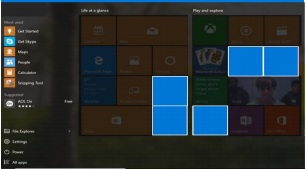
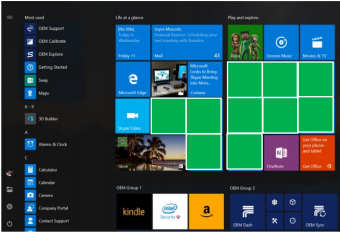
Windows 10’s Start menu currently has five tiles that display ‘promoted apps’, which are Windows Store apps the user hasn’t installed on their PC. Three of these tiles are links to apps on the Windows Store and two are Windows Store apps that Windows 10 has previously automatically installed on the machine.

In future versions of Windows 10, the number of ‘promoted apps’ tiles in the Start menu will rise to 10. To make room, the number of tiles linking to apps installed on the machine will decrease, from 17 to 12.

Microsoft discussed the changes at the Windows Hardware Engineering Conference in late April, as part of a briefing on new features in the Windows 10 Anniversary Update, due out this summer.

It remains unclear whether all versions of Windows 10 will eventually see the Start menu changes or just new installs. Microsoft has been contacted for clarification.

If you don’t want adverts appearing in your Windows 10 Start menu, here’s how to remove them.

For home users

One option for removing these tiles is to install Classic Shell. The software will allow you to customize the look and feel of Windows, including changing the Start menu to resemble that of Windows 7 or earlier Microsoft operating systems.

If you don’t want to do that, here’s how to manually remove each tile from the Start menu.

In the slides below, you can see which tiles you will want to remove to get rid of promoted apps. Figure A shows the layout of promoted app tiles before the Anniversary Update changes and Figure B shows after.

Figure A
win10before
Figure B
win10after

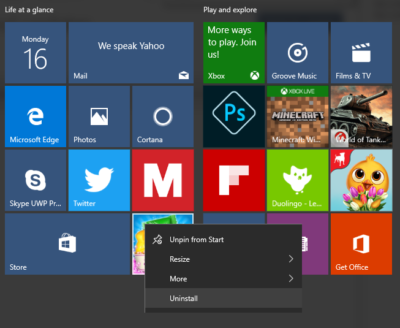
Depending on which version of Windows you’re running, you’ll want to remove each of the tiles highlighted in Figure A or B. Let’s start by removing promoted apps that are installed on your machine. Right clicking on these tiles will show a drop down menu with an ‘Uninstall’ option at the bottom, as shown in Figure C. Click on this option to remove the app.

Figure C

cons5

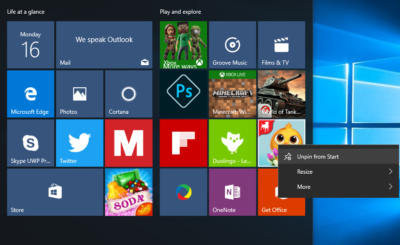
Next to get rid of those promoted apps that link to the Windows Store. Right clicking on these apps will again show a drop down menu but this time click ‘Unpin from Start’ at the top, as shown in Figure D.

Figure D

consumerlatest

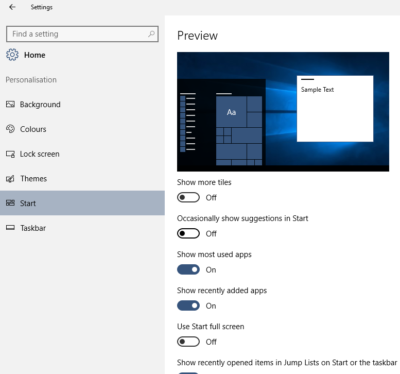
Finally, to remove suggested apps from the sidebar in the Start menu, you’ll need to make a change in Settings. Go to Settings->Personalization->Start and click the slider to ‘Off’ that sits under ‘Occasionally show suggestions in Start’, as shown in Figure E.

Figure E

consumerremoveads

For businesses

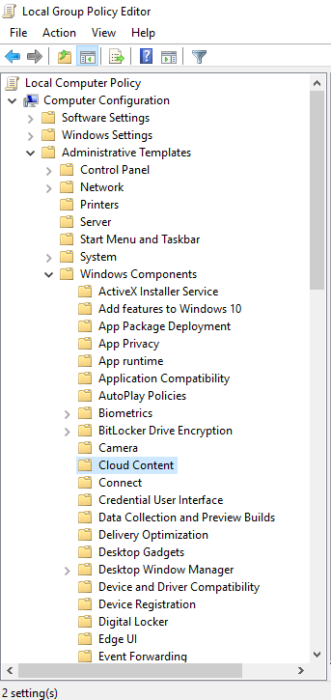
If you are running the Education or Enterprise versions of Windows 10 then promoted apps can also be disabled by changing a Group Policy setting. First open the Local Group Policy Editor. Next, as shown in Figure F, open the following folders in the left hand menu: Administrative templates->Windows Components->Cloud Content.

Figure F

cons4


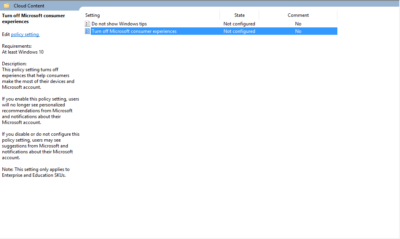
Next double click Turn off Microsoft consumer experiences, as shown in Figure G.

Figure G

biz5

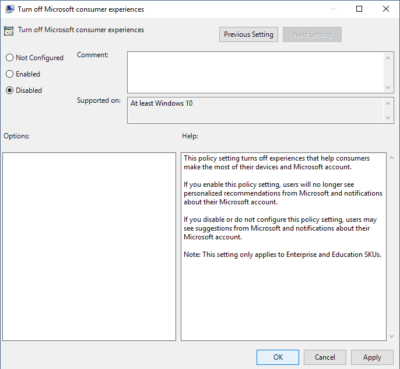
Inside the Turn off Microsoft consumer experiences window, click the radio button marked ‘Disabled’ and then click ‘Ok’ at the bottom of the window, as shown in Figure H.

Figure H

biz3

Have questions?

Get answers from Microsofts Cloud Solutions Partner!
Call us at: 856-745-9990 or visit: https://southjerseytechies.net/

South Jersey Techies, LL C is a full Managed Web and Technology Services Company providing IT Services, Website Design ServicesServer SupportNetwork ConsultingInternet PhonesCloud Solutions Provider and much more. Contact for More Information.

To read this article in its entirety click here.
Office 365 gets Six new Excel Functions

Microsoft made several new updates to Office 365 in February, including the addition of six useful functions for Excel.

EcxelOffice365

When it comes to general updates to Microsoft Office 365, February 2016 was a fairly significant month. Microsoft rolled out numerous improvements to Office 365, like better pen annotation integration, the ability to pin documents to the Start menu, a new feature that allows images to be inserted into documents directly from the camera, and the best—adding more functions to Excel.

Six new functions

Using, combining, and creating formulas in Microsoft Excel is where true Excel gurus separate themselves from the pretenders and wannabes. For an Excel aficionado, the satisfaction of creating the perfect nested formula is second to none when it comes to Excel coding. So when Microsoft adds six new functions to Excel in one month it is a very big deal.

Of course, while there is great satisfaction when you figure out the perfect formula, a certain amount of despair also goes with it—because now you have to apply that complicated nested formula over and over again. This is where the six new functions are supposed to help.

The first updated functions are TEXTJOIN and CONCAT, and they are replacements for the old concatenate function, which gave the user the power to join strings of separate text into one cell. This comes up with addresses all the time—a common task for spreadsheets since they were invented.

In the past, the formula would look something like this:

=CONCATENATE(A3, “, “, B3, “, “, C3,”, “, D3, “, “, E3)

With the new TEXTJOIN formula, the same process would look something like this:

=TEXTJOIN(“, “, TRUE, A3:E3)

This is just one example of how these new functions are designed to simplify users’ lives when it comes to advanced Excel tasks.

The next two new functions are IFS and SWITCH, which provide an alternative to using the infamous series of nested IF functions. The old IF function was the mainstay for Excel coders looking to apply logic to sets of data. You know what I mean: If this is larger than this, than this; but if it is larger than this but less than that, then this, etc. The more nested IF functions the more complicated the formula and the more likely you are to make a mistake.

The last two new functions are MAXIFS and MINIFS. They are designed to supplement the MAX and MIN functions by allowing users to apply conditions to the maximum and minimum calculations and thereby filter results. In the past you may have had to use the IF function to create your filtered conditions. These new functions eliminate the need and make your life just that much simpler.

Office365

Bottom line

When Microsoft began trying to convince us that subscribing to Office 365 was a better idea than repurchasing new versions every few years, the ability to update the productivity suite regularly at no extra cost was one of the main selling points. As the new six functions illustrate, that was not a false promise.

These functions are just the tip of the iceberg when it comes to Office 365 improvements. However, the problem with continuous updates to the software is that users have to try to keep up.

Even though there are some users out there who will keep using nested IF functions no matter what improvements come along, for example. But for the rest of us, it would seem to be worthwhile to pay attention to whatever improvements Microsoft rolls out each month. Because for better or worse, changes to Office 365 are going to keep coming.

Have questions?

Get answers from Microsofts Cloud Solutions Partner!
Call us at: 856-745-9990 or visit: https://southjerseytechies.net/

South Jersey Techies, LL C is a full Managed Web and Technology Services Company providing IT Services, Website Design ServicesServer SupportNetwork ConsultingInternet PhonesCloud Solutions Provider and much more. Contact for More Information.

Yammer is on the way to Office 365: Are you ready?

Microsoft is activating Yammer for every Office 365 subscription. But is this one collaboration tool too many?

On February 2, 2016, Kirk Koenigsbauer announced in the official Microsoft Office 365 blog that Yammer is now being activated for every eligible Office 365 subscription. In a nutshell, that means Yammer is going to be another app on the Office 365 app list unless an admin specifically turns off access. Your enterprise should plan accordingly.

Yammer

For those of you unfamiliar with the product, Yammer bills itself as an enterprise internal social network. It mixes the typical chat messenger application with collaboration tools available in Office 365.

Similar to the Delve tool we looked at last week, Yammer can serve as the central hub for team collaboration. From within a Yammer discussion, teams can set up meeting appointments using Outlook, switch to a full-fledged Skype for Business video meeting, and access OneDrive for Business to create collaborative documents.

The initial rollout of Yammer took place on February 2, 2016; the rest of the rollout will take place in stages. The next release is March 1, 2016, and the last is April 1, 2016. According to the blog post, the first wave is for “Office 365 customers with a business subscription who purchased fewer than 150 licenses that includes Yammer and who have zero or one custom domains for Yammer.”

The second wave is for “Office 365 customers with a business subscription who purchased fewer than 5,000 licenses that includes Yammer.” Customers with an education subscription are not included.

The final wave is for “remaining customers with a business subscription and all customers with an education subscription.” For subscribers who have never had a Yammer account, the rollout will take place last, in April. Alas, that is the wave I’ll have to wait for.

Collaboration

Yammer is the latest, and perhaps the last, major teamwork collaboration app to be added to Office 365. In Microsoft’s vision of a mobile-first, cloud-first enterprise, teams collaborate across distances using shared documents, video conferencing, and applications that tie it all together in one virtual location.

YammerForOffice365

With the addition of Yammer, Microsoft is offering several tools teams can use to manage and organize their collaboration activities. Teams can use Yammer, Delve, Groups, Sites, SharePoint, and OneNote to manage their shared conversations and documents across the enterprise. One of those tools should be able to satisfy even the most persnickety of teams.

Bottom line

But then again, that may be where we run into problems. One could argue that there are too many collaboration tools available in Microsoft Office 365. While all these wonderful choices may seem good at first glance, it is possible that subscribers may become overwhelmed.

Microsoft’s idea that teams can choose the best tool for them or for the project they are working on sounds all well and good, but it does still require someone to make an important initial decision. For some people, making a decision that will affect a project from start to finish can be a daunting task.

In the long run, it may be beneficial for organizations to establish guidelines for when each of the collaboration tools works best. They may even decide to block some of the tools from use altogether in favor of a recommended best practice.

Having myriad collaboration tools is generally a good thing, but it might help move things along if the enterprise establishes some well thought out guidelines.

Have questions?

Get answers from Microsofts Cloud Solutions Partner!
Call us at: 856-745-9990 or visit: https://southjerseytechies.net/

South Jersey Techies, LL C is a full Managed Web and Technology Services Company providing IT Services, Website Design ServicesServer SupportNetwork ConsultingInternet PhonesCloud Solutions Provider and much more. Contact for More Information.

CALL US NOW!