Back to Top

Tech, Web, Cloud & Cabling Services

Category: Windows

Windows Category

Windows XP End of Life

Takeaway:  Many companies are not planning to upgrade when Microsoft ends support for Windows XP.

SCALE2Many users are finding it difficult to adapt to the innovative Windows 8.  The update “Windows Blue” expected to be released before December 2013, has a possibility of restoring the Start button and initially boot to the traditional desktop.

Windows 7 is the most convincing route for upgrading from Windows XP.  Many features are similar to XP including the traditional boot-to-desktop and Start button.  For Windows 7 buyers, extended support until 2020 is offered.

Microsoft officially announced on April 10, 2012 that they will end extended support as of April 8, 2014 for Windows XP and Office 2003.  Although, the risk of vulnerabilities and the cost to limit exposure, XP is still hanging on.  

To protect and upgrade your home or business

 please contact us 856-745-9990 or click here.


Surface vs Surface Pro

final

Surface RT

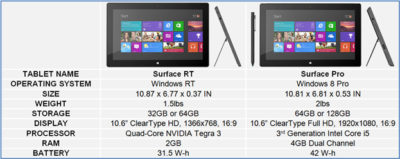
Surface RT was released on October 26, 2012.  Running Windows RT Operating System on a Quad-Core NVIDIA Tegra 3 Processor.  Storage options are 32 GB or 64 GB.  According to recent news, only 16 GB available for the 32 GB hard drive and 46 GB available for 64 GB hard drive.  Bundled with the Surface RT is Office Home & Student 2013 RT Preview.

Office Home & Student 2013 RT includes Word, Excel, PowerPoint and OneNote.  Surface RT does not support Outlook.

The price for the Surface RT is $499.00.

Surface Pro

Surface Pro was release on February 9, 2013.  Running Windows 8 Pro Operating System on Dual-Core Intel i5 Processor.  Storage options are 64 GB or 128 GB.  According to recent news, only 23 GB available for the 64GB hard drive and 83 GB for the 128 GB hard drive.  Bundled with the Surface Pro is Full Office Suite Preview.

Surface Pro is a Business tablet that includes a pen and the pen digitizer.  The stylus helps make taking notes, drawing and marking up documents easy.  The price for the Surface Pen is $29.99.

The price for the Surface Pro is $899.00.

table2

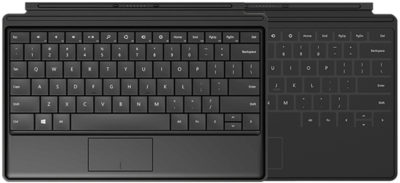
Not included with the purchase of the Surface RT or the Surface Pro is a keyboard.  Microsoft offers two options, Touch cover and Type Cover.  The Touch Cover is a pressure-sensitive keyboard and tablet cover; available in Red, Black, Cyan, White and Magenta.  The price of the Touch Cover is $119.99.  The Type Cover is thin “classic” keyboard and tablet cover; only available in Black.  The price of the Type Cover is $129.99.

typetouchcover2

Type Cover and Touch Cover

Surface 2 for 2014

surface2Technology is a fast paced industry; current technology and devices are just making way for tomorrow’s new technology. With that said, Microsoft is developing their second generation tablet, Surface 2.

Although in the Top Five Tablets for the first quarter of 2013, Microsoft has not been as successful as planned with the Surface Tablets, only selling half of the units required for their intended goal.

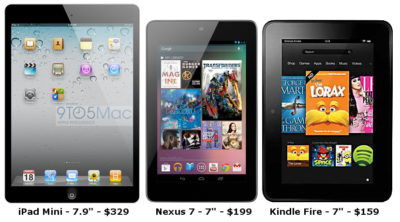
inkTo conquer the growing demand for smaller tablets, Surface 2 will have a 7-9 inch display with a higher screen resolution than its competitors, iPad Mini, Nexus 7 and Kindle Fir..  The iPad Mini offers 1024×768 resolution, the Nexus 7 offers 1280×800 resolution and Kindle Fire offers 1024×600 resolution.  Microsoft expects Surface 2 to offer 1400×1050 resolution.

Partners from the Surface RT and Surface Pro development are working together including Pegatron Technology, Ju Teng, Samsung, LG, Corning, Intel and NVIDIA to build the second generation.

The rumored price of the Surface 2 will be approximately $400.  Microsoft’s Build Developer Conference at the end of June will announce more information regarding the Surface 2 including a possible release date, specifications and features.


Tips for Troubleshooting Outlook

outlook-logo-vector2

Takeaway:   The most significant means of communication in the office is email.  Even though Outlook is the most used mail client for businesses, it can develop problems. Using these ten tips will quickly resolve issues that can impact communication.

1.  Scan PST file

When Outlook becomes troubling, you can use the Inbox Repair Tool provided by Microsoft.  This tool will backup, scan and repair your Personal Folder files (.pst).  The entire process could take more than a few minutes to complete.

2.  Archive Data

Archiving your data will prevent common problems that large PST files create.  Archived data will be moved to a different PST to alleviate the size and space of you primary PST.  After an archive is done, running scanpst.exe will be a safe way to check the file. 

3.  Rename OST

Some problems can be resolved by simply renaming the OST file and allowing Outlook to create a new one.  The OST file saves your e-mails, calendar entries, contacts and other items.  Outlook will open like new after renaming an OST file.

4.  Delete/Rebuild Profile

When deleting or rebuilding an Outlook Profile taking precaution is a necessary step; open Control Panel, select Mail option, select Show Profiles and then select Delete.  For POP accounts, you must save the user’s data by exporting a data file from Outlook.  For Exchange and IMAP accounts, you can delete and re-create the account.  

5.  Disable Add-Ons

Another simple fix is to disable add-ons.  To check the speed of Outlook, use outlook.exe /safe command will allow you to open Outlook in Safe Mode (no-add-ons running).  After testing the speed, you can disable add-ons that may be slowing your system down.

6.  Disable Virus Scan

Popular Anti-Virus tools have a feature that will scan all e-mails to and from your system.  Temporarily disabling this feature is a work-around but not a solution.  Outlook will be defenseless when this feature is disabled.

7.  Run in Safe-Mode

Another temporary fix is to open Outlook in Safe Mode.  Use outlook.exe /safe command will allow you to open Outlook in Safe Mode (no-add-ons running).  This is a work-around but not a temporary fix.

8.  Resetnav

Users can arrange their navigation bar according to their needs which sometimes causes Outlook not to work properly.  A fast way to rest the navigation bar is using outlook.exe /resetnavpane command.

9.  Migrate PSTs

 All user PST files should be stored on the C Drive of the user.  If all users are accessing a shared drive for their PST files, it will slow down Outlook and possibly your network.

10.  Adjust Permissions

To adjust user’s calendar permissions – open the calendar in Outlook, right-click the shared calendar, select Properties, and in the Permissions tab you can adjust user’s calendar permissions.

Windows 8.1 Uncovered

Takeaway: Microsoft has created many new features that are included with Windows 8.1 expected to be release before the end of 2013.

Untitled

Windows 8.1 is more than an update to Windows 8; it has new features for both businesses and home users.  Another major step for Microsoft will be annual updates for operating systems; similar to Apple with OS X.

The biggest update will be the traditional Start button on the left side of the screen.  Other features include:

  • Boot-to-desktop is available instead of booting to the Metro Start Screen.
  • Start screen provides additional custom options for tiles.
  • New snap behavior allows up to four Windows 8 Apps to be placed side-by-side without the 320-pixel limitation. 
  • PC Settings section includes settings previously located in Control Panel.
  • SkyDrive Synchronization settings are built into the operating system.
  • & many other features.

Windows 8.1 Preview with Jensen Harris


Surface RT the Enterprise Tablet

surfacert

Takeaway:  Microsoft Surface RT is the first Tablet equipped for enterprise.

Apple and Android are dominant for consumer consumption, but Windows RT is the best candidate for enterprise use. 

Surface RT Tablet

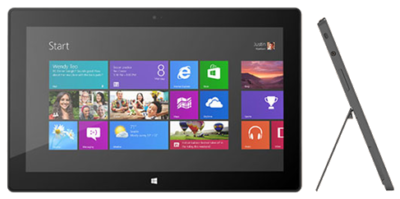
The Surface by Microsoft is a crossover between a laptop and a tablet.  The Surface RT is a slim tablet with a kickstand and the option of a Touch Cover or a Type Cover.

Surface RT is running Windows RT Operating System on a Quad-Core NVIDIA Tegra 3 Processor.  Storage options are 32 GB or 64 GB.  According to recent news, only 16 GB available for the 32 GB hard drive and 46 GB available for 64 GB hard drive.  

Surface RT for Enterprise use

Surface RT is pre-loaded with  touch-enhanced versions of Microsoft Office Suite (Word, Excel, PowerPoint, and OneNote).  Unlike the iPad, the RT has the ability to increase storage with a USB port and MicroSDXC card slot.

Effortlessly join and integrate a Surface RT into a Windows environment; with the capability to retrieve and share network resources.  Providing a “true desktop browser” and the basic functionality, commonly used with a desktop computer, allow the transition from desktop to tablet to be easy.


Microsoft – What went wrong?

ET83-screen[1]Touch 10 MonitorMicrosoft has always been key player in the Technology world.  In 2009, Microsoft released Windows 7, for many users it became the best operating system yet.  Not too long after the release of Windows 7, Microsoft predicted that “touch-screens” were the future of technology and focused all of their resources in one place.

On October 26, 2012, Microsoft released their Windows 8 OS and their first tablet, the Surface RT.  Shortly thereafter, on February 9, 2013, Microsoft released the second tablet, the Surface Pro.  For more information regarding the Surface RT or the Surface Pro, click here

“A Windows 8-based PC is really a new kind of device, one that scales from touch-only small screens through to large screens, with or without a keyboard and mouse,” said Julie Larson-Green from Microsoft.

Apple and Android touchscreen devices have been very successful because they are useful on-the-go.  Trying to compete with Apple and Android, Microsoft developed Windows 8, a touch-oriented OS.  Many desktop and laptop users have had problems adjusting to the new OS.   Also, the Surface Tablet users are having trouble adjusting to this device and OS because it is a touch-enabled laptop.  Using the touchscreen features on a laptop is not convenient and very uncomfortable.

How long will it take for Microsoft to regain its position in the technology world?


‘Zero-Day’ for Microsoft XP Users

194212

On April 10, 2012, Microsoft officially announced that as of April 8, 2014 they will end extended support for Windows XP and Office 2003, after which no new updates, hotfixes, patches or support will be issued.  “Since a security update will never become available for Windows XP to address these vulnerabilities, Windows XP will essentially have a “zero day” vulnerability forever” said Tim Rains from Microsoft.  Zero-day attacks are when attackers exploit a vulnerability before the developer is aware or can fix the problem.

Windows XP already has a notably higher infection rate than its successors Windows 7 and Windows 8.  Those preparing to continue using XP after the cut-off date, are going to be in a unpleasant situation trying to protect their intellectual property.   With Microsoft ending their support, the vendors for applications running on it will most likely end support.

Attackers will have the upper hand once Microsoft cuts off XP support and presumably will have more information than the defenders about system and application vulnerabilities.  Also, attackers will have the possibility of compromising the system and applications if they exploit the zero-day vulnerabilities.

For more information regarding Windows XP End of Life, click here.

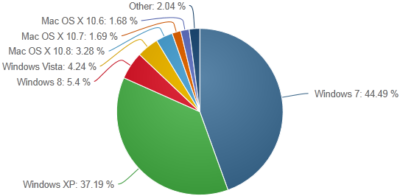
According to NetMarketShare.com, Windows XP still has about 37 percent desktop operating system share as of June 2013.   Although it is the second most used operating system, Microsoft said that they will not be extending support for XP after April 8, 2014.

xp

To protect and upgrade your home or business

 please contact us 856-745-9990 or click here.


XP will be Non-Compliant

logo_footer_hipaa

Windows XP was released on October 25, 2001 and has become one of the most popular versions of Windows for home and business environments.

The HIPAA Security Rule requires all systems to be updated regularly, as of April 8, 2014 Microsoft will end support for Windows XP, after which no new updates, hotfixes, patches or support will be issued.

This is a major problem within the healthcare industry since many computers are still running XP.  Migrating to a new operating system can be a challenging task because some XP machines have proprietary software that are not compatible with Windows 7+.  

Evaluate the technical infrastructure including servers, workstations and network equipment to create a migration plan.  Communicating with product vendors will help create the migration plan.  Vendors can provide support for updating and upgrading the software/hardware.  Implementing Virtualization within your network is a centralized option to replacing your current setup.  A virtual desktop infrastructure is having 50+ desktops reside on one physical server and sharing the resources, such as CPU, storage and memory.

During the migration, providing an efficient setup for the clinical staff may also include upgrading the manageability of the network and designing a much more scalable and secure IT infrastructure.

To protect and upgrade your home or business

 please contact us 856-745-9990 or click here.


Windows 8 – Access Windows XP Apps

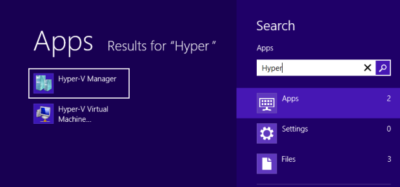
Client Hyper-V is a virtualization tool that comes with Windows 8 Professional and Windows 8 Enterprise.  Using Client Hyper-V can run Windows XP applications on a Windows 8 machine.  This tool requires that your system has a minimum of 4GB of RAM, 64-bit CPU that supports Second Level Address Translation (SLAT).  Also, the key virtualization feature must be enabled prior to setup.
6388488-620-290

Step 1 – Getting Started with Windows 8 Client Hyper-V

Step 2 – Installing Client Hyper-V

Step 3 – Create a Virtual Switch

Step 4 – Create a Virtual XP Machine

Step 5 – Setup USB Access

Step 6 – Install RemoteApp Tool

Step 1 – Getting Started

Launch and verify System Information:

  • To access the Apps Search page:  [Windows] + Q keystroke.
  • In the text box type msinfo32 and click msinfo32.exe.
  • Scroll to the bottom of the right panel and the following values are set to Yes:  (If the Second Level Address Translation Extensions or the Data Execution Protection values are set to No, then you will not be able to use Windows 8’s Client Hyper-V.)
      1. Hyper-V – VM Monitor Mode Extensions
      2. Hyper-V – Second Level Address Translation Extensions
      3. Hyper-V – Virtualization Enables in Firmware
      4. Hyper-V – Data Execution Protection.

Enabling Virtualization through Setup Utility

    • Before the operating system loads, boot into your Setup Utility.
    • Select Computer Setup (If applicable)
    • Scroll to Security drop-down menu and select System Security.

  • Enable Virtualization Technology.
  • Save Changes and Exit.

Go to Step 2 – Installing Client Hyper-V.

Step 2 – Install Client Hyper-V

    • To access the Programs and Features tool:  [Windows] + X keystroke.
    • Select Turn Windows Features on or off (located in the left panel).
    • Select the Hyper-V box.

  • Click OK.  After Installation there will be a prompt to Restart the system.

Go to Step 3 – Create a Virtual Switch.

Step 3 – Create a Virtual Switch

For a VM to connect to your network or Internet, the VM must be connected to a Virtual Switch.

  • Open Hyper-V Manager (Start Screen)
  • In the Actions Pane, select Virtual Switch Manager.
  • Choose the type of Virtual Switch you would like to create:  External*, Internal and Private
    1. External:  Connection with entire network and Internet.
    2. Internal:  Connection with “Host” machine network connection only.
    3. Private:  Connection with other virtual machines only.
  • After selecting the type, another window will open where you can Name the switch and add the Description.
  • Click OK.  Then click Yes to “Apply Networking Changes”.

In a typical Client Hyper-V Configuration, you will not use the following settings:

    • “Enable virtual LAN identification for management operating system in the VLAN ID” check box.
    • Extensions (Located under the Virtual Switch on the left panel).

  • MAC Address Range (Global Network Settings on the left panel).

Go to Step 4 – Create a Virtual XP Machine.

Step 4 – Create a Virtual XP Machine

  • Open Hyper-V Manager (Start Screen)
  • In the Actions Pane, select New and then Virtual Machine…
  • Before You Begin window, click Next.
  • Specify Name and Location window, you can name your VM and where you would like to save it, then click Next.
  • Assign Memory window, type the amount of memory you would like to allocate for the VM (8MB – 1804MB), then click Next.
  • Configure Networking window, click Next.
  • Connect Virtual Hard Disk window, you can Create a virtual hard disk, Use an existing virtual hard disk or Attach a virtual hard disk later, then click Next.
  • Installation Options window, you can Install the OS laterInstall an OS from a boot CD/DVD or ISOInstall OS from boot floppy disk or Install OS from a netowrk-based installation server.
  • Then click Next to view the Summary or click Finish to complete the setup.

Setting up the Networking settings for an XP machine requires additional steps.

  • Open Hyper-V Manager (Start Screen)
  • In the Actions Pane, select Settings…
  • Select Legacy Network Adapter in the “Add Hardware” section, then click Add.
  • In the “Legacy Network Adapter” section, select the Virtual Switch you created in the last step.
  • Click Apply and then OK.

Installation:

    • Insert the Windows XP CD into the computer.
    • Open Hyper-V Manager (Start Screen)
    • Select your VM and then in the Actions Pane, select Connect.
    • Click the Green Power Button.

  • Once Windows XP Installation appears, follow all of the installation steps.

Go to Step 5 – Setup USB Access.

Step 5 – Setup USB Access

Client Hyper-V does not support USB access.  Setting up a Remote Desktop Connection allows the XP Virtual Machine to access USB devices while also providing a full screen display and better performance.  For Remote Desktop Connection to work the Host and Client machines must be setup on the same Workgroup.

Host Machine Setup:

      • To access the System window:  [Windows] + [Break] keystroke.
      • From this window, you can change your Computer Name and the Workgroup name.
      • Restart machine.

Client Machine Setup:

      • Open Hyper-V Manager (Start Screen)
      • Select your VM and then in the Actions Pane, select Connect.
      • Click the Green Power Button.
      • To access the System window:  [Windows] + [Break] keystroke.
      • Select the Remote tab, check the box to “Allow users to connect remotely to this computer“.
      • Click Apply and OK.
      • Select Computer Name tab, you can change your Computer Name and the Workgroup name.
      • Restart machine.

Setting up initial remote connection:

    • Acccess the App Search Page on the Host Machine:  [Windows] + Q keystroke.
    • In the text box type Remote and click Remote Desktop Connection.
    • Remote Desktop Connection window, click the Show Options button.
    • Type:  Windows XP System name and Windows XP User name, then click Save As and assign a Connection name.
    • Select the Local Resources tab, in the Local devices and resources section, click More.
    • Select all the devices you would like access to, and then click OK.
    • Return to the General Tab and click Save.

  • Select Connect.
  • After logging in you can install XP drivers, install a printer and access Host machine files.

Go to Step 6 – Install RemoteApp Tool.

Step 6 – RemoteApp Tool

RemoteApp tool can directly access Windows XP applications from Windows 8.

Install RemoteApp Update

  • Open Hyper-V Manager (Start Screen)
  • Select your VM and then in the Actions Pane, select Connect.
  • Open IE, go to Microsoft Download Center, and search for Enable Remote App.
  • Select “Update for Windows XP SP3 to enable RemoteApp” and click Download.
  • Follow instructions to install RemoteApp, select Finish.  After Installation there will be a prompt to Restart the system.

Modify the Registry

  • Open Run [Windows] + R keystroke.
  • In the text box type Regedit to open Registry Editor.
  • Go to:  HKEY_LOCAL_MACHINE\SOFTWARE\Microsoft\Windows NT\CurrentVersion\Terminal Server\TSAppAllowList
  • In TSAppAllowList, select fDisabledAllowList, change the value from 0 to 1.
  • Click OK.

File Path to EXE for Programs (For each Application)

  • Locate the application shortcut.
  • Right click on it.
  • Select the Properties.
  • In the Properties dialog box, select the Find Target button.
  • Copy the path and executable file name.
  • Log off but keep the Virtual Machine running.

Customize RDP File (Saved in Step 5)

  • Navigate to your RDP file and copy/paste a copy of the file.
  • Rename the copy to an *Application*.rdp.  (Example:  Outlook.RDP)
  • Open the file using Notepad and make the following changes:
    • Locate:
      • remoteapplicationmode:i:0
      • alternate shell:s:
    • Change to:
      • remoteapplicationmode:i:1
      • alternate shell:s:rdpinit.exe
    •   Add:
      • disableremoteappcapscheck:i:1
      • remoteapplicationname:s:{Application Name}
      • remoteapplicationprogram:s:{Path to executable file}
  • Select File and Save.

Return to Step 1 – Getting Started with Windows 8 Client Hyper-V.


CALL US NOW!