Back to Top

Tech, Web, Cloud & Cabling Services

Category: Windows

Windows Category

Windows tip of the week: How to customize the Send To menu

Customize the Send To menu:

The Send To menu is a particularly useful feature in File Explorer. You can right-click any file or folder, choose Send To, and copy or move those objects to a folder of your choosing. You can also open compatible files by sending them to an application shortcut.

Unfortunately, the default list of Send To destinations is sketchy to say the least. But if you create a shortcut, you can customize that list to your heart’s content. The secret is to open the Run box (Windows key + R), type the command shell:sendto, and then press Enter.

The folder with all the items you see on the Send To list will pop up. To delete an item, just right click it and select delete. To add destinations, like the Videos or Music folders, by dragging them from the menu on the left.

Have questions?

For More Tips & Info from Microsofts Cloud Solutions Partner!
Call us at: 856-745-9990 or visit: https://southjerseytechies.net/

South Jersey Techies, LL C is a full Managed Web and Technology Services Company providing IT Services, Website Design ServicesServer SupportNetwork ConsultingInternet PhonesCloud Solutions Provider and much more. Contact for More Information.

Microsoft updates support policy: New CPUs will require Windows 10

In a change to its longstanding support policy, Microsoft says PCs based on new CPU architectures, including Intel’s Skylake chips, will require Windows 10. A list of preferred systems will support older Windows versions on new hardware, but only for 18 months.

Windows 10

Enterprise customers are still the bulwark of Microsoft’s Windows business, in both the client and server segments.

Historically, those customers have also been among the most conservative, lagging years behind the latest releases of an operating system release. Those practices have been encouraged by Microsoft’s support lifecycle, which offers a generous ten years of support for each Windows release.

Effective today, that policy is changing in a subtle but significant way, with the addition of new hardware requirements for support of pre-Windows 10 releases. The company’s also publishing a preferred list of systems that will receive special attention for updates and support.

Yes, Windows 7 (currently in the Extended support phase) will continue to receive updates until January 14, 2020, and Windows 8.1 will be supported until January 10, 2023. But in a series of “clarifications” to its support policy today, the company announced that support for those older Windows versions will be available only for “previous generations of silicon.”

Going forward, as new silicon generations are introduced, they will require the latest Windows platform at that time for support… Windows 10 will be the only supported Windows platform on Intel’s upcoming “Kaby Lake” silicon, Qualcomm’s upcoming “8996” silicon, and AMD’s upcoming “Bristol Ridge” silicon.

The policy will be phased in beginning with systems based on Intel’s new 6th-generation CPUs (code-named Skylake), which debuted a few months ago. New consumer-based Skylake devices must run Windows 10 to be supported.

For enterprise customers that want to buy “future proof” new hardware based on Skylake processors running older Windows versions, Microsoft will publish “a list of specific new Skylake devices we will support to run Windows 7 and Windows 8.1.” That support will run for a period 18 months, until July 17, 2017, after which those enterprise customers will be expected to upgrade to Windows 10.

Examples of systems that will be on the initial release of the list include Dell’s Latitude 12, Latitude 13 7000 Ultrabook, and XPS 13; HP’s EliteBook Folio, EliteBook 1040 G3; and Lenovo’s ThinkPad T460s, X1 Carbon, and P70 models.

The list will continue to be updated, Microsoft says.

Any machine that earns a place on the elite enterprise support list will get very special treatment indeed, with the idea being to reassure corporate customers that these models are especially likely to perform well on Windows 10 in the new era of continuous updates:

For the listed systems, along with our OEM partners, we will perform special testing to help future proof customers’ investments, ensure regular validation of Windows Updates with the intent of reducing potential regressions including security concerns, and ensure all drivers will be on Windows Update with published BIOS/UEFI upgrading tools, which will help unlock the security and power management benefits of Windows 10 once the systems are upgraded.

These models also get special treatment for enterprises that are still planning their Windows 10 migration, with an 18-month grace period where the older OS versions are fully supported.

Through July 17, 2017, Skylake devices on the supported list will also be supported with Windows 7 and 8.1. During the 18-month support period, these systems should be upgraded to Windows 10 to continue receiving support after the period ends. After July 2017, the most critical Windows 7 and Windows 8.1 security updates will be addressed for these configurations, and will be released if the update does not risk the reliability or compatibility of the Windows 7/8.1 platform on other devices.

Of course, enterprise customers who want to stick with earlier Windows versions beyond that mid-2017 deadline have lots and lots of options, based on current generations of Intel processors such as the Broadwell and Haswell lines. Those systems, which are based on what Microsoft calls “downlevel silicon,” will continue to be fully supported for pre-Windows 10 operating systems.

In today’s blog post, Microsoft says it’s seeing “unprecedented demand from our enterprise customers” in Windows 10. Enterprise customers are especially interested in new Windows 10 security features like Credential Guard, which uses hardware virtualization to safeguard credentials from attack.

Windows 8-era enhancements like Secure Boot, which protects systems from being compromised by rootkits and bootkits, also require new hardware.

Not surprisingly, today’s announcement contains the usual cheery statements from Microsoft’s three biggest hardware partners: Dell, HP, and Lenovo. All three companies compete aggressively in the low-margin consumer market, where virtually all new systems will run Windows 10. But enterprises will pay premium prices for the improvements in battery life and security in Skylake-based mobile systems, making this the most attractive segment to target.

Have questions?

Get help from IT Experts/Microsofts Cloud Solutions Partner
Call us at: 856-745-9990 or visit: https://southjerseytechies.net/

South Jersey Techies, LL C is a full Managed Web and Technology Services Company providing IT Services, Website Design ServicesServer SupportNetwork ConsultingInternet PhonesCloud Solutions Provider and much more. Contact for More Information.

To read this article in its entirety click here.

Windows 10 & network share access denied – Solution

Network Share access denial is another issue that users are facing with Windows 10.

Recent upgrade to Windows 10 all of a sudden makes network share no longer accessible on Windows machines you may have in your environment.

Here is the tutorial that solves the issue.

Problem

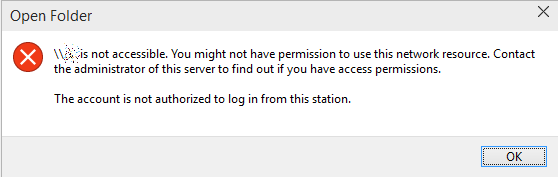
This is what you see when you try to go to any \\something network share:

\\something is not accessible. You might not have permission to use this network resource. Contact the administrator of this server to find out if you have access permissions. The account is not authorized to log in from this station.

open folder

There’s some changes in the Windows 10 internals which results in the access denial. The new build does not allow anonymous (guest) access to shares by default, as a security measure.It can be resolved by creating a new registry key in the right hive and rebooting.

Solution

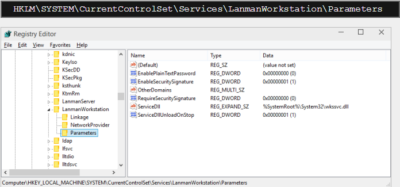
Fire up the registry editor (regedit). Navigate to:

Registry editor

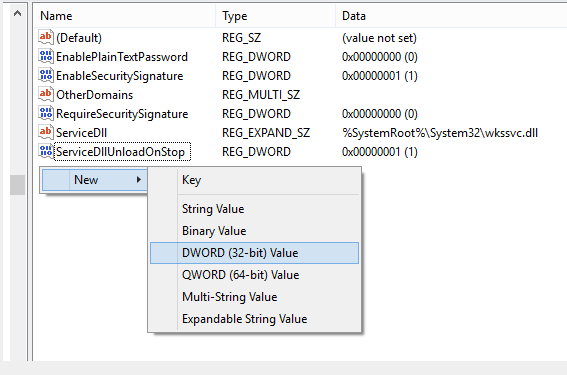
Here, you will need to create a new parameter (32-bit DWORD). Right-click:

Parameter

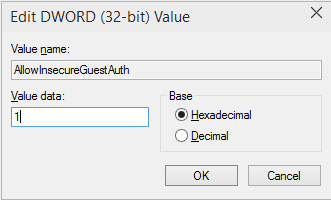
Then, name it AllowInsecureGuestAuth and assign it a value of 1.

DWORD

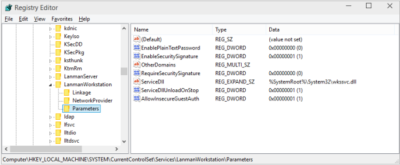
The hive should look thusly:

Registry Editor

And you’re done. Reboot, and enjoy your network access.

Have questions?

Get answers from Microsofts Cloud Solutions Partner!
Call us at: 856-745-9990 or visit: https://southjerseytechies.net/

South Jersey Techies, LLC is a full Managed Web and Technology Services Company providing IT Services, Website Design ServicesServer SupportNetwork ConsultingInternet PhonesCloud Solutions Provider and much more. Contact for More Information.

To read this article in its entirety click here.

Office 2016 for Mac is here!

Kirk Koenigsbauer, corporate vice president for the Office Client Applications and Services team said “Today we are taking a big step forward for Mac® users—Office 2016 for Mac is now available in 139 countries and 16 languages. Based on feedback from the great Mac Office community, we’ve made major updates to each of the apps, and we couldn’t be more pleased to deliver it first to our Office 365 customers.”

Unmistakably Office, designed for Mac

The new versions of Word, Excel, PowerPoint, Outlook and OneNote provide the best of both worlds for Mac users—the familiar Office experience paired with the best of Mac.

If you already use Office on a PC or iPad, you will find yourself right at home in Office 2016 for Mac. It works the way you expect, with the familiar ribbon interface and powerful task panes. Mac users will appreciate the modernized Office experience and the integration of Mac capabilities like Full Screen view and Multi-TouchTM gestures. With full Retina® display support, your Office documents look sharper and more vibrant than ever.

Office for Mac is cloud-connected, so you can quickly get to the documents you’ve recently used on other devices and pick up where you left off. New, built-in document sharing tools make it easy to invite teammates to work on a document together. When sharing documents, you won’t have to worry about losing content or formatting, as Office for Mac offers unparalleled compatibility with Office on PCs, tablets, phones and online.

Five modern, first-class applications
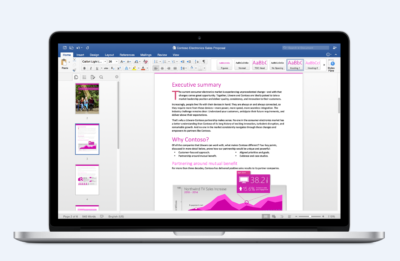
Word for Mac


Word for Mac—Word’s powerful writing and reviewing tools make it easy to create great-looking documents. The new Design tab lets you easily apply designer-quality layouts, colors and fonts throughout your document. You can work on the same document simultaneously with your teammates and use threaded comments to have a conversation right next to the corresponding text.
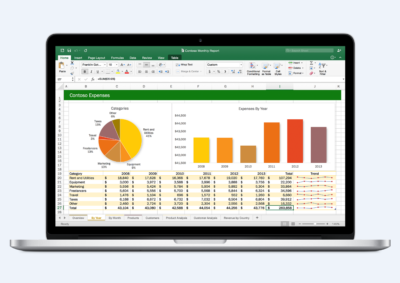
 

Excel for Mac


Excel for Mac—The new Excel for Mac helps you visualize your information by recommending charts best suited for your data with chart previews. Familiar keyboard shortcuts, autocomplete and an improved formula builder save you time when creating spreadsheets or entering data. For deeper analysis, new PivotTable Slicers help you filter large volumes of data and discover patterns.
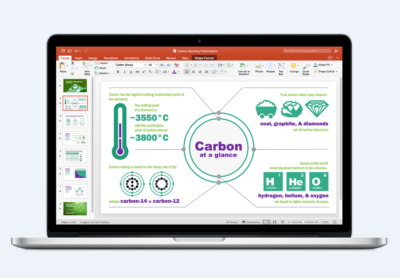
PowerPoint for Mac

PowerPoint for Mac—PowerPoint’s improved Presenter View gives you full control when you present by showing you the current slide, next slide, speaker notes and a timer on your Mac screen, while the audience only sees your presentation on the big screen. The new animation pane helps you design and fine-tune animations, and the latest set of slide transitions add polish to your presentations.
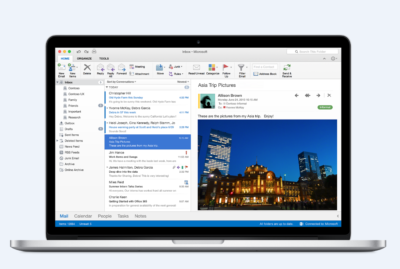
Outlook for Mac

Outlook for Mac—Managing your email, calendar, contacts and tasks has never been easier. The new Outlook for Mac has push mail support so your inbox is always up-to-date. The improved conversation view automatically organizes your inbox around threaded conversations, so you won’t have to hunt for related messages. And the new message preview shows you the first sentence of an email just below the subject line so you can quickly decide if you want to read it now or come back later.
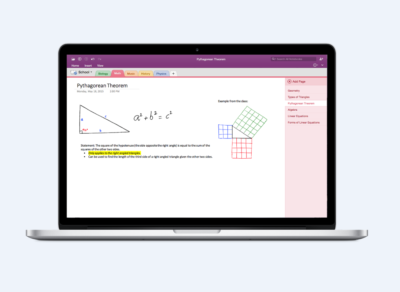
One Notebook for Mac

OneNote for Mac—OneNote is the newest addition to Office for Mac. You can capture your ideas in digital notebooks and access them on any device. Find things quickly with the OneNote search engine that tracks your tags, indexes your typed notes and recognizes text in images and handwritten notes. Bold, italicize, underline or highlight notes, insert files, pictures and tables and organize your notes however you want. You can also share notebooks with friends, family or colleagues so everyone can work together on travel plans, household tasks or work projects.

Made better by Mac users

The customer participation in Office for Mac preview since its launch in March exceeded expectations, making it largest Office for Mac beta ever. Thanks to everyone who participated in the preview program and helped improve the product.

Mac preview participants provided with over 100,000 pieces of feedback. Based on this feedback, Office released seven updates in four months with significant improvements in performance and stability. Also added features like improved Mail Merge in Word, Propose New Time in Outlook and support for External Data Connections in Excel.

And the best news is that Office for Mac will continue to see ongoing improvements over time. With released updates and new features for Office 365 customers at least once per quarter.

Available today for Office 365 customers

Office 365 subscribers can get the newest version of Office for Mac today. All you need is an Office 365 subscription (Office 365 Home, Personal, Business, Business Premium, E3 or ProPlus), which includes the rights and access to use Office applications on Mac, Windows, iOS and Android devices, along with additional value in OneDrive and Skype.

Here are a few different ways to get Office 2016 for Mac today:

  • Already an Office 365 customer? On your Mac, just browse to your account page (office.com/myaccount), sign in and follow the installation instructions. If you have Office 365 through your organization, go to portal.office.com/OLS/MySoftware.aspx.
  • Are you a student? You may get Office 2016 for Mac for free or at a substantial discount. It takes only 30 seconds to find out at office.com/student.
  • Otherwise, go to office.com/mac or buy an Office 365 subscription at your local retailer.

Office 2016 for Mac will become available as a one-time purchase option this September.

We hope you’re as excited as we are about the new Office for Mac. It’s one of many important releases this summer. “We released Word, Excel and PowerPoint for Android phones just two weeks ago, which join Outlook and OneNote for Android phones, and we are just weeks away from delivering Office Mobile apps for Windows 10.” said Kirk Koenigsbauer

Have questions?

Get help from Microsoft’s Cloud Solutions Partner.
Call us at: 856-745-9990 or visit: https://southjerseytechies.net/

South Jersey Techies, LLC is a full Managed Web and Technology Services Company providing IT Services, Website Design ServicesServer SupportNetwork ConsultingInternet PhonesCloud Solutions Provider and much more. Contact for More Information.

To read this article in its entirety click here.

Windows 10’s features

The new Windows 10 notifications will follow you everywhere

Windows 10 has a new notifications center for your apps — even the ones from your Windows Phone.

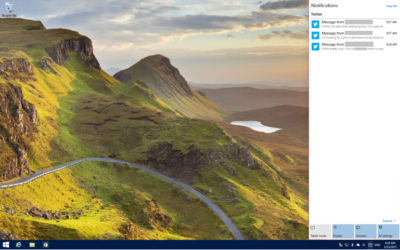
When you’re poking around Windows 10, you’ll notice something new: A small taskbar button that, when clicked, reveals a sidebar full of app notifications.

Welcome to the new notifications center, which is basically the Windows 10 version of the Action center in Windows Phone 8.1. The notifications center is part of Microsoft’s dream of “Windows everywhere” — it’s a universal notifications center that will pop up your app notifications across multiple platforms. Because who doesn’t want to be alerted about new Twitter followers on their phone, tablet, and now PC?

The new notifications center consists of two parts: The notifications area at the top, and the “quick actions” bar at the bottom. In the notifications area you’ll see notifications from various apps, including Twitter, Facebook, and your email account, as well as notifications from phone apps (e.g. alarms) if applicable.


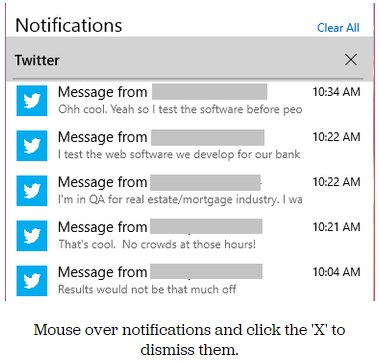
Mouse over notifications and click the ‘X’ to dismiss them.

You can dismiss notifications three different ways: You can mouse over the app name (e.g. Twitter) and click the ‘X’ next to it to dismiss all notifications from that app. You can also mouse over each individual notification and click the ‘X’ next to it to dismiss that specific notification. Or you can click Clear All in the upper right corner of the notifications center to dismiss all notifications from all apps. Because this is a “Windows everywhere” feature, notifications you dismiss in the notifications center will also be dismissed on your other Windows devices, such as your phone.

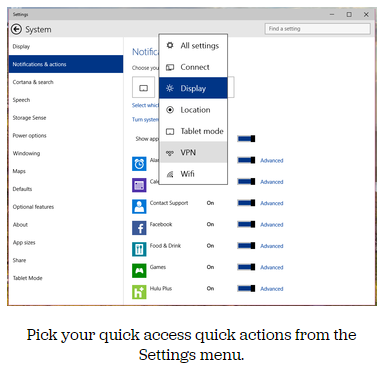
In the quick actions bar, you’ll see four quick-access buttons as well as an Expand link. Click Expand to see all quick actions. Actions include things like a Tablet Mode toggle button, a link to the Display settings, a link to all settings, and toggle buttons for Location and Wi-Fi. Tap a quick action button to toggle a setting (tablet mode, location, Wi-Fi) on or off, or to go directly to the settings menu so you can configure your display, connection, or VPN.

x4
Pick your quick access quick actions from the Settings menu.

To choose which quick actions appear above the break, go to Settings > Notifications & actions > Choose your quick actions. Here, you’ll see four small buttons that you can click on to swap out actions. If you’d prefer to have your Wi-Fi toggle on hand whenever you open the notifications bar, you can switch it for the Display button. Of course, you’ll always be able to see all of the quick actions by clicking Expand in the notifications bar.

x5
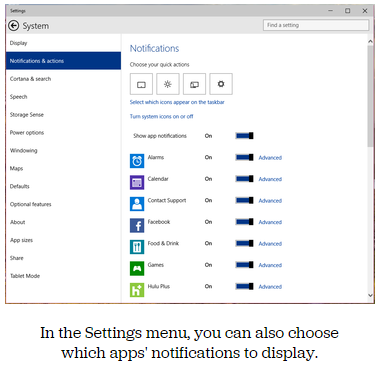
In the Settings menu, you can also choose which apps’ notifications to display.

Here, you can also pick and choose which app notifications you’ll see in the notifications bar. If you want to turn all notifications off, you can simply click the toggle next to Show App Notifications. You’ll no longer see pop-up banner notifications, nor will you see app notifications when you open the notifications center.

If you’d prefer to just turn off notifications for specific apps, you can do that, too — find the app in the list and click its toggle to Off. Next to each app in the list you’ll see a link to Advanced notifications settings for that app. Go into Advanced to turn off specific notifications for that app — either banner notifications (pop-ups in the lower right corner of your screen) or notifications in the notifications center.

Want to turn your clock off? You can do that, too.

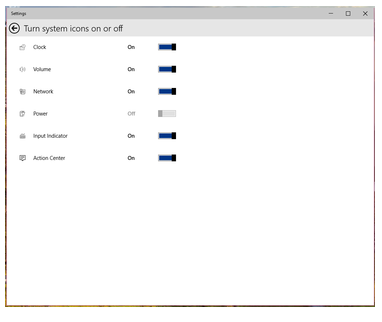
In the Notifications & Actions section, you can also clean up your taskbar by clicking “Select which icons to appear in the taskbar” (you can turn on and off things like the Network icon and the Volume icon), or by clicking “Turn system icons on or off.” In “Turn system icons on or off,” you can turn off the clock, input indicator or action center — in other words, you can turn off all system tray icons and have a completely icon-less system tray, if you so choose.

Have questions?

Want to get Windows 10?

Contact Our Expert IT business team
Call us at: 856-745-9990 or Visit: https://southjerseytechies.net/

South Jersey Techies, LLC is a full Managed Web and Technology Services Company providing IT Services, Website Design ServicesServer SupportNetwork ConsultingInternet PhonesCloud Solutions Provider and much more. Contact for More Information.

To read this article in its entirety click here.

Windows 8 Will Take Your PC To The Metro On Oct. 26

Windows 8 Release-Oct. 26!

We were told earlier this month that Microsoft had pinned down the launch of Microsoft Windows 8 to some time in late October. It was nice to finally get some confirmation about the release, but we still didn’t have an exact date – now we do.

Steven Sinofsky, President of the Windows Division at Microsoft, just announced during the company’s annual sales meeting that Windows 8 would be shipping on October 26. On that date, you’ll be able to upgrade to it, buy a physical copy in store or buy a new PC with the operating system on it. Microsoft’s Windows RT Surface tablet is also expected to launch around that time with the Windows 8 Pro version coming sometime after.

As most Windows users who are upgrading probably already have Microsoft Windows 7, you will want to take advantage of Microsoft’s insane upgrade program. For only $40, users with Windows XP or later can upgrade to Windows 8 through digital download. Those who want a physical copy can pick one up for $70. The special pricing will be available through January 31, 2013.

Windows 8 is Microsoft’s chance to prove that they still got it. Many people believe that this is their last chance before Apple gobbles them up and spits them out with Mac OS X and iOS. Microsoft Windows 8 is definitely something unique only to Microsoft as it’s the first operating system to share the same core across all devices whereas Apple requires separate operating systems for mobile and desktop.

We’ll find out on October 26 if Microsoft’s bet on the future plays out. The Metro interface was designed for portable devices, which Apple already has a strong foothold in. The hype surrounding the recently announced Surface tablet could help catapult Windows 8 to the notoriety it needs to succeed.

Windows 10 Pro is a dead end for the enterprise, Gartner says

Recent changes by Microsoft to the Windows 10 support schedule underline why Windows 10 Pro is an ill fit for most companies.

Windows 10 Pro is a dead end for enterprises, a prominent Gartner analyst has argued.

“[We] predict that Microsoft will continue positioning Windows [10] Pro as a release that is not appropriate for enterprises by reducing … support and limiting access to enterprise management features,” Stephen Kleynhans, a research vice president at Gartner and one of the research firm’s resident Windows experts, said in a report he co-authored.

Microsoft’s Windows 10 Pro occupies the middle ground between the consumer-grade Home and the corporate-level Enterprise in features, functionality and price. Because Enterprise versions of Windows have never been available to computer makers, Pro – sometimes, as in Windows 7, tagged Professional instead – has been the most popular pre-installed OS on new business PCs. (Corporations typically re-image new personal computers with Enterprise upon receipt of the devices.)

But although Pro or Professional has a long history in business settings, Microsoft has made numerous decisions in its Windows 10 migration campaign to separate Pro and Enterprise even more, pushing them apart. In Kleynhans’ view, the gap has become unbridgeable.

The last straw was Microsoft’s on-the-fly changes to Windows 10 support.

Last year, the Redmond, Wash. developer announced a six-month support extension for Windows 10 1511, the November 2015 feature upgrade, “to help some early enterprise adopters that are still finishing their transition to Windows as a service.” In February, Microsoft added versions 1609, 1703 and 1709 – released in mid-2016, and in April and October of 2017, respectively – to the extended support list, giving each 24 months of support, not the usual 18.

“Some customers have requested an extension to the standard 18 months of support for Windows 10 releases,” a Microsoft executive said at the time.

There was a catch: Only Windows 10 Enterprise (and Windows 10 Education, a similar version for public and private school districts and universities) qualified for the extra six months of support. Users running Windows 10 Pro were still required to upgrade to a successor SKU (stock-keeping unit) within 18 months to continue receiving security patches and other bug fixes.

Windows 10 Enterprise 1709, for example, and its free “supplemental servicing,” will exhaust support in October 2019. But Windows 10 Pro 1709 runs out of support on April 9, 2019.

“The one thing that really surprised me about the added support,” said Kleynhans in an interview, “was the fact that it didn’t apply to Pro. I think that this telegraphed the fact that, for businesses, Pro is being dead-ended.”

Even though the six-month support extension ended with the 1803 feature upgrade, the one that began reaching some users late last month, in the report Kleynhans co-wrote with Gartner colleague Michael Silver, the duo made clear that they believe Pro is viewed by Microsoft as a second-class citizen.

“Customers currently using Windows 10 Pro should continue to monitor Microsoft’s life cycle announcements because they will eventually need to budget for Windows [10] Enterprise as Windows [10] Pro becomes more ‘pro-sumer’ and small-business oriented,” they wrote in a six-item list of recommendations.

Another component of Microsoft’s current Windows 10 support strategy, something the company has labeled “paid supplemental servicing,” was also out of bounds for those running Windows 10 Pro. The extra support, which Microsoft will sell at an undisclosed price, is available only to Enterprise and Education customers.

Paid supplemental servicing adds 12 months to the 18 months provided free of charge.

“The extensions and paid support option only apply to the Enterprise and Education SKUs,” Kleynhans and Silver said in their report, “Plan and Budget for Short Windows and Office Support Cycles Based on Microsoft’s February 2018 Announcements,” which was published by Gartner last month. “Customers using Windows 10 Pro will still see support end after 18 months. In this way, Microsoft is further reinforcing that it expects enterprise customers to move to the Enterprise edition of Windows 10.”


Microsoft finally retired Windows 10 1511


The company also ended support for 1607 to users of Windows 10 Home and Pro.

Microsoft finally retired a 2015 version of Windows 10, marking 29 months of support for the untitled feature upgrade, nearly as long a stretch as the time between the releases of Windows 8 and Windows 10.

Windows 10 1511 – Microsoft labels its feature upgrades in a yymm format – received a final set of security patches on April 10.

The retirement date had originally been slated for Oct. 10, 2017, but last November Microsoft extended it an additional six months, albeit only for commercial customers. “To help some early enterprise adopters that are still finishing their transition to Windows as a service, we will be providing a supplemental servicing package for Windows 10, version 1511, for an additional six months, until April 2018,” Michael Niehaus, at the time a director of product marketing for Windows, said in a 2017 post to a company blog.

Customers running Windows 10 Enterprise or Windows 10 Education were given the support reprieve; those operating lesser SKUs (stock-keeping units), including Windows 10 Home and Windows 10 Pro, had their support curtailed last October.

Earlier this year, Microsoft added six months of support to all versions of Enterprise and Education, raising the support roof from 18 months to 24 for not only 1511, but also for 1607, 1703 and 1709. The less expensive, less expansive, Home and Pro, however, retained the 18-month support timeline.

Also destined for an April 10 retirement party was Windows 10 1607, the mid-2016 feature upgrade that received its last security patches that day on Windows 10 Home and Windows 10 Pro. Meanwhile, version 1607 on Enterprise and Education will continue receiving fixes until Oct. 9.

Windows 10’s bifurcated support timelines – 18 months for some SKUs, 24 months for others – complicate what had been an easy-to-understand practice of patching versions for a year and a half. Period.

Microsoft has tried to inform customers of the support due them by reminding them in January’s and February’s cumulative updates that patches end for Enterprise and Education, version 1511. “The additional servicing offer for Windows 10, version 1511 ends on April 10, 2018, and doesn’t extend beyond this date. To continue receiving security and quality updates, Microsoft recommends updating to the latest version of Windows 10,” the March documentation said.

The company has extended the lifespan of other software previously, including the original version of Windows 10, tagged as 1507. In February 2017, it added six weeks to the timetable. Generally, however, Microsoft has been hard-nosed about support deadlines, and for good reason.

“The danger is that customers won’t believe Microsoft will end support when they say [they will],” said Gartner analyst Michael Silver in a 2017 interview. “It would set a bad precedent if organizations think that they can rely on Microsoft to constantly extend [support].”

By hewing to the once-revised deadline for 1511, Microsoft had drawn a line in the sand, showing commercial customers that while it may bend to their demands, it will not break with critical policies, like these, which are foundation to its Windows-as-a-service concept.

Second Generation Surface Tablets

mss2_1

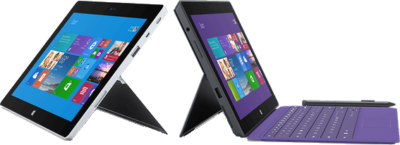
Microsoft has offically announced that the release date for the second generation surface tablets, Surface 2 and Surface Pro 2, will be October 22, 2013.  Pre-order for Surface 2 and Surface Pro 2 is available.

Both new Surface tablets will have a dual-angle kickstand and multiple connectivity options such as Bluetooth 4.0, Wi-Fi 802.11, USB 3.0, micro-SD expansion and HD video-out port.

The new Type and Touch Covers will be released with both tablets.  Both Covers include backlighting and additional sensors.  Also, Microsoft has designed a Power cover that is designed to add additional battery life to both Tablets.

mss21

The Surface 2 has a 10.6 Clear Type Full HD (1920×1080) Display and will run Windows RT 8.1 Operating System on an nVidia Tegra 4 Processor. The Surface Pro 2 has two storage options including, 32 GB and 64 GB.  Surface 2 is priced at $449.

sur2

Pre-order a Surface 2 Tablet.

mss22

The Surface Pro 2 has a 10.6 Clear Type Full HD (1920×1080) Display and will run Windows 8.1 Pro Operating System on an Intel Core i5 Processor. The Surface Pro 2 has multiple storage options including 64 GB, 128 GB, 256 GB and 512 GB.  Surface Pro 2 is priced at $899.  

surp2

Pre-order a Surface Pro 2 Tablet.

Surface Pro

ms_surface_proThe Surface by Microsoft is a crossover between a laptop and a tablet. The Surface Pro is a business tablet that has a detachable keyboard, stylus and a kickstand. Putting the Surface Pro above other tablets is the aptitude to run Microsoft Office programs including Word, Excel and PowerPoint.

Microsoft released a television commercial for the Surface Pro, “The Vibe”, starring Daniel ‘Cloud’ Campos from the original Surface Commercial.  This enthusiastic campaign includes professional dancers as “business people” showing the capabilities of the Surface Pro. Similar to Windows 8, Metro “Modern” UI; the commercial has the same ambiance.

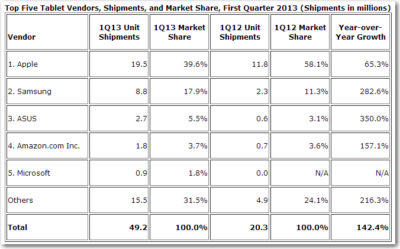
According to IDC, Microsoft has finally made its way to the Top 5 for Tablets. In the first quarter of 2013, Microsoft has 1.8% Market Share. Unlike the first quarter of 2013, Microsoft has 0% Market Share. Also, ASUS moved up from #4 to #3, knocking Amazon down a space.

TopFiveTabletVendors


CALL US NOW!