Back to Top

Tech, Web, Cloud & Cabling Services

Category: Windows

Windows Category

Pro tip: Sort table data in a Word document

sort word

Microsoft Word


Sorting data in a Word document isn’t something you routinely do. On the other hand, presenting list and table data is, so the potential exists that one day you’ll want to sort something. The good news is that it’s easy to sort data in a table or a list. In this article, I’ll show you how to do just that. We’ll work through a few simple sorting examples. You can use most any table, or you can download the example .docx or .doc file.

Behind the scenes

Word relies on paragraphs when sorting, which seems a bit odd within the context of a table (or list). The paragraph formatting mark determines where one paragraph ends and the next starts. As you can see in Figure A, there’s no paragraph mark in a table. The end-of-cell markers denote the end of each cell’s content. The similar marker at the end of each row (outside the right border) is an end-of-row marker. These markers also contain cell and row formatting. When sorting a table, Word relies on the end-of-row marker to identify where one row ends and the next begins, the same way the paragraph mark does. (To see a document’s formatting symbols, click Show/Hide in the Paragraph group on the Home tab.)

Figure A

Table end-of-row markers are similar to paragraph markers.

Sort by the first column

We’ll start with the simplest sort possible; we’ll sort a table by the values in the first column. To do so, select, the table by clicking its move handle (the small square in the top-left corner). If you don’t see this handle, check the view. It’s available only in Print Layout and Web Layout. With the entire table selected, do the following:

  1. Click the contextual Layout tab. In the Data group, click Sort — or click Sort in the Paragraph group on the Home tab. In Word 2003, choose Sort from the Table menu.
  2. The resulting dialog does a good job of anticipating the sort. Notice that the Header Row option (at the bottom) is selected. As a result, the Sort By field is set to Species — the label in the first column’s header (Figure B).
    Figure B

  3. This is exactly what we want, so click OK. Figure C shows the sorted table.
    Figure C

Before we move on, let’s discuss the Type and Using options to the right. We didn’t need to change either, but sometimes you will. The Type options are Text, Number, and Date. Word usually defaults to the appropriate data type. You can force a specific type by choosing a different option other than the one Word assumes (but you’ll rarely have reason to do so). The Using options defaults to Paragraph — we talked about that earlier.

Sort by the second column

That first exercise was easy. Let’s complicate things a bit by sorting by the second column. Fortunately, it’s just as easy as the first. Repeat steps 1 and 2 from the first exercise. Then, do the following:

  1. In the resulting dialog, click the Sort By drop-down.
  2. Choose Common Name, the header label for the second column.
  3. Click OK. Figure D shows the results of sorting by the second column.
    Figure D

That wasn’t any more difficult that the first sort. Tell Word which column contains the values you want to sort by and click OK — that’s it!

Sort by multiple columns

With only two sort tasks under your belt, you’re beginning to see how simple the sorting process in Word can be. Let’s complicate things a bit so you can see how flexible this feature truly is. Let’s sort by the Class column and then sort the bird and mammal groups in a secondary sort. Repeat steps 1 and 2 from the first two exercises. Then, do the following:

  1. To sort by the Class, choose Class from the Sort By drop-down.
  2. To further sort each class group, click Common Name from the Then by drop-down (Figure E). You could add a third column to the sort if the results warranted the additional grouping.
    Figure E

  3. Click OK to see the results shown in Figure F.
    Figure F

What about lists?

You might be wondering how to sort the same data in list form. Word handles the list sort the same way — the exact same way. Highlight the list and click Sort in the Paragraph group on the Home tab. In the resulting dialog, check the header option and set appropriately (if necessary). Then, determine the sort order by choosing the fields (columns), appropriately.Figure G shows the result of sorting the same data in list form.

Figure G

Sort a columnar list the same way you sort a table.


The Biggest Tablet Rumors So Far

The latter half of 2012 should see some exciting developments in tech including a new iPhone,Windows Phone 8 smartphones, Microsoft’s Windows 8-powered Surface, Android 4.1 devices, and tablets, lots and lots of tablets.

Apple is expected to introduce a smaller iPad before December, Amazon may roll out its follow-up to the original Kindle Fire, and Samsung may be one of the first companies to get on board with Windows RT.

Here’s a look at some of the hottest tablet speculation that we may see turn into actual products before the holidays.

iPad Mini

Apple may be getting ready to stop competitors from invading the iPad’s turf with a low-priced 7-inch iPad to take on Amazon’s Kindle Fire and Google’s Nexus 7. Bloomberg recently reported that Apple was prepping a 7-inch tablet that would launch in October for $200. On Sunday the The New York Times reported a similar story to the news wire, but added the new iPad Mini will have a 7.85-inch screen.

The Kindle Fire and Google’s Nexus 7 are seeing some success against the iPad by not taking on the iPad. The two companies sell $200 tablets designed largely for content consumption instead of trying to offer an iPad-like device that can replace your laptop in a pinch.

The Fire and Nexus 7 each operate by providing deep hooks into each company’s content stores to make it easy for people to buy more movies, TV shows, apps, and games. The strategy of focusing on content consumption appeared to work for Amazon, and critics are already saying good things about Google’s Nexus 7.

Kindle Fire 2

Amazon announced the original Kindle Fire in September 2011 and, as we close in on the tablet’s one year anniversary, thoughts turn to what Amazon may have planned as a follow-up to this tablet.

A May Reuters report in May claimed the next Kindle Fire will offer an 8.9-inch display. Earlier in July, an analyst for NPD DisplaySearch told CNET that Amazon was prepping three versions of the Kindle Fire 2, including a 7-inch tablet with a screen with 1280-pixel-by-800-pixel resolution, a camera, and a 4G option.

The current Kindle Fire features a 7-inch display with a resolution of 1024 pixels by 600 pixels.

Kindle FirePad

The Times’ Sunday report about the mini iPad also claimed that Amazon is prepping a bigger version of the Fire to take on Apple’s tablet. There are no details about screen size or functionality, so it’s not clear what the purported device would be like or if it would actually be designed to take on the iPad.

More likely–at least in my view–is that Amazon would prep a larger version of the Kindle Fire that is better adapted to consuming visual content such as movies and gaming. But to keep the price low, Amazon would offer fewer hardware features than Apple’s tablet such as GPS, Bluetooth, and front- and rear-facing cameras.

Rumblings about a bigger Kindle Fire have been circulating for some time. The latest report before the Times claim was from BGR in June saying the new Amazon device would have a 10-inch display and quad-core processor.

Samsung RT

Samsung will have one of the first tablets out of the gate loaded with Windows RT, the version of Microsoft Windows 8 designed for ARM processors, according to Bloomberg.

The device will purportedly feature a Qualcomm Snapdragon processor, but no other device details are known. Samsung’s Windows RT tablet should debut in October when Windows 8 is set for a public launch.

Beyond the Rumors

We already know that Microsoft will roll out its Surface tablets later in 2012 and into 2013, and Acer in June said it plans to launch a Windows RT tablet in early 2013. As we get closer to the Windows 8 launch in October, more details should be announced about the upcoming crop of Windows 8-powered tablets.

To View Full Article Click Here

Microsoft offers Windows XP, Office XP users 50% percent discount

Microsoft is now offering significant discounts on its product upgrades. Discounts are available for Open License programs.

Microsoft officials are well aware that its biggest Windows 7 and Office 2010 competitors are its own previous product iterations (Windows XP and Office XP/2003). To try and wean users away from older, “good-enough” releases, Microsoft is introducing a new licensing promotion.

The revamped “Up to Date Discount” program is targeted at small/mid-size business (SMB) customers running older versions of Windows and Office. Between January 1 and June 30 of this year, Microsoft is enabling users running Windows XP or Vista (on the operating system side) and Office XP, Office 2003 or Office 2007 (on the productivity suite side) to receive a discount of 50 percent on the cost of their licenses for Windows 7 and Office 2007 (or Office 2010, once it is released by June 2010).

The 50% discount calculations “are based on estimated retail prices and reseller prices may vary,” Microsoft officials acknowledge. But the Softies say U.S. customers who sign up for the program “would be paying $35.00 for a Windows 7 Professional Upgrade and/or $91.00 for Office 2007 Professional Plus in year 1, plus receiving all of the Software Assurance benefits (such as an automatic upgrade to Office 2010 when it launches, Office Home Use Rights, and much more) for that price.”

As you’d expect, there are lots of caveats. First,customers get the 50 percent discount only for the first year of their Open Value Subscription (OVS) payment. (OVS is a Microsoft licensing program, introduced last year for SMBs, which allows users to pay for software licenses over time and includes many of the same provisions as Microsoft’s Software Assurance licensing program.) The new deal applies only to those customers using the Professional versions of Windows and/or the Professional versions of Office.

The new promotion, which Eric Ligman, Global Partner Experience Lead with Microsoft’s Worldwide Partner Group, announced via the Microsoft SMB Community Blog on January 1, goes beyond the current Up-to-Date Discount offer. Before the new so-called “N-2? update to the program was put in place, Windows XP users and Office XP users were ineligible for the discount. But Microsoft is now offering users of the older Windows and Office releases coverage if they’re willing to sign up for the Open Volume Subscription plan.

Meanwhile, speaking of new Microsoft licensing promotions, Microsoft is introducing “version 4.0? of another SMB promotional licensing offer, known as “The Big Easy,” according to Ligman.

Starting January 3, SMB customers can increase dollars available for them to spend with Microsoft partners  “by purchasing multiple qualifying product groups, adding Software Assurance to their orders and/or acquiring advanced, premium or Enterprise editions of the MIcrosoft Solutions.” To qualify, customers need to buy products through their Microsoft partners between January 3 and March 31 via the Microsoft Open License, Open Value and/or Open Value Subscription programs.

Products included under the program include Dynamics CRM, Office Communications Server, SharePoint Server, SQL Server, Systems Center and Windows Server, among others.

Article located here to read more.

Is Your Organization Using SHA-1 SSL Certificates? If so here’s what you need to know and do:

ssl


Following a recommendation by the National Institute of Standards and Technology (NIST), Microsoft will block Windows from accepting SSL certificates encrypted with the Secure Hash Algorithm-1 (SHA-1) algorithm after 2016. Given the number of mission-critical SSL certificates that are allowed to expire from inattention, administrators have their work cut out for them. By knowing what will happen, why it’s happening, and what you need to do, you won’t be surprised by these important policy changes.

What’s Happening?

On November 12, 2013, Microsoft announced that it’s deprecating the use of the SHA-1 algorithm in SSL and code signing certificates. The Windows PKI blog post “SHA1 Deprecation Policy” states that Windows will stop accepting SHA-1 end-entity certificates by January 1, 2017, and will stop accepting SHA-1 code signing certificates without timestamps after January 1, 2016. This policy officially applies to Windows Vista and later, and Windows Server 2008 and later, but it will also affect Windows XP and Windows Server 2003.

SHA-1 is currently the most widely used digest algorithm. In total, more than 98 percent of all SSL certificates in use on the Web are still using the SHA-1 algorithm and more than 92 percent of the certificates issued in the past year were issued using SHA-1.

Website operators should be aware that Google Chrome has started warning end users when they connect to a secure website using SSL certificates encrypted with the SHA-1 algorithm. Beginning in November 2014 with Chrome 39, end users will see visual indicators in the HTTP Secure (HTTPS) address bar when the site to which they’re connecting doesn’t meet the SHA-2 requirement. Figure 1 shows those indicators.


Figure 1: Visual Indicators in the HTTPS Address Bar


Google is doing this to raise end users’ awareness and to help guide other members of the Internet community to replace their SHA-1 certificates with SHA-2 certificates.

Why Is Microsoft Deprecating SHA-1?

SHA-1 has been in use among Certificate Authorities (CAs) since the U.S. National Security Agency (NSA) and NIST first published the specification in 1995. In January 2011, NIST released Special Publication 800-131A, “Transitions: Recommendation for Transitioning the Use of Cryptographic Algorithms and Key Lengths.” This publication noted that SHA-1 shouldn’t be trusted past January 2016 because of the increasing practicality that a well-funded attacker or government could find a SHA-1 hash collision, allowing them to impersonate any SSL website.

Realizing that it’s highly unlikely that CAs and the industry at large will adopt more powerful encryption algorithms on their own, Microsoft is leading the charge by making Windows reject certificates using SHA-1 after January 1, 2017. Doing this will lead website operators to upgrade to stronger SHA-2 certificates for the betterment of all Windows users and the broader public key infrastructure (PKI) community. The Windows PKI blog post “SHA1 Deprecation Policy” noted that, “The quicker we can make such a transition, the fewer SHA-1 certificates there will be when collisions attacks occur and the sooner we can disable SHA1 certificates.”

In the end, the issue isn’t if SHA-1 encryption will be cracked but rather when it will be cracked.

What Do I Need to Do?

January 1, 2017, might seem like a long way away, but now is the time to understand the problem and how to mitigate it.

As per Microsoft’s SHA-1 deprecation policy, Windows users don’t need to do anything in response to this new technical requirement. XP Service Pack 3 (SP3) and later versions support SHA-2 SSL certificates. Server 2003 SP2 and later versions add SHA-2 functionality to SSL certificates by applying hotfixes (KB968730 and KB938397).

Web administrators must request new certificates to replace SHA-1 SSL and code-signing certificates that expire after January 1, 2017. As of this writing, that would probably affect only public SHA-1 certificates that were purchased with a long expiration date (three years or more) or long-duration certificates issued by internal SHA-1 CAs. Most third-party CAs will rekey their certificates for free, so you simply need to contact the CA to request a rekeyed certificate that uses the SHA-2 algorithm.

When ordering new SSL certificates, you should confirm with the CA that they’re being issued with the SHA-2 algorithm. New certificates with expiration dates after January 1, 2017, can only use SHA-2. Code-signing certificates with expiration dates after December 31, 2015, must also use SHA-2.

Note that the algorithm used in SHA-2 certificates is actually encoded to use SHA-256, SHA-384, or SHA-512. All of these are SHA-2 algorithms; the SHA number (e.g., 256) specifies the number of bits in the hash. The larger the hash, the more secure the certificate but possibly with less compatibility.

It’s important that the certificate chain be encrypted with SHA-2 certificates. (A certificate chain consists of all the certificates needed to certify the end certificate.) This means that any intermediate certificates must also use SHA-2 after January 1, 2017. Typically, your CA will provide the intermediate and root CA certificates when they provide the SHA-2 certificate. Sometimes they provide a link for you to download the certificate chain. It’s important that you update this chain with SHA-2 certificates. Otherwise, Windows might not trust your new SHA-2 certificate.

Root certificates are a different story. These can actually be SHA-1 certificates because Windows implicitly trusts these certificates since the OS trusts the root certificate public key directly. A root certificate is self-signed and isn’t signed by another entity that has been given authority.

For the same reason, any self-signed certificate can use the SHA-1 algorithm. For example, Microsoft Exchange Server generates self-signed SHA-1 certificates during installation. These certificates are exempt from the new SHA-2 policy since they aren’t chained to a CA. I expect, however, that future releases of Exchange will use SHA-2 in self-signed certificates.

What About My Enterprise CAs?

If your organization has its own internal CA PKI, you’ll want to ensure that it’s generating SHA-2 certificates. How this is done depends on whether the CA is running Windows Server 2008 R2 or later and if your CA has subordinate CAs.

If you have a Server 2008 R2 or later single-root CA without subordinates, you should update the CA to use SHA-2. Doing so will ensure that subsequent certificates generated will use the SHA-2 algorithm. To check which hash algorithm is being used, you can right-click the CA and go to the General tab. If SHA-1 is listed, you can run the following certutil command to configure the CA to use the SHA-256 algorithm:

certutil -setreg ca\csp\CNGHashAlgorithm SHA256

You must restart the CertSvc service to apply the change. Now when you view the CA properties, you’ll see that the hash algorithm is SHA-256. All future certificates issued by this CA will use SHA-256, but keep in mind that existing certificates will still be using SHA-1. You need to renew any SHA-1 certificates issued by this CA to upgrade them to SHA-2 certificates.

If your CA is older than Server 2008 R2, you can’t upgrade the CA to use SHA-2. You’ll need to rebuild it with a newer version.

If your organization’s internal CA is multi-tiered with one or more subordinate CAs, you’ll need to reconfigure them to use SHA-2. This is done using the same certutil command just given on each subordinate or issuing CA. Keep in mind that if you use subordinate CAs, you’re not required to update the root CA to SHA-2 since that certificate is at the top of the certificate chain, but it won’t cause any problems if you do. You still need to renew any SHA-1 certificates issued by the subordinate CAs to upgrade them to SHA-2 certificates.

Take Action Now

Administrators and website operators should identify all the SSL certificates used in their organizations and take action, as follows:

  • SHA-1 SSL certificates expiring before January 1, 2017, will need to be replaced with a SHA-2 equivalent certificate.
  • SHA-1 SSL certificates expiring after January 1, 2017, should be replaced with a SHA-2 certificate at the earliest convenience.
  • Any SHA-2 certificate chained to an SHA-1 intermediate certificate should be replaced with another one chained to an SHA-2 intermediate certificate.

The following tools and websites are useful for testing and for further information about SHA-1 remediation:

  • Microsoft Security Advisory 2880823. This website discusses the deprecation policy for the SHA-1 hashing algorithm for the Microsoft Root Certificate Program.
  • Migrating a Certification Authority Key from a Cryptographic Service Provider (CSP) to a Key Storage Provider (KSP). The section “How to migrate a CA from a CSP to a KSP and optionally, from SHA-1 to SHA-2” in this TechNet web page provides detailed instructions for upgrading a CA to use SHA-2.
  • Gradually sunsetting SHA-1.” This Google Online Security Blog post explains how the transition to SHA-2 affects Chrome and details Google’s rollout schedule.
  • SHA-256 Compatibility. This GlobalSign web page lists OS, browser, server, and signing support for SHA-256 certificates.
  • DigiCert SHA-1 Sunset Tool. This free web application tests public websites for SHA-1 certificates that expire after January 1, 2016.
  • DigiCert Certificate Inspector. This tool discovers and analyzes all certificates in an enterprise. It’s free, even if you don’t have a DigiCert account.
  • Qualys SSL Labs’ SSL Server Test. This free online service analyzes the configuration of any SSL web server on the public Internet.

CredSSP encryption oracle remediation

Remote Desktop Error – An Authentication error has occurred – CredSSP encryption oracle remediation – SOLUTION

CredSSP encryption oracle remediation

Error


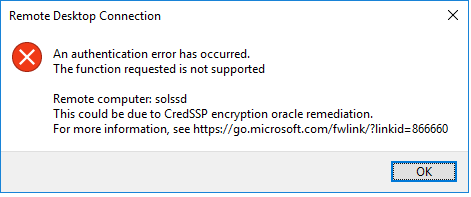
We recently had an issue with remote desktop connection to a Windows 2012 server from a Windows 10 Pro client computer that was recently updated.

An Authentication error has occurred.
The function requested is not supported.
Remote computer: <servername>
This could be due to CredSSP encryption oracle remediation

CredSSP updates for CVE-2018-0886

Solution


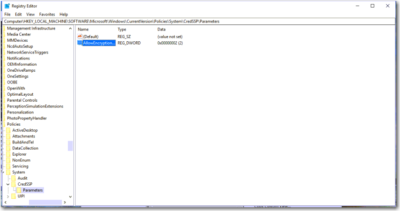
We had to create a registry key HKLM\Software\Microsoft\Windows\CurrentVersion\Policies\System\CredSSP\Parameters; both the CredSSP and Parameters keys had to be created, and then create the AllowEncryptionOracle DWORD and give it a value of 2, worked for me on both Windows 7 and Windows 10 Pro computers. A reboot was not needed.
Registry path: HKLM\Software\Microsoft\Windows\CurrentVersion\Policies\System\CredSSP\Parameters
Value: AllowEncryptionOracle
Data type: DWORD

Have Questions?


Leave us a comment or visit: https://southjerseytechies.net/

South Jersey Techies, LLC is a full Managed Web and Technology Services Company providing IT Services, Website Design ServicesServer SupportNetwork ConsultingInternet PhonesCloud Solutions Provider and much more. Contact for More Information.

To read this article in its entirety click here.

Outlook issues in the June 2017 security updates

The problems stems from June 2017 security updates. Microsoft is investigating the issues and will update this page when a fix is available. In the meantime, please use the workarounds suggested for each issue. They have categorized it in seven scenarios.

Issue#1: Error when opening an attachment is an email, contact, or task formatted as Rich Text.

This issue affects Outlook 2007 and Outlook 2010.

When you open an attachment in an email, contact, or task formatted as Rich Text you get the following error:outlook-2010-2007-this-program-used-to-create-is-outlook-not-installed

You may also see:

STATUS: WORKAROUND

  • Forward the email to yourself and then open the attachments from the forwarded email.
  • Change the email format to HTML, or Text format.
  • Save the attachments to your computer, using one of the following methods, then open them from the saved location: Drag and drop the attachments to your desktop.
    Go to File > Save Attachments.
    Copy and paste the attachment to your computer.

Issue#2: Opening Mail Attachment warning when opening an attachment that includes consecutive periods

This issue affects Outlook 2007, Outlook 2010, Outlook 2013, and Outlook 2016.

When opening an attachment that includes consecutive periods (…), or an exclamation point (!), the files are blocked and you receive an Opening Mail Attachment warning.
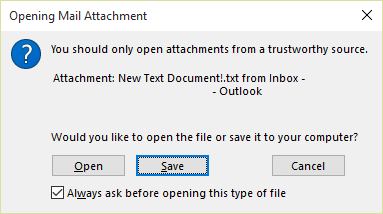
Or if an email message includes an attached email message, and the attached email message’s subject line ends with an unsafe file name extension as listed in the Blocked attachments in Outlook, the email attachment will be blocked for recipients.

STATUS: WORKAROUND

If you get the Opening Mail Attachment warning, and you’re sure the attachment was sent from a trusted source, proceed to Open or Save the attachment.

If the file is blocked because of a potentially unsafe file extension, ask the sender to save the email message to their computer and rename its subject line so that it does not end with an unsafe file name extension. Then, attach it to the email message and resend.

Issue#3: Error when setting ShowLevel1Attach to allow Outlook to display Level 1 attachments

This issue affects Outlook 2013 and Outlook 2016.

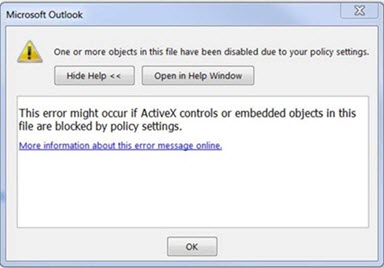
If you set ShowLevel1Attach to allow Outlook to display Level 1 attachments, you may see the error: “One or more objects in this file have been disabled due to your policy settings”.

WARNING: Typically, Level 1 attachments are blocked. If you have enabled this policy, users can see Level 1 attachments in Outlook. If you use any of the workarounds to open the files, please make sure they are safe to open. See: Information for administrators about e-mail security settings in Outlook 2007.
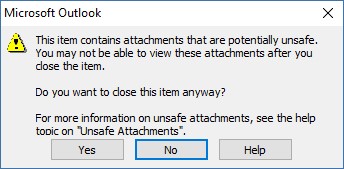
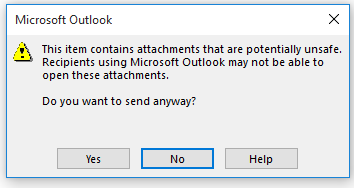
If you set ShowLevel1Attach to allow Outlook to display Level 1 attachments, and you send an email with an attachment you may see this message: “This item contains attachments that are potentially unsafe.  Recipients using Microsoft Outlook may not be able to open these attachments.”
STATUS: WORKAROUND

  • Change the email format to HTML, or Text format.
  • Save the attachments to your computer, using one of the following methods, then open them from the saved location:
    • Drag and drop the attachments to your desktop.
    • Go to File > Save Attachments.
    • Copy and paste the attachment to your computer.

Issue#4: VBScript does not run or you receive malicious code warning when using a custom form for Outlook

This issue affects Outlook 2007, Outlook 2010, Outlook 2013, and Outlook 2016.

When you use a custom form that you have created for Outlook, you see the following two symptoms:

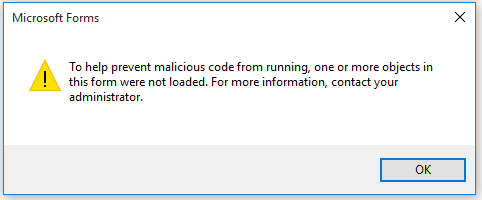
  • VBScript does not run.
  • You get a malicious code warning: 

STATUS: INVESTIGATING

We’re investigating this issue and will update this page when a fix is available.

Issue#5: “Something went wrong….” or “Search results may be incomplete” error when searching in Outlook

This issue affects all Outlook versions on Windows 7, Windows 8, Windows 10.

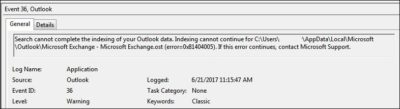
When searching in Outlook, you get this error: “Something went wrong and your search couldn’t be completed.”, or “Search results may be incomplete because items are still being indexed“.

And you’ll see this Event Log warning:
STATUS: WORKAROUND

Until the Windows Update fix release on 6/27, you can set a registry key that will cause Outlook to stop using the local Windows Search service. When this registry key is set, Outlook will use its own built-in search engine. The built-in search will display the message below to indicate it is not using the Windows Search service.

Disable Windows Desktop Search Service for Outlook:

NOTE: The following steps show you how to modify the registry. However, serious problems might occur if you modify the registry incorrectly. Please make sure that you follow these steps carefully. For added protection, back up the registry before you modify it. Then, you can restore the registry if a problem occurs. For more information about how to back up and restore the registry, see this article.

  • Open Registry Editor.
  • Go to: Computer\HKEY_LOCAL_MACHINE\SOFTWARE\Policies\Microsoft\Windows\Windows Search
  • PreventIndexingOutlook
  • Set DWORD: 1

Detailed Instructions:

  1. Click Start, click Run, type regedit in the Open box, and then click OK.
  2. Locate and then click the following subkey in the registry:
    HKEY_LOCAL_MACHINE\SOFTWARE\Policies\Microsoft\Windows
  3. On the Edit menu, point to New, and then click New Key and name the key Windows Search.
  4. Click on the new key Windows Search.
  5. On the Edit menu, point to New, and then click DWORD Value.
  6. Type PreventIndexingOutlook for the name of the DWORD, and then press Enter.
  7. Right-click PreventIndexingOutlook, and then click Modify.
  8. In the Value data box, type 1 to enable the registry entry, and then click OK.
  9. Note to disable the PreventIndexingOutlook setting, type 0 (zero), and then click OK.
  10. Exit Registry Editor, and then restart Outlook.

Issue#6: iCloud fails to load properly in Outlook 2007

iCloud fails to load properly in Outlook 2007.

When accessing Calendar, Contacts, or Tasks in Outlook 2007, you get the following error:

The set of folders cannot be opened. MAPI was unable to load the information service C:\PROGRA~2\COMMON~1\Apple\Internet Services\APLZOD.dll. Be sure the service is correctly installed and configured.”

STATUS: WORKAROUND

The loading of unregistered MAPI services has been disabled by default to make Outlook more secure.

WARNING: This workaround may make your computer or your network more vulnerable to attack by malicious users or by malicious software such as viruses. Microsoft does not recommend this workaround but is providing this information so that you can choose to implement this workaround at your own discretion. Use this workaround at your own risk.

If you have trusted applications that depend on being loaded in this manner, you can re-enable those applications by setting the following registry key:

REG_DWORD HKEY_CURRENT_USER\Software\Microsoft\Office\12.0\Outlook\Security\AllowUnregisteredMapiServices

You can use the following registry subkey to apply the registry setting as a domain policy:

HKCU\Software\Policies\Microsoft\Office\12.0\Outlook\Security\AllowUnregisteredMapiServices

Value 0 (default): Block loading of unregistered MAPI services. This is the recommended setting to avoid unexpected execution of unknown code.

Value 1: Enable loading of unregistered MAPI services.

IMPORTANT: The following steps show you how to modify the registry. However, serious problems might occur if you modify the registry incorrectly. Please make sure that you follow these steps carefully. For added protection, back up the registry before you modify it. Then, you can restore the registry if a problem occurs. For more information about how to back up and restore the registry, see this article.

To make these registry changes, follow these steps:

  1. Click Start, click Run, type regedit in the Open box, and then click OK.
  2. Locate and then click the following subkey in the registry:HKCU\Software\Microsoft\Office\12.0\Outlook\Security\
  3. On the Edit menu, point to New, and then click DWORD Value.
  4. Type AllowUnregisteredMapiServices for the name of the DWORD, and then press Enter.
  5. Right-click AllowUnregisteredMapiServices, and then click Modify.
  6. In the Value data box, type 1 to enable the registry entry, and then click OK.

    NOTE: To disable the AllowUnregisteredMapiServices setting, type 0 (zero), and then click OK.

  7. Exit Registry Editor, and then restart the computer.

Vulnerability information (applies to all versions)

MAPI does not validate that a provider’s DLL that it is requested to load is registered correctly in MapiSVC.inf or even that it comes from the local machine. This can be exploited by creating a file together with an OLE object in such a way to cause MAPI to load a DLL from a network share when the OLE object is activated. This can allow arbitrary code execution to occur.

Issue#7: When printing a specific iframe or frame in a web page, the print output may be blank, or text is printed with a 404

This issue affects all Outlook versions on Windows 7, Windows 8, Windows 10.

When you print a specific iframe or frame in a web page, the print output may be blank, or text is printed that resembles the following:

NOTE: A frame is a part of a web page or browser window that displays content independent of its container. A frame can load content independently.

This problem has also been observed in both Internet Explorer 11, and in applications that host the IE Web Browser Control.

STATUS: INVESTIGATING

There is currently no workaround for this issue. However, if you print the entire web page, it will print correctly. We’re investigating this issue and will update this page when a fix is available.

Option: Uninstall Recent Microsoft Update

It is not recommended to uninstall the update as it applies to some other issues but if none of the workarounds help then you have this option until a new fix is releases.

For Outlook 2010:

  1. Go to the Control Panel – Programs and features and select view installed updates on the left.
  2. Search or look for KB3203467 and highlight it and uninstall it.

For Outlook 2007:

  1. Go to the Control Panel – Programs and features and select view installed updates on the left.
  2. Search or look for KB3191898 and highlight it and uninstall it.

Have any questions?

Call us at: 856-745-9990 or visit: https://southjerseytechies.net/

South Jersey Techies, LLC is a full Managed Web and Technology Services Company providing IT Services, Website Design ServicesServer SupportNetwork ConsultingInternet PhonesCloud Solutions Provider and much more. Contact for More Information.

To read this article in its entirety click here.

Windows Tip of the week: How to turn hibernation on and off

How to turn hibernation on and off:

When your PC goes to sleep, it enters a low-power state, ready to spring back into action when Windows detects a tap on the keyboard or determines that it’s time to run a scheduled task. If you’re planning to be away from the PC for a while, you might prefer to save the current state so that you can restore it quickly, without the chance that the computer will wake up on its own.

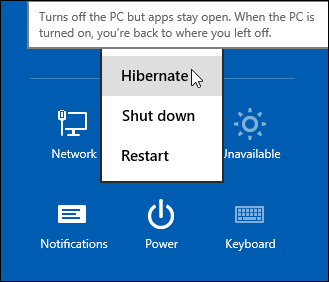
There’s an option that lets you save the contents of memory to a hibernation file and then shuts down the PC, so it uses no power at all. When you restart, Windows restores the system state from the hibernation file.

To enable or disable hibernation, open a Command Prompt window and enter the powercfg command with the -h switch. Type powercfg -h on to enable hibernation; substitute the word off to disable it.

Normally, the Hibernate option is hidden from the Shutdown menu. To make it visible, open Power Options in Control Panel and then click Choose What The Power Buttons Do. Under the Shutdown Settings heading, select the Hibernate checkbox to display it in the Power menu.

Have questions?

For More Tips & Info from Microsofts Cloud Solutions Partner!
Call us at: 856-745-9990 or visit: https://southjerseytechies.net/

South Jersey Techies, LL C is a full Managed Web and Technology Services Company providing IT Services, Website Design ServicesServer SupportNetwork ConsultingInternet PhonesCloud Solutions Provider and much more. Contact for More Information.

Windows Tip of the week: How to wipe a disk clean


Wipe a disk clean:

If you’re planning to dispose of a PC by giving it away, selling it, or discarding it, your top priority should be making sure that no personal information is left on the device. The same is true if you’re recycling a hard disk drive or USB flash drive.

The first step with a PC is to reinstall Windows, using the option to delete the existing partitions on the device and then do a clean install. For a secondary disk, you can use the Format command to erase any existing content. But that still leaves the possibility that some data will still be available in the erased space, where a determined spy could recover it using a disk utility.

The solution? Encrypt the disk before formatting it. Without a recovery key, any recovered data will be unreadable. The easiest way to accomplish this on the system drive is to open an elevated command prompt and run the following command:

cipher /w:c:

If you’re working with a secondary disk, substitute the drive letter for that drive.

The /w switch stands for wipe, and the result is the effective obliteration of every bit of data in unused disk space, leaving existing files untouched.

Have questions?

For More Tips & Info from Microsofts Cloud Solutions Partner!
Call us at: 856-745-9990 or visit: https://southjerseytechies.net/

South Jersey Techies, LL C is a full Managed Web and Technology Services Company providing IT Services, Website Design ServicesServer SupportNetwork ConsultingInternet PhonesCloud Solutions Provider and much more. Contact for More Information.

Windows Tip of the week: How to keep your desktop clutter-free

cluttered-desktop-screenshot

Clean up your desktop:

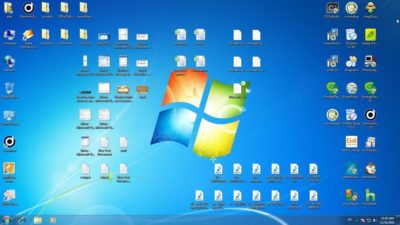
There’s nothing wrong with a messy desktop, but at some point you might need to impose a little order on the chaos. Cleaning the piles of paper and junk from your real-life office might take a weekend of labor. Fortunately, cleaning up the Windows desktop is considerably simpler.

If you like the convenience of using the Desktop folder as a temporary storage place, you can hide the clutter in seconds: Right-click any empty space on the desktop, click View, and then click to remove the checkmark from Show Desktop Icons.

All your desktop shortcuts and files are still there, but they’re no longer covering up your carefully chosen background image. To get to those files, open File Explorer and type Desktop in the address bar. Even quicker: Pin a Desktop shortcut to Start.

Other options on the desktop’s View menu allow you to change icon size (warning: The Large Icons setting is really large) and to align those icons to a grid so they snap neatly into position.

Have questions?

For More Tips & Info from Microsofts Cloud Solutions Partner!
Call us at: 856-745-9990 or visit: https://southjerseytechies.net/

South Jersey Techies, LL C is a full Managed Web and Technology Services Company providing IT Services, Website Design ServicesServer SupportNetwork ConsultingInternet PhonesCloud Solutions Provider and much more. Contact for More Information.

Windows Tip of the week: Keyboard shortcuts that work for all major browsers

browsers

Keyboard shortcuts that work with every major browser:

The major browsers might have different rendering engines and user interface designs, but they have at least a few things in common. And surprisingly, keyboard shortcuts are on that list. Regardless of whether you use Google Chrome, Mozilla Firefox, Internet Explorer, or the new Microsoft Edge, the following keyboard shortcuts will work:

Ctrl+D?Add current page to Bookmarks/Favorites

Ctrl+J?Open Downloads list

Ctrl+H?Show history

Ctrl+I?Show Bookmarks/Favorites

Ctrl+T?Open a new tab

Ctrl+W?Close the current tab

Ctrl+Shift+T?Reopen most recently closed tab

Have questions?

For More Tips & Info from Microsofts Cloud Solutions Partner!
Call us at: 856-745-9990 or visit: https://southjerseytechies.net/

South Jersey Techies, LL C is a full Managed Web and Technology Services Company providing IT Services, Website Design ServicesServer SupportNetwork ConsultingInternet PhonesCloud Solutions Provider and much more. Contact for More Information.

CALL US NOW!