Back to Top

Tech, Web, Cloud & Cabling Services

Category: Windows

Windows Category

KB4090913: Windows 10 Device Fix

We have had a number of users that were unable to use their keyboard or mouse on their Windows 10 computer. Microsoft released an update that addresses the issue yesterday.

Addresses an issue in which some USB devices and onboard devices, such as a built-in laptop camera, keyboard, or mouse, stop working. This may occur when the Windows Update servicing stack incorrectly skips installing the newer version of some critical drivers in the cumulative update and uninstalls the currently active drivers during maintenance.

Known issues in this update


Symptom

Workaround

Windows Update History reports that KB4054517 failed to install because of error 0x80070643.

Even though the update was successfully installed, Windows Update incorrectly reports that the update failed to install. Select Check for Updates to verify that there are no additional updates available. You can also type About your PC in the search box on the taskbar to verify that your device is using the expected OS build. Microsoft is working on a resolution and will provide an update in an upcoming release.

Because of an issue that affects some versions of antivirus software, this fix applies only to computers on which the antivirus ISV updated the ALLOW REGKEY.

Contact your antivirus manufacturer to verify that their software is compatible and that they have set the following REGKEY on the computer: Key=”HKEY_LOCAL_MACHINE”Subkey=”SOFTWARE\Microsoft\Windows\CurrentVersion\QualityCompat” Value Name=”cadca5fe-87d3-4b96-b7fb-a231484277cc” Type=”REG_DWORD” Data=”0x00000000″

After installing this update, some devices may fail to start, and return INACCESSIBLE_BOOT_DEVICE. This issue occurs when the windows update servicing stack incorrectly skips installing the newer version of some critical drivers in the cumulative update and uninstalls the currently active drivers during maintenance.

Microsoft is working on a resolution and will provide an update in an upcoming release. Workaround steps are available in KB4075150.

Because of an AD FS server issue that causes the WID AD FS database to become unusable after a restart, the AD FS service may fail to start.

There is no way to undo the database corruption. To return your AD FS server to a functional state, you must restore it from a backup.

How to get this update


This update will be downloaded and installed automatically from Windows Update. To get the stand-alone package for this update, go to the Microsoft Update Catalog website.

File information

For a list of the files that are provided in this update, download the file information for cumulative update 4090913.

Have any questions?

Call us at: 856-745-9990 or visit: https://southjerseytechies.net/

South Jersey Techies, LLC is a full Managed Web and Technology Services Company providing IT Services, Website Design ServicesServer SupportNetwork ConsultingInternet PhonesCloud Solutions Provider and much more. Contact for More Information.

To read this article in its entirety click here.

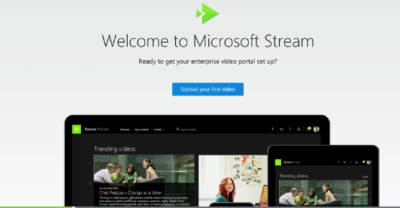
Microsoft Stream: The future of secure business video

Microsoft is previewing Stream, a new service for publishing and managing business videos. One day it will be the default video publishing system for Office 365.

MicrosoftStream


On July 18, 2016, Microsoft announced that a preview version of a new service called Microsoft Stream was available. Like most of you, I passed over the news with an indifferent “whatever” attitude. But later I realized that the news was actually more important than I had first thought.

Microsoft Stream fulfills a niche by providing a secure place to share videos created within, and for, businesses. By using a cloud-based service like this, businesses can reap the benefits of video communication without the threat of anonymous forum trolls trashing the brand or harassing employees.

Upload and forget it

While it is still a preview version, Microsoft Stream seems mostly ready for prime time. All you have to do is set up an account with a valid business email—One can use a personal domain email—and then log in. To test how easy Stream is to work with, you can make a 10-second video with a smartphone. Upload your video to Google Drive and then drag and drop it on the Stream portal website.

The web service processes the video while you give it a title and a brief description. Stream then asks if you are ready to publish and when you say yes, it publishes the video after a few seconds of grinding. It takes all of two minutes from start to finish and requires nothing more technical than knowing how to drag and drop a file.

Gone are the days of worrying about file format, aspect ratio, preferred playback applications, and all the other minutia we had to go through in years past to get a video published. You just take the video and then publish the video.

Video management

The key features of Microsoft Stream have to do with managing videos after they are published. Videos can be classified and placed into specific channels. Those channels can have their access restricted to certain individuals or certain groups, like a specific department, for instance. Access is controlled via the Azure Active Directory system.

According to the blog post, Microsoft plans to integrate Stream into the existing Office 365 Video system. Once the integration is complete, Microsoft Stream will be the default system for publishing video in an Office 365 environment.

There are plans in the works to add intelligent search to Stream by taking advantage of tools like audio transcription and face recognition. Developers are also working on ways to integrate Stream with other tools, like PowerApps, Microsoft Flow, and SharePoint.

Bottom line

We are aware of Microsoft Bookings and how that application attempts to cut out other third-party developers by integrating appointment scheduling for small businesses with the standard Office 365 subscription. By offering Stream, a secure video publishing and management service, Microsoft is attempting to execute the same strategy for video publishing.

Microsoft Stream gives businesses a secure system for publishing videos. Through Stream, businesses control access and manage who can see what and when they can see it. And because it is all handled internally, problems with anonymous forum trolls are likely to be reduced.

It seems that Microsoft’s grand strategy is to become the only software company a business needs—ever. The glaring application that Office 365 is missing now is a double-entry accounting system that includes payroll, accounts receivable, accounts payable, and the general ledger. Should we be looking for an announcement regarding those applications soon, Microsoft?

Have questions?

Get answers from Microsofts Cloud Solutions Partner!
Call us at: 856-745-9990 or visit: https://southjerseytechies.net/

South Jersey Techies, LL C is a full Managed Web and Technology Services Company providing IT Services, Website Design ServicesServer SupportNetwork ConsultingInternet PhonesCloud Solutions Provider and much more. Contact for More Information.

To read this article in its entirety click here.

Microsoft hints at September release of Windows 10’s next feature upgrade

Based on the current progress for Windows 10 version 1903, due to arrive next spring, it now looks like the fall update for the OS will arrive around Sept. 10 or Sept. 24.

Microsoft last week released the first preview of what will become Windows 10 version 1903, the opening feature upgrade of next year, slated to ship in the spring.

The debut of what Microsoft calls the “Skip Ahead” build for Windows 10 1903 also hints that the release of this fall’s upgrade, aka 1809, will take place in September. If so, it would be the first time since late-2015 that the actual delivery date matched the numerical label.

On July 25, Microsoft forked the 1809 preview of Windows 10 – as it’s done before when a feature upgrade approaches – so developers could continue to deliver betas for that build while also beginning to work on the next-in-line, 1903. (Microsoft uses a yymm labeling system to mark its Windows 10 feature upgrades; 1809 should indicate a September 2018 release, while 1903 would be a March 2019 release.)

When it forks preview code, Microsoft provides the even-further-in-the-future build, in this case, 1903, to Windows Insider participants who earlier volunteered for Skip Ahead. As the current feature upgrade gets close to release, Microsoft switches Skip Ahead users to the following upgrade, so that engineers can start collecting feedback on that version even as they keep polishing the one set to launch soon. The bulk of Insiders remain on the latter.

Think of the Skip Ahead debut as a warning bell, like the one rung at track meets when racers start the final lap: When Microsoft begins to ship Skip Ahead code, it’s close to wrapping up the impending feature upgrade.

In 2017, as Windows 10 1709 (aka “Fall Creators Update”) neared completion, Microsoft first forked the preview code and distributed a different build to Skip Aheaders on Aug. 31. Windows 10 1709 began its release cycle on Oct. 17, or 47 days later. With this year’s version 1803, Skip Ahead debuted Feb. 14, or 75 days before the April 30 release of that upgrade.

(Windows 10 1803’s original launch date, reportedly April 10 – which was one of two dates Computerworld had forecast in February – was postponed by 20 days after a deal-breaking bug was uncovered at nearly the last minute.)

For one estimate of the release date for Windows 10 1809, Computerworld added 47 days to July 25, arriving at Sept. 10. A second estimate was generated by adding 61 days – the average of the two previous Skip Ahead triggers – to July 25, resulting in a Sept. 24 rollout.

Because the last three feature upgrades launched on either a Monday or Tuesday – April 11, 2017 for version 1703; Oct. 17, 2017 for 1709; April 30, 2018 for 1803 – Sept. 10 or 11 would be the most likely release dates for 1809, absent a show-stopping problem like the bug before 1803’s launch. Computerworld’s alternate forecast would be September 24 or 25, also a Monday/Tuesday combination, because it would match the previous upgrades’ average time-between-Skip-Ahead-and-release.

If Microsoft does release Windows 10 1809 in September, it would be the first time since November 2015 that the company has matched delivery date and the upgrade’s label. Version 1511 debuted Nov. 10, 2015. The four subsequent upgrades, 1607, 1703, 1709 and 1803, all missed their release months by between 2 and 30 days. (Version 1607 came the nearest, releasing Aug. 2, 2016.)

Although Microsoft has never expressly tied itself to March and September release months – in a support document, it gives itself wiggle room by stating that feature upgrades will be released “twice per year, around March and September [emphasis added]” – the disconnect between release and numerical designation has always seemed odd.

Issuing feature upgrades during the appointed months would be a sign that Microsoft has gotten a better handle on the rapid development tempo it has at times struggled with executing. It would also be a step toward a more predictable schedule, which was the point of the pledge it made over a year ago to issue a pair of feature upgrades annually.

Windows 10 quick tips: 10 ways to speed up your PC

Want Windows 10 to run faster? Take a few minutes to try out these tips, and your machine will be zippier and less prone to performance and system issues.


1. Change your power settings

If you’re using Windows 10’s Power saver plan, you’re slowing down your PC. That plan reduces your PC’s performance in order to save energy. (Even desktop PCs typically have a Power saver plan.) Changing your power plan from Power saver to High performance or Balanced will give you an instant performance boost.

To do it, launch Control Panel, then select Hardware and Sound > Power Options. You’ll typically see two options: Balanced (recommended) and Power saver. (Depending on your make and model, you might see other plans here as well, including some branded by the manufacturer.) To see the High performance setting, click the down arrow by Show additional plans.
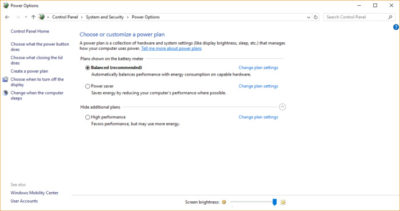
To change your power setting, simply choose the one you want, then exit Control Panel. High performance gives you the most oomph, but uses the most power; Balanced finds a median between power use and better performance; and Power saver does everything it can to give you as much battery life as possible. Desktop users have no reason to choose Power saver, and even laptop users should consider the Balanced option when unplugged and High performance when connected to a power source.


2. Disable programs that run on startup

One reason your Windows 10 PC may feel sluggish is you’ve got too many programs running in the background programs that you may never use, or only rarely use. Stop them from running, and your PC will run more smoothly.

Start by launching the Task Manager: Press Ctrl-Shift-Esc or right-click the lower-right corner of your screen and select Task Manager. If the Task Manager launches as a compact app with no tabs, click “More details” at the bottom of your screen. The Task Manager will then appear in all of its full-tabbed glory. There’s plenty you can do with it, but we’re going to focus only on killing unnecessary programs that run at startup.

Click the Startup tab. You’ll see a list of the programs and services that launch when you start Windows. Included on the list is each program’s name as well as its publisher, whether it’s enabled to run on startup, and its “Startup impact,” which is how much it slows down Windows 10 when the system starts up.

To stop a program or service from launching at startup, right-click it and select “Disable.” This doesn’t disable the program entirely; it only prevents it from launching at startup — you can always run the application after launch. Also, if you later decide you want it to launch at startup, you can just return to this area of the Task Manager, right-click the application and select “Enable.”
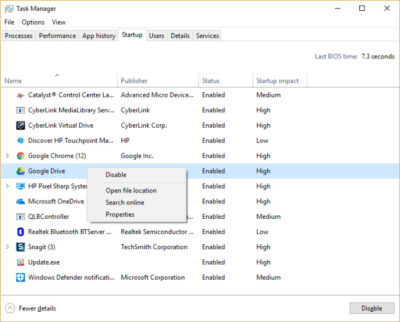
Many of the programs and services that run on startup may be familiar to you, like OneDrive or Evernote Clipper. But you may not recognize many of them. (Anyone who immediately knows what “bzbui.exe” is, please raise your hand. No fair Googling it first.)

The Task Manager helps you get information about unfamiliar programs. Right-click an item and select Properties for more information about it, including its location on your hard disk, whether it has a digital signature, and other information such as the version number, the file size and the last time it was modified.

You can also right-click the item and select “Open file location.” That opens File Explorer and takes it to the folder where the file is located, which may give you another clue about the program’s purpose.

Finally, and most helpfully, you can select “Search online” after you right-click. Bing will then launch with links to sites with information about the program or service.

If you’re really nervous about one of the listed applications, you can go to a site run by Reason Software called Should I Block It? and search for the file name. You’ll usually find very solid information about the program or service.

Now that you’ve selected all the programs that you want to disable at startup, the next time you restart your computer, the system will be a lot less concerned with unnecessary program.


3. Turn off search indexing

Windows 10 indexes your hard disk in the background, allowing you – in theory – to search your PC more quickly than if no indexing were being done. But slower PCs that use indexing can see a performance hit, and you can give them a speed boost by turning off indexing. Even if you have an SSD disk, turning off indexing can improve your speed as well, because the constant writing to disk that indexing does can eventually slow down SSDs.
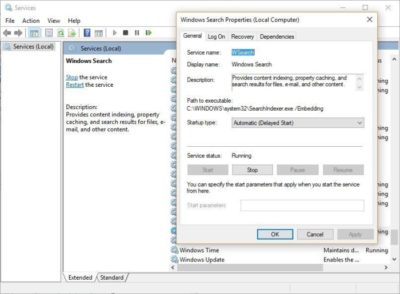
To get the maximum benefit in Windows 10, you need to turn indexing off completely. To do so, first type services.msc in the Start Menu search box, and click the Services result that come up. The Services app then appears. Scroll down to either Indexing Service or Windows Search in the list of services. Double-click it, and from the screen that appears, click Stop. Then reboot. Your searches may be slightly slower, although you may not notice the difference. But you should get an overall performance boost.

If you’d like, you can turn off indexing for only files in certain locations. To do this, first type index in the Start Menu search box, and click the Indexing Options result that appears. The Indexing Options page of Control Panel appears. Click the Modify button and you’ll see a list of locations that are being indexed, such as Microsoft Outlook, your personal files, and so on. Uncheck the boxes next to any location, and it will no longer be indexed.


4. Clean out your hard disk

If you’ve got a bloated hard disk filled with files you don’t need, you could be slowing down your PC. Cleaning it out can give you a speed boost. Windows 10 has a surprisingly useful built-in tool for doing this called Storage Sense. Go to Settings > System > Storage and at the top of the screen – in the Storage Sense section – move the toggle from Off to On. When you do this, Windows constantly monitors your PC, and deletes old junk files you no longer need; temporary files; files in the Downloads folder that haven’t been changed in a month; and old Recycle Bin files.

You can customize how Storage Sense works and also use it to free up even more space than it normally would. Underneath Storage Sense, click “Change how we free up space automatically.” From the screen that appears, you can change how often Storage Sense deletes files (every day, every week, every month or when Windows decides). You can also tell Storage Sense to delete files in your Download folder, depending on how long they’ve been there. And you can also set how long to wait to delete files in the Recycle Bin automatically.
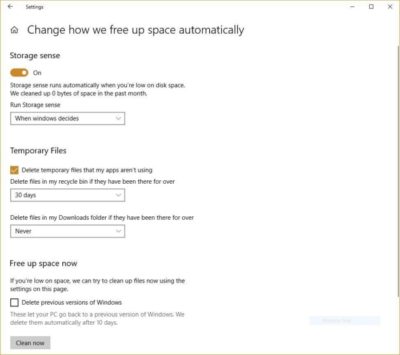
You can also delete old versions of Windows that might be hogging space. At the bottom of the screen, check the box next to “Delete previous versions of Windows.” Storage Sense will then delete old versions of Windows ten days after you’ve installed an upgrade. Note that if you do this, you won’t be able to revert to the older version of Windows.


5. Clean out your Registry

Under the Windows hood, the Registry tracks and controls just about everything about the way Windows works and looks. That includes information about where your programs are stored, which DLLs they use and share, what file types should be opened by which program or just about everything else.

But the Registry is a very messy thing. When you uninstall a program, for example, that program’s settings don’t always get cleaned up in the Registry. So over time, it can get filled with countless outdated settings of all types. And that can lead to system slowdowns.

Don’t even think of trying to clean any of this out yourself. It’s impossible. To do it, you need a Registry Cleaner. There are plenty available, some free and some paid. But there’s really no need to outright buy  one, because the free Auslogics Registry Cleaner does a solid job.

Before using Auslogics or any other Registry Cleaner, you should back up your Registry so you can restore it if anything goes wrong. (Auslogics Registry Cleaner does this for you as well, but it can’t hurt to have it backed up twice.) To do your own Registry backup, type regedit.ext in the search box, then press Enter. That runs the Registry editor.  From the File menu, select Export. From the screen that appears, make sure to choose the “All” option in the Export range section at the bottom of the screen. Then choose a file location and file name and click Save. To restore the Registry, open the Registry editor, select Import from the File menu, then open the file you saved.
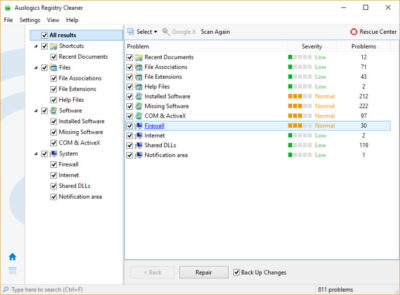
Now download, install and run Auslogics Registry Cleaner. On the left-hand side of the screen you can select the kinds of Registry issues you want to clean up – for example, File Associations, Internet or Fonts. I generally select them all.

Next tell it to scan the Registry for problems. To do that, click “Scan Now” and from a drop-down menu that appears select Scan. That lets you first examine the Registry problems it finds. If you instead choose “Scan and Repair,” it makes the fixes without you checking them.

It now scans your Registry for errors, then shows you what it found. It ranks the errors according to their severity, to help you decide which to fix. Click Repair when you’ve made your decision, and make sure that “Back up Changes” is checked, so you can restore the Registry easily if something goes wrong.


6. Disable shadows, animations and visual effects

Windows 10 has some nice eye candy — shadows, animations and visual effects. On fast, newer PCs, these don’t usually affect system performance. But on slower and older PCs, they can exact a performance hit.
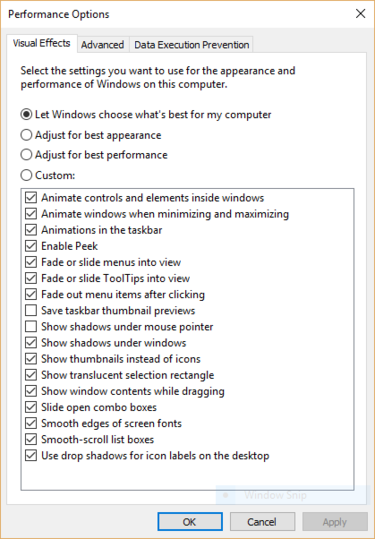
It’s easy to turn them off. In the Windows 10 search box type sysdm.cpl and press Enter. That launches the System Properties dialog box. Click the Advanced tab and click “Settings” in the Performance section. That brings you to the Performance Options dialog box. You’ll see a varied list of animations and special effects.

If you have time on your hands and love to tweak, you can turn individual ones on and off. These are the animations and special effects you’ll probably want to turn off, because they have the greatest effect on system performance:

  • Animate controls and elements inside windows
  • Animate windows when minimizing and maximizing
  • Animations in the taskbar
  • Fade or slide menus into view
  • Fade or slide ToolTips into view
  • Fade out menu items after clicking
  • Show shadows under windows

However, it’s probably a lot easier to just select “Adjust for best performance” at the top of the screen and then click OK. Windows 10 will then turn off the effects that slow down your system.


7. Launch the Windows troubleshooter
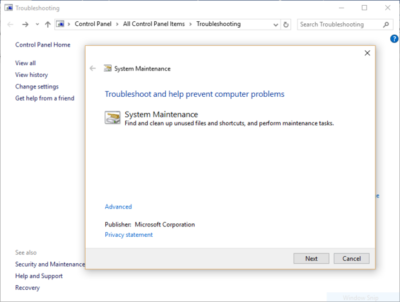
Windows 10 has a very useful, little-known tool that can sniff out performance problems and solve them. To launch it, run Control Panel and select System and Security > Security and Maintenance > Troubleshooting > Run maintenance tasks. A screen titled “Troubleshoot and help prevent computer problems” will appear. Click Next.

The troubleshooter will find files and shortcuts you don’t use, identify any performance and other issues on your PC, report them to you and then fix them. Note that you may get a message that says, “Try troubleshooting as an administrator.” If you have administrative rights to the PC, click it and the troubleshooter will launch and do its work.


8. Get help from the Performance Monitor

There’s a great tool in Windows 10 called the Performance Monitor that can, among other things, create a detailed performance report about your PC, detail any system and performance issues, and suggest fixes.

To get the report, type perfmon /report into your search box and press Enter. (Make sure there’s a space between “perfmon” and the slash mark.) The Resource and Performance Monitor launches and gathers information about your system. It will say that it will take 60 seconds, but I’ve found that it takes several minutes. When the Monitor finishes, it will launch an interactive report.

You’ll find a lot of extremely detailed information in the report, and it can take a lot of time to go through. Your best bet is to first look at the Warnings section, which details the biggest issues (if any) it found on your PC, such as problems with Windows, with drivers and so on. It also tells you how to fix each problem — for example, how to turn on a device that has been disabled.
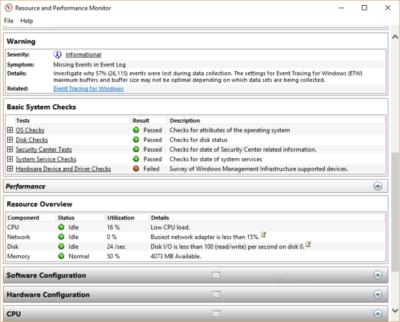
It is also worthwhile to scroll down to the Resource Overview section, where you’ll find an analysis of how well your CPU, network, disk and memory are performing. Each result is color-coded, with green meaning no problems, yellow meaning potential issues, and red showing a problem.

Beyond that, the Resource Overview also reports performance metrics and explanatory details. For example, for the CPU, it might show green and a utilization of 21%, with the details, “Normal CPU load.” Or for Memory, it might show yellow, with 62% utilization and the details, “1520 MB is available.” Based on what you get, you might want to do something about your hardware — for example, add more memory.


9. Kill bloatware

Sometimes the biggest factor slowing down your PC isn’t Windows 10 itself, but bloatware or adware that takes up CPU and system resources. Adware and bloatware are particularly insidious because they may have been installed by your computer’s manufacturer. You’d be amazed at how much more quickly your Windows 10 PC can run if you get rid of it.

First, run a system scan to find adware and malware. If you’ve already installed a security suite such as Norton Security or McAfee LiveSafe, you can use that. You can also use Windows 10’s built in anti-malware app — just type Windows Defender in the search box, press Enter, and then click Scan Now. Windows Defender will look for malware and remove any it finds.

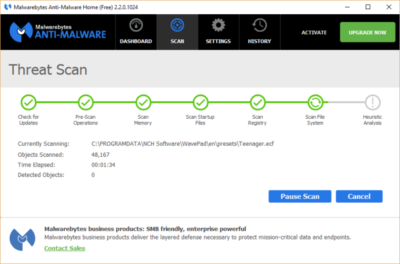
It’s a good idea to get a second opinion, though, so consider a free tool like Malwarebytes Anti-Malware. The free version scans for malware and removes what it finds; the paid version offers always-on protection to stop infections in the first place.

Now you can check for bloatware and get rid of it. Several free programs will do this for you; your best bet is to run several of them, because no single one will find all the bloatware on your PC. Good choices are the PC Decrapifier, Should I Remove It? and SlimComputer.
 

10. Shut down and restart Windows

Here’s one of IT’s not-quite-secret weapons for troubleshooting and speeding up a PC: Shut it down and restart it. Doing that clears out any excess use of RAM that otherwise can’t be cleared. It also kills processes that you might have set in motion and are no longer needed, but that continue running and slow your system. If your Windows 10 PC has turned sluggish over time for no apparent reason, you may be surprised at how much more quickly it will run when you do this.

Try just some of these tricks, and you’ll find that you’ve got a faster Windows 10 PC — and one that is less likely to have any reliability problems.


How to Upgrade to Windows 10

Windows 10 is now available as a free update. Here is what you can expect when you say “yes” to the update.

Here’s a step-by-step walkthrough of the upgrade process while upgrading Windows 8 machine to Windows 10.

Launch Windows 10 upgrade through Windows Update

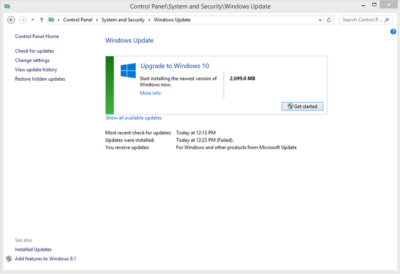
Look for the Update screen in Windows 8 and click the Check for Updates link. When the check is over, you will see the screen shown in Figure A.

Figure A

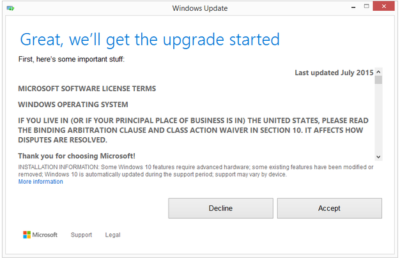
As you can see, it is a 2699.0 MB download. Click the Get Started button and then the screen shown in Figure B will appear.

Figure B

You may be able to get Windows 10 via a free update, but it still requires that you agree to a license/user agreement.

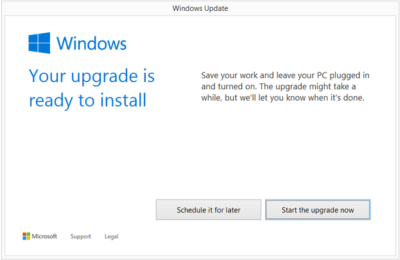
The next screen (Figure C) is very important. Updating takes about 2 hours depending upon the machine. If you cannot afford to be off your computer for that long, it may be a good idea to schedule a time when you can.

Figure C

Installation process

After you start the update process, your PC will immediately restart. From that point on you will just have to wait for the update to finish. During update the screen gets blank for over an hour, so please don’t panic and turn your PC during this seeming lack of activity.

Your PC may also restart several times during the update, but eventually you will reach a screen that asks if you want to do an Express Configuration or a Custom Configuration. Express configuration will be the best choice for most people.

Note that the update does take a bit of bandwidth, so it might be more efficient to update one PC at a time.

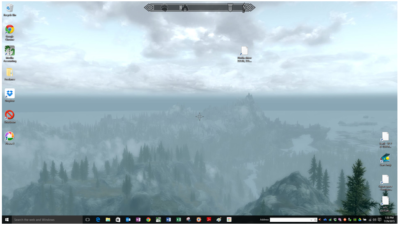
When the entire update procedure is complete, you will be presented with the Windows 10 desktop or tablet interface depending on your device as you can see in Figure D.

Figure D

There are new versions of OneDrive and the Snipping Tool in Windows 10. Of course, there is also the new web browser, Microsoft Edge, too.

Get Windows 10 without using Windows Update

If you would like to get Windows 10 without going through the update process, for a clean install for example, then you will have to download the Windows 10 ISO file.

If you have a Windows Vista or Windows XP PC you would like to update, you have to purchase Windows 10. Windows 10 Home will cost you $119, while Windows 10 Pro will cost $199.

As of July 29, 2015, most new devices will be available with either Windows 10 or Windows 8.1, which can be upgraded to Windows 10 for free. If your PC is more than a few years old, it might make more sense to spend money on a new device rather than to update an old one.

Have questions?

Get answers from Microsofts Cloud Solutions Partner!
Call us at: 856-745-9990 or visit: https://southjerseytechies.net/

South Jersey Techies, LLC is a full Managed Web and Technology Services Company providing IT Services, Website Design ServicesServer SupportNetwork ConsultingInternet PhonesCloud Solutions Provider and much more. Contact for More Information.

To read this article in its entirety click here.

When should businesses upgrade to Windows 10?

Looking at upgrading your business PCs to Windows 10 but not sure when to make the leap? Here are some issues to consider.

Business customers can often be years behind the state of the operating system art: right now most businesses are still running Windows 7, launched back in July 2009, having shown limited interest in Windows 8 which arrived in August 2012.Windows 10

Even when they buy new PCs, most companies today still downgrade them to Windows 7, so it’s usually home users that are first to take the plunge with the new software, whether they like it or not.

However, businesses may be significantly faster to adopt Windows 10, which arrives on 29 July (volume licensing customers will be able to download Windows 10 Enterprise and Windows 10 Education on Volume Licensing Service Center from 1 August) than previous versions of Microsoft’s operating system.

Part of the reason for the change is the huge public testing process – five million testers strong – that has preceded the arrival of Windows 10. As a result, the standard policy of waiting for the first service pack to arrive before rolling out a new OS is now longer the right one, says Stephen Kleynhans, research vice president at analyst Gartner.

However, that doesn’t mean firms should be full steam ahead with upgrades. “I’m not one who believes there is a need to rush to a new operating system. You want to let the ecosystem around the operating system mature a little bit before you jump right in,” he says.

Companies should wait until it’s clear if the line of business applications they use work happily with Windows 10, and whether they can find enough expertise to make sure any rollout is a smooth one. “All of that has to build up before you want to jump in and start running it in your production environment,” he said.

Kleynhans said businesses need to spend some time testing out Windows 10 in a controlled fashion: “Bring it into a lab, bring it into a test environment, let some folks run it for the rest of this year. Then, in 2016, get serious about it, start looking at it in a real test environment, start piloting it with some real users to see how it’s performing.”

He said that if all goes well companies should be ready to start deployments in the second half of 2016 or the beginning of 2017, depending on how large and complex their IT environment is.

“If you’re a large company nothing happens really fast. If you’re a small company the timeline is going to be a lot faster – if you’re testing with 10 people you might be testing with ten percent of the company.”

Starting the rollout a year to 18 months after the operating system is launched might seem like a long delay, but it would still be six months to a year faster than with previous upgrades.

Kleynhans said that it took most big companies 18 months of testing and remediation work before they were able to start rolling out Windows 7. In contrast, most companies will get Windows 10 testing and remediation done in less than six months.

The analyst said that some organizations are keen to get moving as soon as Windows 10 is available – such as those that are still using Windows XP or who have plans to deploy hybrid PC devices. But, for most companies, this will be too soon.

“There are pieces of the operating system targeted at the enterprise that we really haven’t had a chance to try out yet. You can’t consider significant production rollouts even in the most aggressive cases until later in the fall.”

He cited Windows Update for Business as a new tool that small and medium sized businesses will want to use, but that wasn’t part of the tech preview. There are also some other security components that haven’t been as broadly tested or available during the tech preview, he said.

As Ed Bott notes over at Tech Pro Research, other missing features will include the new unified sync client for OneDrive (the consumer cloud storage service) and OneDrive for Business (the cloud storage service for business Office 365 subscriptions). He predicts these will be wrapped up by late October, in time for Windows 10 PCs to hit the retail channel for the festive season.

Other factors to consider: at a prosaic level, the upgrade will inevitably cause disruption so don’t plan it for a busy time of year. If you’re in retail, starting the upgrade in November or December might be a career limiting decision for the CIO.

The state of your current infrastructure is another element to take into account. Gartner says that companies planning Windows 8.1 deployments should instead redirect their efforts toward earlier deployment of Windows 10.

“In almost all cases, enterprises currently planning to deploy Windows 8.1 should switch to Windows 10. Enterprises that already have Windows 8.1 deployed should continue with those deployments for the time being. Customers on Windows 7 with no plans for Windows 8.1 should begin evaluating Windows 10 for deployment in 2H16 or later,” the analyst firm said in a research note.

Equally, for some, the upgrade may never take place. David Gewirtz has no plans to upgrade any of his Windows 7 devices to Windows 10: “They work, they’re rock solid, and all their drivers are perfectly tuned to the hardware they’re running on,” he notes.

However long it takes enterprises to take the plunge, Windows 10 is likely to become widely adopted, if only because most firms will need to move off of Windows 7 eventually, while the relatively few who did move to Windows 8 will also update sooner rather than later. The pressures that forced companies to migrate off Windows XP and onto Windows 7 will eventually make them move from Windows 7 to Windows 10.

“Windows 7 comes to end of life in January 2020. That’s only four and half years away so you’re going to see the same sorts of pressures mount to get off of Windows 7. They need to go somewhere and they’ll go to Windows 10,” he said.

Have questions?

Get help from IT Experts/Microsofts Cloud Solutions Partner
Call us at: 856-745-9990 or visit: https://southjerseytechies.net/

South Jersey Techies, LLC is a full Managed Web and Technology Services Company providing IT Services, Website Design ServicesServer SupportNetwork ConsultingInternet PhonesCloud Solutions Provider and much more. Contact for More Information.

To read this article in its entirety click here.

Microsoft Surface: iPad knockoff for enterprise?

As I’ve said many times, I barely have any use for the new iPad. Most technologists I know feel the same way about tablets. However, most of us understand that we’re an anomaly. For tens of millions of people, using a tablet like the iPad is infinitely easier and less frustrating that dealing with a Windows laptop. That’s why tablets are eating the bottom out of the PC market, and the trend is accelerating.

Microsoft knows this. It also knows that an alarming number of companies are allowing their employees to use iPads and some are even running trials to hand out the new iPads to lots of highly mobile employees. What’s even worse for Microsoft is that most of these employees are loving it and are gladly chucking their Windows laptops aside.


While a lot of these employees will still periodically use Windows machines for some of their work, they’re using them less frequently and that means slower PC upgrades and less urgency to jump to Microsoft Windows 8. We’re still only talking about a fraction of the market — iPad will sell 60 million units in 2012 versus 400 million PCs, according to Gartner. Nevertheless, it has Microsoft freaked out because it’s been just a little over two years since the iPad debuted.

That’s a lot of disruption in a short period of time.

Of course, that brings us to the announcement of the Microsoft Surface tablet this week. Microsoft turned a lot of heads by revealing that it is going to build its own line of Microsoft Windows 8 tablet devices, à la Zune and Xbox. The hardware design for the Surface that Microsoft showed off on Monday was impressive enough to pique the interest of the tech press and the public.

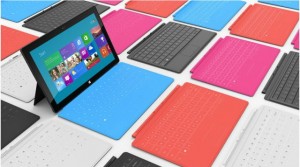
The tablet itself looks a lot like the new iPad and many of the high-end Android tablets, but there were a pair of features that stood out. The first was a sturdy built-in kickstand that stealthily pops out from the back of the tablet. The second is the magnetic cover that doubles as a keyboard and touchpad. When you put these two features together you suddenly have a tablet that easily doubles as a laptop. That eliminates the need for someone to have two devices.

Sure, the hardware of the Microsoft Surface Tablet echoes the iPad. But, Microsoft did use a special magnesium body that makes it light, thin, and durable. Sure, the cover of the Surface is a copy of the iPad’s Smart Cover, but Microsoft did innovate by adding a keyboard on the inside.

There’s plenty about the Microsoft Surface Tablet that screams, “iPad knockoff!” and the failure of Android tablets and the tablet debacles at RIM and HP show that trying to build an iPad competitor for the enterprise can be a brutal business.

Still, the Microsoft Surface Tablet has something going for it that the BlackBerry PlayBook, HP TouchPad, and the parade of Android tablets don’t — it’s going to automatically drop into the Windows networks that most Fortune 500 companies as well as a lot of small and medium businesses already have in place. That’s going to mean a lot fewer worries about compatibility, security, and data protection. In other words, it means a lot less work for IT on the backend and a smoother transition for many users

That doesn’t mean the Microsoft Surface Tablet is a slam dunk. There is still a big question about whether users are going to find the Windows 8 interface as easy to use as the new iPad. And, will spyware and malware become a big problem on the Surface since it’s running the full version of Windows? Above all, how much is it going to cost? The Pro version of the Microsoft Surface Tablet that most businesses are going to want is expected to cost about the same price as an Ultrabook — in the $800-$1000 range.

Ultimately, if you want to think of the Microsoft Surface Tablet as an iPad knockoff with a few key innovations and additions that make it a legitimate option for businesses, that’s fine. A lot of companies will be happy to pay a premium for an iPad look-alike that automatically fits into their current networks and is guaranteed to work with their existing applications.

To View Full Article Click Here

If Microsoft can’t install Windows 10 on your PC, it’ll give you a new one

Terms and conditions apply, but if the company’s stores can’t perform a same-day upgrade on your Windows 10-compatible PC, it’ll give you a new Dell notebook.

Windows 10- SJTechies

As the free Windows 10 upgrade offer nears its end on July 29, Microsoft is pulling out all the stops to convince users to upgrade. It’s even willing to give you a new laptop.

As spotted, Microsoft retail stores are offering to install Windows 10 on any compatible machine for free. If the store’s technicians don’t complete the upgrade by the end of that business day, they’ll give you a free 15-inch Dell Inspiron notebook.

The offer runs between now and July 29.

There is, of course, plenty of fine print. The free installation offer only applies to a single PC that’s capable of running Windows 10 (If it isn’t, you may be eligible for a $150 credit toward a new PC). You also need to check in your computer by noon for the offer to be valid. It’s also limited only to the US and Canada, so customers of the Microsoft Store in Sydney are out of luck.

The story behind the story: This free PC offer is the latest in a series of highly aggressive moves Microsoft has made to get its users onto Windows 10. Its deceptive, malware like pop-ups in Windows 7 and 8.1 effectively trick users into installing Windows 10, whether they want to or not. Windows 10 spiked in market share in June, seemingly as a result of these forced updates, but the company has since admitted that it likely won’t hit its goal of having Windows 10 on one billion devices by mid-2018.

Have questions?

Get answers from Microsofts Cloud Solutions Partner!
Call us at: 856-745-9990 or visit: https://southjerseytechies.net/

South Jersey Techies, LL C is a full Managed Web and Technology Services Company providing IT Services, Website Design ServicesServer SupportNetwork ConsultingInternet PhonesCloud Solutions Provider and much more. Contact for More Information.

To read this article in its entirety click here.

200M Now Use Windows 10 In The Enterprise

The latest numbers from the company show businesses are close to schedule to move away from Windows 7 before the older OS retires in early 2020.

Windows10 Enterprise

Microsoft on Tuesday said that some 200 million enterprise workers now run Windows 10, a sign that corporations and other businesses are close to schedule to scrub Windows 7 from their machines before that older OS retires in about 20 months, an analyst argued.

“The 200 million resonates with me, based on what I’m hearing from clients,” said Stephen Kleynhans of Gartner Research. Migrations to Windows 10, he added, are progressing “pretty aggressively.”

Joe Belfiore, a corporate vice president who leads the Windows 10 team, revealed the number at Microsoft’s Build developers conference Tuesday. “Right now, there are over 200 million people in corporate accounts using Windows 10,” Belfiore said as he claimed deployment is “really ramping up” in the enterprise. “We’ve seen that [Windows 10] adoption rate increase now at 79% year-over-year growth.”

The day before, Microsoft contended that “nearly 700 million” devices are running Windows 10 worldwide. On that basis, enterprises accounted for less than 30% of all copies of Windows 10.

(Although the two numbers – Belfiore’s 200 million people using Windows 10 in corporate settings and Microsoft’s 700 million devices powered by the operating system – measured two different things, it’s not uncommon for Microsoft to obfuscate this way to prevent direct comparisons. In actuality, because Microsoft typically sells licenses on a per user basis, with multiple devices allowed for each user, 200 million people may be using more than that number of Windows 10 devices.)

While neither the percentage nor the 200 million are to be sneezed at, the former is significantly less than the average overall for commercial PCs, which have historically accounted for more than half – 55% has been an often-cited figure – of all personal computers.

And while Kleynhans did not dispute Microsoft’s claim of 200 people running Windows 10 in the enterprise, he sounded a bit disappointed in the number. “Is it a low number? It’s a little behind where I thought it would be,” Kleynhans said, noting that he expected it to be around 250 million by this point, perhaps even close to 300 million.

That 2009 operating system will fall off Microsoft’s support list on Jan. 14, 2020, meaning that while Windows 7 will continue to work as before, the Redmond, Wash. will stop distributing security updates to it.

It’s unrealistic to expect that all commercial customers will have purged Windows 7 by the retirement date, Kleynhans said, pointing out that he has recently spoken with clients who still run some instances of Windows XP (retired from support in 2014) and even Windows 98 (2006).

“What we [Gartner] expect is that enterprises will get to the 85%-90% level by the deadline,” Kleynhans said of the percentage of corporate devices shifted to Windows 7, “maybe even a little higher than that.” Nothing that’s happened has changed that estimate, he added.

“There are always laggards,” Kleynhans said.

According to other metrics, there may be a considerable number of them.

Estimates from analytics vendors, including U.S.-based Net Applications, which measure user and usage shares, signal that a large resorvoir of Windows 7 users will remain after the operating system’s retirement in 20 months. Net Applications’ latest data, for example, drove a Computerworld forecast that of the world’s Windows personal computers – all the PCs, not just those in the enterprise – 42% would still be running Windows 7 in January 2020, a much larger percentage than the 29% powered by Windows XP when that edition fell off the support list in April 2014.

In the end, large organizations will do what it takes to get off Windows 7 and onto Windows 10 by the former’s support cut-off date. The 200 million touted by Belfiore this week will be quite different a year from now, Kleynhans was certain.

“The speed with which I see Windows 10 moving now, it’s not going to be an issue,” he said.

Windows 10 deployment is, like previous iterations of the OS, on a timetable not of its own making. Instead, because of the vagarities of Microsoft’s historical release schedule and corporate acceptance (or rejection) of some editions, there is a clock ticking on Windows 10 because of the impending retirement of the current corporate standard, Windows 7.

Have questions?

Get answers from Microsofts Cloud Solutions Partner!
Call us at: 856-745-9990 or visit: https://southjerseytechies.net/

South Jersey Techies, LL C is a full Managed Web and Technology Services Company providing IT Services, Website Design ServicesServer SupportNetwork ConsultingInternet PhonesCloud Solutions Provider and much more. Contact for More Information.


Microsoft IIS: Disabling the SSL v3 Protocol


Depending on how your Windows servers are configured, you may need to disable SSL v3.

Note that older versions of Internet Explorer may not have the TLS protocol enabled by default. If you disable SSL versions 2.0 and 3.0, the older versions of Internet Explorer will need to enable the TLS protocol before they can connect to your site.

For a Simpler Way to Disable the SSL v3 Protocol:

DigiCert is not responsible for any complications or problems if you decide to use this .zip file to disable the SSL v3 protocol on your server.

  1. Log into your server as a user with Administrator privileges.
  2. Download DisableSSL3.zip, extract the .zip file contents, and then double-click DisableSSL3.reg.
  3. In the Registry Editor caution window, click Yes.
  4. Restart server.

If you prefer to do it yourself, follow the steps in the instruction below.

Microsoft IIS: How to Disable the SSL v3 Protocol

  1. Open the Registry Editor and run it as administrator.For example, in Windows 2012:
    1. On the Start screen type regedit.exe.
    2. Right-click on regedit.exe and click Run as administrator.
  2. In the Registry Editor window, go to:HKEY_LOCAL_MACHINE\SYSTEM\CurrentControlSet\Control\SecurityProviders\Schannel\Protocols\
  3. In the navigation tree, right-click on Protocols, and in the pop-up menu, click New > Key.
  4. Name the key, SSL 3.0.
  5. In the navigation tree, right-click on the new SSL 3.0 key that you just created, and in the pop-up menu, click New > Key.
  6. Name the key, Client.
  7. In the navigation tree, right-click on the new SSL 3.0 key again, and in the pop-up menu, click New > Key.
  8. Name the key, Server.
  9. In the navigation tree, under SSL 3.0, right-click on Client, and in the pop-up menu, click New > DWORD (32-bit) Value.
  10. Name the value DisabledByDefault.
  11. In the navigation tree, under SSL 3.0, select Client and then, in the right pane, double-click the DisabledByDefault DWORD value.Windows Registry Key
  12. In the Edit DWORD (32-bit) Value window, in the Value Data box change the value to 1 and then, click OK.
  13. In the navigation tree, under SSL 3.0, right-click on Server, and in the pop-up menu, click New > DWORD (32-bit) Value.
  14. Name the value Enabled.
  15. In the navigation tree, under SSL 3.0, select Server and then, in the right pane, double-click the Enabled DWORD value.
  16. In the Edit DWORD (32-bit) Value window, in the Value Data box leave the value at 0 and then, click OK.
  17. Restart your Windows server.You have successfully disabled the SSL v3 protocol.

For instructions about disabling browser support for the SSL v3 protocol, see Disabling Browser Support for the SSL 3.0.


CALL US NOW!